Workflow Builder: Resize and Expand Sidebars
The Workflow Builder resize and expand sidebars enhancement lets you adjust how much screen space is dedicated to your workflow configuration panels. You can drag the action or trigger sidebar to the width you prefer, or expand any action or trigger to full screen when you need a focused, distraction-free editing experience.
These controls are designed to support different screen sizes and working styles, whether you are quickly editing a simple step or configuring long emails, forms, or actions with many fields.
Key Benefits of Workflow Builder Sidebar Controls
Understanding the advantages of sidebar resize and expand controls helps you decide when to adjust your layout so you can work faster and with fewer mistakes.
Resizing the Action and Trigger Sidebars
Resizing the action and trigger sidebars gives you granular control over how much room the configuration panel uses versus the workflow canvas. This is especially useful when you're toggling between quick edits and more detailed configuration work.
The action sidebar where you configure workflow steps like emails, SMS, conditions, webhooks, and more.
The trigger sidebar where you configure what starts your workflow, using any available workflow trigger.
The left-hand workflow sidebar that contains workflow-level features and tools.
The sidebar width can be dragged left or right to expand or shrink the configuration area.
The width respects your screen size, so you can open it wide on large monitors or keep it compact on smaller displays.
The canvas area dynamically adjusts as you resize, helping you find a comfortable balance between builder view and configuration detail.
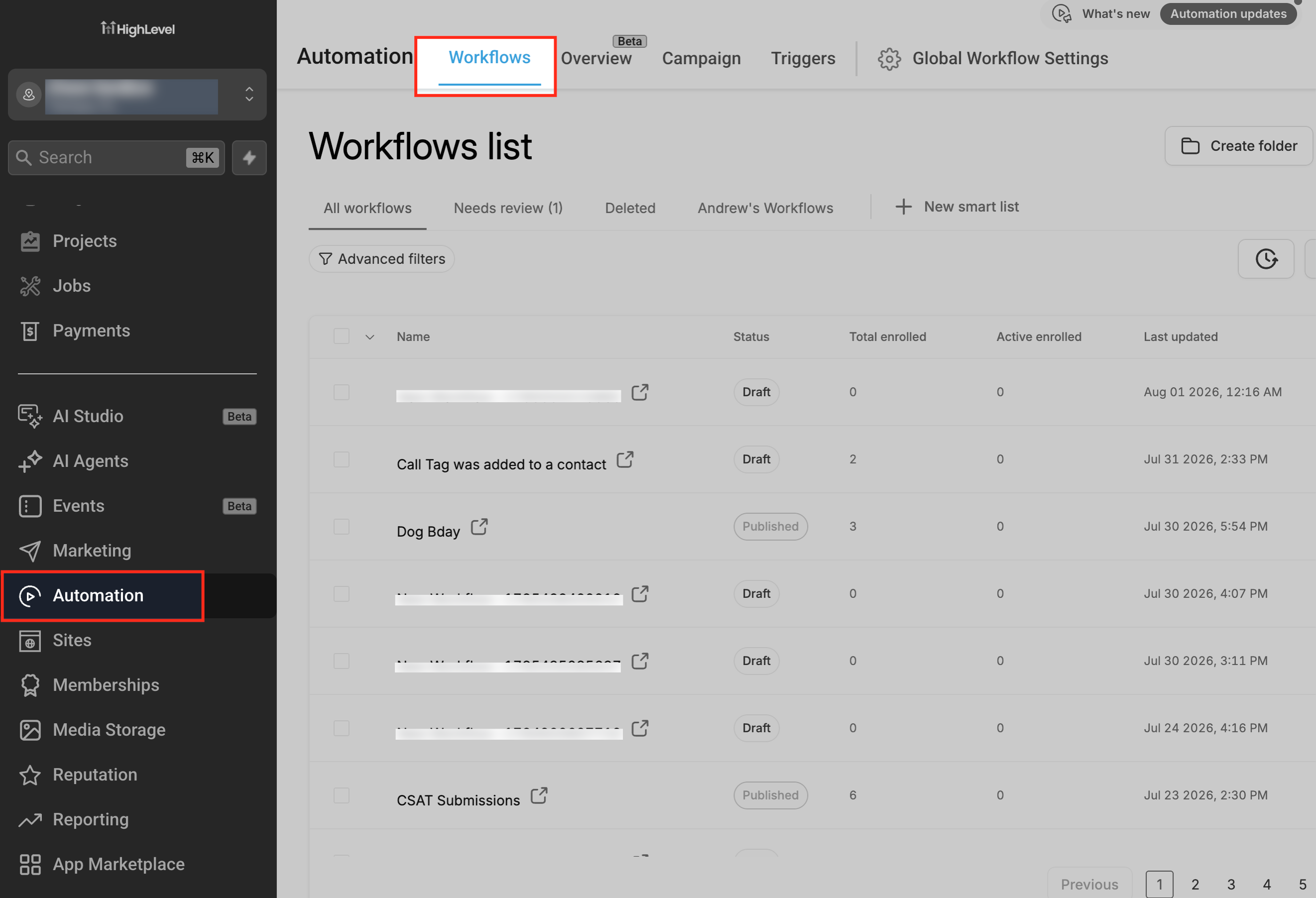
Go to Automations → Workflows and open any workflow in the builder.
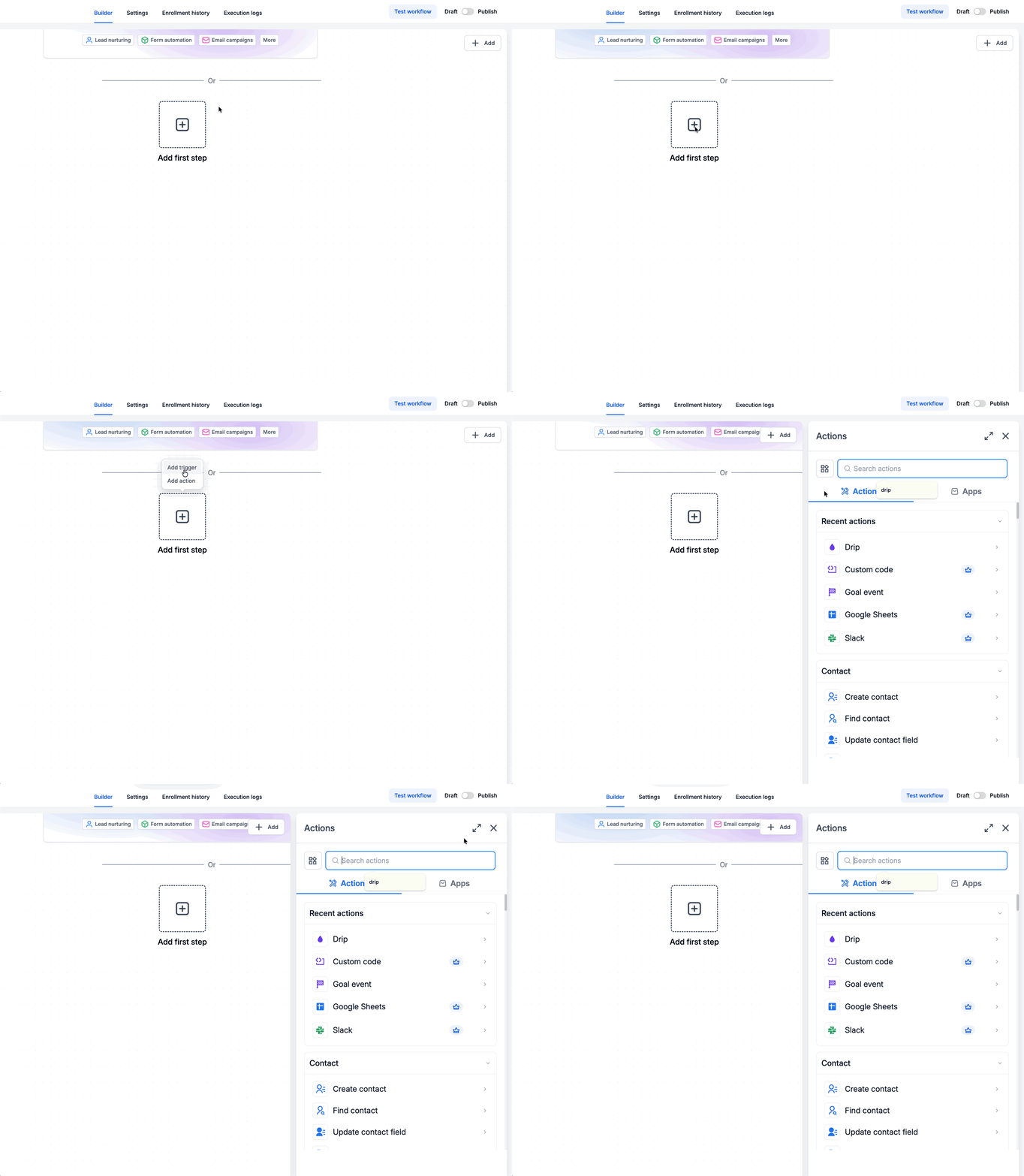
Click any trigger or action to open its configuration sidebar.
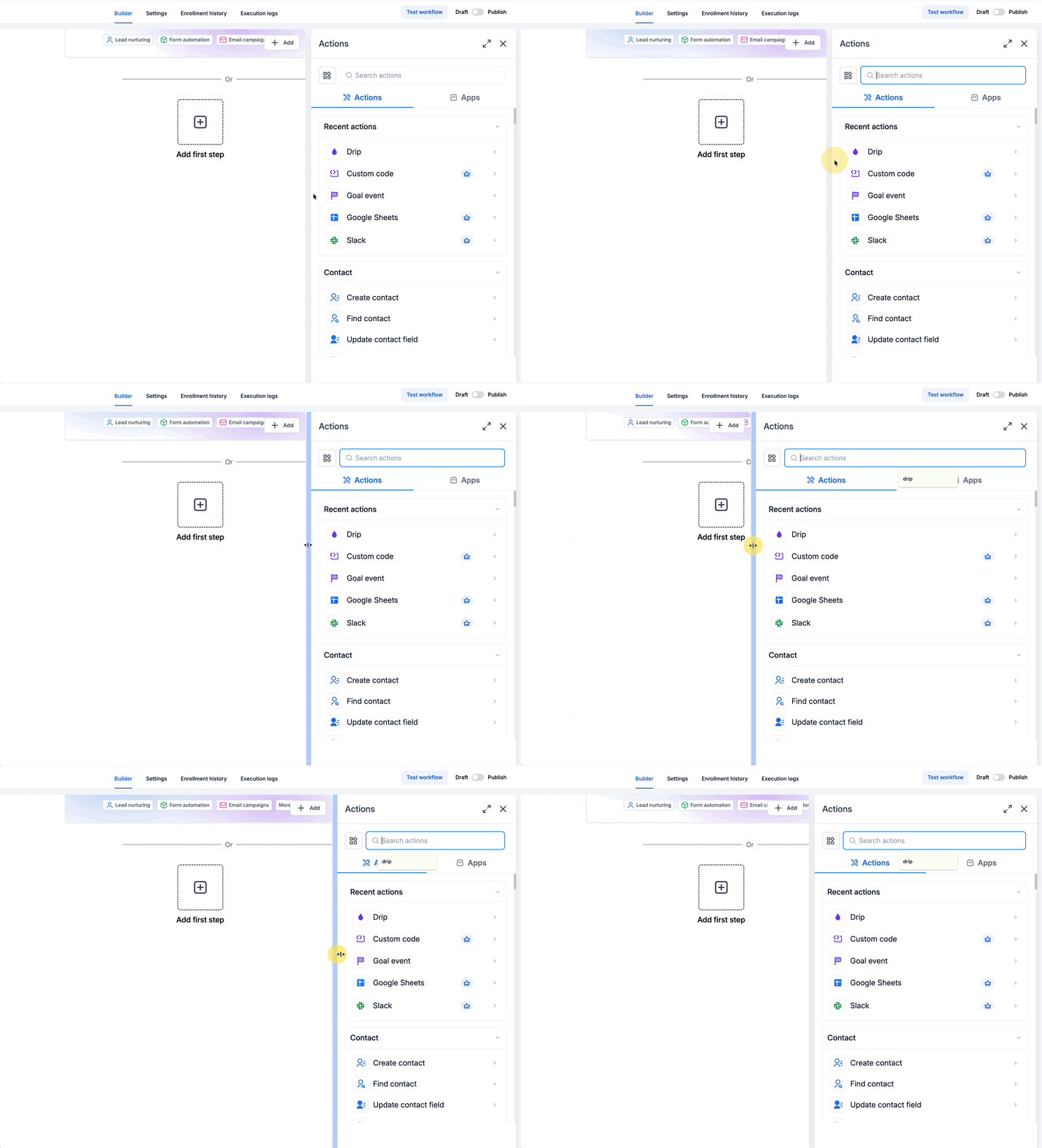
Move your mouse to the inner edge of the configuration sidebar (the border between the sidebar and the canvas).
When the cursor changes to a horizontal resize indicator, click and drag left or right:
• Drag right to widen the sidebar and give yourself more room to read and edit fields.
• Drag left to narrow the sidebar and give more space back to the canvas.
Release the mouse when the sidebar reaches your preferred width.
Widen the sidebar when editing long-form email content, multi-step forms, or actions with lots of configuration fields so you can see more at once.
Narrow the sidebar when you're mapping out the workflow structure and need more canvas space for viewing or rearranging nodes—especially in Advanced Builder.
Combine resizing with Keyboard Shortcuts in Workflow Builder to navigate and edit quickly as you adjust your layout.
Expanding Actions and Triggers to Full Screen
Full-screen expansion allows you to transform any action or trigger configuration into a large, dedicated workspace. This helps you focus on the details of a single step without feeling constrained by the sidebar.
Email actions with rich content and advanced personalization.
Message-based actions (SMS, WhatsApp, etc.) where you're fine-tuning wording, timing, and custom values.
Form-related steps that include multiple fields, conditions, or advanced settings.
Complex triggers with multiple filters, conditions, or exclusions.
Any action or trigger can be expanded to full screen from its configuration view.
The configuration panel uses the full browser window, making text and inputs easier to read and edit.
When you exit full-screen mode, you're brought back to the standard builder layout with your changes intact.
Open a workflow from Automations → Workflows.
Click on an action or trigger node to open its sidebar configuration.
In the configuration panel, use the expand control for that step to switch to full-screen mode.
Review and edit all fields with the extra screen real estate.
When finished, use the close or collapse control to return to the standard sidebar view and canvas layout.
Use full screen when writing long emails or detailed messages so you can see more of your content without constant scrolling.
Expand complex triggers when you're working with multiple conditions or filters, so you can double-check every setting before publishing.
Pair full-screen edits with tools like Workflow Builder: Find & Replace Option to quickly search for custom values, tags, or phrases in your configuration.
Using Sidebar Controls Across Workflow Features
Sidebar resize and expansion work alongside other Workflow Builder improvements, giving you a cohesive and flexible editing environment for both Standard and Advanced builders.
Actions and triggers: Any step in your workflow that opens a configuration panel can take advantage of resizing and expansion.
Left-hand workflow tools: Features available in the left sidebar can also benefit from adjustable widths, making it easier to use settings and supporting panels.
Use Workflow Switcher in HighLevel to move between workflows, then resize or expand sidebars in each workflow as needed.
Combine these layout controls with Undo, Redo & Recent Changes in Workflow Builder for safe experimentation as you fine-tune complex steps.
When building from scratch or with Workflow AI Builder, you can still rely on resizing and expansion for fine-grained edits after AI generates your initial flow.
How to Setup Workflow Builder Sidebar Resize & Expand
Getting value from sidebar controls doesn't require extra configuration; you just need to know how to access them while you build. These steps walk you through using resize and expand from the moment you open a workflow.
Navigate to Automations → Workflows in your sub-account.
Open an existing workflow or create a new one (Standard or Advanced builder).
Click any trigger at the top of your workflow, or an action node on the canvas or list to open its configuration sidebar.
Confirm that the right-side (or left-side) configuration panel is visible.
Hover over the inner edge of the configuration sidebar until the cursor indicates you can resize horizontally.
Click and drag left or right:
• Drag right to expand the panel and view more settings at once.
• Drag left to shrink the panel and free up more space for the workflow layout.
Release the mouse to lock in your preferred width.
With the configuration sidebar open, locate the expand control for that step.
Activate expand mode to switch the current action or trigger into a full-screen configuration view.
Make your edits, review all fields, and scroll as needed within the full-screen layout.
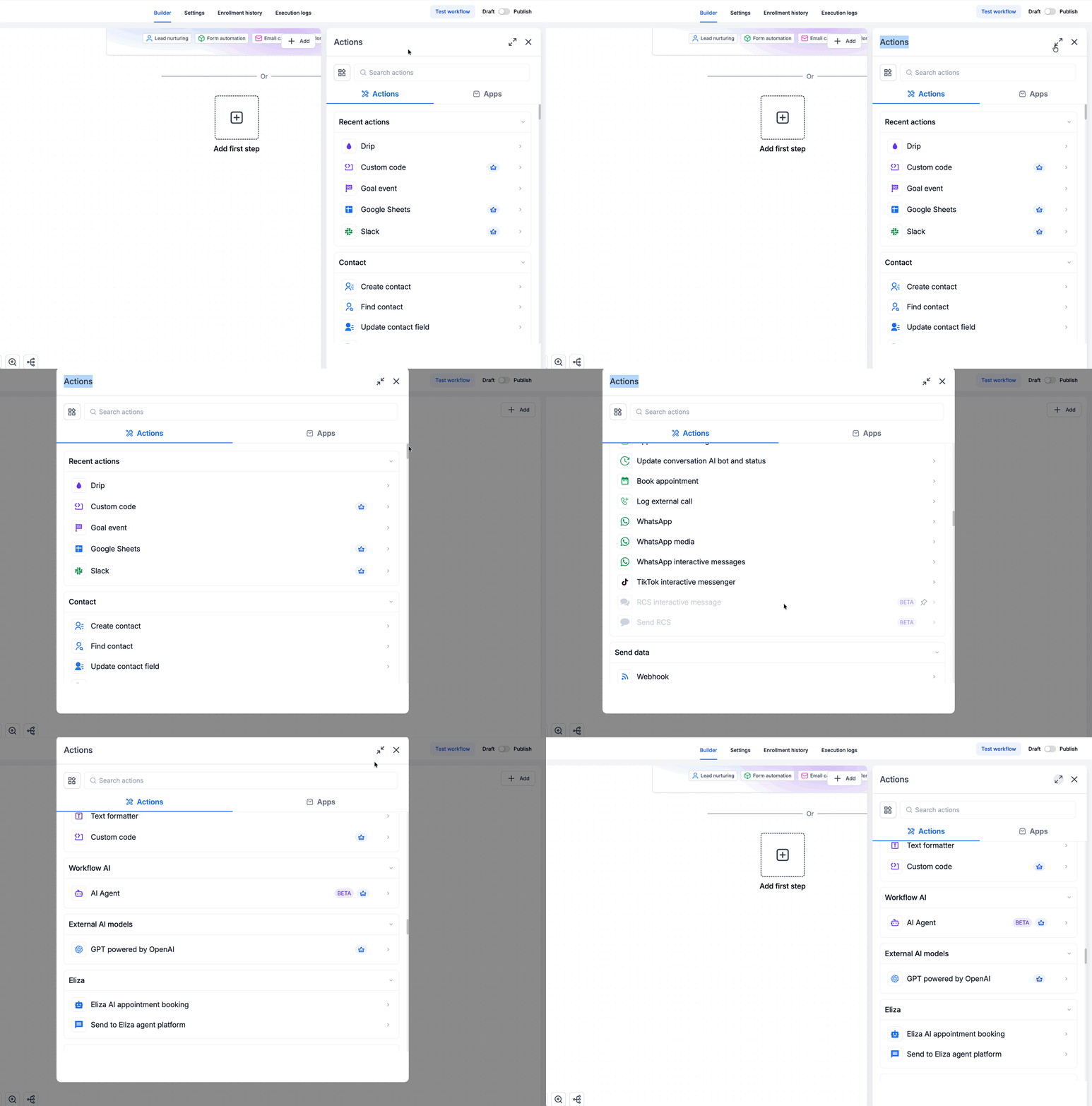
Use the close or collapse control in the full-screen view to return to the standard sidebar layout.
Continue editing the workflow, resizing sidebars or expanding other steps as needed.
Workflow Builder's auto-save keeps your edits in draft as you work.
Use Publish and Version History or Recent Changes to control when updates go live and roll back if necessary.
Frequently Asked Questions
Was this article helpful?
That’s Great!
Thank you for your feedback
Sorry! We couldn't be helpful
Thank you for your feedback
Feedback sent
We appreciate your effort and will try to fix the article