After your A2P brand and campaign are approved, each applicable phone number must be associated with the approved campaign before it can use the registered messaging route. Linking the number helps ensure compliant SMS and MMS delivery through a 10-digit local number. This process is also useful when you purchase an additional number or encounter SMS error 30034.
Important: You must have successfully completed the A2P Brand and Campaign submission process before linking a number to a campaign. For more details on how to submit a campaign, see What is A2P 10DLCTABLE OF CONTENTS
- What Is A2P Campaign Linking?
- Requirements Before Linking a Phone Number
- How to Link a Phone Number to an Approved A2P Campaign
- Troubleshooting Error 30034
- Frequently Asked Questions
- Related Articles
What Is Linking Phone Number to A2P Campaign?
A2P campaign linking associates a specific phone number with an approved A2P 10DLC campaign. This connection tells carriers which registered business and messaging use case apply to messages sent from that number.
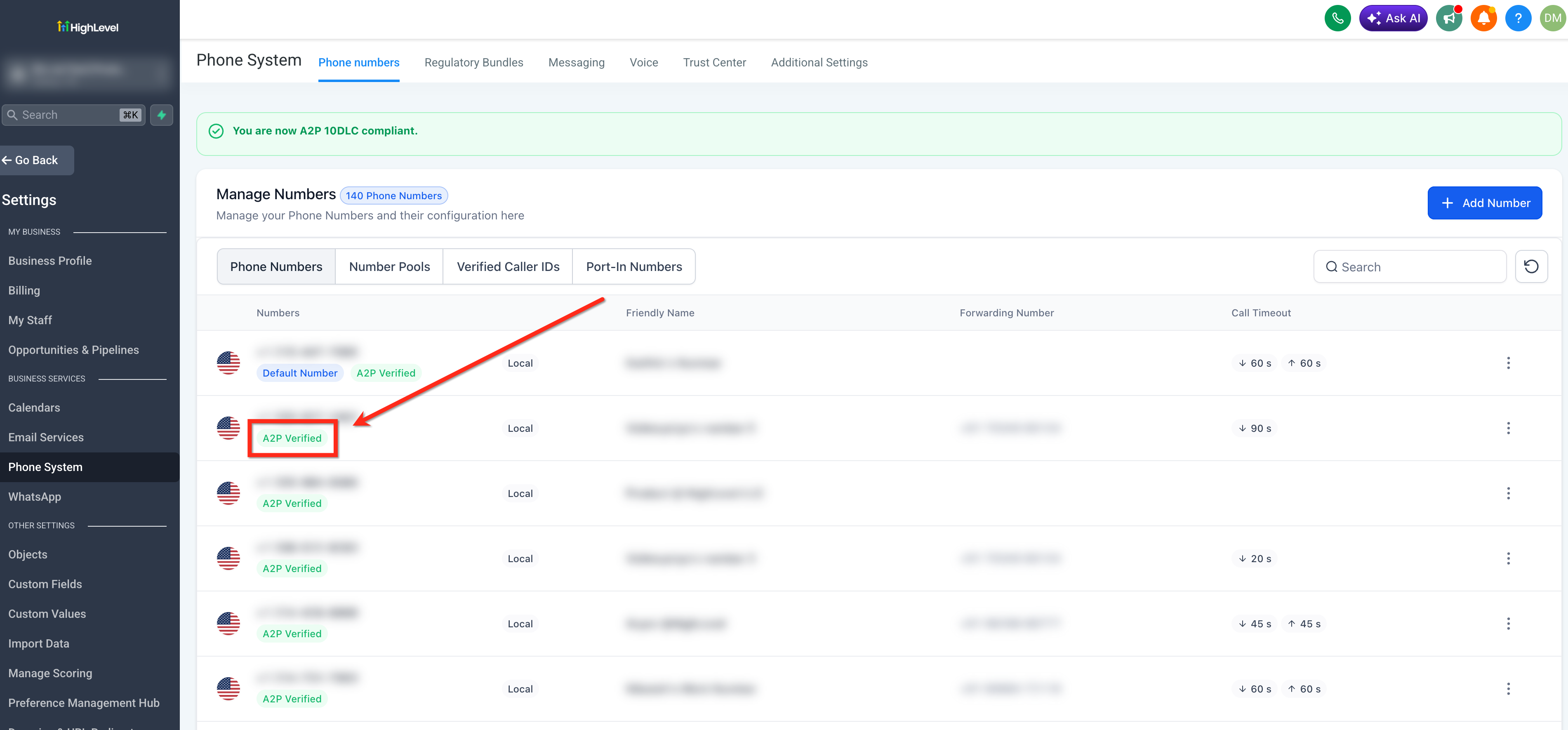
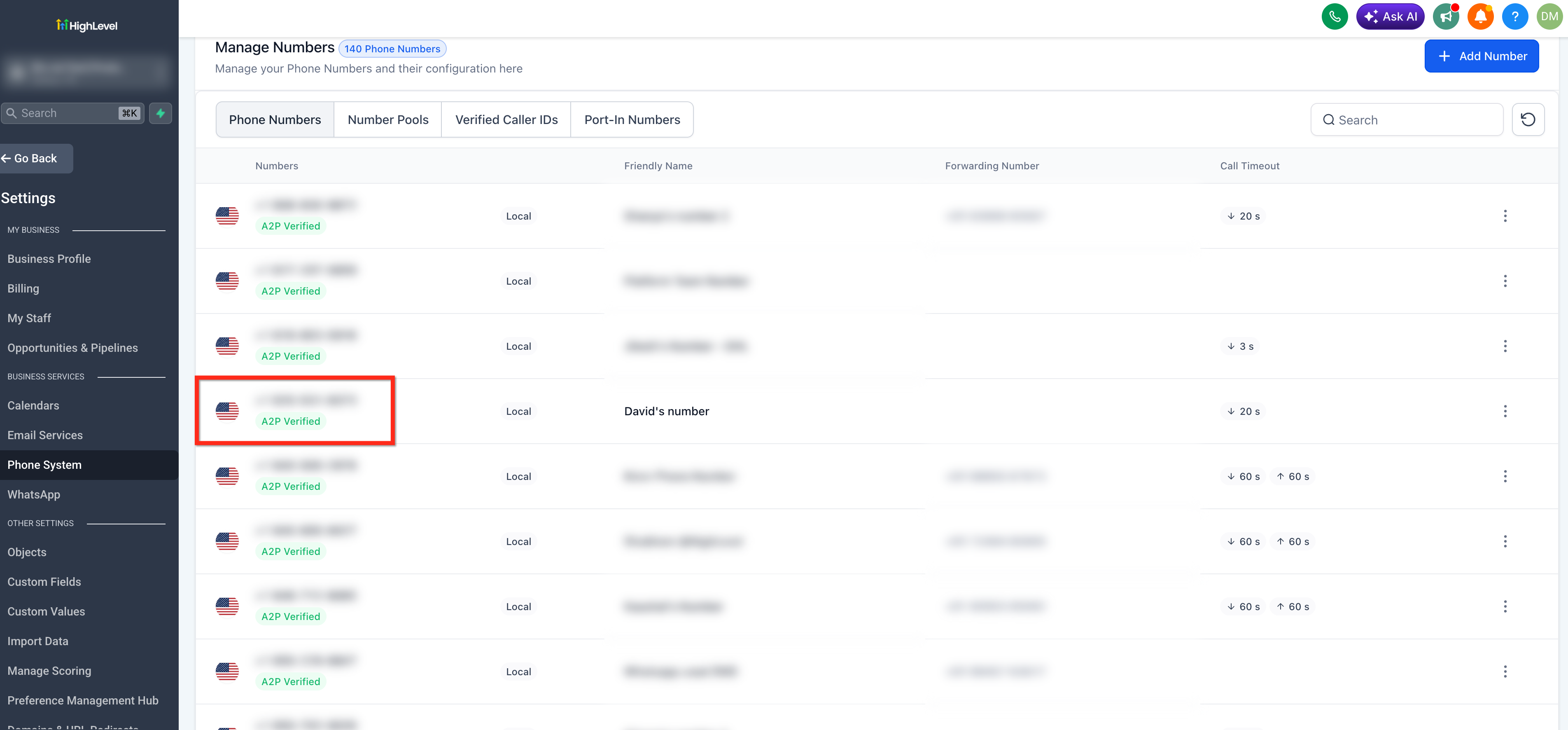
A phone number may be available in HighLevel without being linked to your approved campaign. When the association is complete, the number displays an A2P Verified label on the Phone Numbers page as shown in the screenshot below.
A2P 10DLC registration applies to business messaging through applicable US 10-digit local numbers. Toll-free phone numbers do not use A2P campaign linking and follow a separate verification process.
Requirements Before Linking a Phone Number
Campaign linking is available after the required registration steps have been completed. Confirming these prerequisites prevents you from attempting to link a number to a campaign that is not ready or not eligible for the number setup.
Before continuing, verify that:
- Your A2P brand has been approved.
- Your A2P campaign has been approved.
- The phone number is an applicable 10-digit local number.
Need help registering your A2P brand or campaign? See What is A2P 10 DLC: Brand and Campaign Registration
Important: Sole Proprietor brands are limited to 1 campaign and 1 phone number per campaign. If a Sole Proprietor sub-account has two or more local numbers, SMS error 30034 may occur even when one number was previously approved. Check the registration type in Settings > Phone System > Trust Center before linking additional local numbers.How to Link a Phone Number to an Approved A2P Campaign
Properly linking the number completes the association between the sending number and its approved campaign. Repeat these steps for each additional applicable number that needs to use the campaign.
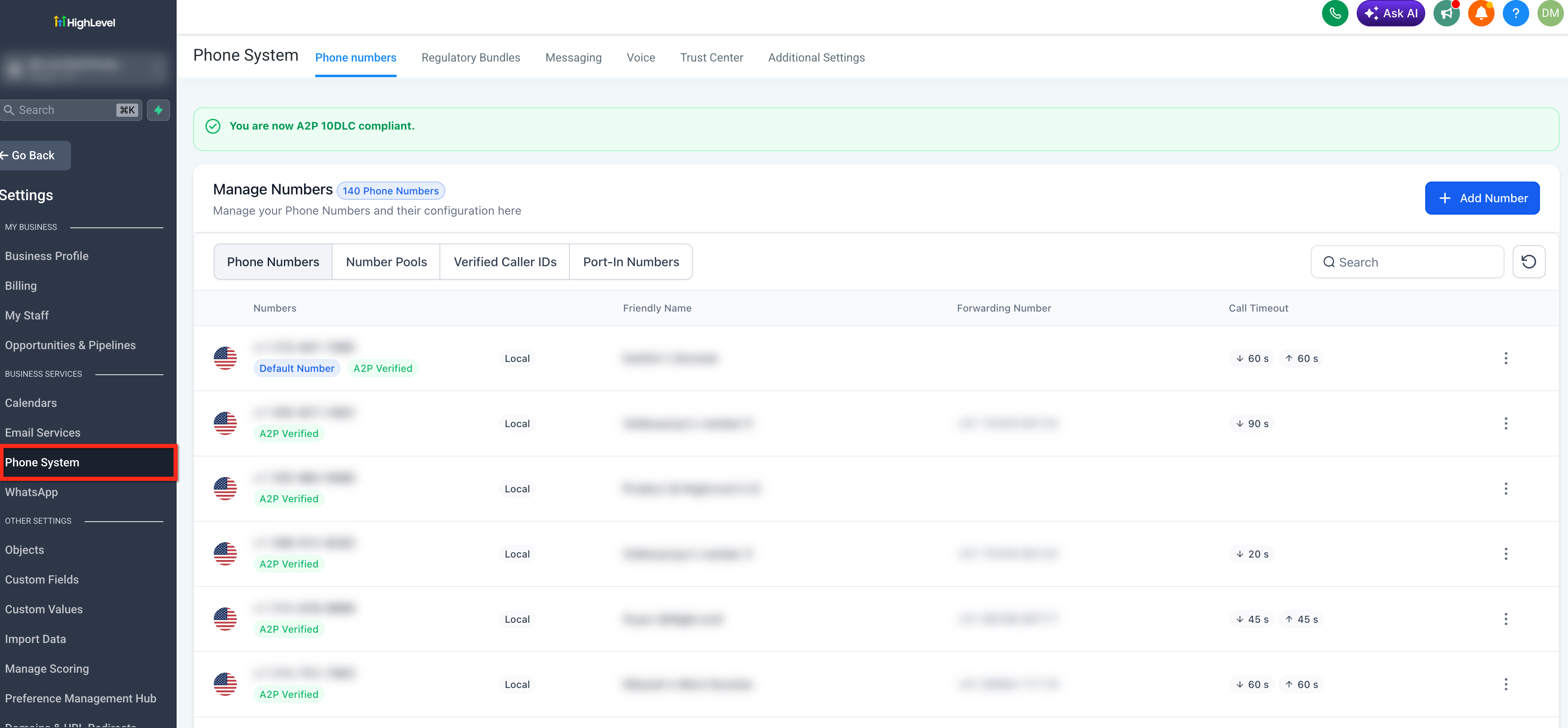
- Go to Settings > Phone System > Phone Numbers.
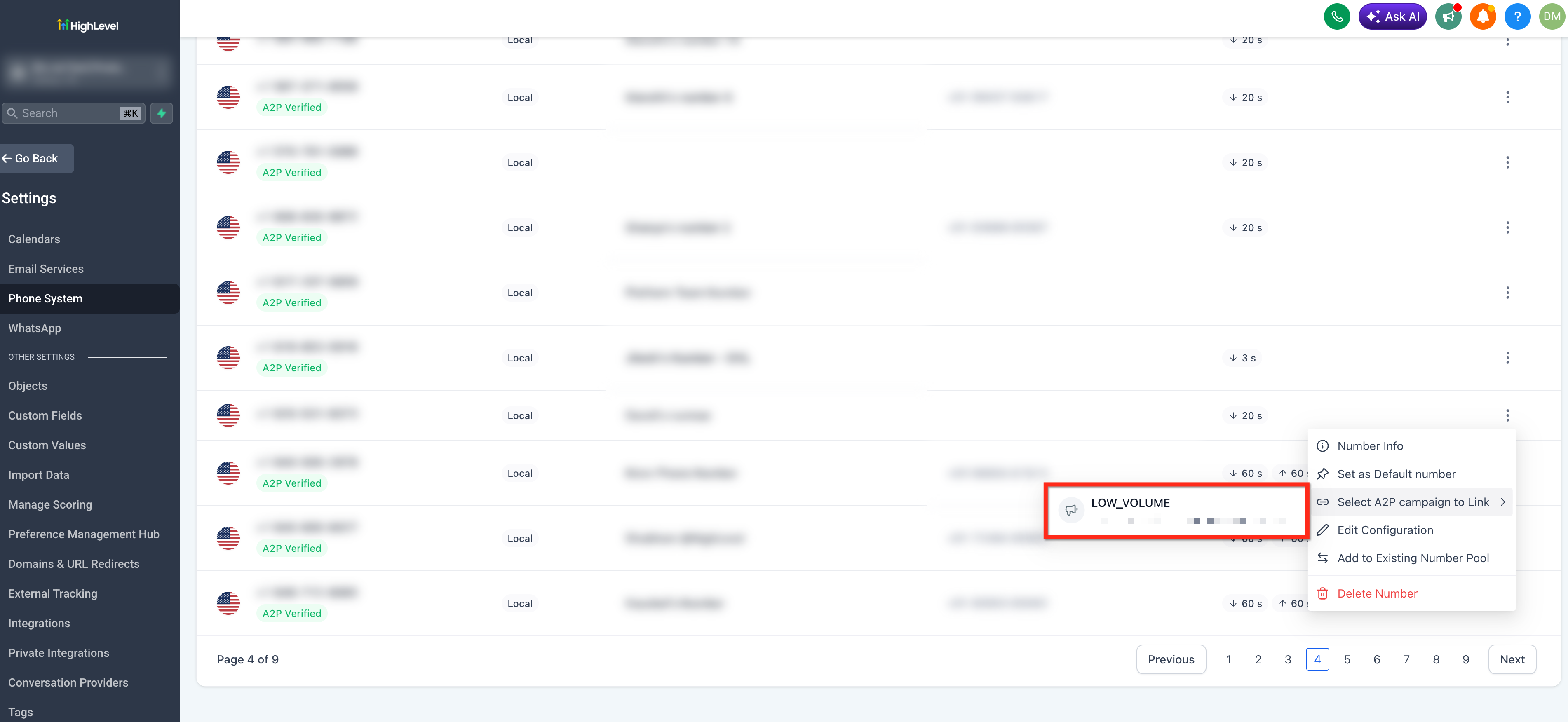
- Locate the phone number that you would like to link to an A2P campaign and select the three-dot menu on the right side of that number.
If this number is not yet added to an A2P campaign, it will not have the green A2P Verified badge.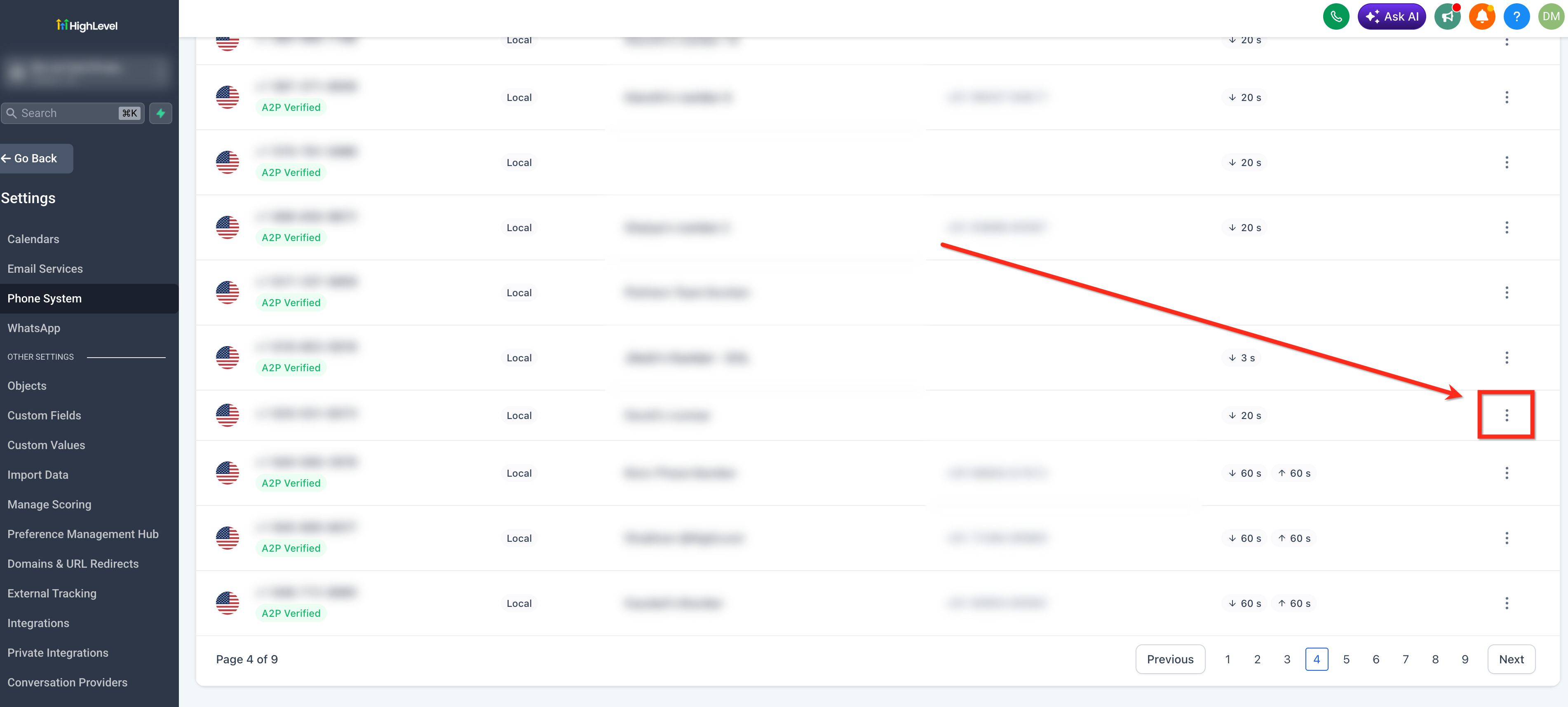
- Click on Select A2P campaign to Link.
If this option is not available, check that your A2P Brand and Campaign have been approved. If they have not been approved, this option will not show.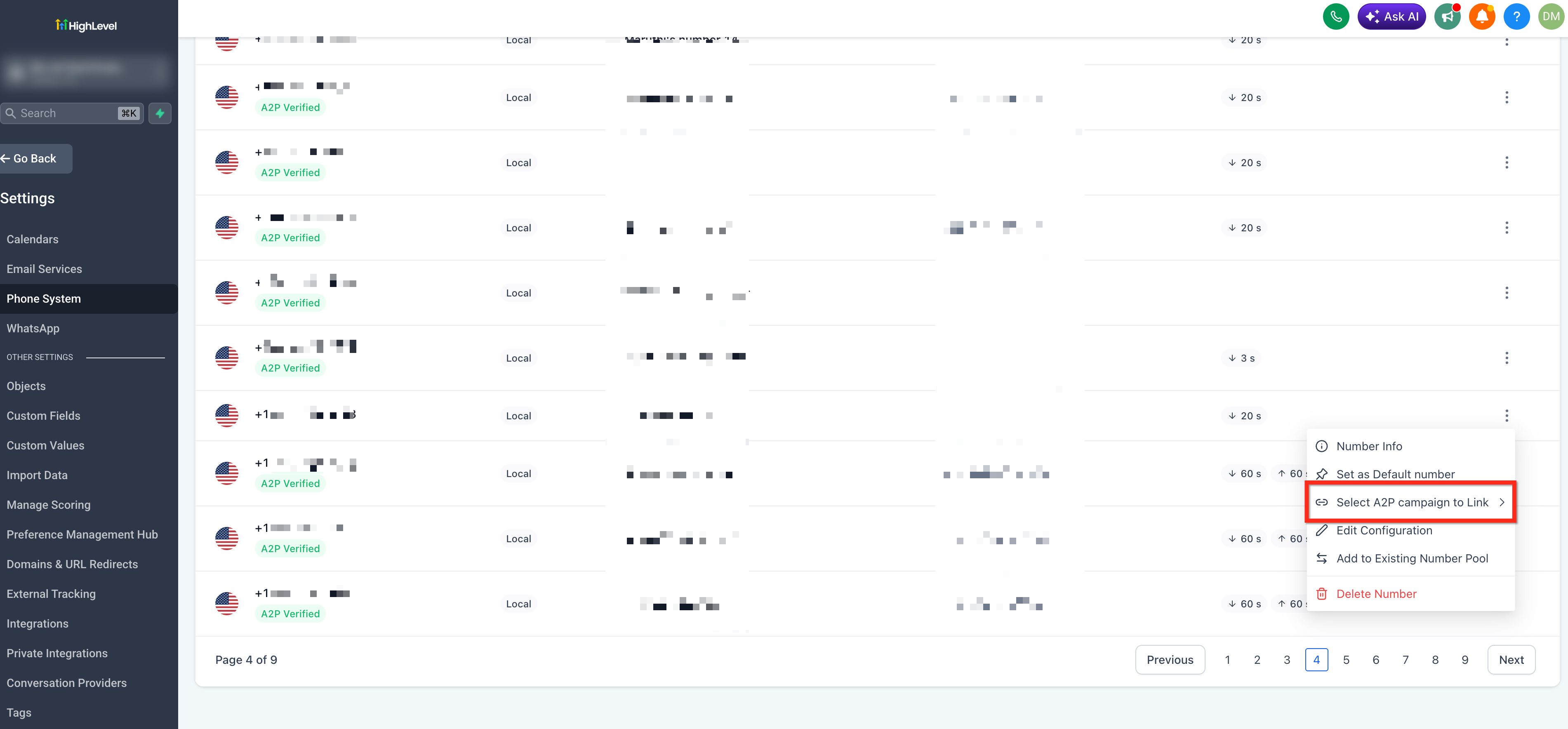
Select the campaign that should be associated with the number.
- Return to the Phone Numbers list and confirm that the green A2P Verified label appears beneath the number.
Troubleshooting Error 30034
Error 30034 can occur when the sending number is not linked to a valid, approved A2P campaign. It can also occur when a Sole Proprietor registration has more than one local number, because Sole Proprietor registrations only support one local number per campaign.
Before escalating or re-registering the campaign, check the following:
- Go to Settings > Phone System > Phone Numbers and locate the sending number. Confirm whether the number displays the green A2P Verified label. If the label is missing, use the steps above to link the number to the correct approved A2P campaign.
- Go to Settings > Phone System > Trust Center > Brands and Campaigns. Confirm whether the account is registered as Standard or Sole Proprietor. If the account is Sole Proprietor, confirm that only one local number is being used. If there is more than one local number in a Sole Proprietor account, reduce the setup to one local number or review whether the business should complete Standard registration instead.
Frequently Asked Questions
Q: Does campaign approval automatically link every phone number?
No. Check each applicable number on the Phone Numbers page. A linked number displays the green A2P Verified label.
Q: Can I link an additional phone number after my campaign is approved?
Yes, when the registration type supports additional local numbers. Sole Proprietor registrations are limited to 1 campaign and 1 phone number per campaign.
Q: How can I tell whether a number is already linked?
Look for the green A2P Verified label beneath the number in Settings > Phone System > Phone Numbers.
Q: How can I tell whether the account uses Standard or Sole Proprietor A2P registration?
Open Settings > Phone System > Trust Center > Brands and Campaigns and review the registered brand type.
Q: Why is the approved phone number also getting error 30034?
Error 30034 can occur when the sending number is not linked to a valid approved A2P campaign. First, check whether the number displays A2P Verified in Settings > Phone System > Phone Numbers and link it to the correct campaign if needed. If the account uses Sole Proprietor registration, error 30034 can also occur when the account has multiple local numbers, because Sole Proprietor registrations only support one local number per campaign.
Q: Why does my number not display A2P Verified after purchase?
The number may not yet be associated with an approved campaign. Use the three-dot menu to check whether a campaign can be selected. Before linking, confirm whether the account uses Standard or Sole Proprietor registration.
Q: Can a toll-free number be linked to an A2P campaign?
No. Toll-free numbers use a separate verification process and do not use A2P 10DLC campaign linking.
Q: Why don't I see the "Select A2P campaign to Link" option?
The option will not appear if your A2P Brand and Campaign have not been approved. You must successfully complete the A2P registration and approval process before you can link a phone number to a campaign.
Related Articles
Was this article helpful?
That’s Great!
Thank you for your feedback
Sorry! We couldn't be helpful
Thank you for your feedback
Feedback sent
We appreciate your effort and will try to fix the article