A QR code check-in campaign lets visitors scan a code and submit a HighLevel form when they arrive or request an offer. HighLevel can record the submission, organize the contact, and notify staff through a workflow. Staff can then review the request before confirming any offer redemption. This guide covers a simple form-based check-in—not unique ticket validation.
TABLE OF CONTENTS
- What Is a QR Code Check-In Campaign?
- Key Benefits of QR Code Check-In Campaigns
- Check-In Requirements and Limits
- How to Set Up a QR Code Check-In Campaign
- How to Review Check-Ins and Record Redemptions
- Testing and Troubleshooting Check-In Campaigns
- Frequently Asked Questions
- Related Articles
What Is a QR Code Check-In Campaign?
A QR code check-in campaign links a scannable QR code to a HighLevel form. Each visitor opens the form, submits their details, and can be routed through a Form Submitted workflow for contact tagging or staff notification.
The QR code in this setup opens a shared form. It does not issue a unique ticket, verify the visitor's identity, or automatically prevent repeated submissions.
Key Benefits of QR Code Check-In Campaigns
QR codes make it easier for visitors to access a check-in form, while HighLevel forms and workflows help your team review and organize the requests.
- Quick Check-In Access: Open a form by scanning a printed or digital QR code.
- Centralized Records: Review responses and matching contact records in HighLevel.
- Staff Notifications: Alert your team when a visitor submits the form.
- Organized Follow-Up: Apply a campaign-specific tag to contacts who request check-in.
Check-In Requirements and Limits
Choose the right process before building the campaign. A shared form is appropriate for recording a visit or requesting an offer, but it is not a secure single-use redemption system.
- Basic check-in: Use a HighLevel form, a QR code, and an optional workflow.
- Offer redemption: Have staff check identity, eligibility, and any prior redemption before approving an offer.
- Unique event tickets: Use HighLevel's in-person Events check-in, which detects tickets that have already been checked in or belong to another event.
- Checkout discounts: Use HighLevel Coupons for supported redemption limits, including one use per customer.
Important: Do not rely on a hidden form field, URL parameter, or contact tag alone to block repeat redemptions. Avoid putting names, phone numbers, emails, or editable redemption status in public QR URLs.
How to Set Up a QR Code Check-In Campaign
Create the form first, connect it to a QR code, and then use a workflow to record the request. Keep redemption approval separate from the automatic form-submission process.
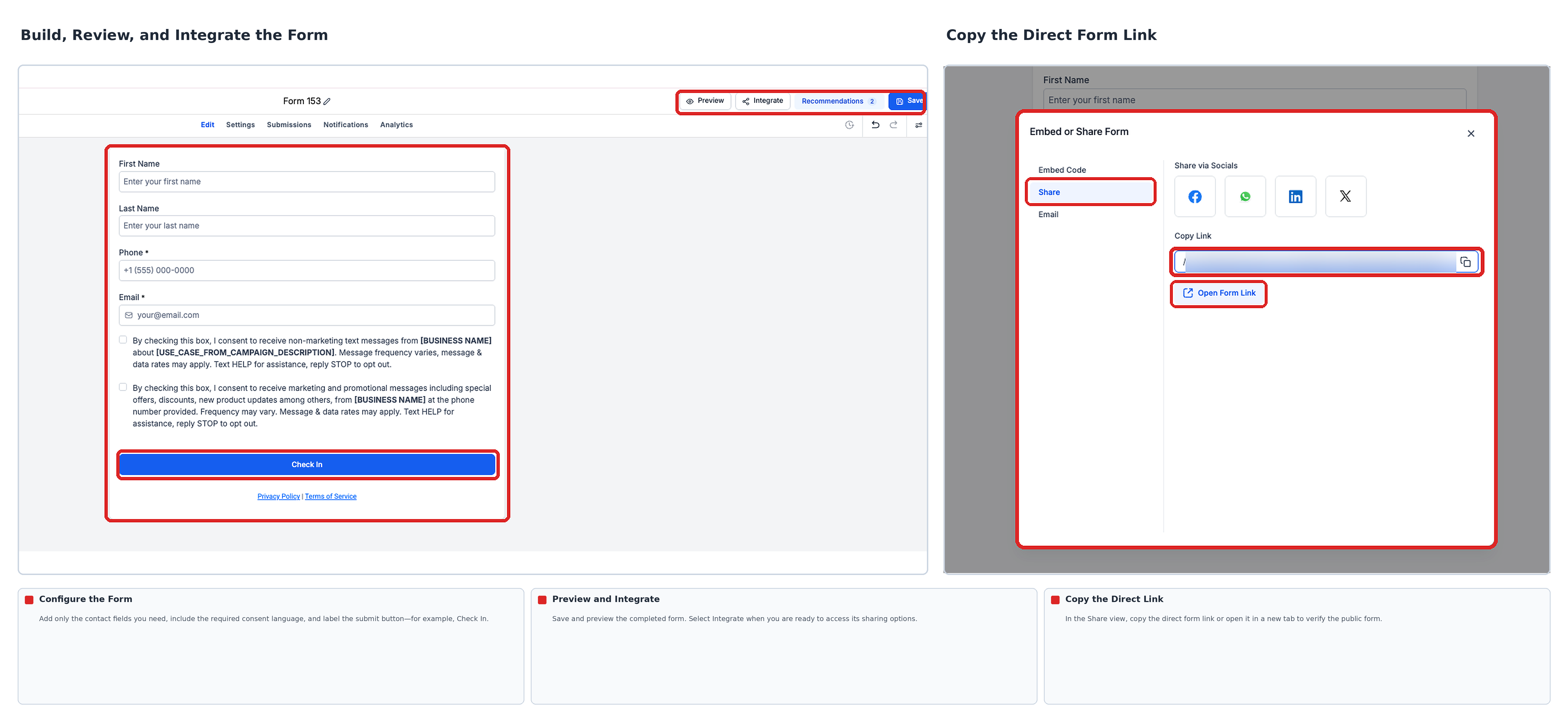
- Go to Sites → Forms and select + Create New Form.
- Choose a blank form or template. Add only the contact details you need and label the submit button, such as Check In.
- Save and preview the form. Select Integrate and copy its direct form link.
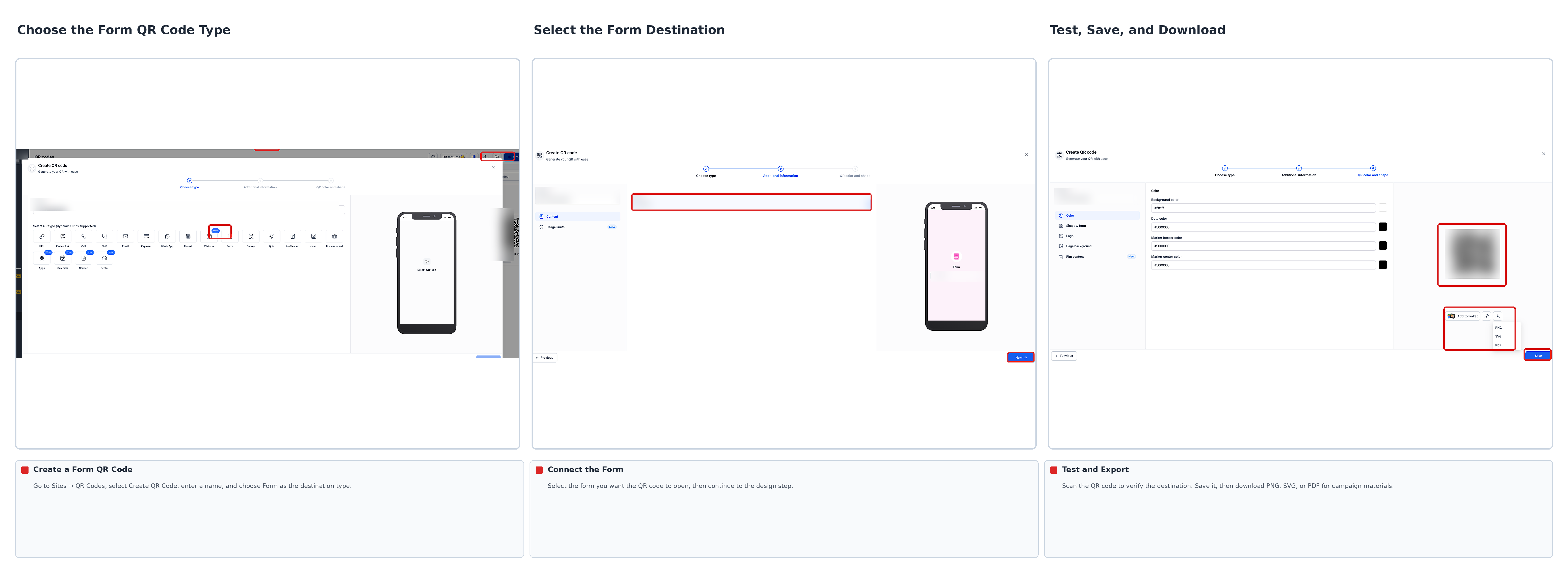
- Go to Sites → QR Codes and select Create QR Code. Name the code, choose the Form destination type, and configure the link to your form using the available controls.
- Scan the QR code to test its destination. Save it and download the image for your signage or other campaign materials.
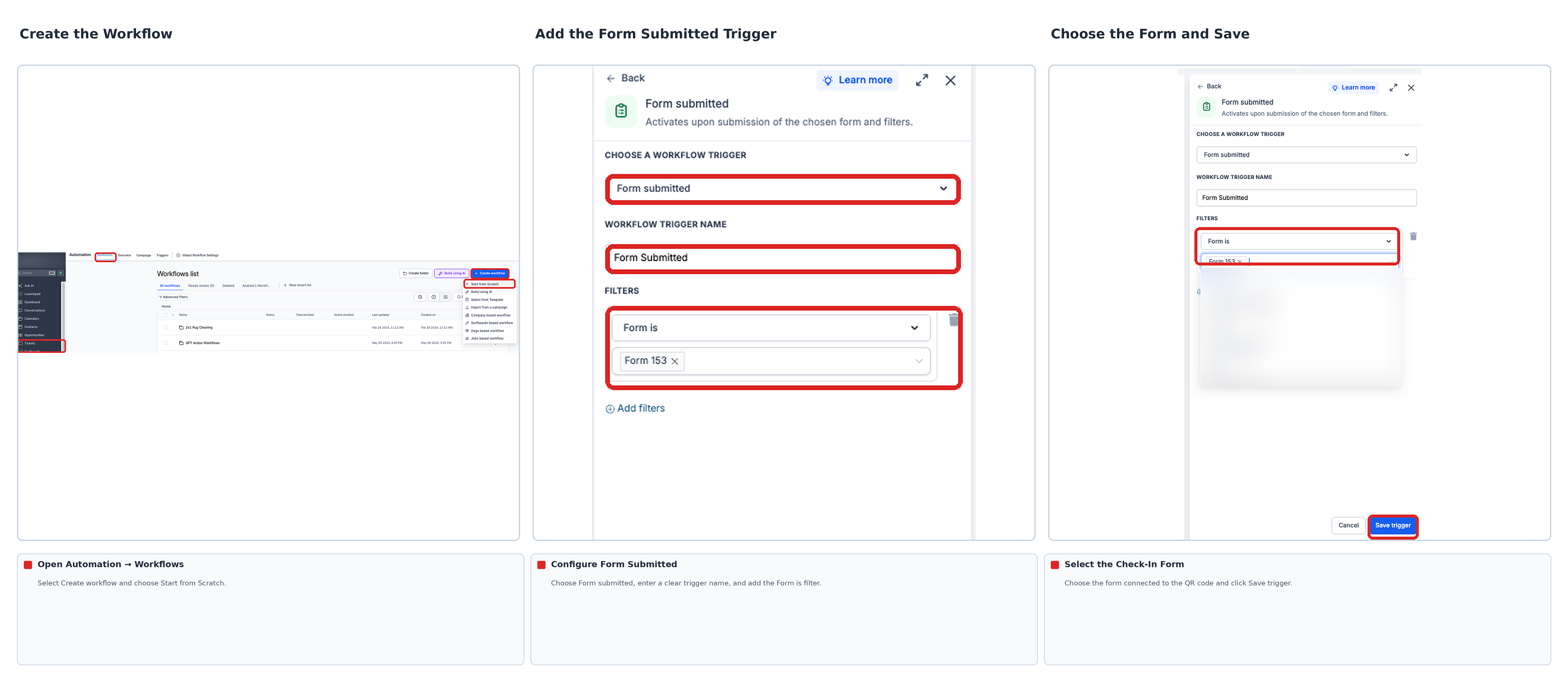
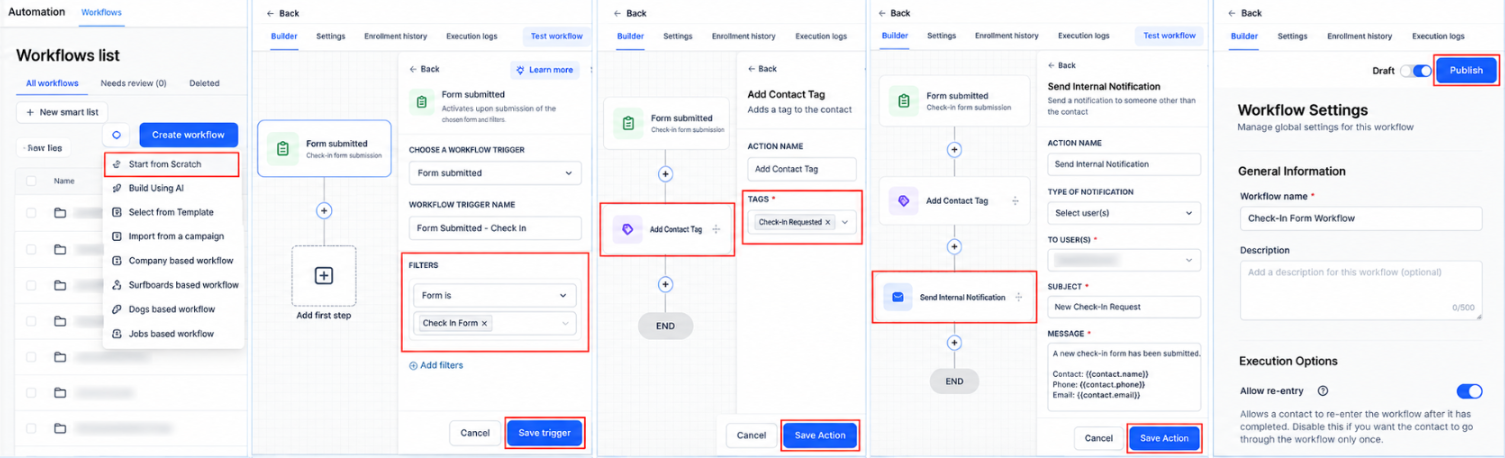
- Go to Automation → Workflows and create a workflow.
- Add the Form Submitted trigger and choose your check-in form using the Form Is filter.
- Add an Add Contact Tag action, such as Check-In Requested. Optionally add Send Internal Notification to alert staff.
- Save and publish the workflow. Submit a test form response and verify the submission, contact tag, and any staff notification.
How to Review Check-Ins and Record Redemptions
A form submission confirms that a request was received; it does not confirm that an offer was valid or used. Review the request before recording a successful redemption.
- Go to Sites → Forms → Submissions, or open the form's Submissions tab.
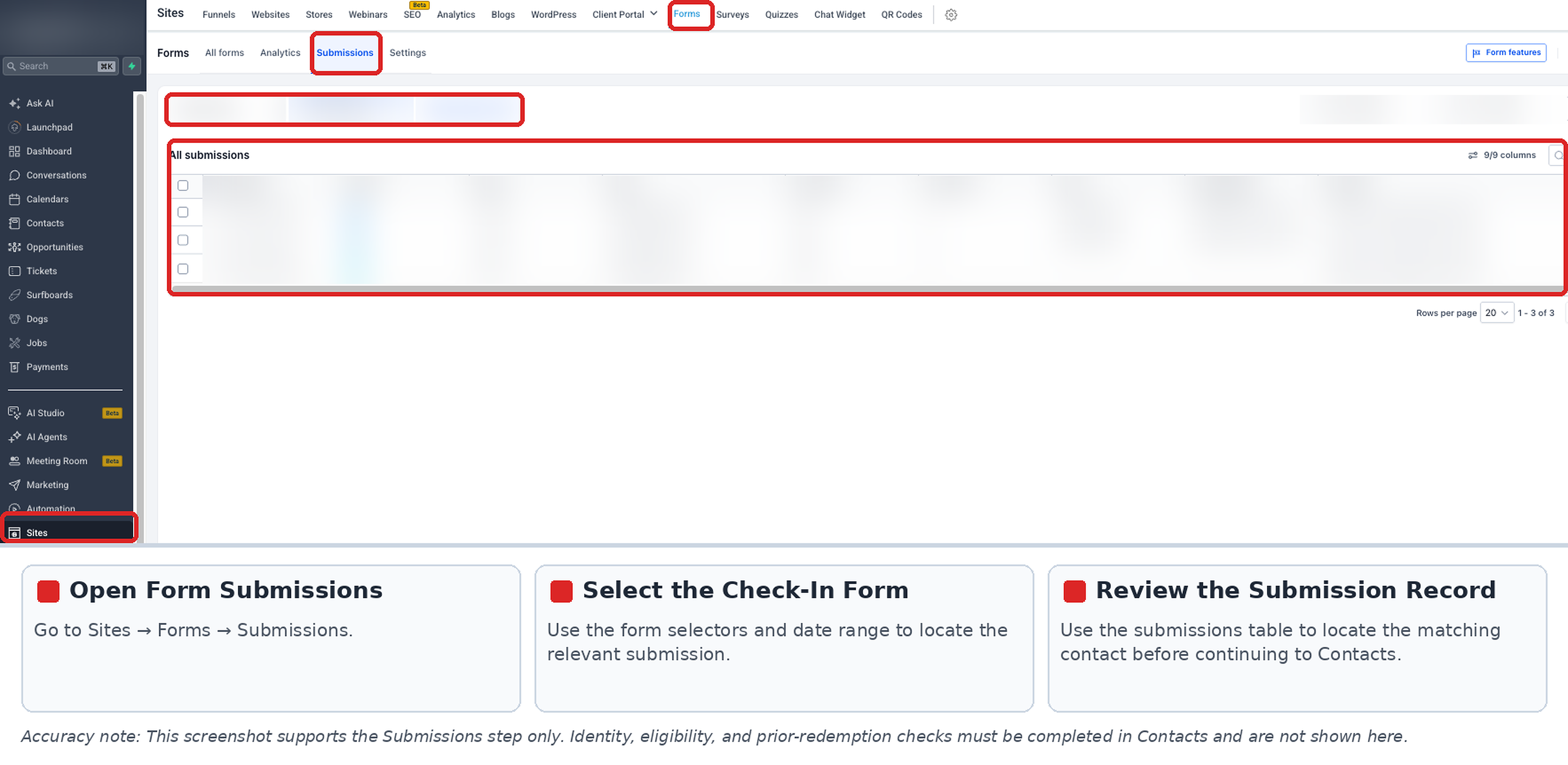
- Find the matching contact in Contacts and verify their identity, eligibility, and any prior redemption.
- If staff approve the offer, record that decision separately, such as by adding a campaign-specific Redeemed tag.
Note: A manual tag is a record of staff action, not an automatic single-use control. Use a separately verified redemption process where strict enforcement is required.
Testing and Troubleshooting Check-In Campaigns
Test the full path before distributing the QR code. A successful scan alone does not confirm that HighLevel received the submission or ran the workflow.
- Wrong page opens: Check the QR destination under Sites → QR Codes and scan again.
- No form response appears: Open the form's direct link, submit test details, and check Submissions.
- No tag or alert appears: Confirm the workflow is published, the Form Is filter matches the form, and the actions are configured.
- A visitor submits twice: Review both responses and verify eligibility before approval. A shared form does not automatically reject a second submission.
Frequently Asked Questions
Q: Does this setup issue a unique QR ticket to each person?
No. The QR code opens a shared form. For individual in-person attendee tickets, use HighLevel Events.
Q: Do I need Trigger Links to build this campaign?
No. HighLevel's QR Code Builder can link directly to a form. Trigger Links serve a separate click-tracking purpose.
Q: Can I stop visitors from redeeming the same offer twice?
Not with the shared form alone. Staff must check prior redemptions, or you must use a verified system designed to enforce redemption limits.
Q: What if an existing contact submits the form again?
The submission can be recorded again. Whether HighLevel matches or creates contact records depends on your account's contact deduplication settings.
Q: Can I reuse a QR code for another check-in campaign?
Yes. The QR Code Builder supports changing a saved code's destination. Verify the linked form and workflow before using it for another campaign.
Related Articles
Was this article helpful?
That’s Great!
Thank you for your feedback
Sorry! We couldn't be helpful
Thank you for your feedback
Feedback sent
We appreciate your effort and will try to fix the article