HighLevel allows Agency Owners and Agency Admins to report translation issues directly from inside the platform. This helps improve localization quality by giving admins a fast way to flag incorrect, unclear, or missing translations without leaving the page or submitting a separate external ticket. Translation reports are sent from the HighLevel UI, helping the appropriate team review localization issues with better context.
TABLE OF CONTENTS
- What is In-App Translation Feedback?
- Key Benefits of In-App Translation Feedback
- Who Can Use the Translation Feedback Tool?
- When to Use In-App Translation Feedback
- Where the Translation Feedback Icon Appears
- How To Submit Translation Feedback in HighLevel
- Best Practices for Submitting Translation Feedback
- Frequently Asked Questions
- Related Articles
What is In-App Translation Feedback?
In-app translation feedback gives Agency Owners and Agency Admins a direct way to report translation issues while working in HighLevel. When a translated word, label, instruction, or message appears incorrect or unclear, admins can submit feedback from the top bar so the issue can be reviewed and corrected.
The translation feedback tool is designed specifically for localization issues. It should be used when translated text needs improvement, not for general product bugs, billing questions, login issues, or support requests.
Important: This feature is only visible to Agency Owners and Agency Admins. Sub-account users cannot see or use the translation feedback icon, even when the agency admin is working inside a sub-account.Important: The translation feedback icon is not visible when the platform language is set to English. HighLevel’s platform language setting controls the language displayed in a sub-account.Key Benefits of In-App Translation Feedback
Accurate translations help teams work more confidently in their preferred language. Reporting issues directly from the interface gives HighLevel clearer context about where the translation appears and what needs to be improved.
- Faster Reporting: Submit translation feedback directly from the HighLevel UI without leaving the current page.
- Better Localization Quality: Help identify incorrect, unclear, missing, or incomplete translations across supported areas of the platform.
- Improved Context: Screenshots and issue details help HighLevel understand where the translation issue appears.
- Reduced Support Friction: Translation issues can be reported through a dedicated workflow instead of being routed through general support.
- Agency Admin Control: Agency Owners and Agency Admins can report translation issues while working in agency view or inside sub-accounts.
Who Can Use the Translation Feedback Tool?
The translation feedback tool is limited to agency-level admins so localization feedback can be submitted by users with the correct administrative access. This helps ensure reports include enough context and come from users who can access the affected area of the platform.
The translation feedback icon is available to:
- Agency Owners
- Agency Admins
The translation feedback icon is not available to:
- Sub-account users
- Location-level users
- Users viewing HighLevel in English
- Users who do not have the required agency-level admin access
Agency Owners and Agency Admins may see the translation feedback icon across most HighLevel pages, including when working inside sub-accounts. Sub-account users will not see the icon.
When to Use In-App Translation Feedback
Translation feedback should be used when the issue is related to the language or wording displayed in HighLevel. Clear reports help the localization team understand whether the problem is a wrong translation, unclear wording, missing translation, or untranslated text.
Use the translation feedback tool for:
- Incorrect translations
- Unclear or confusing translated wording
- Missing translations
- Text appearing in English when another language is selected
- Labels, buttons, menu items, or instructions that do not make sense in the selected language
- Translation issues found while working in agency view or a sub-account
Do not use the translation feedback tool for:
- Product bugs
- Feature requests
- Billing issues
- Login or access issues
- Account setup questions
- Workflow, email, phone, or CRM configuration problems
For non-translation issues, use HighLevel’s standard feedback, bug reporting, or support options. HighLevel has a separate workflow for submitting feedback or reporting general bugs.
Where the Translation Feedback Icon Appears
The translation feedback icon appears in the top bar across most HighLevel pages when the user has the required agency-level access and the platform language is set to a non-English language. This allows Agency Owners and Agency Admins to report translation issues from the page where the issue appears.
The icon may appear in:
- Agency view
- Sub-account view when accessed by an Agency Owner or Agency Admin
- Most HighLevel pages where translated UI text is displayed
The icon does not appear for sub-account users, even if they are using HighLevel in a supported non-English language.
How To Submit Translation Feedback in HighLevel
Submitting translation feedback from the page where the issue appears helps HighLevel review the exact area where the wording needs improvement. A clear issue type, screenshot, and short explanation can make the report easier to investigate and resolve.
- Log in to HighLevel as an Agency Owner or Agency Admin.
- Navigate to the page where the translation issue appears.
- Click the report translation icon in the top bar.
- The Report Translation Issue panel will open.
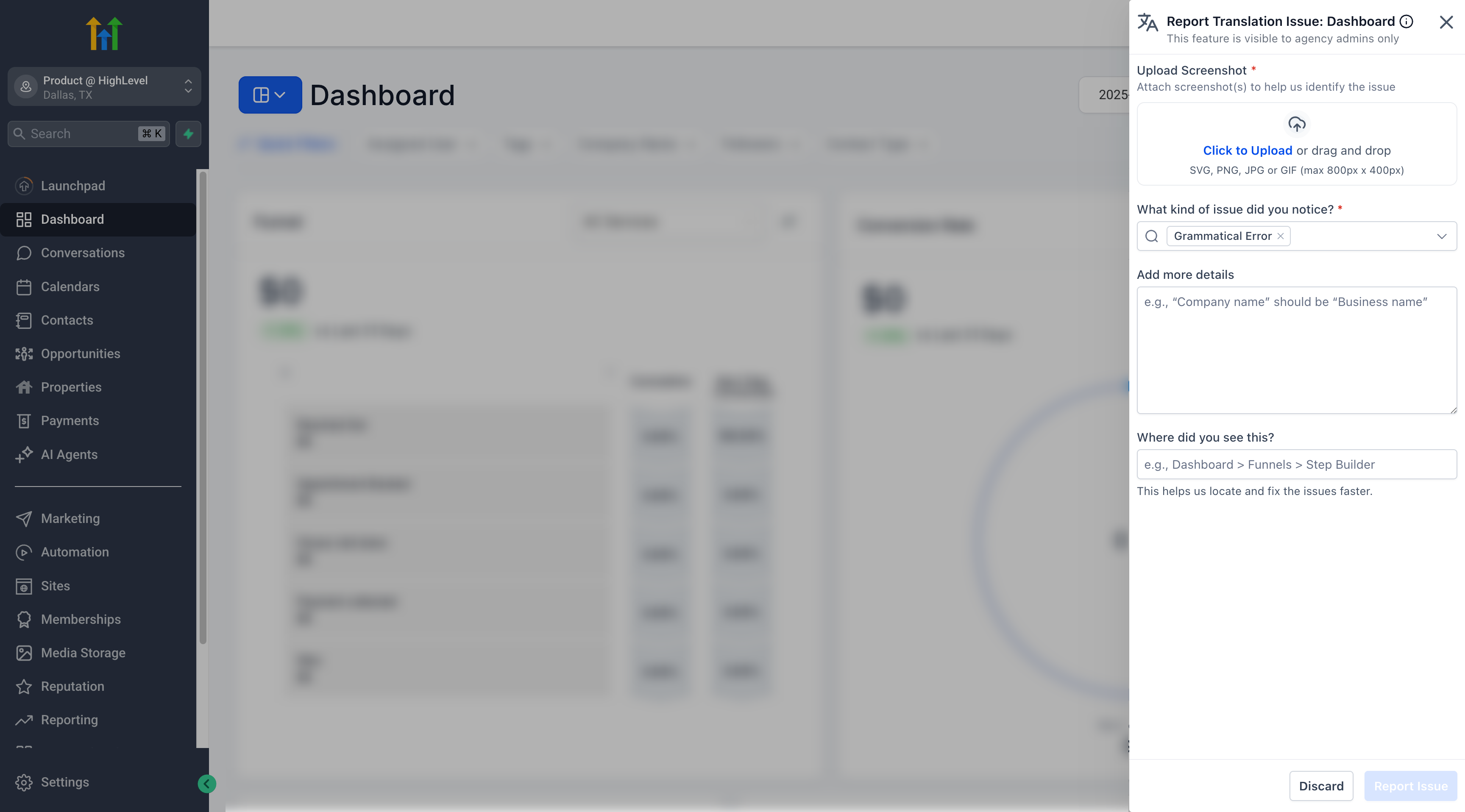
- Select the issue type that best matches the problem. Examples may include incorrect translation, unclear translation, missing translation, or untranslated text.
- Upload a screenshot of the translation issue. A screenshot gives HighLevel visual context about the affected page, field, button, label, or message.
- Add any helpful details about what is incorrect or unclear. Include the expected wording if you know what the translation should say.
- Click Submit.
After submission, the report is sent to HighLevel for review. When the reported translation issue is fixed, customers are informed through the appropriate update channel.
Best Practices for Submitting Translation Feedback
High-quality feedback helps HighLevel understand the issue quickly and review the right translation. The more specific the report is, the easier it is to identify the affected page and improve the localized experience.
Use these best practices when submitting a report:
- Include a screenshot that clearly shows the incorrect or unclear text.
- Select the most accurate issue type.
- Mention the language being used.
- Describe what is wrong with the current translation.
- Provide the preferred translation or expected meaning when possible.
- Submit the report from the page where the issue appears.
- Avoid submitting general support issues through the translation feedback tool.
Frequently Asked Questions
Q: Who can see the translation feedback icon?
A: The icon is visible to Agency Owners and Agency Admins when the platform language is set to a supported non-English language.
Q: Can an Agency Admin report a translation issue while inside a sub-account?
A: Yes. Agency Owners and Agency Admins can report translation issues while working inside sub-accounts if the icon is available on that page.
Q: Why don’t I see the translation feedback icon?
A: The icon may not appear if you are not an Agency Owner or Agency Admin, if the platform language is set to English, or if the current page does not support the translation feedback tool.
Q: Is a screenshot required?
A: A screenshot should be uploaded with the report so HighLevel has visual context for the translation issue. Preserve this as a required step unless product confirmation states otherwise.
Q: What types of translation issues should I report?
A: Report incorrect translations, unclear wording, missing translations, untranslated text, or translated labels and instructions that do not match the expected meaning.
Q: Will I be notified when the issue is fixed?
A: HighLevel will keep customers informed when the reported translation issue has been resolved.
Related Articles
Was this article helpful?
That’s Great!
Thank you for your feedback
Sorry! We couldn't be helpful
Thank you for your feedback
Feedback sent
We appreciate your effort and will try to fix the article