When submitting feedback or reporting a technical issue in HighLevel, clicking “Click to upload” now automatically captures a high-resolution snapshot of your entire screen. This provides precise visual context to help Support teams diagnose issues faster and reduce follow-up questions.
TABLE OF CONTENTS
- Overview
- How to Access Feedback and Bug Reporting
- Routing to Technical Support
- Automatic Screen Capture on Upload
- Frequently Asked Questions
- Related Articles
Overview
HighLevel includes in-app tools that allow users to submit feedback or report bugs directly from the platform. To improve troubleshooting accuracy, the upload flow has been enhanced to automatically capture a full-screen image at the moment an attachment is added.
This ensures Support and Product teams can see exactly what was visible on your screen when the issue occurred.
How to Access Feedback and Bug Reporting
To submit feedback or report a technical issue:
Open any page in HighLevel.
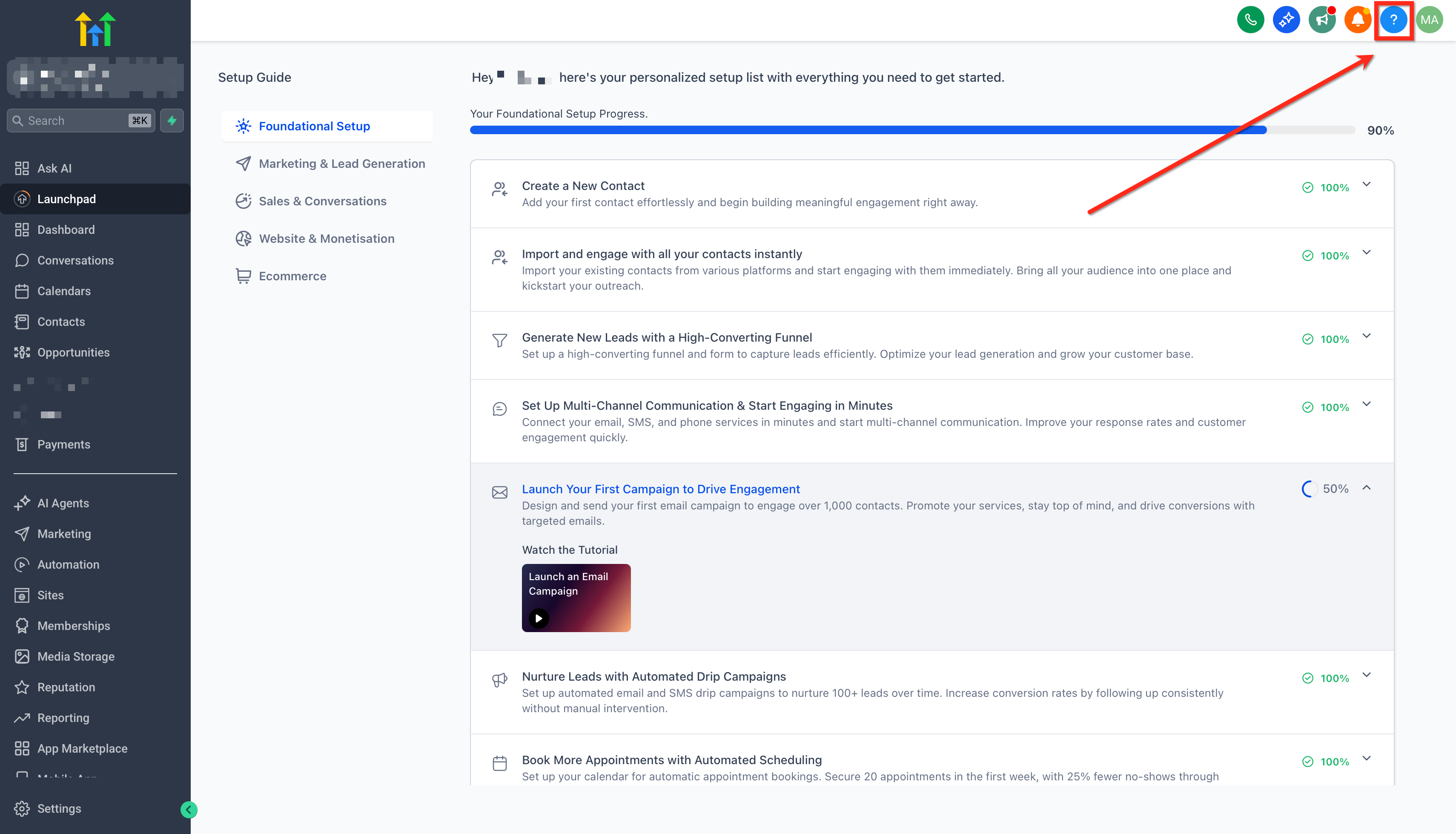
Click the Help & Support icon in the top-right corner.
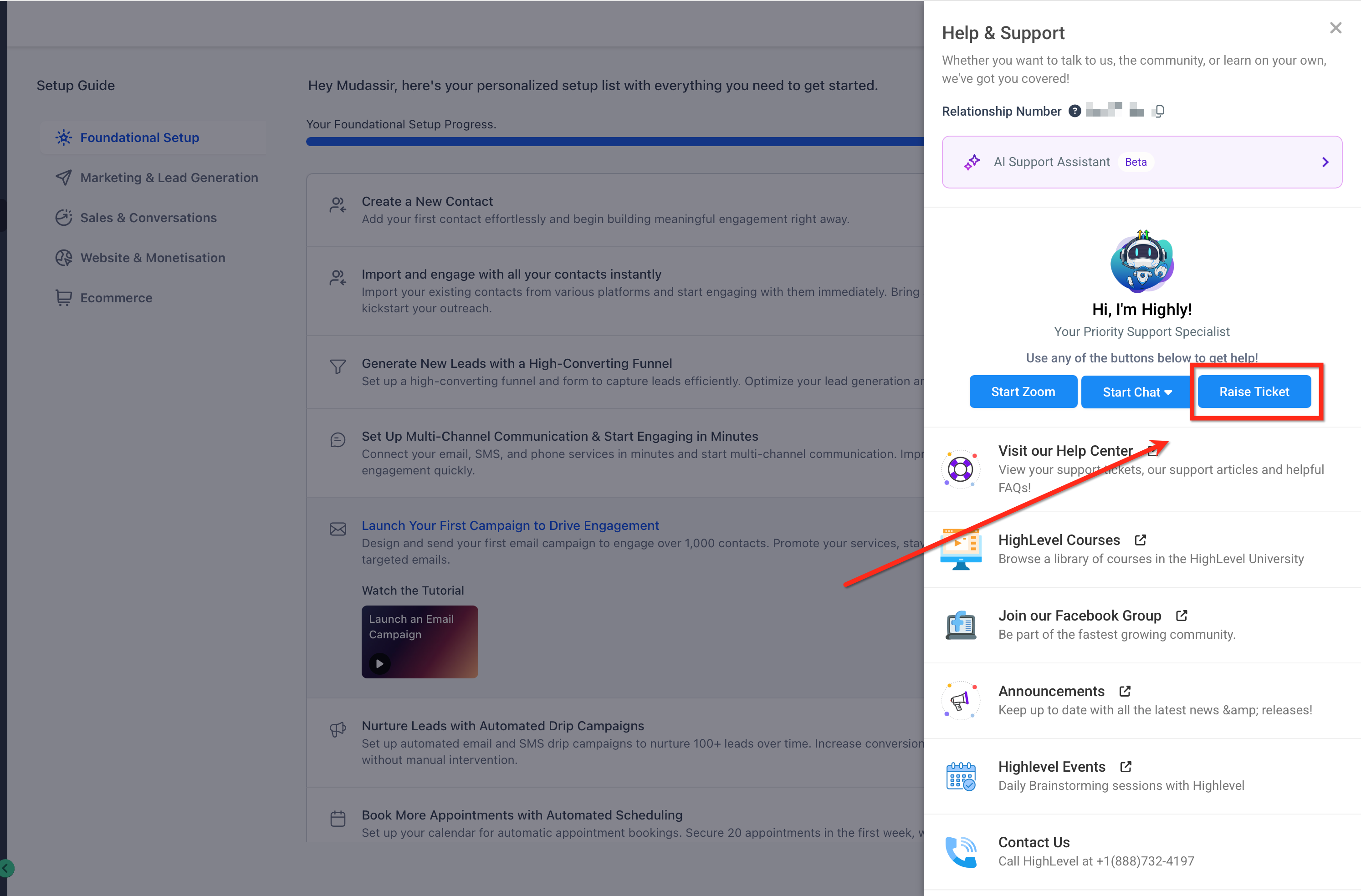
Select Raise Ticket to begin the support flow.
Routing to Technical Support
After starting a ticket, HighLevel may ask a few quick questions to route your request correctly.
Select Technical Support.
When prompted, choose the relevant scope (for example, Within a Sub-Location).
Select the product area related to your issue (such as Calendars, Automation, or Conversations).
Once routing is complete, the issue submission form opens.
Automatic Screen Capture on Upload
When you reach the issue submission form and click “Click to upload”:
A high-resolution image of your entire screen is captured automatically
The capture occurs immediately when upload is triggered
No additional steps or configuration are required
This behavior runs in the background and attaches the screenshot directly to your report.
How the Screen Capture Works
The capture is triggered only when “Click to upload” is selected
The image includes the entire screen, not just the active window
A browser permission prompt may appear the first time to allow screen access
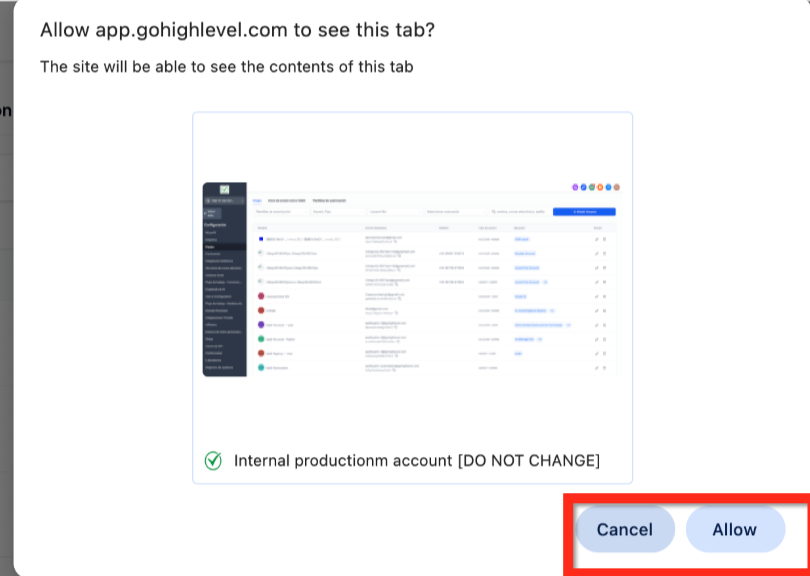
Once permission is granted, the capture completes automatically.
Screenshot Successfully Attached
After the screen is captured:
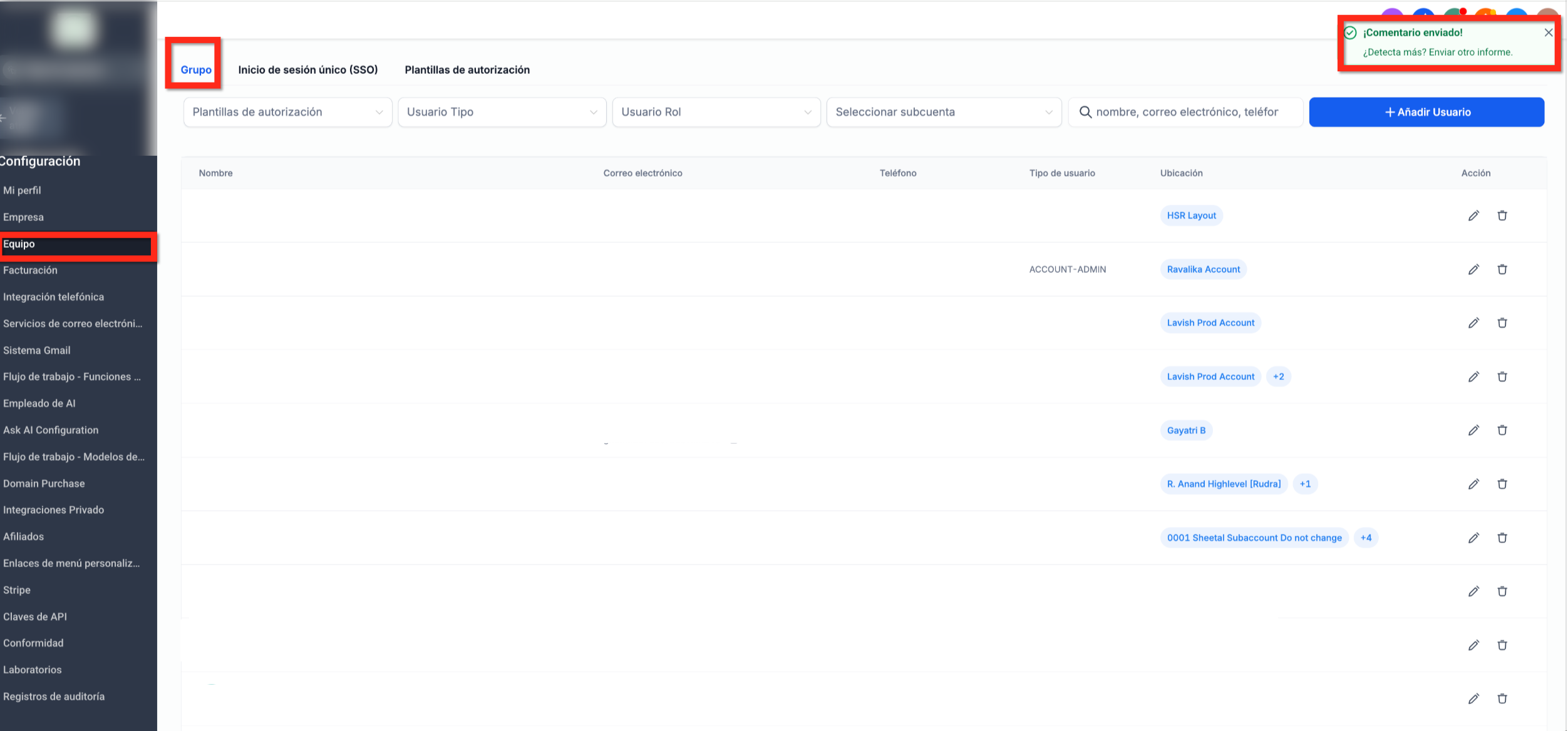
The image appears as an attachment in the submission form
A confirmation indicator shows the file was added successfully
The screenshot is sent along with your feedback or bug report
Why This Matters
Automatic full-screen capture helps:
Reduce back-and-forth communication with Support
Speed up investigation and resolution
Capture UI context that partial screenshots may miss
Improve accuracy when diagnosing complex issues
Frequently Asked Questions
Q: Does the screen capture happen automatically?
Yes. The capture occurs automatically when “Click to upload” is clicked.
Q: What part of the screen is captured?
The entire screen is captured at high resolution.
Q: Can I choose a specific window instead?
No. Full-screen capture ensures complete diagnostic context.
Q: Is this only for bug reports?
It applies when submitting feedback or reporting technical issues using Click to upload.
Related Articles
Was this article helpful?
That’s Great!
Thank you for your feedback
Sorry! We couldn't be helpful
Thank you for your feedback
Feedback sent
We appreciate your effort and will try to fix the article