Global Search V2
Global Search V2 provides a unified search experience across HighLevel, indexing 530+ platform routes and 8 core products including contacts, opportunities, calendars, workflows, and more. With backend-powered search, keyboard-first navigation, and voice command support, you can find any record or page in seconds without hunting through nested menus.
This article covers the key features of Global Search V2, how to enable and use the search interface, available search modes and shortcuts, and answers common questions about product coverage and performance.
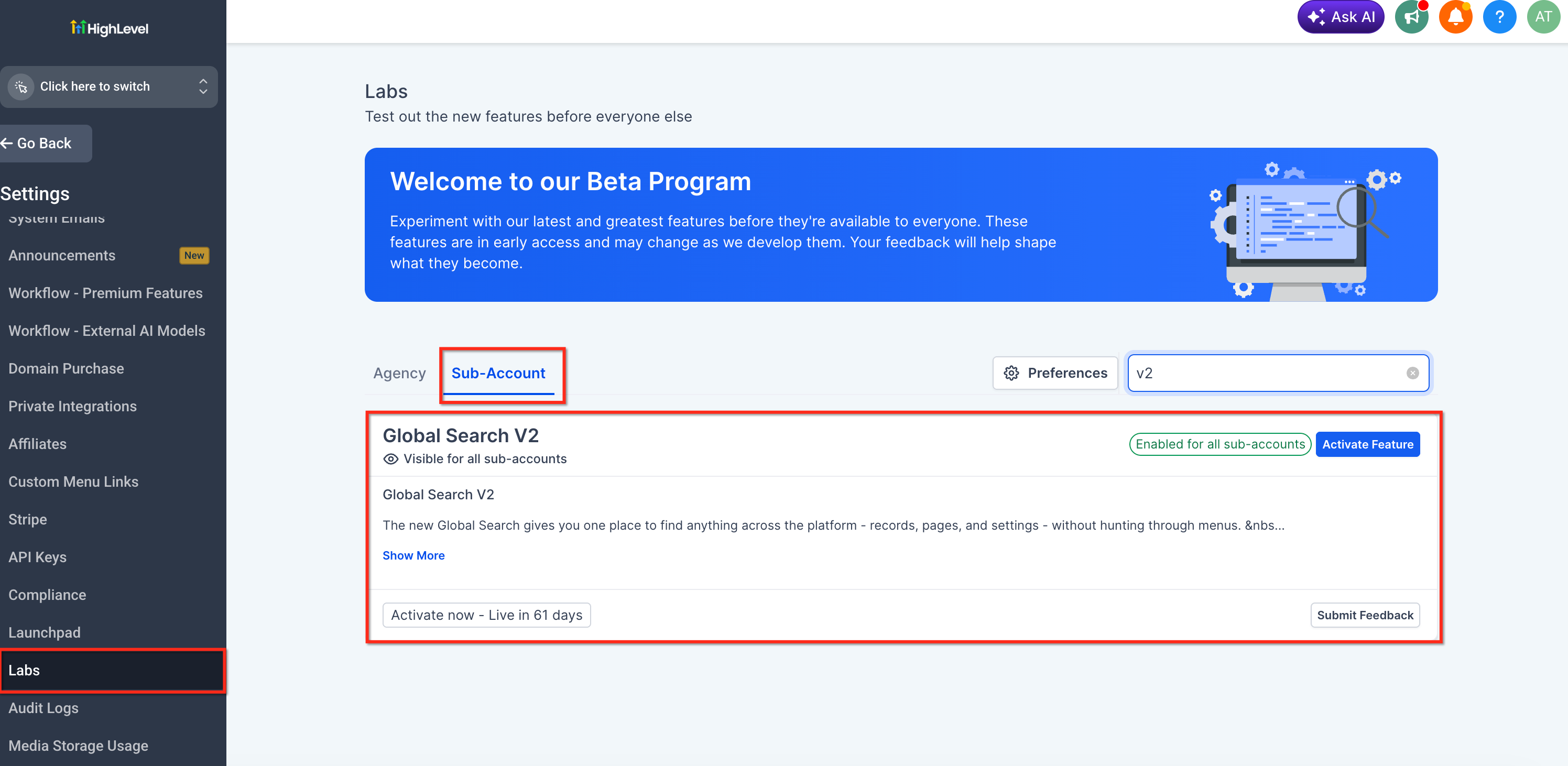
Global Search V2 is available under HighLevel Labs. Enable it under Labs > Subaccounts > "Global Search V2" to access the feature. Labs features are early-access capabilities that may receive updates based on user feedback.
What is Global Search V2?
Global Search V2 is a unified search interface that allows you to find any record, page, or route in HighLevel from a single entry point. It indexes 530+ platform routes across both agency and location levels, and searches across 8 core products including contacts, opportunities, products, calendars, funnels, workflows, social planner, and conversations.
The search runs on the backend with parallel product queries, enforcing access control based on user roles, assigned-data-only permissions, feature flags, and deprecated features. This eliminates client-side latency and provides a lightning-fast search experience similar to Mac Spotlight or Windows Search.
Global Search V2 replaces the need to hunt through nested menus or remember where specific features are located. Access it instantly from the search bar in the left sidebar or press Cmd/Ctrl + K from anywhere in HighLevel to start searching.
When Global Search does not find a matching result, users with Ask AI access can send the same query to Ask AI without starting over. The first Ask AI response appears inside Global Search, and users can continue the interaction in Ask AI when they need a more detailed conversation.
Key Benefits
Global Search V2 transforms platform navigation from a time-consuming process into an instant action. The unified search interface reduces friction, eliminates confusion about feature locations, and scales performance as the product catalog grows.
The Search Interface
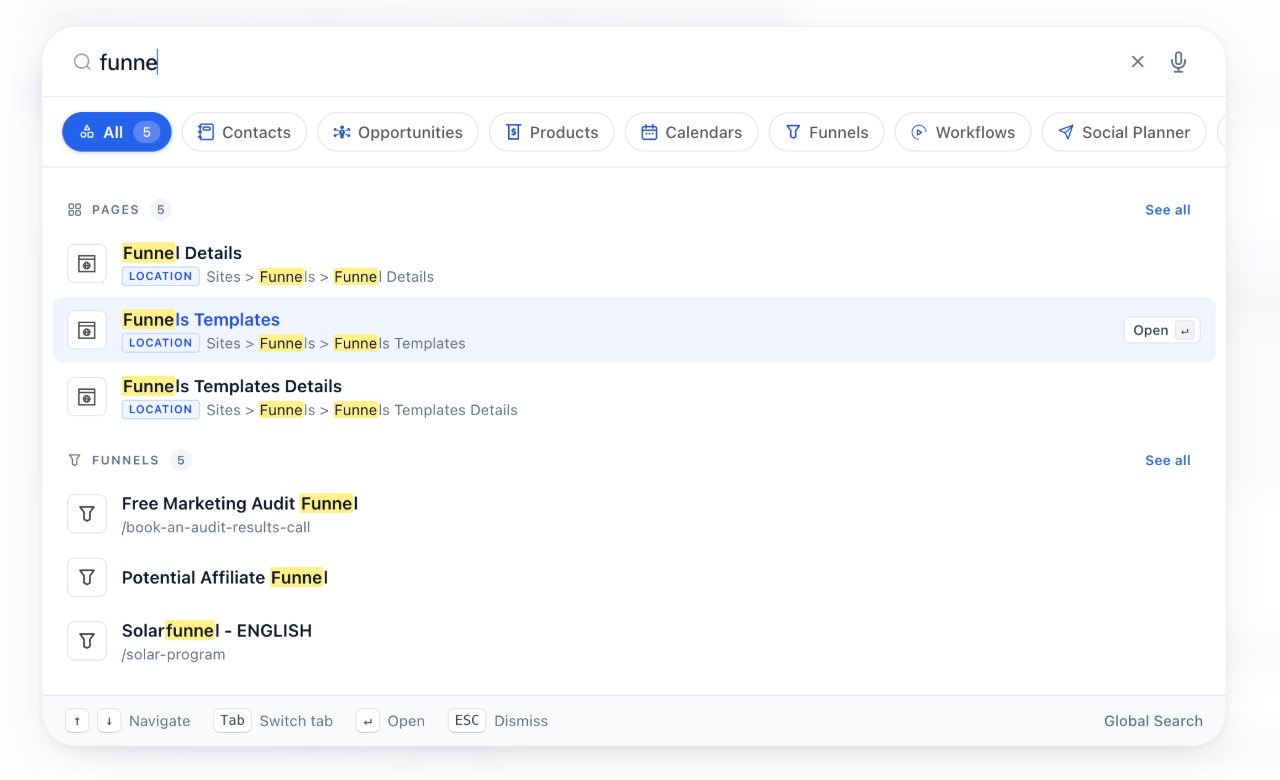
The Global Search V2 interface opens as a centered modal overlay with a clean, focused design. The search bar appears at the top with four action icons, followed by product filter pills and grouped results below.
The search bar displays dynamic placeholder text based on your selected filter, such as "Search", "Search for Conversations...", or "Search apps...". Four action icons appear to the right of the search input: a microphone icon for voice commands, a magnifying glass for standard search, a navigation/routes icon, and a help icon for assistance.
Below the search bar, a row of pill-shaped filters displays your search scope options. The "All" pill searches across all products and routes, while individual product pills (Contacts, Opportunities, Products, Calendars, Funnels, Workflows, Social Planner, Conversations) narrow results to specific product types. The active filter is highlighted in blue.
Results appear in grouped sections such as PAGES, CONTACTS, PRODUCTS, FUNNELS, with result counts displayed next to each section header (e.g., "PAGES 3", "FUNNELS 5"). Each result shows the record or page name, breadcrumb navigation path, and relevant metadata. A "See all" link appears for sections with more results than displayed.
When you click into the search bar without typing, a "Search apps..." view appears showing all 8 product icons in a grid layout: Contacts, Opportunities, Products, Calendars, Funnels, Workflows, Social Planner, and Conversations. Click any icon to filter your search to that specific product.
At the bottom of the search modal, a keyboard shortcuts reference displays available commands: Navigate (arrow keys), Tab, Switch tab (Cmd/Ctrl+number), Open (Enter), and ESC to Dismiss. The label "Global Search" appears in the bottom right corner.
COMPONENT 6
Ask AI No-Results Experience
When Global Search does not find a matching result, users with Ask AI access can send their existing search query directly to Ask AI. This provides a path forward when the information cannot be found as a Global Search result.
Select the Ask AI option to send the current query to Ask AI. The first response appears directly inside the Global Search modal, allowing you to review the answer without leaving your search.
If you need to continue the conversation, select Continue in Ask AI**. The query and conversation context carry into the full Ask AI experience so you can continue without starting again.
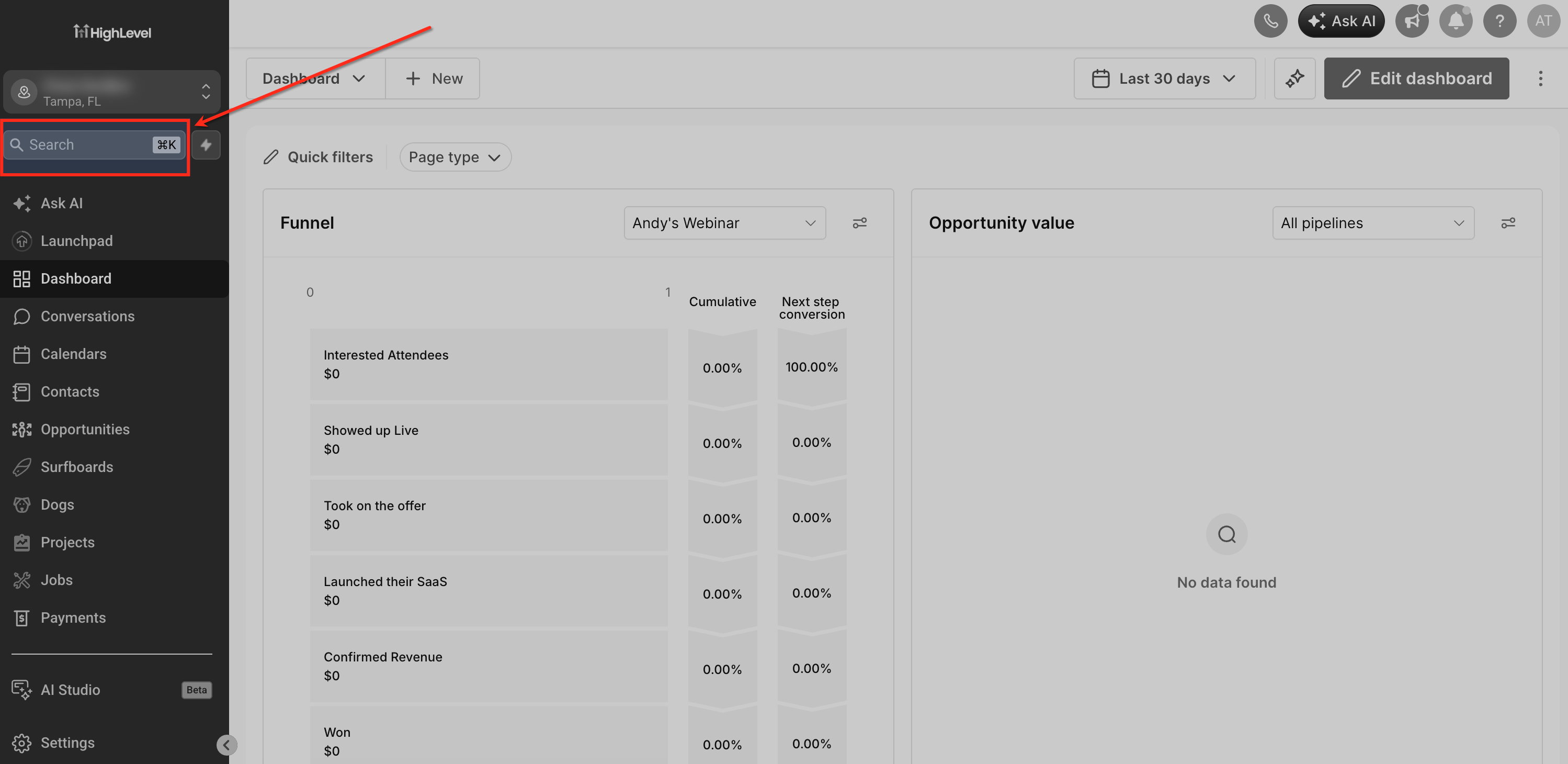
Global Search V2 is triggered from the search bar located in the left sidebar of HighLevel, displaying the keyboard shortcut "⌘K" next to it. Click the search bar or press Cmd/Ctrl+K from anywhere in the platform to open the search interface instantly.
Search Modes and Filters
Global Search V2 provides multiple search modes to match different workflows. You can perform a global search across all products and routes, narrow the scope to a single product, or focus on navigation-only searches.
The default "All" mode searches across every enabled product and all platform routes simultaneously. This provides a comprehensive sweep of HighLevel, returning both records (contacts, opportunities, funnels, etc.) and navigation pages that match your query. Results are grouped by category with counts displayed.
Click any of the 8 product filter pills (Contacts, Opportunities, Products, Calendars, Funnels, Workflows, Social Planner, Conversations) to narrow your search to that specific product. The search bar placeholder updates to reflect your selection, such as "Search for Conversations..." when the Conversations filter is active. This mode is useful when you know the product type but not the specific record.
When you first open Global Search or clear your query, the interface displays a "Search apps..." view with all 8 product icons arranged in a grid. Click any icon to instantly filter your search to that product category, making it easy to browse by product type before entering specific search terms.
Use keyboard shortcuts Cmd/Ctrl+1 through Cmd/Ctrl+9 to switch between search scopes quickly without leaving the search interface. The active filter pill is highlighted in blue, and the search placeholder text updates to match your selection.
Keyboard Shortcuts and Voice Commands
Global Search V2 is designed for keyboard-first navigation with full arrow-key and Enter support, plus voice command capabilities for accessibility and hands-free workflows. A keyboard shortcuts reference is displayed at the bottom of the search interface for quick reference.
Global Search V2 supports voice dictation with command shortcuts for hands-free navigation. Click the microphone icon in the search bar to activate voice commands:
Global Search V2 includes screen-reader announcements for state changes and command execution, ensuring full accessibility for users who rely on assistive technologies. The keyboard shortcuts footer provides a persistent visual reference for available commands.
How to Enable and Use Global Search V2
Global Search V2 is available under HighLevel Labs. Once enabled, you can invoke the search interface using the keyboard shortcut, clicking the search bar in the left sidebar, or using voice commands.
From your HighLevel account, go to Labs > Subaccounts to access the Labs feature settings. Locate "Global Search V2" in the Labs features list and toggle it to the enabled position. Changes take effect immediately.
Click the search bar in the left sidebar (next to the ⌘K shortcut label), or press Cmd/Ctrl + K from anywhere in HighLevel at the subaccount level to open the Global Search interface.
Type the name of a contact, opportunity, page, or feature you want to find. Global Search uses fuzzy matching, so spelling mistakes are automatically handled. You can also click the microphone icon to use voice commands.
Results appear grouped by type (PAGES, CONTACTS, PRODUCTS, FUNNELS, etc.) with result counts displayed. Use arrow keys to navigate through results, and press Enter to open the selected item. Results are automatically filtered by your permissions and access level.
Click any of the product filter pills to narrow results to a single product (Contacts, Opportunities, Calendars, etc.), or click the search bar without typing to view the "Search apps..." grid showing all 8 product icons. Press Cmd/Ctrl + 1..9 to switch scopes quickly using keyboard shortcuts.
If you type a section name (e.g., "Settings"), Global Search automatically surfaces all sub-pages under that section, making it easy to discover nested features without navigating through multiple menu levels. Breadcrumb paths show the full navigation hierarchy for each result.
Frequently Asked Questions
Was this article helpful?
That’s Great!
Thank you for your feedback
Sorry! We couldn't be helpful
Thank you for your feedback
Feedback sent
We appreciate your effort and will try to fix the article