TABLE OF CONTENTS
- Overview
- About the Integration
- How to Set Up Calendly
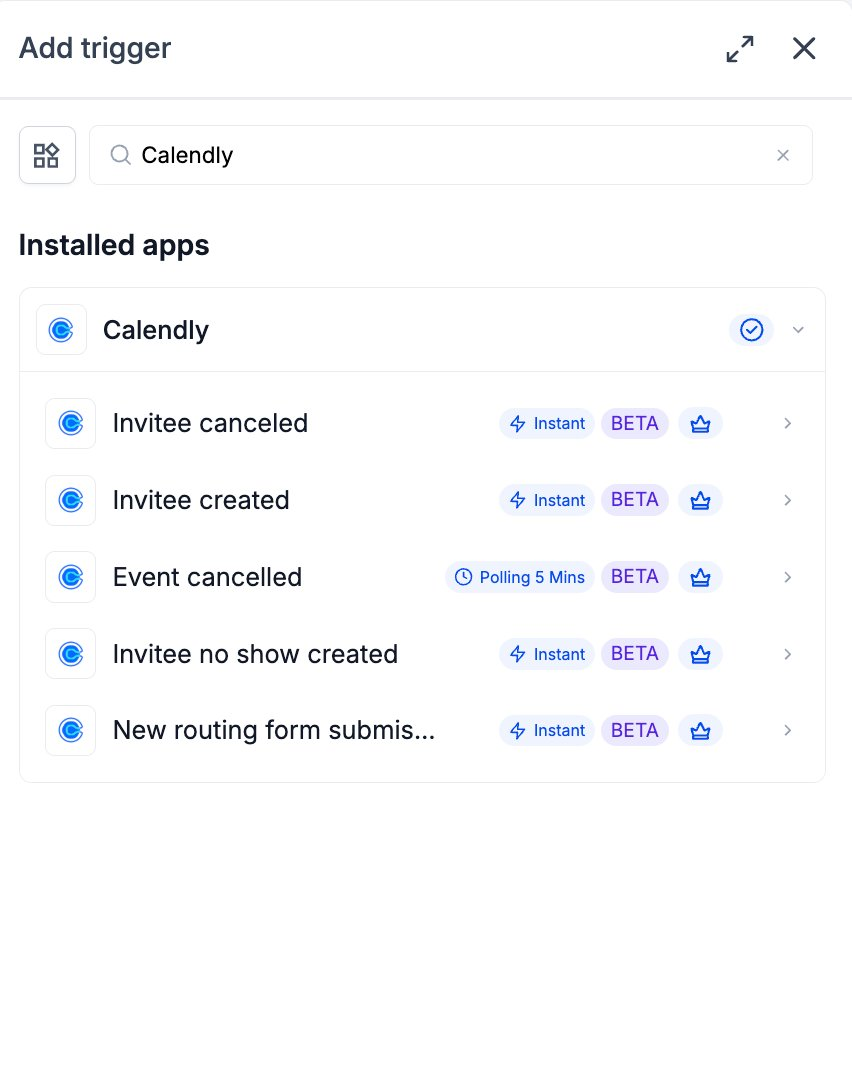
- List of Triggers
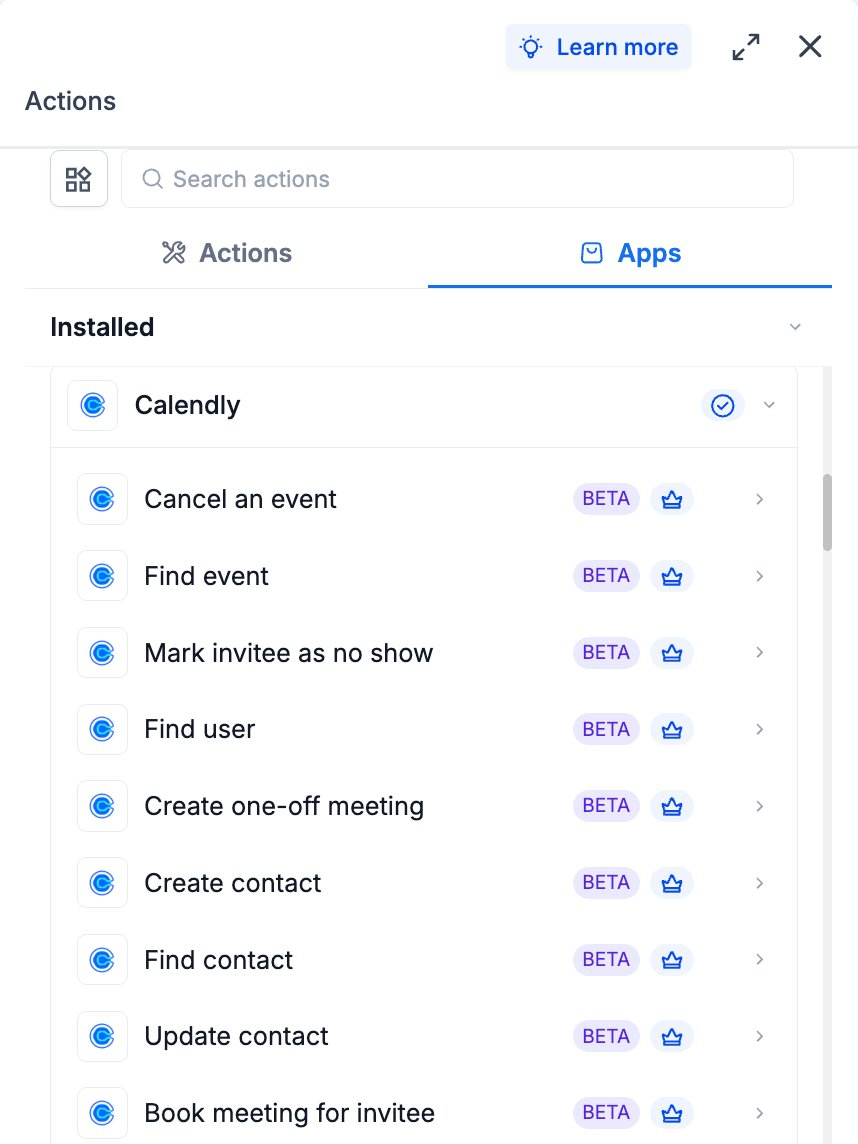
- List of Actions
- Example: Setting Up a Trigger (Invitee created)
- Example: Setting Up an Action (Create one-off meeting)
- How to Test Triggers and Actions
- Common Use Cases
- Frequently Asked Questions
Overview
Calendly is a scheduling platform that handles bookings between hosts and invitees — discovery calls, demos, support follow-ups, recruiting screens, and any other external scheduling that lives outside a host’s own calendar UI. It exposes scheduling activity through a webhook stream (invitee.created, invitee.canceled, invitee_no_show.created, routing_form_submission.created) plus a comprehensive API for event and contact management. The Calendly integration brings both into the Workflow Builder so scheduling events fire customer-facing automations the moment they happen, and any workflow can drive Calendly back the other way.
About the Integration
The integration ships with two halves:
Triggers (Calendly → Workflows): Five triggers covering bookings, cancellations (invitee-initiated and host-initiated), no-shows, and routing-form submissions. Four are instant and webhook-backed; one (host-initiated event cancellation) polls every 5 minutes because Calendly does not emit a native webhook for it.
Actions (Workflows → Calendly): Nine actions covering one-off meeting creation, invitee-side booking, event lifecycle (find, cancel), invitee no-show marking, contact lifecycle (create, find, update), and user lookup.
All triggers and actions are flagged as premium workflow components — premium action credits apply at the standard automation rate. Calendly plan usage (active users, paid event types, integrations) is billed by Calendly directly on your Calendly account.
How to Set Up Calendly
Before any Calendly trigger or action can run, the integration has to be connected via OAuth.
Connect via the Workflow Builder (recommended)
Open Automation → Workflows and pick (or create) a workflow.
Add a Calendly trigger or action — search for Calendly in the Apps tab.
Select any Calendly trigger or action.
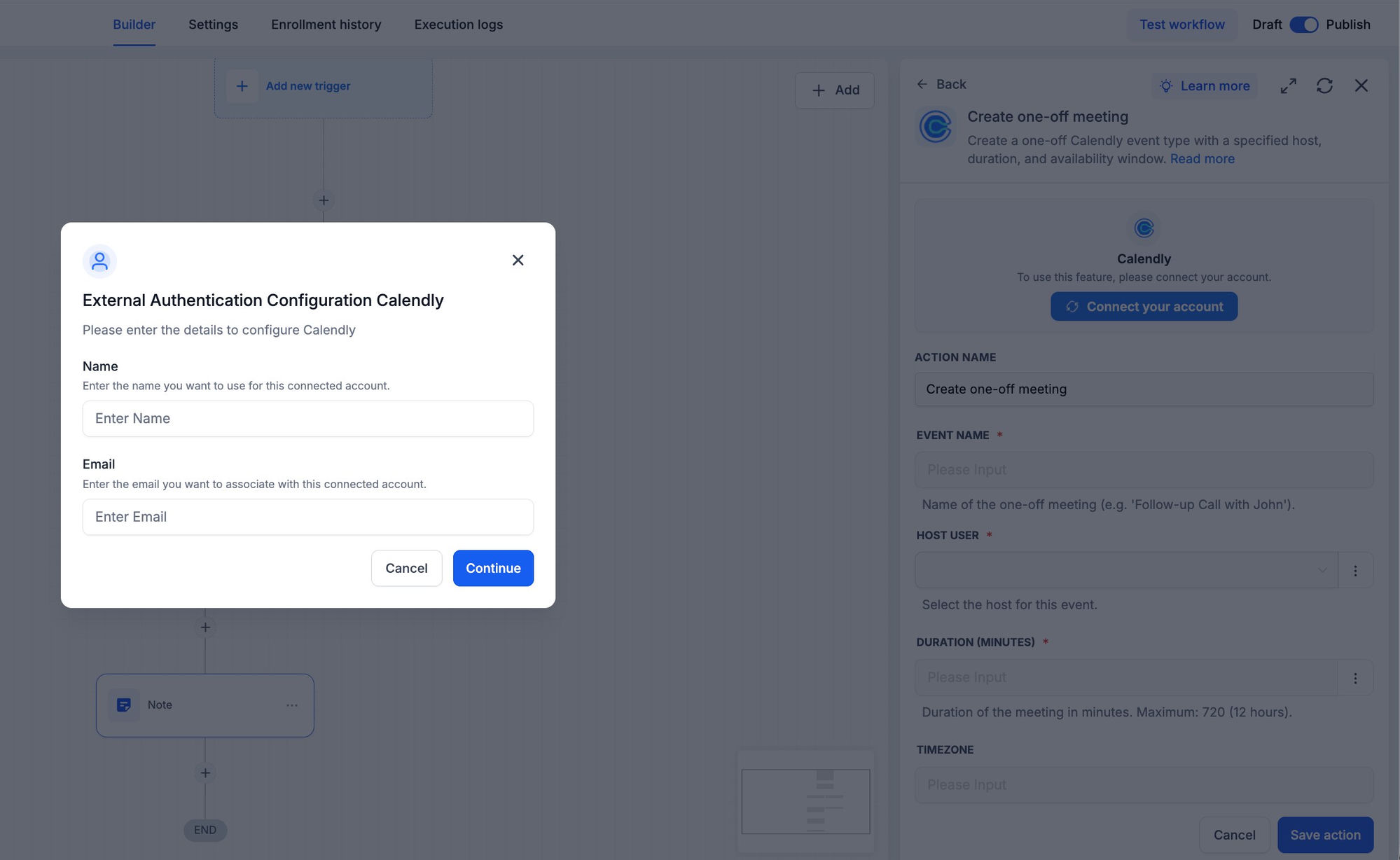
On the panel, click Connect your account.
The External Authentication Configuration modal opens. Enter:
Name — a friendly label for this connection (e.g. ‘Sales Team Calendly’, ‘CS Calendly’, ‘EA Calendly’).
Email — the email associated with this connected account; appears alongside the Name in the Connected Account dropdown on every trigger and action.
Click Continue.
You will be redirected to Calendly’s OAuth authorization screen. Review the requested scopes and click Allow.
You will be returned to the Workflow Builder; the panel will update to show Connected.
Connect via Settings (alternative path)
Go to Settings → Integrations.
Locate Calendly and click Connect.
Complete the External Authentication Configuration step (Name + Email) and the Calendly OAuth flow.
List of Triggers
List of Actions
Actions are grouped by what they manage.
Event lifecycle
Invitee lifecycle
Contacts
Users
Example: Setting Up a Trigger (Invitee created)
This walkthrough wires up a workflow that fires every time an invitee books a meeting through a Calendly link in the connected account. The same configuration shape applies to Invitee canceled, Invitee no show created, and New routing form submission — they all share the Webhook Subscription Scope filter and the same general flow.
Step 1: Add the trigger
Open the workflow and click Add trigger.
Switch to the Apps tab and search for Calendly.
Select Invitee created from the trigger list.
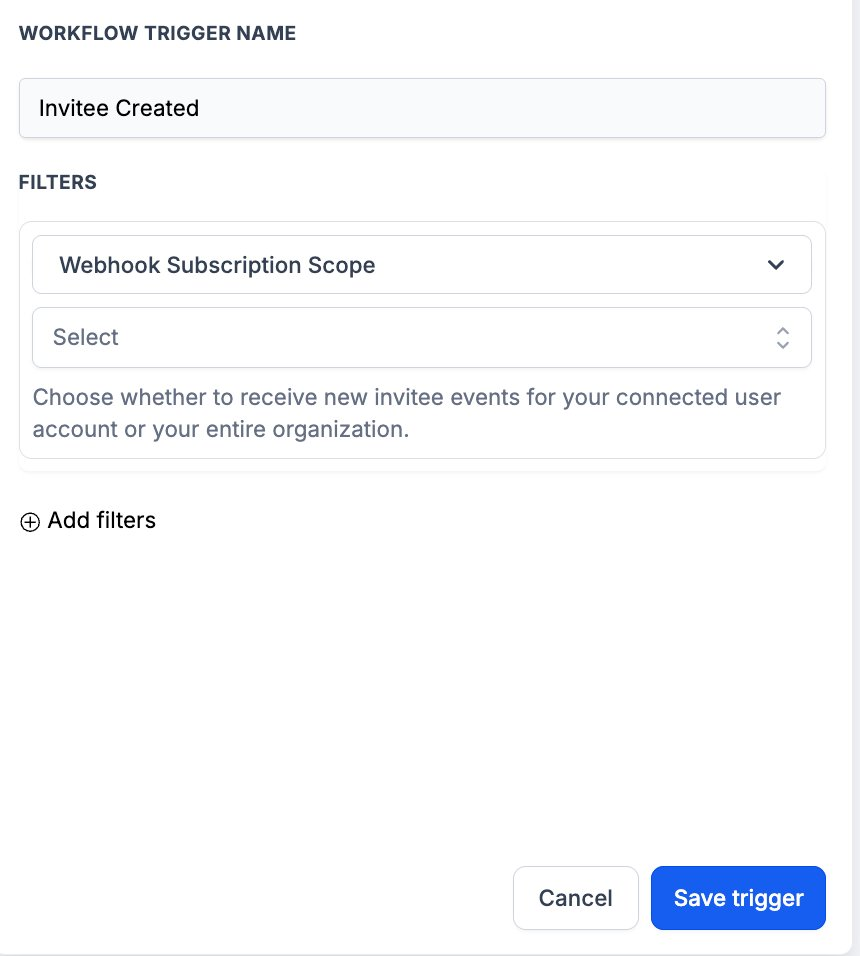
Step 2: Configure the trigger
Connected Account — pick the Calendly account this trigger should watch (shown by the Name + Email label set during connection).
Workflow Trigger Name — a meaningful label, e.g. ‘New Sales Discovery Call’.
Filters → Webhook Subscription Scope — choose User to watch the connected user’s events only, or Organization to watch every user in the Calendly org. (The helper text reads ‘Choose whether to receive new invitee events for your connected user account or your entire organization.’)
Add filters (optional) — layer on conditions such as event type, invitee email domain, or custom-question answer if the workflow should only fire under specific circumstances.
Step 3: Test the trigger
Inside the Test Your Trigger panel, click Find new records.
If no matching records appear, book a test invite through a Calendly link in the connected account, then re-fetch.
Select the returned record as the mapping reference to lock the invitee + event schema for downstream steps.
Click Save trigger.
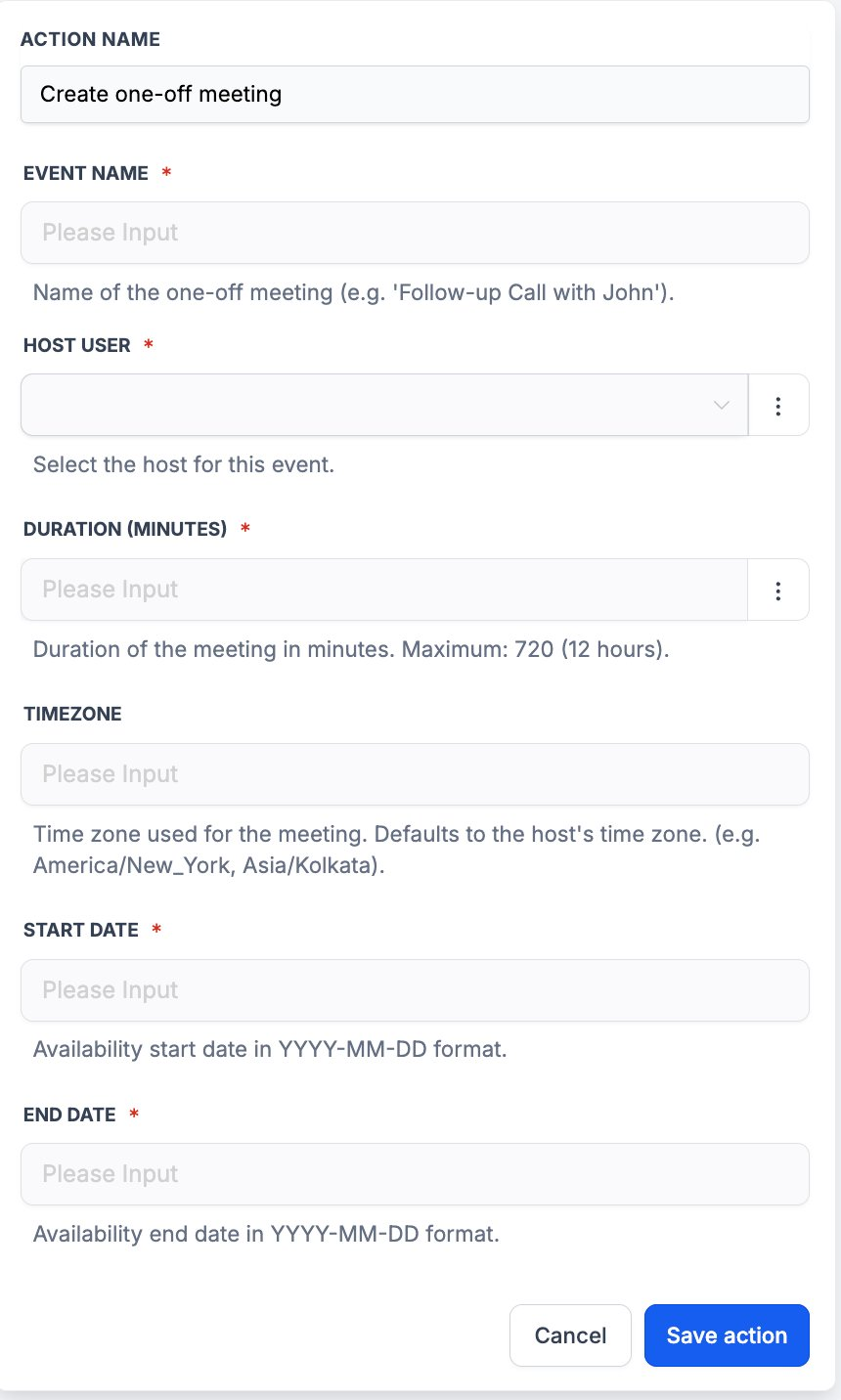
Example: Setting Up an Action (Create one-off meeting)
This walkthrough uses Create one-off meeting to generate a single-use Calendly link the workflow can send to a specific invitee.
Step 1: Add the action
Inside the workflow, click Add to insert a new step.
Open the Apps tab and select Calendly.
Choose Create one-off meeting from the action list.
Step 2: Configure the action
Connected Account — pick the Calendly account that will host the meeting.
Action Name — a meaningful label, e.g. ‘Create Follow-up Call Link’.
Event Name (required) — the name shown to the invitee, e.g. ‘Follow-up Call with John’.
Host User (required) — pick the host for this event. Use Find user upstream if the host email is dynamic.
Duration (minutes) (required) — meeting length in minutes. Maximum 720 (12 hours).
Timezone (optional) — IANA timezone name (America/New_York, Asia/Kolkata). Defaults to the host’s time zone if blank.
Start Date (required) — availability start date in YYYY-MM-DD.
End Date (required) — availability end date in YYYY-MM-DD.
Step 3: Test the action
Click Test action.
Confirm the call — this creates a real one-off event type in Calendly. The returned booking URL appears in the response payload.
Save the action and run a full Test workflow before publishing.
How to Test Triggers and Actions
Always test before publishing. Testing locks the payload schema and gives downstream steps a real record to map against.
Test an instant trigger
Inside the trigger panel, click Find new records.
If no matching records appear, perform the action in Calendly manually — book a test invite, cancel one, submit a routing form — and re-fetch.
Select the returned record as the mapping reference.
Test Event cancelled (the polling trigger)
Find new records returns the most recent host-cancelled events in the connected account.
If none appear, cancel an event in Calendly as the host (not as an invitee) and wait up to 5 minutes for the next polling cycle, then re-fetch.
Test an action
Inside the action panel, click Test action.
The action runs against the live Calendly account using the configured inputs.
Confirm the result in Calendly — a new one-off event under Event Types, a new booking on the host’s calendar, an updated contact, etc.
Common Use Cases
Use Case 1: New booking → CRM sync + pre-call prep
Goal: Mirror every Calendly booking into the CRM and warm the invitee up before the call.
Workflow Setup:
Trigger: Invitee created (Webhook Subscription Scope: User or Organization depending on coverage)
Action: Find Contact (by email)
Branch: If not found → Create Contact with the invitee’s name, email, and booking metadata; If found → Update Contact with booking metadata
Action: Send pre-call SMS or email with meeting prep, host bio, agenda
Example: A prospect books a 30-minute discovery call through an AE’s Calendly link. Within seconds, the workflow upserts the matching CRM contact, sets a ‘Source = Calendly’ tag, attaches the scheduled window to a custom field, and sends a pre-call SMS with the host’s LinkedIn profile and a one-pager about the product.
Use Case 2: Cancellation → reschedule recovery
Goal: Catch cancellations the moment they happen and offer a low-friction reschedule path.
Workflow Setup:
Trigger: Invitee canceled
Wait (e.g. 30 minutes) — gives a true reschedule window a chance to fire Invitee created first
Branch: Did Invitee created fire for this contact in the wait window? If yes, end. If no, this is a real cancellation.
Action: Create one-off meeting (host = original host, 7-day availability window)
Action: Send reschedule message with the one-off link
Example: An invitee cancels their demo two hours before the call. After a 30-minute wait (no re-book detected), the workflow creates a one-off Calendly link with the same host and a 7-day availability window, then sends a polite reschedule SMS with the link.
Use Case 3: No-show → recovery sequence
Goal: Reach out to no-shows with a graceful re-engagement flow.
Workflow Setup:
Trigger: Invitee no show created
Action: Tag CRM contact ‘No-Show Recovery’
Action: Send recovery message offering a fresh booking link
Wait N days; if no re-book, escalate to a rep for personal outreach
Example: A prospect doesn’t show for their discovery call; the AE marks them no-show in Calendly. The workflow tags the contact, sends a friendly ‘we missed you’ message with a fresh link, and — if there’s no re-book within 4 days — flags the contact for the AE’s manual follow-up queue.
Use Case 4: Workflow-driven one-off meeting on milestone
Goal: Trigger a tailored Calendly link from any milestone or hand-off in another system.
Workflow Setup:
Trigger: External milestone (deal stage flip, support ticket escalation, account anniversary)
Action: Find user (resolve the right host email → URI)
Action: Create one-off meeting with that host, a tailored duration, and a focused availability window
Action: Send the booking URL to the invitee via SMS or email
Example: A deal hits the ‘Proposal Sent’ stage in the CRM. The workflow finds the assigned sales rep’s Calendly user, creates a 45-minute one-off meeting with a 5-day availability window, and texts the prospect a one-tap booking link — no manual scheduling exchange.
Frequently Asked Questions
Q: What is Calendly?
Calendly is a scheduling platform that handles bookings between hosts (sales reps, support agents, recruiters, EAs) and invitees (prospects, customers, candidates). Hosts share their availability via a link or routing form; invitees pick a slot. Calendly tracks the booking through its lifecycle — created, rescheduled, cancelled, completed, no-show.
Q: Are Calendly triggers and actions premium workflow components?
Yes. All five triggers and nine actions are flagged as premium and consume premium action credits at the standard automation rate. Calendly plan usage (active users, paid event types, integrations) is billed by Calendly directly on your Calendly account.
Q: Which triggers are instant vs polled?
Four are instant — Invitee created, Invitee canceled, Invitee no show created, and New routing form submission — backed by Calendly’s native webhooks (invitee.created, invitee.canceled, invitee_no_show.created, routing_form_submission.created). One is polled — Event cancelled — every 5 minutes because Calendly does not emit a native webhook for host-initiated cancellation.
Q: Why do connected accounts need a Name and Email during setup?
The Name and Email label the connected account inside the Workflow Builder’s Connected Account dropdown. With multiple Calendly accounts connected — different teams, different brands, different geographies — meaningful labels prevent the wrong account from being targeted in a workflow step.
Q: How does the integration handle reschedules?
Calendly doesn’t emit a dedicated ‘rescheduled’ webhook. When an invitee reschedules, Calendly sends invitee.canceled for the old slot followed by invitee.created for the new slot — so a reschedule appears as two trigger fires in this integration. See the Handling Reschedules section above for the wait-then-check pattern that prevents the cancellation flow from running on every reschedule.
Q: What does Create one-off meeting return?
It returns the one-off booking URL plus the event’s metadata (host, duration, availability window). Share the URL with a single invitee — they book inside the configured window without seeing the host’s general availability.
Q: What’s the difference between Cancel an event and an invitee cancelling in Calendly directly?
Cancel an event is the workflow-driven equivalent of a host cancellation in Calendly — it fires Calendly’s native invitee.canceled webhook for every invitee on the event, so any downstream automations remain consistent. An invitee cancelling directly through Calendly fires the same invitee.canceled webhook, so the Invitee canceled trigger picks it up either way.
Q: What happens if Calendly’s webhooks are delayed?
Calendly’s native webhooks are typically delivered within seconds, but transient delays can happen. The instant triggers will fire as soon as the webhook arrives. If a webhook is dropped entirely by Calendly’s infrastructure, the trigger will not fire — for SLA-bound flows, design with that small risk in mind (e.g. nightly reconciliation
Was this article helpful?
That’s Great!
Thank you for your feedback
Sorry! We couldn't be helpful
Thank you for your feedback
Feedback sent
We appreciate your effort and will try to fix the article