Ask AI Voice Mode lets you speak to Ask AI instead of typing, making it easier to ask questions, perform supported actions, and receive spoken responses while multitasking. Available on web and supported mobile apps, Voice Mode allows you to have natural, two-way conversations with Ask AI. You can interrupt responses, switch between voice and text, and continue conversations without starting over. This article explains how to use Voice Mode and manage voice conversations across devices.
TABLE OF CONTENTS
- What is Ask AI Voice Mode?
- Key Benefits of Ask AI Voice Mode
- Using Ask AI Voice Mode
- How To Use Ask AI Voice Mode
- Voice Conversation Features on Mobile
- Managing Voice Sessions and Audio on Mobile
- Safe Execution for Critical Actions
- Frequently Asked Questions
- Related Articles
What is Ask AI Voice Mode?
Ask AI Voice Mode is a voice-first way to interact with Ask AI in HighLevel. Instead of typing every prompt, you can speak naturally, listen to responses, interrupt the assistant, and switch to text whenever needed.
Voice Mode builds on the existing Ask AI experience by supporting spoken questions, information retrieval, supported actions, and multi-step conversations.
On mobile, Voice Mode also provides real-time speech transcription, synchronized text highlighting during spoken responses, Bluetooth headset support, and conversation recovery when your connection is interrupted.
Voice and typed messages remain in the same Ask AI conversation, allowing you to move between input methods without losing your chat history.
Key Benefits of Ask AI Voice Mode
Voice Mode makes interacting with Ask AI faster and more convenient, especially when typing is difficult or you need to complete other tasks. Whether you are working at your computer or using your phone between appointments, voice conversations help you communicate naturally while staying in control of your requests.
Hands-Free Conversations: Speak to Ask AI instead of typing every question or instruction.
Faster Interactions: Ask questions, provide follow-ups, and clarify requests through natural conversation.
Easy Corrections: Interrupt Ask AI while it is speaking to redirect the conversation or provide additional details.
Flexible Input: Switch between voice and text while keeping your conversation history together.
Real-Time Responses: Listen to spoken answers while following along with the displayed text.
Mobile Convenience: Use Voice Mode with supported Bluetooth headsets, including AirPods, when you are away from your computer.
Conversation Continuity: Return to minimized voice sessions or resume conversations after temporary connection interruptions.
Safer Actions: Review and approve sensitive supported actions before Ask AI completes them.
Using Ask AI Voice Mode
Voice Mode allows you to communicate with Ask AI through natural speech rather than repeatedly entering individual prompts. You can ask questions, continue earlier requests, or provide corrections while Ask AI responds. The same conversation supports both spoken and typed messages, giving you flexibility throughout your workflow.
You can use Voice Mode to:
Ask questions and retrieve information.
Continue a previous request.
Clarify or correct instructions.
Interrupt or redirect spoken responses.
Pause voice input when needed.
Switch between voice and text.
Review and confirm supported actions.
Continue multi-step conversations.
How To Use Ask AI Voice Mode
Starting Voice Mode requires microphone access so Ask AI can receive your spoken requests. The process differs slightly between web and mobile, but both experiences support natural conversations and spoken responses.
On Web
Voice Mode is available directly from the Ask AI workspace in HighLevel. Allowing your browser to access your microphone ensures Ask AI can receive and process your spoken requests.
Step 1: Log in to HighLevel and open Ask AI from the top navigation bar or left sidebar.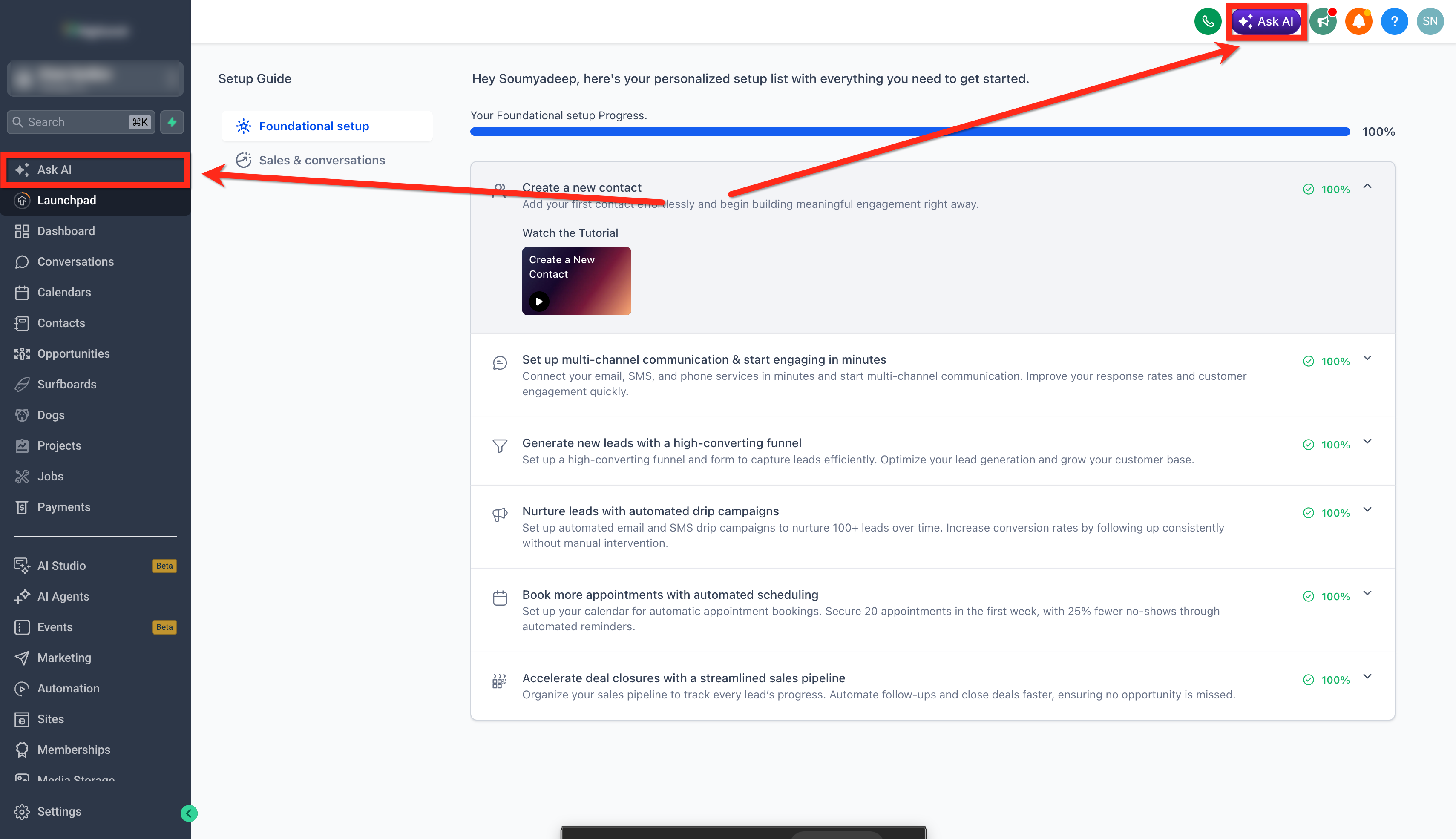
Step 2: Click the Voice Mode button in the Ask AI message bar.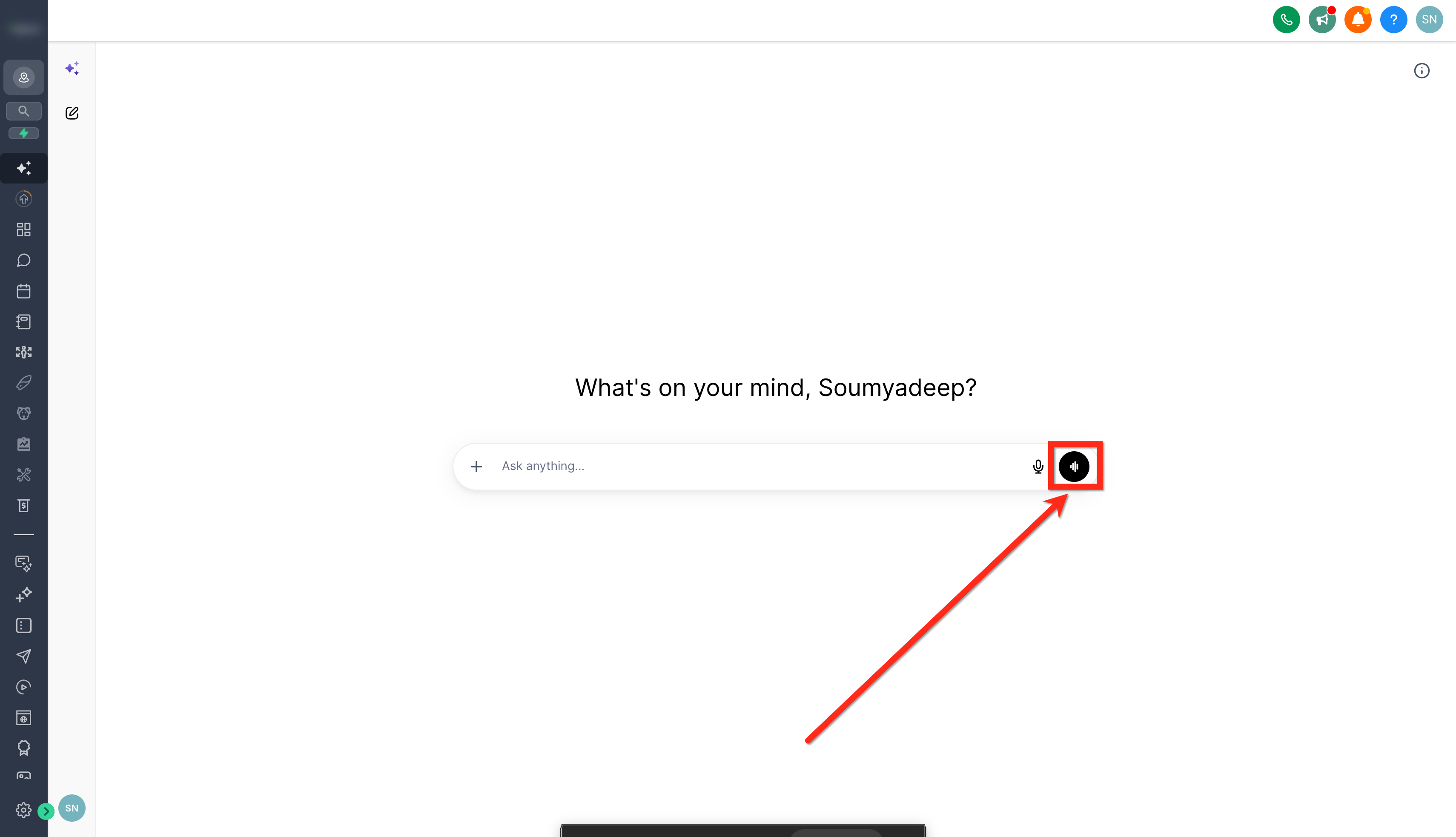
Step 3: Allow microphone access when your browser prompts you, then speak your request.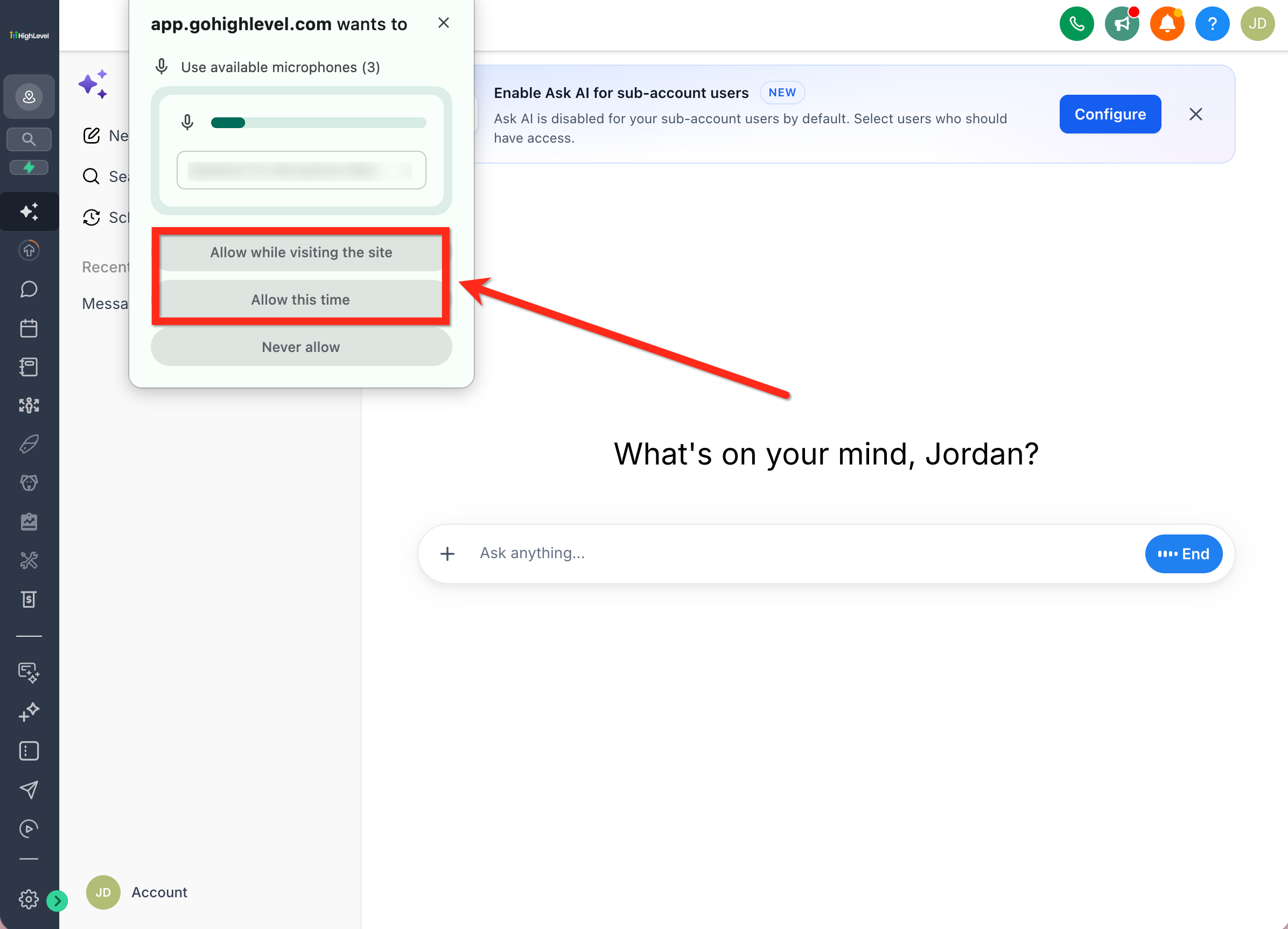
Ask AI processes your spoken request and responds through the conversation. You can continue speaking, interrupt a response, or switch to text as needed.
On Mobile
Mobile Voice Mode allows you to interact with Ask AI through real-time, two-way conversations without typing. Microphone access is required to begin speaking, and your conversations remain available within the existing Ask AI chat.
Step 1: Open the HighLevel mobile app and navigate to Ask AI.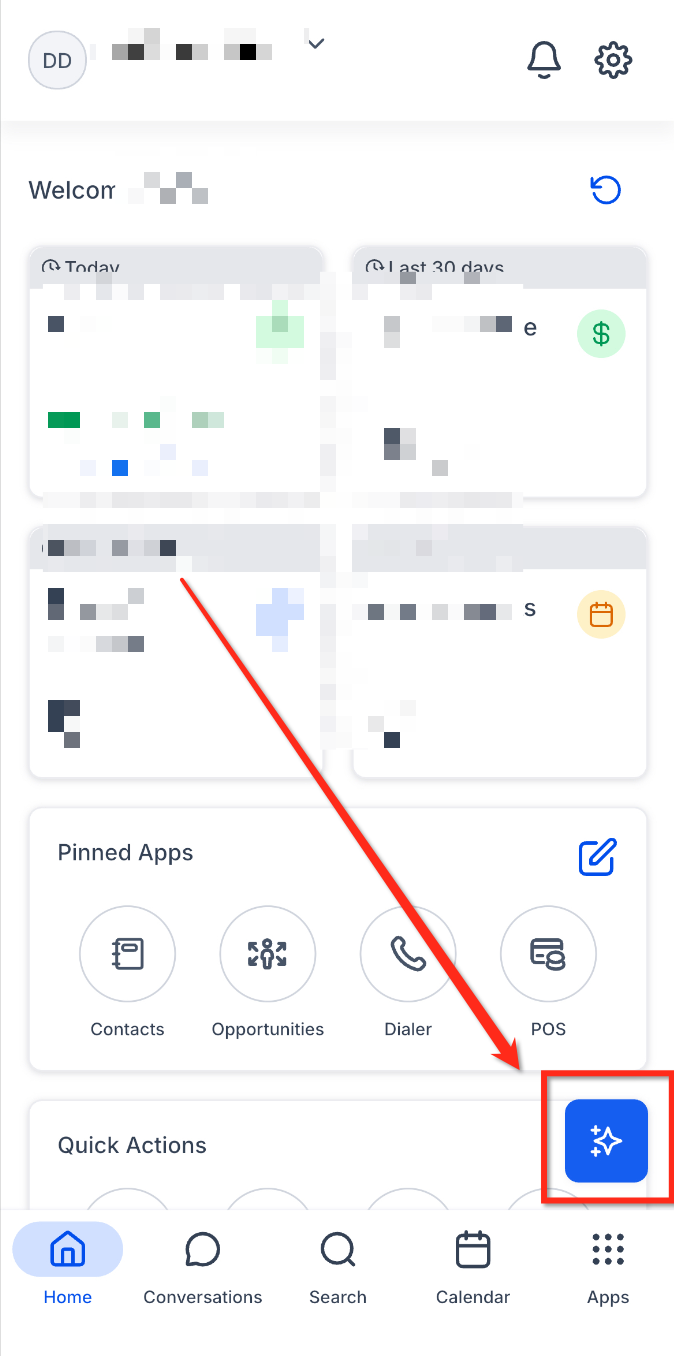
Step 2: Tap the microphone icon in the Ask AI message bar to start a voice conversation.
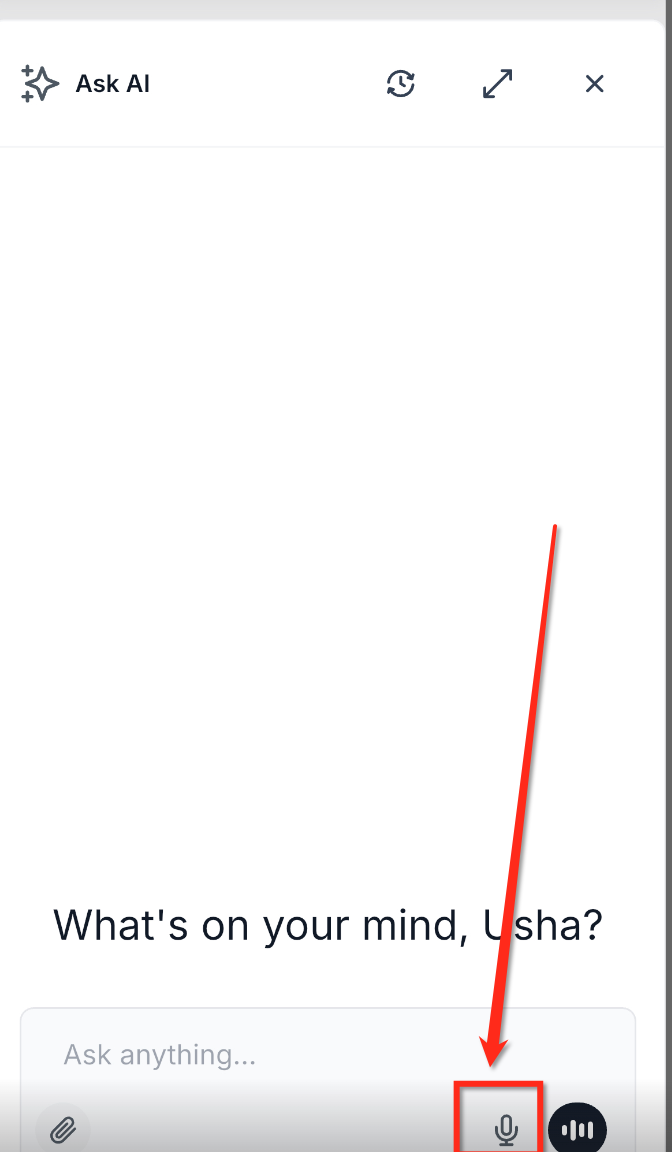
Step 3: If prompted, allow the app to access your device's microphone.
Step 4: Speak your question or instruction naturally. Your speech appears as text in a message bubble while you are talking. When the utterance is finalized, the transcript displays a duration label.
Step 5: Listen to Ask AI's spoken response. The corresponding text is highlighted as the response is spoken, allowing you to read along.
Step 6: Continue the conversation by speaking another question, interrupting Ask AI, or switching to typed input. Your spoken and typed interactions remain in the same conversation thread.
Voice Conversation Features on Mobile
Mobile Voice Mode supports a continuous, two-way conversation rather than requiring separate voice commands for every interaction. Understanding how transcription, audio playback, and interruptions work helps you communicate with Ask AI more naturally.
Real-Time Voice Transcription
As you speak, Ask AI displays your words in a message bubble before you finish talking. Once the utterance is finalized, the completed transcript appears with a duration label.
This makes it easier to follow what was captured during the conversation and review earlier voice messages alongside typed messages.
Spoken Responses with Text Highlighting
Ask AI responds aloud through your device speaker or connected headset while displaying the response as text. As the response plays, the corresponding text is highlighted, helping you follow the answer visually without relying entirely on audio.
Interrupting Ask AI While It Speaks
You do not have to wait for Ask AI to finish speaking before asking another question. If you begin talking while the assistant is responding, Ask AI stops its spoken response and listens to your new input.
You can use interruptions to:
Correct a detail in your original request.
Ask a follow-up question.
Redirect the conversation to another topic.
Provide additional instructions before the current answer finishes.
For example, while Ask AI is explaining a workflow, you can interrupt with, "Just explain the next step."
Interactive Questions and Approval Cards
Some Ask AI requests require additional information or explicit approval before proceeding. When an interactive question or approval card appears during a mobile voice conversation, microphone input pauses automatically so you can review the requested action. After you respond to the card, Voice Mode resumes, allowing you to continue the conversation.
Switching Between Voice and Text
Voice Mode and typed messages share the same Ask AI conversation history. You can use voice for quick questions and switch to text when you need to enter detailed information. This allows you to continue the same conversation without opening a separate chat or repeating previous instructions.
Managing Voice Sessions and Audio on Mobile
Mobile conversations may be affected by temporary network interruptions, changes in app visibility, or connected audio devices. Ask AI includes session recovery and audio-handling capabilities to help maintain conversation continuity.
Connection Recovery
A temporary loss of internet connectivity does not require you to start a completely new conversation. When the connection drops during a voice session, Ask AI displays a "reconnecting…" indicator. Once the connection is restored, the same conversation resumes.
Minimizing and Returning to a Voice Session
You can minimize the Ask AI sheet during a voice conversation without immediately losing the active session. When Voice Mode remains active, the floating Ask AI button displays an indicator showing that the voice session is still live. Tap the floating button to return to the conversation.
Using Bluetooth Headsets
Ask AI Voice Mode supports compatible Bluetooth audio devices, including AirPods, allowing you to speak and listen through a connected headset.
When a supported headset is connected, Voice Mode automatically uses the available audio device. Echo cancellation helps prevent Ask AI from detecting its own spoken responses as new microphone input. This can be particularly useful when working between appointments or using a headset while multitasking.
Phone Calls, Siri, and Background Behavior
Mobile Voice Mode is designed to handle interruptions from phone calls, Siri, and changes in app activity without leaving an unintended recording session active. When returning to Ask AI after an interruption, check the current voice-session indicator to confirm whether the conversation is still active.
Safe Execution for Critical Actions
Voice Mode can help you request supported actions, but important changes may require your confirmation before execution. Reviewing these requests helps prevent accidental modifications to contacts, workflows, pipelines, or other business records.
Ask AI may request confirmation when:
Your request is missing required information.
An action could affect important business data.
You request changes to existing records or statuses.
The scope of an action needs clarification.
An operation requires explicit approval before execution.
You can review the proposed action and approve, cancel, or revise the request before Ask AI continues.
On mobile, voice input automatically pauses when an interactive approval card appears. Once you respond, the conversation can resume.
Frequently Asked Questions
Q: What should I do if Voice Mode cannot hear me?
Check that microphone access is allowed, your input device is connected, and another application is not interfering with microphone access. On mobile, review the app's microphone permission in your device settings.
Q: Can I switch between voice and text?
Yes. You can use voice or typed messages within the same Ask AI conversation.
Q: Can I interrupt Ask AI while it is responding?
Yes. During an active two-way voice conversation, begin speaking to interrupt and redirect Ask AI.
Q: Can I use Ask AI Voice Mode with AirPods or another Bluetooth headset?
Yes. Mobile Voice Mode supports compatible Bluetooth headsets and automatically uses the connected audio device.
Q: What happens if I lose my internet connection during a voice conversation?
Ask AI displays a reconnecting indicator and attempts to resume the existing conversation once connectivity is restored.
Q: Can I minimize Ask AI while Voice Mode is active?
Yes. When the session remains active, the floating Ask AI button indicates the live voice conversation. Tap it to return.
Q: What happens if I receive a phone call or use Siri?
Voice Mode handles mobile audio interruptions and background changes to help prevent unintended recording. Check the voice-session status when you return to Ask AI.
Q: Will Ask AI ask for approval before making important changes?
Yes, when approval is required. Ask AI presents an approval request before executing the supported action. On mobile, microphone input pauses while you respond to the interactive card.
Related Articles
Was this article helpful?
That’s Great!
Thank you for your feedback
Sorry! We couldn't be helpful
Thank you for your feedback
Feedback sent
We appreciate your effort and will try to fix the article