TABLE OF CONTENTS
- Overview
- About the Integration
- Key Benefits of Klaviyo in Workflows
- How to Set Up Klaviyo
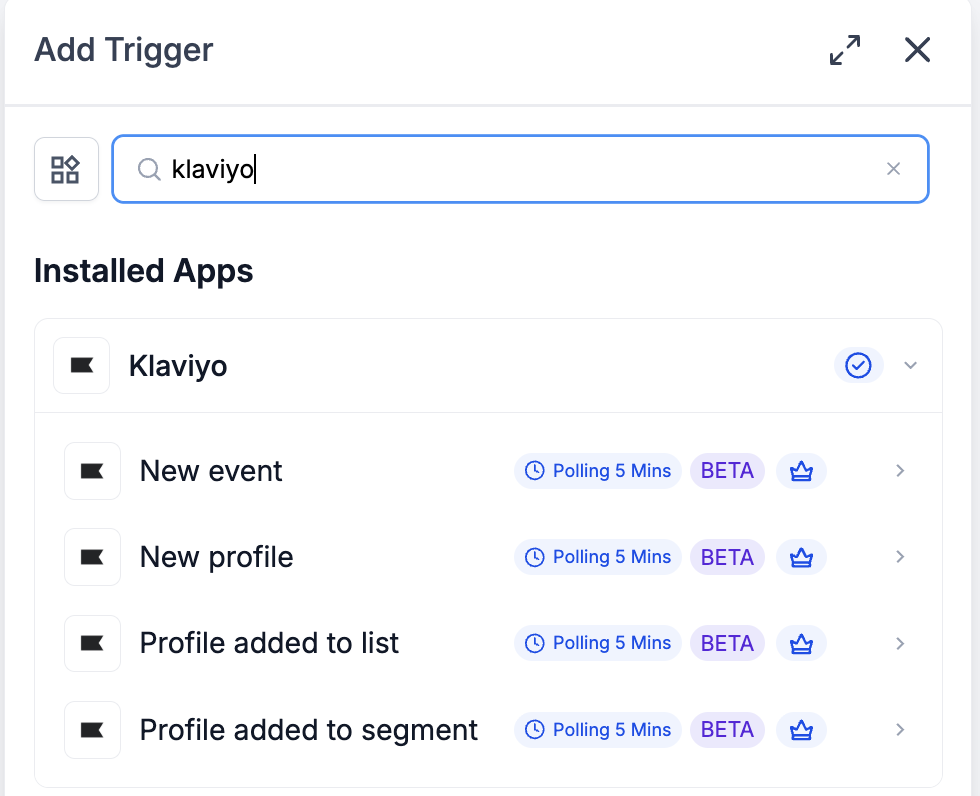
- List of Triggers
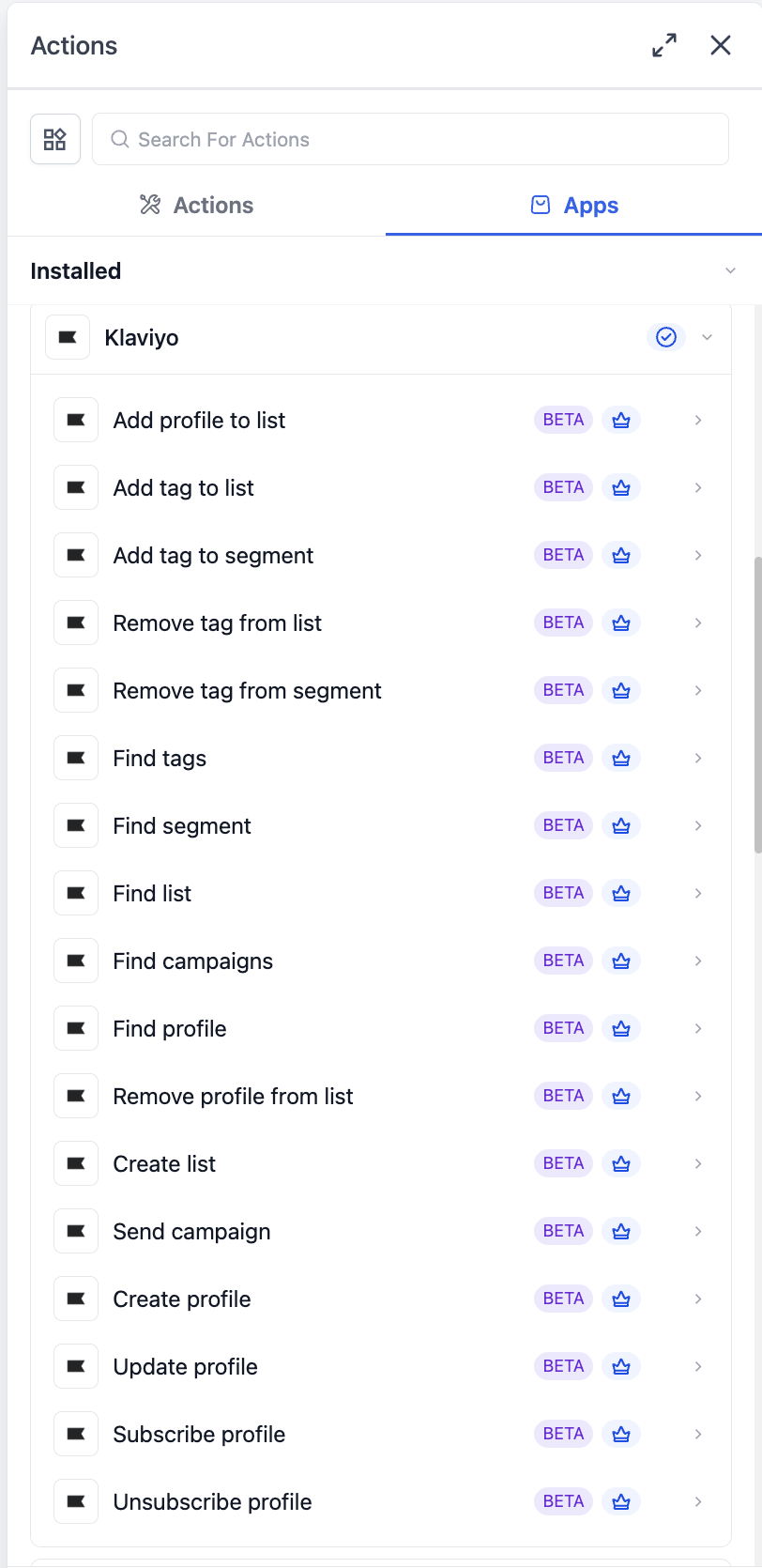
- List of Actions
- Example: Setting Up a Trigger (Profile added to list)
- Example: Setting Up an Action (Send campaign)
- How to Test the Trigger and Action
- Common Use Cases
- Frequently Asked Questions
Overview
Klaviyo is a marketing automation platform built around profiles unified customer records with subscription status across email and SMS that flow through lists, segments (dynamic groups built from profile conditions), and metrics (event streams like ‘Placed Order’, ‘Viewed Product’). Campaigns and flows in Klaviyo target these primitives. The Klaviyo integration brings them directly into the Workflow Builder so customer-facing automations can react to Klaviyo activity and write back to Klaviyo in real time as workflow data changes elsewhere.
This means a new Klaviyo signup can immediately become a CRM contact, a high-value segment match can fire an internal alert, a CRM contact can be created or updated as a Klaviyo profile, and a milestone-triggered workflow can send a pre-staged Klaviyo campaign — all inside one automation.
About the Integration
The integration ships with two halves:
Triggers (Klaviyo → Workflows): Four polling triggers — New event, New profile, Profile added to list, Profile added to segment — each running every 5 minutes and surfacing matching records since the last poll.
Actions (Workflows → Klaviyo): Seventeen actions covering the full profile lifecycle (create / update / find / subscribe / unsubscribe), list management (create / find / add / remove), segment lookup, tag management across lists and segments, campaign discovery, and one-click sending of a draft campaign.
All triggers and actions are flagged as premium workflow components — premium action credits apply at the standard automation rate. Klaviyo plan usage (active profiles, SMS credits) is billed by Klaviyo directly on your Klaviyo account.
Key Benefits of Klaviyo in Workflows
Polling triggers every 5 minutes — close-to-real-time without webhook plumbing; matching records are batched and processed in order.
Full profile lifecycle in one place — create, update, find, subscribe, and unsubscribe all available as discrete actions, so workflows can match the exact step needed.
Consent-aware subscriptions — Subscribe profile takes channel-specific flags so email and SMS consent are honored independently, matching how Klaviyo (and TCPA / GDPR / CASL) actually track consent.
List and segment lookups — Find list, Find segment, and Find campaigns let workflows look up identifiers at run time so the rest of the workflow doesn’t hardcode IDs.
Tag taxonomy across lists and segments — manage Klaviyo tags as workflow-driven metadata across both lists and segments using one consistent set of actions.
Workflow-driven campaign sending — Send campaign lets a workflow milestone, schedule, or condition trigger a draft Klaviyo campaign immediately.
How to Set Up Klaviyo
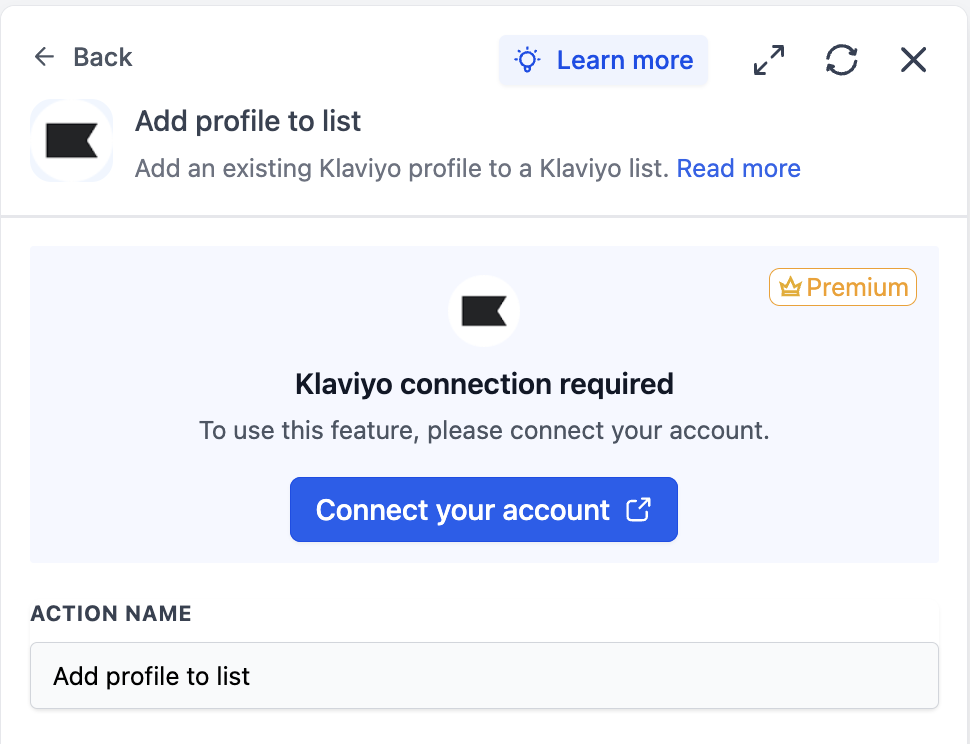
Before any Klaviyo trigger or action can run, the integration has to be connected via OAuth.
Connect via the Workflow Builder (recommended)
Open Automation → Workflows and pick (or create) a workflow.
Add a Klaviyo trigger or action — search for Klaviyo in the Apps tab.
Select any Klaviyo trigger or action.
On the action card, click Connect your account.
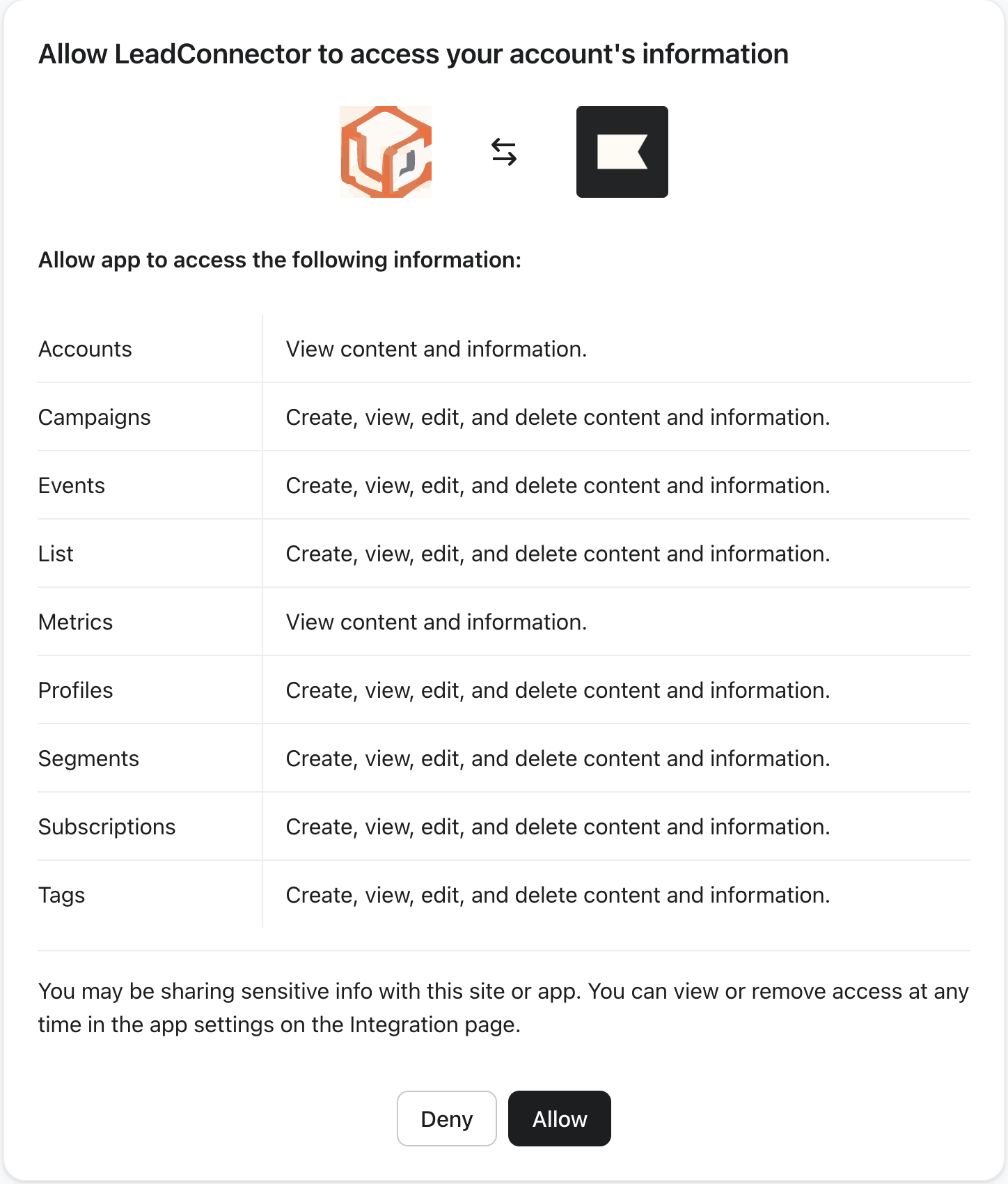
You will be redirected to Klaviyo’s authorization screen. Review the requested scopes — Accounts, Campaigns, Events, List, Metrics, Profiles, Segments, Subscriptions, Tags — and click Allow.
You will be returned to the Workflow Builder; the panel will update to show Connected.
Connect via Settings (alternative path)
Go to Settings → Integrations.
Locate Klaviyo and click Connect.
Complete the OAuth flow on Klaviyo’s authorization screen and return to the platform.
List of Triggers
All triggers poll Klaviyo every 5 minutes and surface matching records since the last poll, in order.
List of Actions
Actions are grouped by what they manage.
Profile lifecycle
List management
Segment management
Tag management
Campaigns
Example: Setting Up a Trigger (Profile added to list)
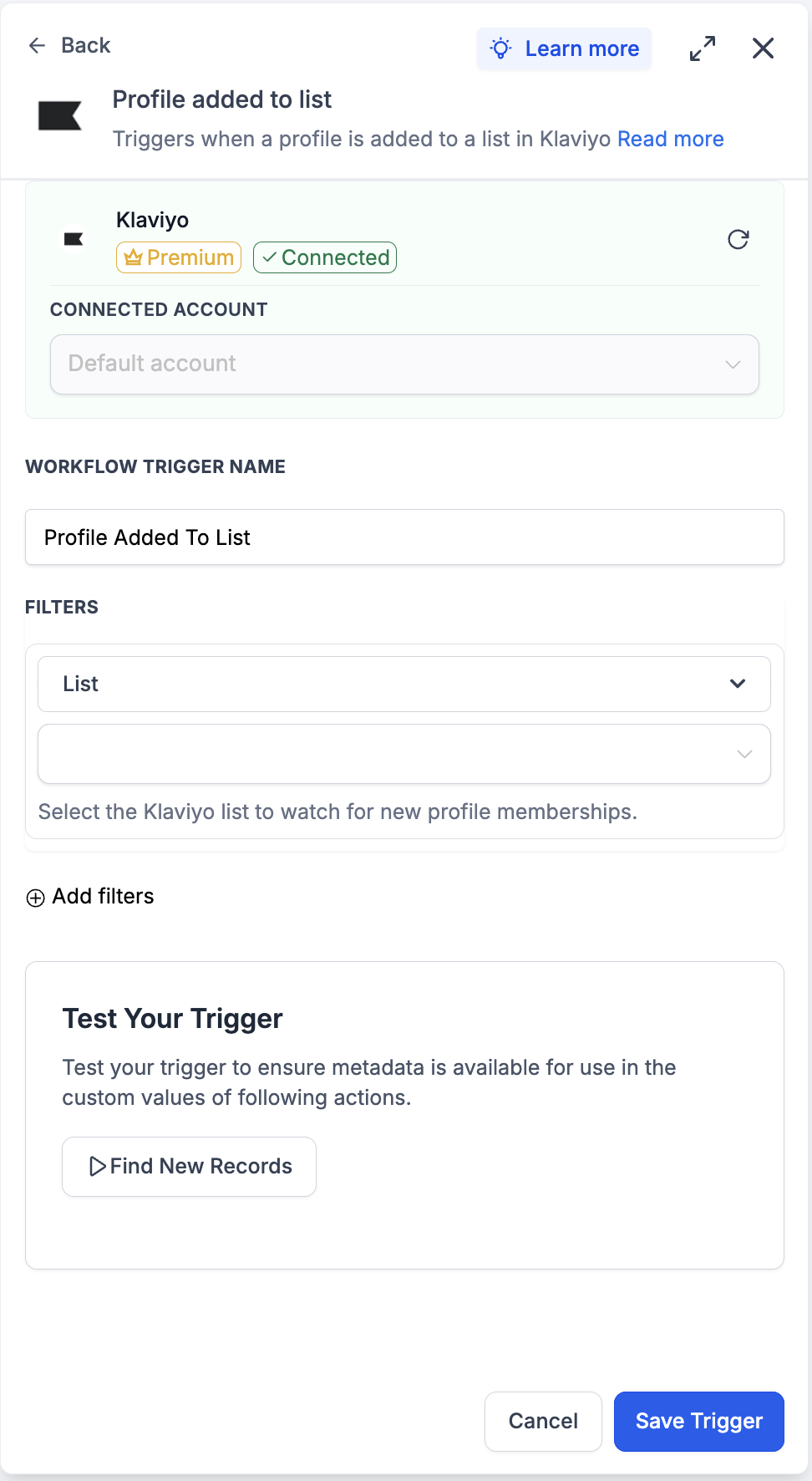
This walkthrough wires up a workflow that fires every time a profile is added to a specific Klaviyo list — and uses the profile payload as the source of all downstream actions.
Step 1: Add the trigger
Open the workflow and click Add Trigger.
Switch to the Apps tab and search for Klaviyo.
Select Profile added to list from the trigger list.
Step 2: Configure the trigger
Connected Account — pick the Klaviyo account this trigger should watch. Defaults automatically when only one account is connected.
Workflow Trigger Name — give it a meaningful label, e.g. ‘New VIP List Member’.
Filters → List — pick the Klaviyo list to watch. The helper text underneath reads ‘Select the Klaviyo list to watch for new profile memberships.’
Add filters (optional) — layer on additional conditions if the workflow should only fire under specific circumstances.
Step 3: Test the trigger
Click Find New Records inside the Test Your Trigger panel.
The system fetches the most recent matching list-membership records from Klaviyo.
In the Records — Select Mapping Reference dropdown, pick one of the returned records. This locks the profile-payload schema for downstream steps.
Click Save Trigger to finish.
Example: Setting Up an Action (Send campaign)
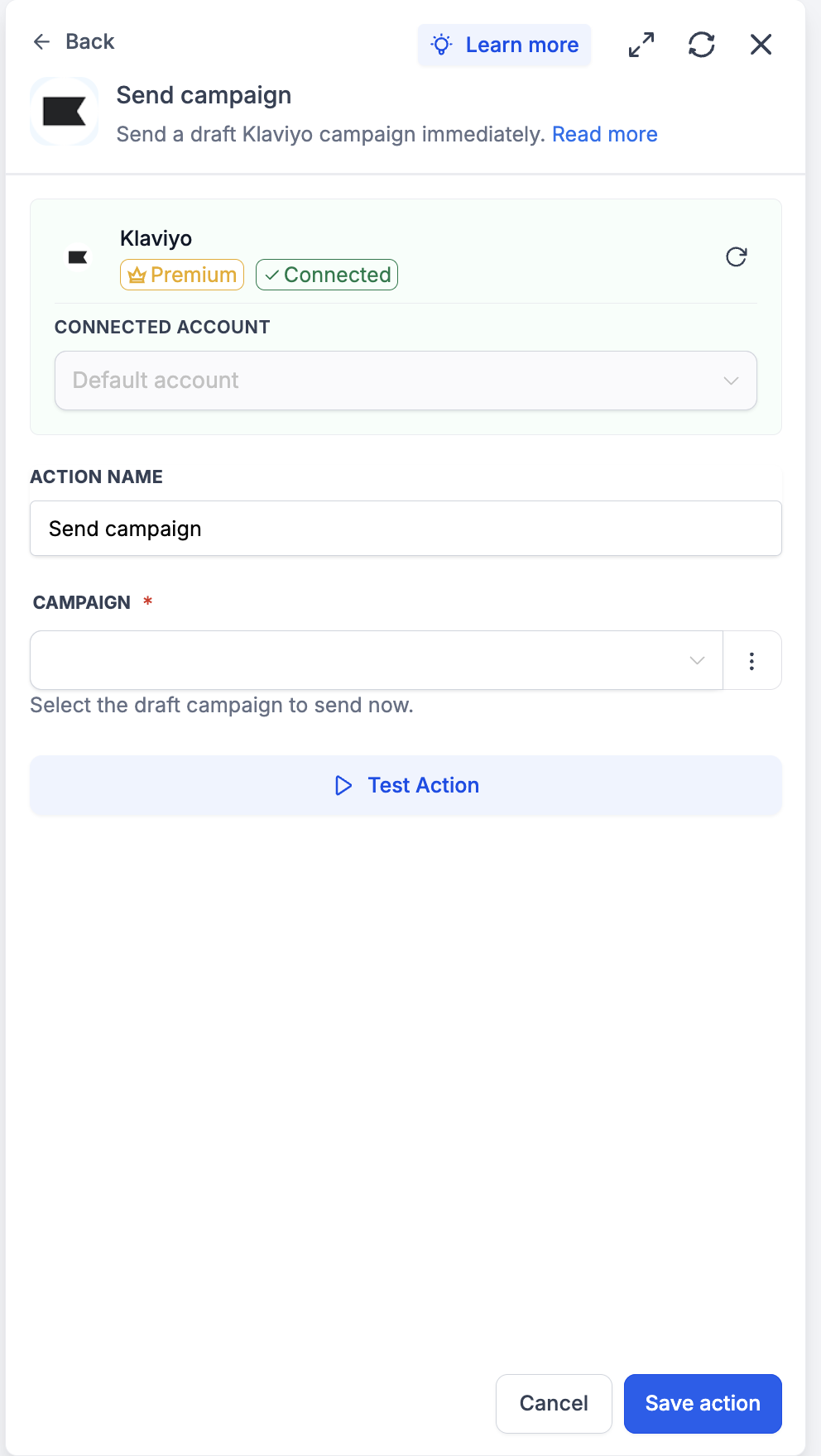
This walkthrough uses Send campaign to fire a pre-staged Klaviyo campaign the moment a workflow condition is met.
Step 1: Stage the draft campaign in Klaviyo
Send campaign is the trigger, not the composer — the campaign’s recipients, subject, and content must already be configured in Klaviyo and left in draft status. Build the campaign in Klaviyo as you normally would and stop before clicking Send.
Step 2: Add the action
Inside the workflow, click Add to insert a new step.
Open the Apps tab and select Klaviyo.
Choose Send campaign from the action list.
Step 3: Configure the action
Connected Account — pick the Klaviyo account where the draft lives.
Action Name — a meaningful label, e.g. ‘Send Launch Day Broadcast’.
Campaign — pick the draft from the dropdown. The helper text reads ‘Select the draft campaign to send now.’ Only campaigns currently in draft status appear in the list.
Step 4: Test the action
Click Test Action.
Confirm — the campaign will send to its configured audience in Klaviyo. Treat test sends with care: use a small test list inside the draft’s audience before running this in a production workflow.
Save the action and run a full Test Workflow before publishing.
How to Test the Trigger and Action
Always test before publishing. Testing locks the payload schema and gives downstream steps a real record to map against.
Test the trigger
Inside the trigger panel, click Find New Records.
If no matching records appear, perform the action in Klaviyo manually (add a profile to the list, fire a test event) and re-fetch.
Select the returned record as the mapping reference. Confirm the profile-payload fields appear in the preview.
Test the action
Inside the action panel, click Test Action.
The action runs against the live Klaviyo account using the configured inputs.
Open Klaviyo and confirm the result — a new profile under Profiles, a list membership under Lists, a tag attachment under Tags, a campaign send under Campaigns.
If something looks wrong, double-check the field mappings and re-test. Once satisfied, click Save action, then run a full Test Workflow before publishing.
Common Use Cases
Use Case 1: Sync new Klaviyo signups into the CRM
Goal: Mirror every new Klaviyo profile as a contact in the CRM so downstream nurture, owner routing, and reporting all reference one record.
Workflow Setup:
Trigger: New profile
Action: Find Contact (by email)
Branch: If not found → Create Contact with the Klaviyo profile’s email, phone, name, location, and custom properties
Branch: If found → Update Contact, mark ‘Source = Klaviyo’ on the contact
Example: A popup on the marketing site collects an email in Klaviyo. Within five minutes, the workflow finds or creates the matching CRM contact, tags it with ‘Source = Klaviyo’, and assigns an owner — no manual export, no nightly sync.
Use Case 2: VIP segment match → internal alert + CRM tag
Goal: Catch high-value segment changes the moment Klaviyo recalculates membership.
Workflow Setup:
Trigger: Profile added to segment (filtered to a VIP segment)
Action: Find Contact (by email)
Action: Update Contact — apply a ‘VIP’ tag
Action: Send internal notification (Slack/SMS/email) to the contact’s owner
Example: A ‘Spent > $500 in last 90 days’ segment fires the trigger when a customer crosses the threshold. The matching CRM contact gets a ‘VIP’ tag, and the owner gets an internal Slack note within five minutes — perfect for triggering a personal outreach before the next purchase decision.
Use Case 3: Form opt-in → consent-honoring subscribe
Goal: Capture explicit opt-in from a form and reflect it in Klaviyo with the right per-channel consent.
Workflow Setup:
Trigger: Form Submission (with email, phone, email-consent checkbox, sms-consent checkbox)
Action: Find profile (by email)
Branch: If not found → Create profile
Action: Subscribe profile — pass email-consent and sms-consent flags from the form independently
Optional Action: Add profile to list — to also drop them into a specific welcome list
Example: A landing page collects email and phone with two separate checkboxes for email and SMS consent. The workflow creates the Klaviyo profile, then subscribes the contact only on the channels they explicitly agreed to. Klaviyo’s welcome flow takes over from there.
Frequently Asked Questions
Q: What is Klaviyo?
Klaviyo is a marketing automation platform for email and SMS, built around unified customer profiles. Profiles flow through lists, segments (dynamic groups defined by profile conditions), and metrics (tracked events like ‘Placed Order’ or ‘Viewed Product’). Campaigns and flows in Klaviyo target these primitives.
Q: Are Klaviyo triggers and actions premium workflow components?
Yes. All triggers and all actions are flagged as premium and consume premium action credits at the standard automation rate. Klaviyo plan usage (active profiles, SMS credits) is billed by Klaviyo directly on your Klaviyo account.
Q: Are the triggers instant or polled?
Polled. All triggers poll Klaviyo every 5 minutes and return matching records since the last poll, in order. Plan for this cadence — the trigger is near-real-time, not instant.
Q: How do I authenticate Klaviyo?
OAuth. Click Connect your account on any Klaviyo step; you’ll be redirected to Klaviyo’s authorization screen. Review the requested scopes — Accounts, Campaigns, Events, List, Metrics, Profiles, Segments, Subscriptions, Tags — and click Allow. You’ll be returned to the Workflow Builder with the panel showing ‘Connected’.
Q: Are email and SMS subscribed together?
No. Klaviyo tracks email consent and SMS consent separately. Subscribe profile takes channel flags — you can subscribe to email only, SMS only, or both. Always reflect what the customer explicitly consented to.
Q: Can I update a profile’s properties and subscribe them in one step?
Not in a single action. Klaviyo requires the subscribe call and the property update to be separate operations. Use Subscribe profile first; follow with Update profile for any custom property changes.
Q: What does the New event trigger return?
The event payload — metric name, event timestamp, event properties — plus the associated profile (email, phone, profile ID, custom properties). Use the Metric filter to scope to the event type you actually care about (e.g. only ‘Placed Order’ events).
Q: How does Send campaign know which campaign to send?
The action’s Campaign field is a dropdown populated with the Klaviyo account’s draft campaigns. Recipients, subject, and content are configured inside Klaviyo when the draft is built — Send campaign triggers the send; it does not compose the campaign.
Q: How do tags differ from lists and segments?
Tags are organizational metadata attached to lists and segments — they don’t hold profiles themselves. Use tags to categorize lists and segments (e.g. ‘onboarding’, ‘win-back’, ‘black-friday-2026’) so reporting and filtering remain clean as the account grows.
Was this article helpful?
That’s Great!
Thank you for your feedback
Sorry! We couldn't be helpful
Thank you for your feedback
Feedback sent
We appreciate your effort and will try to fix the article