TABLE OF CONTENTS
- What is HubSpot Workflow Actions & Triggers?
- Key Benefits of HubSpot Workflow Actions & Triggers
- Supported HubSpot Trigger
- Supported HubSpot Actions
- How To Set Up HubSpot Workflow Actions & Triggers
- Setting Up the HubSpot New Contact Created Trigger
- Setting Up the HubSpot Create Contact Action
- Common Use Cases
- Frequently Asked Questions
What is HubSpot Workflow Actions & Triggers?
HubSpot Workflow Actions & Triggers allow you to connect HubSpot with HighLevel workflows so data can move between both systems through automation. This helps teams create HubSpot contacts, find existing HubSpot contacts, and start HighLevel workflows when new HubSpot contacts are created. By using HubSpot inside Workflow Builder, you can reduce manual data entry, prevent duplicate contacts, and keep sales or marketing processes moving more consistently.
HubSpot actions and triggers are available inside HighLevel Workflow Builder. A trigger starts the workflow when a specific HubSpot event occurs, while actions perform tasks in HubSpot after the workflow begins.
Key Benefits of HubSpot Workflow Actions & Triggers
HubSpot workflow automation helps teams connect contact activity across systems without manually copying information from one CRM to another. These benefits are especially useful when HighLevel is used for marketing automation, lead capture, or customer communication while HubSpot is used for CRM management.
- Automated contact creation: Create HubSpot contacts from HighLevel workflow events such as form submissions, appointments, tags, or other workflow triggers.
- Reduced duplicate records: Search for an existing HubSpot contact before creating a new one to help keep HubSpot contact records clean.
- Faster lead routing: Trigger follow-up workflows in HighLevel when a new HubSpot contact is created.
- Flexible field mapping: Send standard and custom contact information from HighLevel into HubSpot contact properties.
- Improved workflow consistency: Build repeatable automations that reduce manual steps for sales, marketing, and operations teams.
- Better CRM coordination: Keep HubSpot and HighLevel processes aligned when both platforms are part of your business workflow.
Supported HubSpot Trigger
The HubSpot trigger starts a HighLevel workflow when a matching event happens in HubSpot. This allows HighLevel to respond automatically when new contact activity begins in HubSpot.
New Contact Created
The New Contact Created trigger starts a HighLevel workflow when a new contact is created in the connected HubSpot account.
Use this trigger when you want HighLevel to take action after a new HubSpot contact is added, such as sending notifications, creating tasks, applying tags, or starting follow-up communication.
Supported HubSpot Actions
HubSpot actions allow HighLevel workflows to send or retrieve contact information from HubSpot. These actions should be configured carefully so the correct contact data is mapped, searched, or created.
Internal Review Note: Confirm the exact supported action list before publishing. The existing article references five actions in some areas but only lists two actions in another section. The final article should only include actions that are currently available in production.
Create Contact
The Create Contact action creates a new contact in HubSpot using information mapped from the HighLevel workflow.
Use this action when a HighLevel event captures a new lead or customer and you want that person added to HubSpot automatically.
Common mapped fields may include:
- First name
- Last name
- Phone
- Company name
- Website
- Lifecycle stage
- Lead source
- Custom HubSpot properties
Tip: Use a Find Contact action before Create Contact to check whether the contact already exists in HubSpot.
Find Contact
The Find Contact action searches HubSpot for an existing contact based on a selected identifier, such as email address.
Use this action before creating a new HubSpot contact so the workflow can check whether a matching contact already exists.
Common uses include:
- Preventing duplicate HubSpot contacts.
- Routing contacts differently when a match is found.
- Confirming whether a lead already exists in HubSpot before creating a record.
- Using workflow conditions based on whether the contact was found.
Get Contact by ID
The Get Contact by ID action retrieves a HubSpot contact using the contact’s HubSpot record ID.
Use this action when a previous workflow step already has the HubSpot contact ID and you need to retrieve more details about that contact.
Common uses include:
- Looking up contact data after a HubSpot trigger.
- Pulling HubSpot contact properties into later workflow steps.
- Verifying a specific HubSpot record before continuing the workflow.
Search Contact by Email
The Search Contact by Email action searches HubSpot for a contact using the email address provided in the workflow.
Use this action when email is the most reliable way to identify whether a HubSpot contact already exists.
Common uses include:
- Matching HighLevel contacts to HubSpot contacts.
- Avoiding duplicate HubSpot records.
- Branching workflow logic based on whether an email match exists.
Create Association
The Create Association action creates a relationship between HubSpot records, such as associating a contact with a company or deal.
Use this action when your HubSpot workflow needs connected records to stay organized for sales or account management.
Common uses include:
- Associating a HubSpot contact with a company.
- Associating a HubSpot contact with a deal.
- Connecting related HubSpot records after a contact is created or found.
How To Set Up HubSpot Workflow Actions & Triggers
A successful setup requires connecting HubSpot, selecting the correct trigger or action, mapping the right fields, and testing before publishing. Testing is especially important because it confirms that HighLevel can access HubSpot records and send data in the expected format.
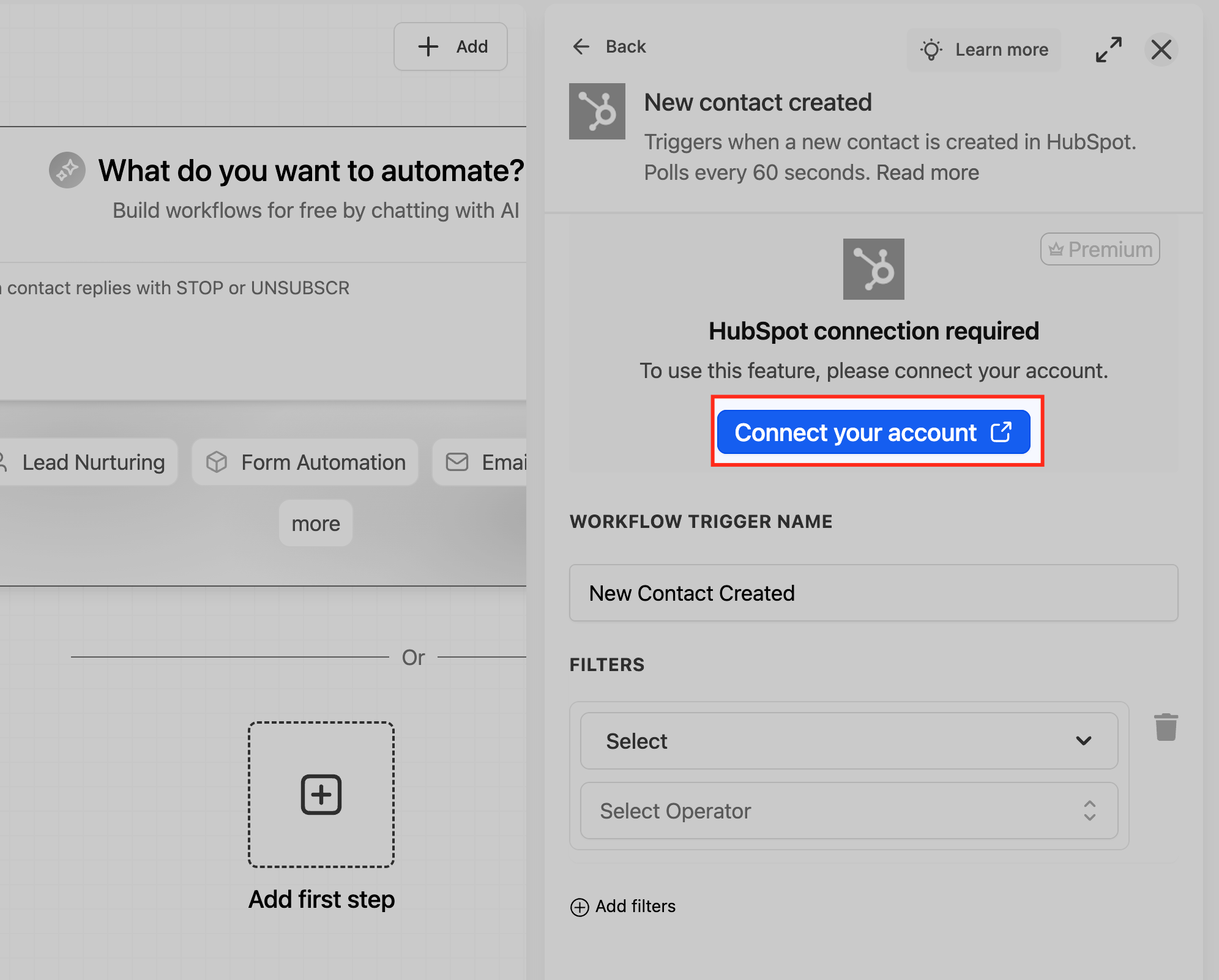
Connect HubSpot in Workflow Builder
- Go to Automation in HighLevel.
- Open an existing workflow or create a new workflow.
- Click Add New Trigger or Add Action, depending on what you want to configure.
- Select Apps.
- Choose HubSpot.
- Click Connect or Connect Now.
- Authorize the HubSpot account you want to use.
- Review the requested permissions.
- Complete the authorization.
- Return to HighLevel and confirm that HubSpot is connected.
Setting Up the HubSpot New Contact Created Trigger
The New Contact Created trigger is useful when HubSpot is the starting point for a workflow. Once a new contact is created in HubSpot, HighLevel can continue the automation with follow-up actions, notifications, tasks, or internal processes.
- Go to Automation in HighLevel.
- Open the workflow where you want HubSpot to trigger the automation.
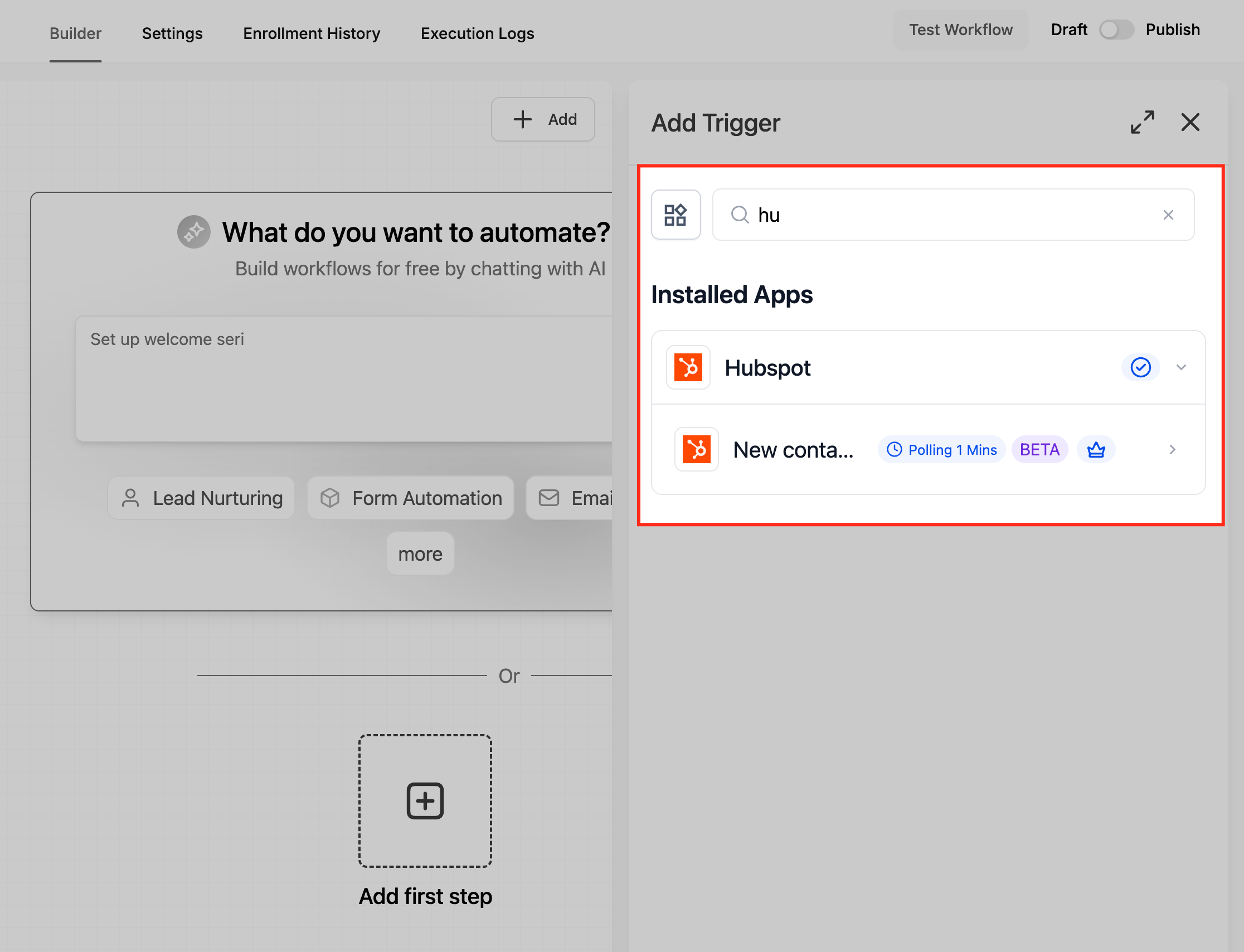
- Click Add New Trigger.
- Select HubSpot.
- Choose New Contact Created.
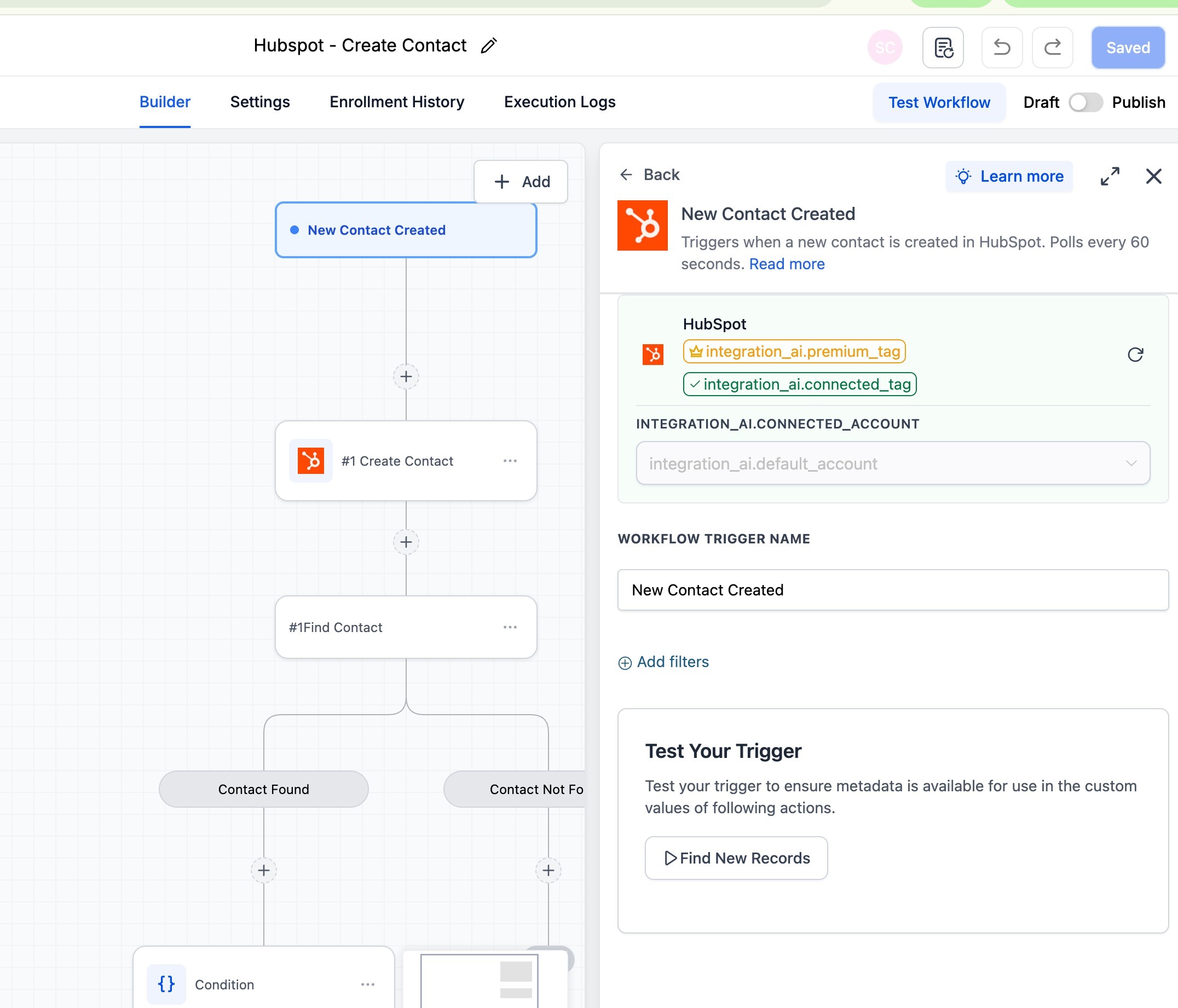
- Confirm the connected HubSpot account.
- Configure any available trigger settings.
- Click Save Trigger.
- Use Test Trigger or Find New Records to confirm that HighLevel can detect HubSpot contact records.
- Publish the workflow when testing is successful.
Setting Up the HubSpot Create Contact Action
The Create Contact action sends contact data from a HighLevel workflow into HubSpot. Accurate field mapping ensures that each HubSpot contact is created with the right name, email, phone number, and custom property values.
- Open the workflow where you want to create a HubSpot contact.
- Add the workflow trigger that should start the process.
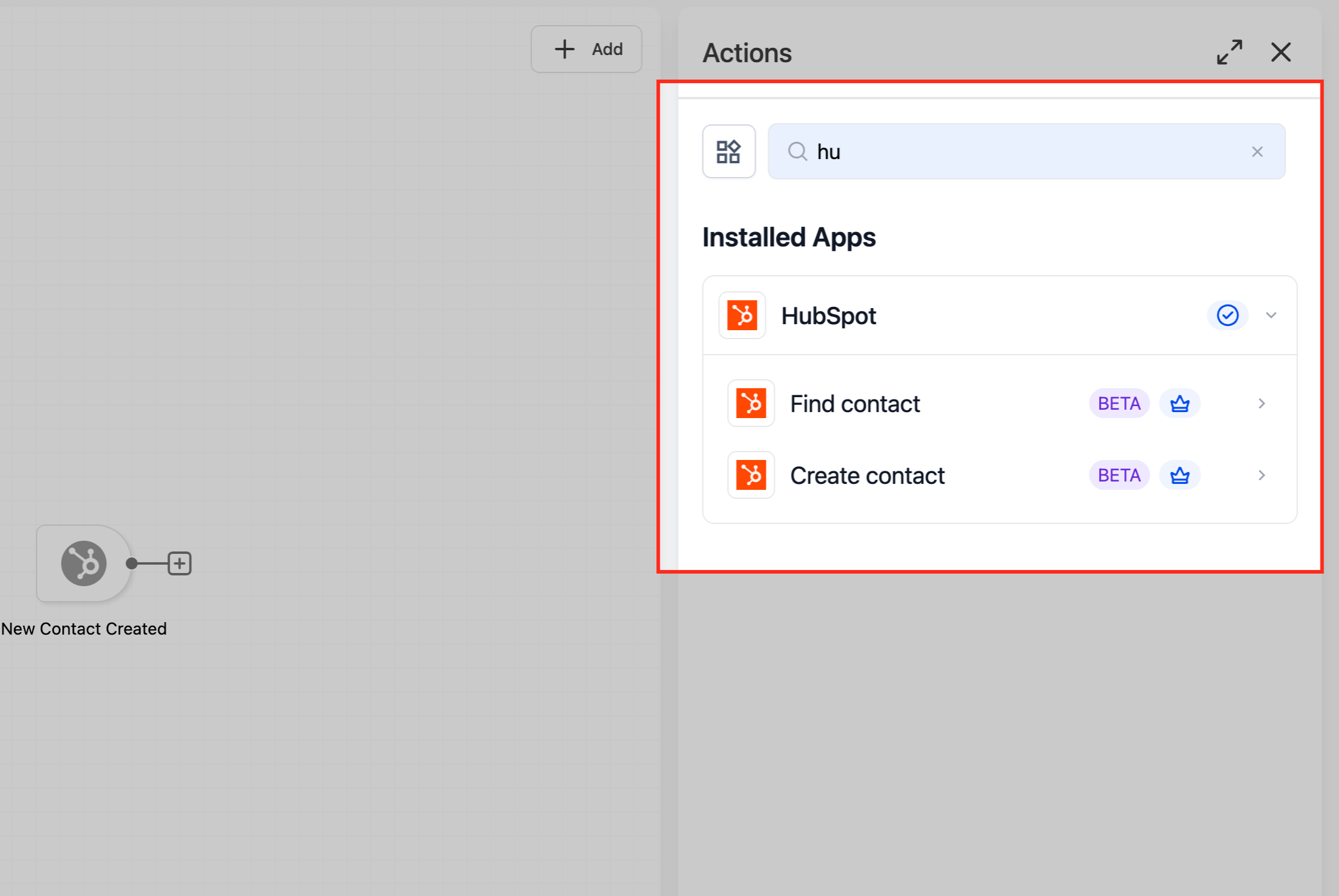
- Click Add Action.
- Select HubSpot.
- Choose Create Contact.
- Confirm the connected HubSpot account.
- Map the required HubSpot fields.
- Map any optional HubSpot properties needed for your process.
- Save the action.
- Test the action.
- Review the test result in HighLevel and confirm the contact was created in HubSpot.
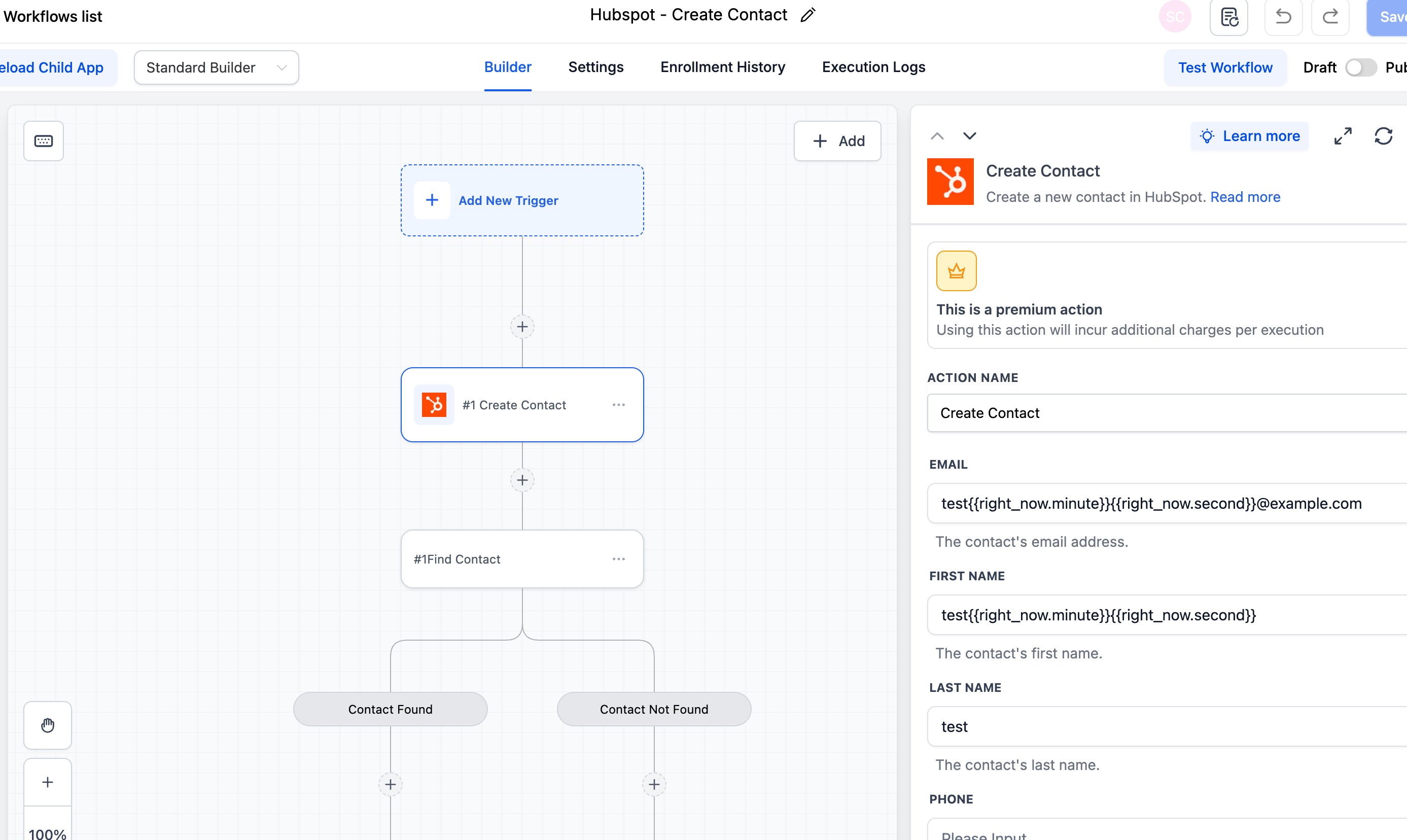
Recommended field mapping example:
- HubSpot First Name → HighLevel Contact First Name
- HubSpot Last Name → HighLevel Contact Last Name
- HubSpot Email → HighLevel Contact Email
- HubSpot Phone → HighLevel Contact Phone
- HubSpot Company → HighLevel Contact Company Name
- HubSpot Lead Source → Workflow source, form name, or custom value
Common Use Cases
HubSpot workflow actions and triggers are useful when HubSpot and HighLevel are both part of the customer journey. These examples show how teams can automate contact creation, contact lookup, and follow-up processes.
Create a HubSpot Contact from a HighLevel Form Submission
Use this workflow when leads enter HighLevel through a form and need to be created in HubSpot.
Example workflow:
- Trigger: Form Submitted.
- Action: Search Contact by Email or Find Contact.
- If/Else: Contact found?
- If no, Create Contact in HubSpot.
- If yes, continue with the next follow-up step.
Start a HighLevel Workflow When a HubSpot Contact Is Created
Use this workflow when HubSpot is the source of new contact creation and HighLevel should handle follow-up actions.
Example workflow:
- Trigger: HubSpot New Contact Created.
- Action: Send internal notification.
- Action: Add tag in HighLevel.
- Action: Create task or assign user.
- Action: Send follow-up communication if appropriate.
Prevent Duplicate Contacts in HubSpot
Use this workflow when multiple lead sources may send the same person into HubSpot.
Example workflow:
- Trigger: Contact Created, Form Submitted, or another HighLevel trigger.
- Action: Search HubSpot by email.
- If contact exists, skip Create Contact.
- If contact does not exist, Create Contact.
Associate a HubSpot Contact with a Company or Deal
Use this workflow when a contact should be connected to another HubSpot record for account management or sales tracking.
Example workflow:
- Trigger: Contact created or updated in HighLevel.
- Action: Find or Create HubSpot Contact.
- Action: Retrieve the company or deal record ID.
- Action: Create Association.
- Test the association inside HubSpot.
Frequently Asked Questions
Related Articles
Was this article helpful?
That’s Great!
Thank you for your feedback
Sorry! We couldn't be helpful
Thank you for your feedback
Feedback sent
We appreciate your effort and will try to fix the article