HubSpot Importer helps you move important HubSpot CRM data into HighLevel faster. This article walks you through importing your HubSpot data (contacts, deals, custom fields, and pipelines) and reviewing the import results so you can spot and fix any errors.
TABLE OF CONTENTS
What is the HubSpot Importer?
HubSpot Importer makes it easier to switch from HubSpot to HighLevel. Instead of rebuilding your CRM setup by hand, you can connect HubSpot, choose what to bring over, and start the import from inside HighLevel.
This helps speed up onboarding by bringing over important data and structure, including Contacts, Opportunities, Custom Fields, Pipelines, Stages, and Custom Folders. After the import finishes, HighLevel shows a report so you can see what imported successfully, what failed, and what may need review.
Key Benefits of HubSpot Importer
Faster Migration: Import supported HubSpot CRM data directly into HighLevel without relying only on manual CSV exports.
Preserved Structure: Bring HubSpot Deals into HighLevel as Opportunities while keeping supported Pipelines and Stages organized.
Custom Data Continuity: Import supported HubSpot Contact and Deal Properties as HighLevel Custom Fields.
Transparent Reporting: Review import totals, successful records, errors, warnings, object-level results, and record-level messages after the import finishes.
Selective migration: Filter Contacts, Deals, Companies, and Tasks by HubSpot Created Date or Last Modified Date to import only the records you need.
Before You Start
Use a clean account when possible. Importing into an account that does not already have manually created data makes errors and duplicates easier to review.
- Turn on Allow duplicates for both Contacts and Opportunities before you start. You can re-enable de-duplication after the import is complete. Leaving duplicate-blocking on causes a lot of avoidable errors during a HubSpot import.
The import runs in the background. You can close the window and return later to review progress.
- It is recommended to use English as the account language.
- It is recommend to test imports in a new or non-production location before importing into an actively used location.
What Data You Can Import from HubSpot
The HubSport Importer currently supports Contacts, Opportunities (Deals), Companies, Custom Fields (Properties), Custom Folders, Pipelines, Stages, Emails, Notes and Tasks.
When Deals are imported as Opportunities, their pipeline and stage structure is preserved when supported by the importer. This helps keep your sales process familiar after moving from HubSpot to HighLevel.
| Migration Type | What It Does |
|---|---|
| Contacts migration | Brings HubSpot contact records into HighLevel. |
| Opportunities migration | Imports HubSpot Deals as HighLevel Opportunities. |
| Companies migration | Imports HubSpot companies as new records into HighLevel. |
| Custom Fields migration | Maps HubSpot Contact and Deal Properties to HighLevel Custom Fields. |
| Pipelines & Stages migration | Preserves the full pipeline structure, including stages. |
| Custom Folders migration | Carries over folder organization for supported imported data. |
| Email migration | Brings over all of your emails from HubSpot into HighLevel |
| Tasks migration | Brings your reminders and to-dos into HighLevel. |
For unsupported objects, use your broader migration plan or the manual migration steps in the HubSpot to HighLevel migration guide.
Limitations and Considerations
- Pipelines & Opportunities: Pipelines and pipeline stages are imported. An opportunity can be associated with up to 10 additional contacts. Also an opportunity with no contacts associated to it cannot be imported.
- Custom Fields: Custom field mapping is based on field keys. If a conflicting field key already exists in HighLevel, the import may fail. HubSpot calculated fields are imported as Single Line Text fields.
- Files & Attachments: File attachments are supported for Contacts and Opportunities.
- Contacts: If an imported contact is deleted in HighLevel and the importer is run again, the contact will be imported again. If the deleted contact is later restored, duplicate contacts may be created.
- Notes: A note can be associated with only one record of each object type. For example, a note can be linked with one contact, one opportunity. Currently - notes cannot be associated to companies.
- Tasks: Recurring tasks are not supported. A task can be associated with up to 10 records of each object type. For example, a task can be linked with 10 contacts, 10 opportunities or 10 companies.
- Associations: Some associations may not be imported due to platform limits. Customers should validate critical associations after migration.
- Emails: Imported emails from HubSpot will be read only.
How To Use the HubSpot Importer
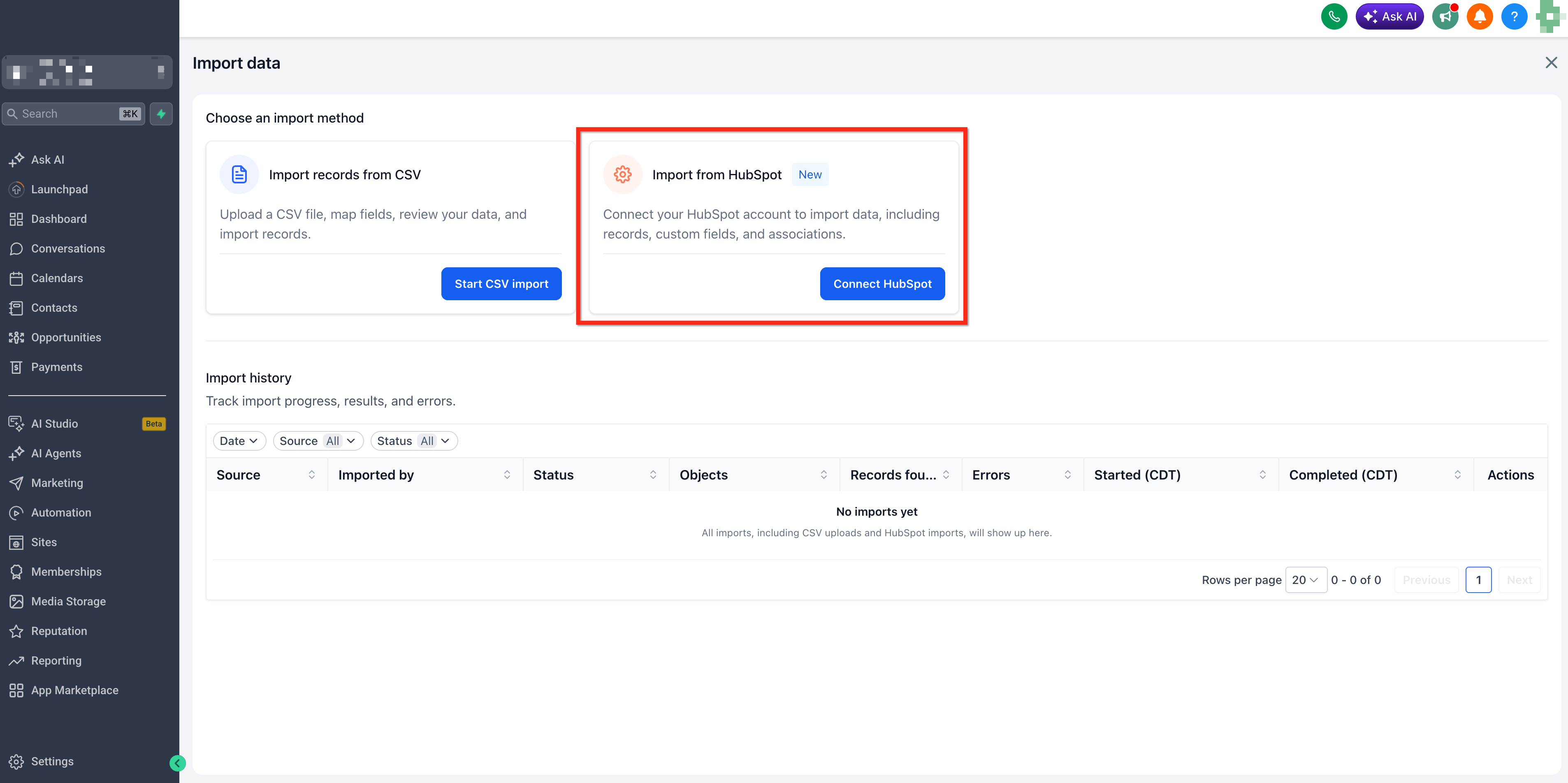
Step 1: Open Import Data
From Contacts (or Companies or Opportunities), open the Import menu in the top-right and select Import data.
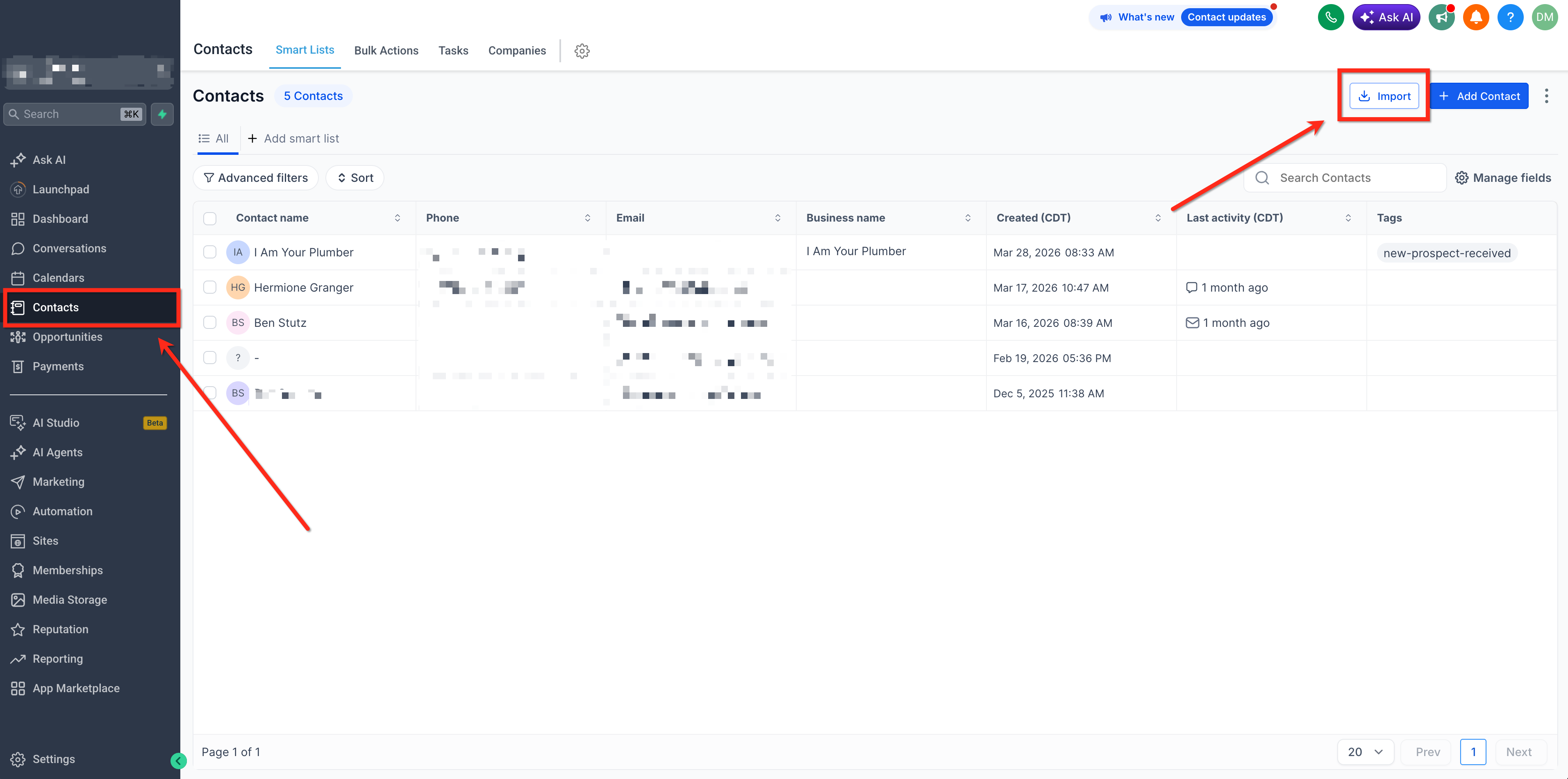
Step 2: Select HubSpot Import
Click Connect HubSpot in the right card to start a HubSpot import.
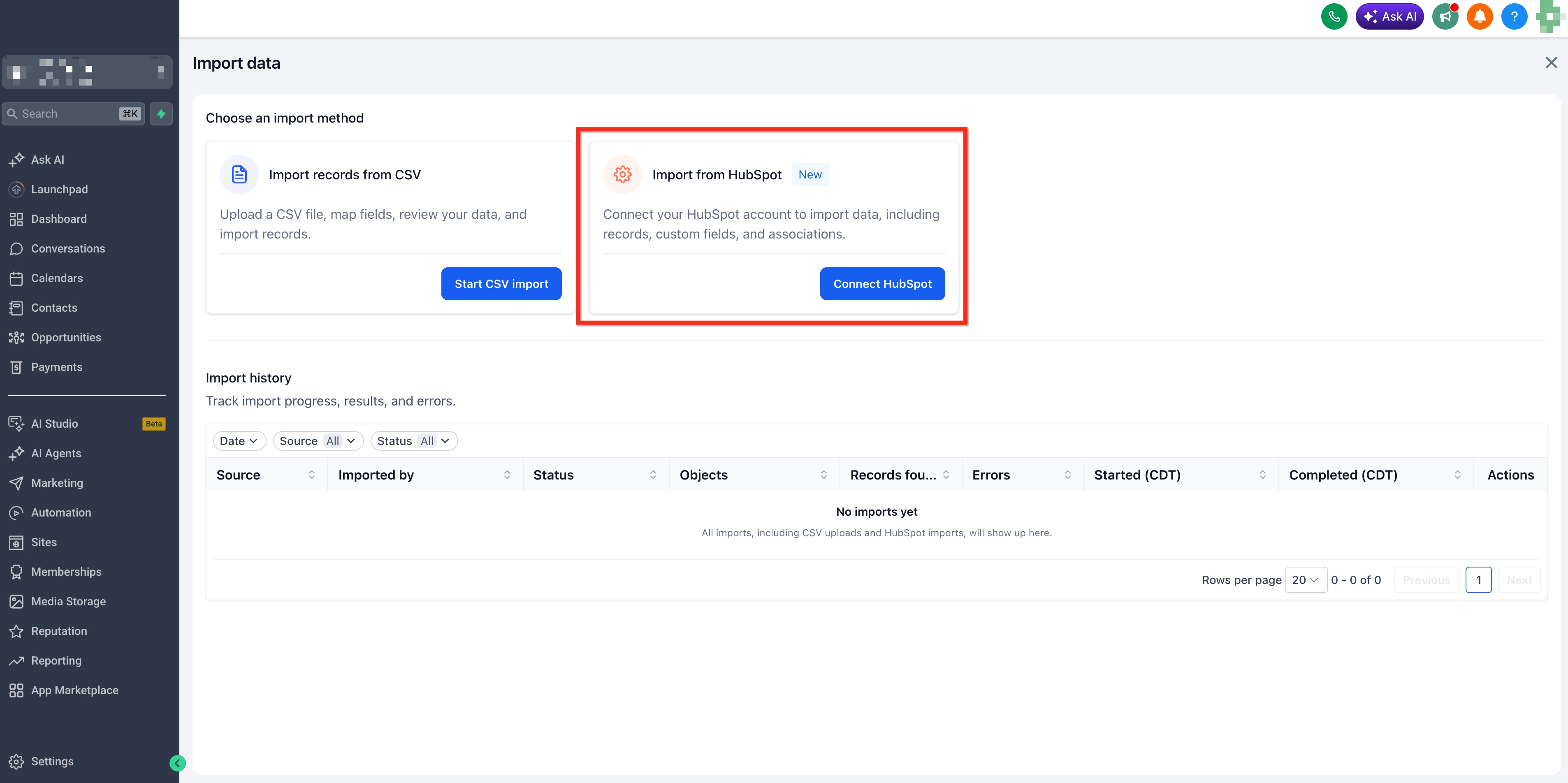
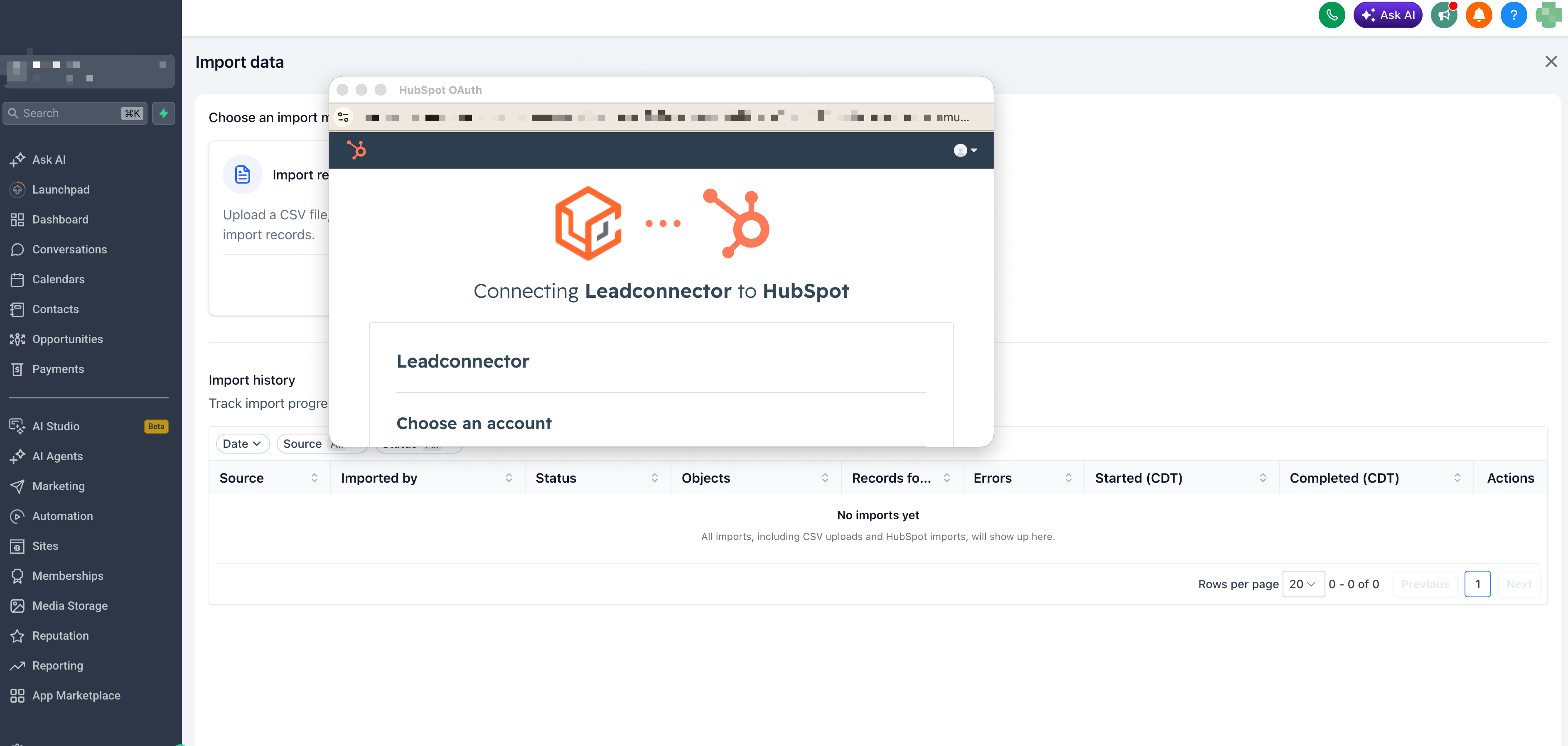
Step 3: Authenticate your HubSpot account
Login to your HubSpot account and authenticate.
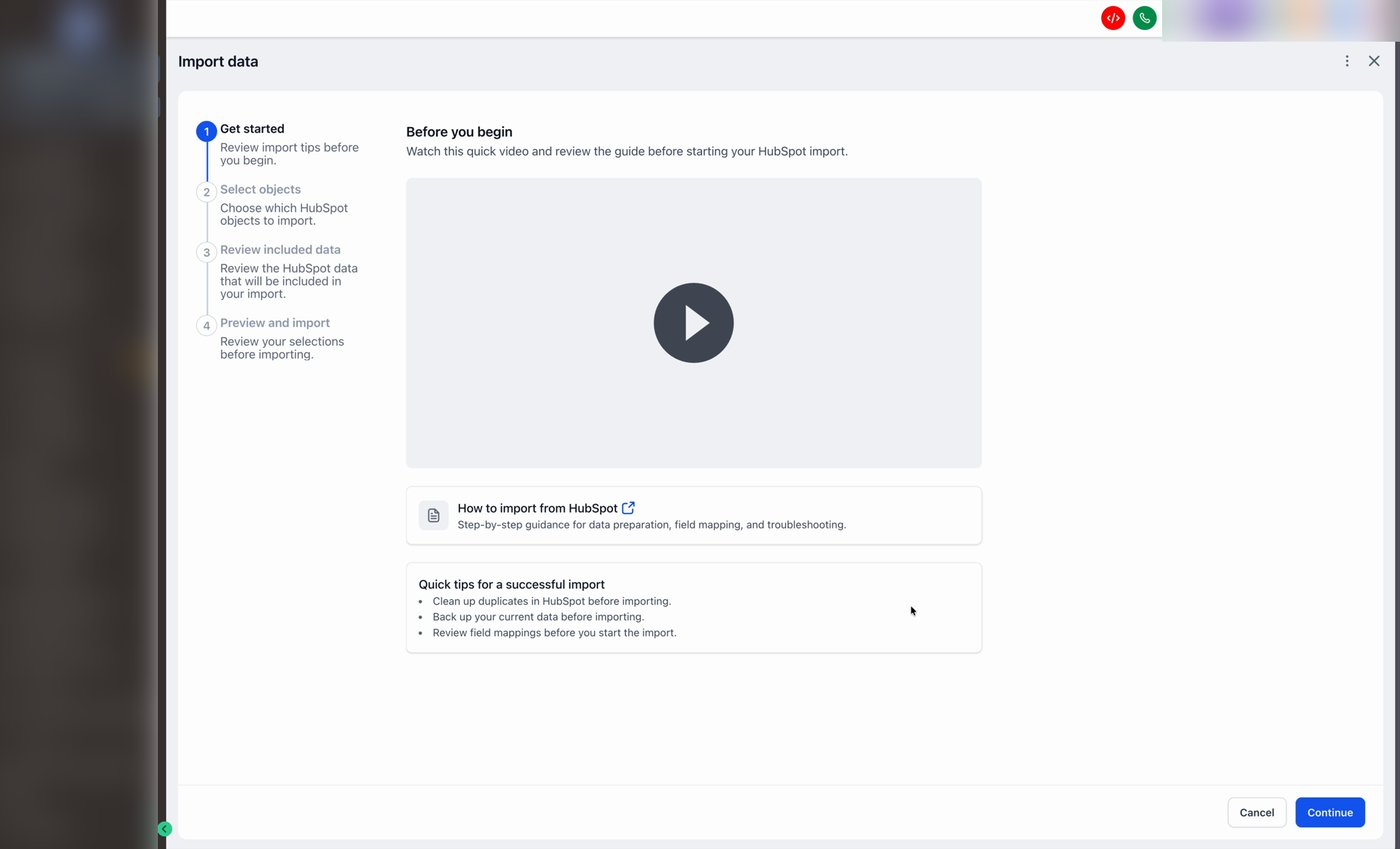
Step 4: Review the Quick Tips
Once your key is verified, the import wizard opens at Get started. This step shows a quick walkthrough video and a few tips:
Clean up duplicates in HubSpot before importing.
Back up your current data before importing.
Review field mappings before you start the import.
When you're ready, click Continue.
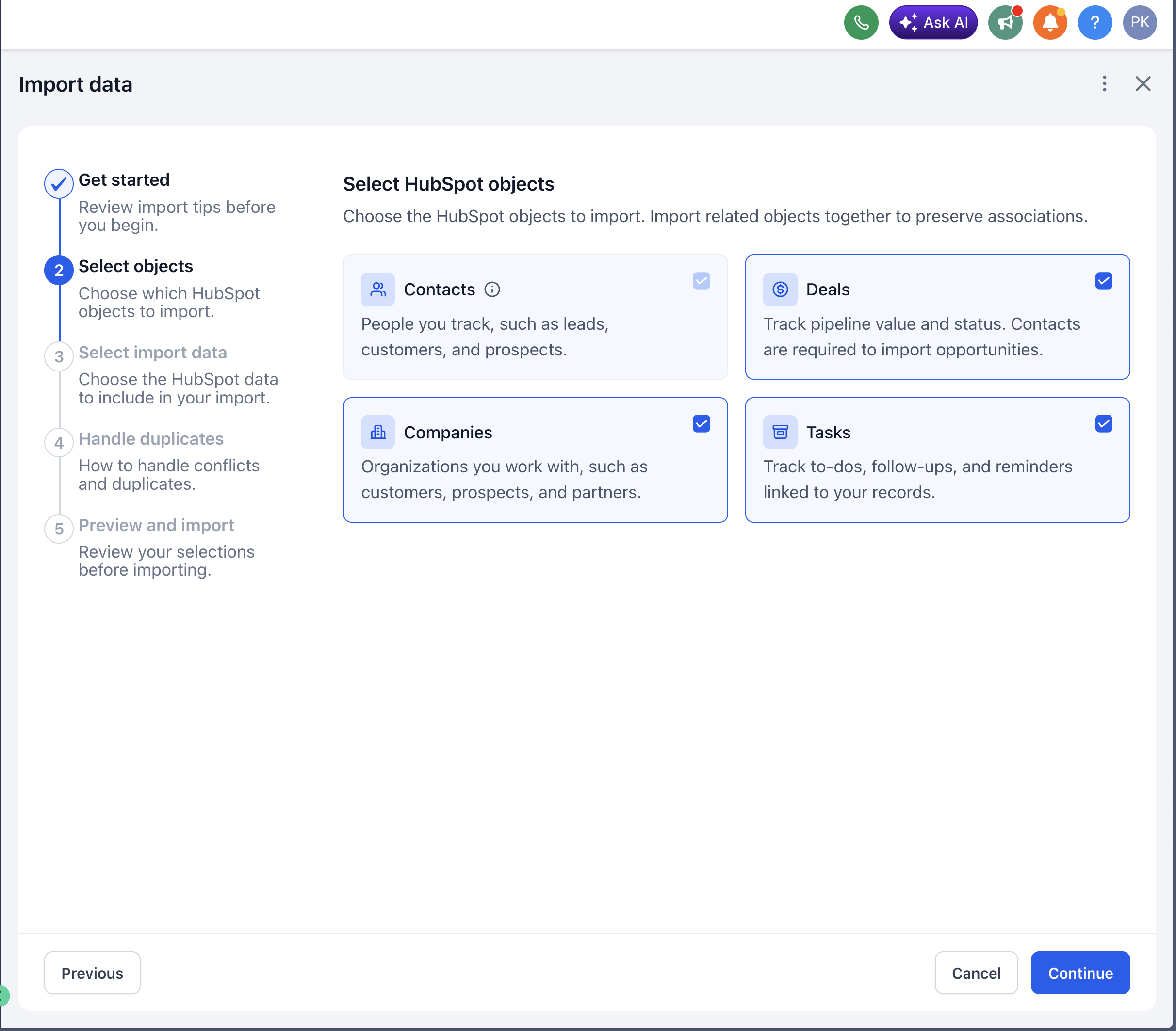
Step 5: Select What to Import
Choose which HubSpot objects to bring over:
Contacts: People you track (leads, customers, prospects).
Tasks: track to-dos, follow-ups, and reminders linked to your records.
- Deals: Track pipeline value and status. Deals are imported as Opportunities.
Importing Deals requires Contacts. Contacts will be auto-selected if you pick Deals. - Companies: Brings over your company object records as Companies.
Tick the boxes for what you want, then click Continue.
Step 6: Review What is Included
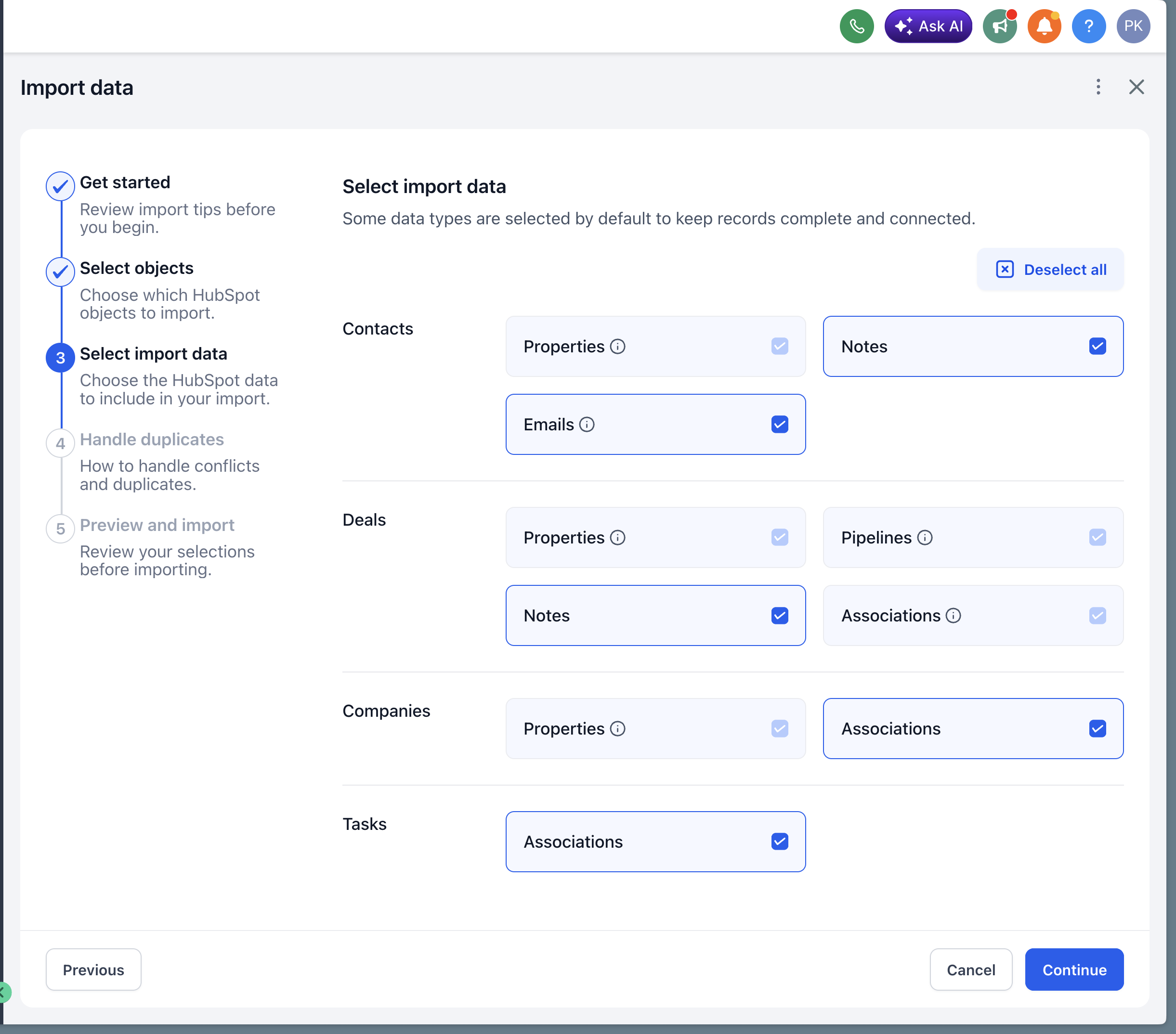
The wizard automatically includes the related data needed to keep your records complete and connected:
Contacts: all properties (standard + custom fields), notes, emails
Tasks: associations.
- Deals: all properties, pipelines, notes, associations.
- Companies: properties and associations.
Pipeline stages are imported along with pipelines. You don't need to recreate them.
Two things to watch for with custom fields:
Custom fields are mapped by key. If a custom field with the same key already exists in your account, the import will throw an error for that field. Rename or remove the existing one before importing if you want a clean mapping.
Mismatched name vs. label. If a custom field's internal name and display label are different in HubSpot, you may see issues during import. Reviewing your HubSpot custom fields and aligning name/label before importing avoids surprises.
Click Continue to move on.
Step 7: Review and filter record counts
The Preview and import step lists each piece of HubSpot data, what it becomes in HighLevel (Imported as), and the estimated number of records (Est. Records).
To import only some records for an object, click the edit (pencil) icon on its records row (for example, Contacts – records) and add filters. See Filter which records are imported below.
When a filter is applied, Est. Records shows both numbers, for example 301 found • 157 selected. Only the selected records will be imported.
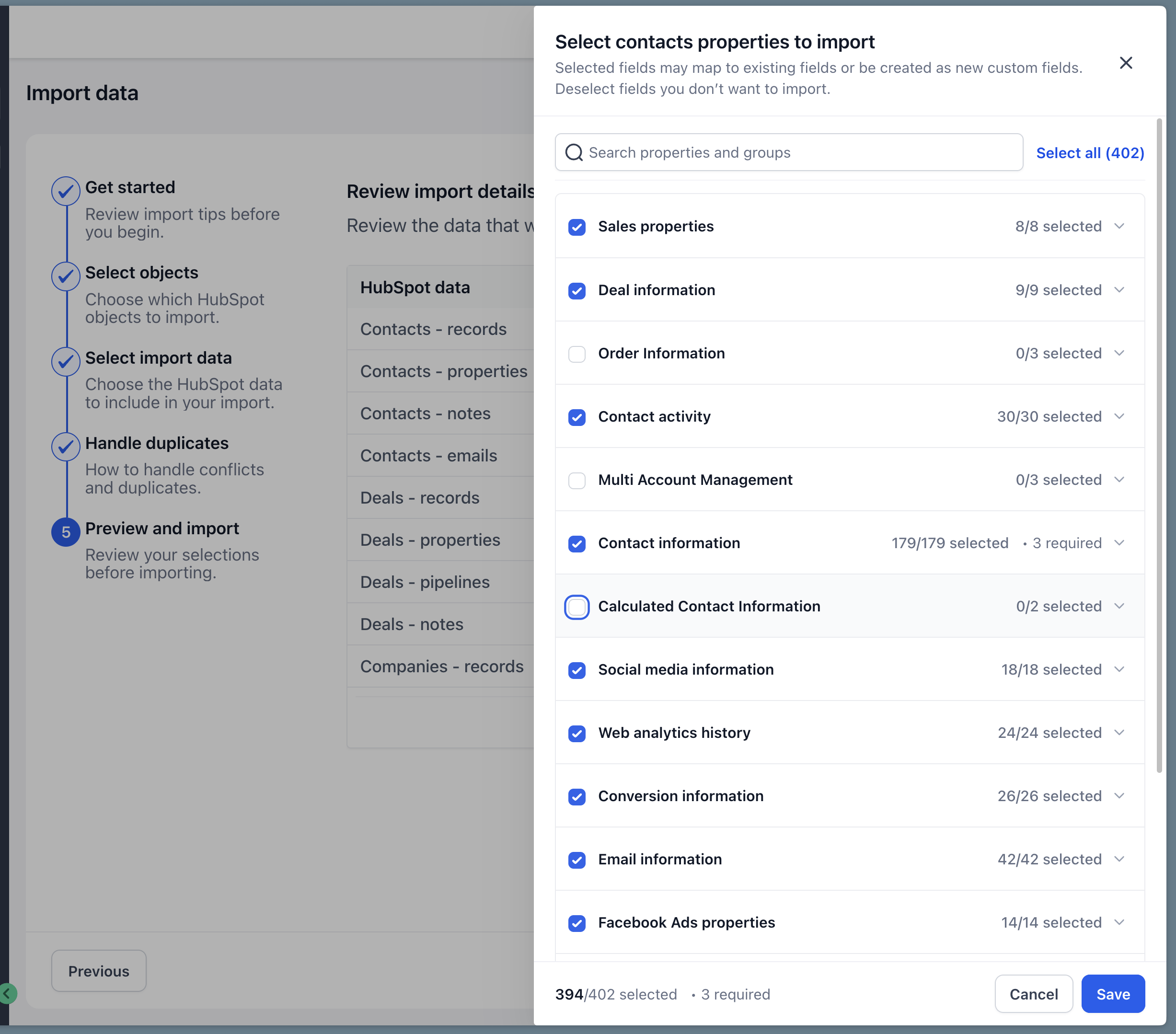
To choose specific Contact or Deal properties, click the edit (pencil) icon on the properties row.
Click Confirm and start import, then confirm again in the dialog.
HubSpot data: what's in HubSpot (e.g., Contacts – records, Deals – pipelines).
Imported as: what it becomes in your account (e.g., Contacts – custom fields, Opportunities – pipelines).
Records found: how many records will be imported.
Note: Association counts are estimates. Each pair is counted once per source record, so the final number can be lower if some records have nothing to link to.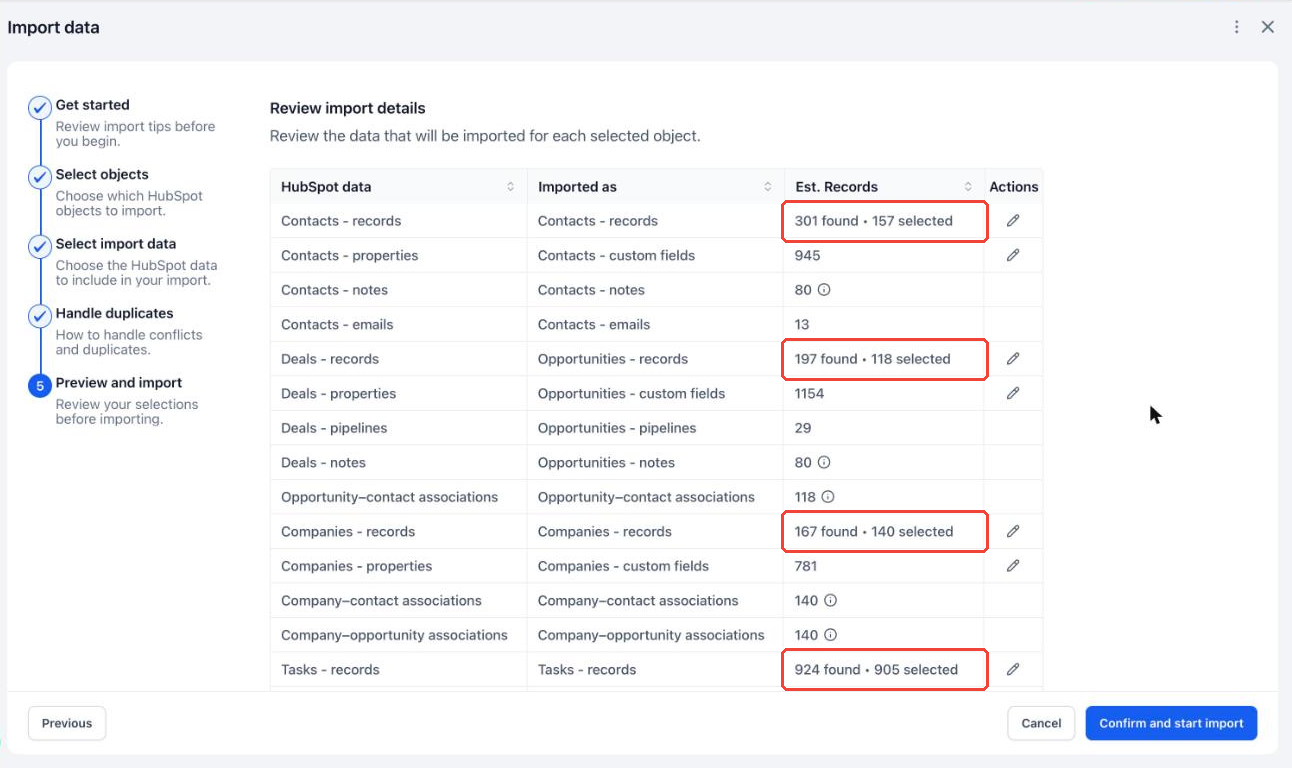
Filter which records are imported
Filters let you import a subset of each HubSpot object instead of everything. They are optional. If you leave a filter empty, all records for that object are imported.
Objects you can filter: Contacts, Deals, Companies, Tasks
Fields you can filter on
| Field | What it means |
|---|---|
| HubSpot Created Date | When the record was created in HubSpot |
| HubSpot Last Modified Date | When the record was last updated in HubSpot |
Conditions: Is, Is not
Values you can choose
| Type | Options |
|---|---|
| Relative | Yesterday, Today, Tomorrow, This week, This month, This quarter, This year |
| Exact date | On date, Before date, After date, Between |
| Rolling range | In the last, In the next, More than, Less than (enter a number and choose days, weeks, months, or years) |
To add a filter
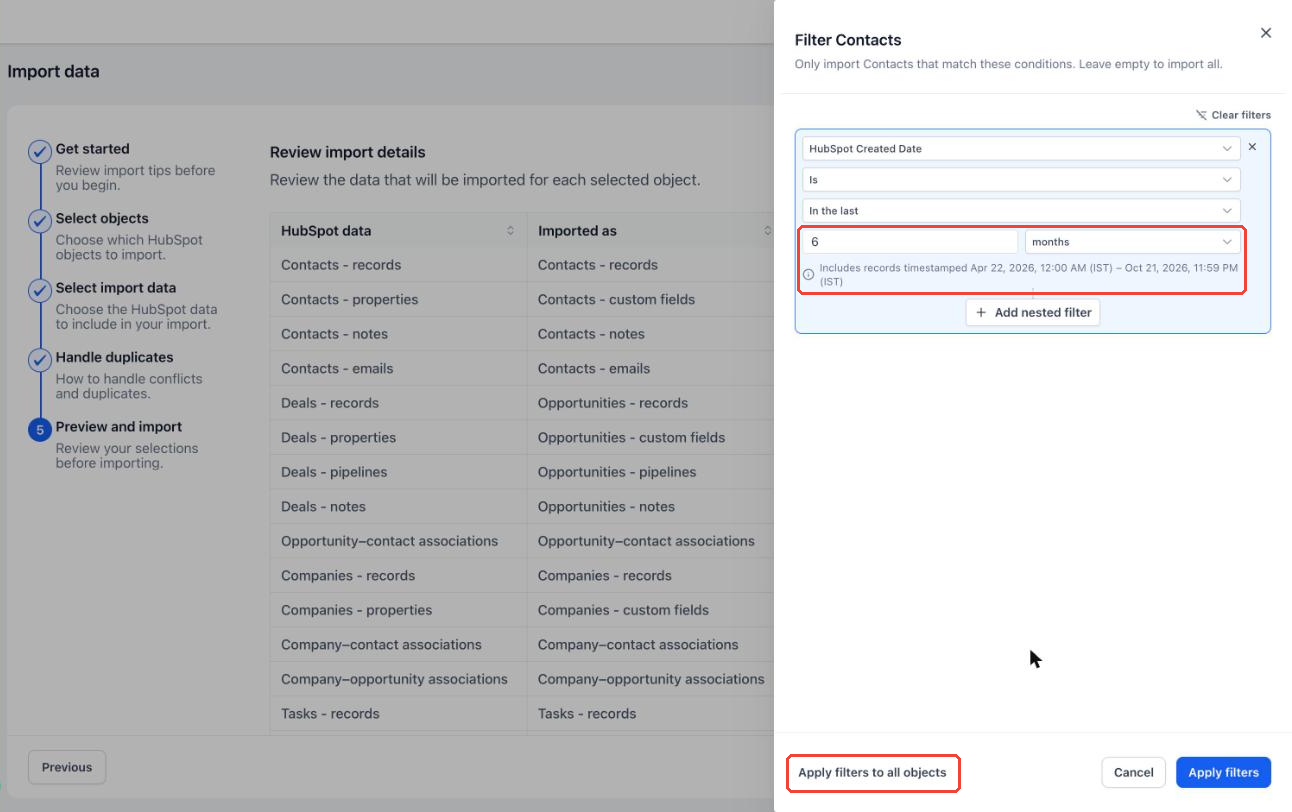
- On Preview and import, click the edit (pencil) icon on the object's records row. The Filter [Object] panel opens.
- Click Select field and choose HubSpot Created Date or HubSpot Last Modified Date.
- Choose a condition: Is or Is not.
- Choose a value type and enter the value. For rolling ranges, enter a number and pick a unit.
- The panel shows the exact date range the filter covers, for example "Includes records timestamped Apr 22, 2026, 12:00 AM – Oct 21, 2026, 11:59 PM".
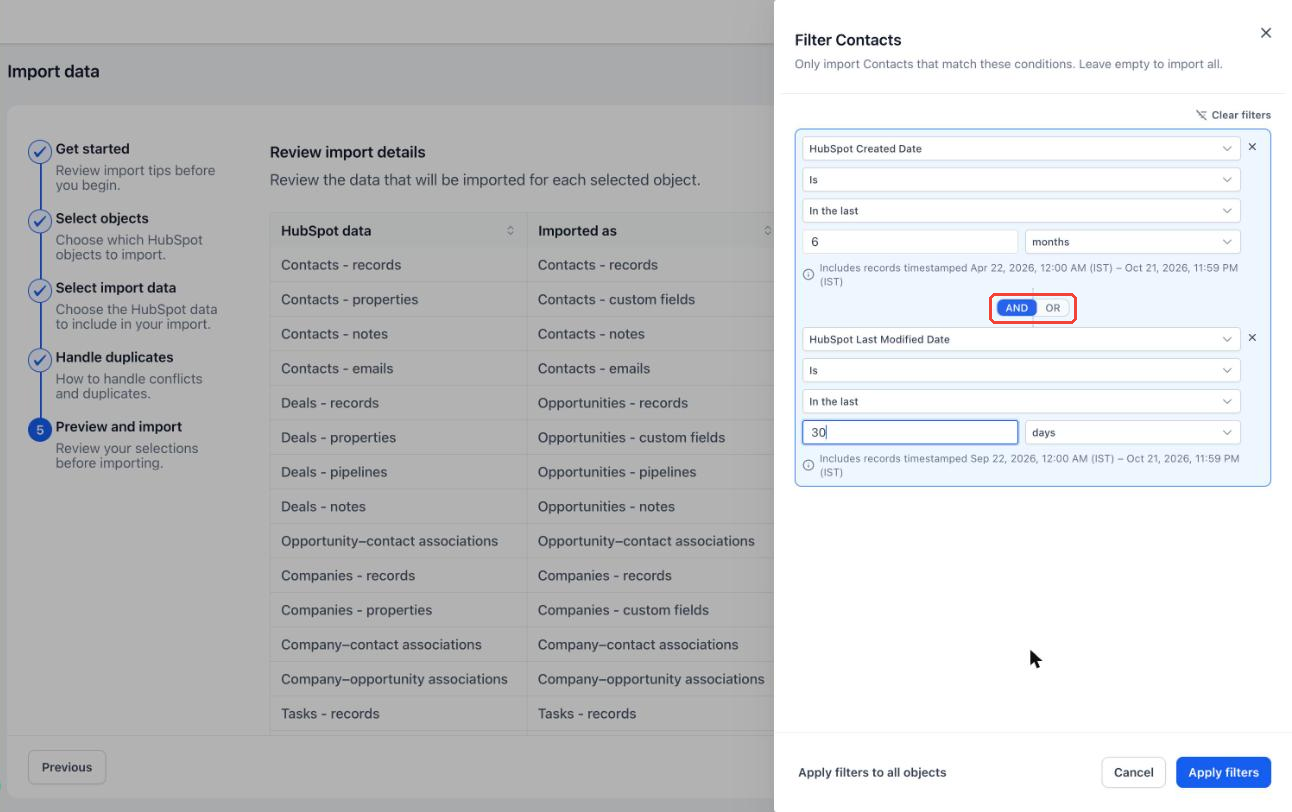
- (Optional) Click Add nested filter to add another condition, then choose AND (records must match every condition) or OR (records can match any condition).
- Click Apply filters to filter this object only, or Apply filters to all objects to use the same conditions for every object you selected.
To change or remove filters
- Click the edit (pencil) icon again to change conditions.
- Click the × next to a condition to remove it, or Clear filters to remove them all.
- If you close the panel with changes you haven't applied, you'll be asked to keep editing or discard them.
Good to know
- In the last does not include today. For example, In the last 6 months on Oct 22 covers Apr 22 to Oct 21.
- Rolling ranges need a value greater than 0. Invalid values (such as 0) show Value is not valid, and Apply filters stays disabled until every condition is complete and valid.
You can also choose to modify and bring in only certain custom fields from HubSpot and not all of them.
Step 8: Your Import is Running
You'll see a confirmation at the top of the page: Your HubSpot import has started and is running in the background. The Import history table below shows the in-progress run with a live Processing % status.
You can close the window or navigate away, the import keeps running. Come back to this page anytime to check progress.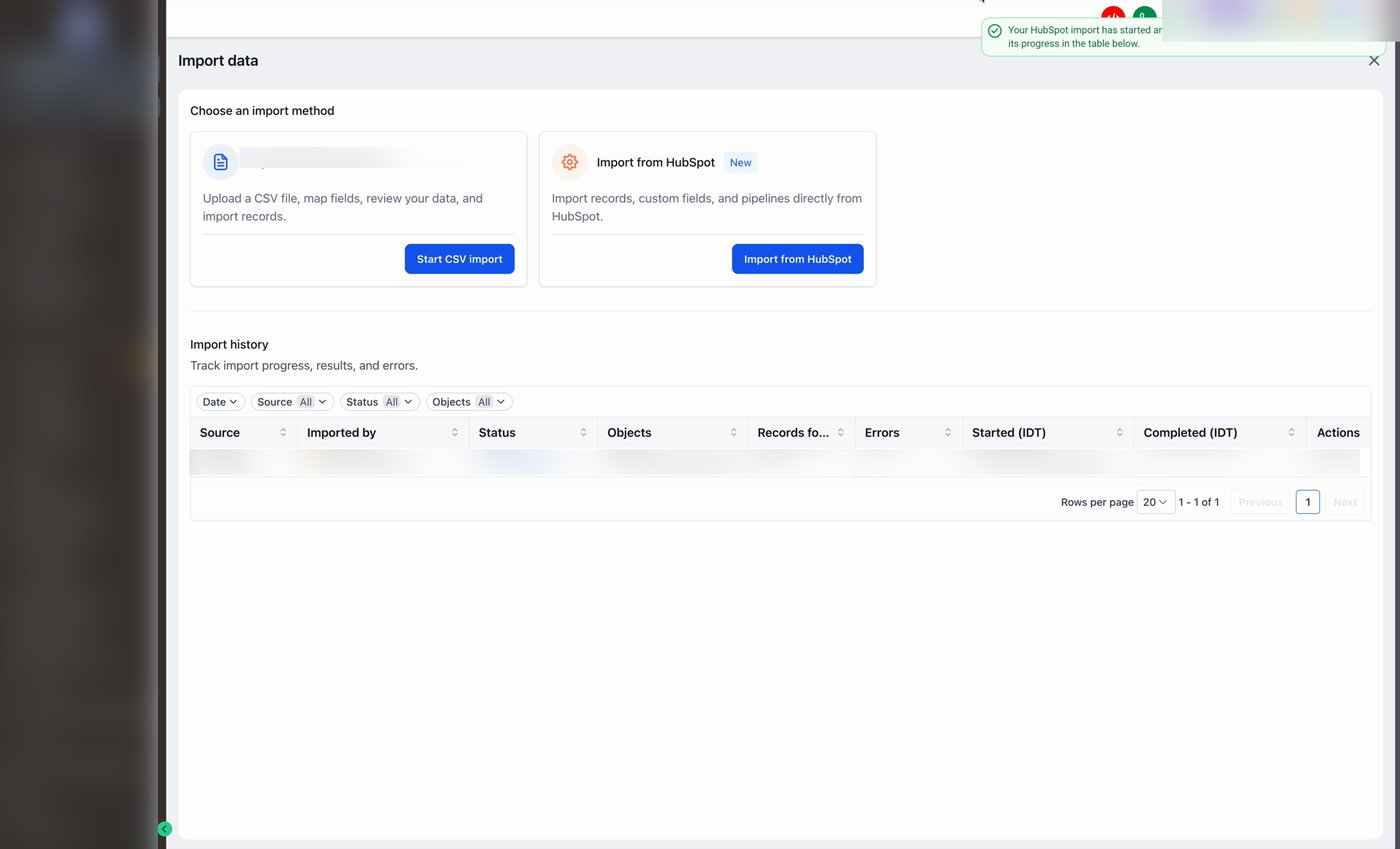
Step 9: Open Import Details (Object View)
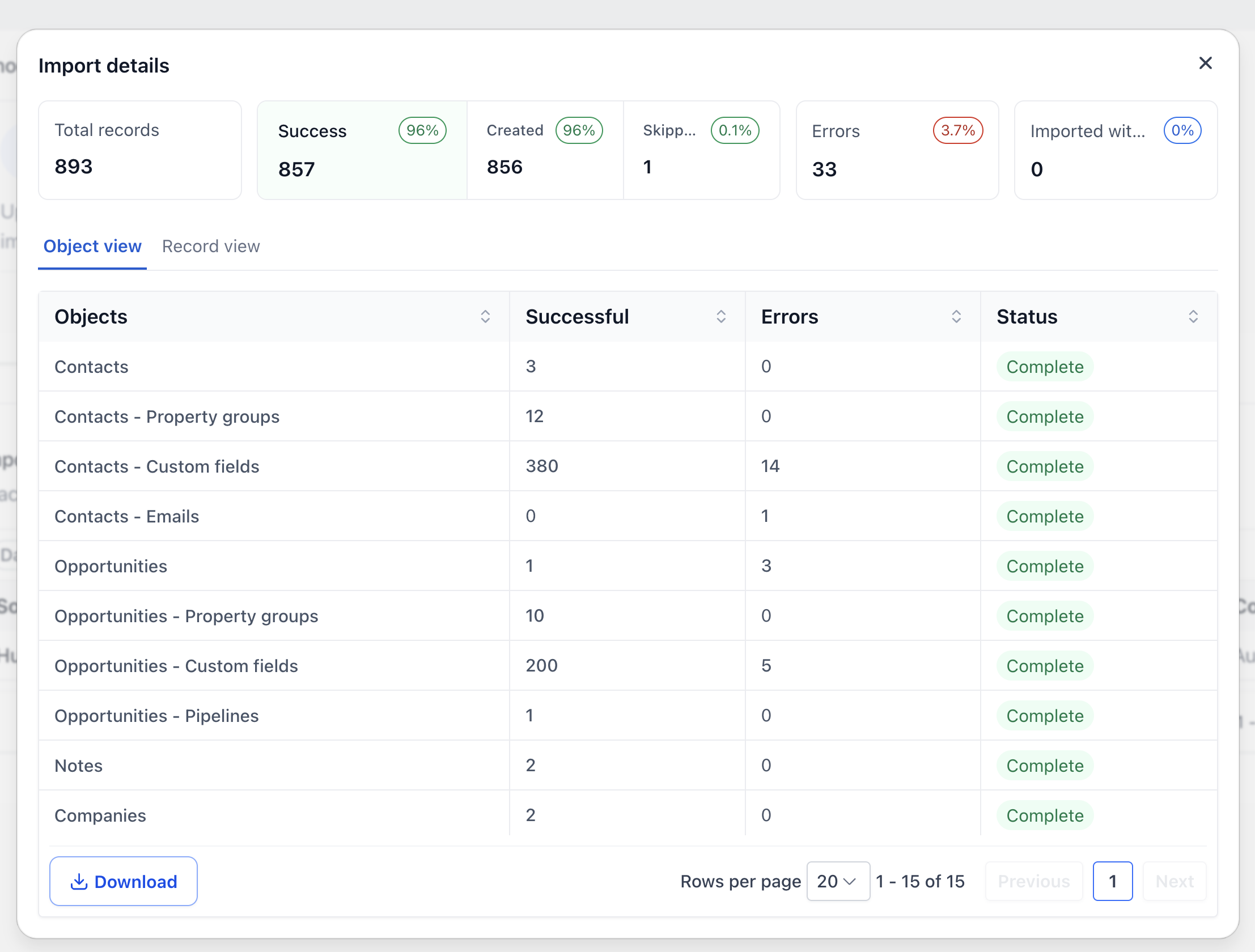
When you're ready to review results, click the stats icon in the Actions column of an import row. The Import details modal opens.
The four cards at the top give you the headline numbers:
Total records: everything the import touched.
Success: records that imported cleanly (with the success rate).
Errors: records that didn't import.
Imported with warnings: records that imported but have something worth reviewing.
Object view (the default tab) summarizes each object: how many succeeded, how many errored, and overall status.
Step 10: Drill into Individual Records
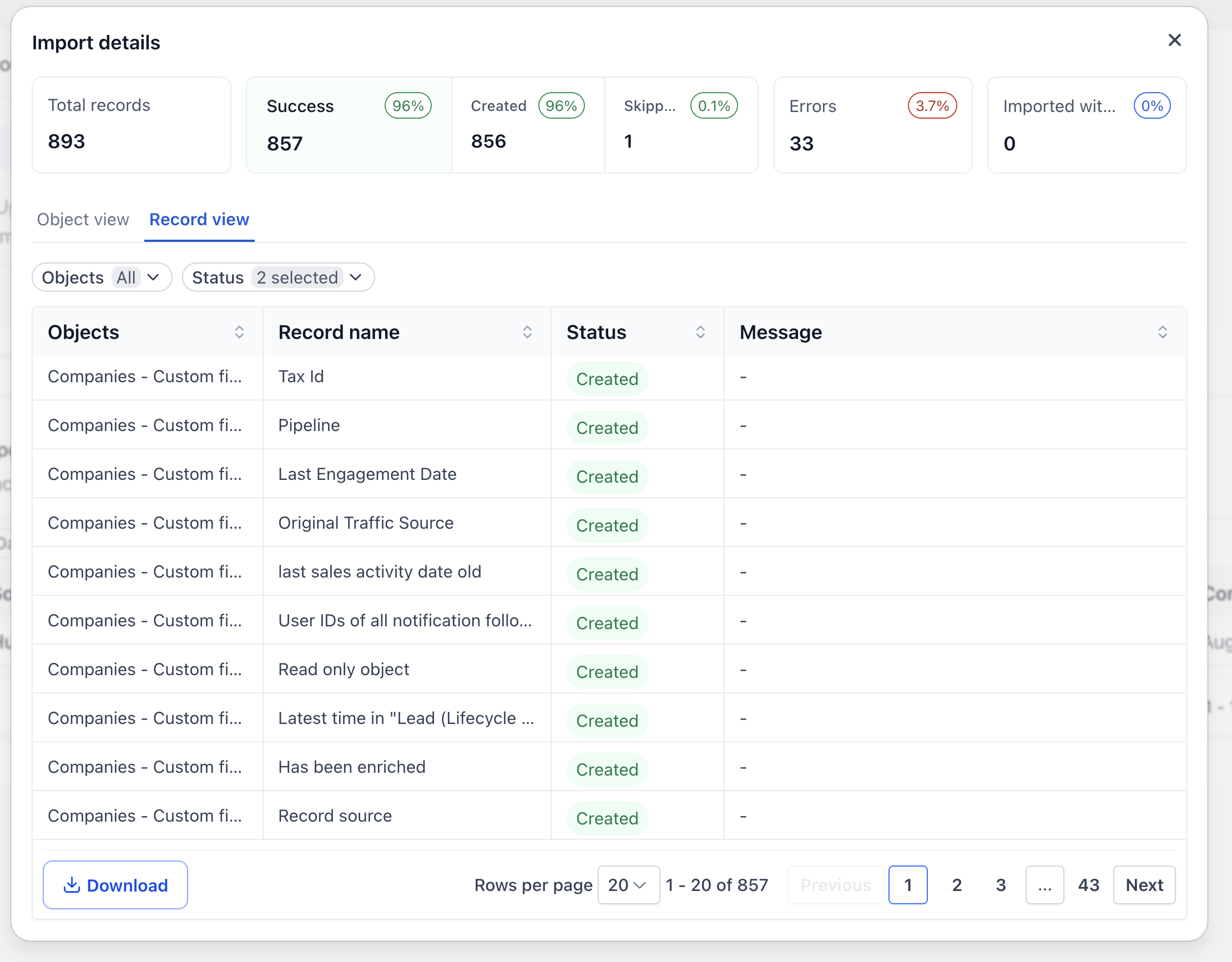
Switch to the Record view tab to see every record one row at a time.
Use the filters at the top:
Objects: narrow to Contacts, Contacts – Custom field, Opportunities, etc.
Status: filter by Success, Error, or Imported with warnings.
Step 11: Review and Fix Errors
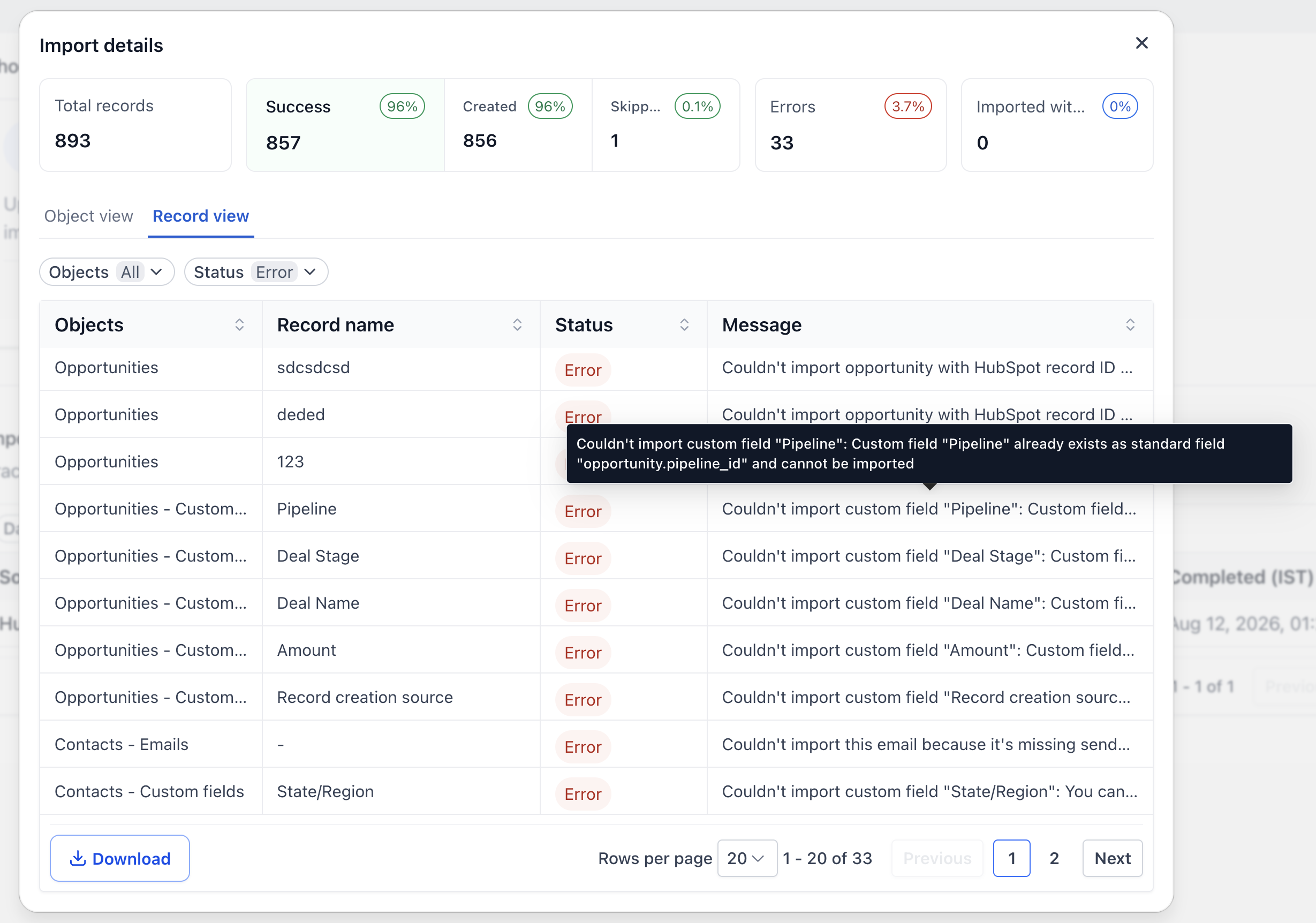
Switch the Status filter to Error to see every record that failed. Each row tells you which object failed and why, with the HubSpot record ID in the message so you can find it back in HubSpot.
Click Download in the bottom-left to export the full error list as a CSV, useful for fixing data in HubSpot, then re-running the import.
Common error causes are covered in the Troubleshooting and FAQ sections below.
Troubleshooting
The "Records found" count is lower than what HubSpot shows.
The wizard's count includes only fields the import can actually map and bring over. Some HubSpot fields are excluded (for example, fields with unsupported types), so you may see a small gap between HubSpot's UI and the count in the import preview. The records that don't make it into the count are the ones the import would skip anyway.
I see errors saying "Couldn't import contact with HubSpot record ID…"
That message tells you exactly which HubSpot contact failed. Common reasons:
- The contact has a file attached to a field. File imports aren't supported yet — any contact (or deal) with a file attachment will throw an error. Workaround: download the file from HubSpot, remove the attachment from that field, then re-run the import. The file itself can be re-attached manually after import.
- Custom field key collision. Custom fields are mapped by their internal key. If a field with the same key already exists in the destination, the import errors on that field. Rename or delete the existing field before importing.
- Custom field name and label don't match. When a HubSpot field's name and label differ, the importer can get confused about which one to use. Aligning them in HubSpot before importing usually clears it up.
Frequently Asked Questions
Q: Can I re-import or pick up where I left off?
Yes, start a new import from the Import data page. Each run is logged separately in Import history, so you can compare runs and check the error CSV from a previous attempt before re-running.
Q: Does the import overwrite existing records?
By default, no. Imported records are added alongside whatever's already in your account. That's why we recommend importing into a clean account — and why "Allow duplicates" should be on during the import (see Before you start).
Q: Where can I see the full list of errors?
Open Import details from any import row, switch to Record view, set Status to Error, then click Download to export the full list as a CSV.
Q: Can I import only some of my HubSpot records?
Yes. On the Preview and import step, click the edit (pencil) icon on an object's records row and filter by HubSpot Created Date or HubSpot Last Modified Date.
Q: Do I have to set filters for every object separately?
No. Set your conditions once and click Apply filters to all objects to use them for every object you selected. You can still edit any single object afterward.
Q: Why does "In the last 7 days" not include records created today?
Rolling ranges count back from yesterday and exclude the current day. The panel shows the exact date range before you apply the filter.
Q: Can I filter by owner, lifecycle stage, or other properties?
Not yet. Filters currently support HubSpot Created Date and HubSpot Last Modified Date.
Related Articles
Was this article helpful?
That’s Great!
Thank you for your feedback
Sorry! We couldn't be helpful
Thank you for your feedback
Feedback sent
We appreciate your effort and will try to fix the article