Load Multiple Sub-Accounts to a Snapshot gives agencies a faster way to apply the same Snapshot across multiple client accounts from one centralized workflow in HighLevel. Instead of opening each sub-account individually, you can select multiple destination accounts from My Account Snapshots, review the assets being loaded, and complete the rollout in one flow. When dashboards are included, you can also choose one selected dashboard as the default across the destination sub-accounts.
Learn how to select multiple sub-accounts from the centralized Snapshot load experience, use the All, Linked, and Available account tabs, choose a default dashboard when dashboards are included, and complete the remaining Snapshot load steps.
What Is Loading Multiple Sub-Accounts to a Snapshot?
Loading multiple sub-accounts to a Snapshot expands the standard Snapshot load experience by centralizing account selection. From My Account Snapshots, agencies can view sub-accounts that are already linked to the Snapshot, identify accounts that are still available, select multiple destination accounts, and begin the load without opening each sub-account individually. When a Snapshot is loaded into an available account, HighLevel automatically links that sub-account to the Snapshot as part of the same flow.
Key Benefits of Loading Multiple Sub-Accounts to a Snapshot
A centralized Snapshot load reduces repetitive account-by-account work and makes it easier to apply a consistent setup across a larger client base.
- Accelerated onboarding: Load a Snapshot into multiple sub-accounts in one workflow instead of repeating the same action account by account.
- Unified workflow: Start from My Account Snapshots and manage rollout decisions from one central Load modal.
- Better visibility: Quickly see which sub-accounts are already linked to the Snapshot and which ones still need it.
- Faster standardization: Apply your agency's preferred setup across more client accounts with fewer manual steps.
- Automatic linking for available accounts: When you load a Snapshot into an available sub-account, HighLevel links it during the same action.
- Consistent default dashboard: When dashboards are included in the Snapshot load, choose one selected dashboard as the default across the destination sub-accounts without updating each account individually.
Universal Account Selection
Universal Account Selection places agency sub-accounts into one selection experience so teams can manage larger Snapshot rollouts with less page switching.
When you open the Load modal from My Account Snapshots, you can:
- View agency sub-accounts in one place.
- Search for specific sub-accounts by name.
- Select one, several, or many accounts in the same workflow.
- Start the load process without first opening each individual sub-account.
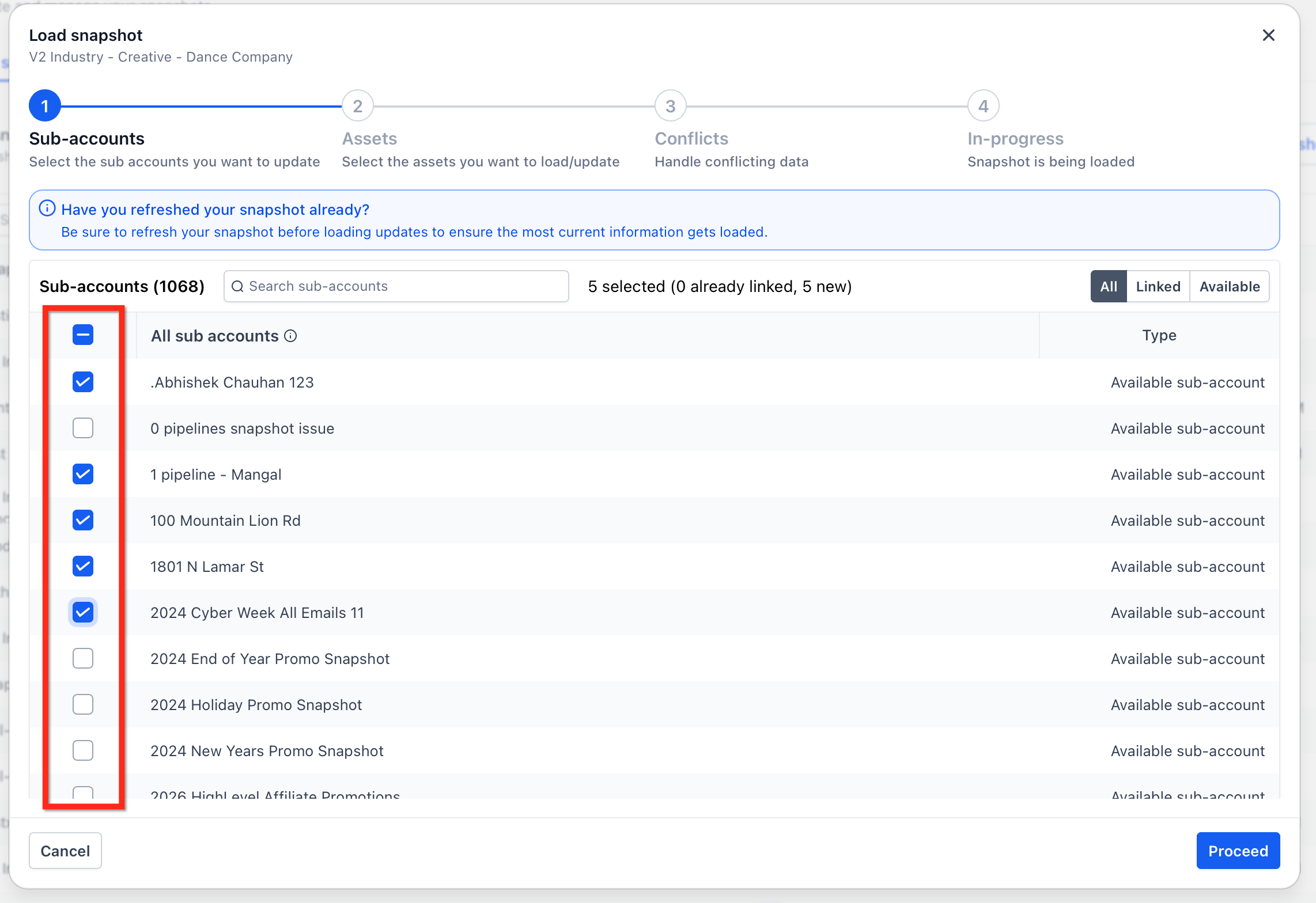
Smart Account Tabs
Smart Account Tabs help you understand each sub-account's current relationship with the selected Snapshot, making it easier to choose the right destination accounts before loading.
The Load modal includes three tabs:
- All: Shows all agency sub-accounts.
- Linked: Shows sub-accounts that are already linked to the selected Snapshot.
- Available: Shows sub-accounts that are not yet linked to the selected Snapshot.
For example, the Available tab can help identify accounts that have not yet been connected to the Snapshot.
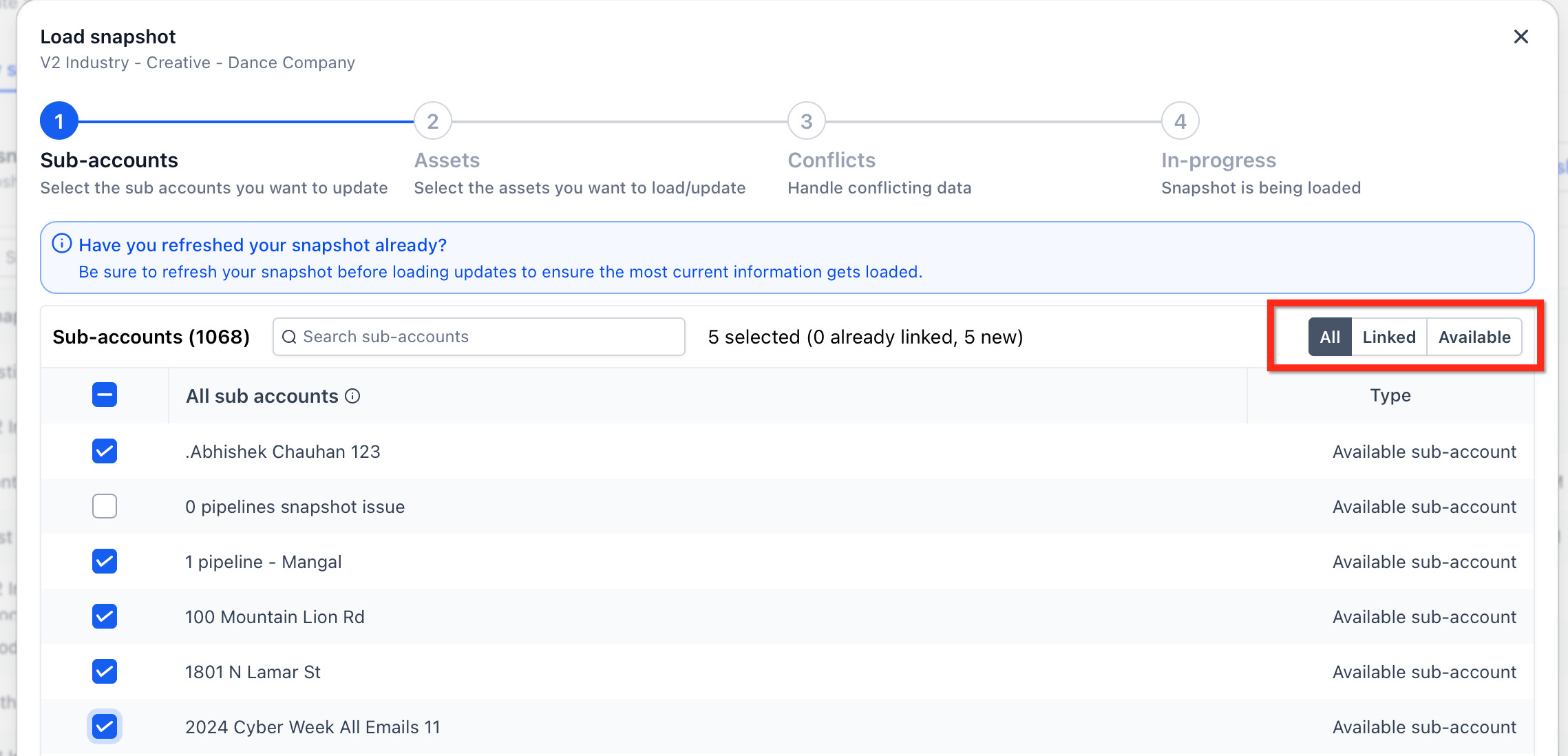
How To Load a Snapshot to Multiple Sub-Accounts
Following the centralized load flow helps ensure you select the intended destination accounts, review Snapshot assets and conflicts, and apply the same setup consistently across multiple sub-accounts.
From Agency View, navigate to My Account Snapshots and locate the Snapshot you want to use. Click Load Updates to Sub-Account next to the selected Snapshot.
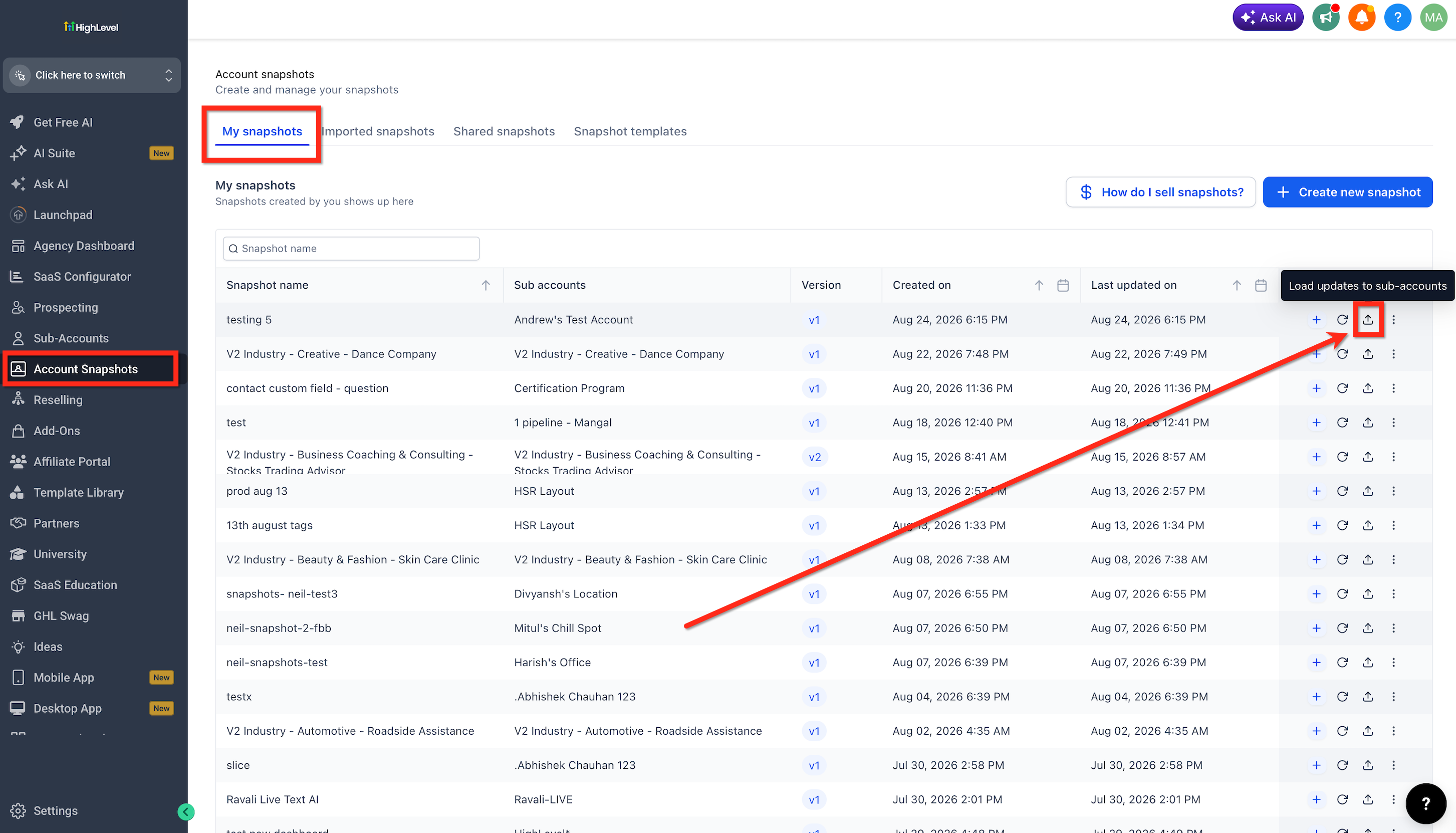
Use the account tabs to narrow the destination list:
- All: View every sub-account.
- Linked: View accounts already associated with the Snapshot.
- Available: View accounts that are not yet linked.
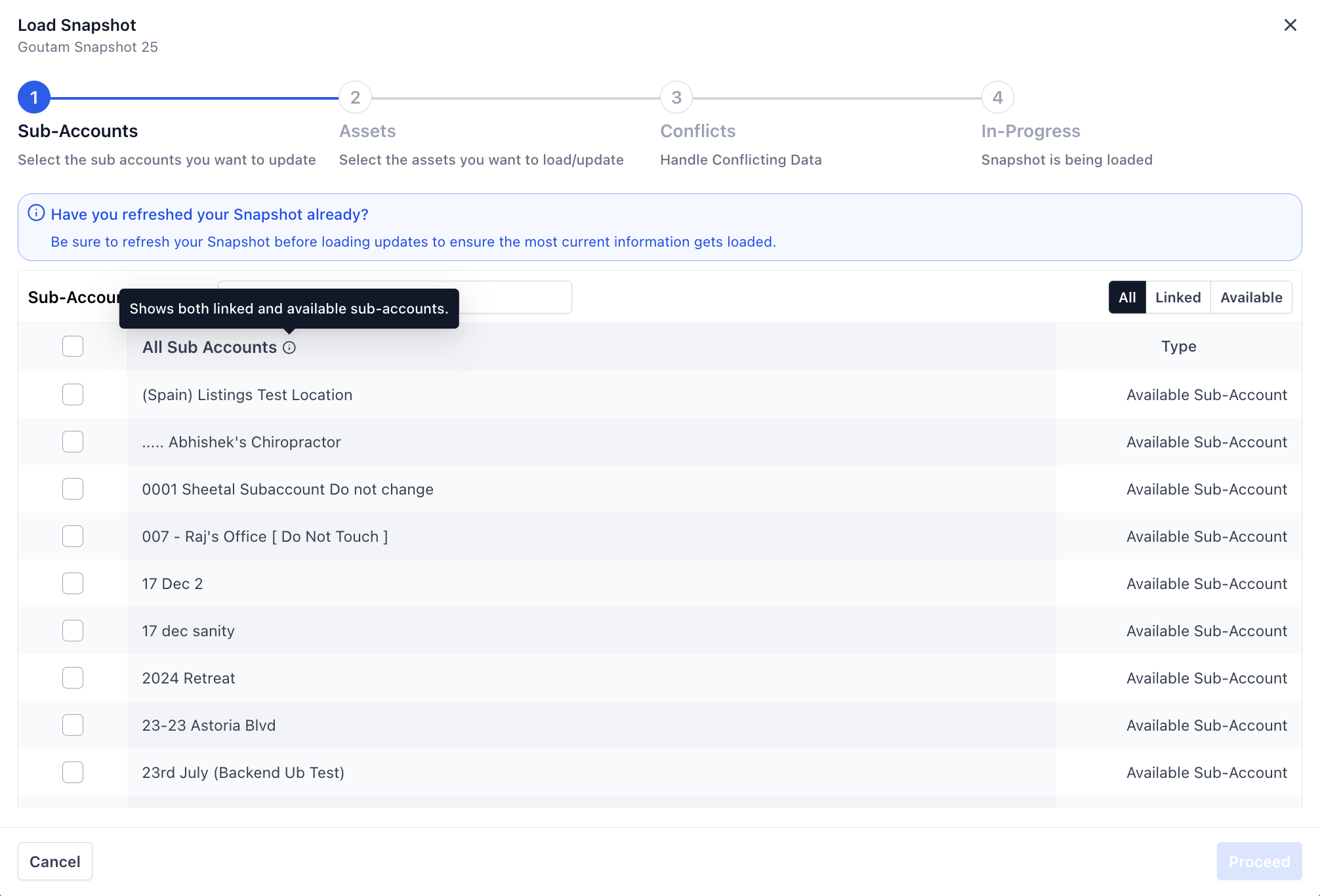
Check the boxes next to the sub-accounts you want to include. Use search if you need to locate a specific account, then click Load to continue with the Snapshot loading process.
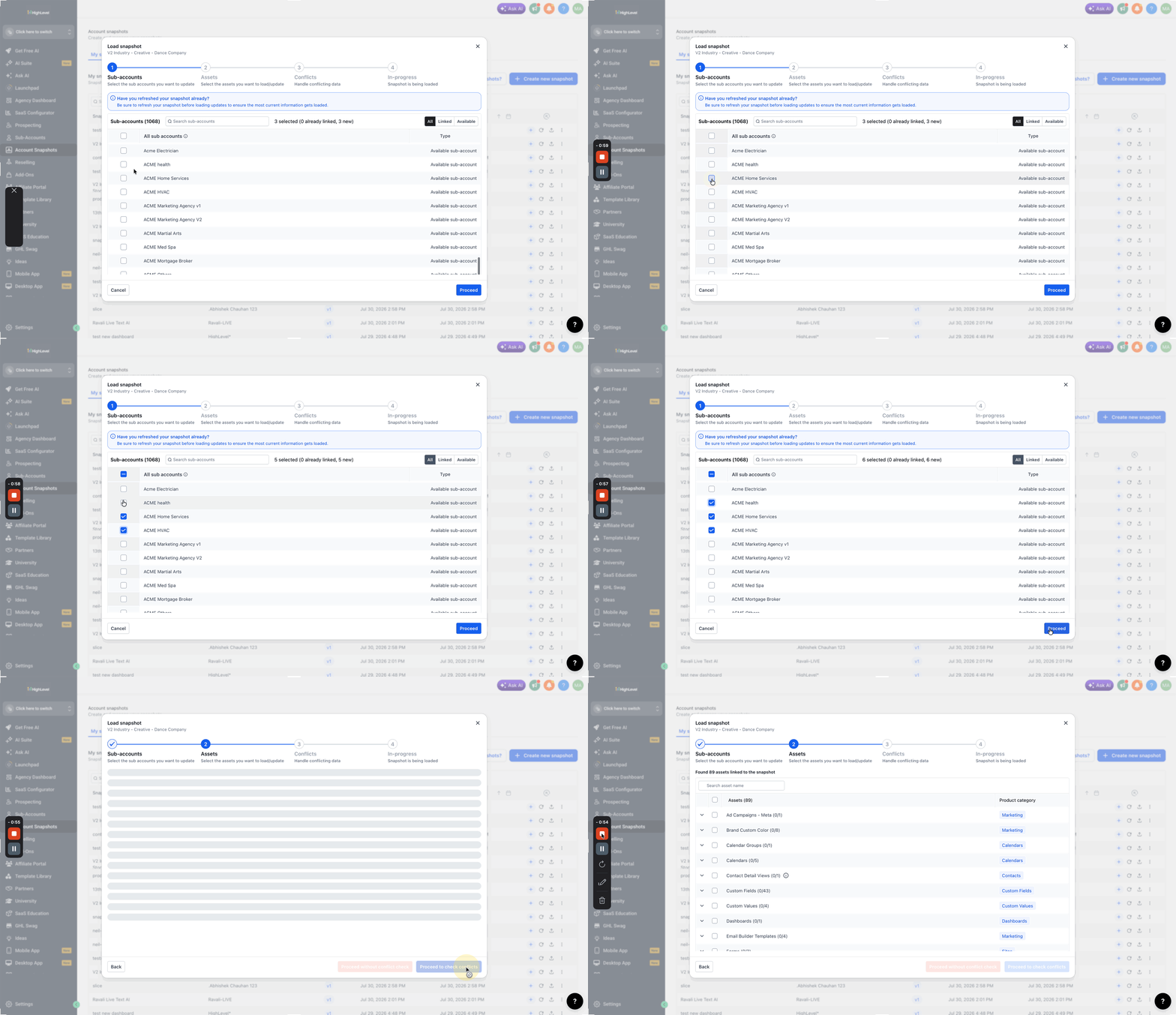
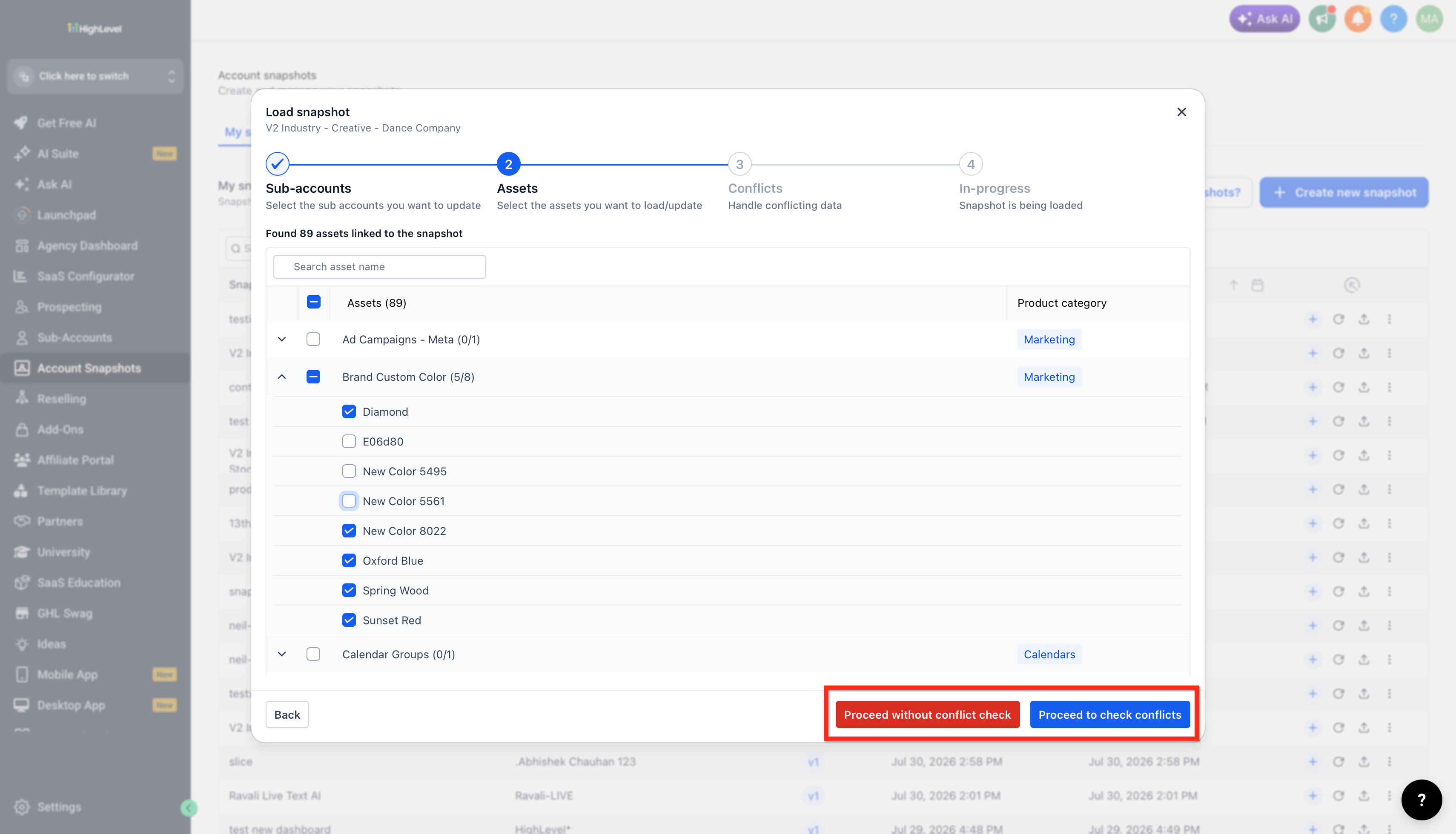
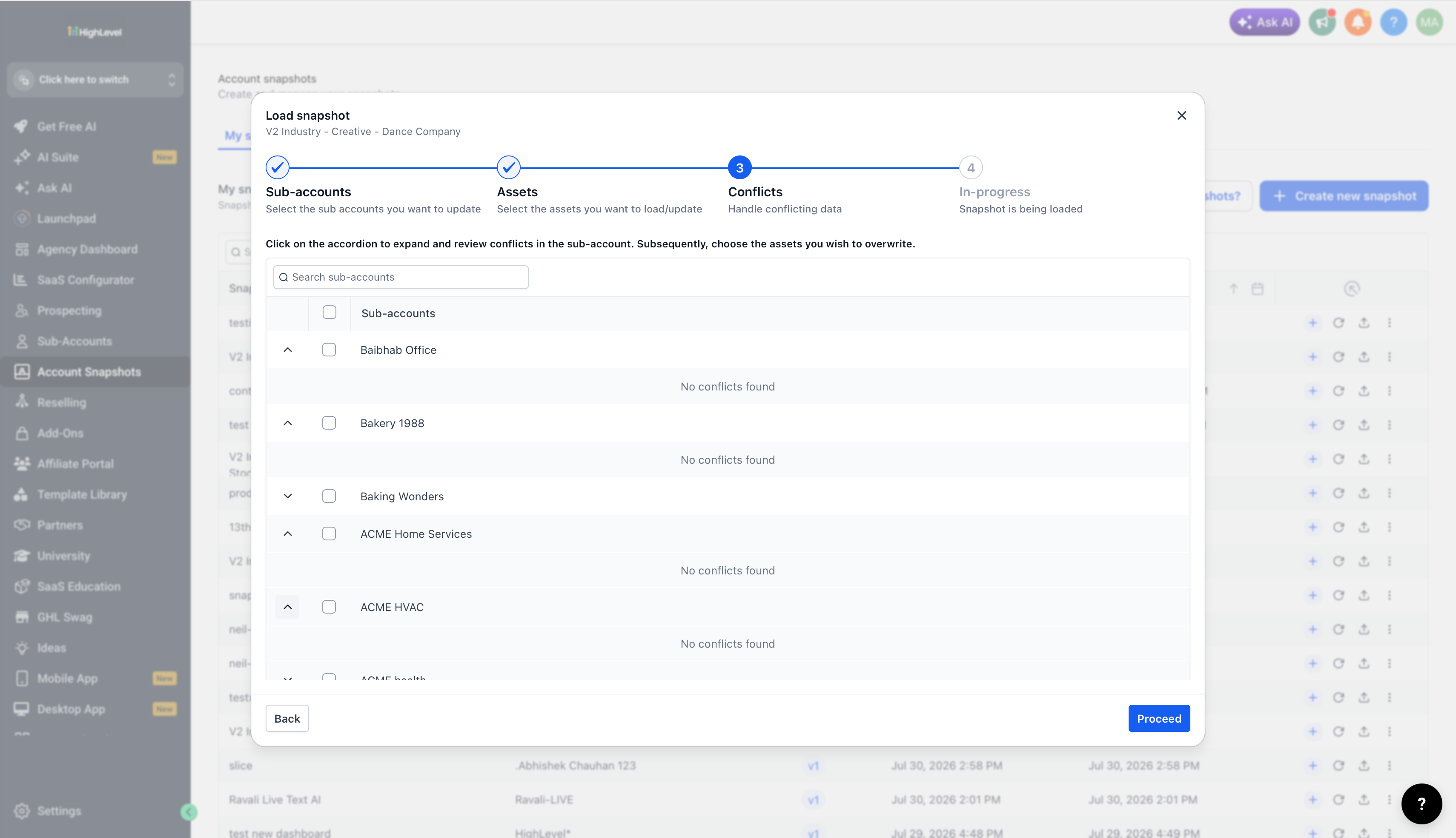
Review the Snapshot items being loaded if prompted, and resolve any conflicts if the load flow presents conflict options.
Default dashboard: If dashboards are included in the load, click Set as default on one selected dashboard to make it the default in the destination sub-accounts. Only one dashboard can be marked at a time. If no dashboard is marked, HighLevel uses the Snapshot's existing default dashboard.
Confirm the action to begin loading the Snapshot into the selected accounts.
Tip: If you need detailed guidance on dashboard selection and default-dashboard behavior during a Snapshot load, use the How to Load Snapshots with Dashboards article.
Frequently Asked Questions
Was this article helpful?
That’s Great!
Thank you for your feedback
Sorry! We couldn't be helpful
Thank you for your feedback
Feedback sent
We appreciate your effort and will try to fix the article