Email Builder Autosave
The email builder autosave feature protects your work by automatically saving edits during your session. This prevents data loss from accidental clicks, network issues, page refreshes, or navigation gestures.
This article explains how autosave works, how to enable it, and how to manage version history for your email templates and campaigns.
What is Email Builder Autosave?
Email Builder Autosave automatically saves your work as you edit email templates and campaigns in HighLevel. Instead of manually saving after each change, the system creates version snapshots during your editing session.
This feature protects against common causes of data loss including accidental clicks outside the editor, network interruptions, browser refreshes, and navigation gestures like Mac's left-swipe.
The autosave indicator displays the timestamp of your last saved version. You can hover over this indicator to see exactly when your work was preserved, and access Version History to restore previous states if needed.
Key Benefits
Autosave provides continuous protection for your email marketing work:
How to Enable Autosave
Autosave is currently available through HighLevel's Beta Labs. Follow these steps to enable and test the feature:
Navigate to Beta Labs in your HighLevel account settings and locate the autosave feature for the email builder.
Toggle autosave on for the email builder.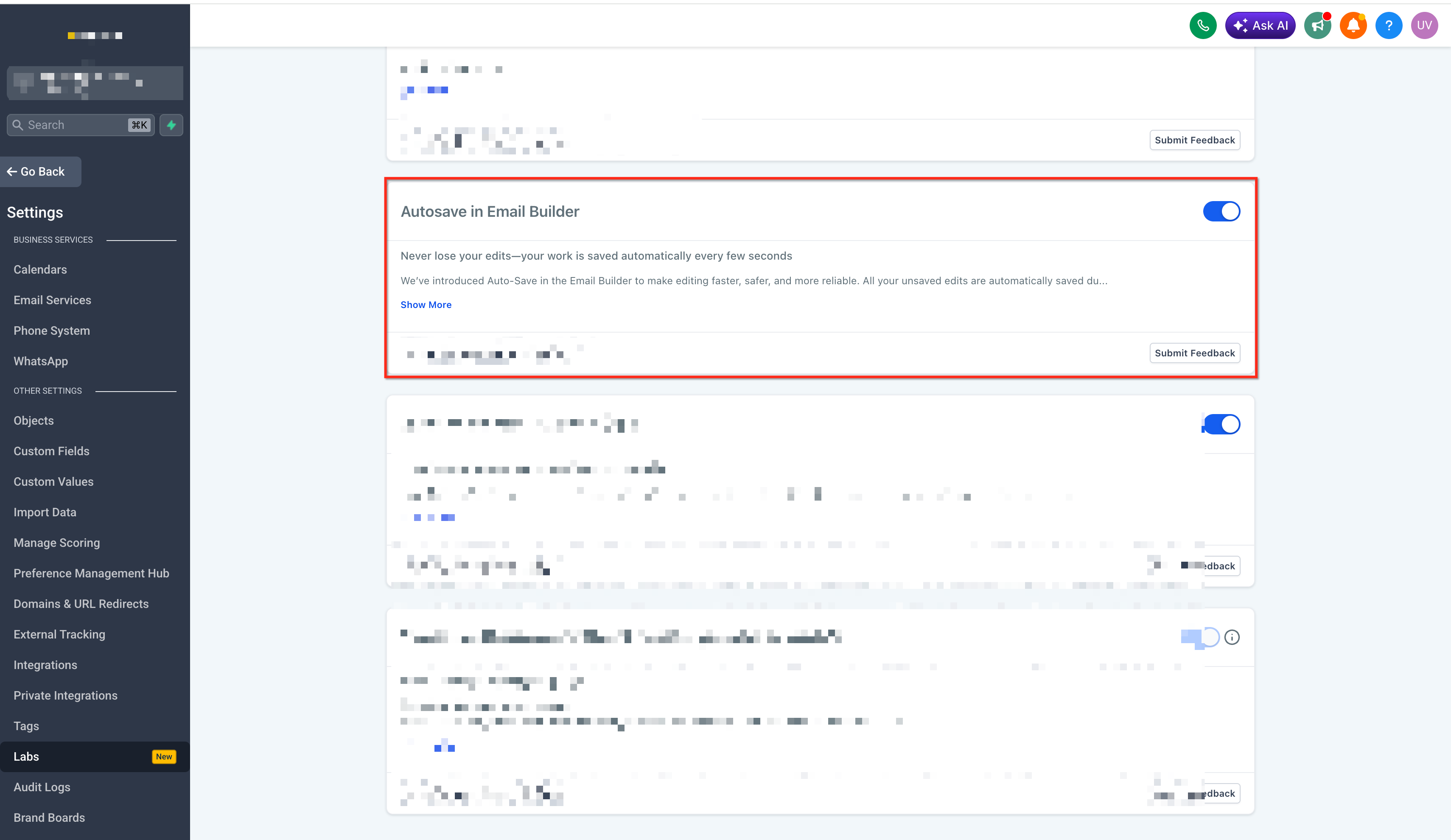
Go to the Email Marketing section in your HighLevel account.
Open an existing email template or campaign, or create a new one. Begin making edits to your content.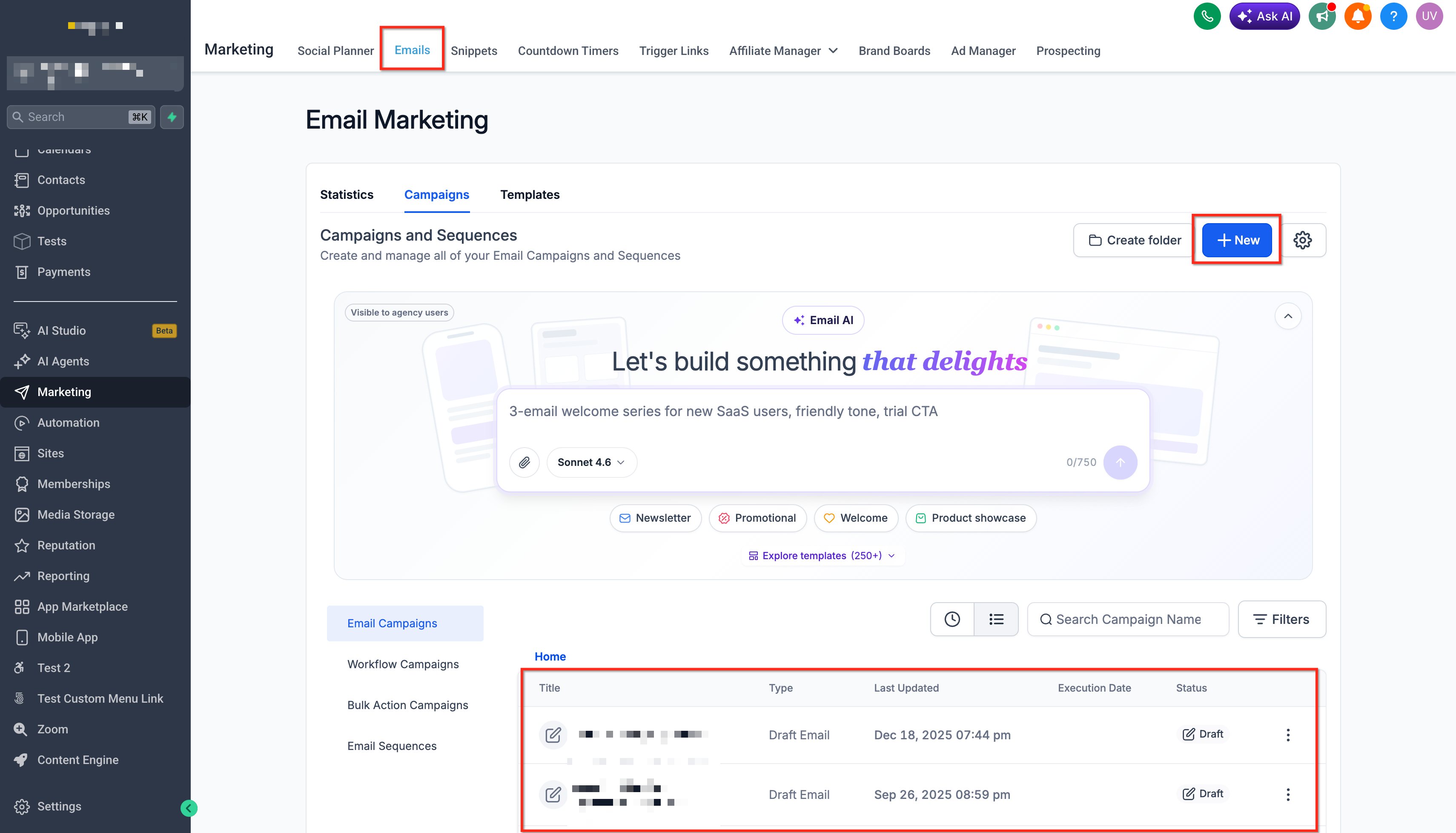
As you edit, autosave will create versions automatically. Hover over the autosave indicator to see the last saved timestamp.
Your work is now protected by autosave. You no longer need to manually save after each edit.
Using Version History
Version History allows you to review and restore previous saved states of your email templates and campaigns. Each autosave creates a timestamped version that you can revisit.
To access Version History, open the email builder for your template or campaign and locate the Version History option. This displays all saved versions with timestamps, allowing you to compare changes and restore earlier states if needed.
Version History is especially useful when you need to recover from unwanted changes or compare different design approaches during your editing session.
Disabling Autosave (Support Users)
Support team members have access to a toggle control that allows them to disable autosave for their individual sessions. This flexibility is useful when troubleshooting issues or demonstrating specific behaviors without automatic version creation.
The autosave toggle appears in the email builder interface for users with support permissions. Disabling autosave affects only the current session and does not impact autosave settings for other users or locations.
Autosave will be enabled by default for all locations. Users can still disable it through Labs settings if needed.
Frequently Asked Questions
Was this article helpful?
That’s Great!
Thank you for your feedback
Sorry! We couldn't be helpful
Thank you for your feedback
Feedback sent
We appreciate your effort and will try to fix the article