The Messaging Analytics section in Phone Settings has been redesigned to give you a clearer, more actionable view of your SMS performance. With improved visuals, trend tracking, and detailed message insights, you can quickly understand how your messages are performing — and take action to improve delivery, engagement, and compliance.
Messaging Analytics helps you monitor message delivery performance, failure rates and reasons, incoming message activity, and subscriber opt-out trends — through interactive charts, period comparisons, and clickable metrics.
Where to Find It
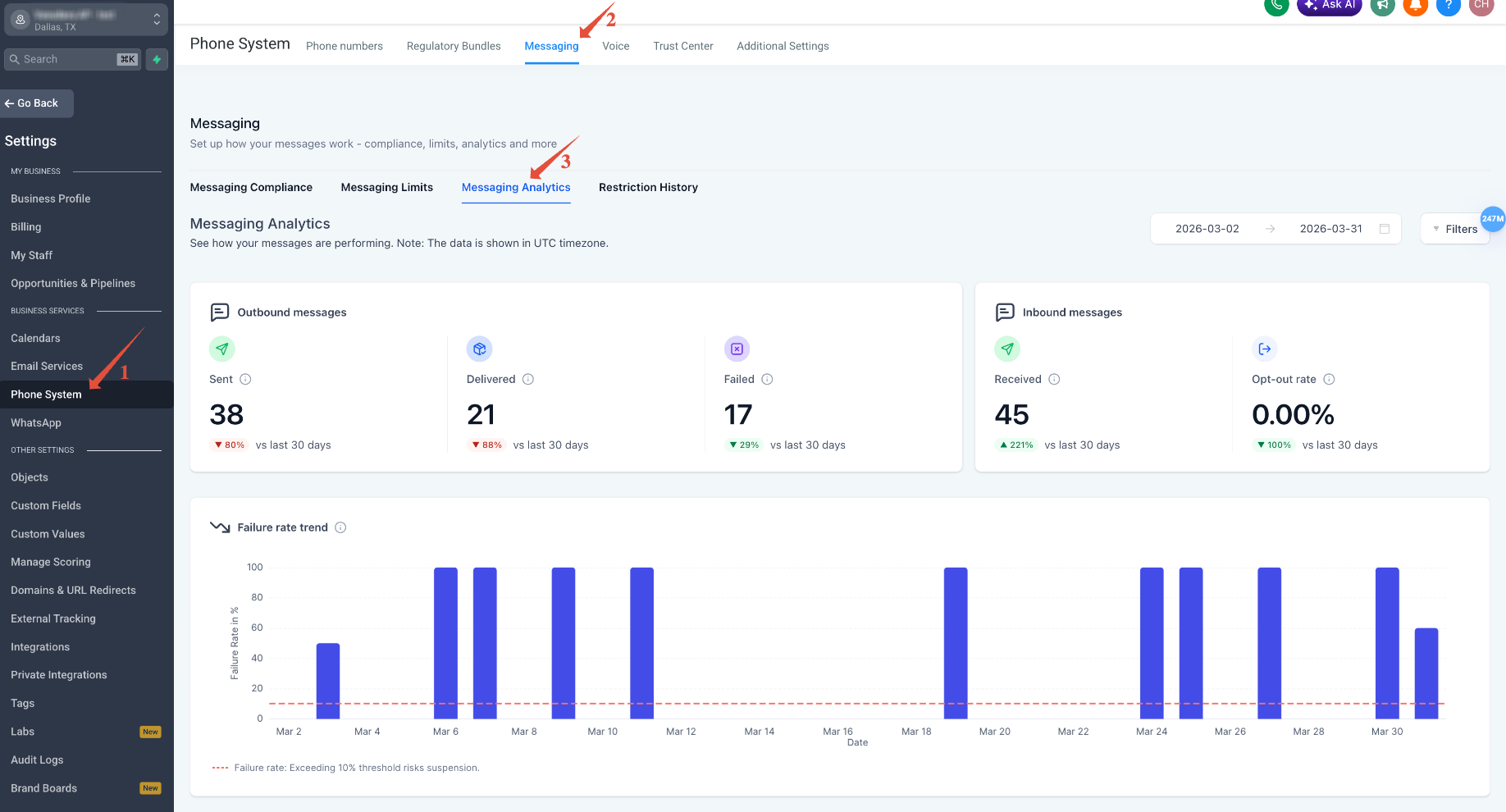
- Go to Settings
- Click Phone System
- Open the Messaging tab
- Select Messaging Analytics
Date Range & Filters
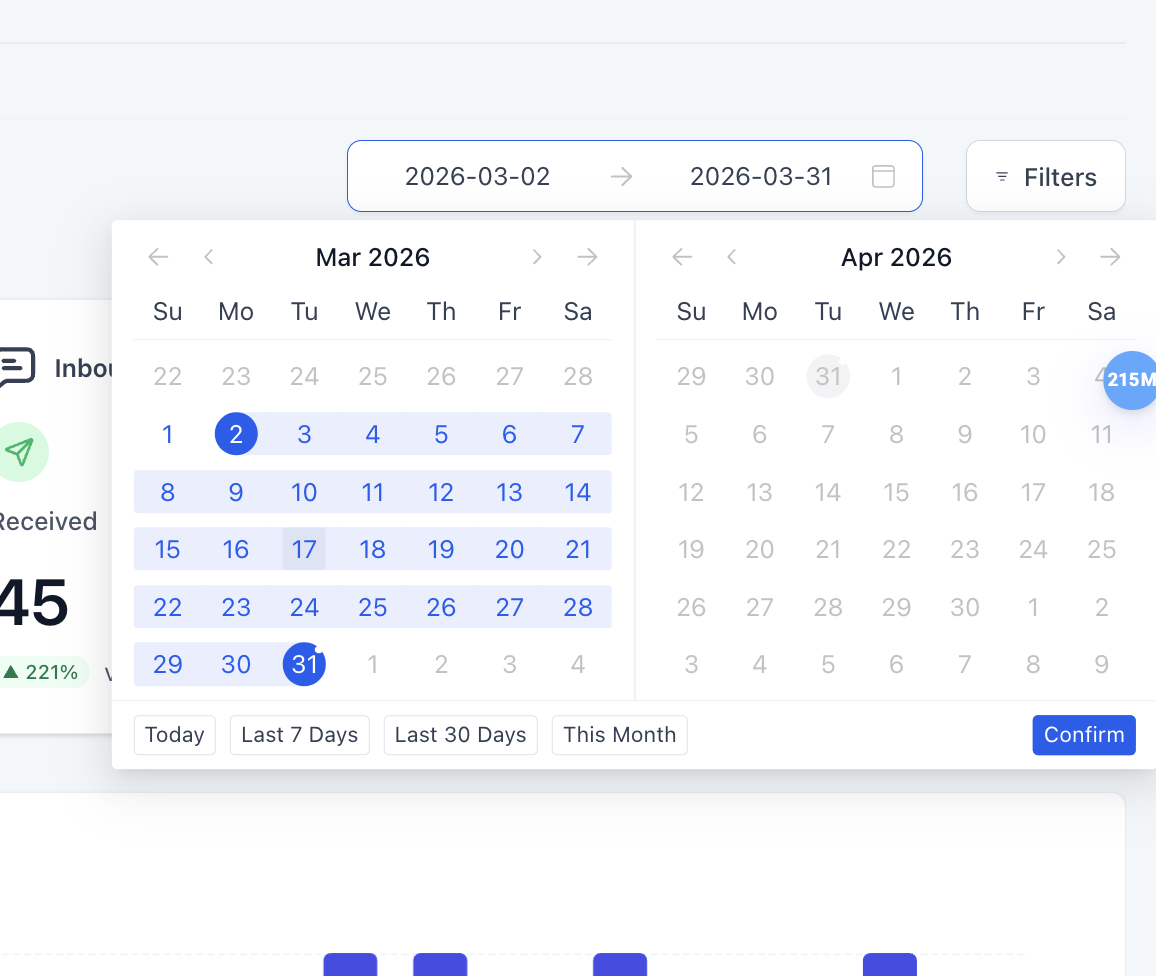
- The default view shows the last 30 days (previously 7 days)
- You can select up to 90 days for a broader analysis
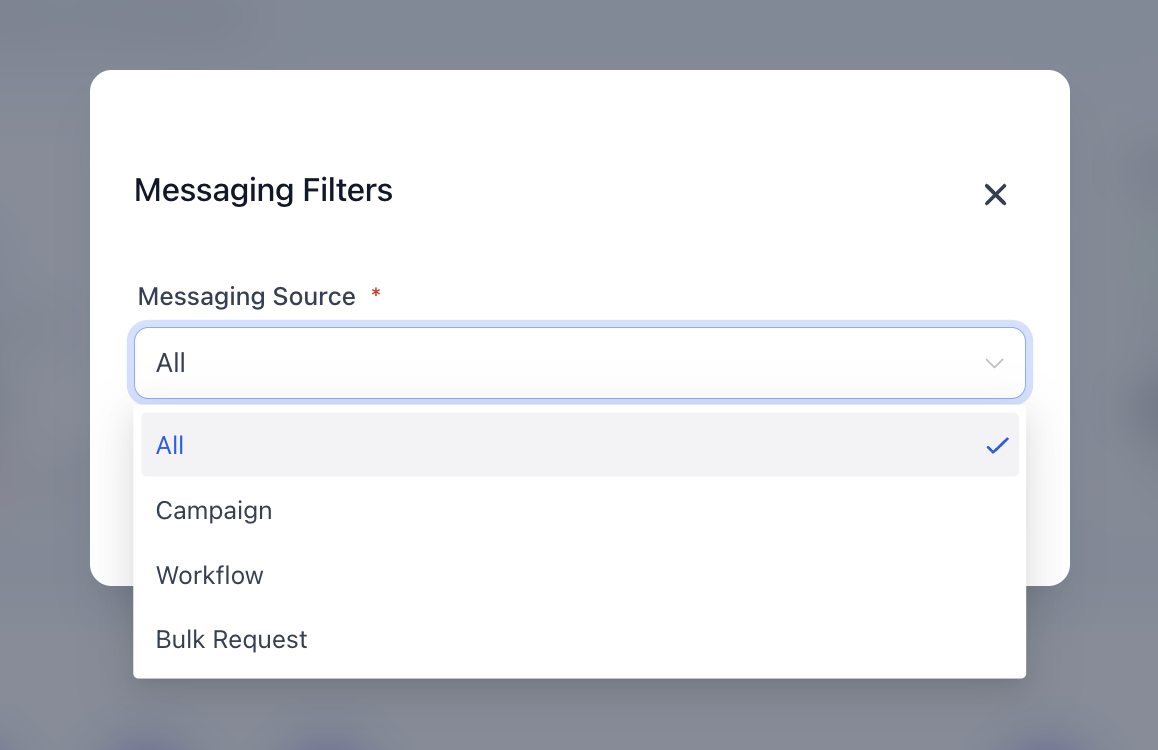
- Use filters to refine your data and focus on specific insights
Dashboard Overview
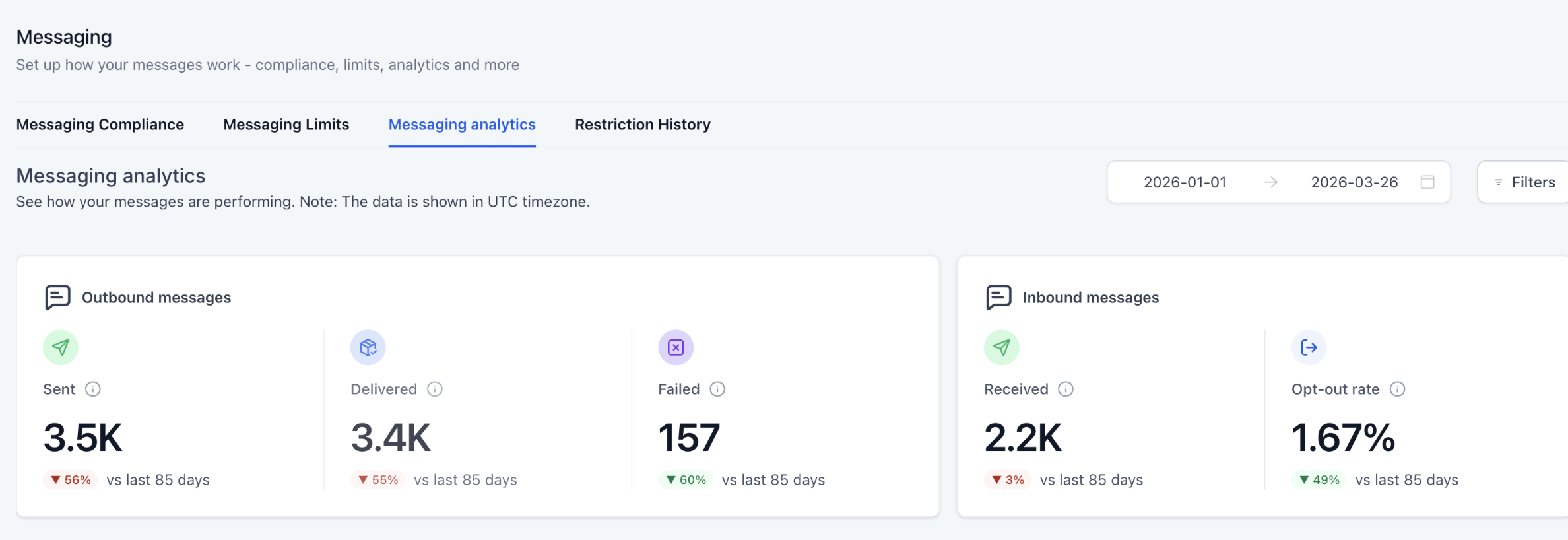
The top of the dashboard displays five key metrics:
| Metric | Description |
|---|---|
| Sent | Total messages your system attempted to send |
| Delivered | Messages that successfully reached the recipient |
| Failed | Messages that could not be delivered (invalid numbers, carrier filtering, opt-outs, compliance issues) |
| Received | Inbound messages and replies from contacts |
| Opt-Out Rate | Percentage of contacts who replied STOP or otherwise unsubscribed |
Each metric includes a comparison to the previous time period (e.g., vs last 30 days), along with visual indicators:
- Green = Improvement
- Red = Decline
This helps you quickly identify trends without manual analysis.
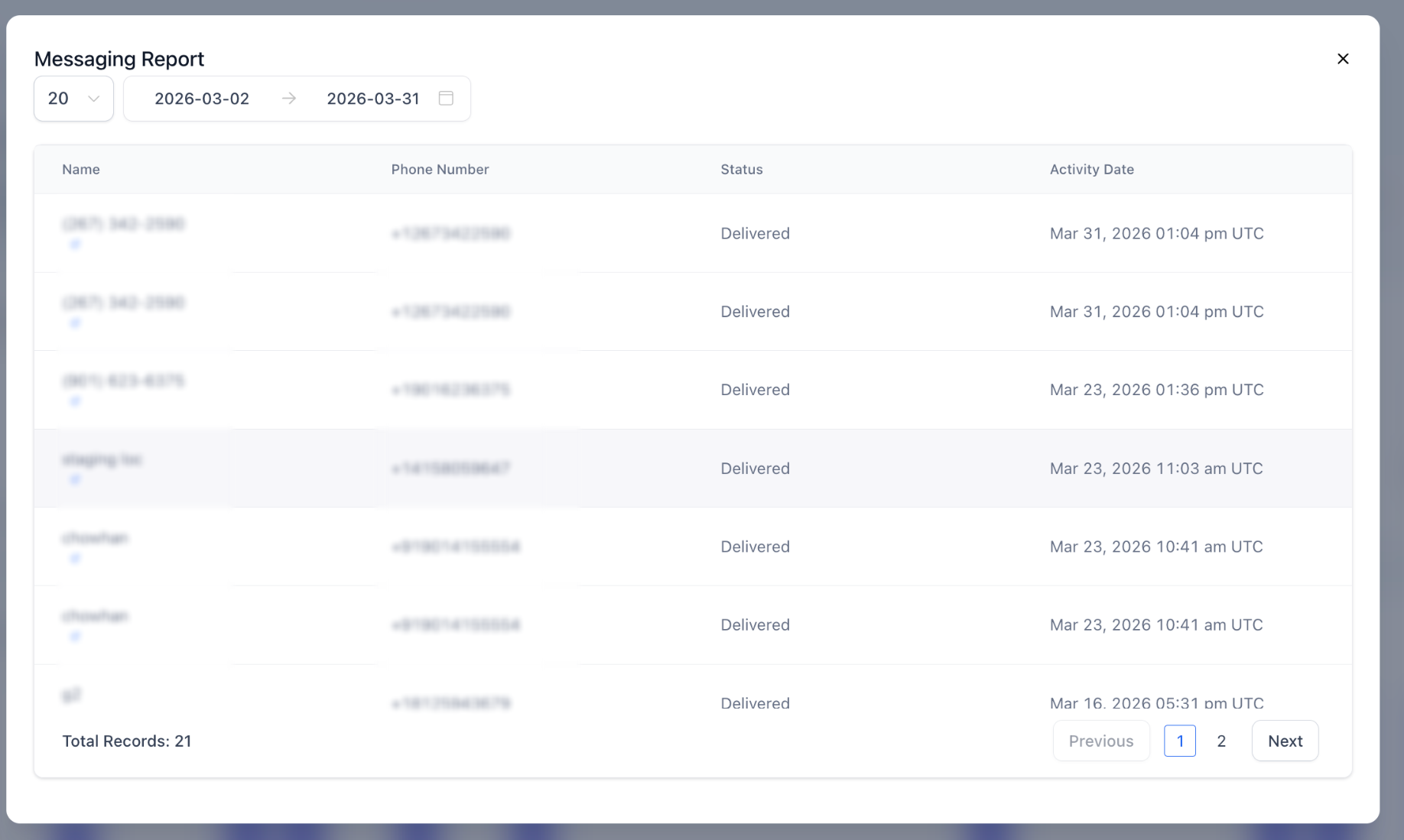
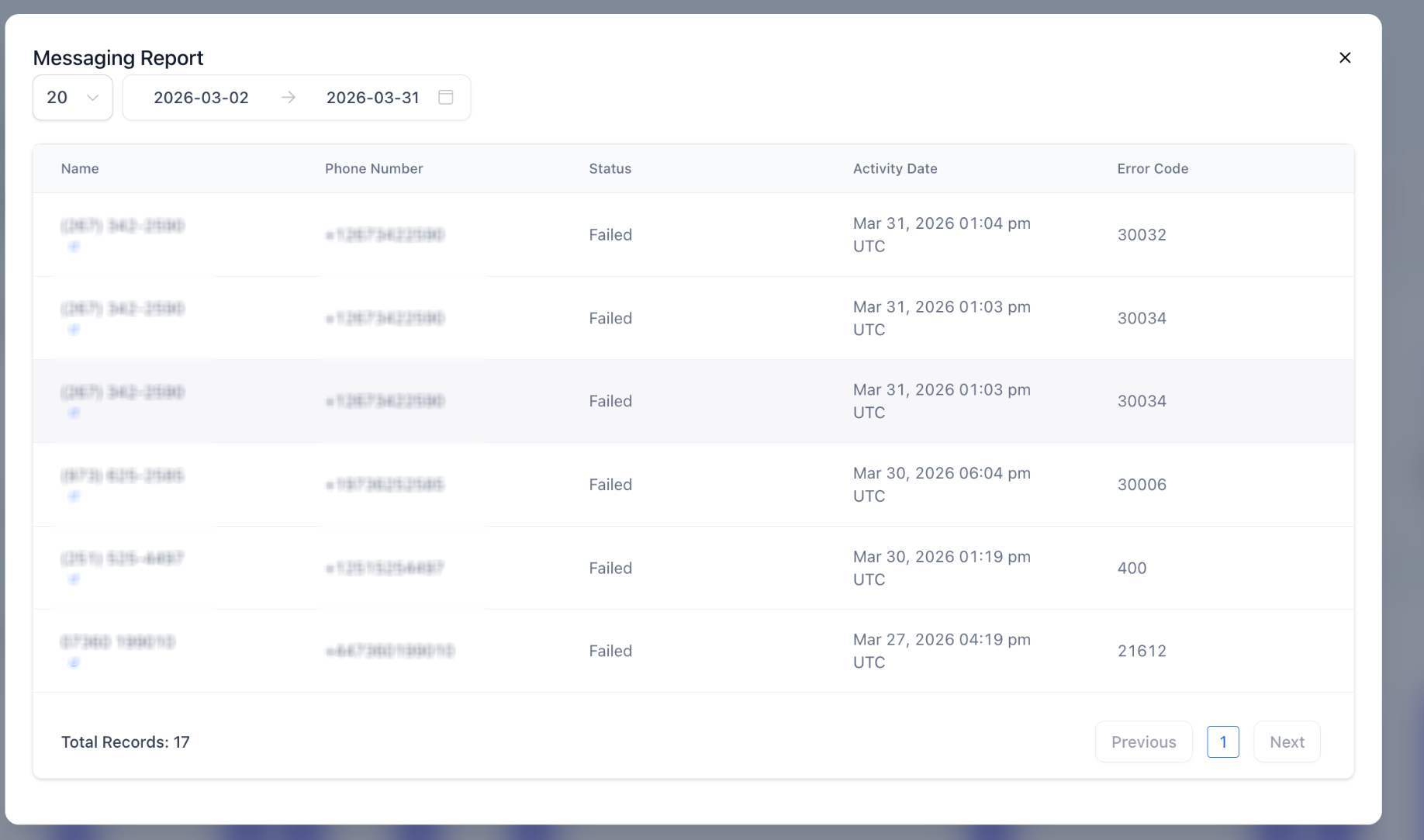
Every summary card is now clickable. Click on Sent, Delivered, Failed, Received, or Opt-Out Rate to open a detailed logs modal showing:
- Name
- Phone number
- Status
- Activity Date
- Error codes
This allows you to quickly investigate individual messages and troubleshoot issues with precision.
Charts & Trend Views
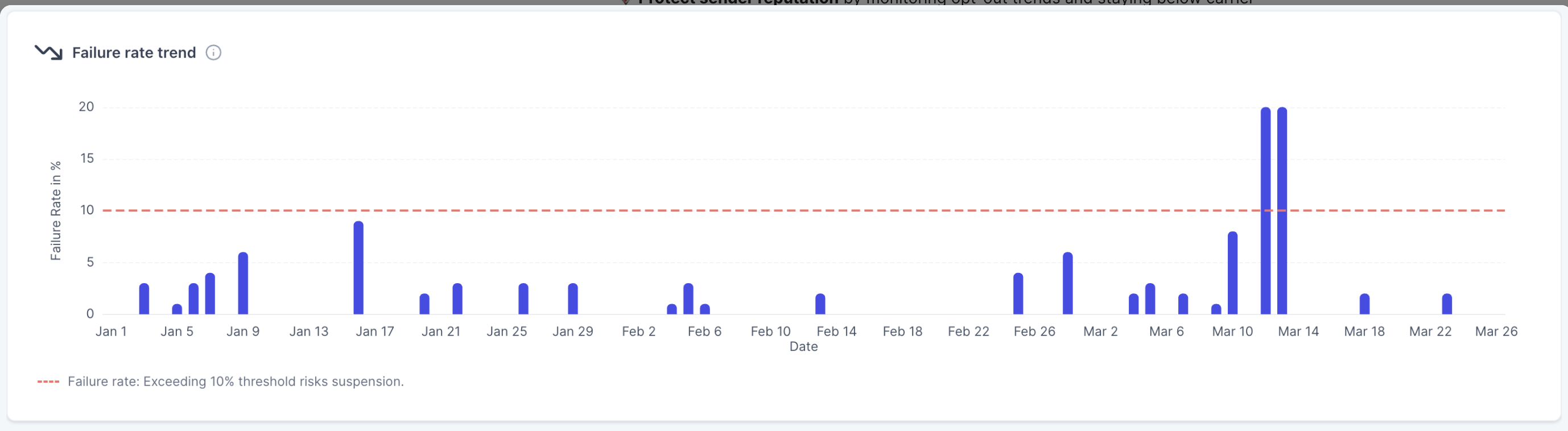
The Failure Rate Trend chart shows how your message failure rate changes over time, helping you quickly spot patterns and potential issues. Each bar represents the percentage of messages that failed on a given day within your selected date range.
- Daily performance visibility — see exactly when failures occurred instead of relying on overall averages.
- Identify spikes and patterns — sudden increases may indicate carrier filtering, invalid contact data, or compliance problems.
- Monitor consistency — a steady rate suggests stable performance, while fluctuations may signal issues that need attention.
Threshold indicator: the chart includes a 10% threshold line (shown as a dotted red line).
- Staying below 10% → healthy messaging performance
- Going above 10% → increased risk of carrier restrictions or account limitations
Repeatedly exceeding this threshold can negatively impact your sender reputation and may lead to messaging suspension.
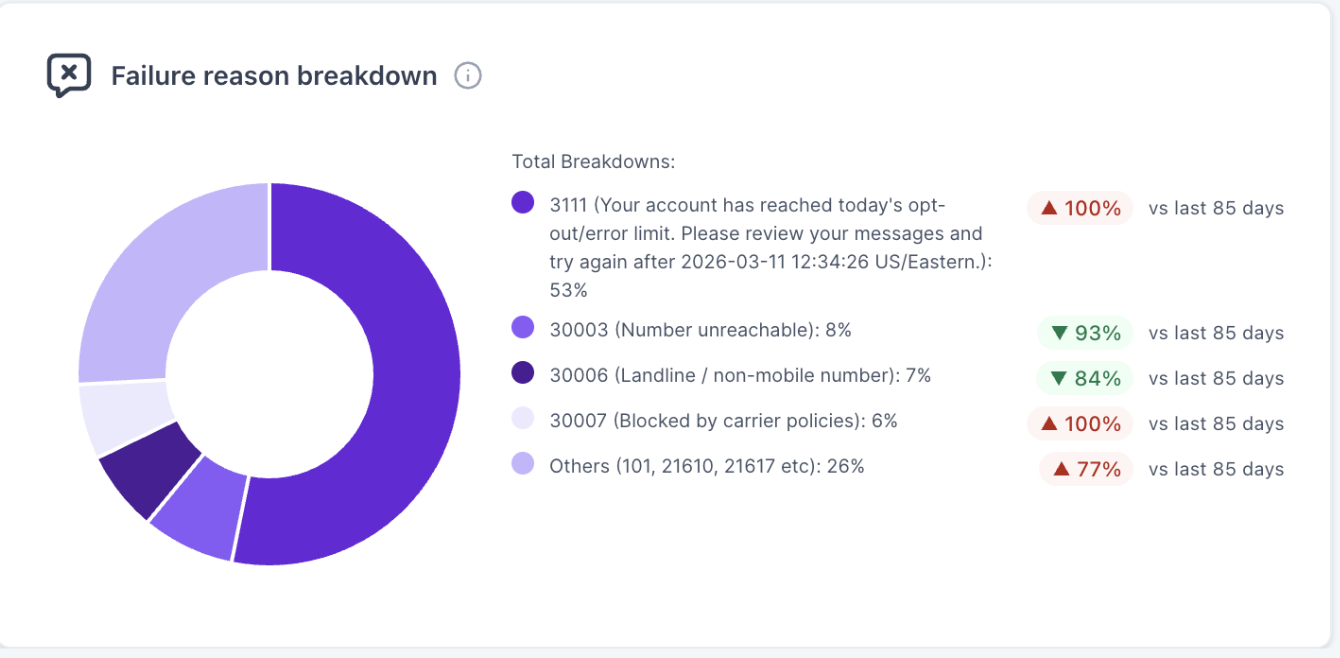
The Failure Reason Breakdown donut chart shows why your messages failed, giving you a clear view of the most common issues affecting delivery. Each segment represents a specific failure reason along with its percentage contribution.
Common failure reasons include:
- Unverified toll-free numbers
- Invalid or non-mobile numbers
- Carrier filtering or safeguards
- Country mismatches or routing issues
You'll also see how each reason has changed compared to the previous period.
How to use it
- Identify the top causes of failures
- Focus on fixing the highest-impact issues first
- Track improvements over time with period comparisons
This helps you move from guesswork to precise fixes, improving deliverability faster.
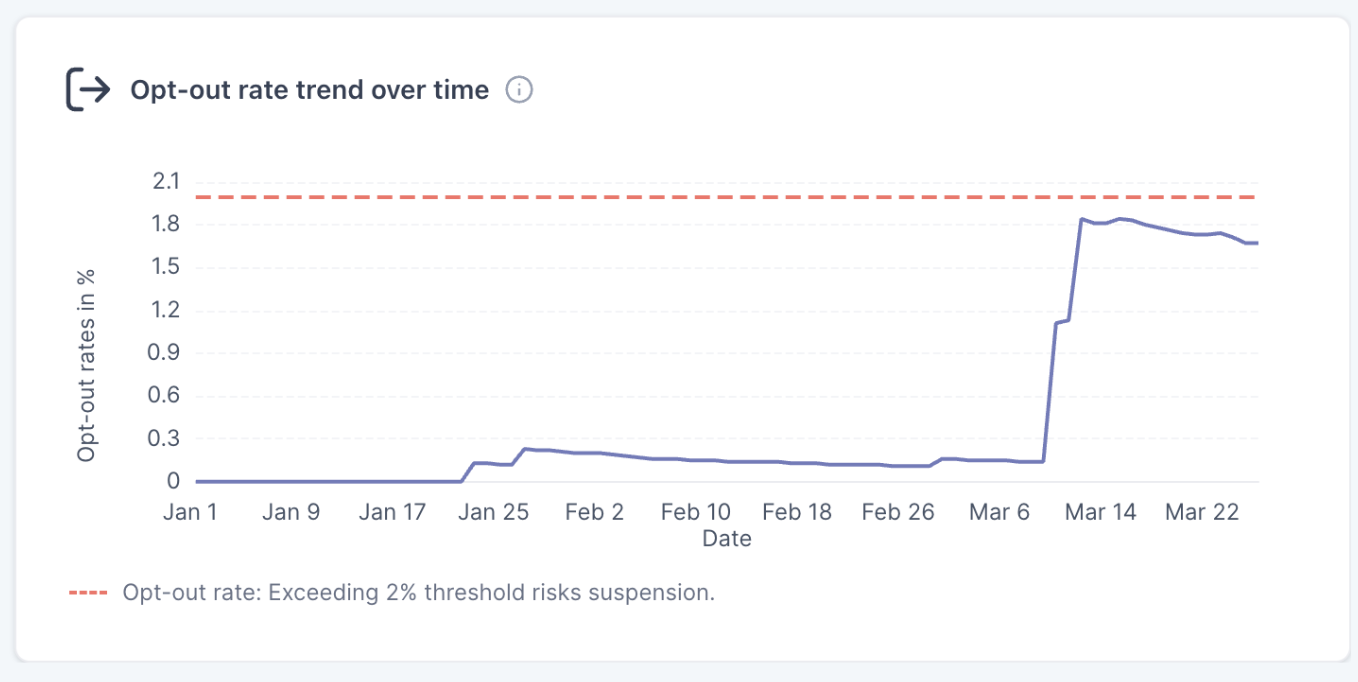
Monitor how many recipients are opting out of your messages over time.
- Includes a 2% threshold marker
- Helps you maintain healthy engagement
- Supports better messaging practices and compliance
How to Use Messaging Analytics
| Goal | What to Do |
|---|---|
| Spot delivery problems early | Review the Failure Rate Trend for spikes |
| Fix delivery issues | Use error codes and failure reasons to identify root causes |
| Monitor audience health | Track opt-out trends over time |
| Optimize campaigns | Compare period-over-period performance to refine messaging strategy |
Who It's For
Get a clear, high-level view of your messaging performance — quickly identify delivery issues, monitor opt-outs, and understand failure reasons without digging into individual message logs.
Track messaging performance across sub-accounts with better visibility into trends, making it easier to identify issues and take action using detailed breakdowns.
Why Messaging Analytics Matters
Your messaging performance directly impacts customer engagement, deliverability, compliance with carrier regulations, and revenue from campaigns and workflows.
Previously, analytics only showed raw numbers without context — you could see that messages failed, but not why, and it was difficult to track performance trends over time.
- Catch delivery issues early using trend charts and threshold indicators, before they lead to account-level restrictions
- Reduce failed messages by identifying the exact error codes and root causes
- Protect your sender reputation by monitoring opt-out trends and staying within carrier thresholds
- Make data-driven decisions by understanding which messaging sources (campaigns, workflows, bulk sends) perform best
Switching Back to the Old View
If needed, you can disable the new experience:
- Go to Labs
- Turn off Messaging Analytics V2
Frequently Asked Questions
Was this article helpful?
That’s Great!
Thank you for your feedback
Sorry! We couldn't be helpful
Thank you for your feedback
Feedback sent
We appreciate your effort and will try to fix the article