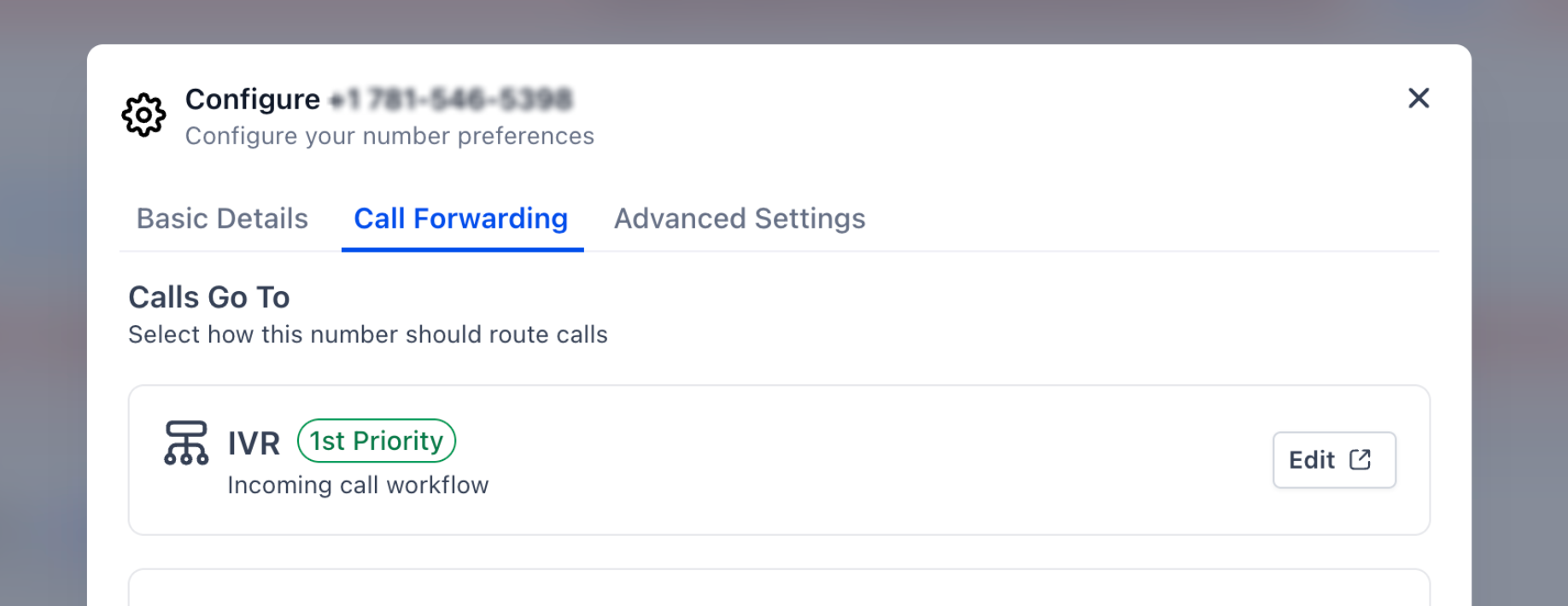
Inbound call routing determines how HighLevel handles a call from the moment someone dials your business number until the call is answered or reaches a backup destination. Calls can be handled by IVR or Voice AI, routed to assigned users, distributed to additional team members, forwarded to another number, or sent to voicemail. Understanding the routing order is especially important when a contact is assigned to a user because owner-based routing can take priority over a general forwarding number.
TABLE OF CONTENTS
- What is Inbound Call Routing in HighLevel?
- Key Benefits of Understanding Inbound Call Routing
- Inbound Call Routing Priority
- Where to Configure Inbound Call Settings
- IVR and Voice AI Routing
- Owner-Based Routing
- Team Members, Devices, and Simultaneous Ringing
- Forwarding Number Priority
- Timeout and Backup Behavior
- Advanced Call Settings
- Complete Call Flow Reference
- How to Set Up Inbound Call Routing
- Common Inbound Call Routing Scenarios
- Troubleshooting Inbound Call Routing
- Frequently Asked Questions
- Related Articles
What is Inbound Call Routing in HighLevel?
Inbound call routing determines which workflow, AI agent, user, team, forwarding destination, or backup option receives an incoming call. HighLevel evaluates the applicable routing rules and stops moving through the flow once the call is successfully handled.
A configured forwarding number does not automatically receive every inbound call first. Phone number ownership and contact assignments can affect routing before HighLevel reaches the general forwarding destination.
Important: If an inbound caller matches a contact assigned to a user, that assigned-user routing can take priority over the general forwarding number. A user assigned directly to the called phone number can also affect where the call is routed.
A simplified inbound call flow is:
- IVR, workflow routing, or Voice AI configured to answer directly handles the call when applicable.
- HighLevel evaluates applicable owner-based routing, such as the phone number owner or contact owner.
- Eligible Team Member devices and Ring More Team Members can receive the call.
- If no higher-priority route handles the call, HighLevel can use the configured forwarding destination.
- If nobody answers before the timeout, the call moves to the configured backup, such as Voice AI or voicemail.
Key Benefits of Understanding Inbound Call Routing
Knowing how HighLevel evaluates inbound calls makes it easier to create predictable call flows and diagnose unexpected routing. A clear routing hierarchy also helps callers reach the intended user or backup destination without unnecessary transfers or missed calls.
- Predictable Call Routing: Understand which user, team, or destination can receive a call first.
- Fewer Missed Calls: Combine assigned users, additional team members, forwarding destinations, and backups to improve coverage.
- Faster Troubleshooting: Identify why a call reached an assigned user instead of the general forwarding number.
- Flexible Call Handling: Combine IVR, Voice AI, human users, external numbers, and voicemail based on your business needs.
- Better Caller Experience: Use appropriate routing, timeout, and backup settings so callers reach the right destination.
Inbound Call Routing Priority
Routing priority determines which configured rule HighLevel evaluates before moving to lower-priority options. The key distinction is that owner-based routing can be evaluated before a general forwarding number.
| Routing Layer | What Happens |
|---|---|
| IVR / Workflow Routing | If an applicable IVR or workflow controls the number, that routing logic handles the call. |
| Voice AI — Answer Calls Directly | A Voice AI agent configured to answer directly can handle the call before the normal human-routing flow. |
| Owner-Based Routing | An applicable phone number owner or contact owner can receive the call before the general forwarding destination. |
| Team and Device Routing | Eligible user devices and additional Ring More Team Members can participate in the call. |
| Forwarding Destination | The applicable external or business forwarding number is used when higher-priority routing does not handle the call. |
| Backup | After the timeout, the call moves to the configured Voice AI or voicemail backup. |
Routing priority vs. simultaneous ringing: Priority determines which routing rule applies. Simultaneous ringing describes how eligible devices and team members can ring after that routing path is determined.
Where to Configure Inbound Call Settings
Inbound call behavior is controlled across the phone number configuration, user and contact assignments, and Voice AI deployment settings. Knowing where each setting lives helps prevent one routing rule from unexpectedly overriding another.
For phone-number-specific routing, go to:
Settings → Phone System → Phone Numbers → Edit Configuration
The configuration includes:
- Call Forwarding: IVR, Team Member, External Phone Number, Voice AI, Business Phone Number, Ring More Team Members, timeout, and backup.
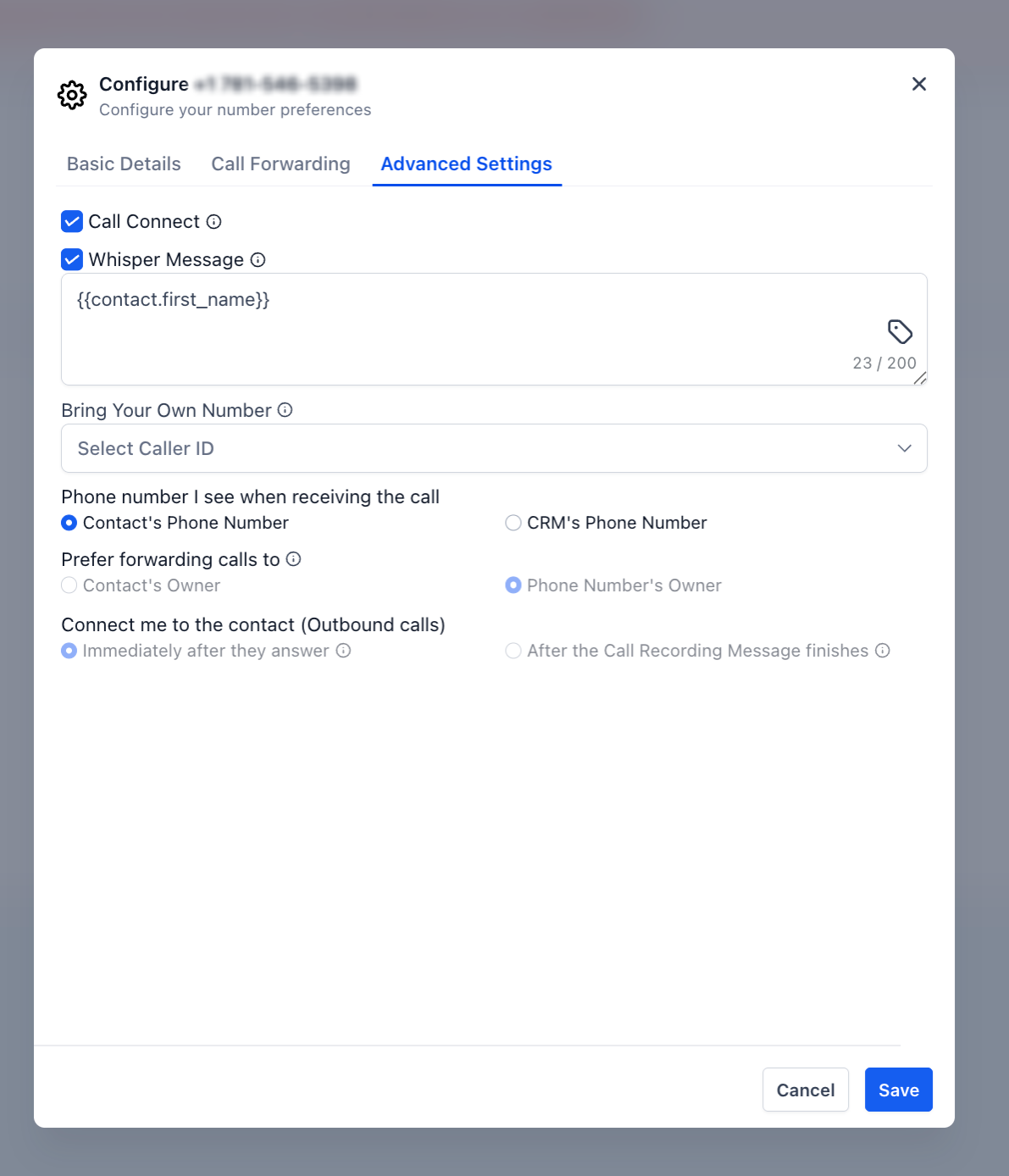
- Advanced Settings: Call Connect, Whisper Message, caller ID behavior, and owner-routing preferences.
Voice AI routing is configured separately under:
AI Agents → Voice AI → select the agent → Deploy
IVR and Voice AI Routing
IVR and Voice AI can handle calls before the normal human-routing flow depending on how they are configured. Use these options when callers should interact with an automated menu or AI agent before reaching a team member.
IVR Routing
Interactive Voice Response (IVR) lets callers navigate a menu using keypad selections. The workflow can play prompts, collect input, and send callers to different users, departments, or destinations.
IVR is created through Automation → Workflows. After the IVR workflow is built, connect it to the applicable phone-number routing configuration.
Example: “Press 1 for Sales. Press 2 for Support.”
Voice AI: Answer Calls Directly vs. Use as Backup
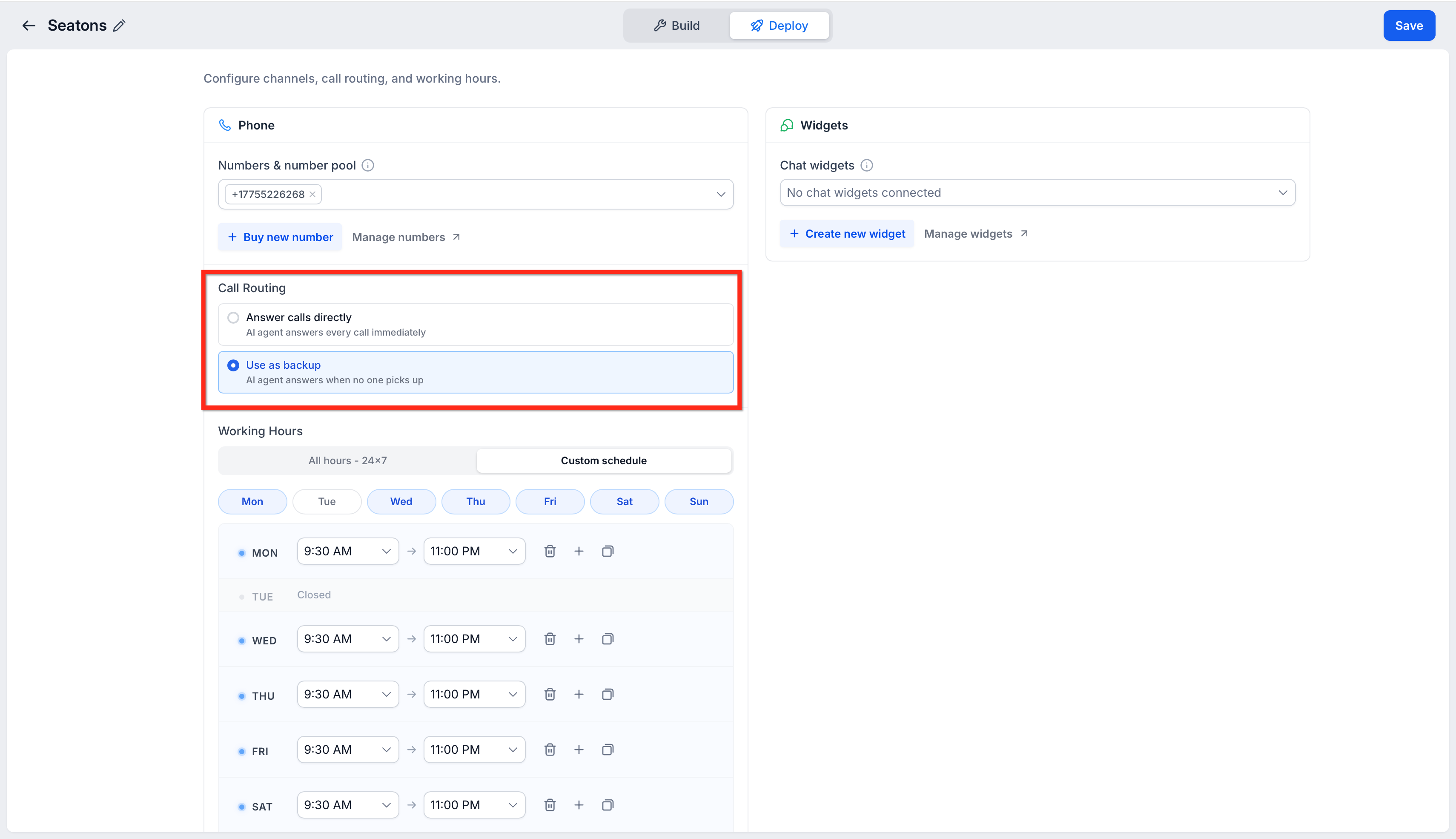
Voice AI can either become the first destination for inbound calls or wait until the preceding routing flow receives no answer. The selected Call Routing mode determines when the AI agent participates.
| Call Routing Mode | Behavior |
|---|---|
| Answer calls directly | The Voice AI agent answers applicable incoming calls without waiting for the human fallback flow. |
| Use as backup | The Voice AI agent answers after the preceding call-routing flow receives no answer. |
To change the routing mode, go to AI Agents → Voice AI → select the agent → Deploy. Working Hours can also control when the Voice AI agent is available.
Owner-Based Routing
Owner-based routing helps calls reach the person already responsible for the contact or phone number. This behavior is especially important for known contacts because an assigned user can take priority over the general forwarding number.
Under Advanced Settings → Prefer forwarding calls to, review the available owner preference:
- Contact's Owner: When the caller matches a contact assigned to a user, HighLevel can prioritize that assigned user before using the general forwarding destination.
- Phone Number's Owner: HighLevel can prioritize the user assigned directly to the called phone number.
Example: A general external forwarding number is configured, but an existing contact calls and that contact is assigned to a staff member. When the Contact's Owner route applies, the assigned staff member can receive the call before the general forwarding number.
Team Members, Devices, and Simultaneous Ringing
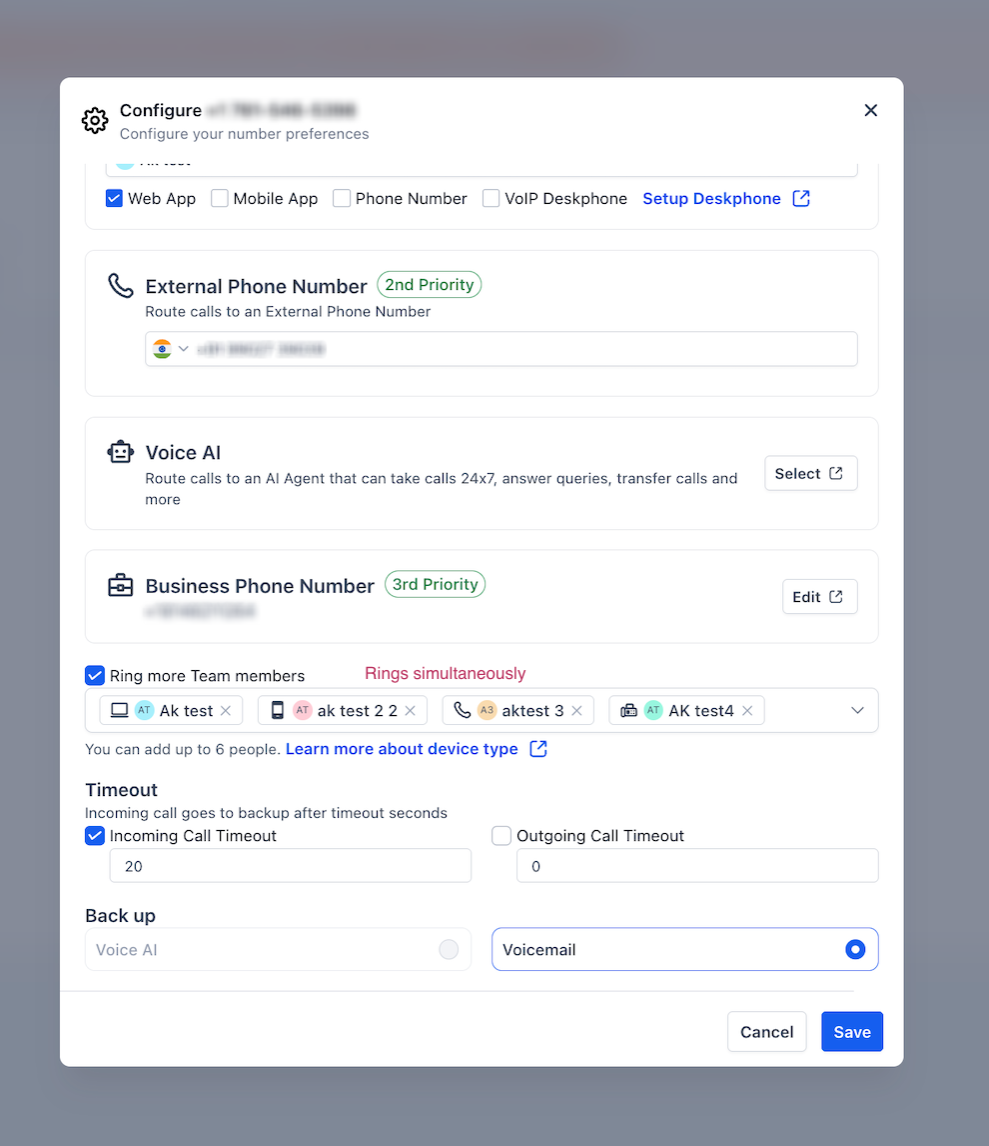
Team routing can send an inbound call to users across their enabled calling devices. Ring More Team Members expands this coverage by allowing additional users to receive the call at the same time.
Team Member Devices
A routed user can receive eligible inbound calls through one or more enabled device types. Selecting the right devices ensures the intended user has a practical way to answer.
| Device | How It Works |
|---|---|
| Web App | The user can receive the call through the HighLevel web experience when eligible and logged in. |
| Mobile App | The user can receive the call through the HighLevel mobile app when the required calling permissions are enabled. |
| Phone Number | HighLevel can call the user's configured personal phone number when this device option is enabled. |
| VoIP Deskphone | The user's configured SIP deskphone can receive the inbound call. |
Ring More Team Members
Ring More Team Members allows additional selected users to receive the same inbound call. This is useful for sales, support, or reception teams where several people can handle the caller.
- Add up to six additional users.
- Eligible selected users can ring at the same time.
- The first user who answers connects with the caller.
- Other active ringing attempts stop after the call is answered.

Forwarding Number Priority
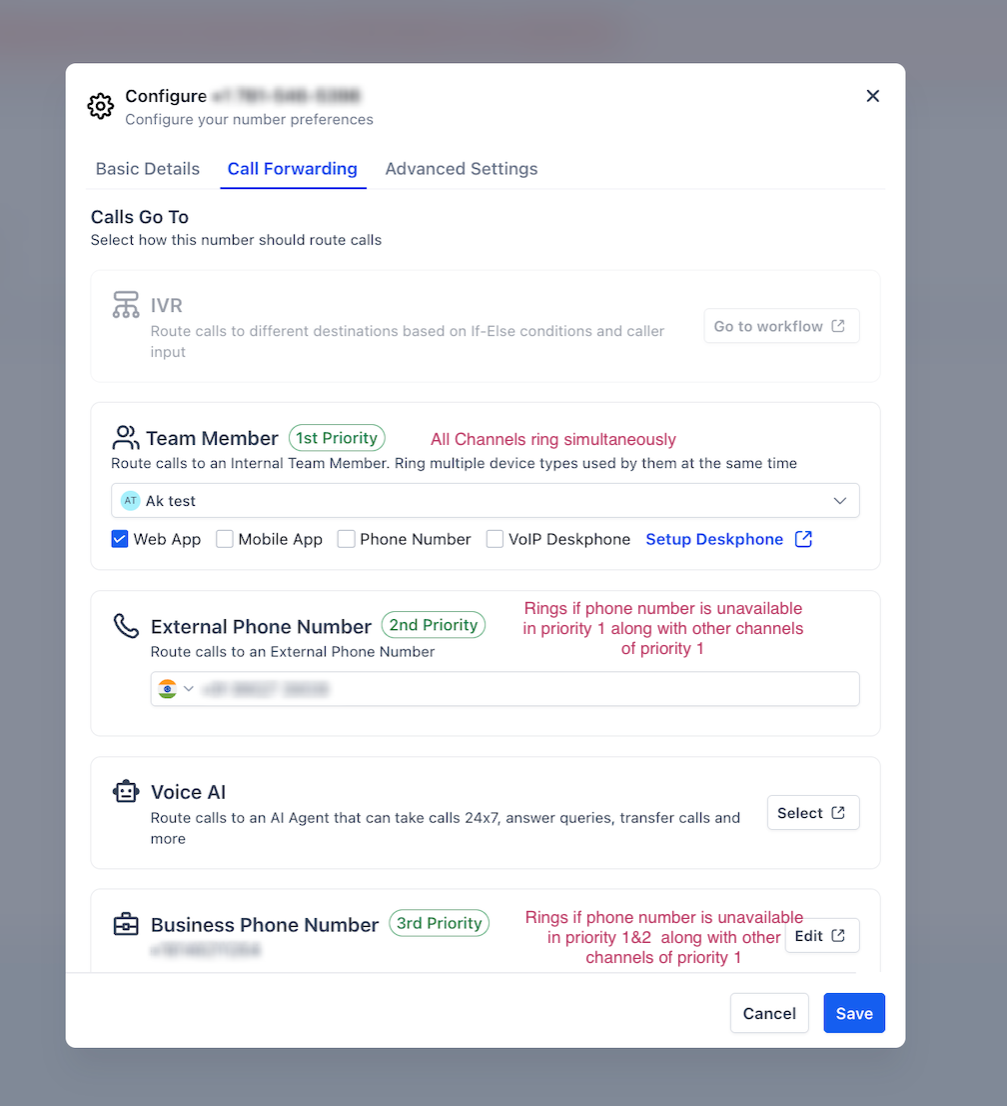
The Call Forwarding screen can display first-, second-, and third-priority badges beside available destinations. These badges describe the priority of the destinations shown in that portion of the configuration, but they do not represent every rule in the complete inbound-call hierarchy.
| Priority | Destination | Behavior |
|---|---|---|
| 1st | Team Member Phone Number | Used when the Phone Number device is enabled for the applicable Team Member. |
| 2nd | External Phone Number | Available when an external forwarding number is configured and a higher-priority forwarding destination does not fill the route. |
| 3rd | Business Phone Number | Can act as the lower-priority business forwarding destination when applicable. |
Important: Configuring an External Phone Number does not guarantee that every inbound call will be sent there first. Check contact assignment, phone number ownership, the owner-routing preference, and Ring More Team Members when troubleshooting an unexpected recipient.
Timeout and Backup Behavior
Timeout and backup settings determine how long HighLevel waits for an eligible destination to answer and what happens when the call remains unanswered. These settings help prevent missed calls and reduce the chance that an external carrier voicemail answers unexpectedly.
Incoming Call Timeout
The Incoming Call Timeout controls how long the applicable human or forwarding route can ring before HighLevel moves to backup. Approximately 20 seconds is a useful starting point for many configurations, but you can adjust the value to fit your call flow.
A timeout that is too short may not give users enough time to answer. A timeout that is too long may allow an external carrier voicemail system to answer before HighLevel reaches its configured backup.

Backup Options
Backup determines where an unanswered call goes after the preceding routing path times out. Selecting a backup ensures callers still reach a useful destination when nobody answers.
- Voice AI: Routes the unanswered call to the configured AI agent.
- Voicemail: Allows the caller to leave a recorded message.

Voicemail Greetings
Voicemail greetings provide callers with context before they leave a message. Depending on the routing configuration, HighLevel can use an applicable user-level greeting, location voicemail greeting, or default voicemail experience.
For reliable custom voicemail playback, use a properly prepared MP3 or WAV audio file.
Advanced Call Settings
Advanced Settings control how forwarded calls connect, what information the receiving user hears, which caller ID appears, and which owner HighLevel should prefer. These options are useful when you need more control over the final call experience.
Call Connect
Call Connect requires the receiving person to confirm the call before HighLevel treats it as successfully connected. This can help prevent an external answering machine or carrier voicemail from being treated as a human answer.
Whisper Message
A Whisper Message gives the receiving party information about the incoming call before the caller is connected. This can provide context such as the caller's name or source when an external forwarding destination is used.
Caller ID Display
Caller ID settings determine which number the receiving user sees when a call is forwarded. Choose the option that gives your team the most useful context when answering.
Prefer Forwarding Calls To
The owner preference determines whether HighLevel should favor the caller's assigned contact owner or the owner of the called phone number when applicable. Review this setting whenever a call appears to bypass the general forwarding number.
Call Recording
Call recording can capture eligible calls for later review. When using call recording, ensure your configuration and caller notifications comply with applicable consent and recording laws.
Complete Call Flow Reference
The call-flow reference provides a visual overview of how inbound calls can move through automation, user routing, simultaneous ringing, and backup behavior. Use it together with the owner-routing guidance above when diagnosing why a particular person or destination received a call.
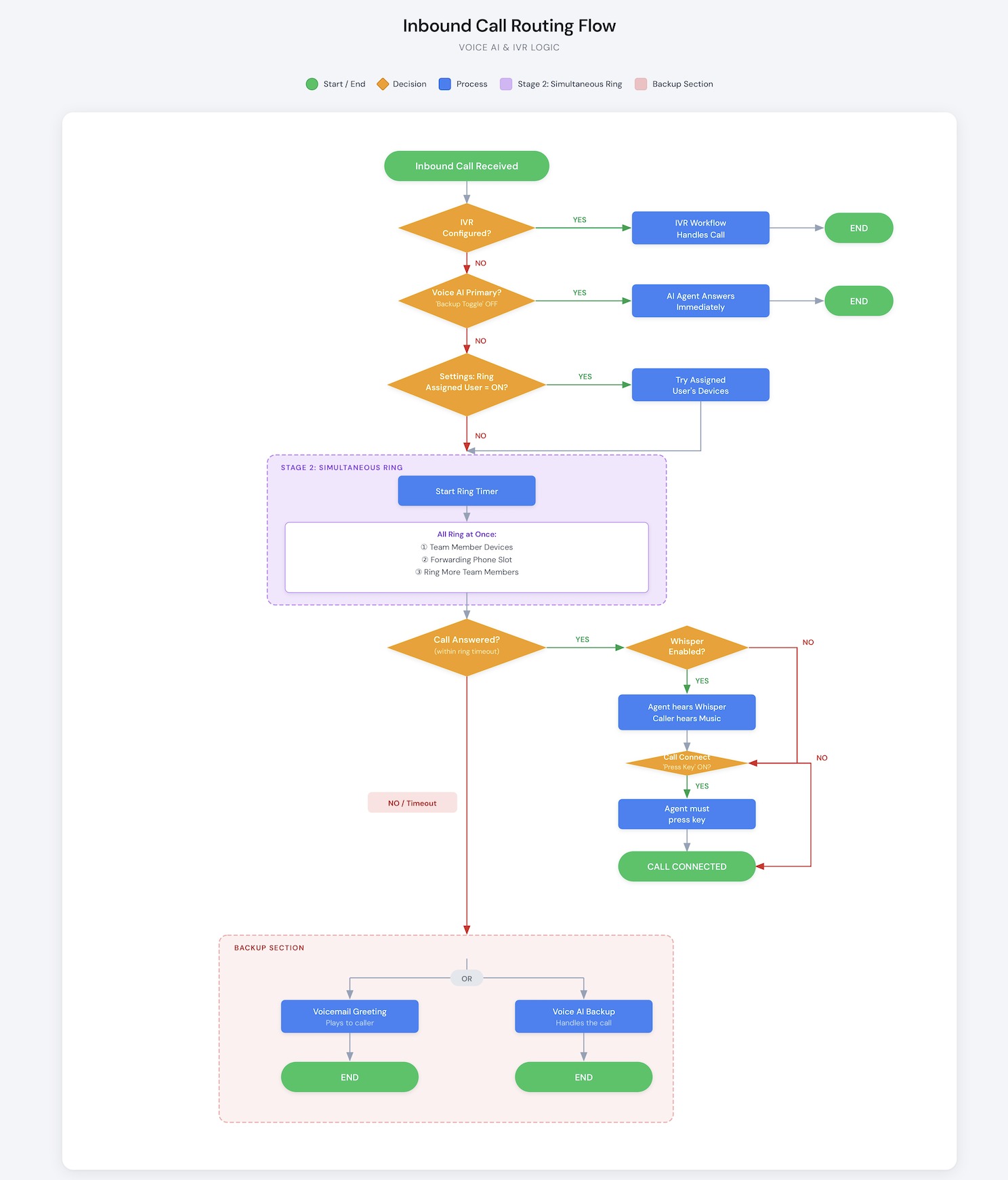
Remember: Owner-based routing can affect the human-routing portion of the flow before a general forwarding number is used. Always review the contact owner, phone number owner, and Prefer forwarding calls to setting when troubleshooting routing.
How to Set Up Inbound Call Routing
A reliable inbound call configuration defines who should receive a call first, which additional users should participate, how long HighLevel waits for an answer, and where unanswered calls go. Reviewing ownership before configuring forwarding helps prevent unexpected routing.
- Open the phone number configuration.
Go to Settings → Phone System → Phone Numbers and open Edit Configuration for the applicable number. - Review the phone number and contact ownership.
Check whether the phone number is assigned to a user and whether known callers are assigned to contact owners. - Configure IVR if needed.
If callers should navigate a menu first, create the IVR workflow and connect it to the applicable inbound number. - Configure Team Member routing.
Select the appropriate Team Member and enabled device types. - Add additional users if needed.
Enable Ring More Team Members and select the additional users who should receive eligible calls. - Configure the forwarding destination.
Add an External Phone Number or applicable Business Phone Number when calls should be forwarded outside the primary user route. - Set the Incoming Call Timeout.
Use approximately 20 seconds as a starting point and adjust based on your team's answering behavior. - Select a backup.
Choose Voice AI or voicemail for calls that remain unanswered. - Review Advanced Settings.
Confirm Call Connect, Whisper Message, caller ID, and Prefer forwarding calls to. - Configure Voice AI separately if used.
Go to AI Agents → Voice AI → select the agent → Deploy and choose Answer calls directly or Use as backup. - Save and test the routing.
Place test calls from both a known contact with an assigned user and an unknown caller to confirm each follows the intended route.
Common Inbound Call Routing Scenarios
Common routing patterns make it easier to translate your business requirements into the correct HighLevel configuration. Use these examples as starting points and adjust ownership, users, timeout, and backup settings for your team.
Route Known Contacts to Their Assigned User
This setup helps account managers, sales representatives, or support owners receive calls from contacts already assigned to them.
- Assign the contact to the appropriate user.
- Open the phone number's Advanced Settings.
- Review Prefer forwarding calls to and use the appropriate Contact's Owner behavior.
- Configure a forwarding number or backup for calls that cannot be handled by the owner.
Route Calls to the Phone Number's Owner
Use this configuration when a dedicated business number primarily belongs to one user and calls to that number should favor that person.
- Assign the phone number to the appropriate user.
- Open Advanced Settings.
- Review Prefer forwarding calls to and select the appropriate Phone Number's Owner behavior.
- Add additional users or a backup if needed.
Ring Multiple Team Members
This setup improves coverage when several users can handle the same incoming call.
- Configure the primary Team Member.
- Enable Ring More Team Members.
- Add the additional users.
- Confirm their calling-device preferences.
- Configure the timeout and backup.
Let Voice AI Answer Every Call
This configuration makes Voice AI the first point of contact for applicable inbound calls.
- Open the Voice AI agent.
- Go to Deploy.
- Select Answer calls directly.
- Assign the appropriate phone number or number pool.
- Configure Working Hours if needed.
Try Humans First, Then Voice AI
This configuration gives your team the first opportunity to answer while keeping AI available for unanswered calls.
- Configure the applicable user and forwarding routes.
- Set the Incoming Call Timeout.
- Configure Voice AI with Use as backup.
- Test the flow to confirm Voice AI answers only after the preceding routing receives no answer.
Troubleshooting Inbound Call Routing
Unexpected call behavior is often caused by a higher-priority routing rule, owner assignment, unavailable device, timeout setting, or backup configuration. Checking the call flow in routing order helps identify where the behavior differs from what you expected.
The Wrong User or Number Is Receiving the Call
Owner assignments are a common reason a general forwarding number does not receive the call first.
- Check whether the caller matches an existing contact.
- Check whether the contact is assigned to a user.
- Check whether the called phone number is assigned to a user.
- Review Prefer forwarding calls to under Advanced Settings.
- Review Ring More Team Members.
- Confirm the configured external or business forwarding destination.
A Team Member Is Not Receiving Calls
The user must be part of the applicable routing path and have an eligible calling destination available.
- Confirm the user is assigned to the phone number, contact, or Ring More Team Members as expected.
- Review the user's enabled calling devices.
- Confirm mobile permissions when using the mobile app.
- Check whether IVR or Voice AI is handling the call first.
Calls Reach Voicemail Too Quickly
A short timeout or unavailable destination can cause HighLevel to reach the backup sooner than expected.
- Review the Incoming Call Timeout.
- Confirm the intended user or forwarding number is available.
- Review Call Connect if an external phone number is being used.
- Confirm the selected Voice AI or voicemail backup.
Carrier Voicemail Answers Instead of HighLevel Voicemail
An external phone that rings too long may reach its carrier voicemail before HighLevel reaches the configured backup.
- Reduce the Incoming Call Timeout.
- Use approximately 20 seconds as a starting point.
- Test how quickly the external phone's carrier voicemail answers.
- Adjust the timeout so HighLevel reaches its backup first.
Voice AI Is Not Answering
Voice AI depends on the deployment mode, assigned phone number, availability, and configured Working Hours.
- Go to AI Agents → Voice AI → Deploy.
- Confirm whether the agent is set to Answer calls directly or Use as backup.
- Confirm the correct phone number or number pool is assigned.
- Review Working Hours.
- If using backup mode, verify that the preceding routing flow is reaching its unanswered state.
Frequently Asked Questions
Q: Why is my contact's assigned user receiving the call instead of the forwarding number?
An applicable contact-owner route can take priority over the general forwarding number. Check the contact's assigned user and the Prefer forwarding calls to setting under the phone number's Advanced Settings.
Q: What happens if the caller is not saved as a contact?
If HighLevel cannot match the caller to a contact with an applicable assigned user, contact-owner routing does not apply and the call continues through the next applicable routing rules.
Q: Does an External Phone Number always receive the call before other destinations?
No. Applicable owner-based routing and other higher-priority rules can be evaluated before the general external forwarding number.
Q: If one Ring More Team Members user declines the call, does the call stop ringing for everyone?
No. Declining the call for one user does not automatically stop the remaining eligible users from receiving the call.
Q: Does HighLevel require a 20-second Incoming Call Timeout?
No. Approximately 20 seconds is a useful starting point for many configurations, but the timeout is configurable.
Q: Can Voice AI answer only during certain hours?
Yes. Working Hours in the Voice AI deployment settings can control when the AI agent is available to receive calls.
Q: Is there a maximum call duration?
Yes. Calls are automatically disconnected after two hours. If the conversation needs to continue, a new call must be started.
Related Articles
Was this article helpful?
That’s Great!
Thank you for your feedback
Sorry! We couldn't be helpful
Thank you for your feedback
Feedback sent
We appreciate your effort and will try to fix the article