Use conditional element to effortlessly personalize your email campaigns! Conditional Elements let you show or hide specific content blocks in the Email Builder based on each contact’s data.
TABLE OF CONTENTS
- What is a Conditional Element?
- Key Benefits of Conditional Elements
- How to Use Conditional Elements
- New Conditional Visibility Operators
- Frequently Asked Questions
- Related Articles
What is a Conditional Element?
A conditional element allows you to display content (such as images or text) within an email only if a contact meets certain criteria. This enables you to tailor your messaging to individual contacts automatically.
Conditional Elements are configured in the Email Builder at the element level (e.g., Text, Image, Button, Rows/Sections) and can be based on multiple types of criteria including:
- Location-based content: Display different images or offers depending on a contact’s geographic location.
- Field-based text: Change a text element based on specific contact fields, like their job title or interests.
Key Benefits of Conditional Elements
- Personalization: Make your campaigns more relevant by showing customized content to each contact.
- Time-Saving: Avoid the need to create smart lists and separate campaigns. Use one campaign with conditional elements instead.
Increased Engagement: Showing content that's personalized to each recipient increases the likelihood of higher click-through rates, responses, and conversions.
Simplified Campaign Management: Instead of juggling various lists and campaigns, manage all variations of content in one place, reducing complexity and chances for error.
How to Use Conditional Elements
- Open your email in the Email Builder. (Marketing > Emails > Campaigns or Templates)
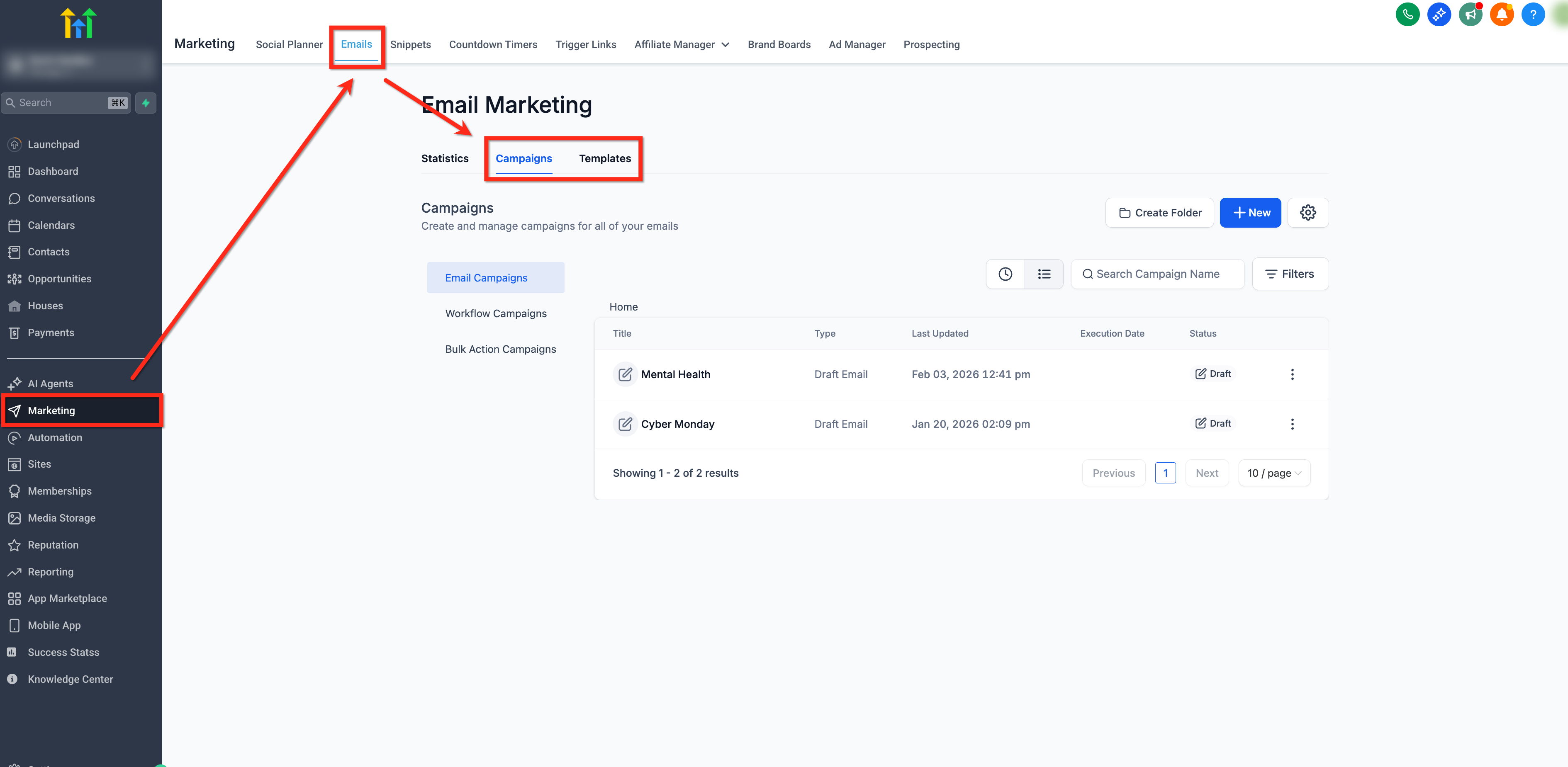
- Select an element (e.g., Text, Image, Button) and open the Visibility tab in its settings panel.
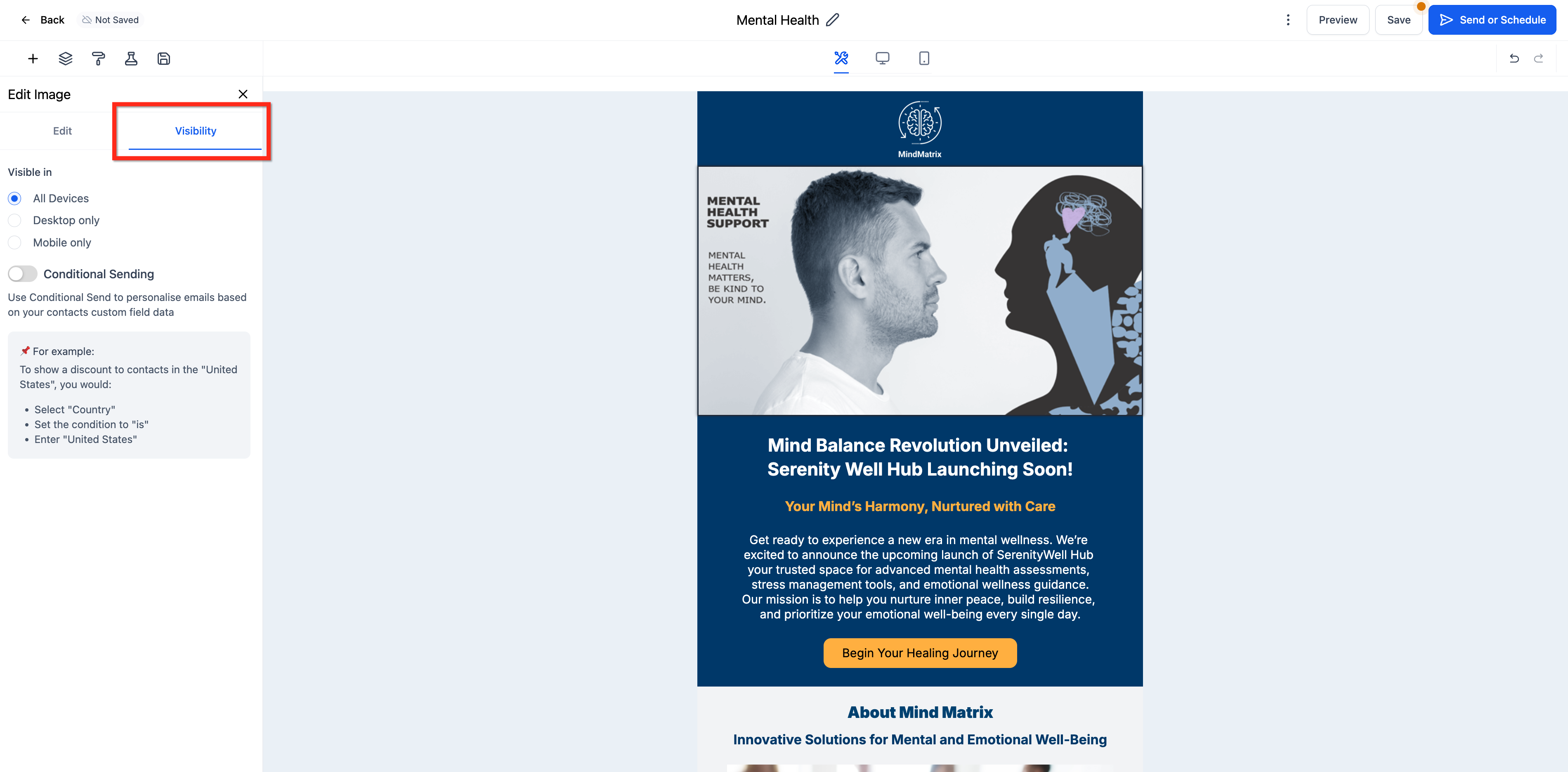
Alternatively, click on the Conditional Element icon in the element overlay action to access conditional elements easily.
- Toggle on ConditionalSending.
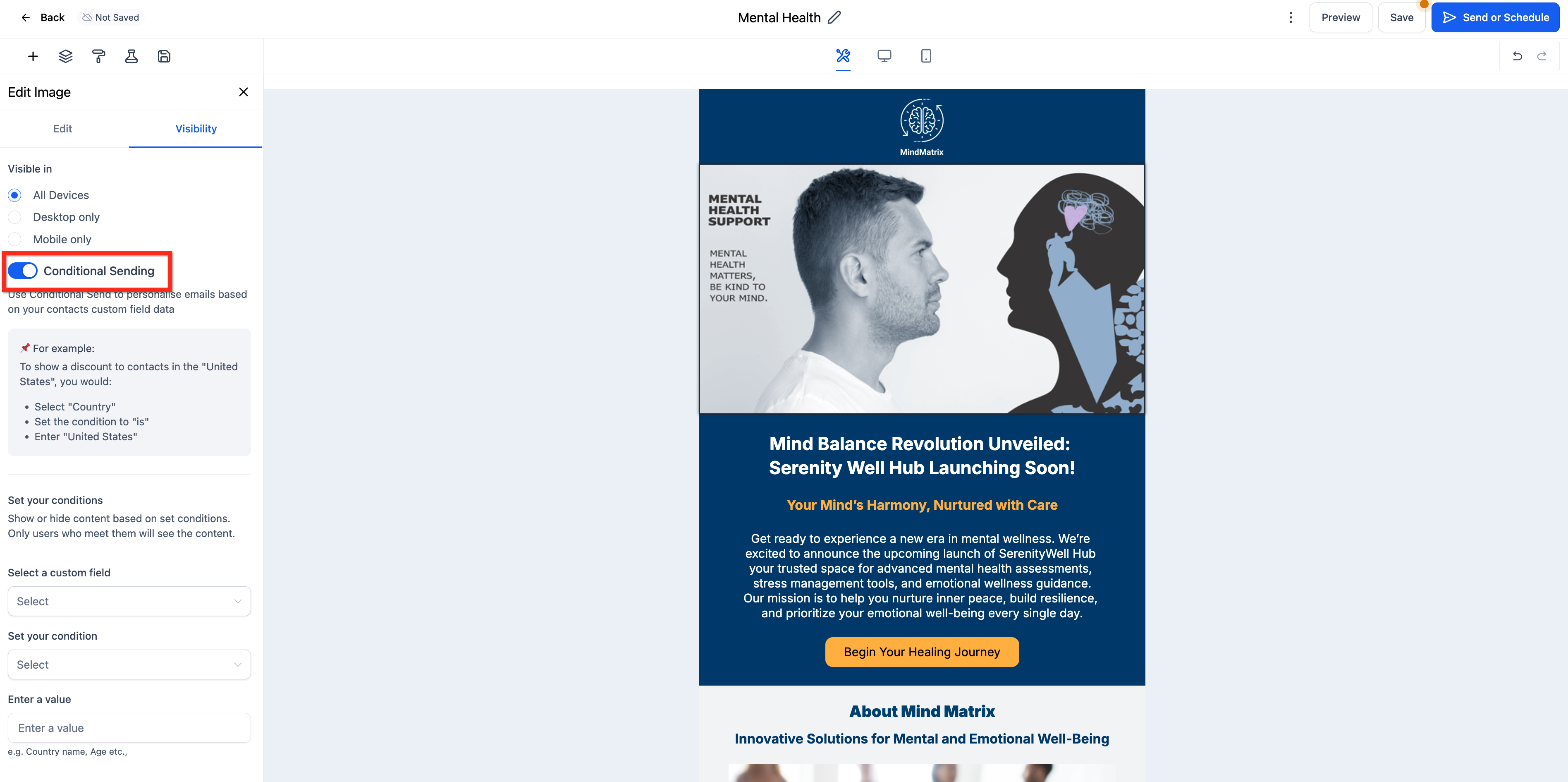
- Choose a Field, set a Condition (is/is not), and enter a Value.
Leave the value blank to set the conditional element's value to null. When set to null, the element will only render when the specified field is empty.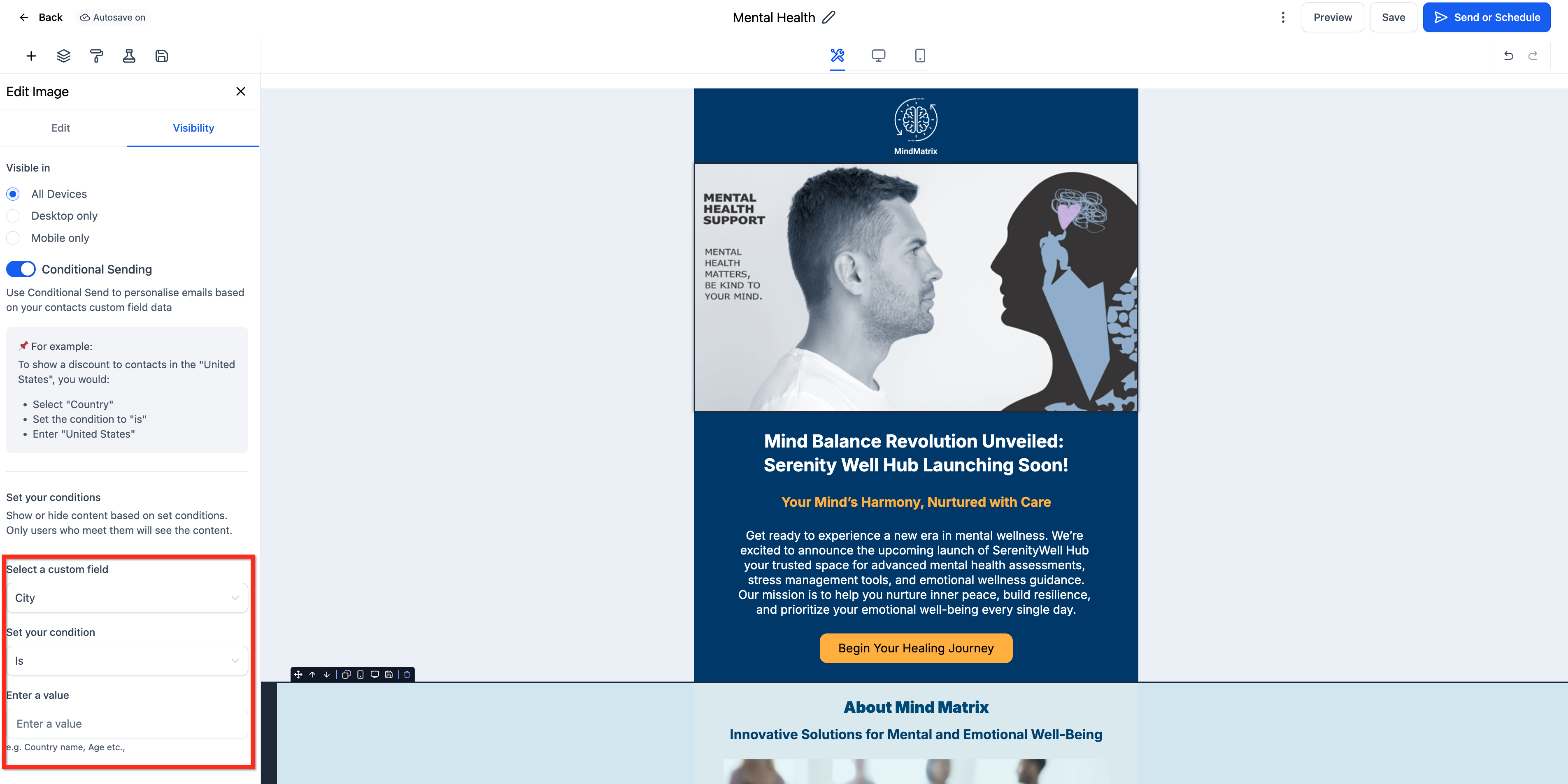
Conditional elements now evaluate reliably when a contact’s custom field is not set.
New Conditional Visibility Operators
Conditional visibility now supports more flexible rule logic so you can handle missing or empty values more cleanly when personalizing emails.
You can now use these operators when configuring visibility rules:
- Is
- Is Not
- Is Empty
- Is Present
These operators work with custom fields in the visibility dropdown, including attachment fields.
Example use cases
Show a Download Invoice button only when an attachment field Is Present
Hide a personalized greeting when First Name Is Empty
Frequently Asked Questions
Q: Can I type “NULL” as the value to target empty fields?
No. Typing “NULL” will not match an empty field. Leave the contact’s field blank and set the condition to Is empty. Also ensure there are no spaces or placeholder text in the field.
Q: Which field types are supported for Conditional Elements?
Supported types are single-line text, number, radio select, and single-select dropdown. For numbers, use plain numeric values (no symbols). For radio/single-select fields, match the exact stored option value.
Related Articles
Was this article helpful?
That’s Great!
Thank you for your feedback
Sorry! We couldn't be helpful
Thank you for your feedback
Feedback sent
We appreciate your effort and will try to fix the article