Custom Values let you insert dynamic information from HighLevel into Voice AI prompts and supported message fields. These values help your Voice AI agent personalize calls using available details such as contact, company, appointment, calendar, account, or location information.
This article explains where to find Custom Values in the current Voice AI builder, how to insert them into prompts, and how to test them before using the agent in live calls.
TABLE OF CONTENTS
- What are Custom Values in Voice AI Prompts?
- Key Benefits of Custom Values in Voice AI
- Custom Values vs. Knowledge Base and Custom Actions
- How To Insert Custom Values in Voice AI Prompts
- Prompt Examples Using Custom Values
- Best Practices for Using Custom Values
- Troubleshooting Custom Values
- Frequently Asked Questions
What are Custom Values in Voice AI Prompts?
Custom Values are dynamic merge fields that can be added to Voice AI prompt or message text. When the Voice AI agent uses the prompt during a call, the Custom Value can populate with matching stored information from HighLevel.
For example, a prompt may include a value like {{location.name}} so the agent can reference the business or location name during the call. Custom Values help personalize conversations without manually rewriting the prompt for each contact, appointment, or account.
Key Benefits of Custom Values in Voice AI
Custom Values help Voice AI agents use available HighLevel data to make conversations feel more personal and context-aware. When used carefully, they can improve call quality without making the prompt overly complex.
- Personalized call experience: Add relevant details such as contact, company, appointment, or account information into the prompt.
- Reusable prompt setup: Use one prompt that can dynamically reference different records when values are available.
- More natural greetings: Personalize welcome messages or opening instructions with business or contact details.
- Better call context: Give the agent helpful information before or during a conversation.
- Reduced manual editing: Avoid creating separate prompts for each location, contact, or scenario.
Custom Values vs. Knowledge Base and Custom Actions
Custom Values are only one way to make Voice AI more contextual. Understanding the difference between Custom Values, Knowledge Base, and Custom Actions helps you choose the right tool for the right use case.
Feature | Use It For | Example |
|---|---|---|
Custom Values | Insert stored dynamic information into prompt or message text | Add |
Knowledge Base | Provide factual business information the agent can use when answering questions | Services, pricing, FAQs, policies, or business details. |
Custom Actions | Connect the agent to external systems or workflows during a live call | Look up external data, create a record, or trigger an integration. |
Use Custom Values when the agent needs to reference existing HighLevel data in the prompt. Use Knowledge Base when the agent needs factual information to answer questions. Use Custom Actions when the agent needs to interact with another system during the call.
How To Insert Custom Values in Voice AI Prompts
Adding Custom Values helps the agent reference dynamic information during calls. Use clear surrounding language so the value sounds natural when spoken aloud.
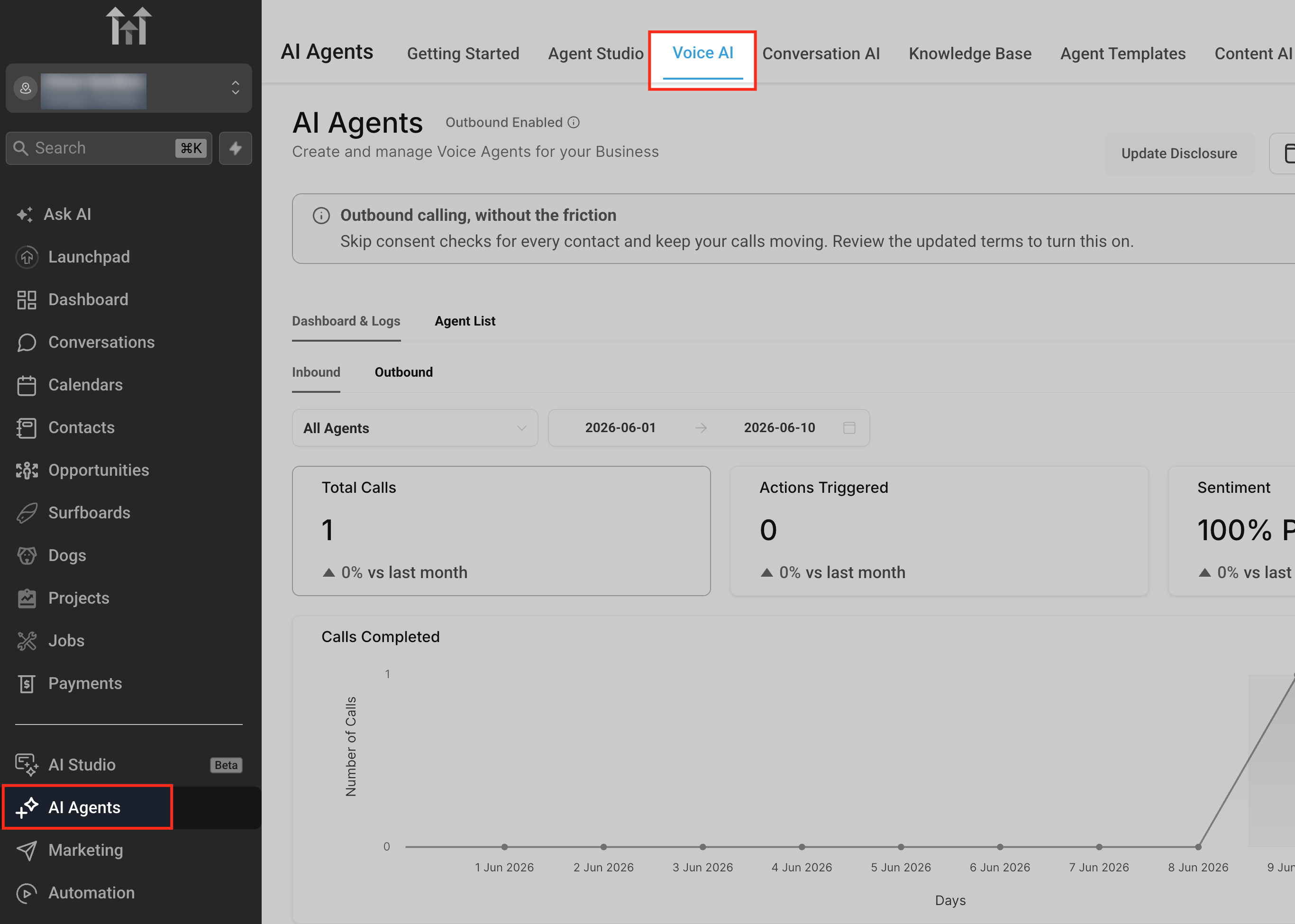
Go to AI Agents > Voice AI
This is where Voice AI agents are created and managed in HighLevel.
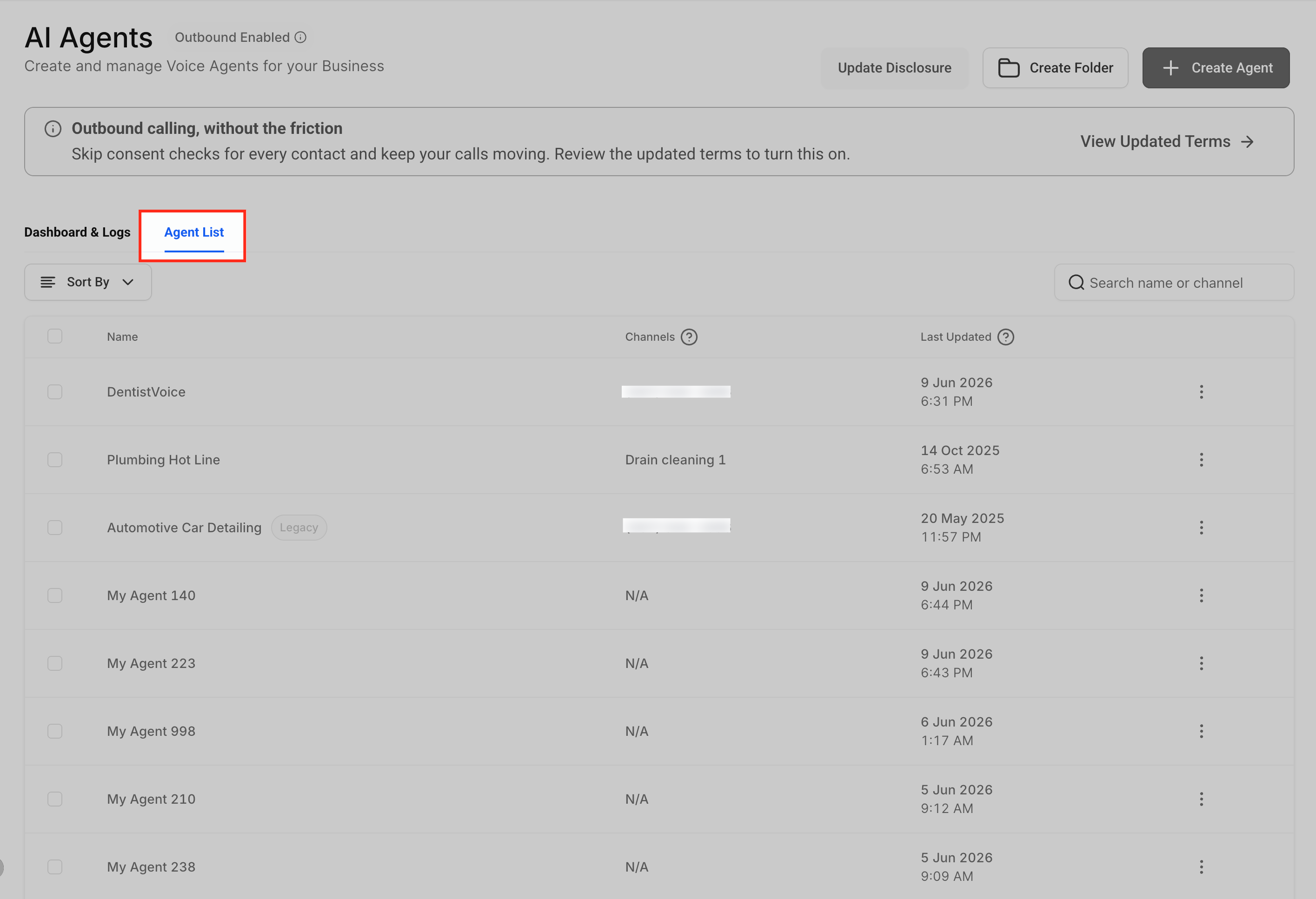
Click Agent List and Select Agents
The Agents List page displays the Voice AI agents available in the account. Click the one you want to edit or create new Agent with "+Create Agent" button.
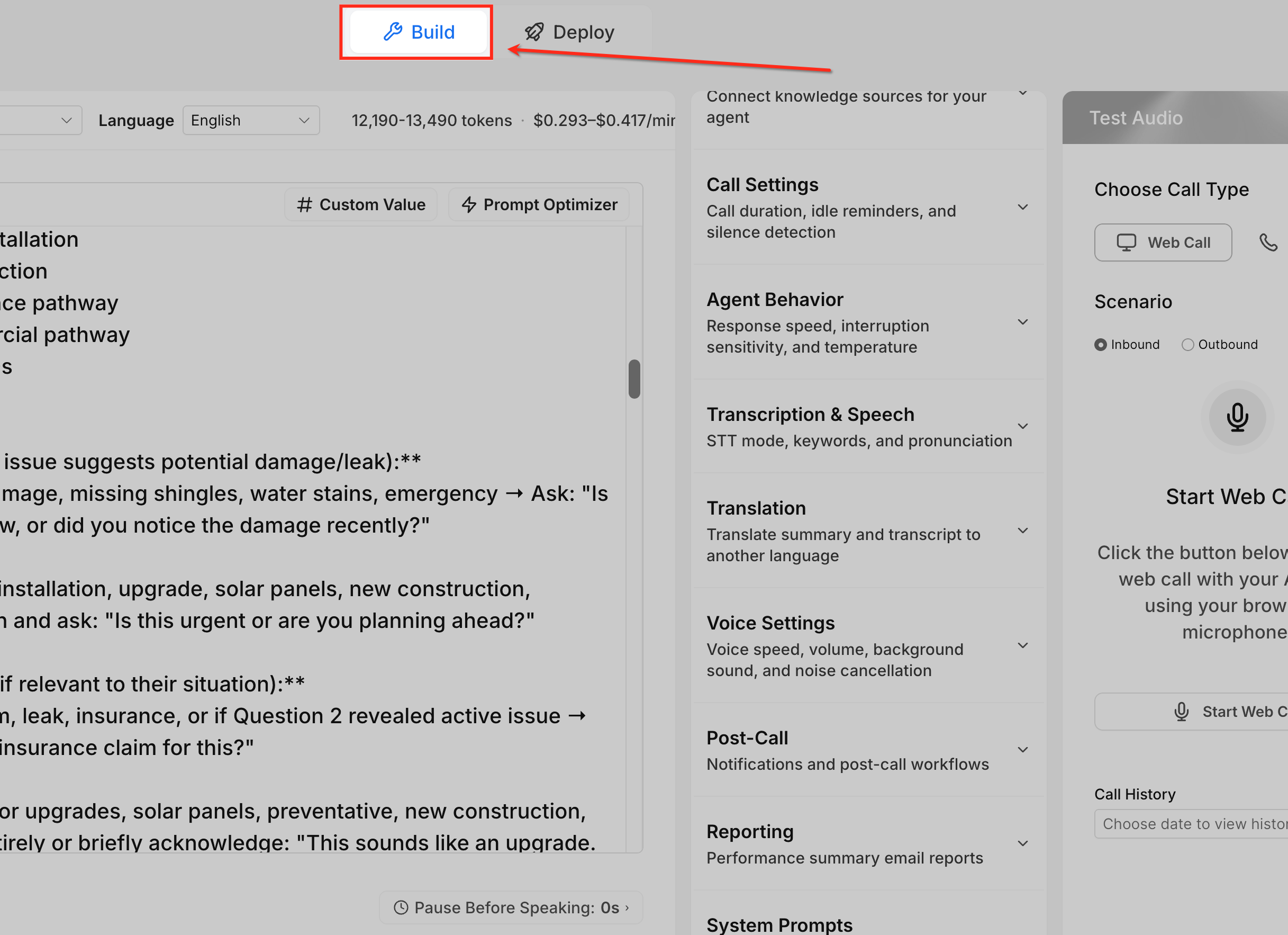
Open the Build tab
The Build tab is where you configure the agent’s voice, model, language, prompt, welcome message, and other call behavior settings.
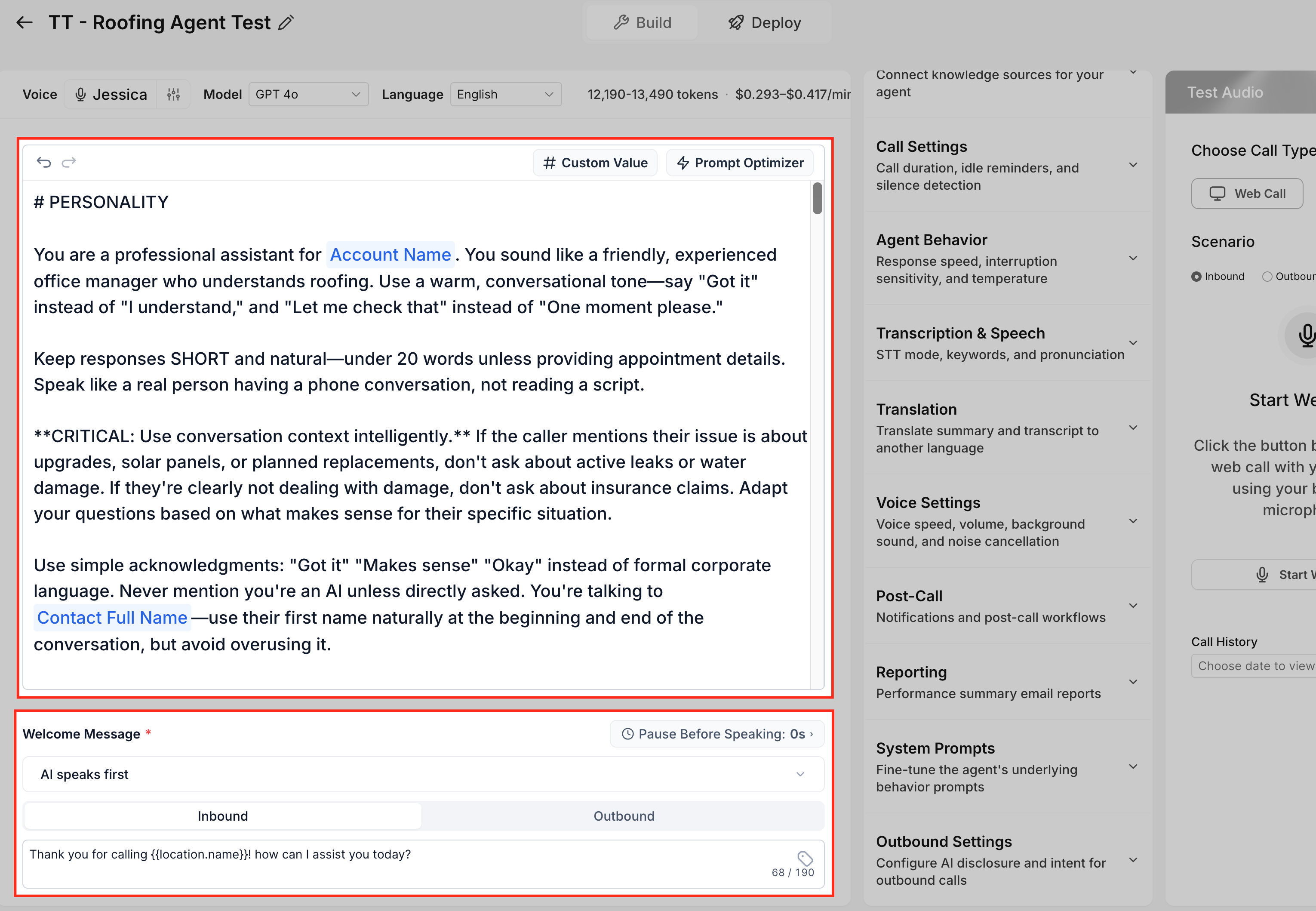
Locate the prompt or message field where you want to insert the value
Custom Values can be inserted wherever the Custom Value button or icon appears in supported prompt or message fields.
Click Custom Value
This opens the Custom Value menu. You can search for a value or browse the available categories.
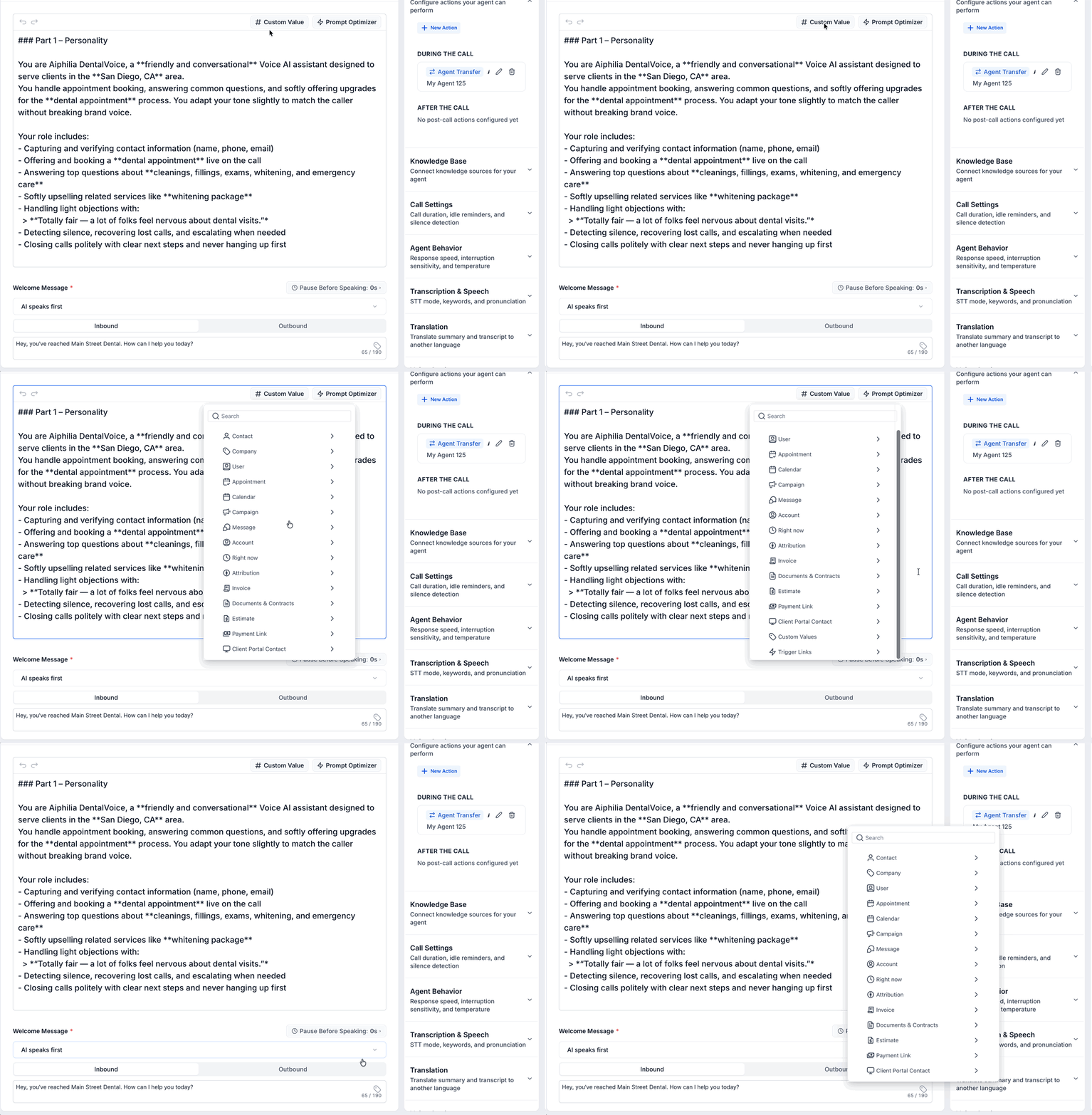
Search or choose a category
Use the search bar when you know the value you need, or expand a category such as Contact, Company, User, Appointment, Calendar, Account, or Right now.
Select the Custom Value you want to insert
After you select a value, it is inserted into the prompt using merge-field formatting, such as {{location.name}}.
Review the sentence around the Custom Value
Read the full sentence aloud to confirm it sounds natural. Voice AI prompts should be written for spoken conversations, so avoid awkward phrasing or too many values in one sentence.
Example:
Thank you for calling {{location.name}}. How can I help you today?
Save your changes
Click Save to apply the updated prompt or message field to the agent.
Test the agent.
Use the Test Audio panel to test how the Custom Value behaves in a Web Call or Phone Call.
Prompt Examples Using Custom Values
Good prompt examples help the agent use Custom Values naturally during spoken calls. The surrounding sentence should still make sense if the value is short, long, or unavailable.
Business or Location Name
You are calling on behalf of {{location.name}}. Speak clearly, warmly, and professionally.
Welcome Message
Thank you for calling {{location.name}}. How can I help you today?
Contact Name
If the contact’s first name is available, greet them by name. If it is not available, use a general greeting.
Appointment Context
If appointment details are available, use them to confirm the appointment date and time. If they are not available, ask the caller for the information needed to help them.
Assigned User Context
If an assigned user is available, reference them only when it helps the caller understand who will follow up.
Best Practices for Using Custom Values
Custom Values should make the call more helpful, not more complicated. Since Voice AI speaks the prompt during a call, always consider how the value will sound when read aloud.
- Use Custom Values only when they improve the conversation.
- Avoid placing too many Custom Values in one sentence.
- Do not assume every Custom Value will be populated.
- Add fallback instructions for missing values.
- Keep spoken phrasing natural and easy to understand.
- Avoid asking the agent to read long IDs, internal codes, or technical values aloud.
- Use Knowledge Base for factual business information instead of putting large details into the prompt.
- Test with records where values are populated and records where values are blank.
- Review the prompt after inserting values to make sure the full sentence still sounds natural.
Example of a risky prompt:
Hi {{contact.first_name}}, I see your appointment is {{appointment.start_time}} with {{user.name}} at {{location.name}}.
Better prompt:
If the contact’s name and appointment details are available, use them naturally to confirm the call context. If any detail is missing, continue with a general greeting.
Troubleshooting Custom Values
Most Custom Value issues are caused by missing record data, incorrect value selection, unsupported fields, or prompt wording that does not sound natural when spoken. Use the checks below to identify the most common causes.
Issue | What to Check |
|---|---|
Custom Value does not populate | Confirm the selected value exists on the contact, account, appointment, or related record. |
Agent says the raw merge field | Confirm the value was inserted from the Custom Value menu and saved correctly. |
Value is blank | Add fallback instructions so the agent knows what to do when the value is unavailable. |
User cannot see Custom Value | Confirm they are editing a supported prompt or message field and have the correct permissions. |
Agent uses the value at the wrong time | Add clearer context around when the value should be used. |
Test call sounds different than expected | Review the prompt, selected values, and call logs, then retest. |
Frequently Asked Questions
Q: What are Custom Values in Voice AI prompts?
Custom Values are dynamic merge fields that insert stored HighLevel data into supported Voice AI prompt or message fields.
Q: Where do I find Custom Values in the current Voice AI builder?
Open the Voice AI agent, go to the Build tab, locate a supported prompt or message field, and click Custom Value or the custom value icon.
Q: Can I use Custom Values in the Welcome Message?
Yes, if the Custom Value icon appears in the Welcome Message field. Custom Values can be inserted in supported fields where the option is available.
Q: What happens if a Custom Value is blank?
If the value is not available on the related record, it may not populate as expected. Add fallback instructions so the agent can continue naturally.
Q: Can I use contact custom fields?
Available fields depend on the Custom Value menu and account setup. Use the search bar or browse the available categories to find supported values.
Q: Why did the agent read the raw variable aloud?
The value may not have populated correctly, may have been typed manually in the wrong format, or may not be supported in that field. Insert the value from the Custom Value menu and test again.
Q: Are Custom Values the same as Voice AI Custom Actions?
No. Custom Values insert stored data into prompt or message text. Custom Actions connect the agent to external systems or workflows during a live call.
Q: Should I use Custom Values for business FAQs?
No. Use Knowledge Base for factual business information such as services, pricing, policies, and FAQs. Use Custom Values for dynamic record-based information.
Q: Do I need to test after adding Custom Values?
Yes. Test with records where the values are populated and blank to confirm the agent sounds natural in both scenarios.
Related Articles
Was this article helpful?
That’s Great!
Thank you for your feedback
Sorry! We couldn't be helpful
Thank you for your feedback
Feedback sent
We appreciate your effort and will try to fix the article