HighLevel's SaaS payment provider and sub-account billing enhancements make it easier to manage subscriptions with supported payment providers, including options beyond Stripe. Agencies can identify the correct billing configuration when activating SaaS, while sub-account admins can manage payment methods and review billing information. This guide explains the provider-selection experience, billing page improvements, and setup workflow.
TABLE OF CONTENTS
- What Is the SaaS Payment Provider and Billing Page Enhancement?
- Key Benefits of the SaaS Billing Enhancements
- SaaS Activation and Payment Provider Selection
- Flexible Payment Options
- Charges and Invoices
- Billing Address
- How to Set Up SaaS Payment Provider Selection
- Frequently Asked Questions
- Related Articles
What Is the SaaS Payment Provider and Billing Page Enhancement?
These enhancements improve how agencies activate SaaS subscriptions and how sub-account admins interact with their billing information. Payment provider cards show the billing architecture and the location of customer and subscription records, helping agencies select the intended configuration. The billing page also supports payment method management, charge and invoice visibility, and saved billing addresses.
Key Benefits of the SaaS Billing Enhancements
A clearer billing setup helps agencies connect clients to the right payment system and makes essential billing information easier for sub-account admins to access.
- Clearer Provider Selection: Review provider logos, SaaS version labels, and data-management descriptions before activation.
- More Payment Flexibility: Use supported non-Stripe payment providers through the appropriate SaaS V2 configuration.
- Consistent Payment Method Storage: Associate payment methods added by sub-account admins with the agency-selected provider for that sub-account.
- Better Billing Visibility: Access charges and invoices associated with a sub-account from its billing page.
- Saved Billing Information: Store billing addresses with the sub-account's information for future use.
SaaS Activation and Payment Provider Selection
The SaaS activation provider selector identifies where the subscription will be managed. This distinction is important because the same provider, including Stripe, may appear under different SaaS billing architectures.
Each provider card displays the provider logo, a V1 or V2 label, and a description of where customer and subscription data is managed.
| Provider Card | Billing Configuration | Customer and Subscription Data |
|---|---|---|
| V1 (Agency) | Agency Stripe setup | Managed in Stripe |
| V2 (Sub-account) | Supported provider configured through the selected Agency Sub-Account | Managed in HighLevel |
| Not supported | Unavailable for the current SaaS setup | The card is visible but cannot be selected |
Check the version, not just the provider name: Stripe can appear under both V1 and V2. Read the card's version label and data-management description before continuing.
For an illustrated provider-card example and information about the shared activation and rebilling experience, see Choose a Payment Provider in the SaaS Configurator guide.
Flexible Payment Options
Agencies can select the payment provider used for an individual SaaS sub-account. When a sub-account admin adds a payment method, it is saved with the provider selected by the agency for that sub-account, helping keep payment details associated with the intended billing configuration.
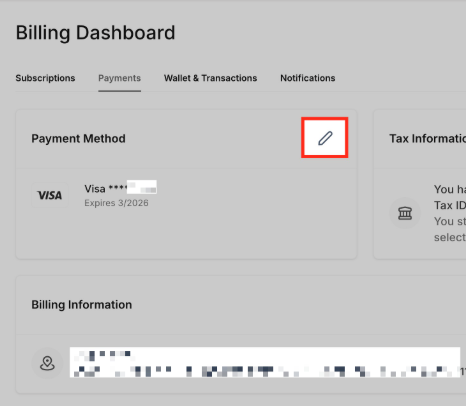
Payment options available within the sub-account billing experience.
Charges and Invoices
The sub-account billing page provides visibility into charges and invoices associated with that account. Sub-account admins can review SaaS-related charges alongside other charges linked to the sub-account without navigating to a separate billing system for this overview.
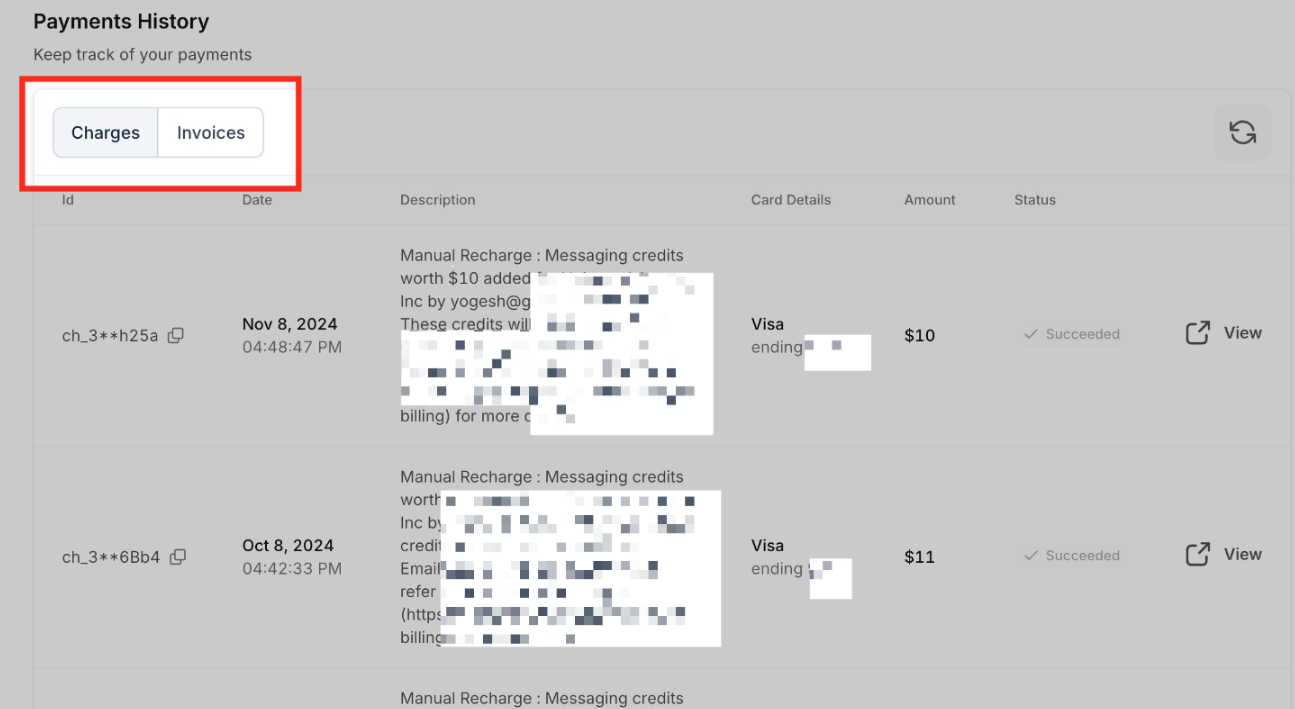
Charges and invoices associated with the sub-account.
Billing Address
Billing addresses entered by sub-account admins are saved with their account information. This makes the address available as part of the sub-account's stored billing details when it needs to be reviewed or managed.
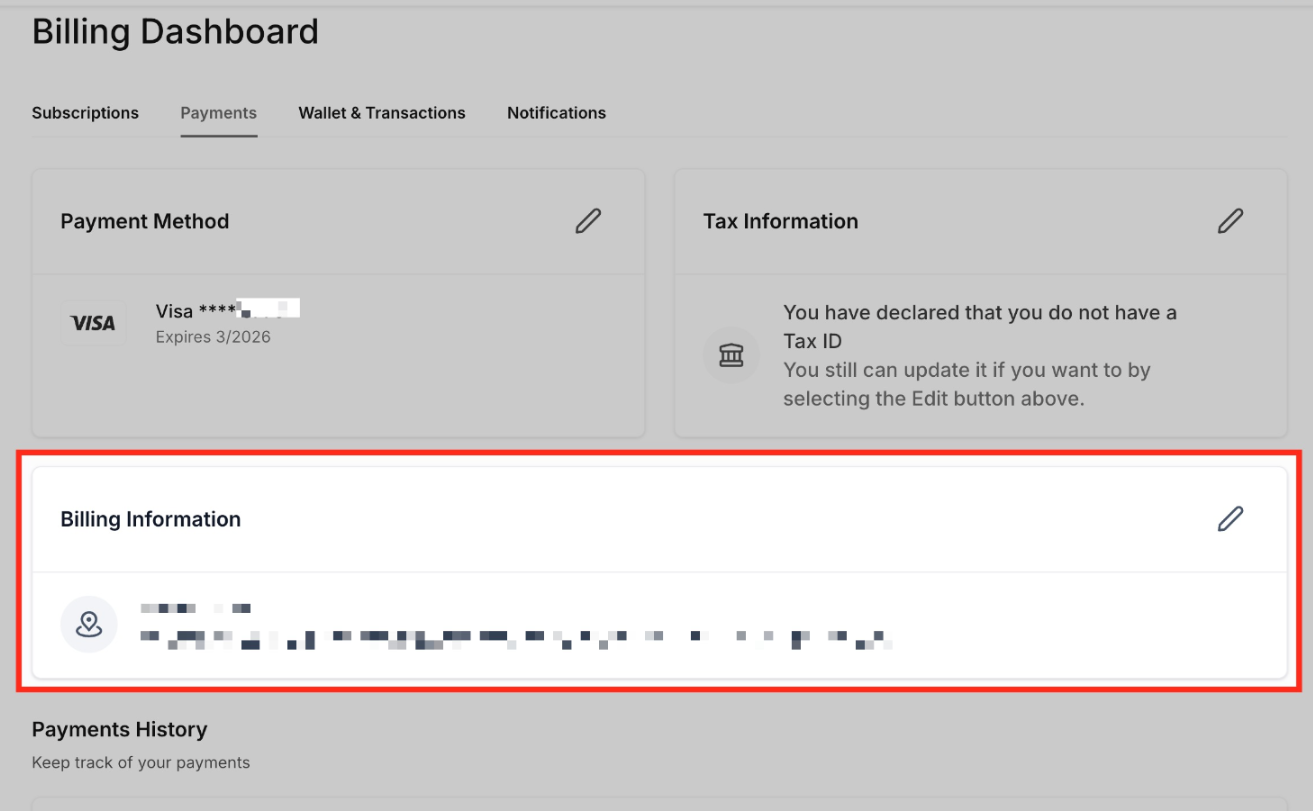
Billing address details saved with the sub-account information.
How to Set Up SaaS Payment Provider Selection
Choosing the correct billing configuration during SaaS activation helps associate the client's subscription with the intended system of record. Confirm your agency has the required provider configuration before starting the activation flow.
- In Agency View, go to Sub-Accounts, open the applicable sub-account, and select Manage Client.
- Open the SaaS area and choose Add a SaaS Subscription.
- Review the available provider cards. For the agency's Stripe-based V1 setup, select the card labeled V1 (Agency). For SaaS V2, select the applicable supported V2 (Sub-account) configuration.
- Verify the description of where customer and subscription data will be managed. Cards marked Not supported cannot be selected.
- Continue through the customer, plan, and payment steps shown for the chosen SaaS activation flow.
For SaaS V2: The intended Agency Sub-Account needs a supported payment provider configured under Payments > Integrations. For more detailed V2 rebilling steps, see Reselling and Rebilling through SaaS V2 Payment Providers.
Frequently Asked Questions
Q: Does selecting a V2 provider automatically migrate an existing V1 subscription?
A: No. V1 and V2 are separate billing architectures. Selecting a V2 configuration is not a documented method for converting existing V1 subscriptions.
Q: Can an agency use SaaS V1 and V2 at the same time?
A: Yes. An agency can operate both architectures, with each subscription following its own billing system of record.
Q: Where is a SaaS V2 payment provider configured before activation?
A: Configure a supported payment provider in the selected Agency Sub-Account under Payments > Integrations before using it for V2 SaaS billing.
Q: Why might a custom payment provider be unavailable for SaaS?
A: Not every payment provider supports the capabilities required for SaaS billing. Custom providers must support recurring payments and off-session charging; providers marked Not supported cannot be selected for the setup.
Related Articles
Was this article helpful?
That’s Great!
Thank you for your feedback
Sorry! We couldn't be helpful
Thank you for your feedback
Feedback sent
We appreciate your effort and will try to fix the article