HighLevel allows businesses to save and reuse customer payment methods through supported custom payment providers. This reduces repeated payment entry and makes collecting payments faster and easier. Businesses can also charge saved methods off-session when supported by their provider.
TABLE OF CONTENTS
- What Are Saved Payment Methods for Custom Payment Providers?
- Key Benefits of Saved Payment Methods
- Supported Payment Methods and Requirements
- Viewing and Using Saved Payment Methods
- Off-Session Charging
- How to Add and Charge Saved Payment Methods
- Frequently Asked Questions
- Related Articles
What Are Saved Payment Methods for Custom Payment Providers?
Saved Payment Methods allow businesses to securely store customer payment details, including cards and other supported methods, for future transactions. These methods can be accessed during supported payment workflows without requiring customers to enter their information again. The available payment methods depend on the connected custom payment provider.
Key Benefits of Saved Payment Methods
Saved payment methods simplify payment collection and improve convenience for businesses and customers.
Faster Payments: Reduce repeated payment information entry.
Customer Convenience: Make repeat transactions easier.
Flexible Payment Options: Support methods offered by the custom provider.
Off-Session Charging: Collect eligible payments without customers being actively present.
Efficient Payment Collection: Use saved methods for pending or delayed payments.
How to Add and Charge Saved Payment Methods
Using a supported custom payment provider, businesses can save customer payment details and select them during future transactions. Follow the steps below to add a payment method and collect payments.
Add a Payment Method
Navigate to Contacts and open the desired contact.
Click the $ (Payments) icon.
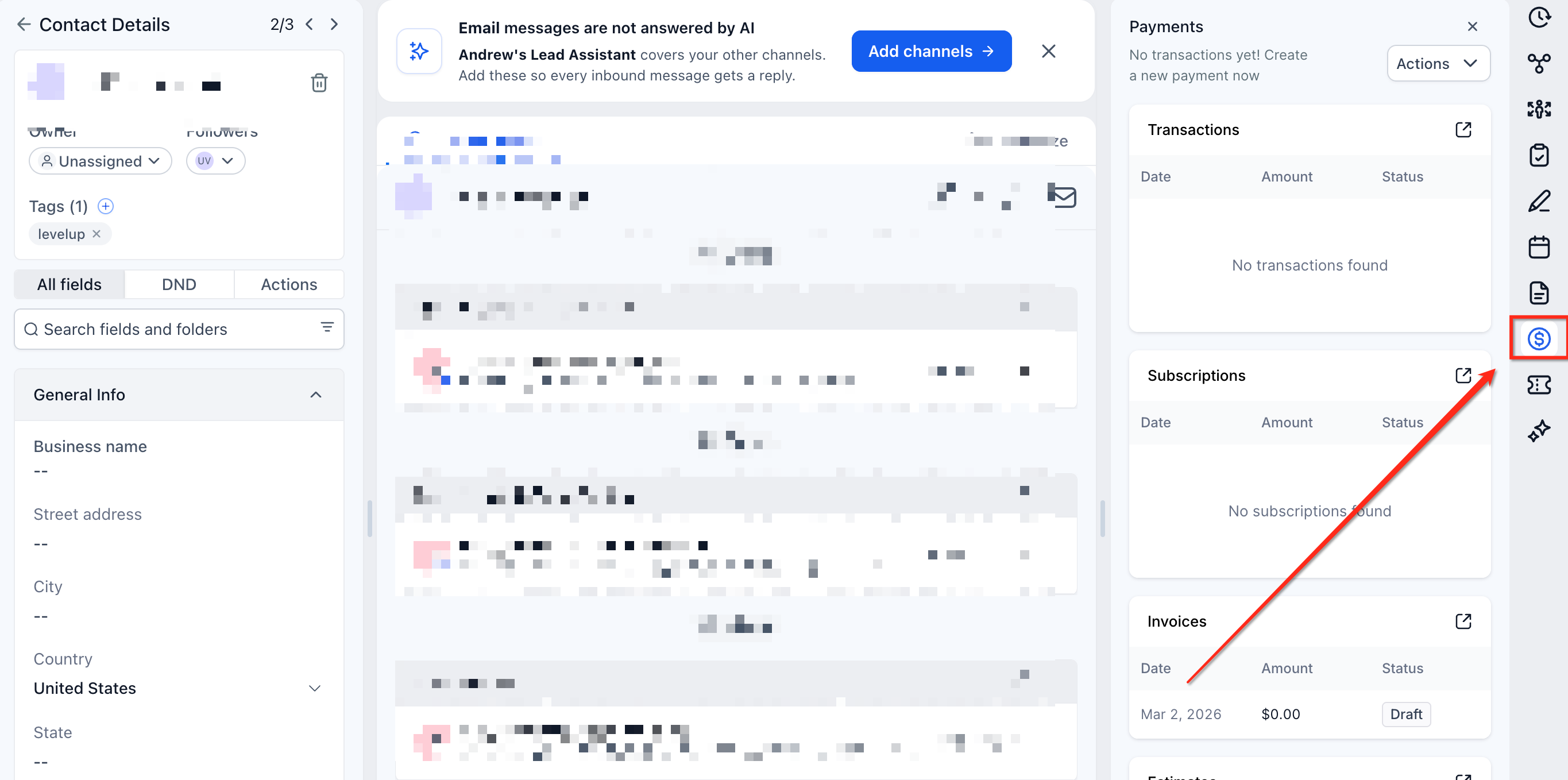
Select Actions → Add Card on File.
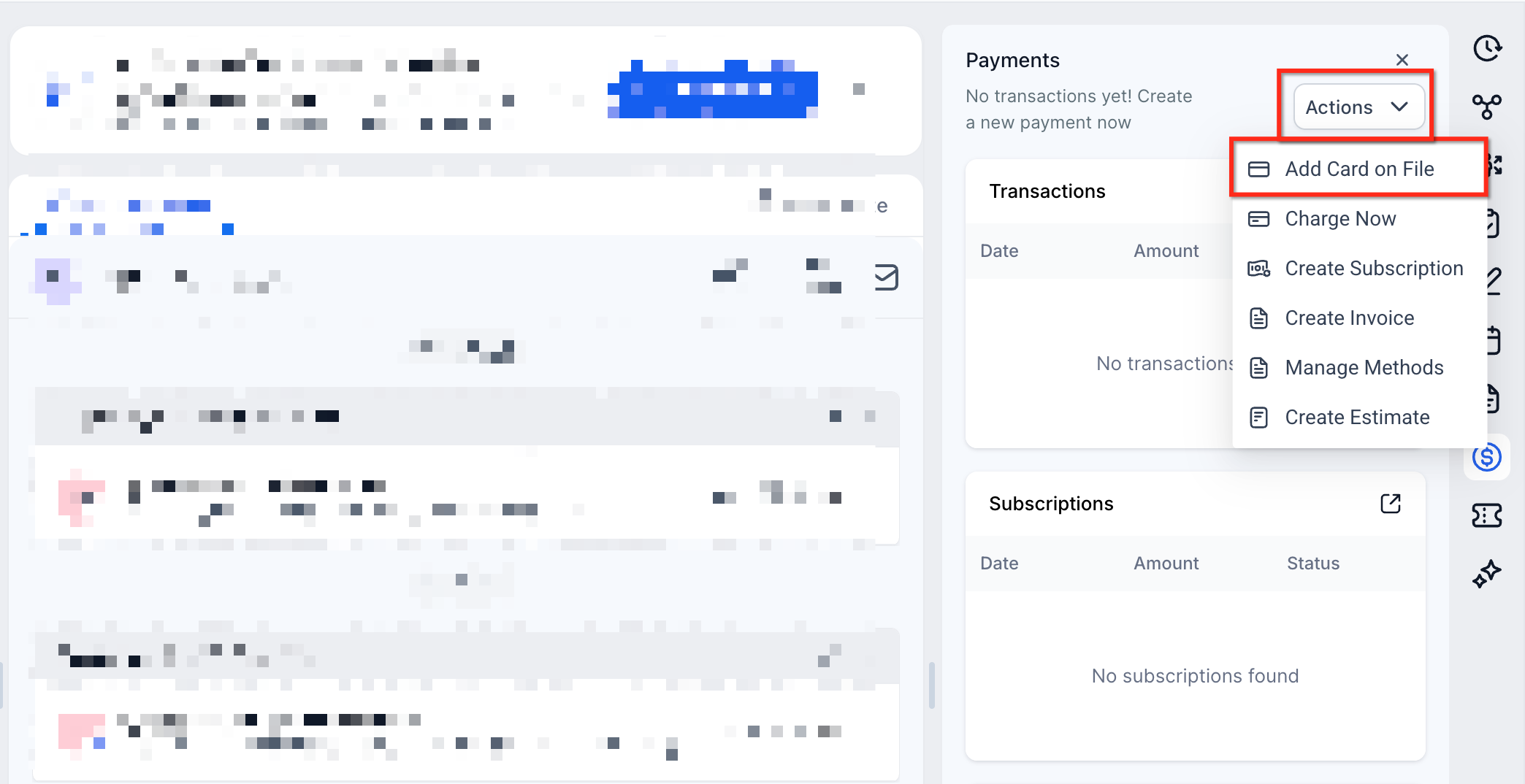
Choose an available payment method.
Enter the required payment information and save it.
Charge a Saved Payment Method
Navigate to Contacts and open the customer record.
Click the $ (Payments) icon.
Select Actions → Charge Now.
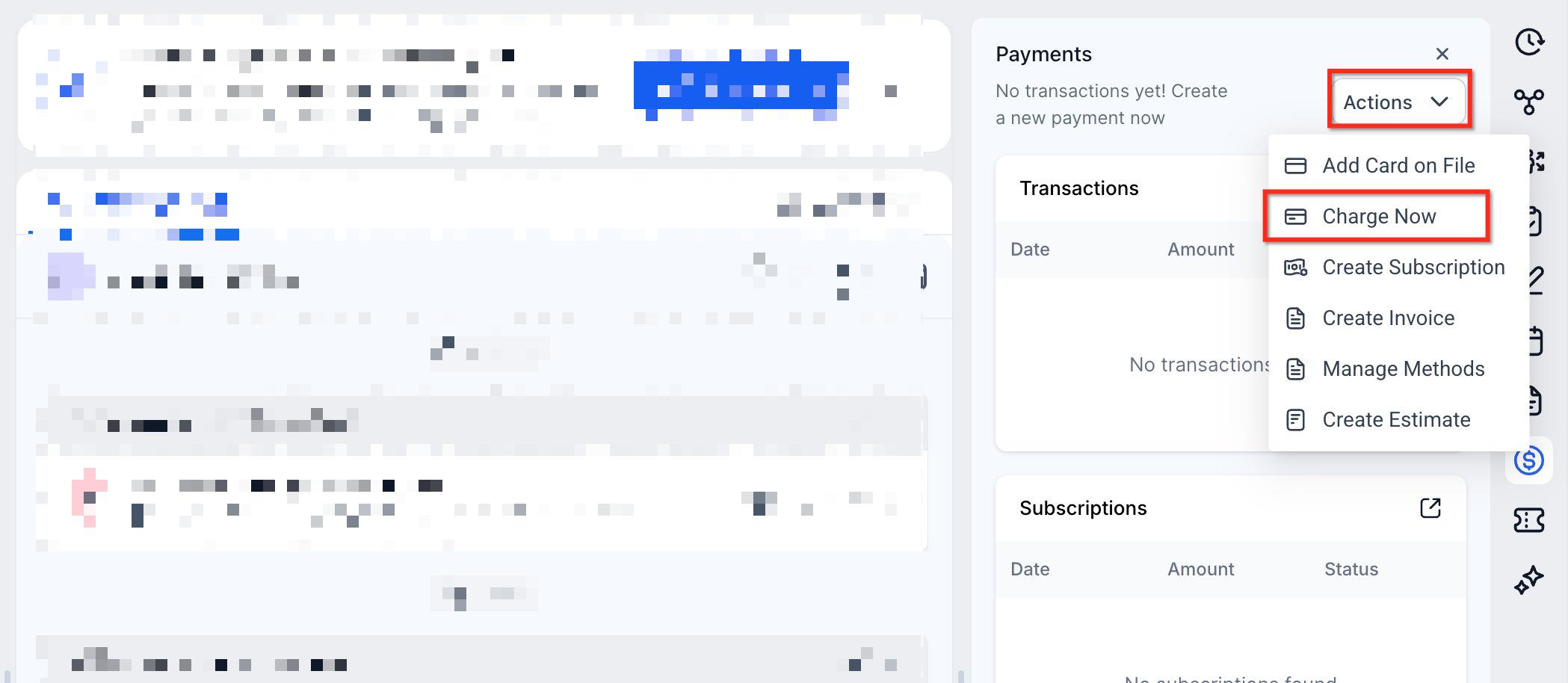
Enter the charge amount.
Select an available saved payment method.
Confirm the charge and review the transaction status.
Charge a Saved Payment Method from an Invoice
Navigate to Payments → Invoices.
Open the relevant invoice.
Click Record Payment → Charge a Card.
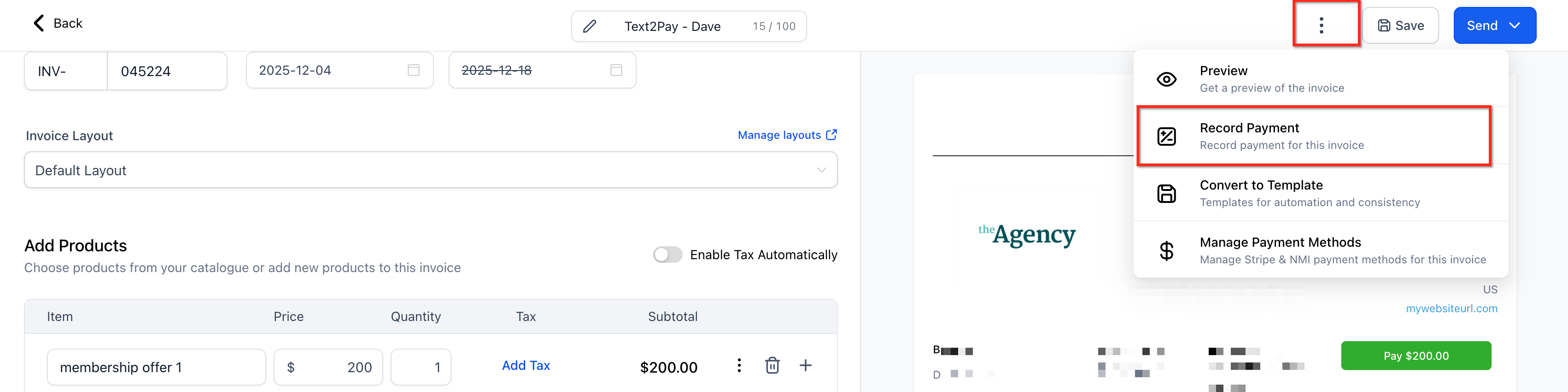
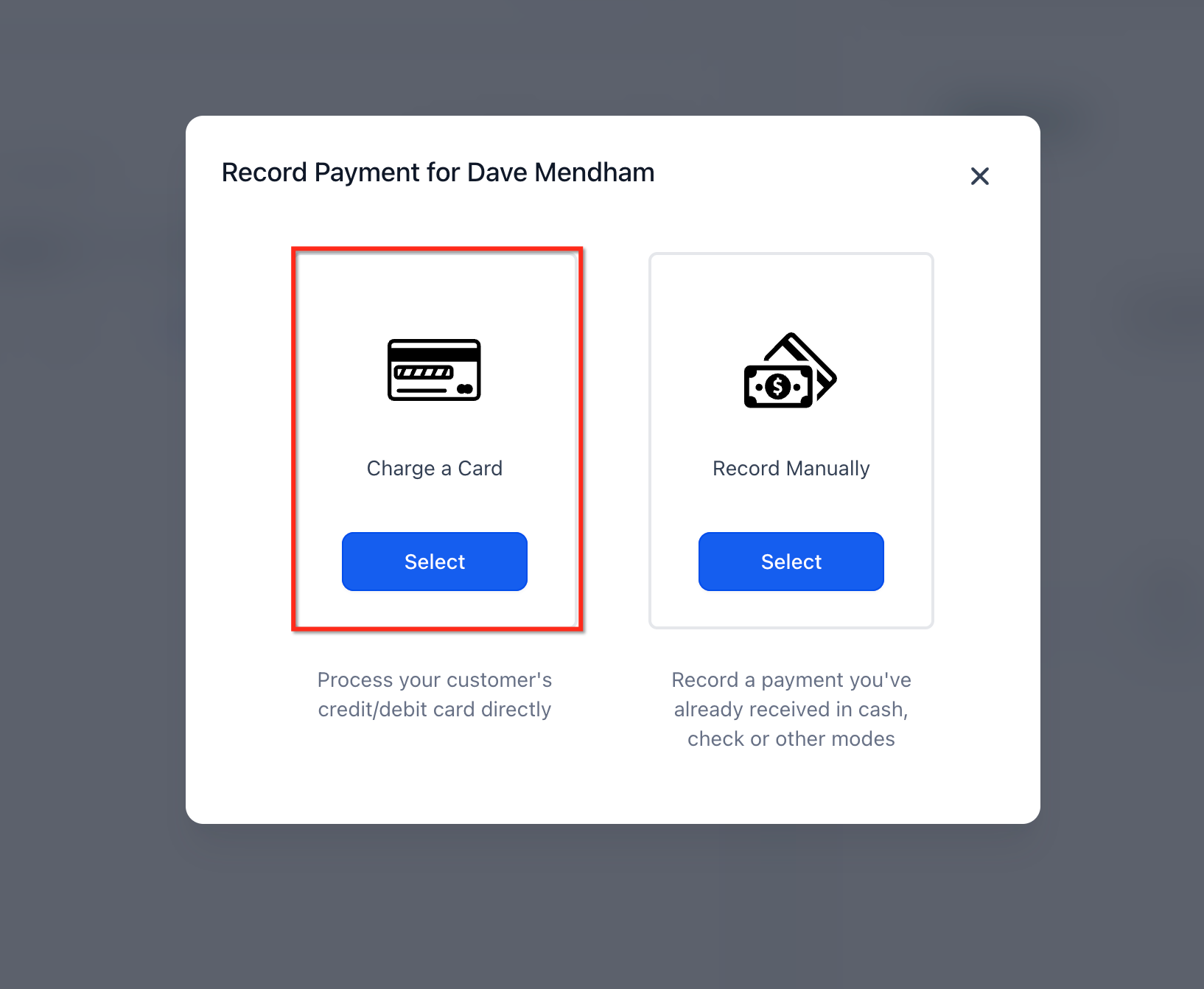
Select an available saved payment method.
Confirm the payment and review its status.
Supported Payment Methods and Requirements
Custom payment providers determine which payment methods can be saved, retrieved, and charged. Confirming provider compatibility helps prevent issues during payment collection.
Supported methods may include cards and other provider-enabled payment options.
The custom payment provider must support saving and retrieving payment methods.
Off-session charging requires provider support and appropriate customer authorization.
Not every custom payment provider supports all capabilities.
Important: A payment method supported for checkout may not necessarily support saving or off-session charging.
Viewing and Using Saved Payment Methods
Businesses can retrieve saved payment methods when collecting payments through supported HighLevel workflows. Available methods depend on the customer's saved information and the provider's integration. Saved payment methods are accessible through:
Contacts → Contact Details → $ icon → Actions → Charge Now
Payments → Invoices → Record Payment → Charge a Card
Note: Custom-provider saved methods may not appear in the standard Manage Cards interface, even when available during supported payment transactions.
Off-Session Charging
Off-session charging allows businesses to charge eligible saved payment methods without requiring customers to complete an active checkout. This can help collect authorized pending or delayed payments. For off-session charging:
The custom provider must support off-session transactions.
The customer must have an eligible saved payment method.
Appropriate customer authorization must be in place.
The payment provider determines whether the transaction succeeds or requires additional action.
Important: Off-session charging for defined subscription and one-time products is a planned enhancement and is not included in the currently released functionality.
Frequently Asked Questions
Q: Can all custom payment providers save payment methods?
No. The provider must support saving and retrieving payment methods through its integration.
Q: Can customers save payment methods other than cards?
Yes, if the connected custom provider supports additional payment methods.
Q: Why can't I see a saved payment method?
The provider may not support retrieving saved methods, or the method may not be associated with the selected contact.
Q: Can I charge a saved payment method without the customer present?
Yes, when the custom payment provider supports off-session charging and the transaction is appropriately authorized.
Q: Can I use saved methods for subscription and one-time product off-session payments?
This specific capability is listed as an upcoming enhancement.
Q: Why doesn't a saved method appear under Manage Cards?
Custom-provider saved methods may be available during supported payment flows without appearing in the standard Manage Cards interface.
Related Articles
Was this article helpful?
That’s Great!
Thank you for your feedback
Sorry! We couldn't be helpful
Thank you for your feedback
Feedback sent
We appreciate your effort and will try to fix the article