The GoKollab mobile app provides a streamlined way to access courses, navigate lessons, complete learning activities, and track progress on iOS and Android devices. The updated course experience also includes the Course Miniplayer, which helps members resume courses where they left off and continue listening while navigating through course content. This guide explains how to access courses, navigate the syllabus, use the Course Miniplayer, participate in comments, complete quizzes and assignments, and review learning progress in GoKollab.
TABLE OF CONTENTS
- Getting Started with GoKollab Courses
- Navigate Courses and Lessons
- Use the Course Miniplayer
- Learning Activities and Progress
- GoKollab Navigation and App Experience
- Frequently Asked Questions
- Related Articles
Getting Started with GoKollab Courses
After signing in to GoKollab, access your available Courses through the app's navigation. Depending on the app version, Courses may appear on the app-selection screen or in the bottom navigation.
- Open the GoKollab app on your iOS or Android device.
- Sign in using your account credentials.
- Select Courses from the app-selection screen or bottom navigation, whichever appears in your version of GoKollab.
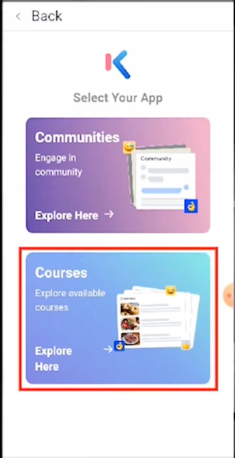
- Select the course you want to open.
- Review the course overview or select Start Learning to begin.
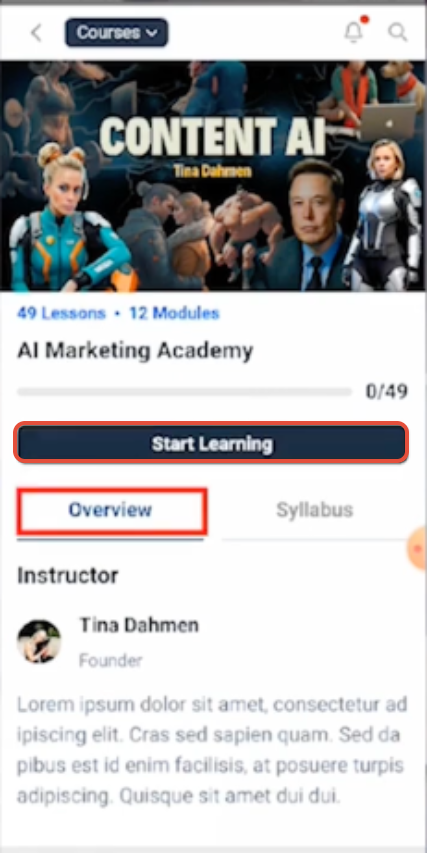
The course overview displays information such as the number of lessons and modules, current progress, and available course navigation options.
Navigate Courses and Lessons
GoKollab keeps course navigation and lesson content together so you can move through learning material without repeatedly returning to previous screens.
Use the Course Syllabus
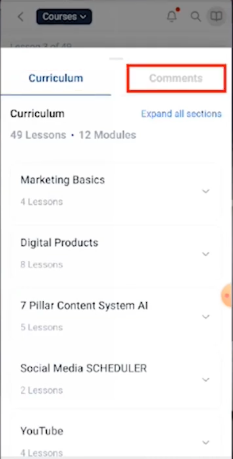
Select the Syllabus tab to view the course curriculum. Expand or collapse course sections to quickly locate individual lessons, quizzes, and other learning activities.
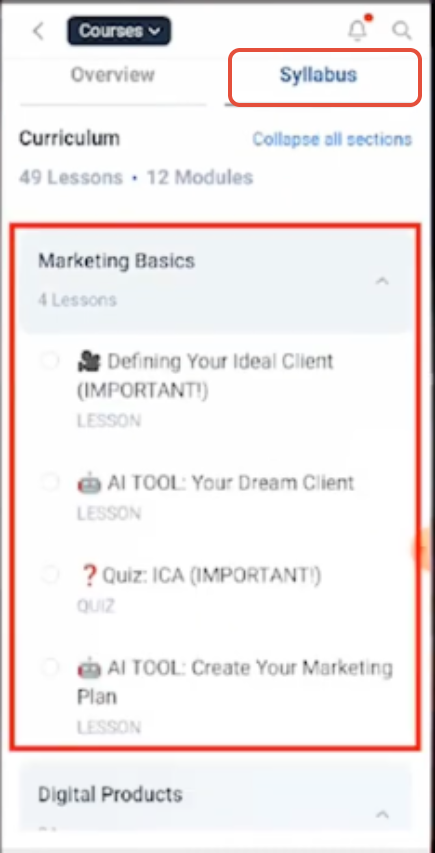
- Expand sections: View the lessons and activities inside a course module.
- Collapse sections: Hide sections you do not currently need.
- Move between lessons: Select available lessons and activities directly from the syllabus.
Lesson Types
The mobile course experience supports different lesson formats while maintaining consistent navigation.
- Text lessons: Read lesson content in a mobile-friendly layout.
- Audio lessons: Listen using the available course playback controls.
- Video lessons: View video content in a responsive player with full-screen support.
Use the Course Miniplayer
The Course Miniplayer helps members continue learning while moving through the Courses experience. It allows members to resume course content where they left off and continue listening while navigating through course content in GoKollab.
Continue Learning with the Miniplayer
- Open GoKollab and select Courses.
- Open the course you want to continue.
- Select the lesson you want to listen to.
- Start the course content using the available playback control.
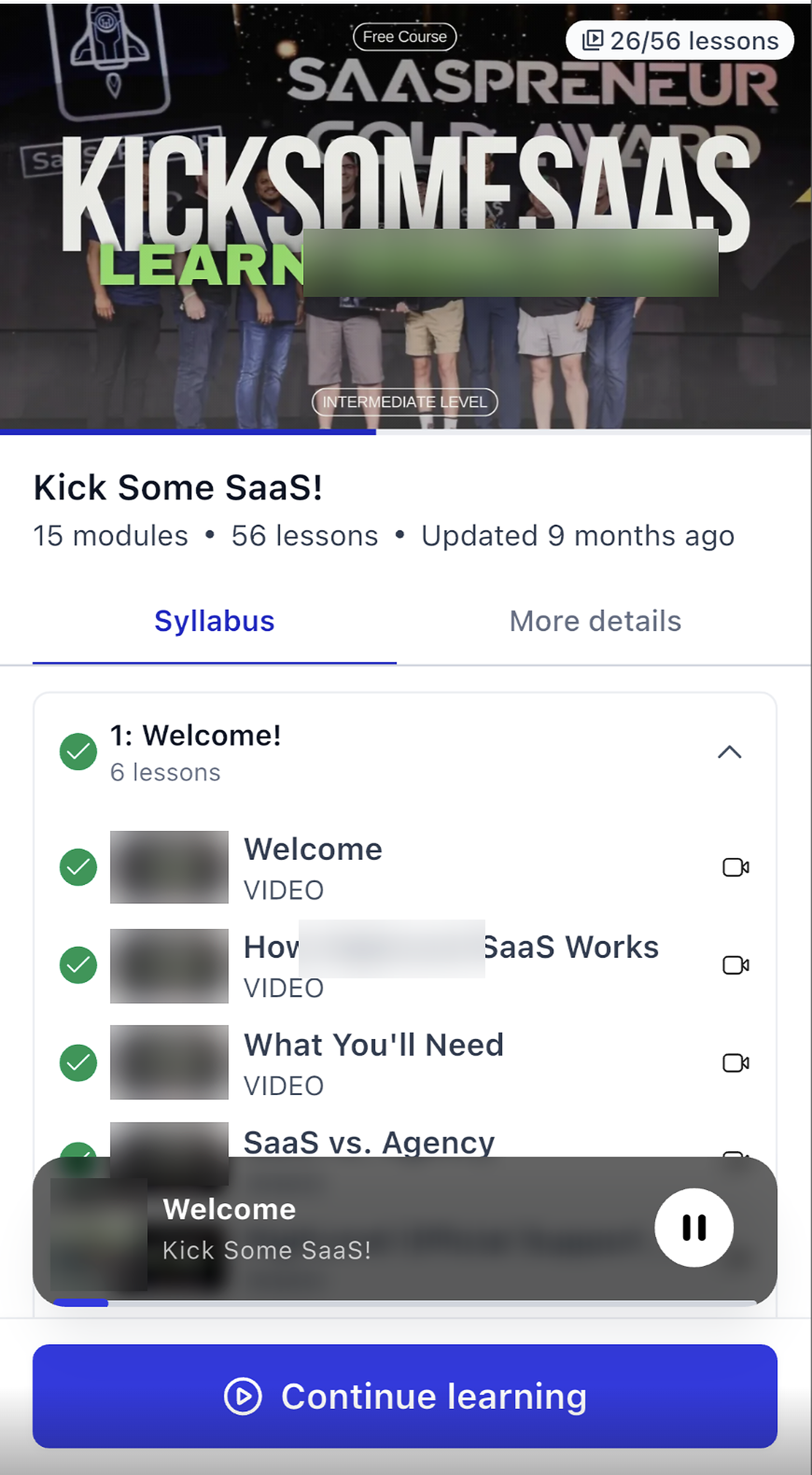
- Navigate through the Courses experience while the Miniplayer remains available.
- Use the Miniplayer's playback control to pause or continue listening while navigating through Courses.
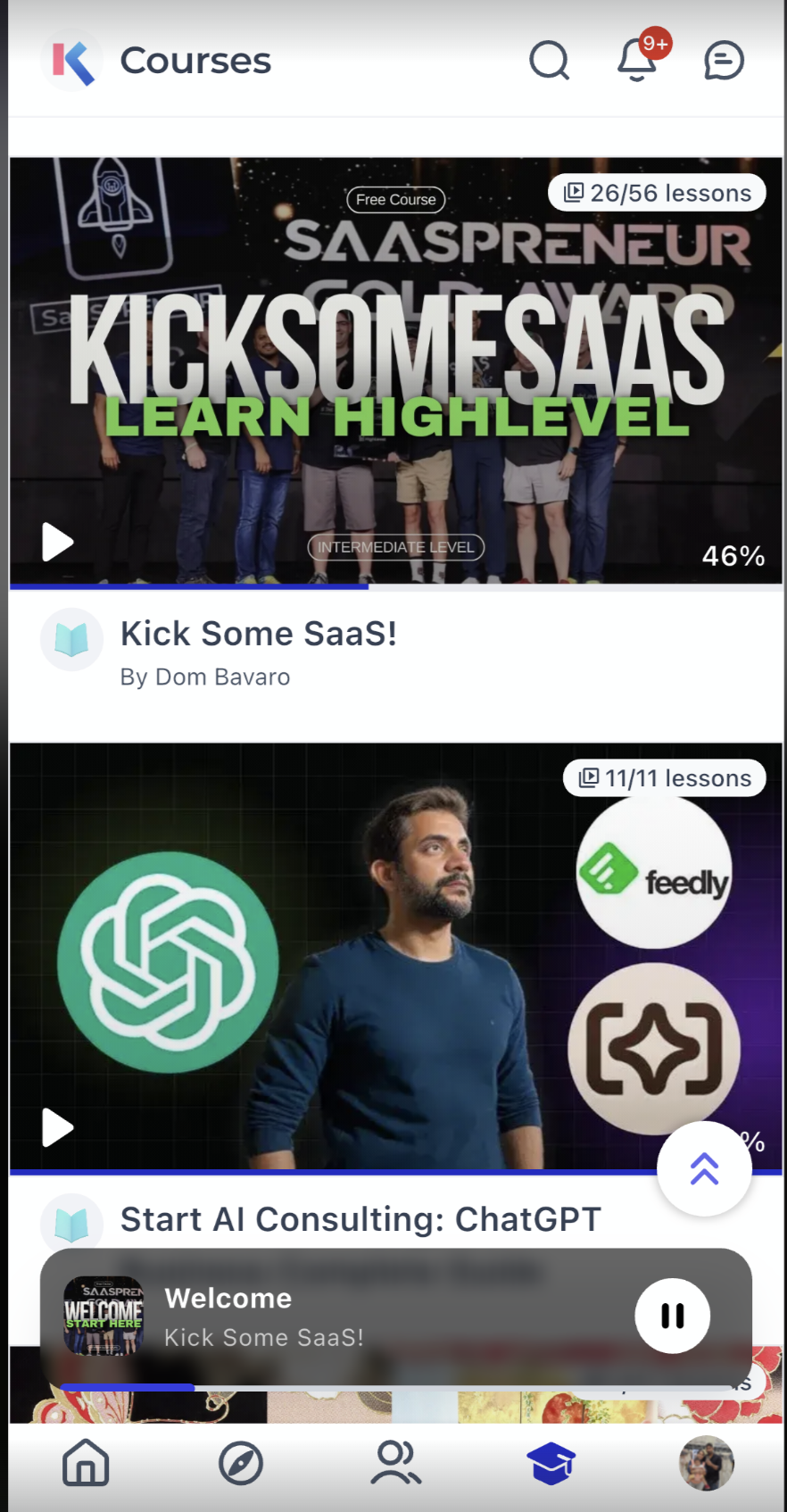
Note: The Course Miniplayer supports continued listening while navigating lessons in GoKollab. Background playback, screen-lock playback, and playback outside the Courses experience are not covered by this guide.
Learning Activities and Progress
GoKollab provides mobile-friendly tools for participating in course discussions, completing quizzes and assignments, and reviewing learning progress.
Comments
The course interface includes a comments experience for participating in discussions related to course content.
- Reply directly to individual comments.
- Follow course conversations from a mobile-friendly layout.
Quizzes
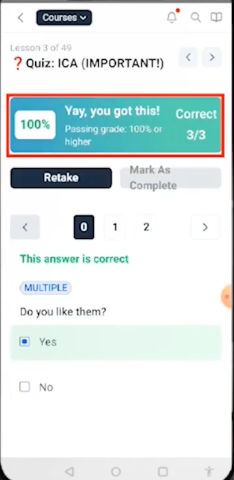
Quizzes use a mobile-friendly layout that makes it easier to move between questions and review results.
After completing a quiz, available results can display the score, correct answers, and question navigation.
Assignments
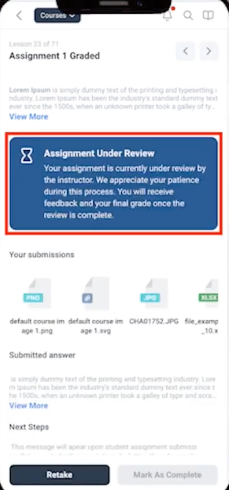
Assignments can include written responses and supported file uploads. Complete the required fields and submit your work directly from the mobile course experience.
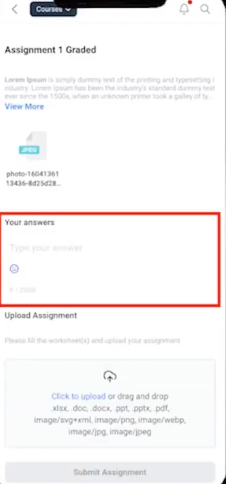
After an assignment is submitted, its current review status can appear directly in the assignment.
Course Progress
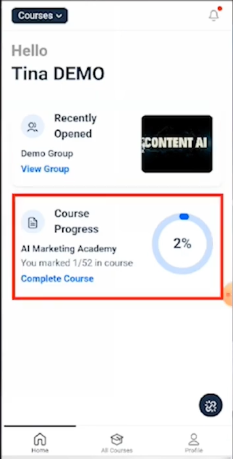
Course progress indicators help you see how much of a course you have completed and quickly return to your learning.
GoKollab Navigation and App Experience
GoKollab provides a unified mobile experience for accessing Communities and Courses after signing in.
Unified Navigation
- Courses: Access available courses and learning content.
- Communities: Access joined Community spaces.
- Simplified switching: Move between learning and Community experiences from the same app.
Improved Loading Experience
The updated mobile experience uses improved loading states and performance optimizations to make transitions between lessons, quizzes, assignments, and other course content feel smoother.
Note: Keep GoKollab updated to the latest available version to access the newest course navigation and learning experience.
Frequently Asked Questions
Q: Where can I find my courses in GoKollab?
After signing in, select Courses from the GoKollab app experience to view the courses available to your account.
Q: How do I view all lessons in a course?
Open the course and select the Syllabus tab. Expand or collapse course sections to view the lessons and activities inside each module.
Q: What is the Course Miniplayer?
The Course Miniplayer helps you resume course content and continue listening while navigating through the Courses experience in the GoKollab mobile app.
Q: Can I continue listening while navigating between course lessons?
Yes. The Course Miniplayer allows you to continue listening while navigating lessons in the GoKollab mobile app.
Q: How do I check the status of an assignment?
Open the submitted assignment. When available, its current review status appears directly in the assignment experience.
Q: Where can I see my course progress?
Course progress can appear in the GoKollab course experience and shows how much of the course you have completed.
Q: Why don't I see the latest course experience?
Update GoKollab to the latest available version and confirm that your account has access to the course you are trying to open.
Related Articles
Was this article helpful?
That’s Great!
Thank you for your feedback
Sorry! We couldn't be helpful
Thank you for your feedback
Feedback sent
We appreciate your effort and will try to fix the article