Bring your curriculum and your funnels under one roof with Funnels in Courses. This feature lets you drop full funnel experiences directly into your course outline so learners can consume content, submit forms, and take action without ever leaving the course player.
TABLE OF CONTENTS
- What is Funnels in Courses?
- Key Benefits of Funnels in Courses
- Adding Funnel Lessons to a Course
- Editing & Managing Funnel Lessons
- Learner Experience with Funnel Lessons
- How To Setup Funnels in Courses
- 1
- Frequently Asked Questions
What is Funnels in Courses?
Funnels in Courses lets you add any HighLevel funnel page as a standalone lesson inside your course modules and sub-modules. Instead of just linking out to a funnel, the full funnel page is rendered inside the course player so learners experience a guided journey from learning to taking action.
Creators can use existing funnels or build new ones to power interactive lessons, sign-ups, upsells, and more, all while keeping the look and feel consistent with other lesson types in Courses.
Key Benefits of Funnels in Courses
Using Funnels in Courses helps connect your education and marketing flows so learners move smoothly from “understanding” to “doing.”
- Turn lessons into live experiences: Use funnel elements (forms, buttons, multi-step flows, pop-ups, etc.) to transform static lessons into interactive sessions where learners can immediately apply what they’ve learned.
- Drive conversions without breaking focus: Present offers, order forms, and upsells inside the course player, so learners don’t have to jump to separate URLs or tabs to purchase, book a call, or opt in.
- Reuse funnels you’ve already built: Plug in existing funnels as lessons without rebuilding content, saving you time while keeping your best-performing pages in front of learners.
- Guide learners through structured journeys: Blend content, exercises, and calls-to-action into a single path such as “watch lesson → complete form → book a call”—all inside one course.
- Keep a consistent, branded experience: Funnel lessons inherit your course theme and play nicely alongside other lesson types, supporting a coherent, polished learner experience on both desktop and mobile.
- Experiment with modern course formats: Test quiz funnels, decision trees, application flows, or challenge-style sequences without changing your course structure.
Adding Funnel Lessons to a Course
Funnel lessons let you drop a specific funnel page into the exact module or sub-module where it makes sense in your curriculum. Treat them like any other lesson block just backed by the power of the Funnel builder.
Where you’ll work
- Course structure lives under Memberships → Courses → Products.
- Funnels live under Sites → Funnels (or Funnels & Websites AI, if you’re using AI-generated funnels).
Steps: Add a funnel lesson to a module or sub-module
- Open your course product
- Go to Memberships → Courses → Products.
- Click the course you want to edit.
- Open the Outline or Syllabus view.
- Choose where the funnel will live
- Expand the module (and optional sub-module) where you want the funnel-based lesson to appear.
- Click into that section of the outline.
- Click “Add Content”
- Click Add Content.
- From the content type options, choose the option for a Funnel lesson (label may vary slightly depending on your account’s UI).
- Name your funnel lesson & pick the funnel page
- Give the lesson a clear title (e.g., “Application Funnel” or “Book Your Strategy Call”).
- Choose the funnel from the dropdown/search list.
- Choose the specific funnel page you want to embed (e.g., opt-in page, order form step, application step).
- Save the lesson
- Click Add or Save to attach the funnel page as a new lesson in the module.
- Confirm that the funnel lesson appears in the module’s lesson list in the correct position.
Editing & Managing Funnel Lessons
Managing a funnel lesson is similar to managing other lesson types—but with extra controls for previewing and fine-tuning the embedded funnel experience.
The funnel edit modal helps you verify that you’ve selected the correct page, adjust visuals like thumbnails, and keep the funnel lesson aligned with your course design before publishing.
Access the funnel edit modal
- In your course outline, hover over the funnel lesson.
- Click the Edit icon (or the lesson title) to open the funnel edit modal.
What you can do in the funnel edit modal
- Preview the funnel page
- See how the funnel will appear inside the course player to confirm the layout, copy, and actions.
- Refine funnel content
- Use the Edit or Open in Builder action to jump into the Funnel builder.
- Update copy, design, forms, CTAs, and layout using standard builder tools like drag-and-drop, nested layouts, and right-sidebar controls.
- Add or adjust page thumbnails
- Upload or select a thumbnail so the lesson looks polished in your course sidebar or grid.
- Use consistent thumbnails across lessons to make navigation intuitive.
- Manage publish state
- Save the funnel lesson as a draft while you’re still editing.
- Click Save & Publish when you’re ready for learners to see it, similar to how you manage other lesson types and funnel pages.
- Reorder or move the lesson
- Back in the outline, drag the funnel lesson to reposition it within the module or move it to another module/sub-module as your curriculum evolves.
Learner Experience with Funnel Lessons
Funnel lessons are designed to feel like a natural part of the course rather than a separate website. Learners stay in the same course player while enjoying rich, interactive funnel experiences that adapt well to modern mobile and desktop UI.
What learners see
- Embedded preview in the course player
- The funnel page appears in the main lesson area, framed by your course layout and theme.
- Navigation, progress, and comments (where enabled) remain accessible, just like with other lesson types.
- Full-screen funnel experience
- Learners can click a Full Screen option to view the funnel lesson as a full-page experience.
- This is ideal for complex forms, multi-step flows, or detailed sales pages.
- Live, actionable elements
- Forms and surveys collect real submissions.
- Buttons can trigger next steps, show/hide content, or navigate deeper into the funnel.
- Pop-ups, countdowns, and other dynamic elements behave as they would on a standalone funnel page.
- Course progress & access rules remain in control
- The funnel lesson follows the same access rules, drip settings, and prerequisites you’ve defined for the course, including any restrictions coming from Communities’ private channel-based access.
How To Setup Funnels in Courses
A smooth setup ensures that funnels render correctly, respond on all devices, and respect your course’s access and publishing rules. The steps below walk through enabling the feature (where applicable), wiring your first funnel lesson, and validating the learner experience.
Note: Funnels in Courses is gradually rolling out via Labs. If you don’t see funnel lesson options yet, check with your agency admin or confirm that Labs are enabled for your account.
1. Confirm prerequisites
- You have at least one course created under Memberships → Courses → Products.
- You have at least one funnel with a published page under Sites → Funnels (or Funnels & Websites AI).
- You have permission to edit courses and funnels in the sub-account.
2. (If applicable) Enable Funnels in Courses via Labs
- Switch to Agency View.
- Go to Agency Settings → Labs.
- Look for a toggle related to Funnels in Courses (naming may vary slightly).
- Turn the toggle On for the desired sub-accounts.
3. Add a funnel lesson to your course
- Switch to the sub-account.
- Navigate to Memberships → Courses → Products.
- Open your course and go to the Outline/Syllabus view.
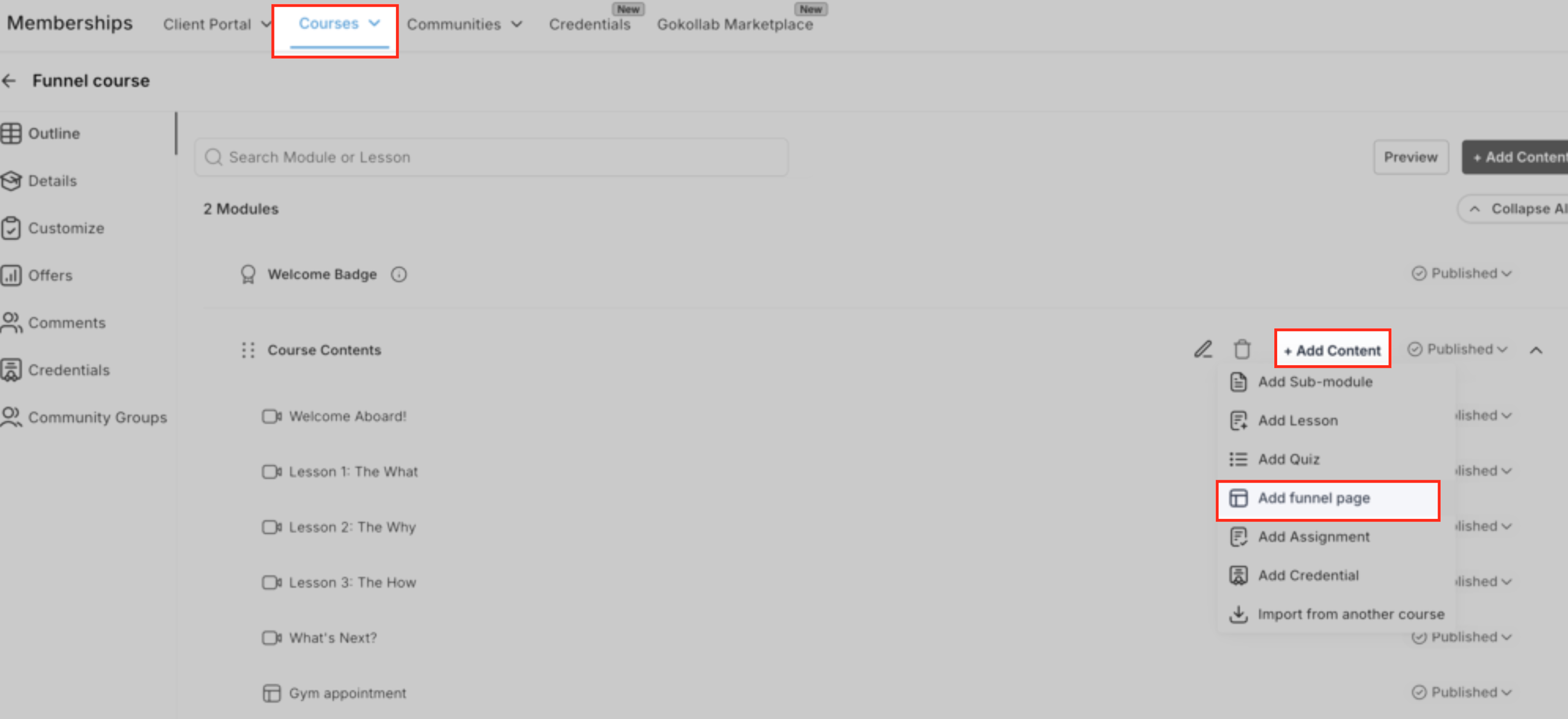
- In the desired module or sub-module, click Add Content.
- Choose the Funnel lesson type.
- Enter the lesson title, select the funnel, and then select the funnel page.
- Click Add / Save.
4. Configure and publish the funnel lesson
- Click the newly added funnel lesson to open the funnel edit modal.
- Review the preview to ensure it’s the correct page.
- Optionally open the page in the Funnel builder to adjust design, CTAs, or form behavior.
- Set or update the thumbnail image.
- Click Save & Publish for the lesson.
5. Publish and test your course
- Ensure your course and offer are published so learners can enroll.
- Use a test learner (or your own learner account) to enroll in the course.
- Open the funnel lesson from the course player.
- Test:
- Form submission
- Buttons and navigation
- Full-screen mode
- Any payments or bookings
- Confirm that funnel analytics still appear under Sites → Funnels and that course progress reflects the learner’s completion of the lesson.
Frequently Asked Questions
Q: Do I need to create a separate funnel just for the course?
Not necessarily. You can reuse any existing funnel page as a lesson. However, it’s often best to clone and slightly customize high-converting funnels so the messaging fits the course context without affecting campaigns that live elsewhere.
Q: Where do I see analytics for funnel lessons?
Embedding a funnel inside a course does not change its analytics location. Views, submissions, and conversions for that page continue to surface under Sites → Funnels and related reporting tools, just as they would for a standalone funnel.
Q: What happens if I edit the funnel page after adding it to a course?
Edits you make to the funnel page in the Funnel builder are reflected in the course lesson automatically because the lesson references that specific page. If you delete or unpublish the funnel page, the lesson may no longer render correctly, so always keep shared pages active or remap the lesson to a new page.
Q: Can I restrict access to funnel lessons within a course?
Yes. Funnel lessons respect whatever access rules and drip schedules apply to the module and course—whether that’s standard course settings or Communities’ Private Channel-Based Course Access.
Q: Are all funnel features supported (pop-ups, timers, custom code)?
Most standard funnel elements (forms, pop-ups, timers, show/hide interactions) work as expected. Custom scripts or heavy third-party embeds should be tested carefully in the course player to confirm they behave correctly on all devices.
Q: How is this different from just linking out to a funnel?
Linking out opens a new tab or page and can break the learner’s focus. With Funnels in Courses, the funnel is embedded directly in the course player—with optional full-screen mode—so learners remain in the learning environment and can more easily resume other lessons afterward.
Q: Does this work if my course access is controlled through Communities?
Yes. If your course is gated via Communities and uses Private Channel-Based Course Access, learners must still satisfy those access rules to see any lessons, including funnel-based ones.
Q: Is there an extra cost to use Funnels in Courses?
Funnels in Courses relies on existing Funnels and Courses capabilities. As long as your plan includes both products and the Labs rollout has reached your account, you can start using funnel lessons without a separate add-on.
Related Articles
- [Getting Started - Launch a Course]
- [Membership: New UI for Courses]
- [New Theme Customizer for Courses]
- [Create Forms & Surveys Inside the Site Builder]
- [Funnels & Websites AI]
- [Communities: Private Channel-Based Course Access]
Was this article helpful?
That’s Great!
Thank you for your feedback
Sorry! We couldn't be helpful
Thank you for your feedback
Feedback sent
We appreciate your effort and will try to fix the article