Workflow Campaigns in HighLevel help you monitor the performance of automated emails sent through workflows. By analyzing delivery, opens, clicks, replies, and other engagement metrics, you can understand how contacts interact with emails at different stages of your automation. HighLevel provides multiple reporting views to help you compare workflow email performance, evaluate individual email actions, and identify opportunities to improve your automated communications.
TABLE OF CONTENTS
- What Are Workflow Campaigns?
- Key Benefits of Workflow Campaigns
- Unified Email Statistics for Workflow Campaigns
- Individual Email Action Statistics
- Workflow-Level Communication Statistics
- Workflow Builder Stats View
- How to Access and Analyze Workflow Campaigns
- View Statistics for an Individual Email Action
- View Workflow-Level Statistics
- Analyze Email Actions Using Workflow Builder Stats View
- Edit Workflow Emails After Reviewing Statistics
- Export Workflow Email Statistics
- Frequently Asked Questions
- Related Articles
What Are Workflow Campaigns?
Workflow Campaigns represent emails sent through email actions within HighLevel workflows. Rather than tracking an automated sequence as a single email, HighLevel provides reporting for individual email actions, helping you understand how each message performs throughout the workflow.
Workflow email statistics can be accessed through the unified Email Statistics dashboard, individual email actions in the Workflow Builder, and workflow-level communication reports. These reporting options help you evaluate both overall engagement and the effectiveness of specific automated messages.
Key Benefits of Workflow Campaigns
Analyzing automated email performance helps you understand which messages are reaching contacts and generating engagement. By reviewing workflow email statistics, you can identify delivery issues, compare individual email actions, and make informed adjustments to improve your automation strategy.
- Unified Email Reporting: Review Workflow Campaigns alongside Email Campaigns and Bulk Actions from one Email Statistics dashboard.
- Individual Email Insights: Track the performance of specific email actions within a workflow to identify stronger- and weaker-performing messages.
- Engagement and Delivery Monitoring: Review opens, clicks, replies, bounces, rejected events, and other available activity to understand how contacts interact with automated emails.
- Workflow-Level Visibility: Review communication performance for individual workflows, including available email and SMS statistics.
- Performance Analysis: Use reporting insights and exported workflow email statistics to analyze results and identify opportunities to improve automated communications.
Unified Email Statistics for Workflow Campaigns
The unified Email Statistics dashboard provides a centralized view of email performance across HighLevel. Filtering the dashboard to Workflow Campaigns allows you to evaluate automated email activity without combining it with standalone Email Campaigns or Bulk Actions.
The dashboard includes several reporting components:
| Reporting Component | Purpose |
|---|---|
| Engagement Summary | Provides an overview of email delivery and engagement activity. |
| Performance Analysis | Displays trends for available email performance metrics across the selected reporting period. |
| Top Performing Emails | Identifies individual emails generating stronger engagement, based on available ranking metrics. |
| Source Filter | Allows you to focus on Workflow Campaigns or compare supported email sources. |
| Date Range Filter | Limits reporting to the selected period. |
Understanding Workflow Results in Top Performing Emails
When reviewing Top Performing Emails, HighLevel evaluates each workflow email action individually rather than ranking the entire workflow as one email.
For example, a workflow containing a welcome email, a reminder email, and a follow-up email can have three separate entries in the reporting results, depending on their activity and the selected filters.
This makes it easier to identify which automated messages generate stronger open or click engagement.
Individual Email Action Statistics
Individual email-action statistics provide detailed information about how a specific automated email performs. Reviewing these metrics helps you determine whether contacts are receiving, opening, clicking, or responding to particular emails in a workflow.
HighLevel supports the following workflow email statistics, subject to the available reporting events and sending configuration:
| Metric | Description |
|---|---|
| Accepted | Email events accepted for processing by the sending service. |
| Delivered | Emails reported as successfully delivered to the recipient's mail server. |
| Opened | Recorded email open activity through supported tracking. |
| Clicked | Recorded recipient interactions with tracked email links. |
| Replied | Replies associated with the email, where supported by the sending and tracking configuration. |
| Bounced | Emails that could not be delivered successfully. |
| Unsubscribed | Contacts who used an unsubscribe mechanism to opt out of email communications. |
| Complained | Recipients who reported an email as spam, where the event is available. |
| Rejected | Emails rejected during processing or delivery by the applicable sending system. |
The individual workflow email statistics view defaults to Last 30 days.
How to Interpret Email Engagement
Comparing these metrics can help you identify opportunities for improvement.
- A high number of accepted events with fewer delivered events may indicate delivery problems requiring investigation.
- Strong open activity with relatively few clicks may indicate that recipients are interested in the email but are not interacting with its links.
- A high number of bounces or complaints may indicate an issue with contact data quality, sending practices, or audience expectations.
- Differences in engagement between workflow email actions can help you identify which messages may benefit from changes to their content or calls to action.
Important: An accepted email is not necessarily a delivered email. Open and click statistics also depend on tracking availability and should not be interpreted as definitive proof that a recipient read or engaged with the message.
Workflow-Level Communication Statistics
Workflow-level statistics provide a broader view of communication activity within an individual workflow. Unlike the unified Email Statistics dashboard, this reporting view can include both email and SMS performance, helping you evaluate how different communication actions contribute to the workflow.
HighLevel provides access to these reports from the Workflow List.
What Workflow-Level Statistics Include
- Email Performance: Available delivery and engagement results for email actions used within the workflow.
- SMS Performance: Available communication statistics for SMS actions.
- Historical Activity: Statistics can include data from January 1, 2023 onward.
- Deleted Action History: Statistics for email or SMS actions that were previously used and later deleted can remain available.
Workflow-level reporting is available for individual workflows, not entire workflow folders. For additional details, see Comprehensive Workflow Stats.
Workflow Builder Stats View
Workflow Builder Stats View allows you to inspect available statistics directly from the workflow canvas. This helps you analyze the performance of triggers and communication actions while reviewing how the automation is structured.
Stats View supports two different types of reporting:
| Reporting Type | What It Measures |
|---|---|
| Trigger Statistics | Contact enrollment activity, including Attempted, Matched, and Unmatched events. |
| Communication Action Statistics | Available delivery and engagement information for communication actions, including workflow emails. |
Trigger statistics and email engagement statistics serve different purposes. For example, a contact matching a workflow trigger does not necessarily mean an email was delivered or opened.
Editing Limitation
You cannot edit a workflow while Stats View is active. To make changes to email actions or other workflow components, return to the regular Workflow Builder editing mode. For more information about navigating and editing workflows, see Workflow Builder Walkthrough.
How to Access and Analyze Workflow Campaigns
HighLevel provides multiple ways to access workflow performance data. Selecting the appropriate reporting interface ensures that you are analyzing the right metrics, whether you want to compare automated email activity across workflows or investigate a particular email action.
Access Workflow Campaigns from the Unified Email Statistics Dashboard
The unified dashboard is useful when you want to review automated email engagement across workflows or compare workflow email performance over a selected period.
- Go to Marketing → Emails → Statistics.
- Open the source filter and select Workflow Campaigns.
- Select the reporting date range.
- Review Engagement Summary, Performance Analysis, and Top Performing Emails.
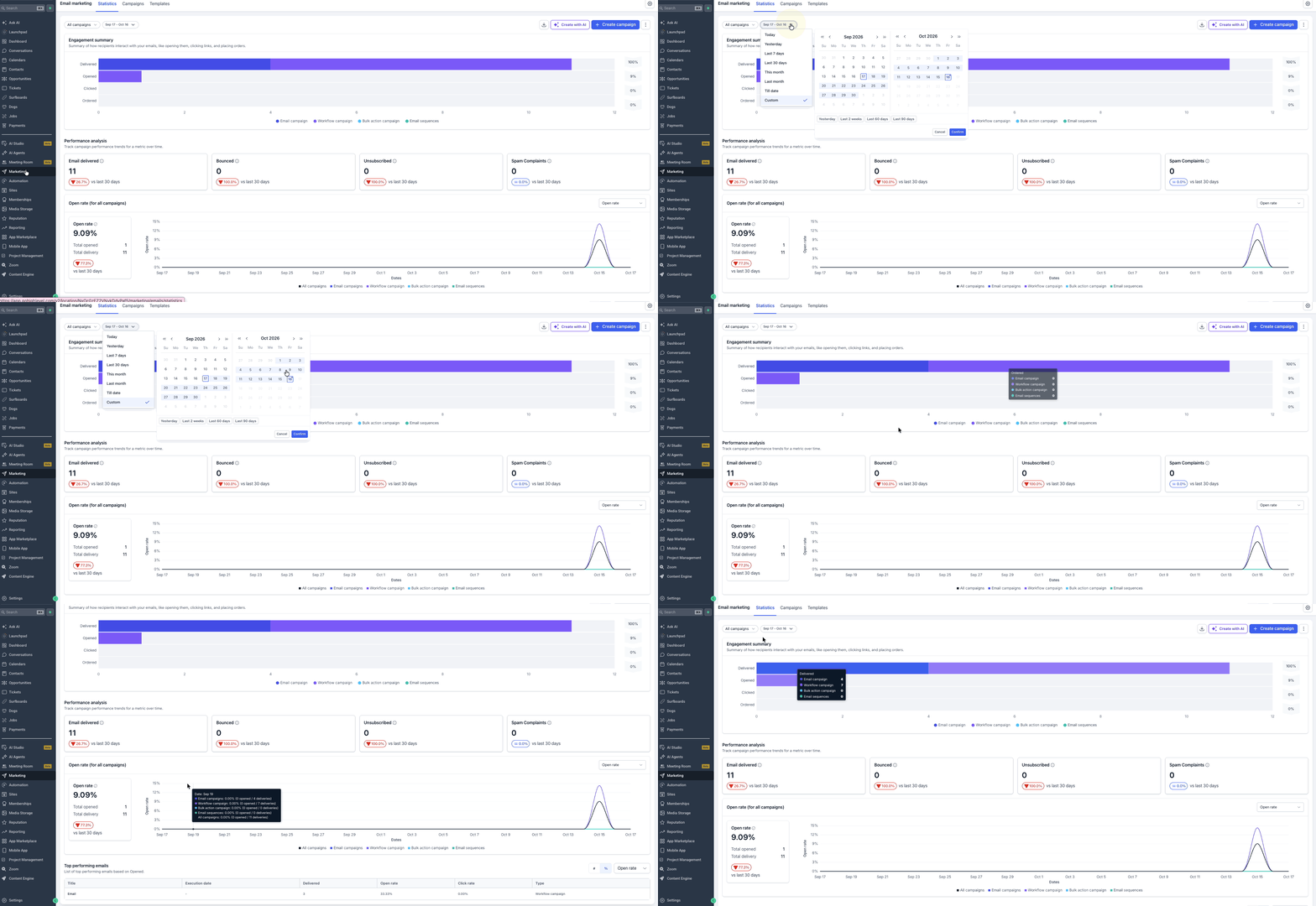
Note: Top Performing Emails evaluates individual workflow email actions rather than the entire workflow.
View Statistics for an Individual Email Action
Viewing individual email-action statistics helps you investigate the results of a particular automated message. This is useful when a workflow contains multiple emails or when one step appears to have unusually low engagement.
- Navigate to Automation → Workflows.
- Open the workflow you want to analyze.
- Select the Email action you want to review.
- In the right-hand panel, click Statistics.
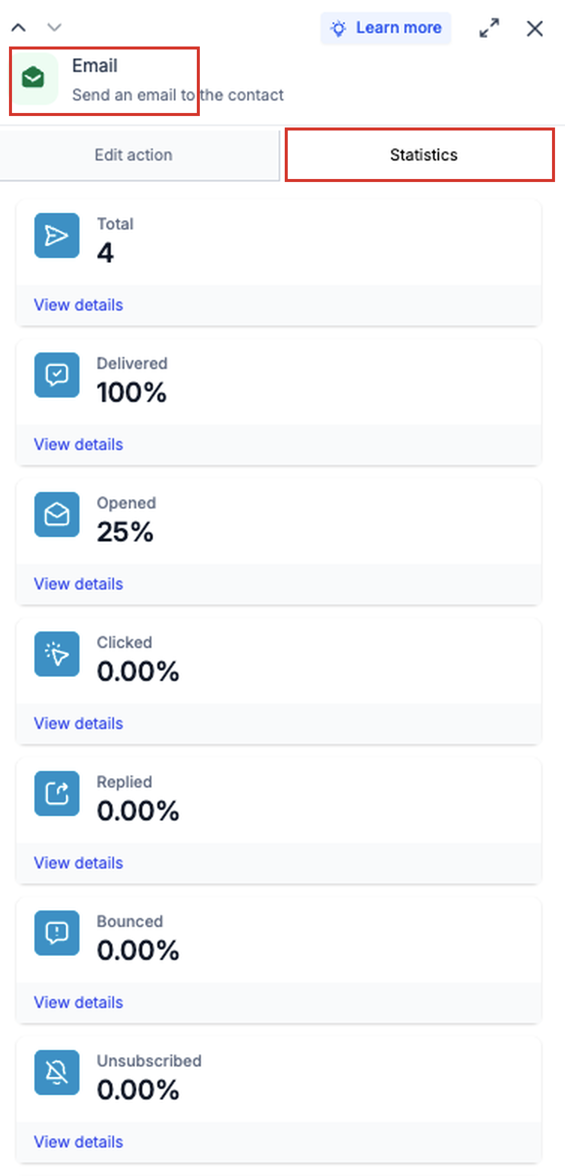
- Review the available email delivery and engagement metrics.
- Use the reporting controls, where available, to examine the relevant reporting period.
Individual email-action statistics default to the last 30 days.
View Workflow-Level Statistics
Workflow-level statistics let you review email and SMS performance for an individual workflow without opening Workflow Builder.
- Go to Automation → Workflows.
- Locate the workflow you want to analyze.
- Click the expand arrow next to the workflow name.
- Click Stats to view the workflow's communication statistics.
- Review the available email and SMS statistics.
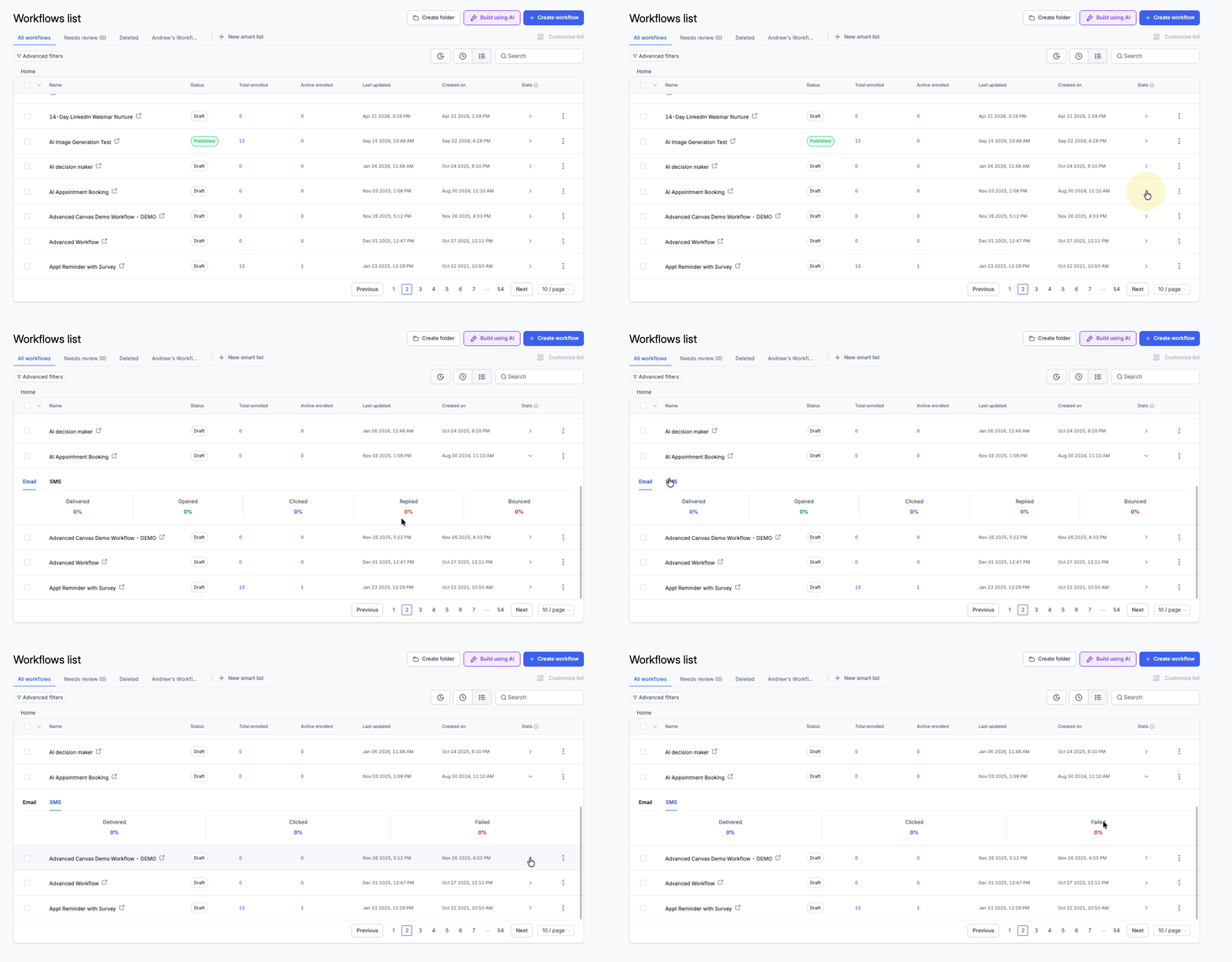
Note: Workflow-level statistics are available for individual workflows, not entire folders. Historical reporting can include activity from January 1, 2023 onward, including statistics from previously deleted email and SMS actions.
Analyze Email Actions Using Workflow Builder Stats View
Stats View helps you connect reporting data with the layout of your automation, making it easier to identify the actions you want to investigate.
- Navigate to Automation → Workflows.
- Open the workflow.
- Turn on Stats View from the top-left corner.
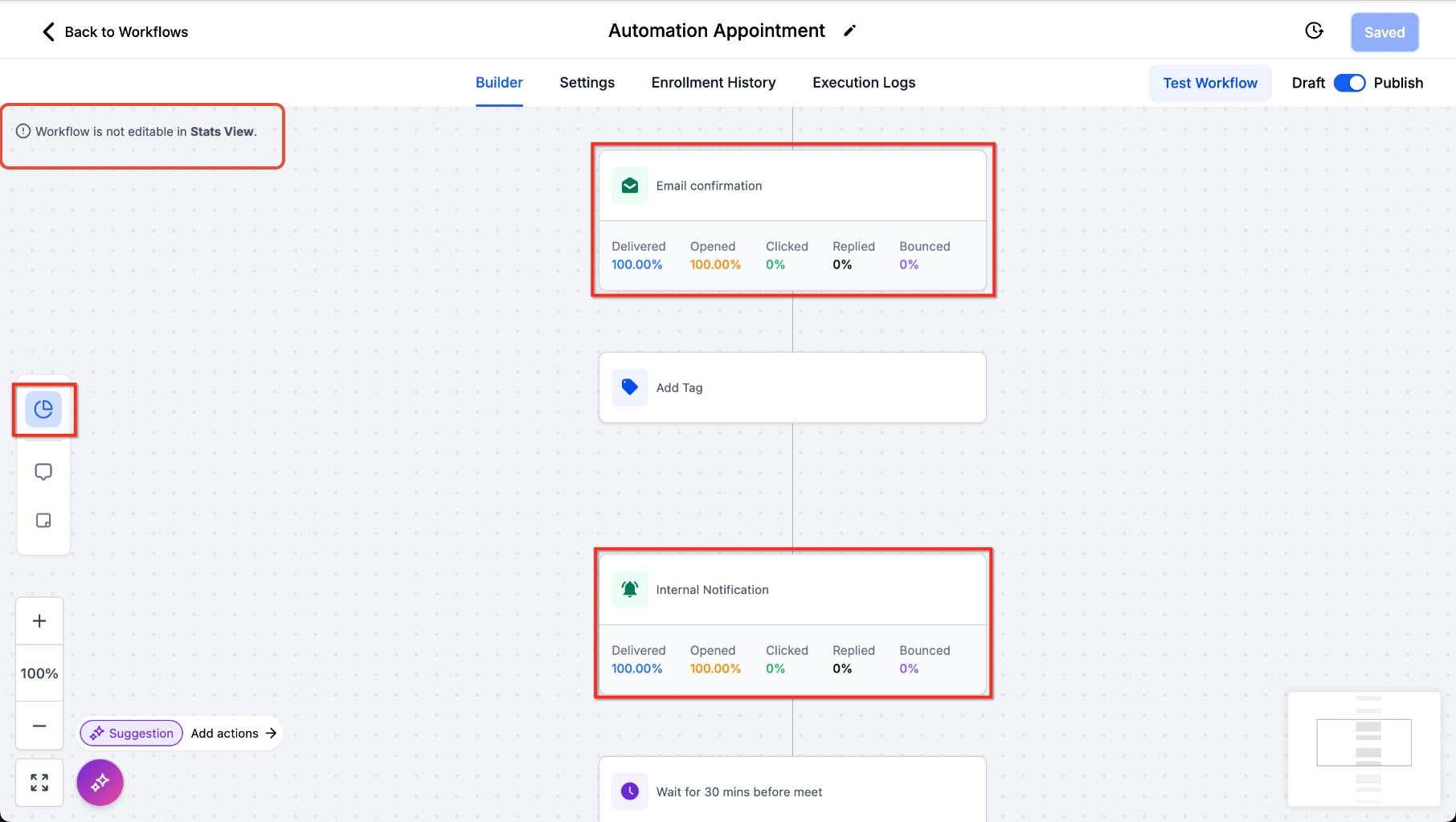
- Select the Email action you want to analyze.
- Review its available delivery and engagement statistics.
- Click a statistic to open the corresponding detailed report, where available.
- Exit Stats View before making changes to the workflow.
Edit Workflow Emails After Reviewing Statistics
Making changes based on performance results can help improve the effectiveness of automated communications. Reviewing individual email-action metrics before editing helps you focus on the messages most likely to benefit from optimization.
- Open the workflow through Automation → Workflows.
- If Stats View is enabled, turn it off to return to editing mode.
- Select the Email action you want to update.
- Review its content, configuration, and relevant tracking settings.
- Make the necessary changes.
- Save your changes and confirm the workflow's intended publication status.
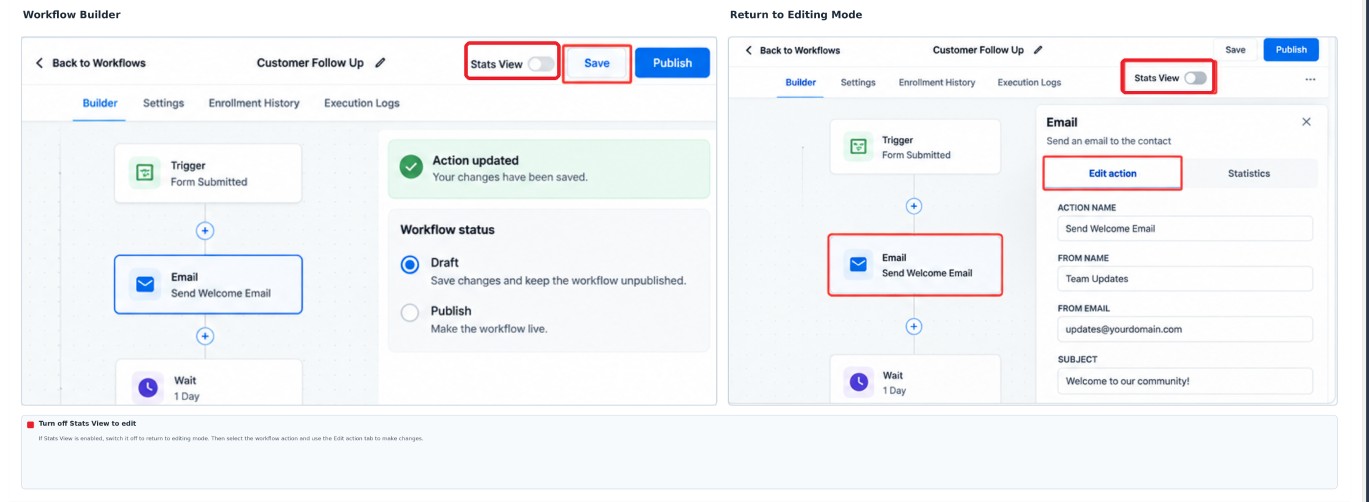
If you are using a reporting interface that provides an Edit Workflow option, select it to navigate to the associated workflow in the Workflow Builder.
Important: Editing an email action does not guarantee an immediate improvement in its statistics. Evaluate future email activity after making changes to determine whether engagement improves.
Export Workflow Email Statistics
Export workflow email statistics as a CSV file when you need to analyze performance outside HighLevel or share reporting data. Workflow exports provide statistics for individual email actions.
- Go to Marketing → Emails → Statistics.
- Select Workflow Campaigns from the source filter and choose the reporting date range.
- Click Export. If a separate export-type selection appears, choose Workflows Only.
- Enter the email address or addresses that should receive the report and submit the export request.
- Open the email containing the CSV download link.
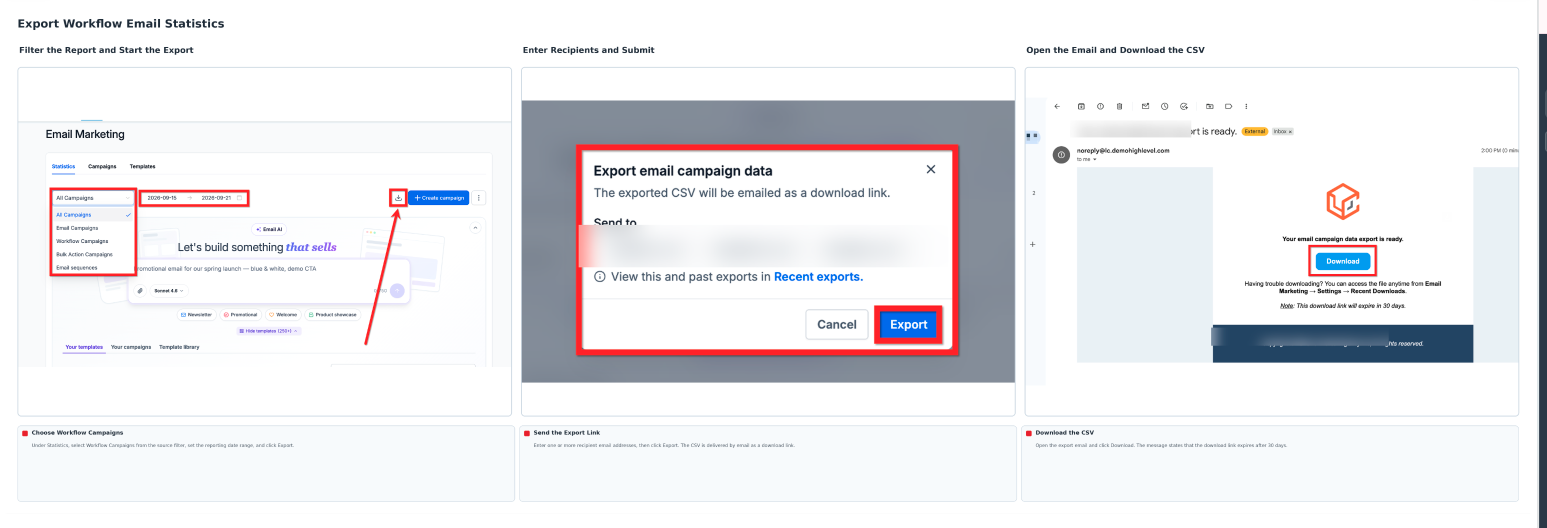
Export download links remain valid for 30 days. For more information, see Exporting Email Campaign Data.
Frequently Asked Questions
Q: Why do I see multiple entries for the same workflow in Top Performing Emails?
HighLevel evaluates individual workflow email actions separately. If a workflow contains multiple email actions, they can appear as separate reporting entries instead of one combined workflow result.
Q: Why are some workflow email statistics missing?
Available metrics depend on the sending provider, tracking configuration, and recorded email events. Confirm that the email was sent, verify the selected date range, and review the applicable tracking settings. See Troubleshooting Email Statistics for additional diagnostics.
Q: Why can't I edit an Email action while viewing workflow statistics?
Workflow Builder Stats View is designed for analyzing workflow activity. Editing is disabled while this mode is active. Exit Stats View before modifying email actions or other workflow components.
Q: Can I view email statistics for a workflow that is no longer active?
Previously recorded statistics may still be available for workflow email actions, depending on the relevant reporting period and retained history. A draft or inactive workflow will not generate new automated sends merely because its statistics are being viewed.
Q: What happens to reporting data if an Email action is deleted?
HighLevel's workflow-level reporting retains historical statistics for email and SMS actions that were previously used and later deleted. This allows users to review historical communication activity even when those actions are no longer part of the current workflow.
Related Articles
Was this article helpful?
That’s Great!
Thank you for your feedback
Sorry! We couldn't be helpful
Thank you for your feedback
Feedback sent
We appreciate your effort and will try to fix the article