HighLevel's All-in-One Dashboard for Email Marketing brings performance data from Campaigns, Workflows, and Bulk Actions into one Email Statistics experience. You can compare engagement, filter reporting by email source, review top-performing emails, and export statistics without collecting data from multiple areas.
The dashboard also makes it easier to move from a high-level engagement summary into detailed performance trends. This article explains how to access the dashboard, interpret its reporting areas, use filters and sample data, understand Workflow reporting, export statistics, and troubleshoot common reporting questions.
The All-in-One Email Marketing Dashboard is the Email Statistics experience under Marketing → Emails → Statistics. It is separate from configurable Email Widgets that can be added to a sub-account Dashboard or Custom Report.
What is the All-in-One Dashboard for Email Marketing?
The All-in-One Dashboard for Email Marketing is a centralized reporting experience in HighLevel that brings together email statistics from Campaigns, Workflows, and Bulk Actions. Instead of checking each sending method separately, you can use one Email Statistics dashboard to review overall performance and compare engagement across supported email sources.
The dashboard is available under Marketing → Emails → Statistics and provides Engagement Summary reporting, Performance Analysis, email-source filtering, Top Performing Emails, date controls, and related reporting tools.
Key Benefits of the All-in-One Dashboard
A unified reporting view makes it easier to compare email performance and identify trends without switching between separate Campaign, Workflow, and Bulk Action reporting areas. This reduces reporting friction while helping teams identify stronger-performing email activity more quickly.
- Unified Email Reporting: Review Campaign, Workflow, and Bulk Action email statistics from one location.
- Source-Level Filtering: Narrow the dashboard to a specific email source when you need a more focused view.
- Performance Visibility: Monitor delivery and engagement trends through summary and performance reporting.
- Top-Performer Insights: Identify emails generating stronger open or click engagement.
- Workflow Granularity: Review individual Workflow email actions rather than treating an entire Workflow as one email.
- Sample Reporting: Preview the reporting experience with sample data when the option is available.
- CSV Exporting: Export Email Statistics data for external analysis, reporting, or sharing.
What Data is Included in the Dashboard?
Email Statistics consolidates supported email-sending sources into one reporting experience. Understanding how each source is represented is especially important when comparing automated Workflow emails with one-time Campaign or Bulk Action sends.
| Dashboard Filter | What It Represents |
|---|---|
| All Campaigns | Combined reporting across the supported email sources in Email Statistics. |
| Email Campaigns | Email marketing Campaign sends. |
| Workflow Campaigns | Emails sent through Workflow email actions. |
| Bulk Action Campaigns | Emails sent through Contacts → Bulk Actions. |
The All-in-One Dashboard focuses on email activity. SMS and other messaging-channel statistics are not part of this Email Statistics view.
Understanding Dashboard Metrics and Performance Areas
The dashboard organizes reporting into summary and performance areas so you can move from an overall view of email activity into more detailed engagement trends. Reviewing these areas together helps distinguish high-level delivery performance from changes in recipient engagement over time.
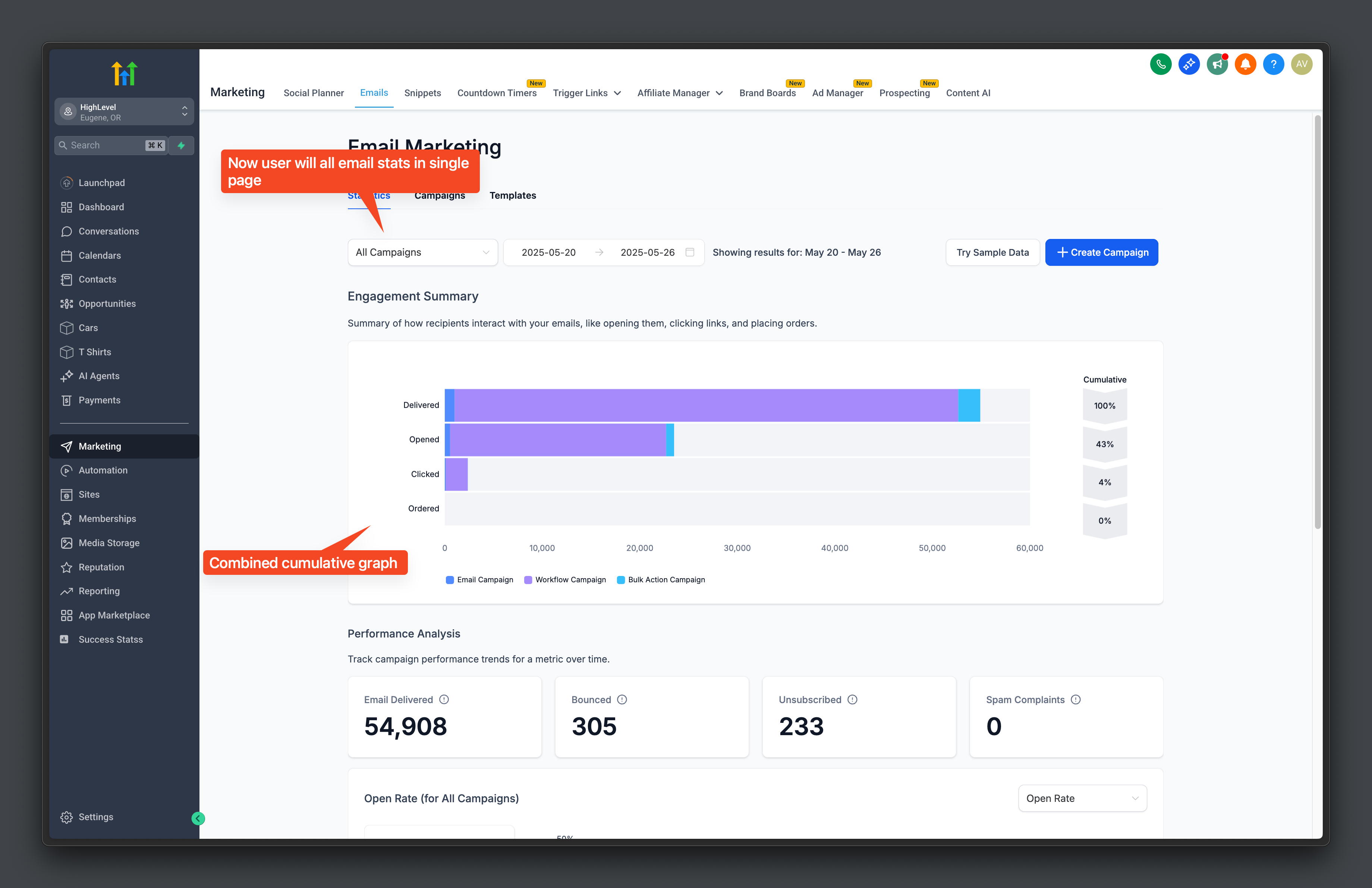
Engagement Summary
Engagement Summary provides a combined visual view of how recipients interact with emails across the selected reporting scope. When multiple sources are included, the chart can show how Email Campaigns, Workflow Campaigns, and Bulk Action Campaigns contribute to the overall results.
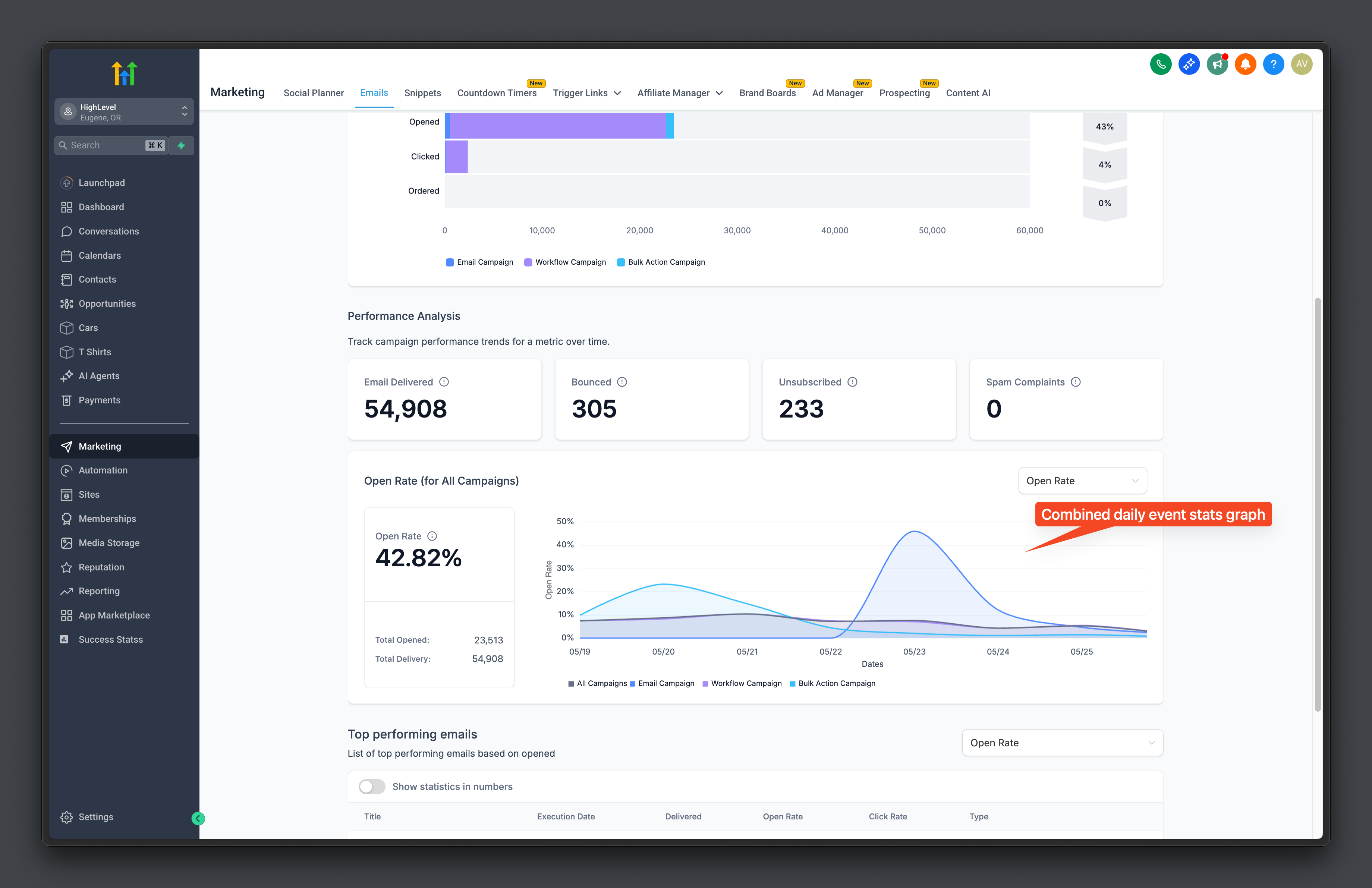
Performance Analysis
Performance Analysis helps you evaluate email trends over time using delivery and engagement metrics. The available controls let you review metrics across the selected reporting period and compare performance across the email sources included in the current view.
Data timing: Most email statistics update in near real time. Some engagement events can take a few minutes to appear depending on recipient activity and provider delays.
For definitions of individual email metrics, see Email Statistics.
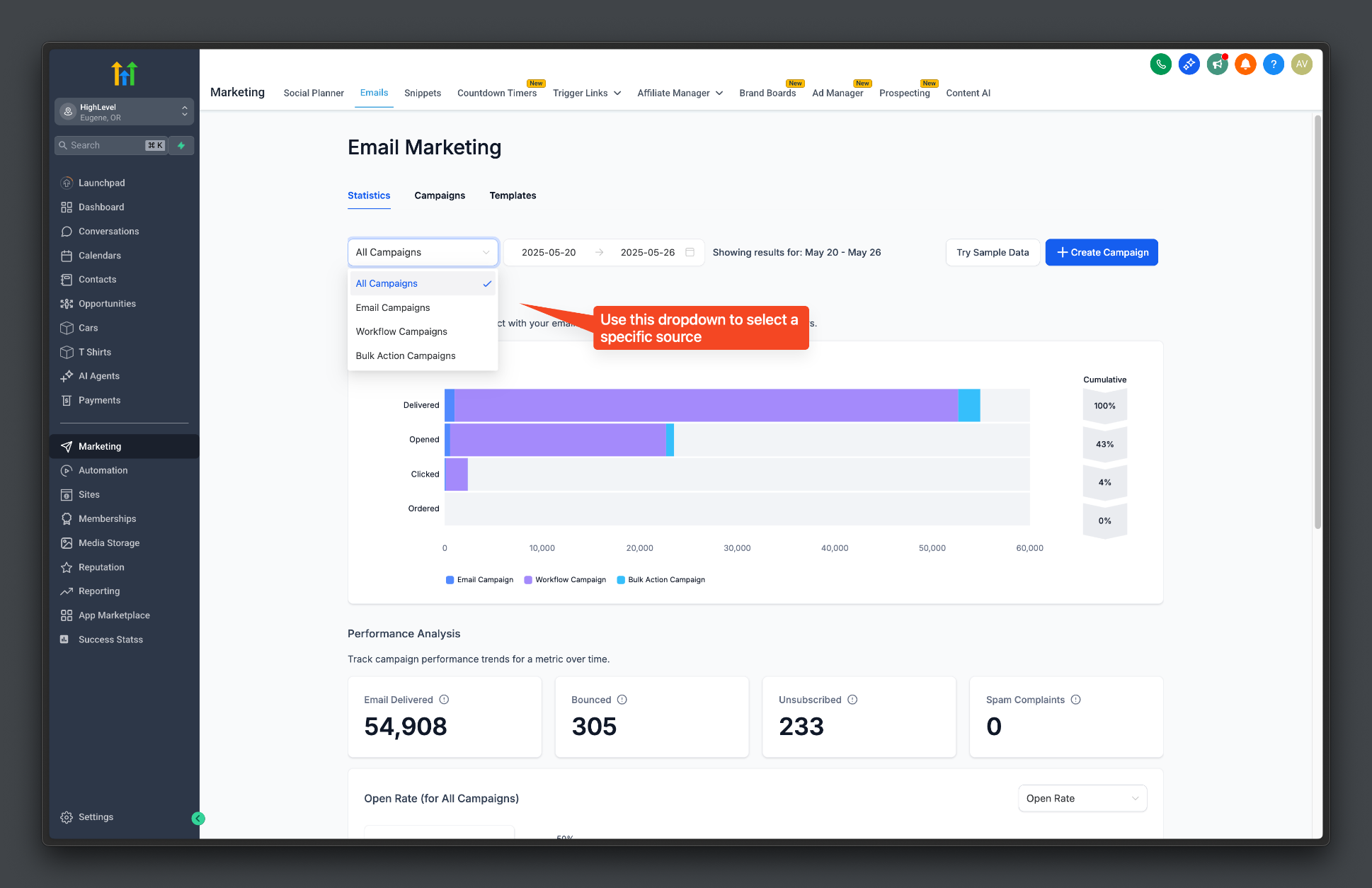
Filtering Email Statistics by Source
Source filtering helps isolate the email activity you want to evaluate. This is useful when combined reporting is too broad and you need to analyze Email Campaigns, Workflow Campaigns, or Bulk Action Campaigns independently.
- Go to Marketing → Emails → Statistics.
- Open the source dropdown near the top-left of the dashboard.
- Select All Campaigns to review the combined view.
- Select Email Campaigns, Workflow Campaigns, or Bulk Action Campaigns to narrow the dashboard to that source.
Using Sample Data
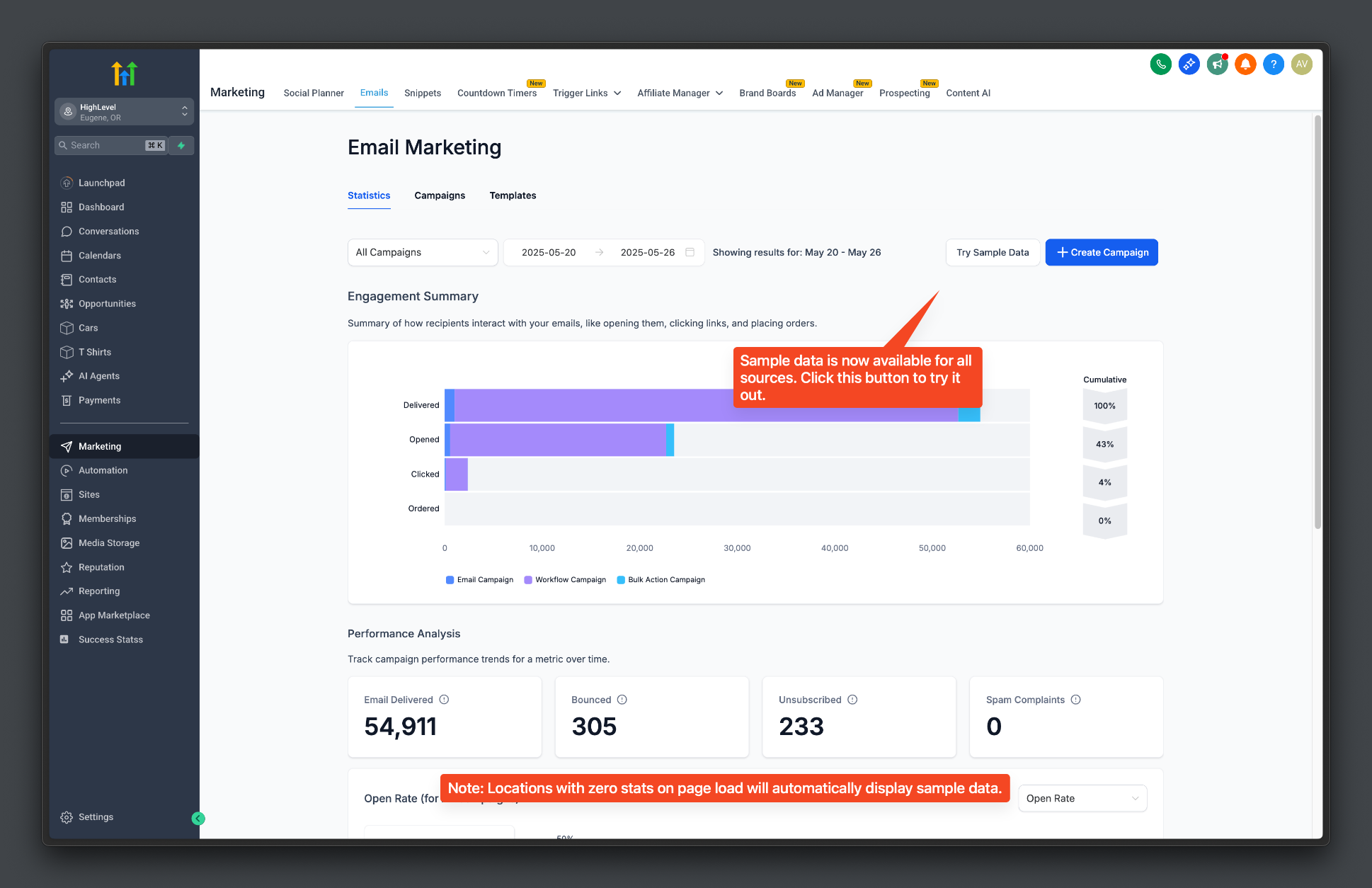
Sample data can help you preview the Email Statistics reporting experience before you have enough live email activity to populate the dashboard. When the option is available, it provides demonstration values for understanding the dashboard layout without treating those values as actual performance.
If Try Sample Data appears in your dashboard, click it to preview the reporting experience.
Identify When Sample Data is Active
When sample statistics are active, the dashboard displays a notice identifying the values as sample data. Use Clear Sample Data when you want to remove the demonstration values.
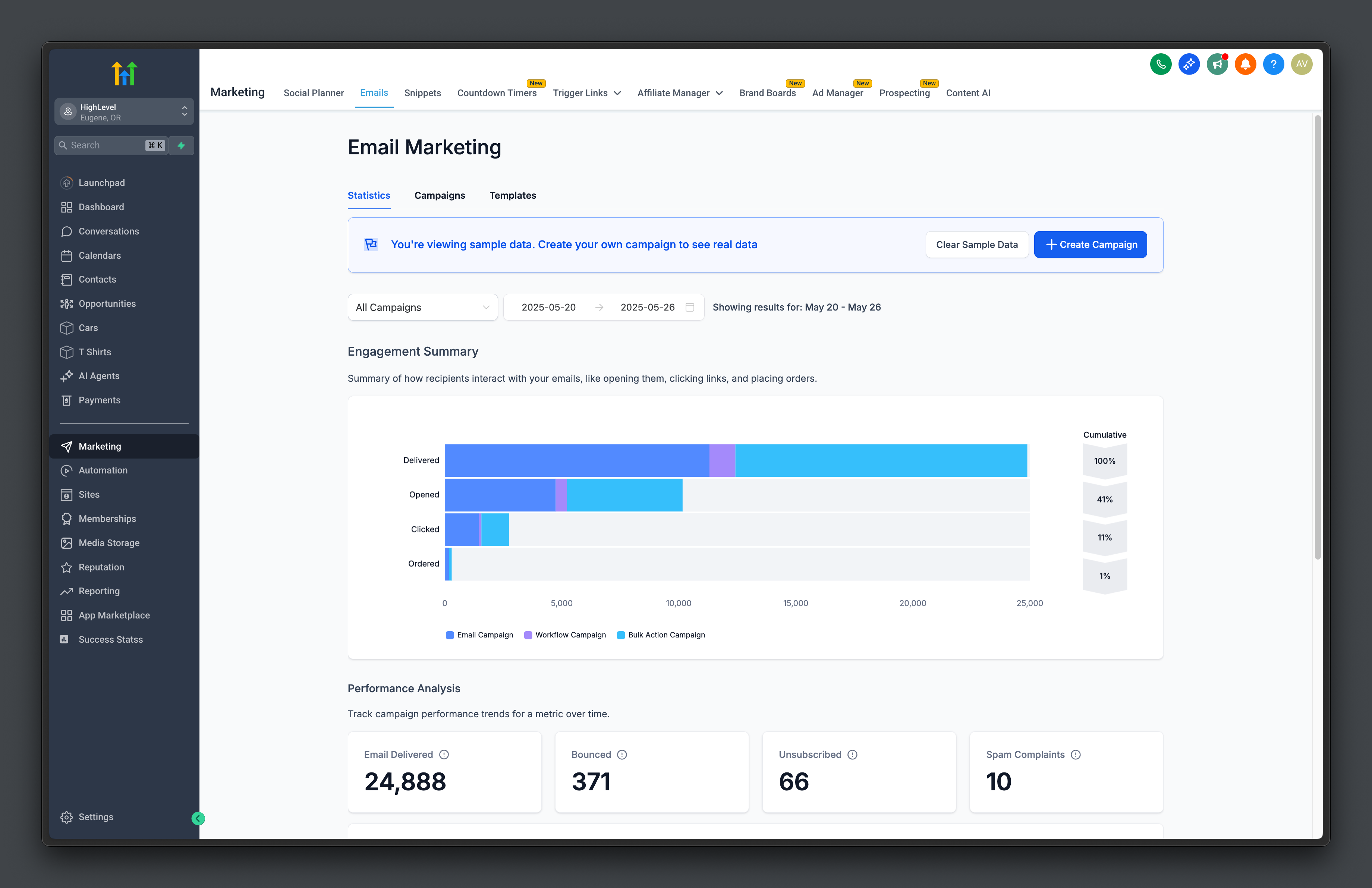
Important: Sample statistics are demonstration data and should not be interpreted as actual Campaign, Workflow, or Bulk Action performance.
Understanding Top Performing Emails
Top Performing Emails helps identify email content generating stronger engagement. Results can be evaluated using available engagement metrics such as open or click rates, but the way an item is represented depends on whether the email came from a Campaign, Bulk Action, or Workflow.
For Workflows, Top Performing Emails reports the performance of individual email actions, not the entire Workflow sequence as one email.
| Source | Top Performing Emails Represents |
|---|---|
| Email Campaigns | The individual Campaign email send. |
| Bulk Action Campaigns | The individual Bulk Action email send. |
| Workflow Campaigns | Each individual email action inside the Workflow. |
How to Set Up the All-in-One Dashboard for Email Marketing
No separate feature configuration is required once Email Statistics is available in your sub-account. Proper use comes down to opening the correct reporting area, selecting the appropriate source and date range, and interpreting the summary and performance areas in the context of how the email was sent.
- Go to Marketing → Emails → Statistics.
- Use All Campaigns when you want a combined view across supported email sources.
- Use the source dropdown to focus on Email Campaigns, Workflow Campaigns, or Bulk Action Campaigns when needed.
- Select the date range that matches the email activity you want to analyze.
- Review Engagement Summary for a high-level view.
- Scroll to Performance Analysis to review trends and available performance metrics.
- Continue to Top Performing Emails to identify stronger-performing individual sends or Workflow email actions.
Bulk Action shortcut: If you begin under Contacts → Bulk Actions, open the applicable send's statistics and use Load More Stats to access the broader Email Statistics dashboard.
Exporting Email Statistics
CSV export makes it possible to analyze Email Statistics outside HighLevel or share performance data with stakeholders. You can export combined email activity or focus on specific sources such as Email Marketing Campaigns, Workflows, or Bulk Actions.
- Go to Marketing → Emails → Statistics.
- Choose the reporting type you want to export.
- Click Export.
- Enter the email address or addresses that should receive the export.
- Open the email containing the download link and download the CSV file.
| Export Type | Reporting Scope |
|---|---|
| All Campaigns | All supported email activity visible in Email Statistics, including Campaigns, Workflows, and Bulk Actions. |
| Email Marketing Campaigns Only | Email Campaign performance from Marketing → Emails → Campaigns. |
| Workflows Only | Individual Workflow email-action performance. |
| Bulk Actions Only | Emails sent through Contacts → Bulk Actions. |
Export download links are delivered by email and remain available for a limited period. Recent export records can also be reviewed from the Email Campaigns settings area.
For complete instructions and export-retention details, see Exporting Email Marketing Data.
Troubleshooting Email Marketing Dashboard Reporting
When dashboard data does not look as expected, verify how the email was sent, which source and date range are selected, and whether the event may still be processing. The configured sending provider can also affect which delivery and engagement events are available in reporting.
| Issue | What to Check |
|---|---|
| Expected email activity is missing | Verify how the email was sent and confirm the correct source and date range are selected. |
| A Workflow appears as several emails | This is expected in Top Performing Emails because Workflow email actions are tracked individually. |
| Recent engagement is not visible yet | Allow a few minutes for applicable engagement events to appear. |
| A Bulk Action email is difficult to find | Look under Bulk Action Campaigns in the source filter, or open the Bulk Action's statistics and use Load More Stats. |
| Some statistics are missing | Check the configured email provider and review the dedicated troubleshooting guidance because the events available to HighLevel can vary by provider. |
| The dashboard shows demonstration values | Check for a sample-data notice and clear the sample data before interpreting the dashboard as live email performance. |
For deeper diagnostic steps, see Troubleshooting Email Statistics.
Frequently Asked Questions
Was this article helpful?
That’s Great!
Thank you for your feedback
Sorry! We couldn't be helpful
Thank you for your feedback
Feedback sent
We appreciate your effort and will try to fix the article