The Bulk Email Builder in HighLevel provides a unified way to create and send emails to multiple contacts directly from Contacts → Smart Lists. After selecting contacts, you can use Quick Compose, From Smart Builder, or Select Existing Template to create your message. Before sending, HighLevel helps you review eligible recipients, configure sender and tracking options, test the email, and choose how it should be delivered. This guide explains the complete bulk-email workflow and where to review performance afterward.
TABLE OF CONTENTS
- What Is the Bulk Email Builder?
- Key Benefits of the Bulk Email Builder
- Pre-Send Contact Filtering
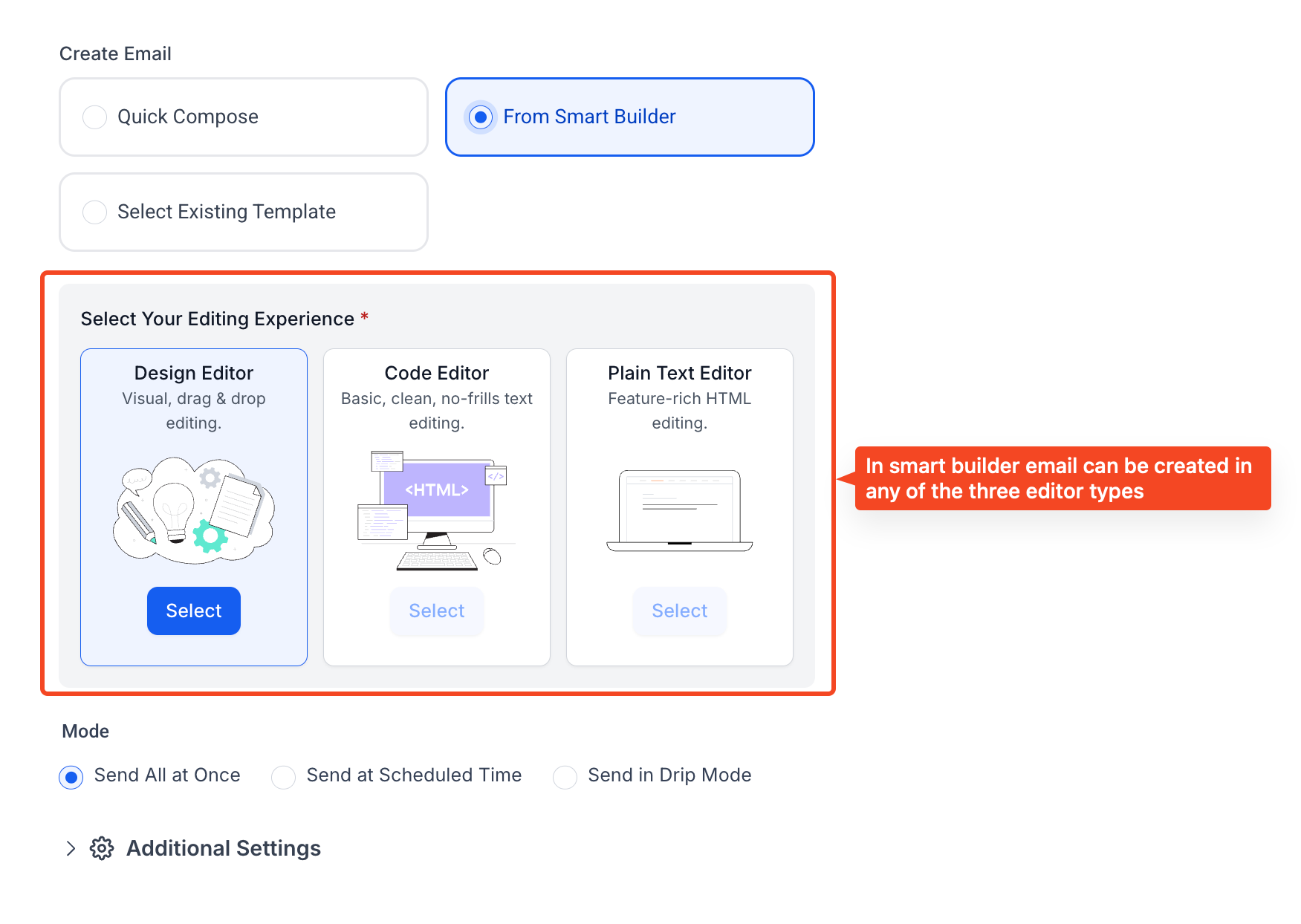
- Email Creation Options
- Additional Email Settings
- Sending Options
- How to Create and Send a Bulk Email
- How to Track Bulk Email Performance
- Frequently Asked Questions
- Related Articles
What Is the Bulk Email Builder?
The Bulk Email Builder is the email creation experience available after selecting contacts under Contacts → Smart Lists and choosing Send Email from the bulk-action toolbar.
It brings three email creation options into one flow:
- Quick Compose for simple messages.
- From Smart Builder for Design, Code, or Plain Text editing.
- Select Existing Template for saved templates or Template Library designs.
The Bulk Email dialog also supports dynamic object labels. If the default Contact label has been configured as something such as Leads or Clients, the interface can display that configured terminology automatically.
Changing the displayed object label does not change recipient selection, filtering, or email-delivery behavior.
Key Benefits of the Bulk Email Builder
The Bulk Email Builder combines message creation, recipient review, delivery controls, engagement settings, and reporting into a streamlined bulk-send workflow.
- Flexible Email Creation: Choose Quick Compose, Smart Builder, or an existing template based on the type of message you need to send.
- Recipient Review: Review selected, filtered-out, and eligible recipients before sending.
- Controlled Delivery: Send immediately, schedule delivery, or process messages in timed batches using Drip Mode.
- Engagement Tools: Configure supported click tracking, UTM parameters, and tagging options.
- Centralized Reporting: Review individual bulk-action results and access broader email reporting from the unified Statistics dashboard.
Pre-Send Contact Filtering
Before a bulk email is sent, HighLevel reviews the selected records and provides a recipient summary so you can understand who is eligible to receive the message.
The summary can include:
- Selected contacts: The contacts included in your original selection.
- Filtered-out contacts: Contacts excluded because of conditions such as an invalid email address, an unsubscribe status, or applicable email DND restrictions.
- Eligible recipients: The contacts remaining after applicable sending restrictions are evaluated.
Review these counts before continuing. Recipient filtering helps prevent messages from being sent to ineligible records, but it does not replace your responsibility to follow applicable consent, compliance, and email-sending requirements.
Email Creation Options
Choose the email creation method that best fits the amount of design, customization, and reuse required for your message.
Quick Compose: A lightweight option for writing simple emails quickly. Quick Compose is separate from the Plain Text Editor available through Smart Builder.
From Smart Builder: Provides the full email-building experience with the following editing options:
- Design Editor for visual, drag-and-drop email creation.
- Code Editor for code-based email creation.
- Plain Text Editor for text-focused messages without a visual design layout.
Select Existing Template: Choose from saved email templates or browse available designs in the Template Library.
Additional Email Settings
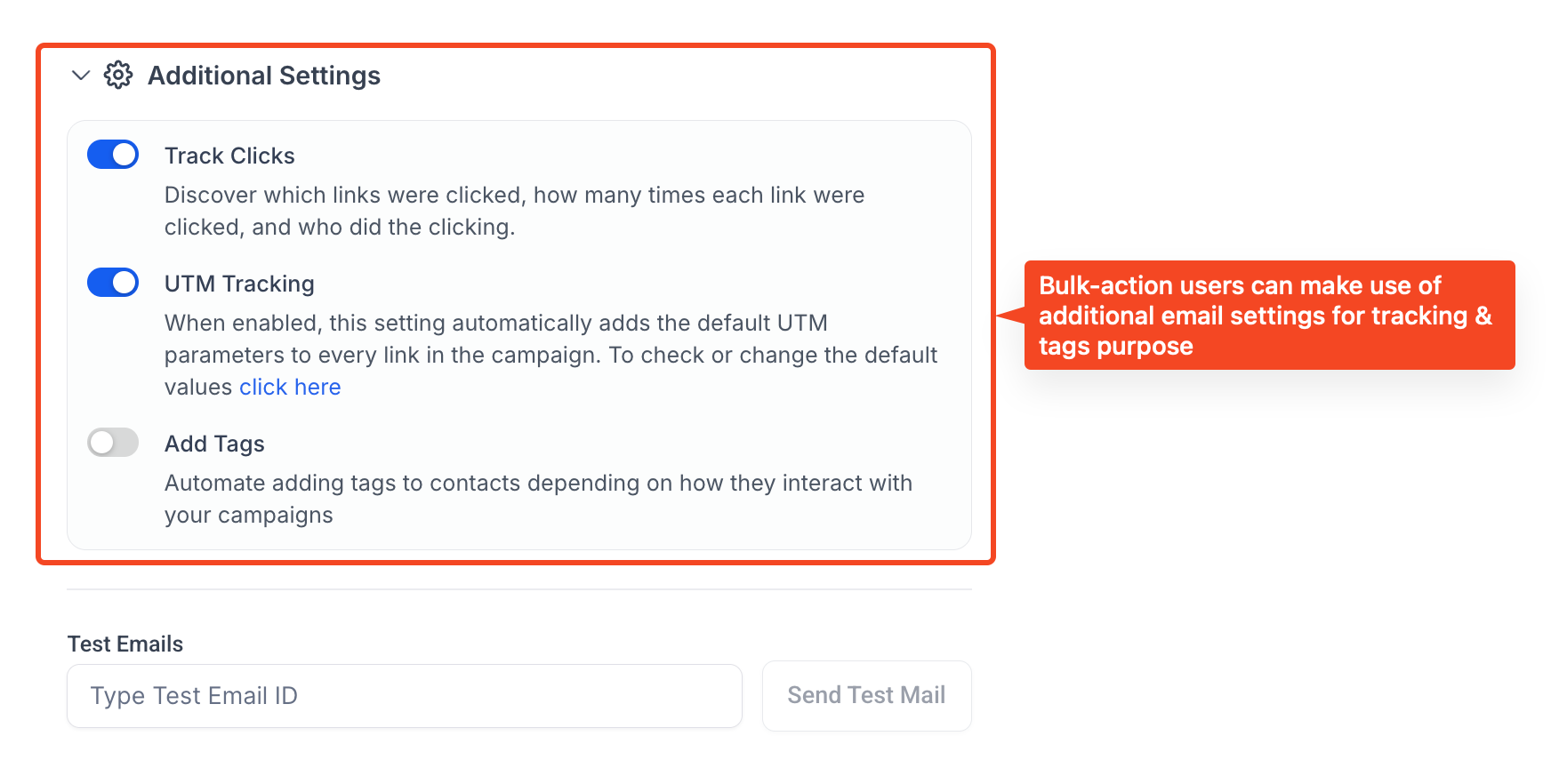
Use Additional Settings to configure supported tracking and contact-management options for the bulk email.
- Track Clicks: Records supported link interactions so click activity can be included in email reporting.
- UTM Tracking: Adds configured UTM parameters to supported links for external campaign and traffic analysis.
- Add Tags: Applies configured tags according to the supported engagement options available in the Bulk Email Builder.
Sending Options
After reviewing the email and its recipients, choose the delivery method that fits your sending schedule.
- Send Immediately: Submit the email for processing without scheduling it for a later time.
- Schedule the Send: Choose a future date and time for the bulk email.
- Drip Mode: Process the selected recipients in timed batches. Configure options such as the start time, batch quantity, repeat interval, and available sending windows as needed.
Drip Mode controls the pace of bulk processing. It does not guarantee inbox placement or email deliverability.
How to Create and Send a Bulk Email
Use the following workflow to select recipients, create the email, verify its settings, and submit the bulk-send job.
- Select contacts. Go to Contacts → Smart Lists. Apply filters or open a Smart List, then select the applicable contacts using their checkboxes.
- Open Bulk Email. Click Send Email in the bulk-action toolbar. Review the initial selection confirmation if it appears.
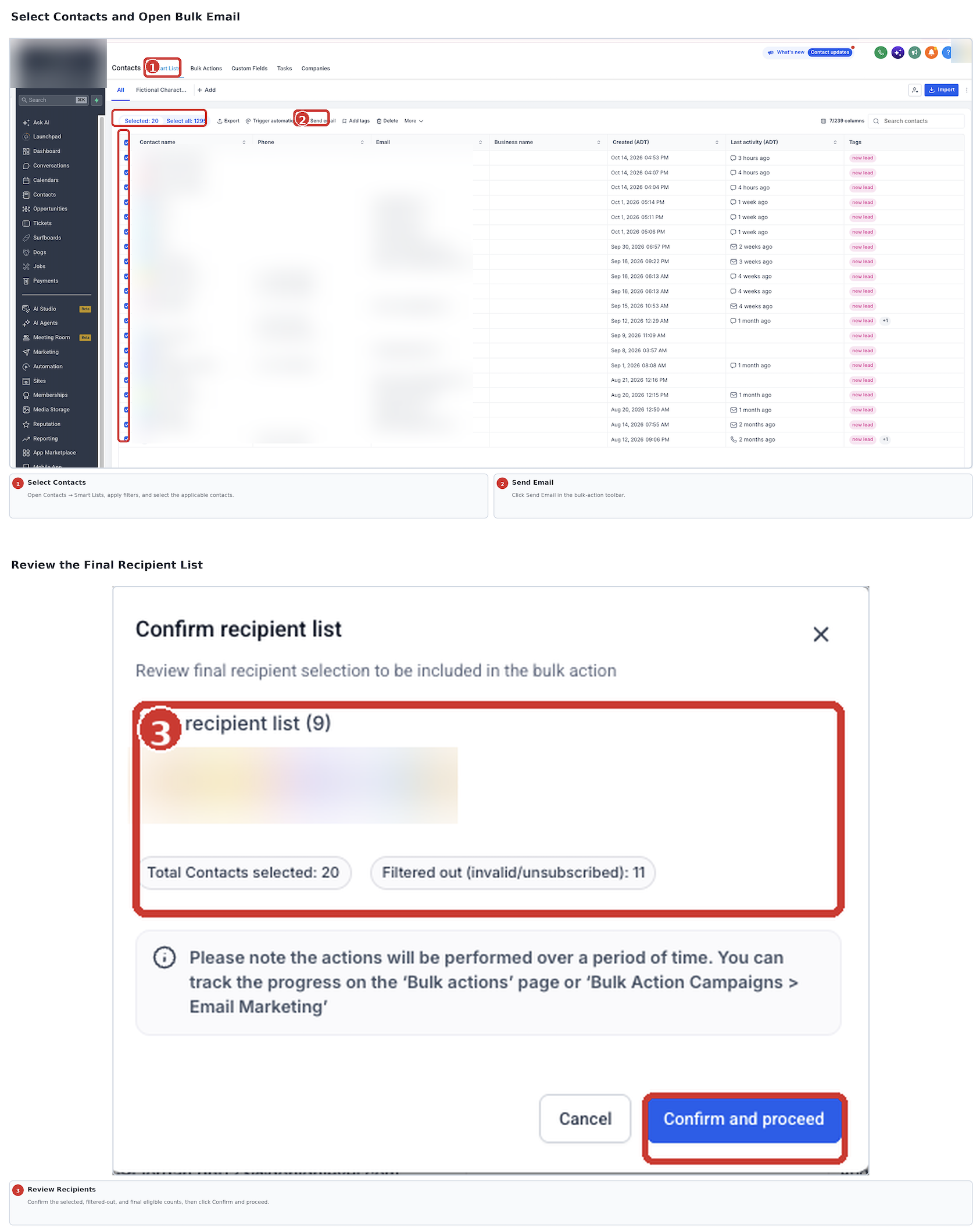
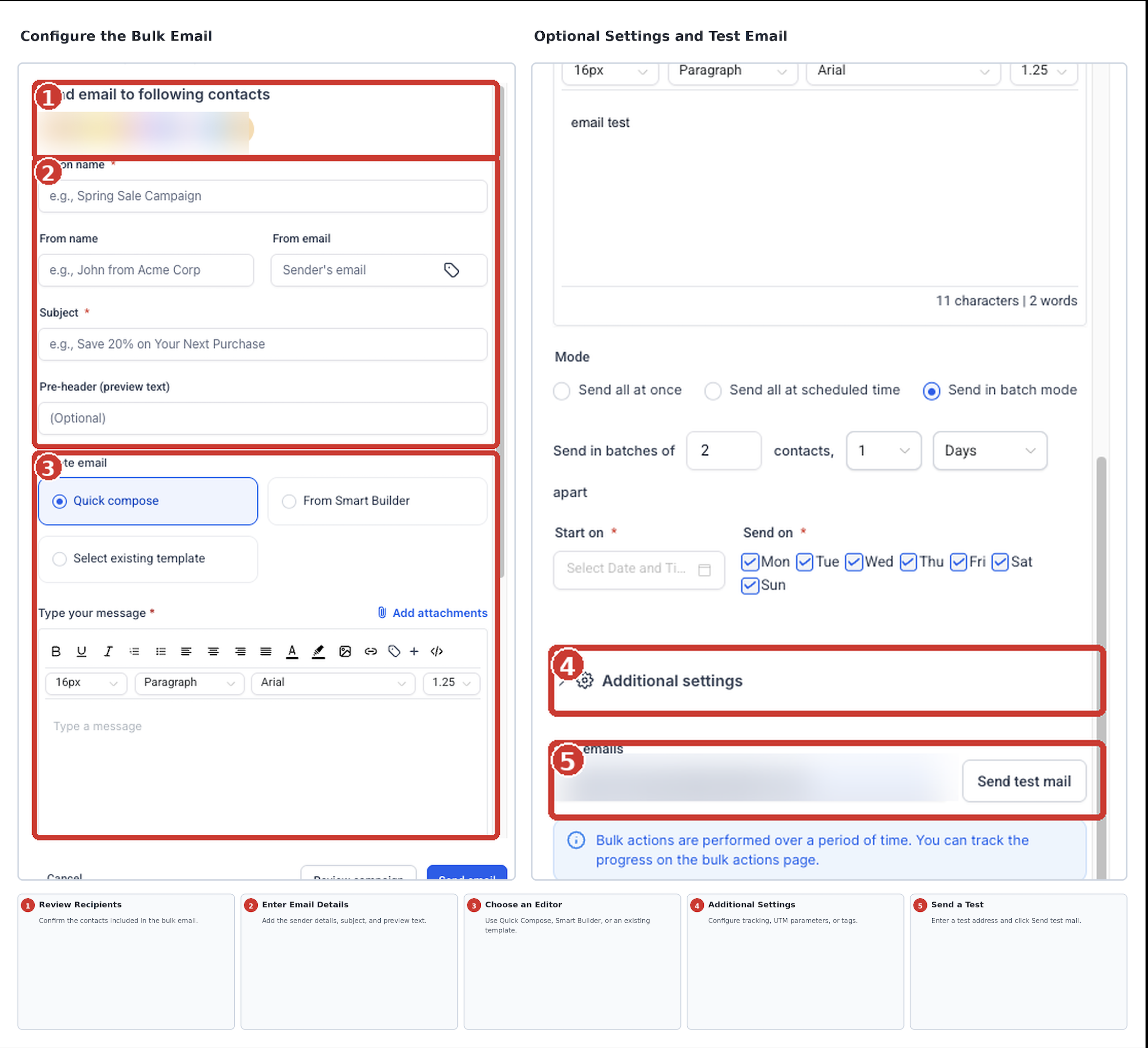
- Review recipients. Check the selected, filtered-out, and eligible recipient counts before continuing.
- Enter sender details. Configure the applicable From Name, From Email, and Subject. Add preview text, an action name, or other available email details as needed.
- Choose an editor. Select Quick Compose, From Smart Builder, or Select Existing Template, then create or customize the email.
- Configure optional settings. Open Additional Settings and configure supported click tracking, UTM parameters, or tagging options as needed.
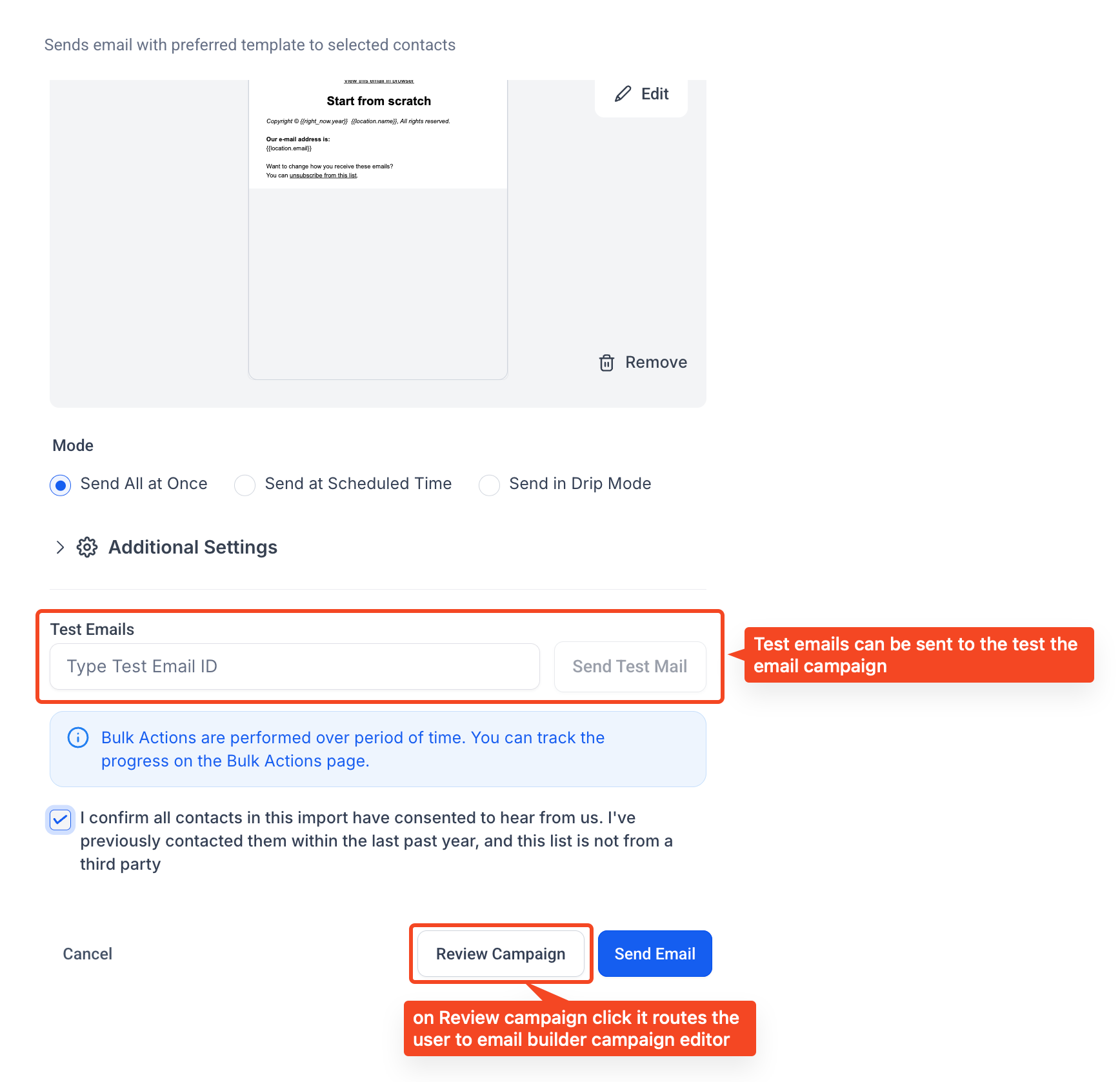
- Send a test. Enter the Test Email ID, click Send Test Mail, and review the received email for content, formatting, links, and sender information.
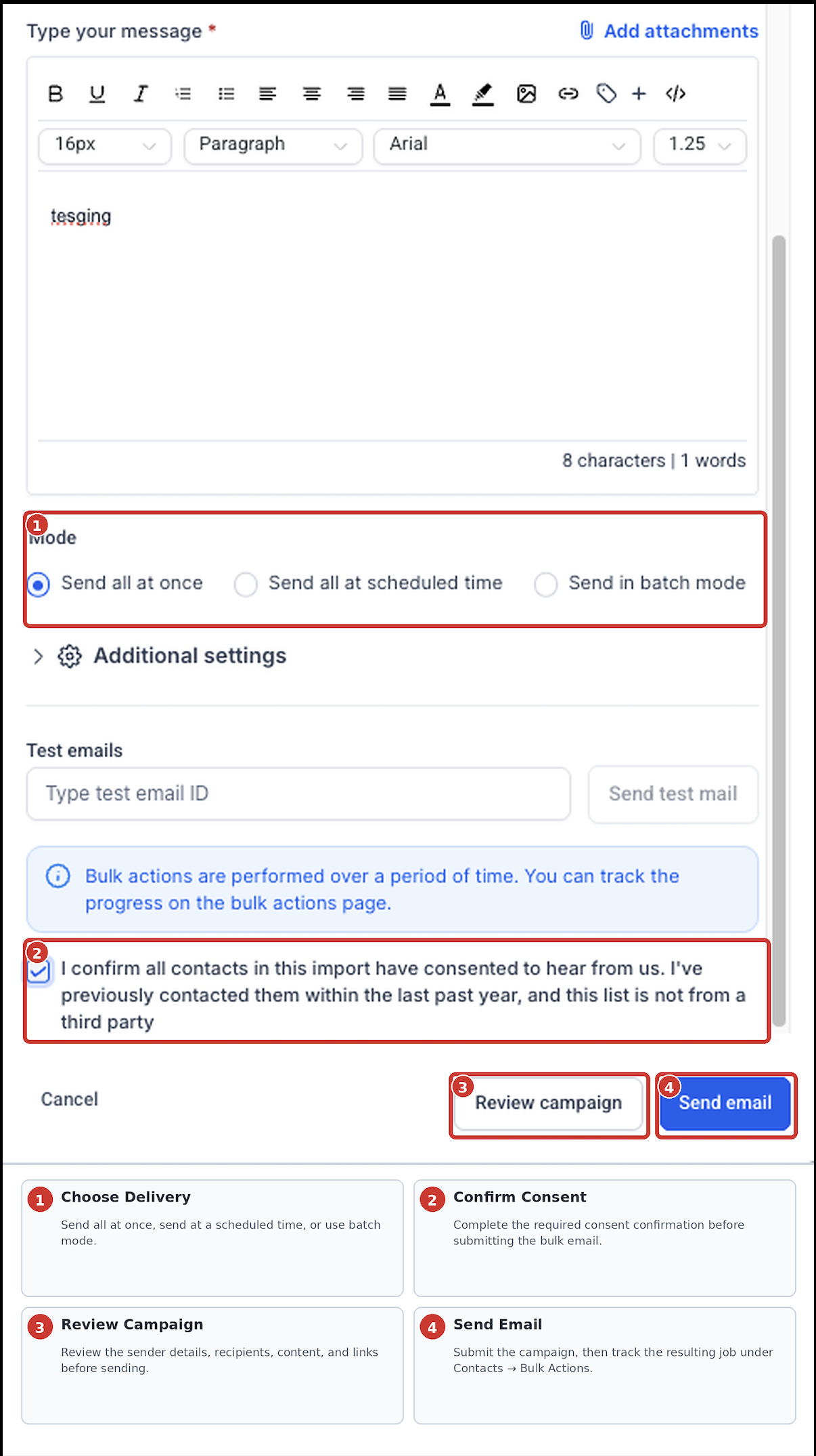
- Review the campaign. Click Review Campaign and verify the sender information, content, links, and recipient information.
- Choose delivery. Send immediately, schedule the send, or configure Drip Mode. Complete any required sending or consent confirmation shown in the interface.
- Submit and track the job. Click Send Email, then review the resulting bulk-action job under Contacts → Bulk Actions.
Important: Review your recipients, sender details, and email content before submitting the bulk action. Emails that have already been processed cannot be recalled through Bulk Actions.
How to Track Bulk Email Performance
HighLevel provides both job-level statistics for an individual bulk action and broader email reporting through the unified Email Statistics dashboard.
To review a specific bulk-send job:
- Go to Contacts → Bulk Actions.
- Locate the applicable bulk-email job.
- Click Show Stats.
- Review the available processing outcomes and delivery metrics.
- If available, use the downloadable error information to investigate failed records.
- Use Load More Stats when you need access to more detailed email reporting.
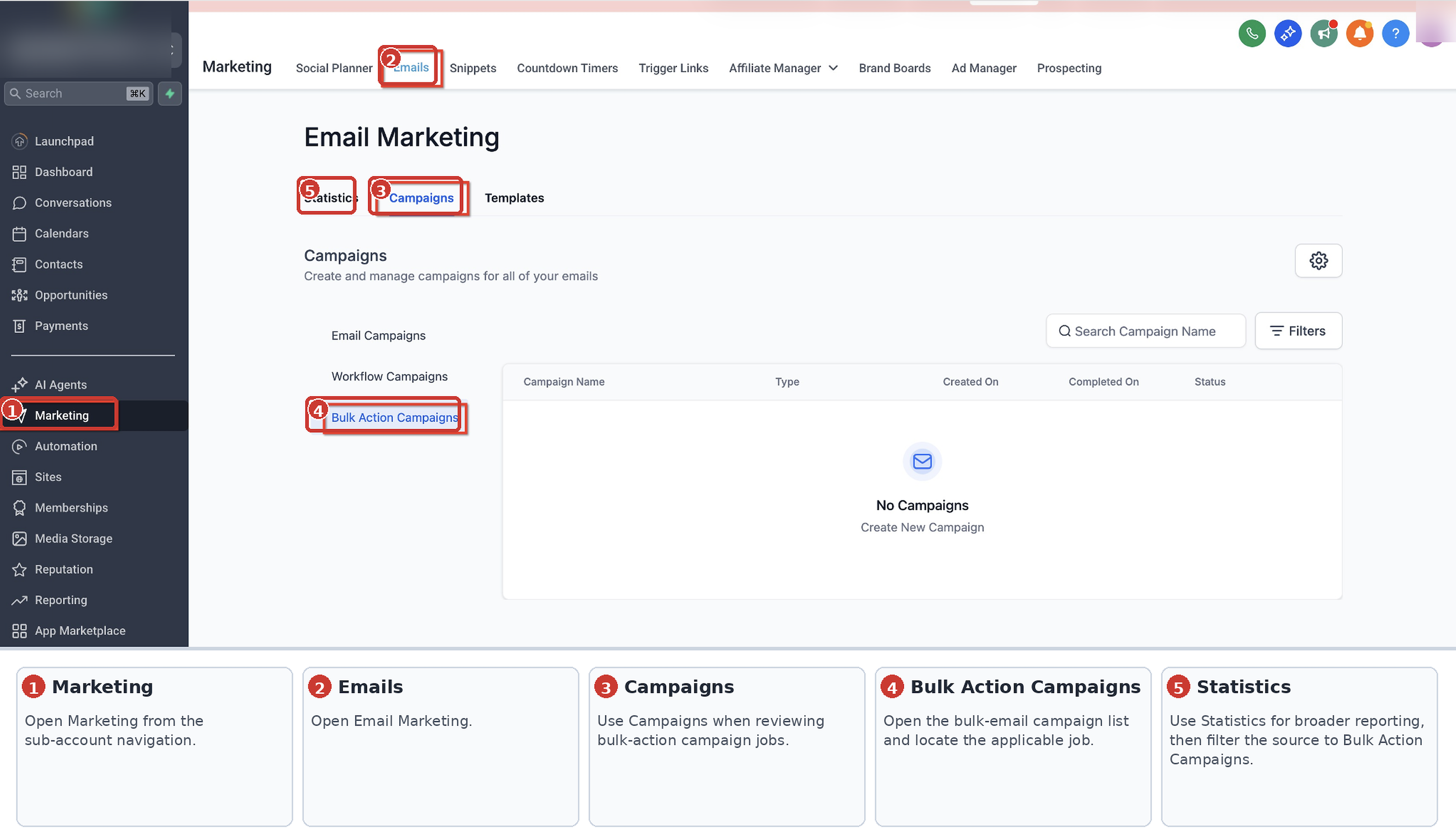
For broader reporting, go to Marketing → Emails → Statistics.
Use the available source filters, including Bulk Action Campaigns, to focus the dashboard on bulk-email activity. The unified dashboard can include reporting for Campaigns, Workflows, and Bulk Actions.
Depending on the reporting view, available metrics may include delivered, opened, clicked, bounced, failed, and skipped emails.
Frequently Asked Questions
Q: Why is the eligible-recipient count lower than the number of contacts I selected?
Invalid email addresses, unsubscribed contacts, and applicable email-sending restrictions such as DND can reduce the number of contacts eligible to receive the bulk email.
Q: Does changing the Contact label to Leads or Clients affect email delivery?
No. A configured object label changes the terminology displayed in the interface. It does not change the underlying recipient-selection, filtering, or email-sending process.
Q: Are Quick Compose and the Plain Text Editor the same?
No. Quick Compose is a separate lightweight composition option. The Plain Text Editor is one of the editing modes available through Smart Builder.
Q: Will contacts added to a Smart List later automatically receive an already scheduled bulk email?
Contacts bulk actions and scheduled Email Campaigns use different sending processes. Review your selected audience when scheduling a bulk email, and do not assume that later Smart List changes will automatically update an existing bulk action.
Q: Can I pause or cancel a bulk email after submitting it?
Available controls depend on the bulk job's type and current status. Review the applicable job under Contacts → Bulk Actions for any available controls. Emails that have already been processed cannot be recalled.
Q: Can I send bulk email from Company or Custom Object records?
Yes. HighLevel also supports bulk email to associated contacts from supported Company and Custom Object records. See Send Bulk Email to Associated Contacts for the separate workflow.
Related Articles
Was this article helpful?
That’s Great!
Thank you for your feedback
Sorry! We couldn't be helpful
Thank you for your feedback
Feedback sent
We appreciate your effort and will try to fix the article