The SMS Restriction History dashboard gives you transparent visibility into any warnings or temporary restrictions applied to SMS sending in a sub-account.
It helps you understand what happened, when, and why, so you can quickly correct issues and keep messaging compliant.
What is SMS Restriction History?
The SMS Restriction History dashboard provides businesses with a transparent way to track and manage their SMS sending activities. Logging warnings and restrictions helps you stay compliant with carrier guidelines and avoid disruptions in communication.
It is a read-only log showing warnings and temporary sending restrictions triggered by carrier- or policy-driven thresholds. Typical causes include:
- Daily / weekly sending limit violations
- High opt-out rate
- High delivery error rate (including carrier filtering such as Error 30007)
If a campaign generates a 6% opt-out rate — above the 2–3% target you should stay under — the sub-account may receive a temporary restriction. The log captures the date, time, and additional details so you can investigate and avoid repeats.
Where to find the SMS Restriction Log
Navigate to Location → Settings → Phone system → Messaging. In the far-right tab, click Restriction History to view events for the sub-account.
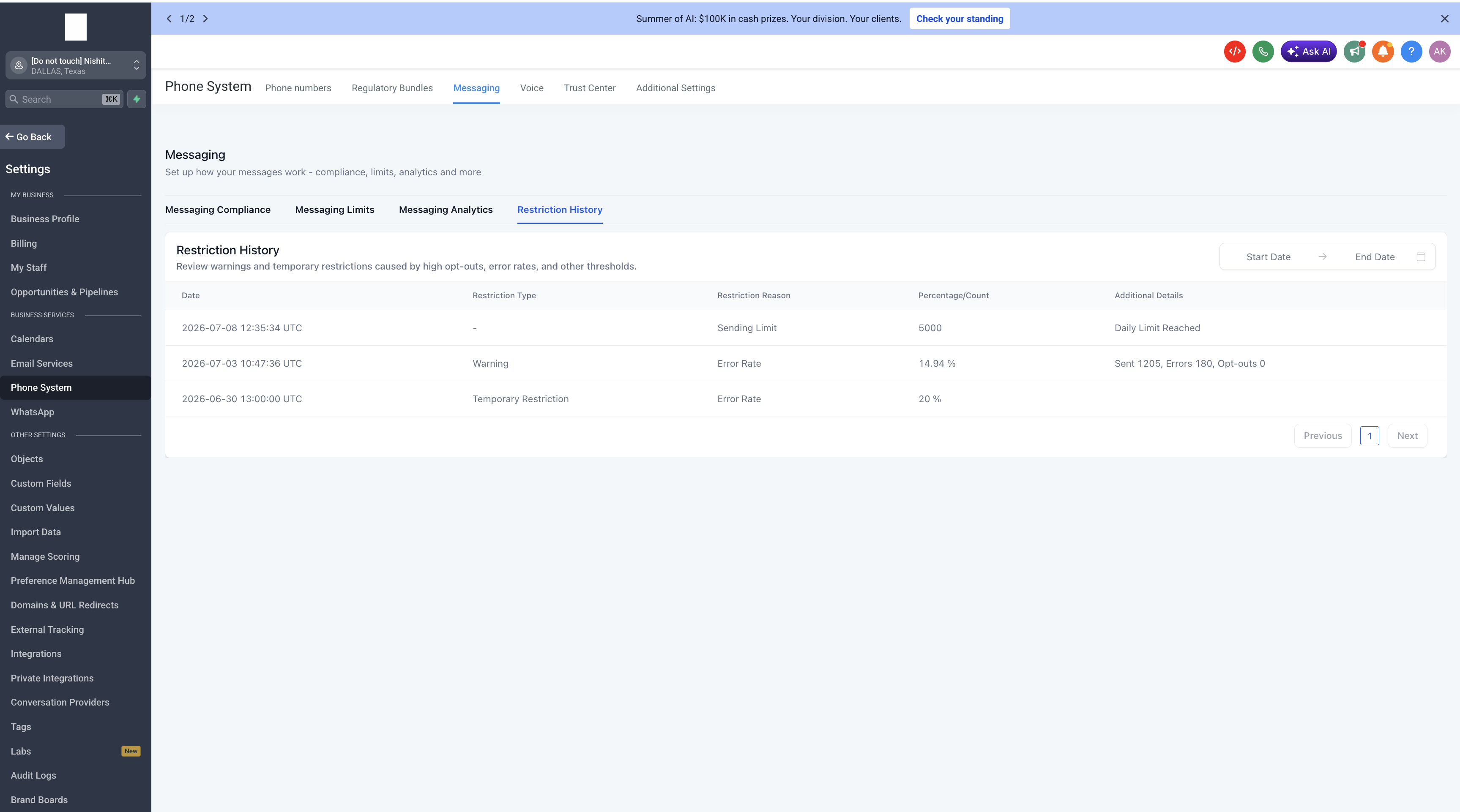
On the right-hand side of the table, there are Start Date and End Date filters, allowing you to view restriction history for a specific time period.
The pagination control at the bottom ensures you can navigate through multiple pages of restriction records.
Using the Restriction Log
The table lists each restriction event with:
- Date — when the warning or restriction occurred
- Restriction Type — Warning or Temporary Restriction
- Restriction Reason — e.g., Opt-out rate exceeded threshold
- Percentage / Count — the measured value at the time (e.g., opt-out %)
- Additional Details — related metrics such as Error Rate
The restriction history is shown in UTC.
Threshold guidance
| Metric | Good | Target | Lockout (24 hours) |
|---|---|---|---|
| Opt-out rate | 0–1% | Stay below 2–3% | At 3% |
| Delivery error rate | 0–6% | Keep under 10% | At 10% |
After a lockout, review recent sends, content, list hygiene, and compliance settings before resuming.
What are the error and opt-out rates good for having a threshold?
A high opt-out rate indicates that contacts receiving your messages have objected, generated complaints, or marked your SMS as spam. A good opt-out rate is typically in the range of 0–1%. Once the opt-out rate hits 3%, the sub-account will be locked for sending text messages for 24 hours.
A high delivery error rate indicates that you are sending SMS to contacts that are no longer in service, are unreachable, or use a non-SMS-capable device such as a landline. This may also mean that external carrier filters are refusing to deliver your SMS due to bad sending behavior in the past. A good error rate is typically in the range of 0–6%. Once the error rate hits 10%, the sub-account will be locked for sending text messages for 24 hours.
Frequently Asked Questions
Was this article helpful?
That’s Great!
Thank you for your feedback
Sorry! We couldn't be helpful
Thank you for your feedback
Feedback sent
We appreciate your effort and will try to fix the article