Mobile View Controls in HighLevel Email Builder let you customize how emails appear on mobile without changing their desktop designs. Adjust spacing, button typography, media sizing, and social icons using supported mobile styling settings. Mobile styles inherit desktop values unless you override them. This guide explains how to customize, preview, and test mobile-friendly emails.
TABLE OF CONTENTS
- What Are Mobile View Controls in Email Builder?
- Key Benefits of Mobile View Controls
- Prerequisites and Limitations
- How Desktop and Mobile Styles Work Together
- Mobile Formatting Settings
- Mobile Override Toggles
- Mobile Formatting vs. Device Visibility
- Layout Visibility for Mobile and Desktop
- Email Client and Media Query Limitations
- Responsive Design Best Practices
- How to Set Up Mobile View Controls in Email Builder
- How to Preview and Test Mobile Emails
- Frequently Asked Questions
- Related Articles
What Are Mobile View Controls in Email Builder?
Mobile View Controls allow supported sections and elements in HighLevel Email Builder to use styling that differs from their desktop appearance. You can switch between Desktop and Mobile within supported styling settings to customize layout spacing, button appearance, images, logos, videos, and social icons.
Mobile styling inherits desktop settings by default. Only settings that you explicitly override use separate mobile values.
Key Benefits of Mobile View Controls
Mobile View Controls help you improve how emails appear on smaller screens while preserving the desktop design.
- Independent mobile styling: Adjust supported mobile settings without changing desktop styles.
- Flexible layout spacing: Customize padding and margins for supported sections and elements.
- Better mobile buttons: Adjust alignment, full-width behavior, spacing, and button typography.
- Responsive media: Customize supported image, logo, and video alignment and dimensions.
- Social icon controls: Adjust icon alignment, size, and spacing for supported Social elements.
- Backward compatibility: Existing email designs retain their current appearance until mobile-specific styles are changed.
Prerequisites and Limitations
Start with an email template or campaign in HighLevel's Design Editor. Mobile controls appear in supported styling sections, and the options available depend on the selected element.
- Mobile styles inherit desktop values until you change them.
- Not every mobile setting is available on every element.
- Existing templates and campaigns retain their current appearance unless you update their mobile-specific styling.
- Some email clients may display default styling instead of certain mobile overrides.
- Mobile Formatting changes how content looks. Device Visibility separately controls whether the content appears.
Note: Available Mobile View Controls vary by section and element. Review the styling options available for the content you are editing.
How Desktop and Mobile Styles Work Together
Desktop styling provides the default appearance of an email. Supported Mobile View Controls let you override individual settings for smaller screens.
- No mobile override: The setting continues using its inherited desktop or default value.
- Mobile override applied: The selected setting uses its mobile-specific value in supported email clients.
- Desktop styling: Applying a mobile-only change does not alter the desktop design.
For example, you can keep a button at its regular desktop width while making the same button full-width on mobile.
This lets you maintain one email design while adjusting selected presentation details for smaller screens.
Mobile Formatting Settings
Different sections and elements provide different Mobile View Controls. Select the content you want to edit and review its supported styling settings.
Layout and Spacing
Customize mobile padding and margins for supported sections and content elements. These settings help create appropriate spacing on smaller screens without changing the desktop layout.
Reducing unnecessary horizontal spacing can help content fit narrow screens more naturally.
Button Styling
Supported mobile button controls can include:
- Alignment
- Full-width behavior
- Spacing and padding
- Font size
- Font weight
- Font style
- Text decoration
Use these controls to keep calls to action readable and easy to tap on smaller screens.
Images, Logos, and Videos
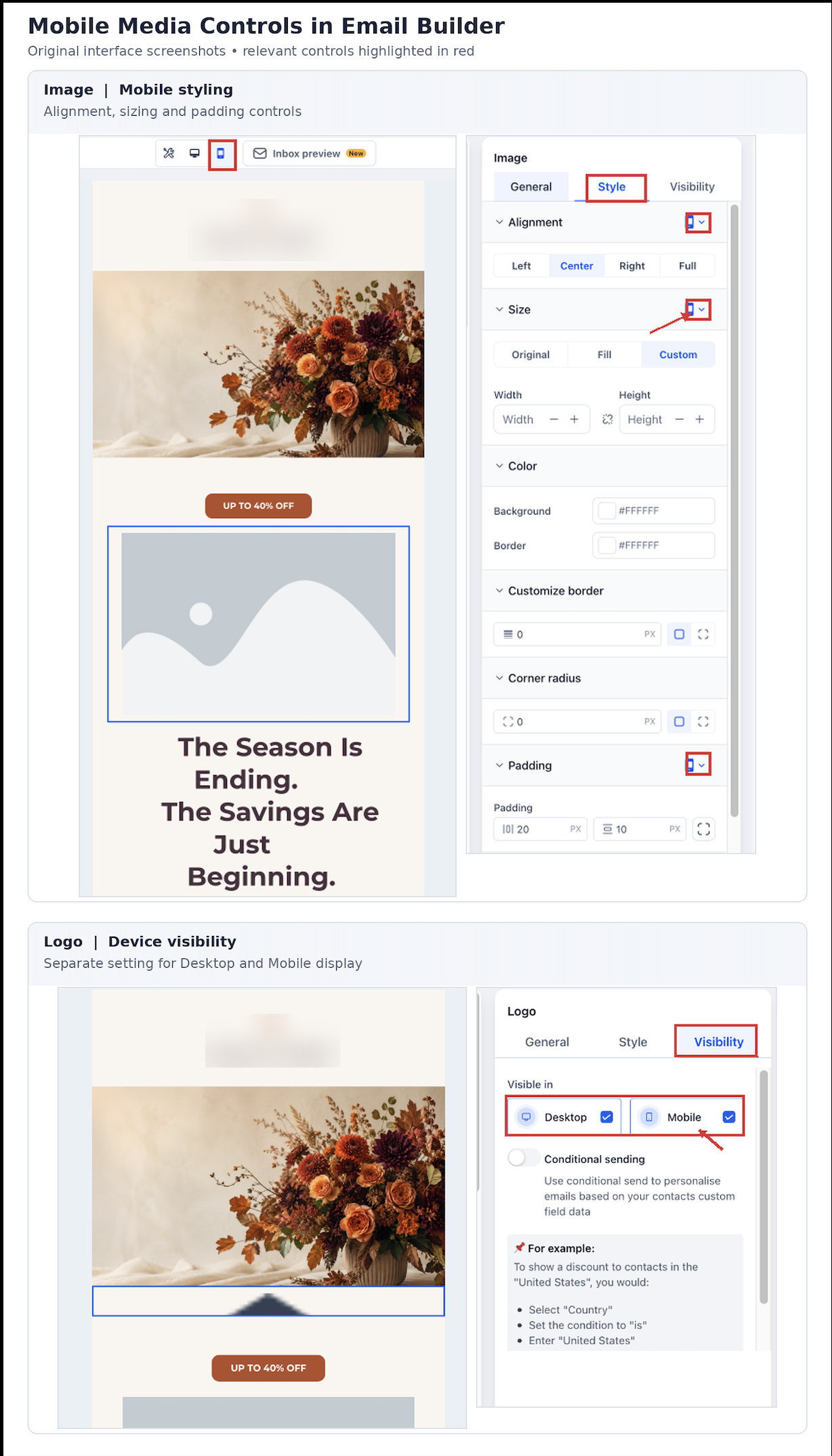
Supported mobile media controls let you adjust alignment, dimensions, and padding for images, logos, and videos independently from their desktop styling.
Automatic aspect-ratio locking helps preserve image and video proportions during supported resizing.
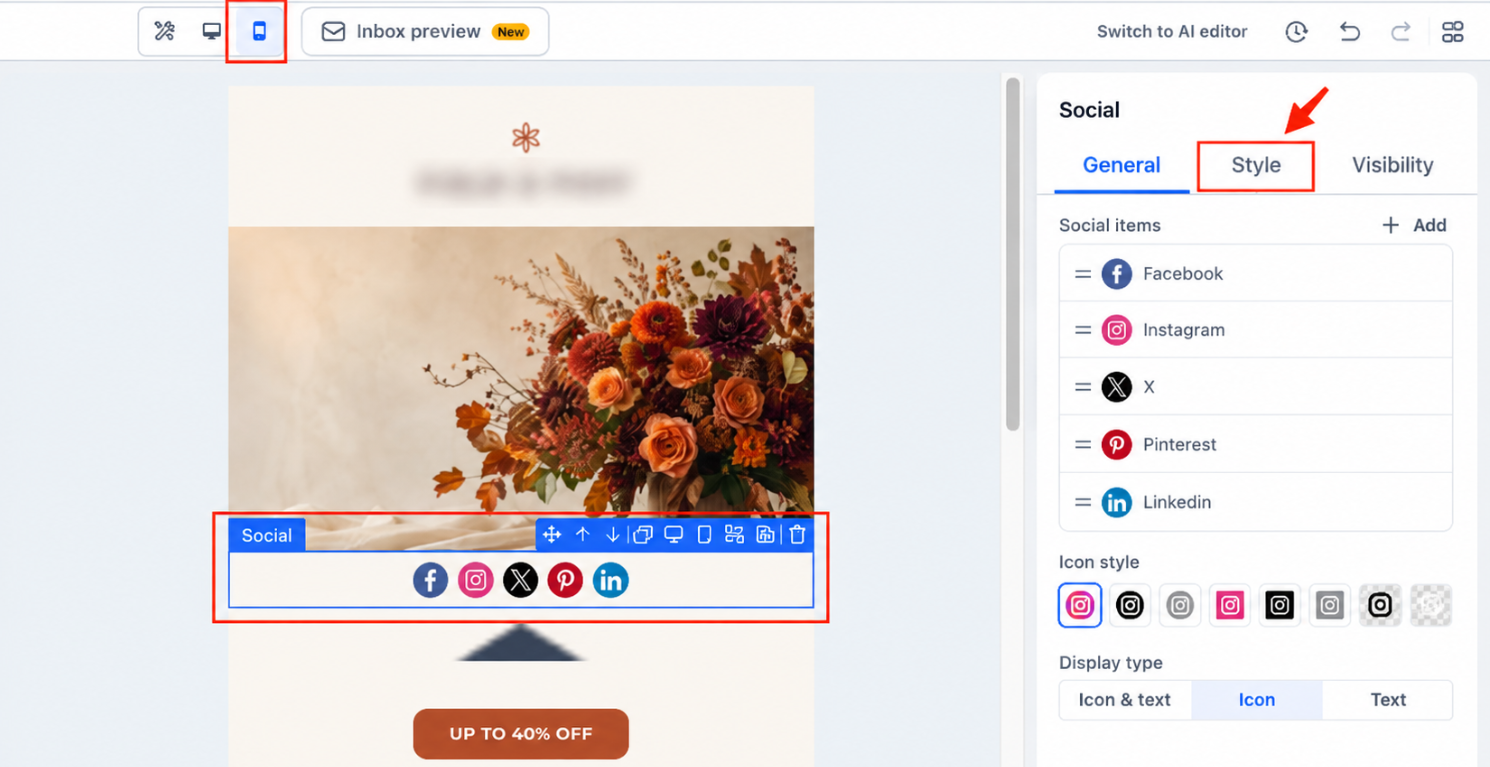
Social Icons
Supported Social elements let you customize mobile-specific:
- Alignment
- Icon size
- Spacing between icons
Mobile Override Toggles
Some mobile settings require an override toggle before they use a separate value. When an override is disabled, the setting inherits its desktop or default value.
Enable the relevant mobile override when available, enter the mobile-specific value, and review the result before saving.
For example, if a desktop heading uses its default font size and the mobile override remains disabled, the mobile version continues using that inherited value. When the mobile font-size override is enabled, you can specify a different size for supported mobile email clients.
Mobile Formatting vs. Device Visibility
Mobile Formatting changes how content looks, while Device Visibility controls whether the content appears at all. These features solve different mobile-design problems.
Use Mobile Formatting when you want to:
- Change font size.
- Adjust alignment.
- Modify spacing.
- Restyle a supported element on mobile.
Use Device Visibility when you want to:
- Hide an element on mobile.
- Show an element only on mobile.
- Hide desktop-only content.
- Create separate desktop and mobile content blocks.
For example, if a large image should not appear on mobile at all, use visibility controls instead of trying to solve the issue only through Mobile Formatting.
Layout Visibility for Mobile and Desktop
HighLevel also supports device-based visibility for entire email layouts. This is useful when a complete section should appear differently—or not appear at all—on mobile.
Layout-level visibility can be useful when:
- A desktop section has a complex multi-column design.
- A simplified mobile section is easier to read.
- Separate desktop and mobile content versions are needed.
- An entire promotional block should be hidden for one device type.
This gives you three levels of mobile control:
- Mobile Formatting for style overrides.
- Element Visibility for individual content elements.
- Layout Visibility for entire layout blocks.
Email Client and Media Query Limitations
Mobile-specific email styling depends on responsive-email support. Some mobile formatting settings use media queries, which are not handled consistently by every email client.
This means:
- Supported clients can display your mobile overrides.
- Unsupported clients may use the default or base styling instead.
- Preview behavior may not exactly match the received email.
Your default email design should remain readable and usable even if a mobile-specific override is ignored.
Important: Do not rely on a mobile override to fix a critical layout problem that would make the email unusable if the receiving email client ignores that override.
Responsive Design Best Practices
Mobile optimization works best when the entire email is designed with narrow screens in mind, not only the typography.
- Keep body text readable without zooming.
- Avoid very long lines of text.
- Use clear spacing between sections.
- Keep buttons large enough to tap comfortably.
- Avoid overcrowding multiple calls to action in a small area.
- Make sure images scale appropriately.
- Review multi-column sections carefully.
- Use simpler mobile layouts when needed.
- Keep important information near the top of the email.
HighLevel email elements are responsive by default, so use mobile overrides where they meaningfully improve the design.
How to Set Up Mobile View Controls in Email Builder
Customize the desktop design first, then apply mobile-only styling where needed. You can use Mobile View Controls with supported sections and elements in existing or new email templates and campaigns.
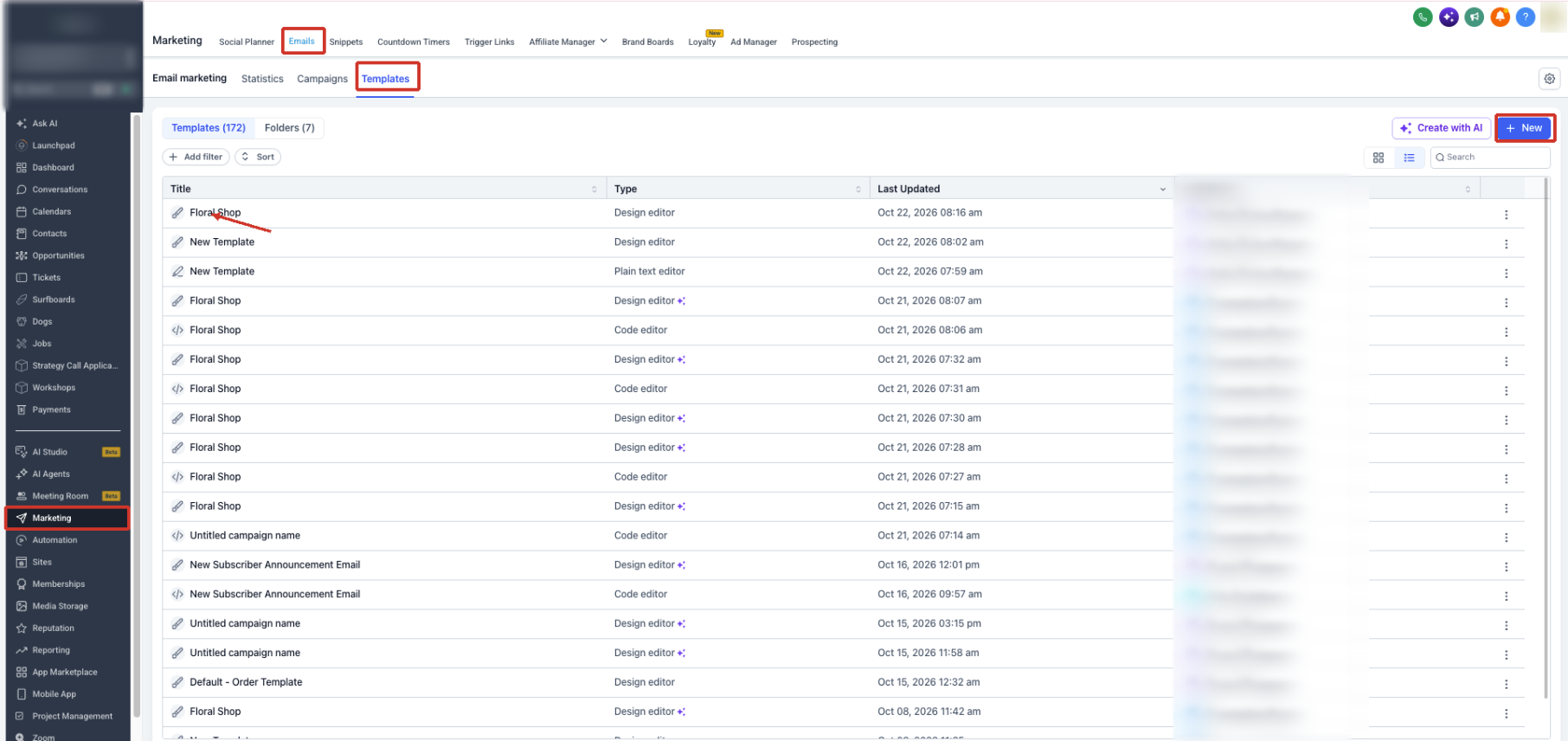
Step 1: Open Email Builder
- From your HighLevel Sub-Account, select Marketing.
- Select Emails.
- Open Templates or Campaigns.
- Open an existing email or create a new one.
- Continue to the Design Editor.
Step 2: Select Desktop or Mobile Styling
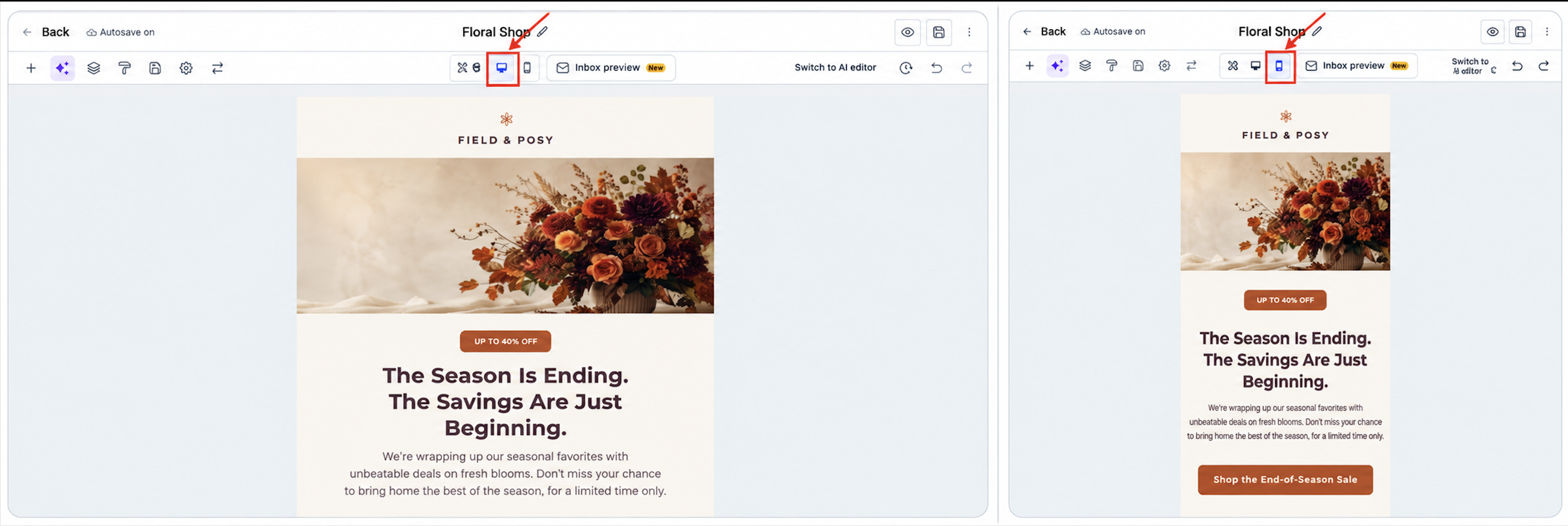
Supported sections and elements provide Desktop and Mobile styling options so you can adjust the mobile appearance independently.
- Select the section or element you want to customize.
- Open its available styling settings.
- Locate the Desktop and Mobile options where available.
- Select Mobile.
- Enable the corresponding mobile override when required.
- Enter the mobile-specific styling values.
- Return to Desktop to confirm that the original desktop design remains unchanged.
Optional: Adjust Mobile Text Formatting
The Appearance area also provides supported default Mobile Formatting controls. These typography settings help keep headings and body text readable on smaller screens.
- In the Email Builder, select Appearance.
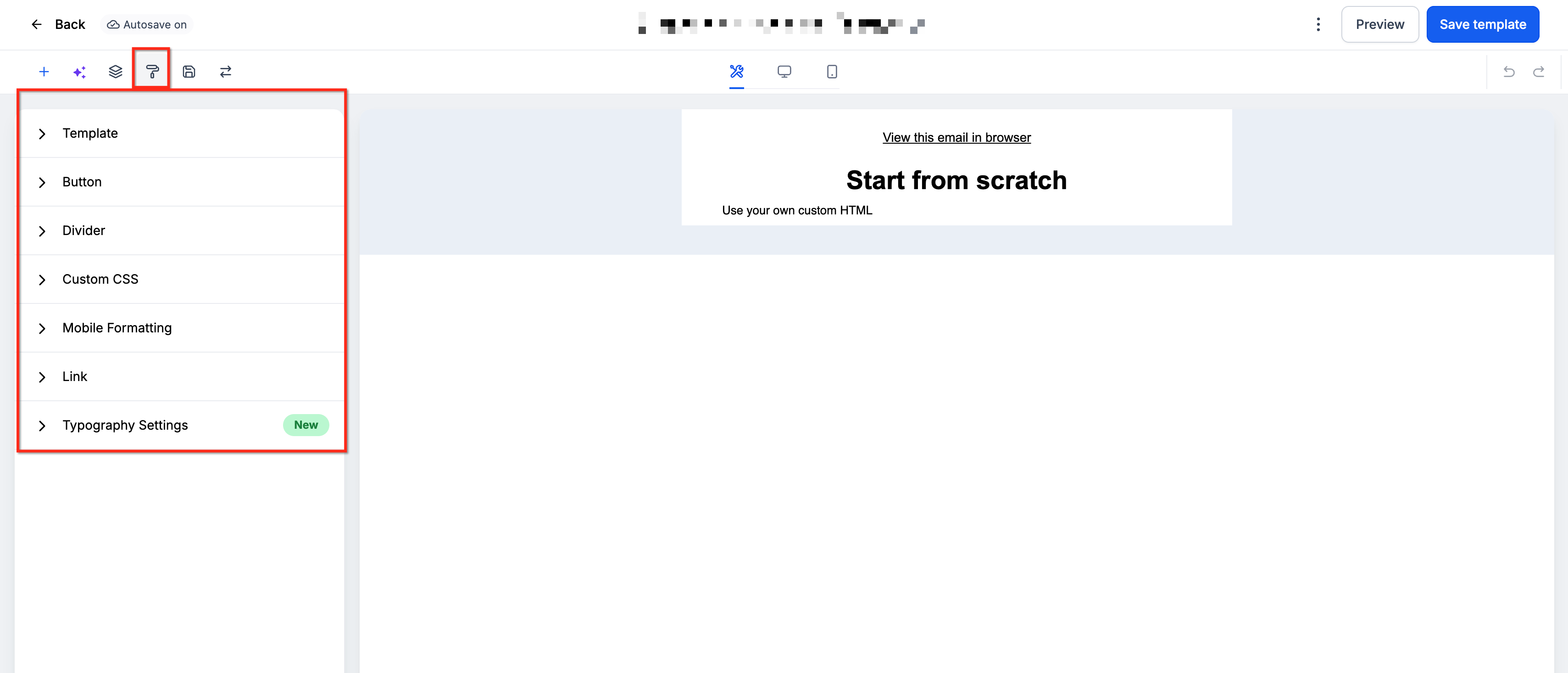
- Locate Mobile Formatting.
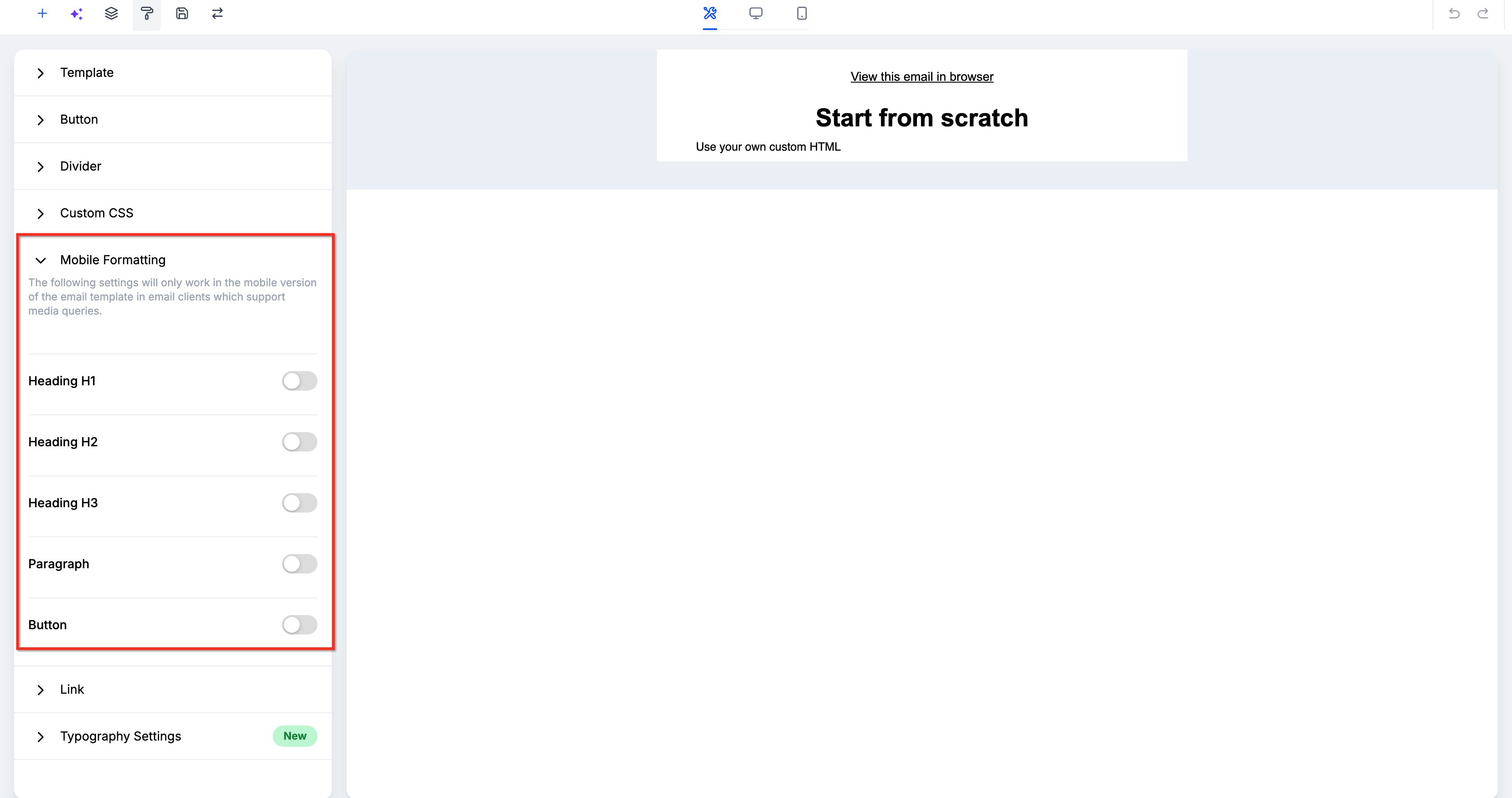
- Review the available text formatting controls.
- Enable the relevant mobile override when required.
- Adjust supported font size, line height, or alignment settings.
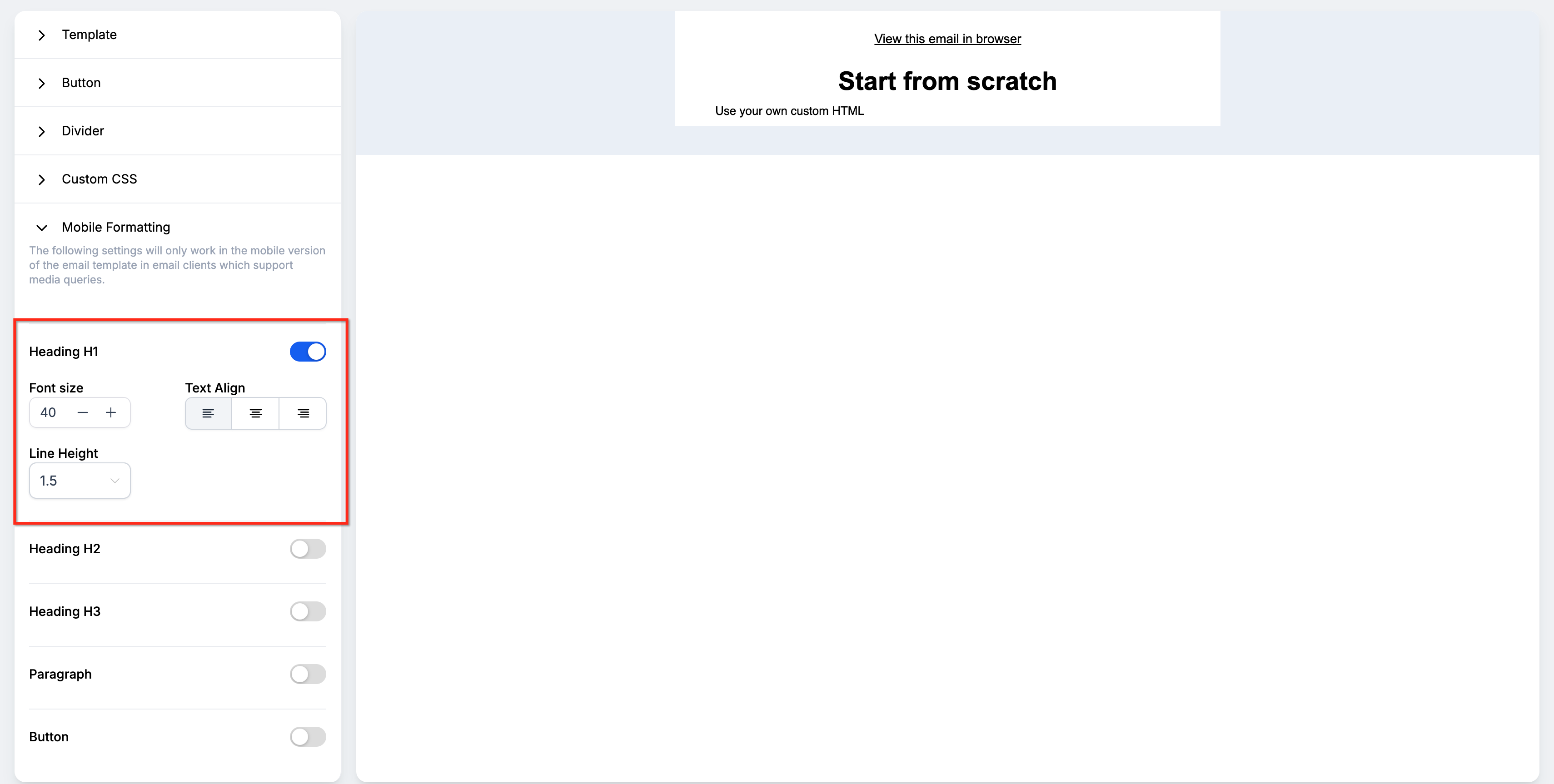
- Open the mobile preview to review the result.
- Check the desktop version before saving.
Step 3: Adjust Mobile Padding and Margins
Separate mobile spacing can improve readability when desktop spacing is too wide for a smaller screen.
- Select the section or supported element you want to adjust.
- Open the Style settings.
- Expand Margin & padding.
- Open the device selector and select Mobile.
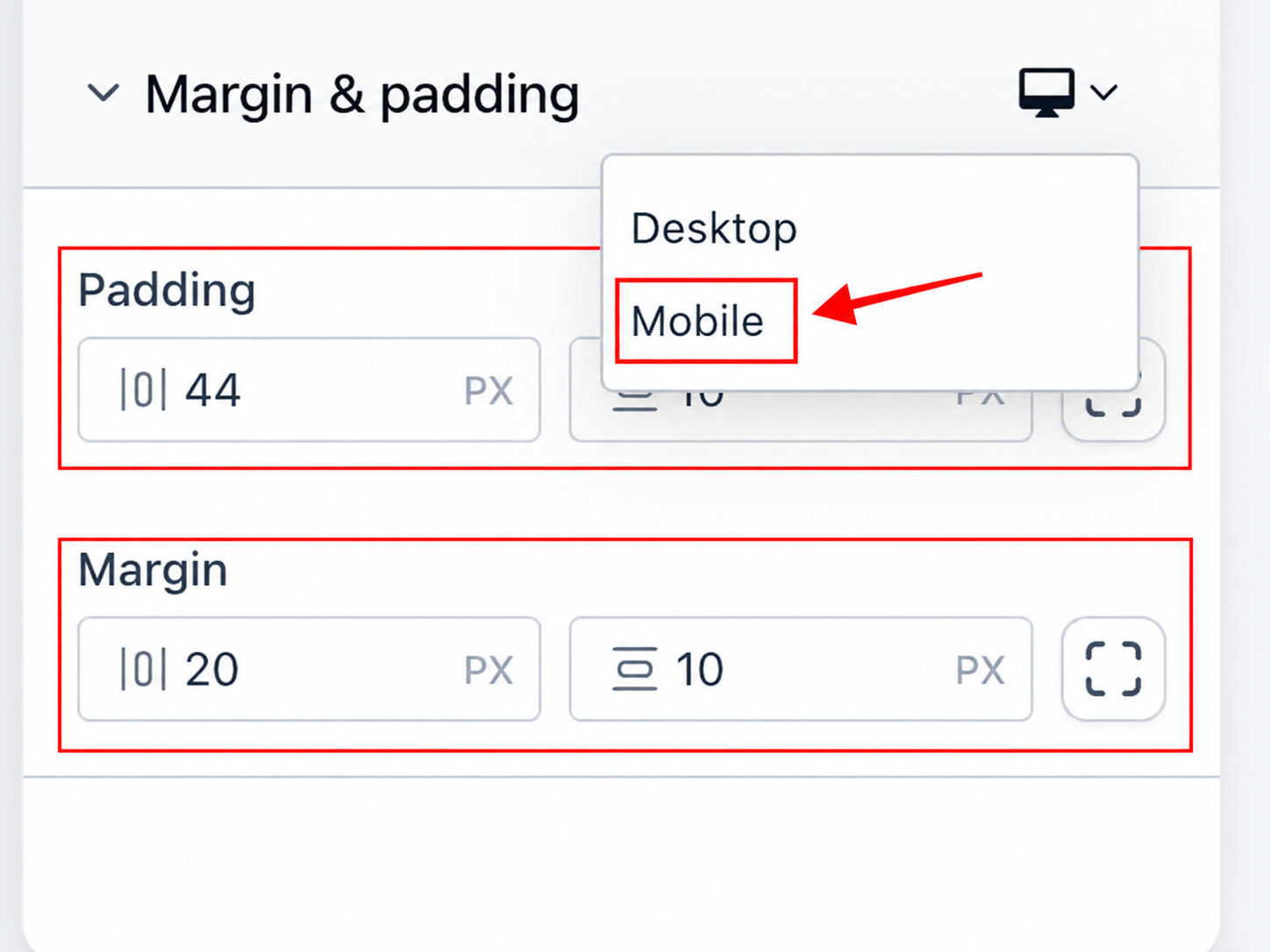
- Adjust the available Padding values.
- Adjust the available Margin values.
- Review the spacing in Mobile view.
- Switch back to Desktop to confirm that the original desktop spacing remains unchanged.
Step 4: Customize Buttons for Mobile
Mobile button styling helps create readable and accessible calls to action on smaller screens without changing the desktop button design.
- Select the Button element in the email.
- Open the Style tab.
- Expand Alignment.
- Open the device selector and select Mobile.
- Choose the supported mobile alignment.
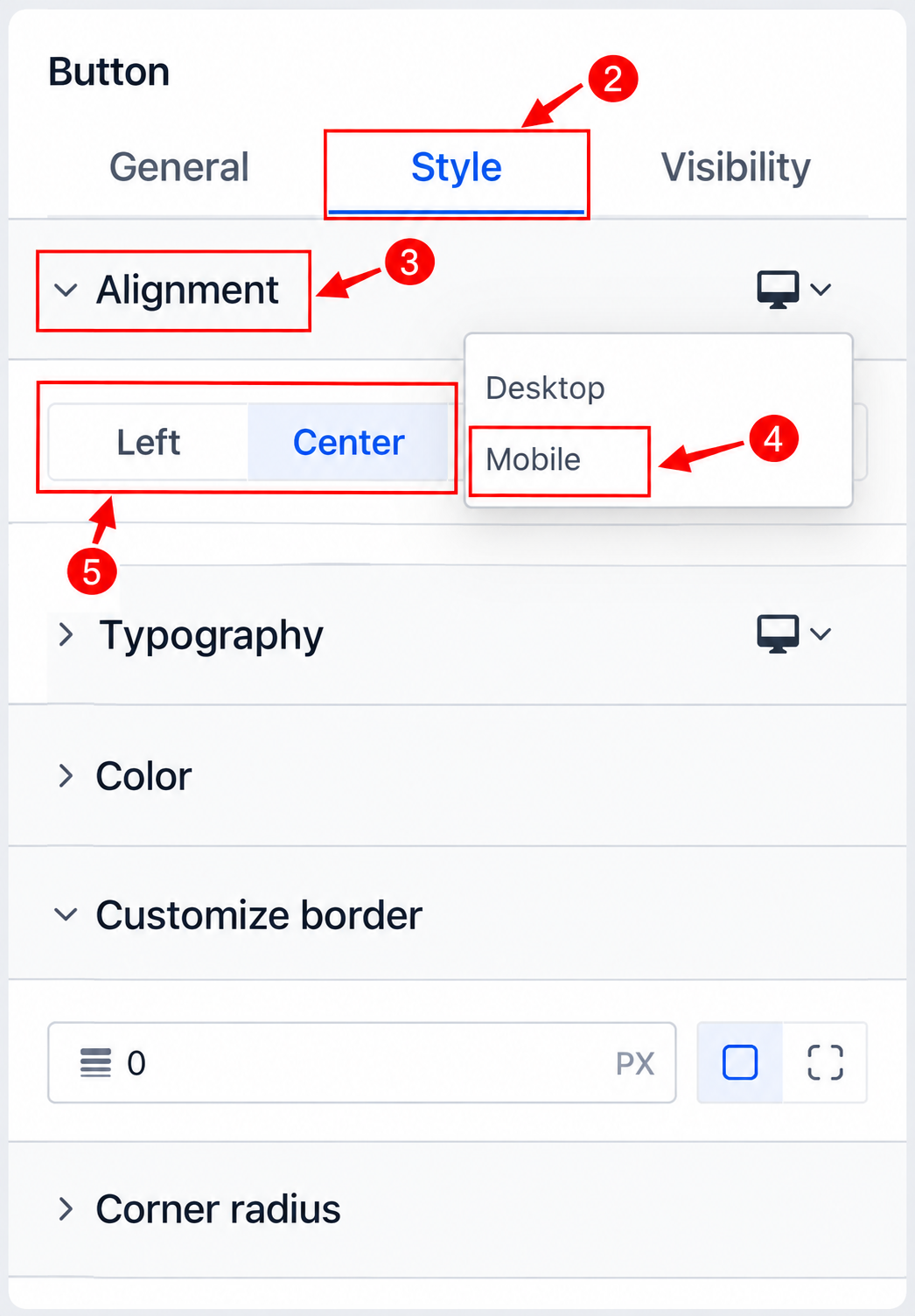
Button typography can also be customized independently for mobile.
- Expand Typography.
- Open the device selector and select Mobile.
- Adjust the available typography settings, such as:
- Font
- Size
- Bold
- Italic
- Underline
- Font
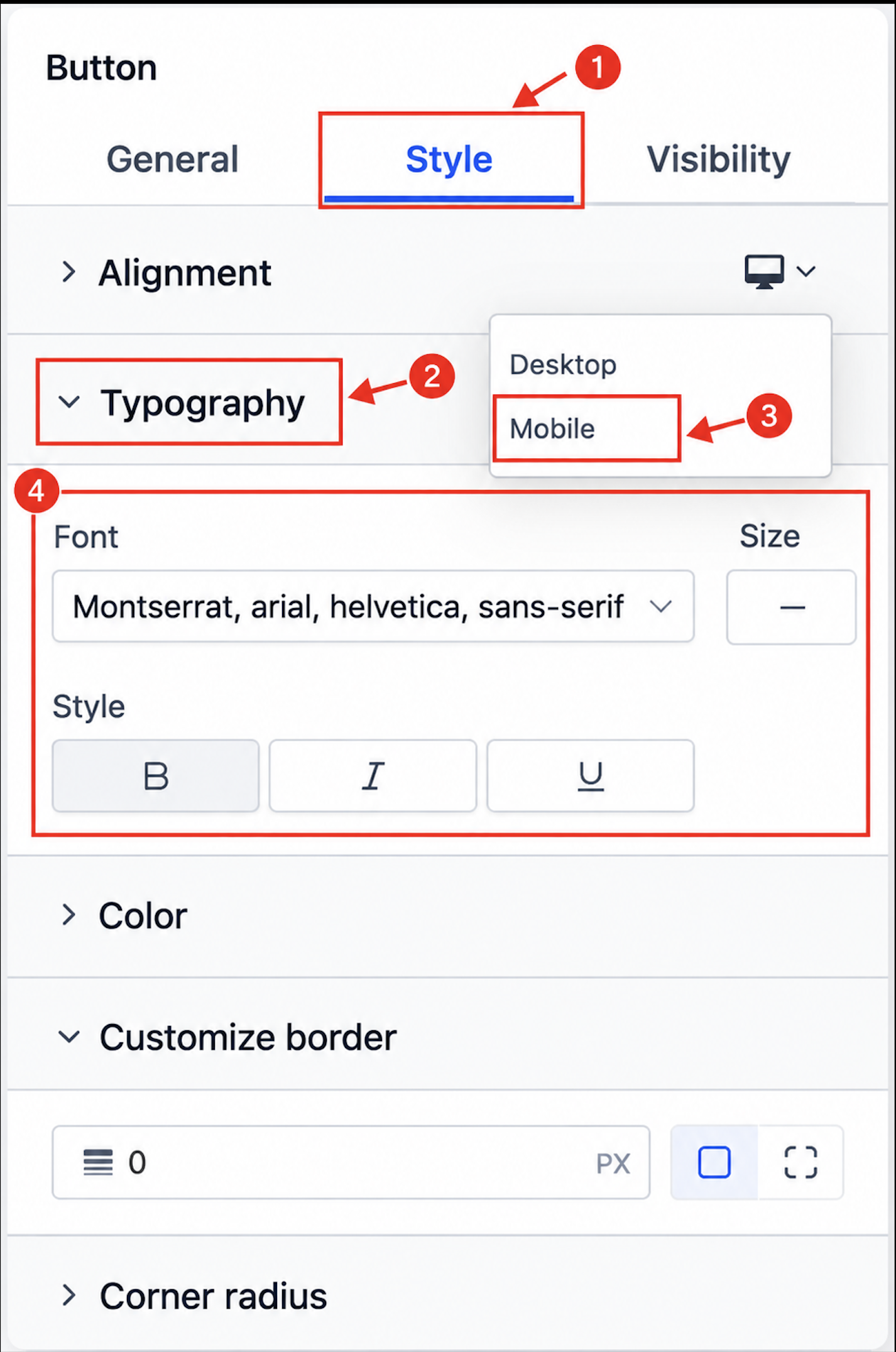
- Adjust any other supported mobile button settings, such as spacing, padding, or full-width behavior, where available.
- Review the button in both Mobile and Desktop views.
Step 5: Adjust Images, Logos, and Videos
Mobile media controls let you adjust the positioning and dimensions of supported visual elements without changing their desktop settings.
- Select an Image, Logo, or Video element.
- Open its styling settings.
- Select Mobile, where available.
- Adjust the supported alignment.
- Adjust the available dimensions.
- Update the available padding settings.
- Review the media in both Mobile and Desktop views.
Automatic aspect-ratio locking helps maintain image and video proportions during supported resizing.
Step 6: Customize Social Icons
Social icon controls help keep profile links balanced and readable on mobile devices.
- Select the Social element.
- Open its styling settings.
- Select Mobile, where available.
- Adjust the icon alignment.
- Change the supported icon size.
- Adjust the spacing between icons.
- Review the Social element in both Mobile and Desktop views.
Step 7: Save Your Changes
After applying mobile-specific styles, review both Desktop and Mobile views to confirm the layouts appear as intended.
- Review the mobile design.
- Switch to Desktop and confirm its styling remains unchanged.
- Save your email using the editor's available save control.
- Continue to Preview and Test before sending.
How to Preview and Test Mobile Emails
Previewing helps you identify visual issues inside the builder, while a test send shows you how the email behaves in a real inbox. Both steps are important because email clients can render responsive styles differently.
Preview the Mobile Version
- From your HighLevel Sub-Account, select Marketing.
- Select Emails.
- Open Templates or Campaigns.
- Open the email in the Design Editor.
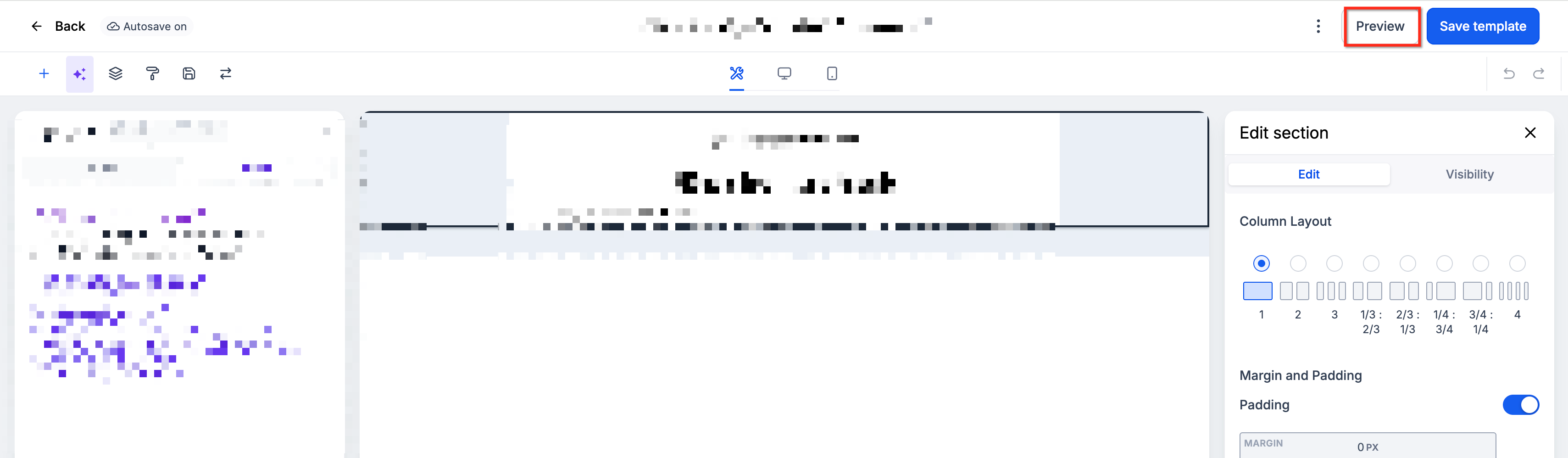
- Click Preview in the upper-right corner.
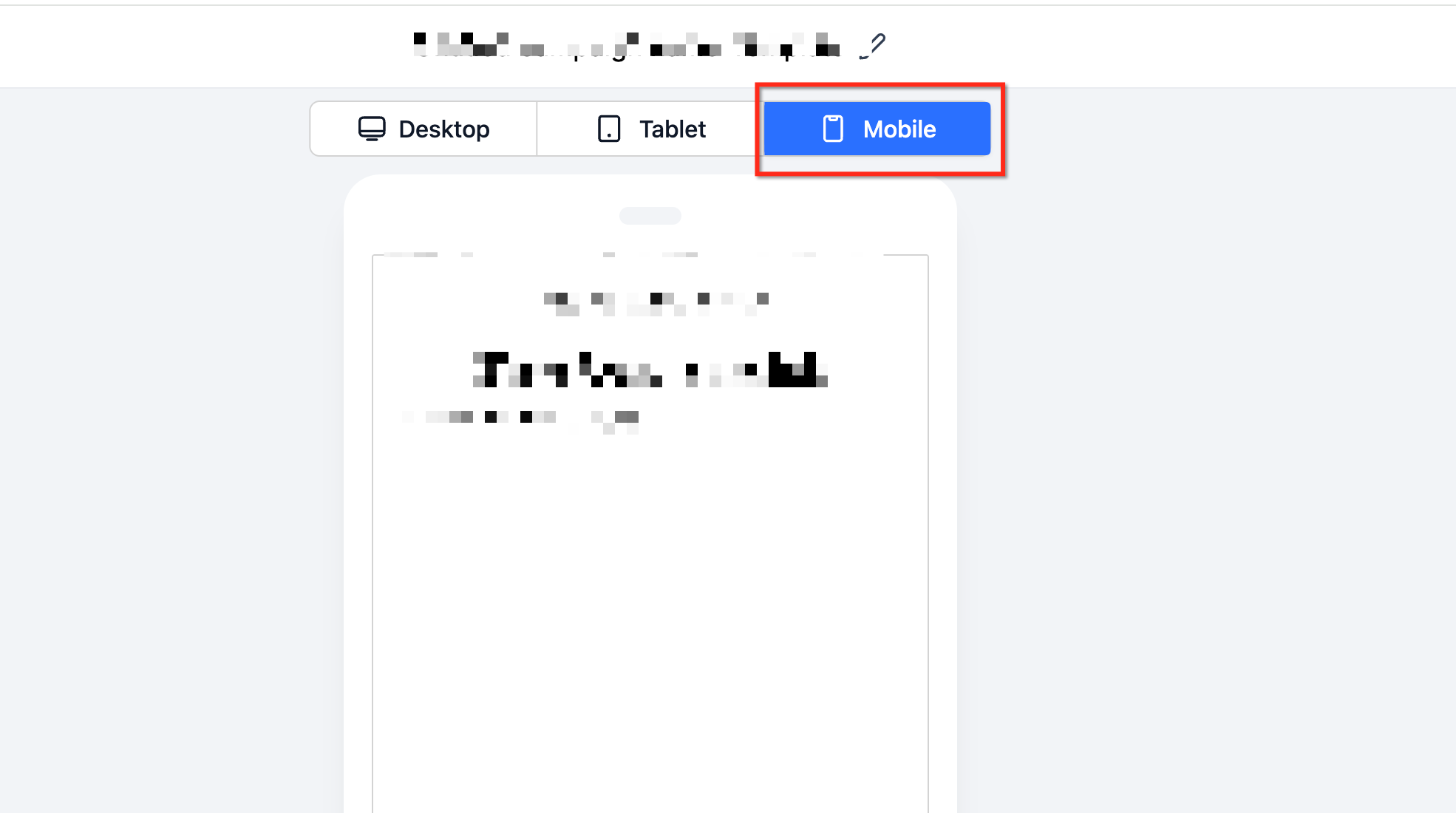
- Select Mobile from the device preview options.
- Review spacing, text, buttons, images, videos, and social icons.
- Switch to Desktop to check the original design.
What to Check in Mobile Preview
- Section padding and margins
- Button alignment, width, and text readability
- Image and video dimensions and proportions
- Logo size and alignment
- Social icon alignment, size, and spacing
- Heading and body-text sizing
- Line wrapping and spacing between elements
- Image scaling
- Hidden and visible content
- Desktop styling after mobile overrides are applied
Send a Test Email
- In the Design Editor, locate Preview.
- Click the three-dot menu beside Preview.
- Select Test Email.
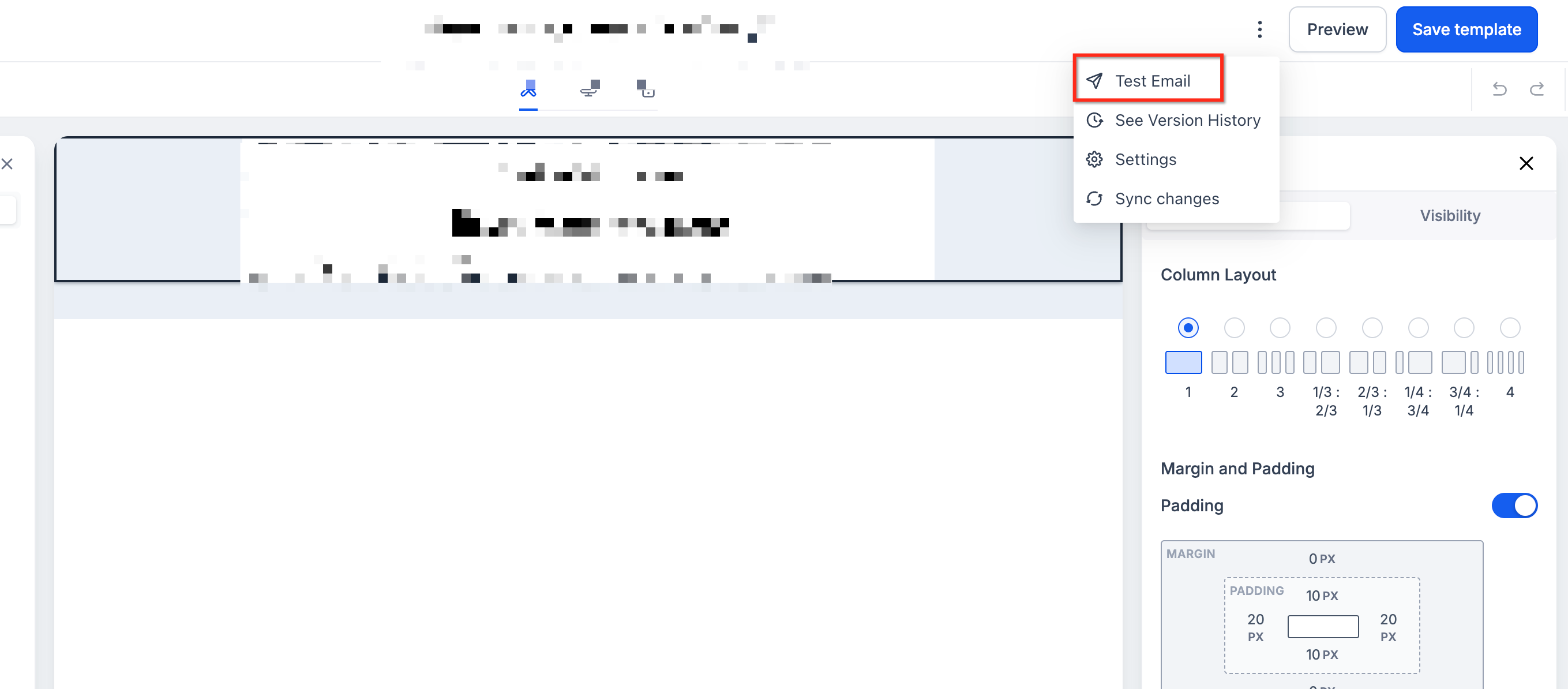
- Complete the Sender Email, Sender Name, Receiver Email, Preview Text, and Email Subject fields.
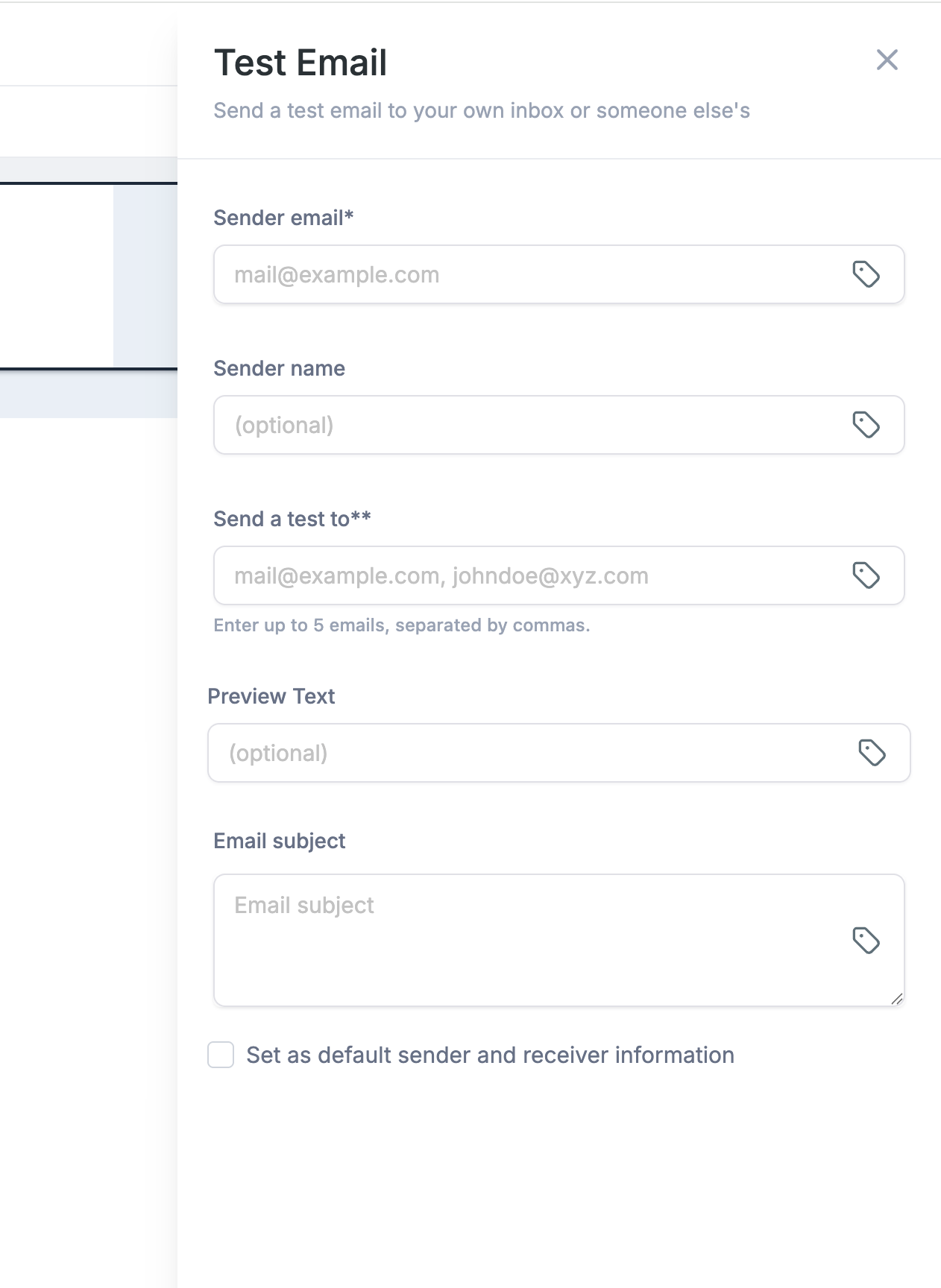
- Click Send Test Email.
- Open the received email in a real inbox.
- Review its appearance on the devices and email clients most relevant to your audience.
Recommended: Use both the builder preview and a real test email. Responsive styling can render differently across email clients.
Frequently Asked Questions
Q: Why is my mobile font size not changing?
Confirm that the supported mobile font-size override is enabled. Mobile-specific styling can also depend on the receiving email client's support for responsive CSS and media queries.
Q: Do mobile settings affect the desktop version?
No. Mobile-specific overrides are designed to change the mobile appearance while leaving the desktop or default styling unchanged.
Q: Can I make a button full-width on mobile only?
Yes. Supported mobile Button controls let you apply full-width styling without changing the desktop button design.
Q: Can I style social icons differently on mobile?
Yes. Supported Social elements provide mobile-specific alignment, icon size, and spacing controls.
Q: Will existing templates or campaigns change automatically?
No. Existing emails retain their current appearance unless you update their mobile-specific styling.
Q: Does resizing an image or video change its proportions?
Automatic aspect-ratio locking helps maintain image and video proportions during supported resizing.
Q: Why does my received email look different from the mobile preview?
Email clients use different rendering engines and can handle responsive CSS differently. Always send a test email to confirm the actual inbox experience.
Related Articles
Was this article helpful?
That’s Great!
Thank you for your feedback
Sorry! We couldn't be helpful
Thank you for your feedback
Feedback sent
We appreciate your effort and will try to fix the article