Custom fonts can help your emails better match your brand, but font support varies across email clients. HighLevel provides native options for adding Google Fonts and using Brand Board fonts, while advanced users can use custom HTML or CSS when necessary. Because some email clients may replace unsupported fonts with a fallback, always test your email before sending.
TABLE OF CONTENTS
- What are Custom Fonts in the Email Builder?
- Key Benefits of Custom Fonts in Emails
- Choosing the Right Font Method
- Email Client Limitations and Fallback Fonts
- Using Brand Fonts Across Emails
- Using Advanced Custom HTML or CSS
- Font Hosting and Licensing Considerations
- How to Add a Google Font in the Email Builder
- Testing Custom Fonts Before Sending
- Best Practices for Using Custom Fonts
- Frequently Asked Questions
- Related Articles
What are Custom Fonts in the Email Builder?
Custom fonts let you expand beyond the standard typography available in the Email Builder and apply fonts that better match your brand or campaign design.
HighLevel provides several ways to manage email typography:
Built-in fonts: Fonts already available in the Email Builder.
Brand Fonts: Fonts saved to the default Brand Board and made available in the Email Builder font picker.
Google Fonts: Fonts you can add directly from the Email Builder using the Add fonts option.
Advanced custom styling: Custom HTML or CSS added through the Code Element when native font options do not meet your needs. (help.gohighlevel.com)
Custom fonts should be treated as an enhancement rather than a guaranteed experience. Some email clients do not
load external fonts and will display a fallback font instead.
Key Benefits of Custom Fonts in Emails
Using brand-aligned typography can help create a more consistent visual experience while still allowing email clients to fall back to supported fonts when necessary.
Brand consistency: Use typography that matches your website, funnels, and other branded materials.
More design flexibility: Expand beyond the standard fonts available in the Email Builder.
Reusable brand styling: Access Brand Board fonts directly from the Email Builder when a default Brand Board is configured.
Native Google Font support: Add supported Google Fonts without manually writing CSS.
Fallback support: Maintain readable email content when a recipient's email client does not display the preferred font.
Choosing the Right Font Method
HighLevel offers multiple ways to manage typography in emails. Starting with the simplest supported option reduces unnecessary custom code and makes emails easier to maintain.
Built-In Fonts
Built-in fonts are the simplest option because they are available directly from the Email Builder's text formatting controls.
Use a built-in font when:
Maximum compatibility is the priority.
Exact brand typography is not required.
You want to minimize rendering differences between email clients.
Brand Board Fonts
Brand Boards let you store brand colors, fonts, and logos so they can be accessed while designing emails. Fonts from the default Brand Board appear in the Email Builder under Brand Fonts. (help.gohighlevel.com)
Brand Fonts are useful when your team wants to reuse approved typography across email templates and campaigns.
To apply a Brand Font:
Open the email in the Design Editor.
Select the text you want to customize.
Open the Font dropdown.
Select the desired font under Brand Fonts. (help.gohighlevel.com)
Google Fonts
Google Fonts can be added directly from the Email Builder without manually creating an @font-face rule.
To add a Google Font:
Open an email campaign or template in the Email Builder.
Select a text element.
Open the Font selector.
Click Add fonts.
Select the Google Font you want to add.
Click Add font.
Select the newly added font from the font dropdown. (help.gohighlevel.com)
Once added, the font becomes available in the builder's font selector. (help.gohighlevel.com)
Email Client Limitations and Fallback Fonts
Email clients do not all render custom fonts the same way. Planning for fallback behavior ensures your message remains readable even when the preferred font cannot be displayed.
HighLevel notes that Google Fonts may not work consistently in clients such as:
Gmail
Outlook on several platforms
Outlook.com
Yahoo Mail (help.gohighlevel.com)
When the preferred font is unavailable, the email client can display an alternative font instead.
For that reason, choose a fallback font that:
Has similar proportions to the preferred font.
Uses a similar weight.
Remains easy to read.
Does not significantly change the layout when substituted.
For example, a conceptual font stack could use:
Brand Font → Helvetica → Arial → sans-serif
The exact font shown to the recipient depends on what the email client supports.
Using Brand Fonts Across Emails
Brand Board fonts make it easier to keep typography consistent across multiple templates and campaigns. They are available from the Email Builder when the appropriate Brand Board is set as the default.
Only fonts from the default Brand Board appear in the Email Builder's Brand Fonts list. If the expected fonts do not appear, confirm that the correct Brand Board is set as the default. (help.gohighlevel.com)
Changing the typography saved in a Brand Board does not mean that previously designed email content will automatically be restyled. Existing text should be reviewed and updated as needed when brand typography changes.
Using Advanced Custom HTML or CSS
The Code Element provides an advanced option for adding custom HTML or CSS when the standard Email Builder controls do not support a specific design requirement. Because email clients have limited support for custom code, this approach should be used carefully.
The Code Element is a drag-and-drop element that lets advanced users add custom HTML or CSS to an email. HighLevel recommends testing any custom code before sending because rendering can differ between email clients. (help.gohighlevel.com)
To add a Code Element:
Go to Marketing > Emails > Templates.
Open an existing email template or create a new one.
Click the Add Elements (+) icon.
Drag the Code Element into the email.
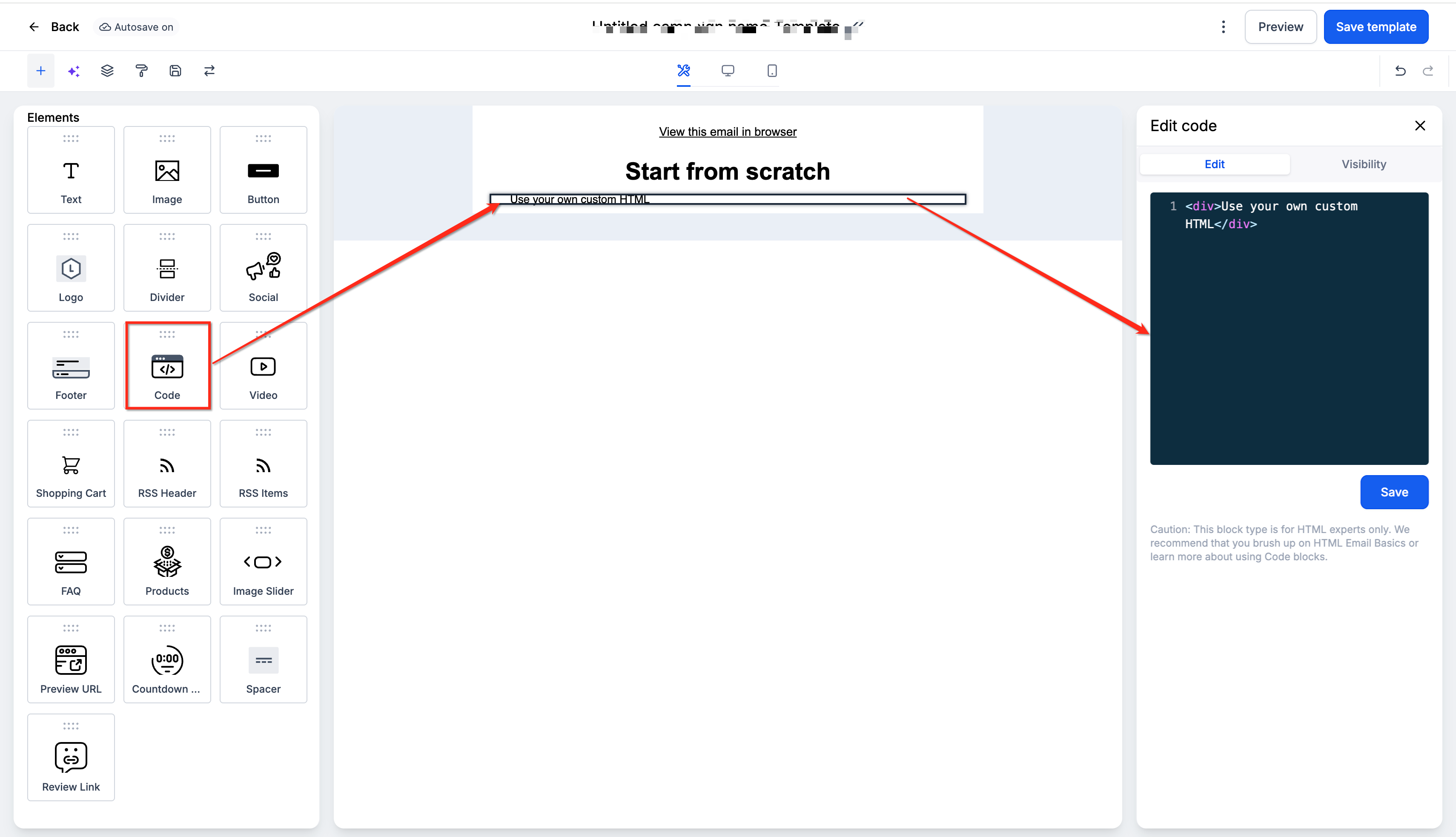
Select the element to open its editing controls.
Add the required HTML or CSS.
Preview and test the email before sending. (help.gohighlevel.com)
Custom code should be kept self-contained wherever possible so it does not unintentionally affect other email elements.
Font Hosting and Licensing Considerations
Using a custom typeface requires both technical compatibility and the appropriate rights to use the font in an email or web environment. A font that is licensed for desktop use is not necessarily licensed for web or email embedding.
Before using a non-standard font:
Review the font's license.
Confirm that your intended email or web use is permitted.
Use approved hosting methods required by the font provider.
Avoid distributing licensed font files unless the license explicitly allows it.
HighLevel's current Email Builder documentation provides native workflows for Google Fonts and Brand Fonts. Direct custom-font file upload capabilities available in other HighLevel products, such as Funnels and Websites, should not
be assumed to work the same way in the Email Builder.
How to Add a Google Font in the Email Builder
Using the native Google Fonts option is the recommended workflow when the required font is available through the Email Builder. It avoids the additional complexity of manually writing font-loading CSS.
Navigate to Marketing > Emails.
Open an existing email campaign or template, or create a new one.
Select the Text Element containing the text you want to customize.
Open the Font selector.
Click Add fonts. (help.gohighlevel.com)
Select the required Google Font from the available options.
Click Add font.
Return to the font selector and apply the font to the selected text.
Review the email in desktop and mobile preview modes.
Send a test email and confirm how the typography appears in the email clients most relevant to your audience.
Testing Custom Fonts Before Sending
Testing helps you confirm both the preferred-font experience and the fallback experience before recipients receive the campaign. Email previews are useful, but a real test send is also important because individual email clients can render HTML and CSS differently.
Before sending your campaign, verify:
The preferred font appears where supported.
Fallback text remains readable where the custom font is unavailable.
Headings do not wrap unexpectedly.
Buttons and CTA text still fit their containers.
Mobile layouts remain readable.
Font weight and size remain visually appropriate.
Custom Code Elements do not affect surrounding sections.
The email looks acceptable even when the custom font fails to load.
HighLevel recommends previewing and testing custom-code email content because email clients have varying levels of HTML and CSS support. (help.gohighlevel.com)
Best Practices for Using Custom Fonts
Custom typography works best when brand consistency is balanced with readability and email-client compatibility. A simple font strategy usually produces more predictable results.
Use built-in, Brand Board, or native Google Font options before using custom code.
Always plan for a fallback font.
Use decorative fonts primarily for headings or short text.
Keep body text easy to read.
Avoid relying on a custom font to communicate important meaning.
Test desktop and mobile layouts.
Send test emails to multiple email clients before launching important campaigns.
Keep custom CSS limited and targeted when using the Code Element.
Frequently Asked Questions
Q: Can I add Google Fonts without writing custom CSS?
Yes. Select a text element, open the Font selector, click Add fonts, choose the Google Font, and save it. The font will then be available in the builder's font selector. (help.gohighlevel.com)
Q: Why does my custom font look different in Gmail or Outlook?
Some email clients do not consistently load Google Fonts or other external fonts. In those cases, the recipient may see a fallback font instead. (help.gohighlevel.com)
Q: Can I use Brand Board fonts in email campaigns?
Yes. Fonts from the default Brand Board are available from the Email Builder under Brand Fonts. (help.gohighlevel.com)
Q: Why don't I see my Brand Board font in the Email Builder?
Only fonts from the current default Brand Board appear in the Email Builder's Brand Fonts list. Confirm that the correct Brand Board is set as the default. (help.gohighlevel.com)
Q: Will changing a Brand Board font automatically update my existing emails?
Do not assume existing email content will automatically be restyled. Review previously designed emails and apply the new font where needed.
Q: Do I need a fallback font?
Yes. Some email clients may not display the preferred custom font, so a readable fallback helps preserve the design and readability of the message.
Q: Can I use custom HTML or CSS for fonts?
Yes, advanced users can add custom HTML or CSS through the Code Element. Email-client support varies, so test the email before sending. (help.gohighlevel.com)
Q: Can I upload a font file directly into the Email Builder?
Current HighLevel Email Builder documentation provides native options for built-in fonts, Brand Fonts, and Google Fonts, along with custom HTML/CSS through the Code Element. Do not assume that direct font-file upload options available in Funnels or Websites are available in the Email Builder.
Q: Should I use a custom font for body text?
You can, but the email should remain readable when a fallback font is displayed. For critical body content, prioritize readability and predictable rendering over exact typography.
Related Articles
Was this article helpful?
That’s Great!
Thank you for your feedback
Sorry! We couldn't be helpful
Thank you for your feedback
Feedback sent
We appreciate your effort and will try to fix the article