Connect your TikTok Personal or Business account to HighLevel Social Planner to easily create, schedule, and publish videos. This guide walks you through connecting your TikTok account and managing supported features, including Post Sync and Comment Management.
TABLE OF CONTENTS
- What is TikTok Integration in Social Planner?
- Key Benefits of Connecting TikTok to Social Planner
- TikTok Personal and Business Accounts
- How to Connect TikTok to Social Planner
- TikTok Post Sync and Comment Management
- Frequently Asked Questions
- Related Articles
What is TikTok Integration in Social Planner?
Connecting TikTok to HighLevel Social Planner allows you to create, schedule, and publish TikTok videos from one place. You can connect a TikTok Personal or Business account and manage your content alongside other social media platforms.
Key Benefits of Connecting TikTok to Social Planner
Connecting TikTok makes it easier to plan and manage your content without switching between platforms.
Easy Publishing: Create, schedule, and publish TikTok videos directly from Social Planner.
Centralized Management: Manage TikTok alongside other connected social accounts.
Post Sync: Import previously published TikTok videos into Social Planner.
Comment Management: View and reply to supported comments using a TikTok Business Profile.
TikTok Personal and Business Accounts
Social Planner supports both TikTok Personal and Business accounts. While both account types support video publishing and scheduling, some features require a Business Profile.
| Feature | Personal | Business |
|---|---|---|
| Video Publishing and Scheduling | Yes | Yes |
| Post Sync | Yes | Yes |
| Comment Management | No | Yes |
Important: TikTok Comment Management is available only for Business Profiles and supports comments on posts published through Social Planner.
How to Connect TikTok to Social Planner
Connecting your TikTok account authorizes HighLevel to publish and manage supported TikTok content. Follow these steps to complete the connection.
Step 1: Navigate to Marketing → Social Planner in your HighLevel sub-account.
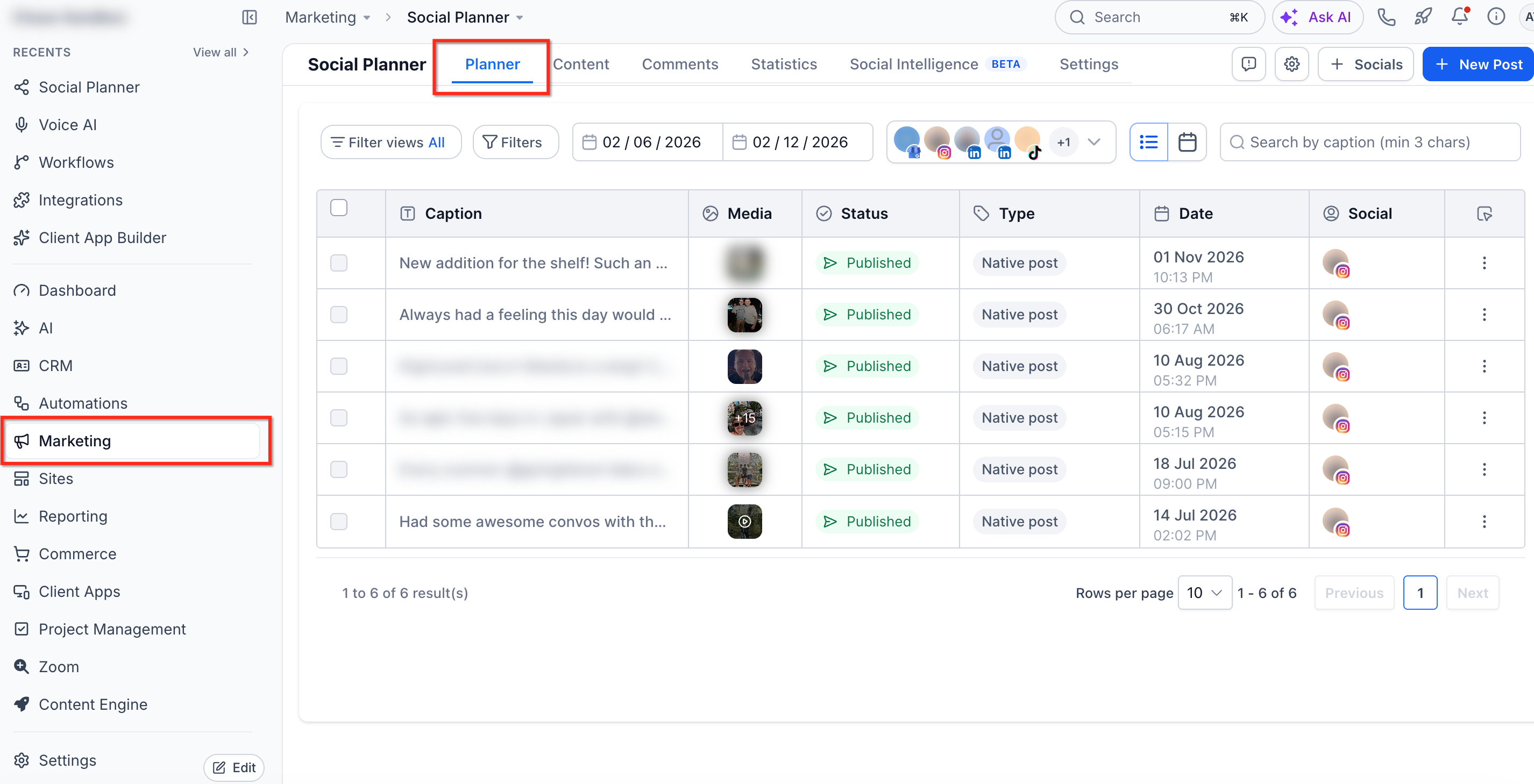
Step 2: If you're connecting your first social account, use the initial setup wizard. Otherwise, navigate to → Socials → + Connect Social, and select Connect TikTok.
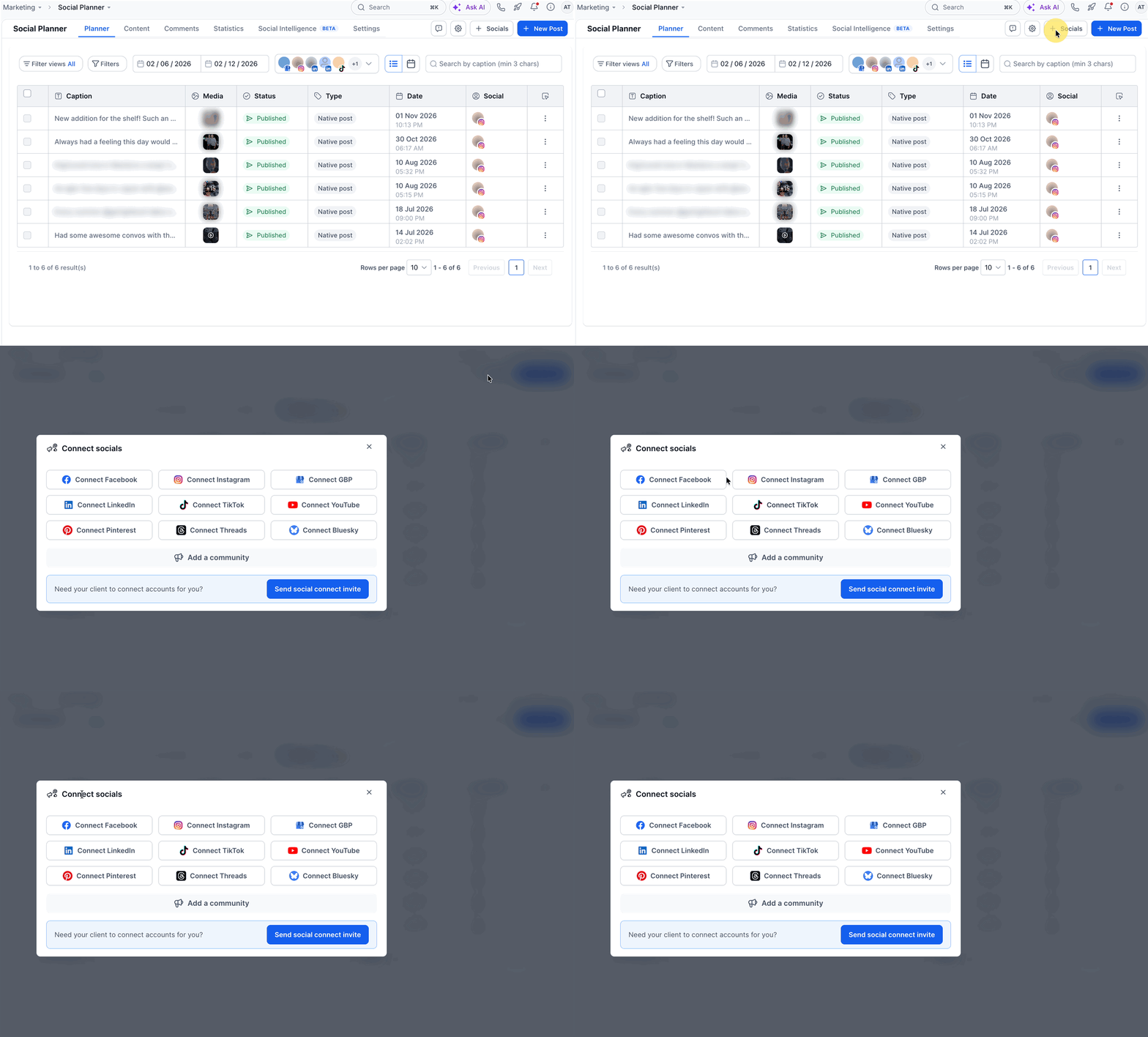
Step 3: Sign in to your TikTok account and approve the requested permissions.
Select your TikTok profile and complete the connection.
Step 4: Return to Social Planner → Settings → Social Accounts to confirm that your TikTok account is connected.
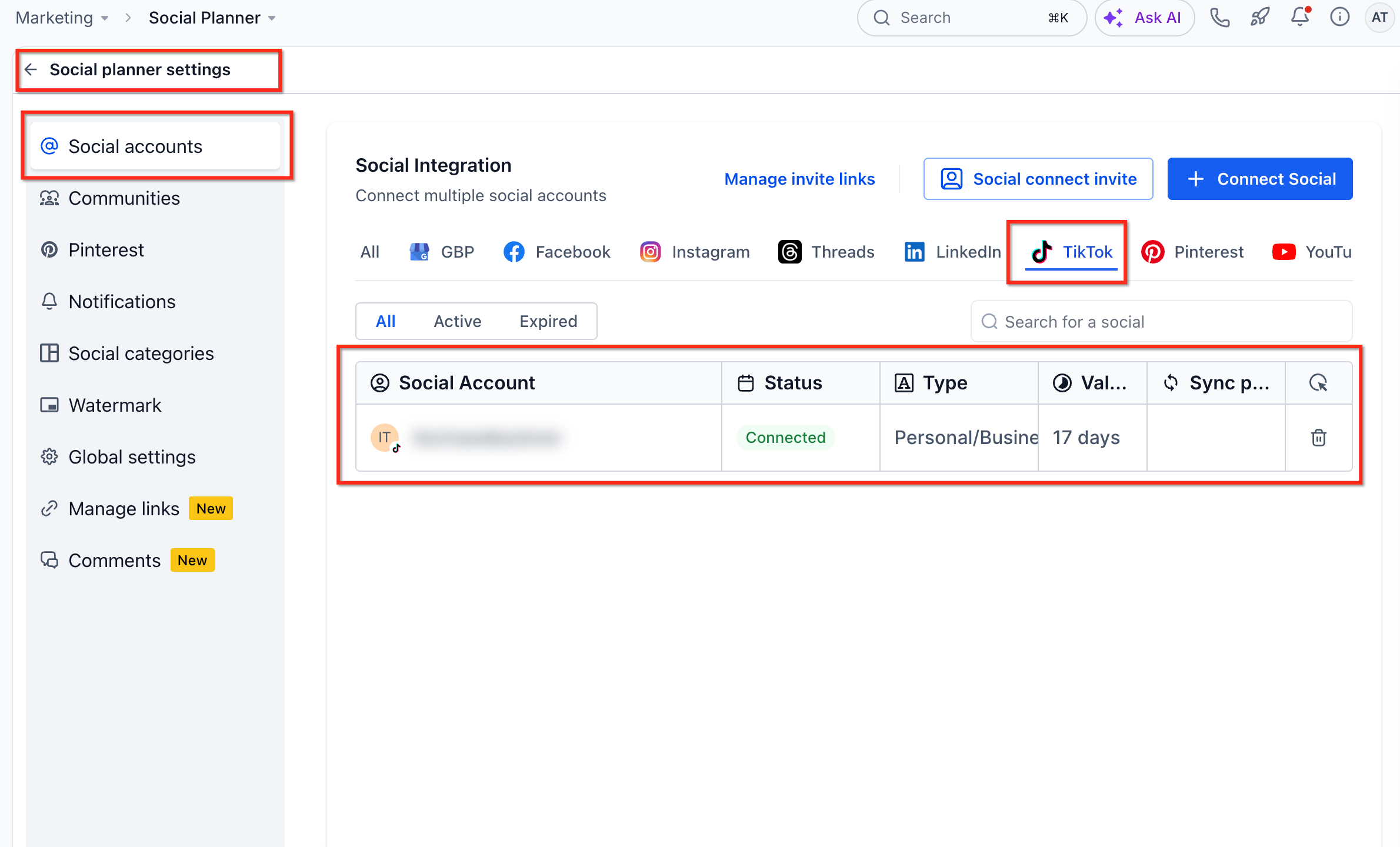
Note: If your TikTok account becomes disconnected, follow the Re-integrate prompt to restore access.
TikTok Post Sync and Comment Management
Once TikTok is connected, you can enable additional features to manage existing content and audience engagement.
Post Sync: Navigate to Social Planner → Settings → Social Accounts, locate your TikTok account, and enable Sync posts to import previously published videos.
Comment Management: TikTok Business Profiles can view and respond to supported comments on posts published through Social Planner.
For additional details, see Social Planner - Post Sync and Social Planner - Manage Comments.
Frequently Asked Questions
Q: Can I connect a TikTok Personal account?
Yes. Both TikTok Personal and Business accounts are supported.
Q: Why can't I manage TikTok comments in Social Planner?
Comment Management requires a TikTok Business Profile and supports comments on posts published through Social Planner.
Q: Will my existing TikTok videos appear automatically?
No. Enable Sync posts for your connected TikTok account to import supported previously published videos.
Q: What should I do if my TikTok account disconnects?
Open Social Planner and use the Re-integrate option when prompted to reconnect your account.
Related Articles
Was this article helpful?
That’s Great!
Thank you for your feedback
Sorry! We couldn't be helpful
Thank you for your feedback
Feedback sent
We appreciate your effort and will try to fix the article