Build automations at lightning speed with keyboard shortcuts in HighLevel’s Advanced Workflow Builder. Skip the mouse, duplicate entire branches in seconds, and navigate huge canvases with arrow-key precision—all from one handy overlay.On macOS use ⌘, on Windows/Linux use Ctrl.
TABLE OF CONTENTS
- What are Keyboard Shortcuts in Advanced Builder?
- Key Benefits of Keyboard Shortcuts
- Where to find these keyboard shortcuts
- Shortcut References
- How To Set Up Keyboard Shortcuts
- Important Notes & Limitations
- Frequently Asked Questions
What are Keyboard Shortcuts in Advanced Builder?
Keyboard shortcuts are built-in key combinations that trigger common builder commands—cut, copy, paste, zoom, save, and more—without ever touching your mouse. When you press K (or click the keyboard-icon pill) the shortcuts overlay appears, grouped into Easy-to-scan tabs so you can learn and reference commands in seconds. ⌘ represents the Command key on macOS, while Ctrl is used on Windows and Linux.
Key Benefits of Keyboard Shortcuts
- Finish complex builds up to 50 % faster by eliminating repetitive clicks.
- Copy or cut entire branches, including downstream actions—in one keystroke.
- Fly around the canvas with arrow keys and instant zoom/focus controls.
- Reduce strain and increase accessibility for power users who prefer the keyboard.
- Learn faster Commands are grouped into Essential, Edit, View, Navigation, and Tools tabs inside the overlay.
Where to find these keyboard shortcuts
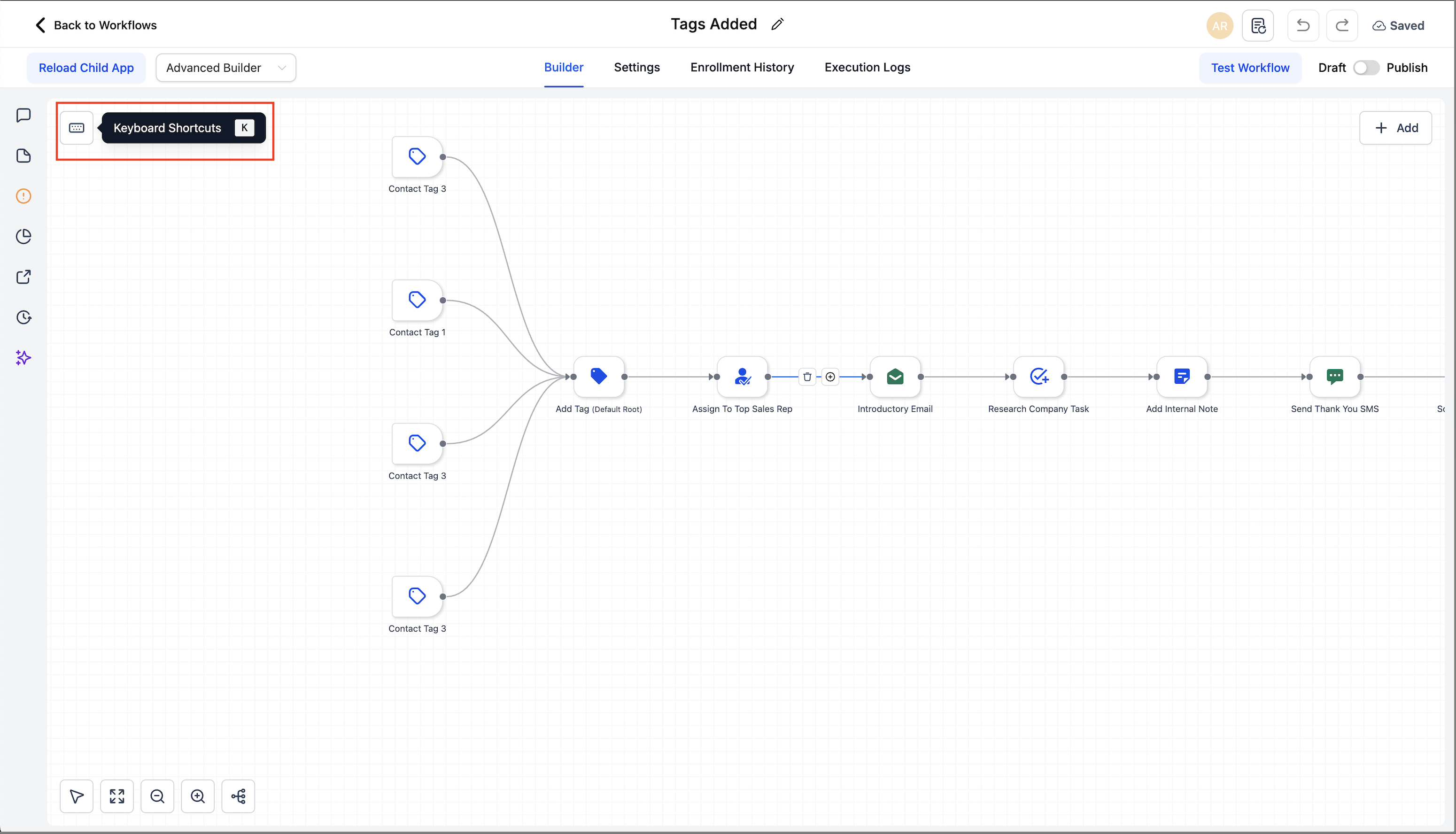
Open any workflow in Advanced Builder. Click the Keyboard Shortcuts button in the upper-left (or press K) to open the overlay.
The overlay groups commands into tabs: Essential, Edit, View, Navigation, Tools.
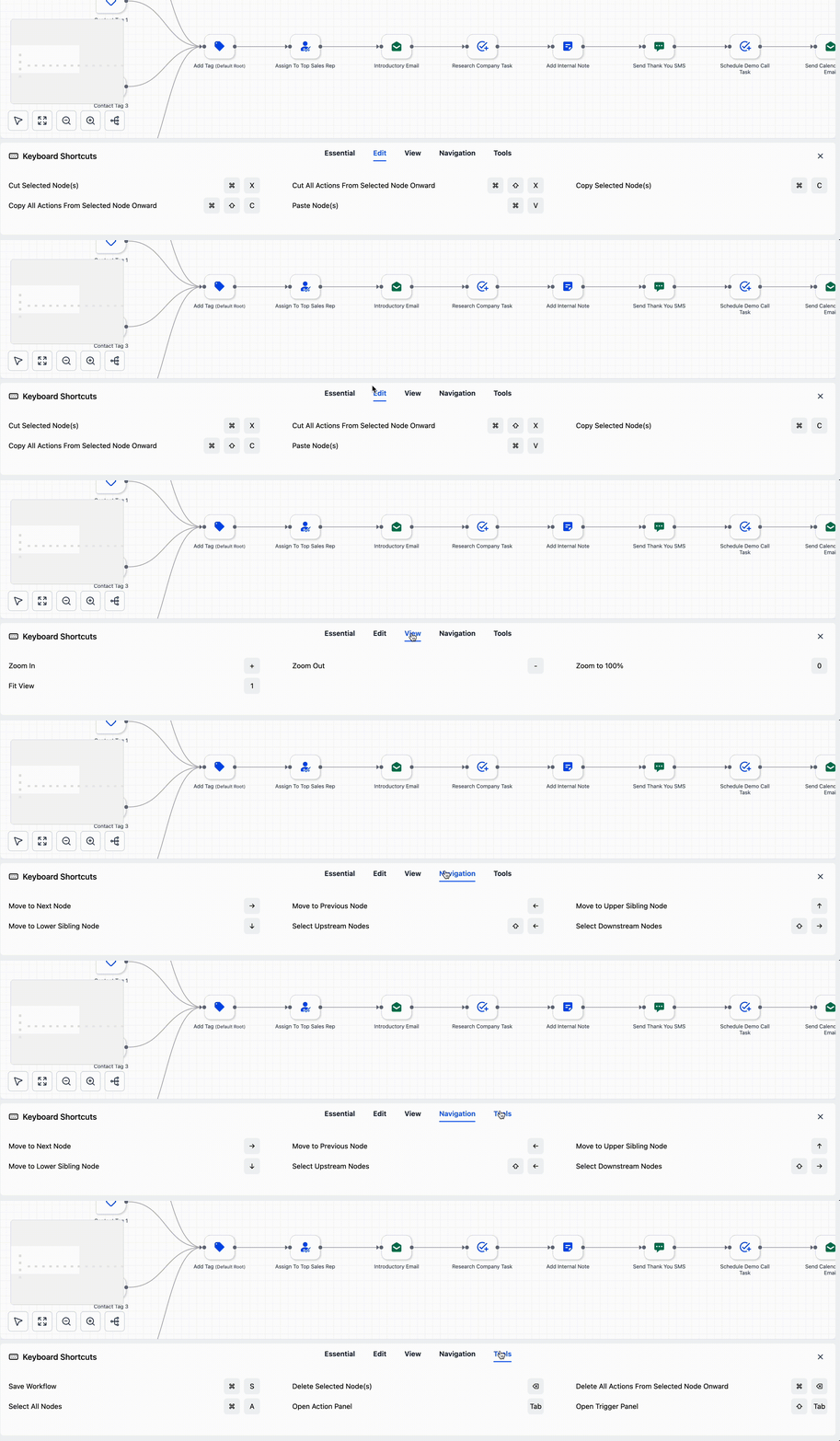
Shortcut References
1. Edit
Common actions for nodes and whole branches.
| Action | Shortcut |
|---|---|
| Cut selected node(s) | ⌘/Ctrl + X |
| Copy selected node(s) | ⌘/Ctrl + C |
| Paste node(s) | ⌘/Ctrl + V |
| Copy all actions from selected node onward | ⌘/Ctrl + Shift + C |
| Cut all actions from selected node onward | ⌘/Ctrl + Shift + X |
2. View
Zoom and framing controls.
| Action | Shortcut |
|---|---|
| Zoom in / Zoom out | + / − |
| Zoom to 100% | 0 |
| Fit view | 1 |
3. Navigation
Move the selection around the canvas without touching the mouse.
| Action | Shortcut |
|---|---|
| Move to next / previous node | → / ← |
| Move to upper / lower sibling | ↑ / ↓ |
| Select upstream / downstream nodes | Shift + ← / Shift + → |
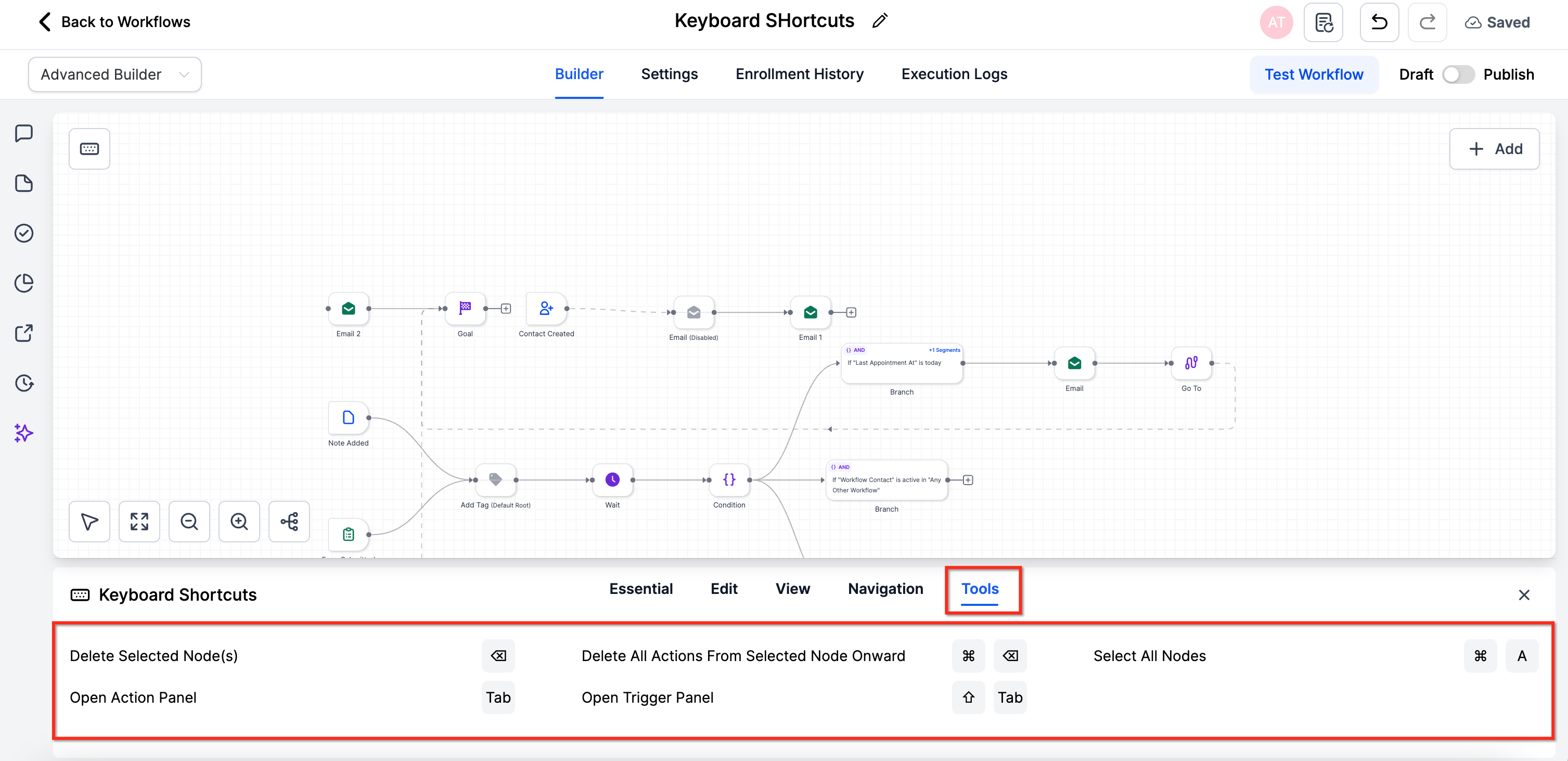
4. Tools
Global and panel shortcuts.
| Action | Shortcut |
|---|---|
| Save workflow | ⌘/Ctrl + S |
| Select all nodes | ⌘/Ctrl + A |
| Delete selected node(s) | Delete / Backspace |
| Delete all actions from selected node onward | ⌘/Ctrl + Delete |
| Open Action panel | Tab |
| Open Trigger panel | Shift + Tab` |
Standard Builder Keyboard Shortcuts
Keyboard shortcuts in the Standard Builder help you move through workflows faster and reduce repetitive clicks while editing. Some shortcuts work on the selected node, some apply to all actions from the selected node onward, and others affect the current builder view.
Important:
- Some shortcuts work only after you select a node first.
- Some shortcuts may be relevant across multiple workflow tasks.
| Section | Item | Shortcut (Mac) | Shortcut (Windows) |
|---|---|---|---|
| Edit | Move Selected Node(s) | ⌘ + X | Ctrl + X |
| Edit | Copy Selected Node(s) | ⌘ + C | Ctrl + C |
| Edit | Paste Node(s) | ⌘ + V | Ctrl + V |
| Edit | Copy All Actions From Selected Node Onward | ⌘ + Shift + C | Ctrl + Shift + C |
| Edit | Move All Actions From Selected Node Onward | ⌘ + Shift + X | Ctrl + Shift + X |
| View | Zoom in | + | + |
| View | Zoom out | - | - |
| View | Zoom to 100% | 0 | 0 |
| View | Fit View | 1 | 1 |
| Navigation | Select All Nodes | ⌘ + A | Ctrl + A |
| Navigation | Select All Actions | ⌘ + Shift + A | Ctrl + Shift + A |
| Navigation | Select All Triggers | ⌘ + ⌥ + A | Ctrl + Alt + A |
| Navigation | Move to Next Node | ↓ | ↓ |
| Navigation | Move to Previous Node | ↑ | ↑ |
| Navigation | Move to Right Sibling Node | → | → |
| Navigation | Move to Left Sibling Node | ← | ← |
| Navigation | Select Upstream Nodes | Shift + ↑ | Shift + ↑ |
| Navigation | Select Downstream Nodes | Shift + ↓ | Shift + ↓ |
| Tools | Delete Selected Node(s) | Del | Del |
| Tools | Delete All Actions From Selected Node Onward | ⌘ + Del | Ctrl + Del |
| Tools | Open Trigger Panel | Shift + Tab | Shift + Tab |
| Tools | Open Action Panel | Tab | Tab |
| Tools | Save Workflow | ⌘ + S | Ctrl + S |
How To Set Up Keyboard Shortcuts
Mastering shortcuts only takes a minute:
1. Open any workflow and switch to Advanced Builder.
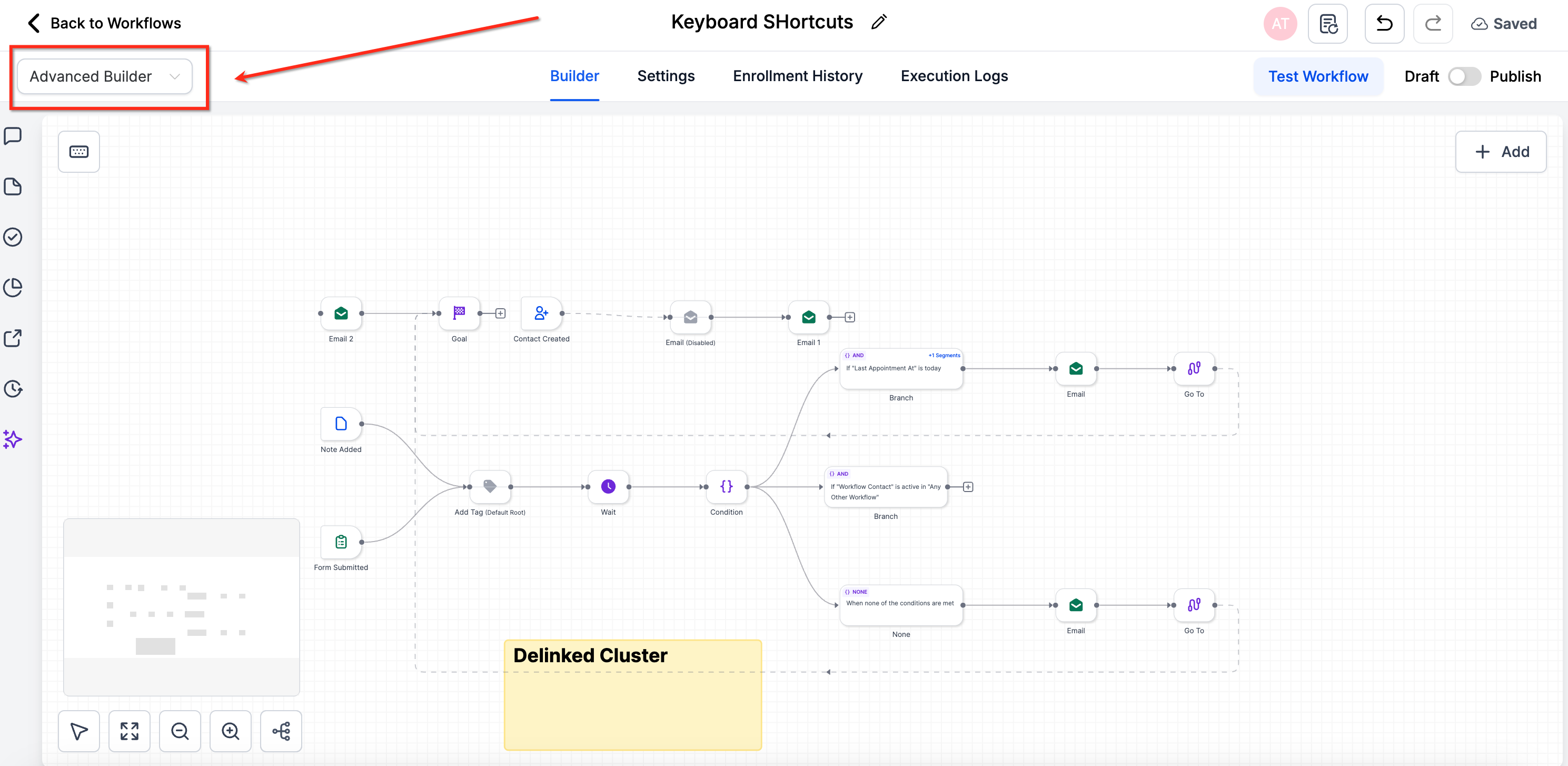
2. Press K—or click the keyboard pill in the upper-left corner—to launch the overlay.
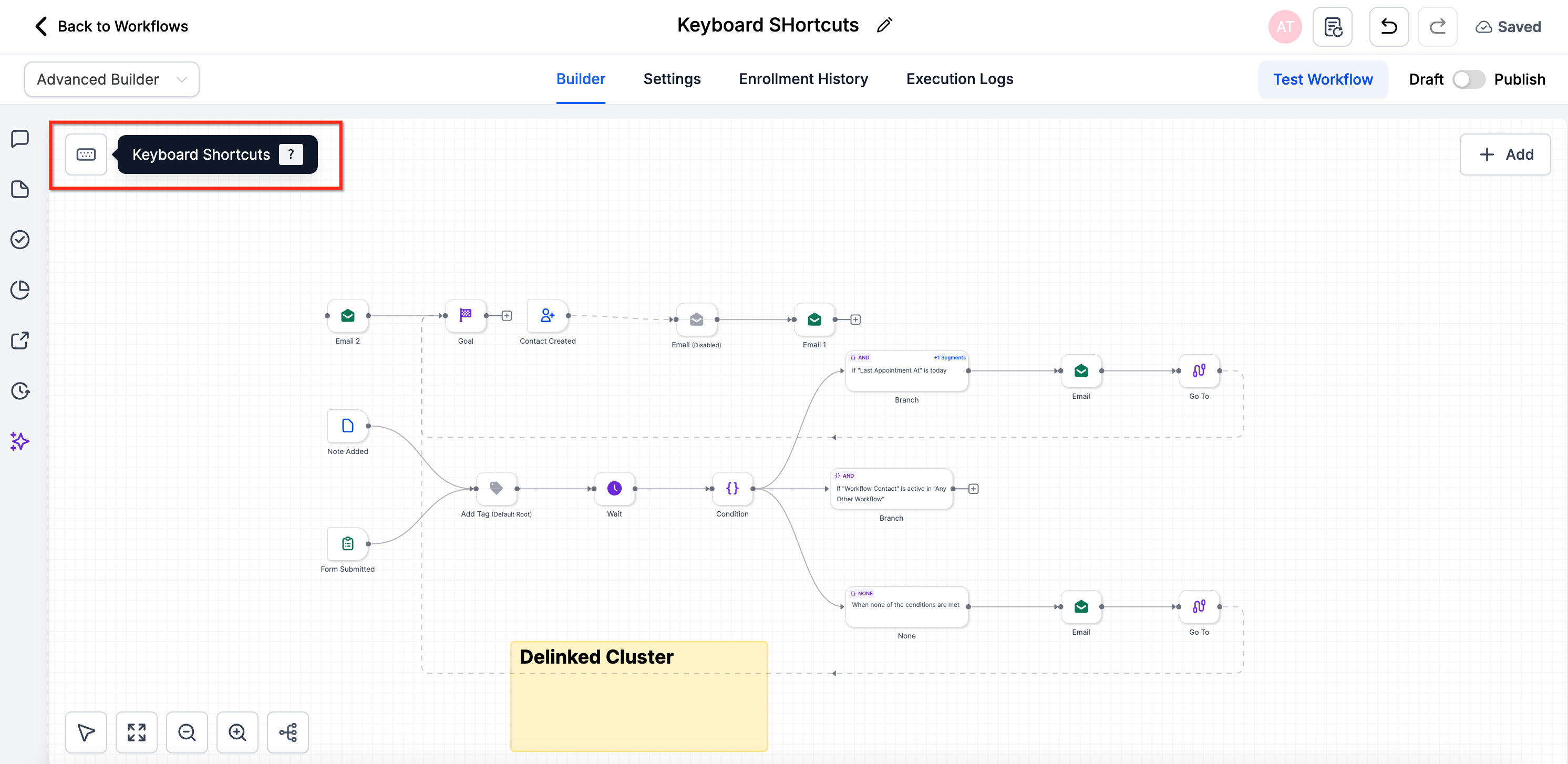
3. Browse the Essential tab for must-know commands.
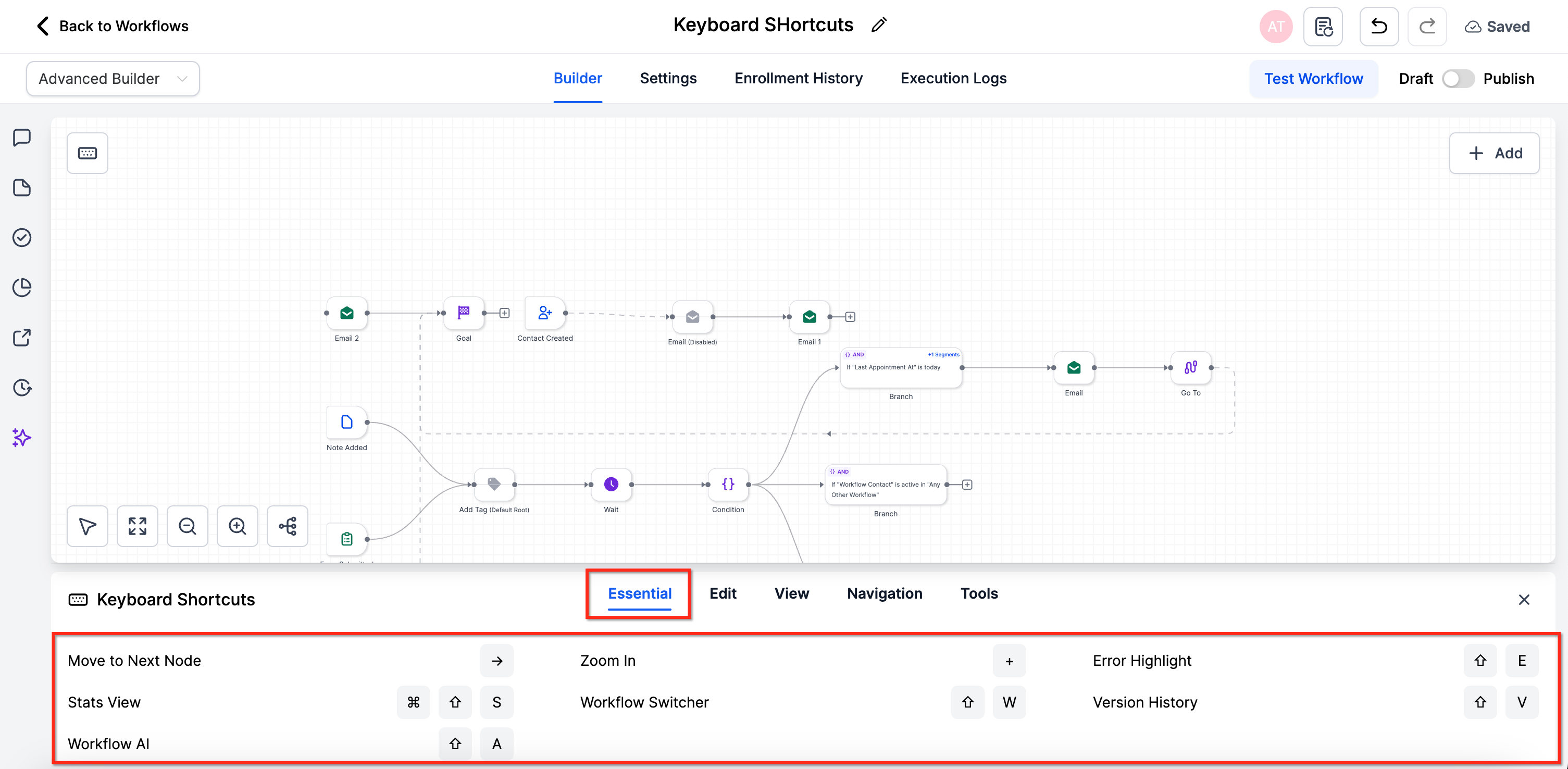
4. Use Edit shortcuts to copy/cut/paste nodes or whole branches.
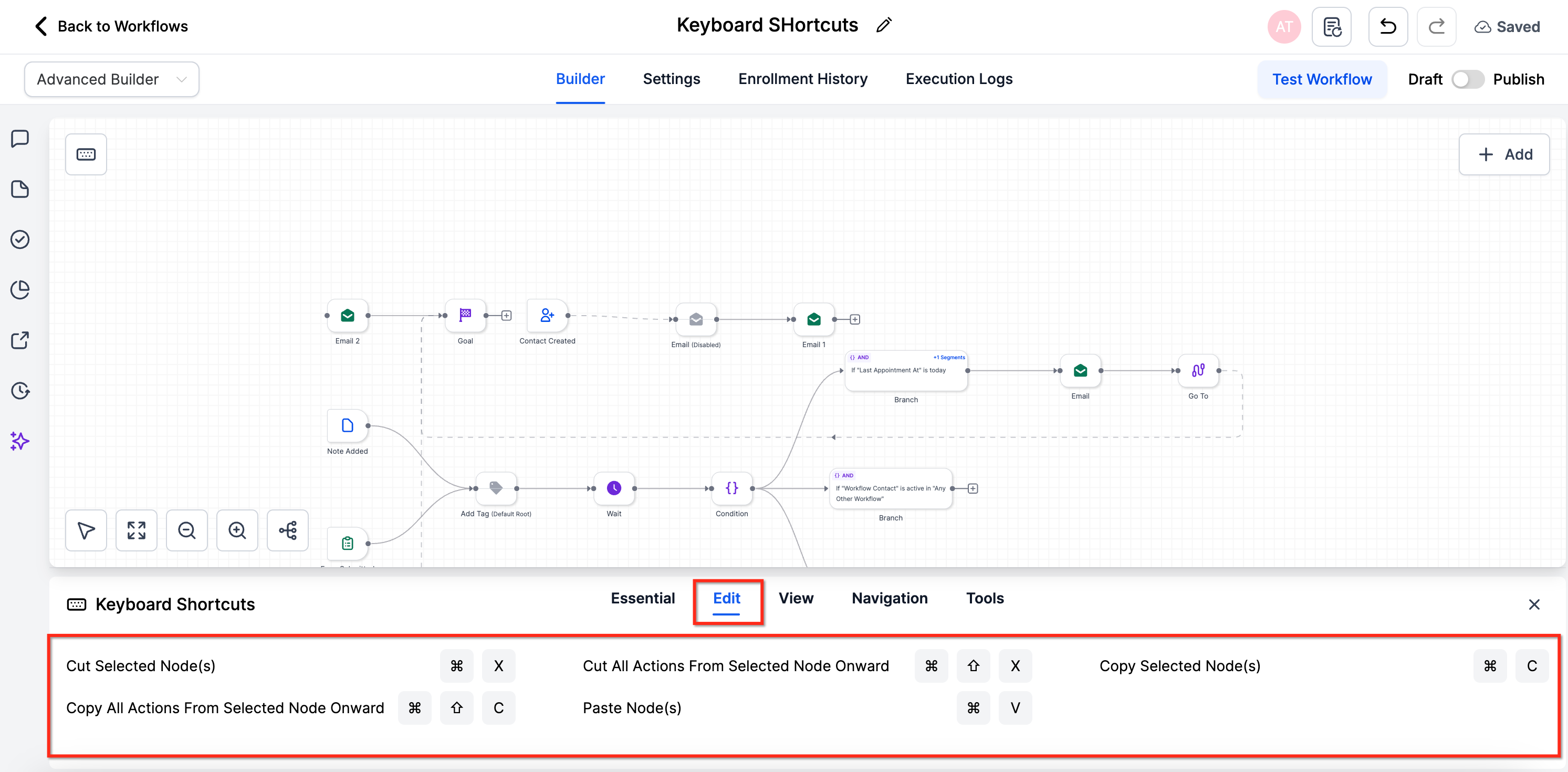
5. Use View and Navigation keys to zoom and move until it feels natural.
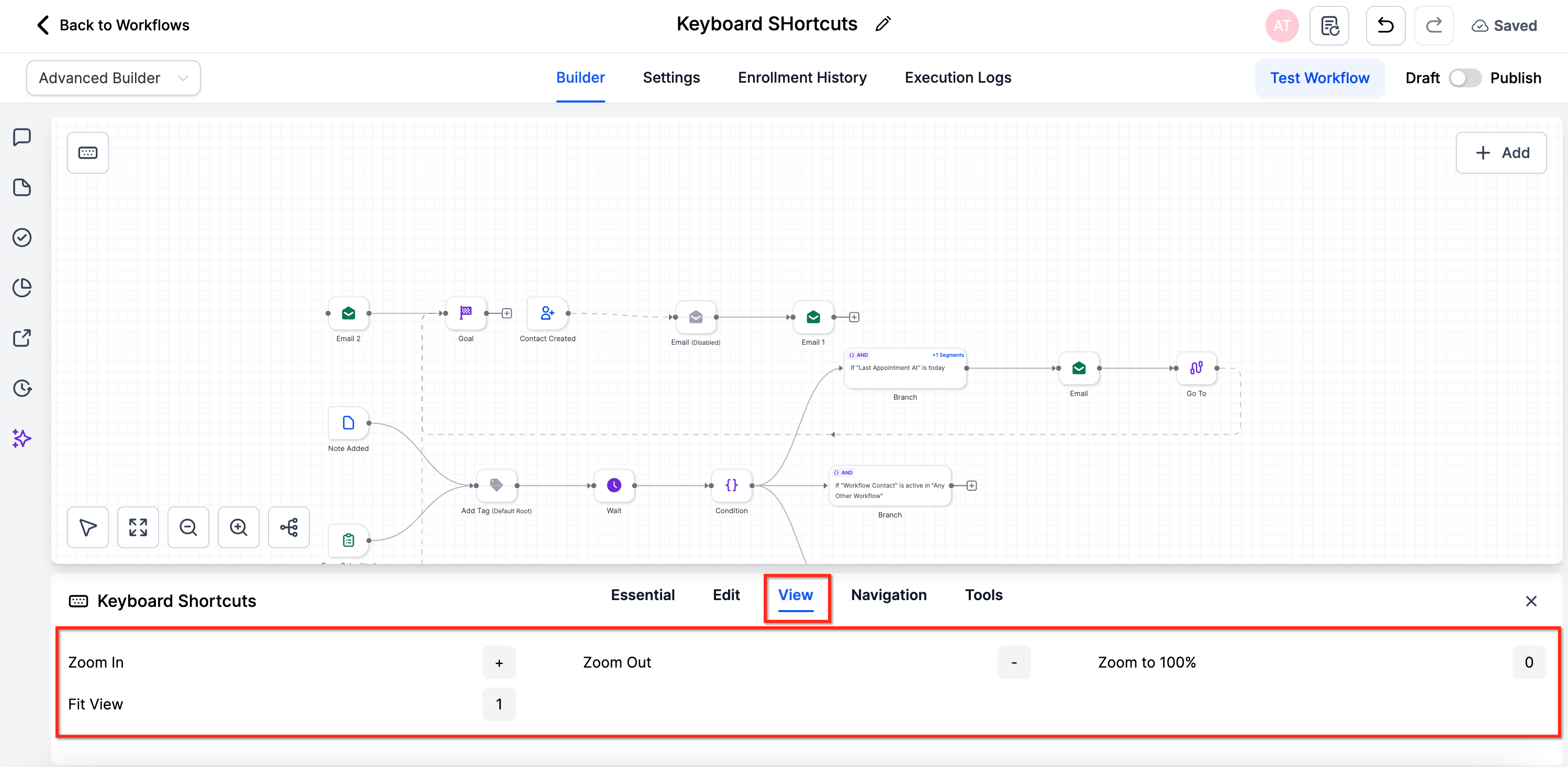
6. Use Navigation to move between nodes; View to zoom or fit.
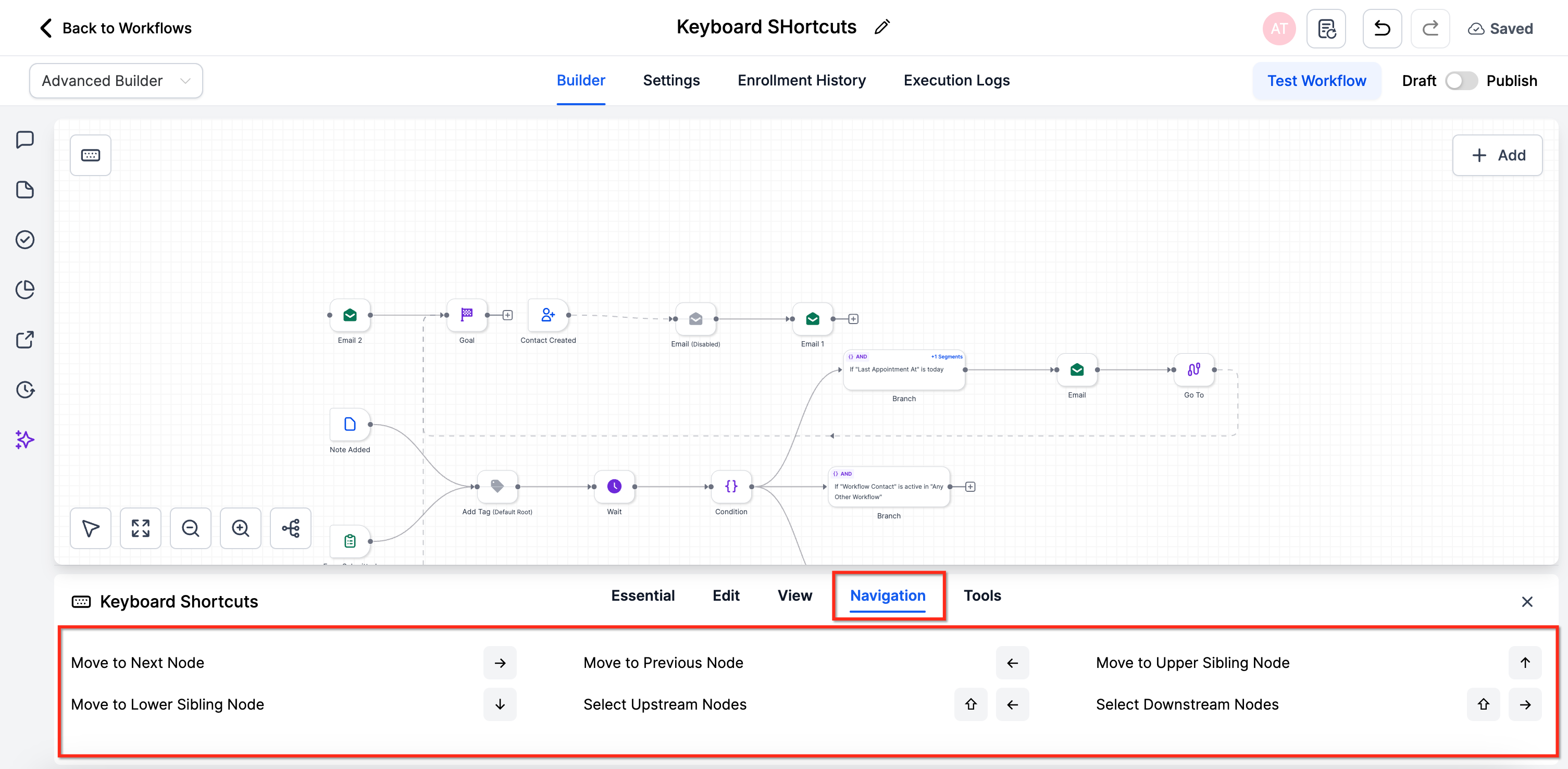
7. Use Tools to save and open panels—without leaving your keyboard.
Important Notes & Limitations
Availability: Advanced Builder at launch. Coming soon for the standard builder.
Selection matters: Some shortcuts act on the currently selected node(s)—select before using.
OS & layout: Keys may vary slightly by operating system and keyboard layout.
Frequently Asked Questions
Q: Do shortcuts work in the Standard Builder?
At launch they’re exclusive to Advanced Builder, but Standard Builder support is on the roadmap.
Q: Why do some keys feel different on my keyboard?
Physical layouts (e.g., AZERTY) or OS-level key mappings can shift symbol locations. Use the on-screen overlay to confirm the actual character your keyboard sends.
Q: Will shortcuts overwrite browser defaults?
Only when the Builder canvas is focused. Global browser shortcuts like ⌘/Ctrl + T (new tab) continue to work.
Q: Can I customize or disable shortcuts?
Not yet. Future updates may introduce a preferences panel for custom key-mapping.
Q: How do I copy a branch into another workflow?
Use ⌘/Ctrl + Shift + C to copy the branch, open the destination via Workflow Switcher in a new tab, then ⌘/Ctrl + V to paste.
Q: Does Delete All Actions downstream remove goals or waits?
Yes—everything visually connected after the selected node is removed. Double-check the highlight preview before confirming.
Was this article helpful?
That’s Great!
Thank you for your feedback
Sorry! We couldn't be helpful
Thank you for your feedback
Feedback sent
We appreciate your effort and will try to fix the article