Ask AI brings AI-first workspace directly into HighLevel so users can create content, get answers, generate assets, and complete real actions across the platform — all without leaving the interface. This article covers what Ask AI is, who can access it, its full range of capabilities, how to use it, and common use cases.
TABLE OF CONTENTS
- What is Ask AI Assistant?
- Who Can Access Ask AI?
- Core Capabilities of Ask AI
- Full List of HighLevel Products Ask AI Can Control
- 1. Contacts & CRM
- 2. Marketing & Content
- 3. Funnels, Sites & Media
- 4. Calendars & Scheduling
- 5. Payments & Commerce
- 6. Courses & Memberships
- 7. AI & Automation
- 8. Reputation & Reviews
- 9. Phone & Messaging
- 10. Reporting & Data
- 11. Account & Settings
- Reading Ask AI Responses
- Navigating Ask AI Conversations
- How to Use Ask AI Assistant
- Ask AI Use Cases
- Current Limitations
- Frequently Asked Questions
What is Ask AI Assistant?
Ask AI is HighLevel's built-in AI workspace a copilot with conversational interface that lets users create content, retrieve data, take action on platform features, and get answers using plain language. Instead of navigating through multiple menus and screens, users can describe what they want to do in a single prompt and Ask AI handles it.
Ask AI is deeply integrated with HighLevel's platform. It can read data, create records, update settings, generate content, manage contacts, run bulk actions, and coordinate across dozens of modules all from one chat interface. It supports both typed prompts and voice input, and is available in a sidebar panel or in a full-screen workspace for focused, high-volume work. It is also available on the HighLevel, LeadConnector, and white labeled mobile apps, allowing supported users to access the Ask AI workspace from mobile.
Who Can Access Ask AI?
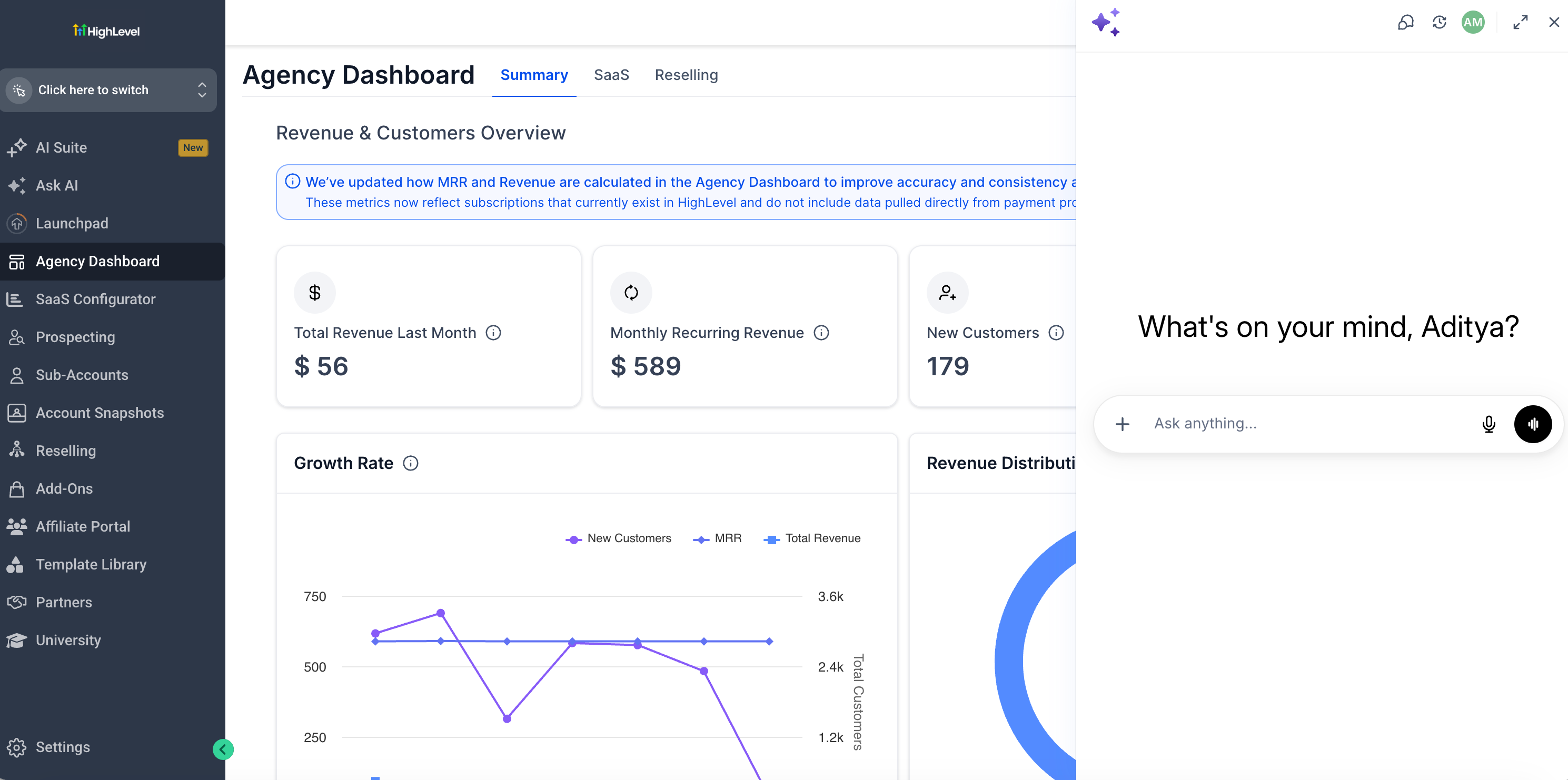
Ask AI can be found in the top navigation bar of your HighLevel account. Click the Ask AI icon to open the chat panel and enter your prompts.
Mobile availability: Ask AI on the HighLevel, LeadConnector, and whitelabeled mobile apps is currently available to Agency Admins.
Core Capabilities of Ask AI
Ask AI covers three broad capability types as your copilot: content and image generation, CRM platform actions, and data retrieval / updates for your accounts. The table below outlines the major capability groups with example prompts.
| Marketplace App Discovery | Find relevant Marketplace apps and integrations by describing a business need or use case in natural language. | "Is there an IDX integration for real estate available?" |
| Parallel Research and Complex Tasks | Break complex requests into focused tasks, run research agents in parallel, and combine their findings into one response. | "Find stalled opportunities, review follow-up activity, and identify contact data issues." |
Full List of HighLevel Products Ask AI Can Control
Ask AI is connected to over 50 modules inside HighLevel. Here is a complete breakdown of what it can see, understand, and take action on, grouped by area.
1. Contacts & CRM
2. Marketing & Content
3. Funnels, Sites & Media
| Sr |
|---|
| 1 |
| 2 |
4. Calendars & Scheduling
5. Payments & Commerce
6. Courses & Memberships
7. AI & Automation
8. Reputation & Reviews
9. Phone & Messaging
10. Reporting & Data
11. Account & Settings
Reading Ask AI Responses
Ask AI responses appear in the conversation view and may include paragraphs, headings, bullet points, numbered steps, structured tables, interactive question inputs, charts, data tables, and copyable code blocks. Responses are formatted to make longer answers easier to scan and act on.
For multi-step tasks, Ask AI displays a live task tracker that shows which steps are complete, in progress, or pending so users always know where a complex action stands.
Some structured responses may appear in collapsible cards to keep longer conversations organized. Users can expand details only when needed.

Navigating Ask AI Conversations
The Ask AI sidebar helps users manage conversations from one place. Users can review previous sessions, return to an existing conversation, or start a new chat when they want to begin a separate task.
If no conversations are available yet, the sidebar empty state helps users understand that they can begin by starting a new conversation or using a suggested prompt.
Complex Tasks and Parallel Research
Ask AI can break complex requests into smaller tasks and assign them to specialized research agents. Multiple agents can work in parallel while the main assistant coordinates their work and combines their findings into a single response.
How parallel research works
Ask AI analyzes your request and identifies tasks that can be handled separately.
Each research agent receives a focused assignment and an expected output.
Up to four research agents can run simultaneously. Additional tasks wait in a queue.
Research agents return findings, sources, and relevant file references.
The main assistant combines the results, addresses follow-up needs, and prepares the final response.
Example: Review a sales pipeline
Ask AI can assign separate research tasks to identify stalled opportunities, review follow-up activity, and check contact data quality. It combines the findings into a prioritized action list. If you request bulk changes afterward, Ask AI can prepare a plan for your approval before executing supported updates.
How to Use Ask AI Assistant
Ask AI can be opened from both Agency and Sub-Account views, giving users quick access to AI-powered assistance while working in HighLevel. Users can launch Ask AI from the top navigation bar, open the dedicated Ask AI workspace from the left sidebar, or access Ask AI through supported contextual workflows such as Ecommerce Store setup.
Access Ask AI from the Top Navigation
The top navigation route is useful when users want quick access to Ask AI from anywhere in HighLevel. This is the fastest way to open the assistant while working in another area of the platform.
- Click on the Ask AI icon in the top navigation bar.
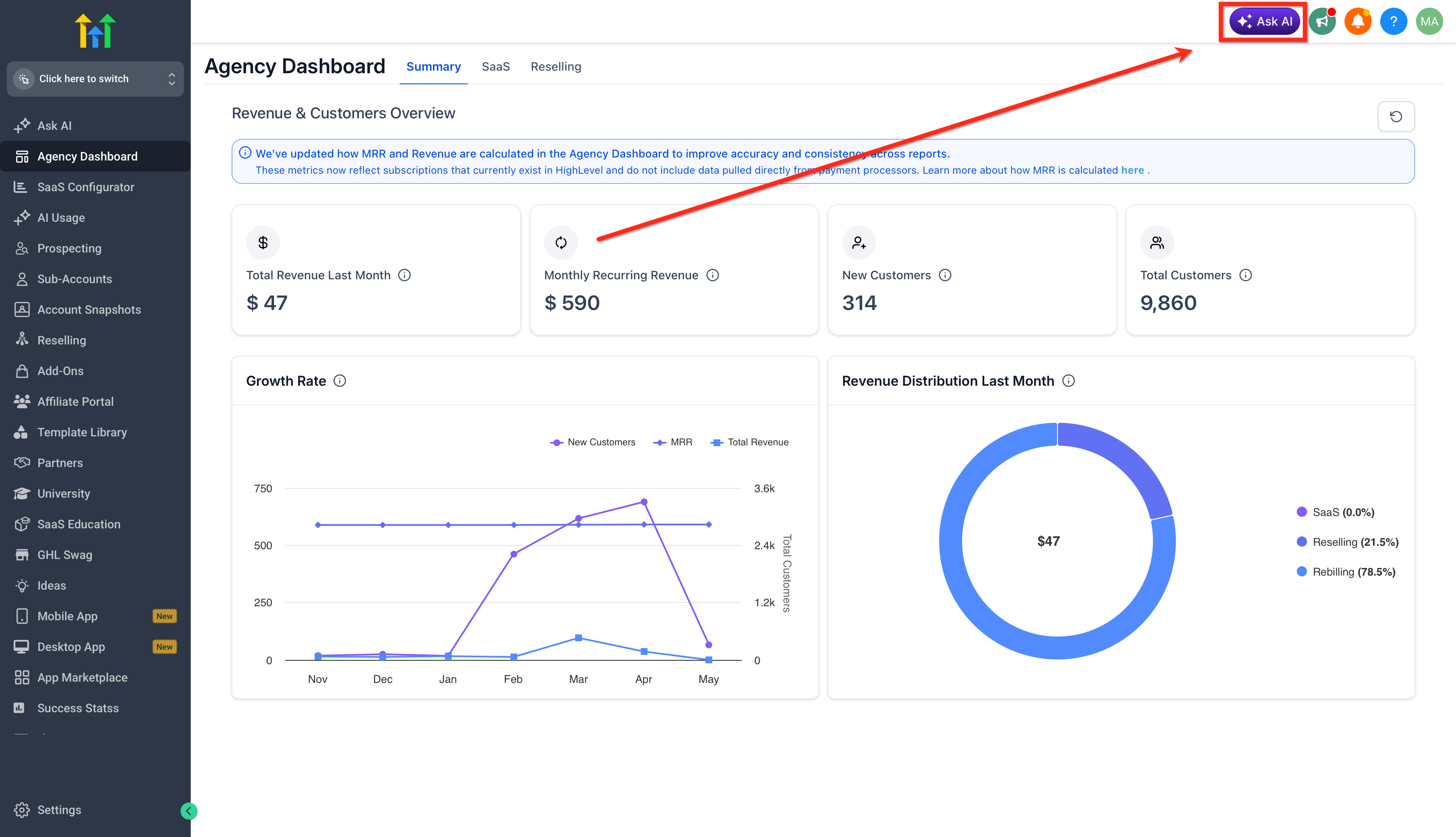
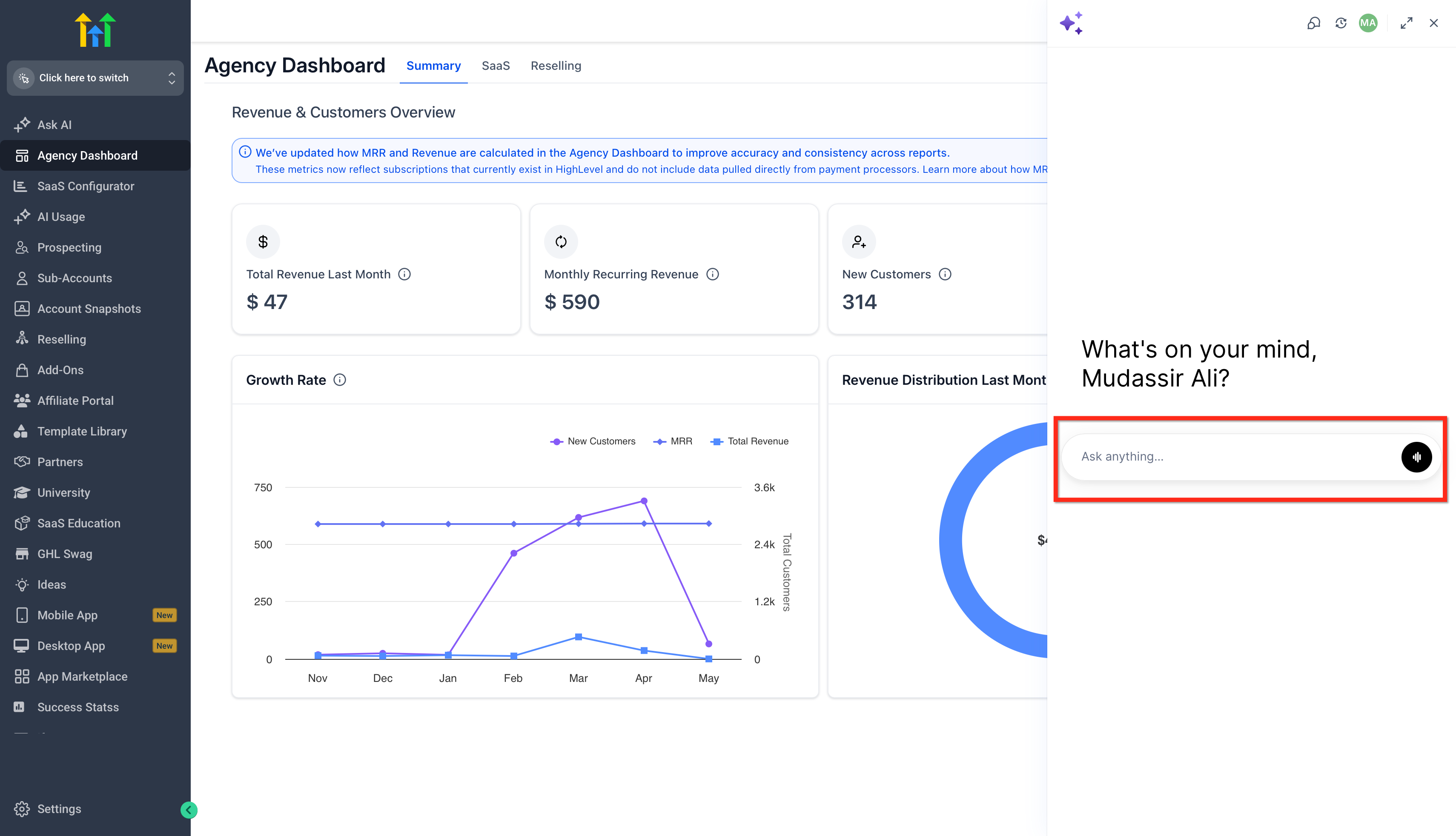
- Type in or Speak what you need: content, a new community, ideas, or questions.
- The bot will guide you or respond instantly with what you asked for.
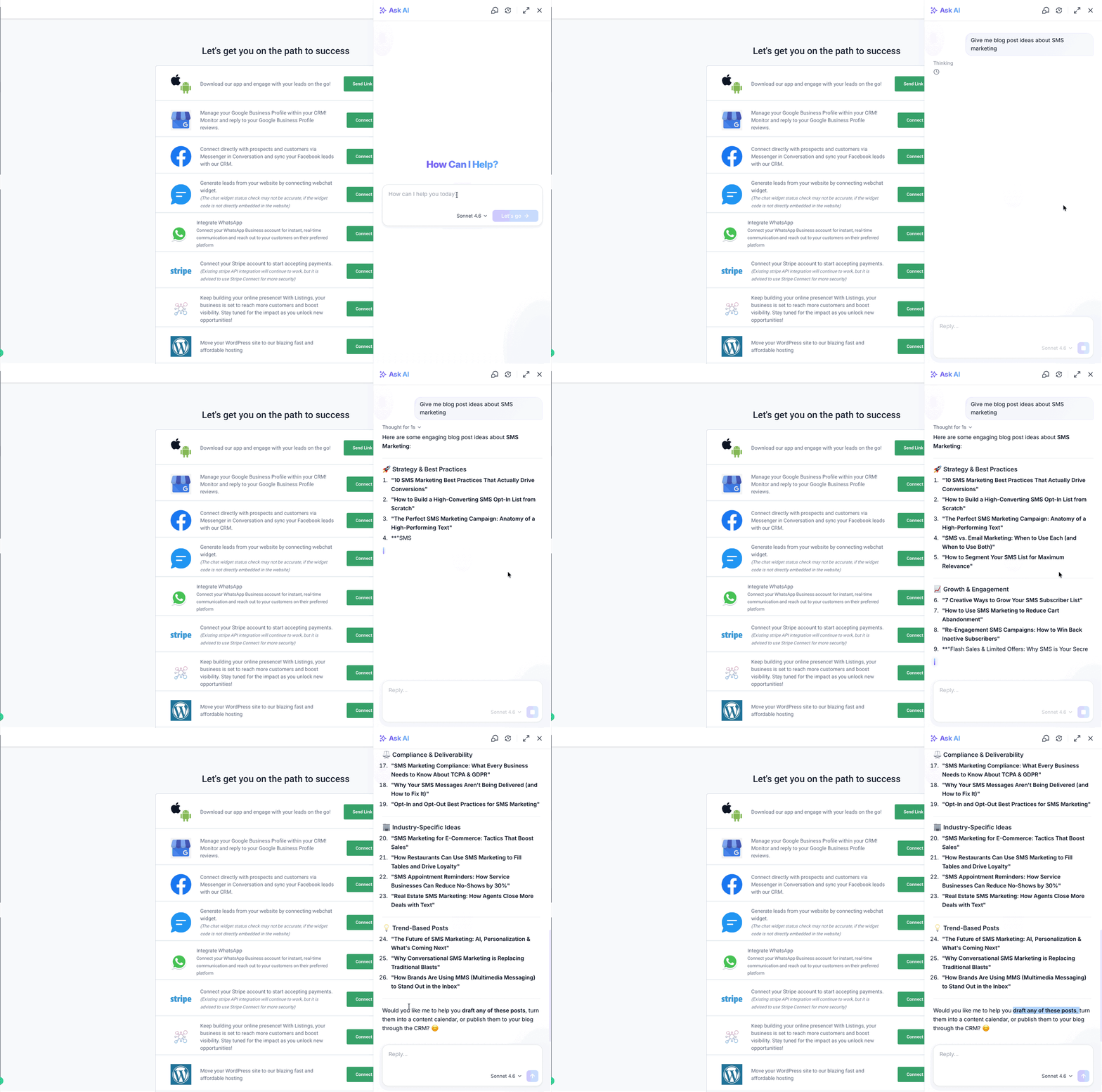
You can start with something like:- “Give me blog post ideas about SMS marketing.”
- “Write a Facebook ad post using my brand voice.”
- “Help me set up a community for local business owners.”
- “Give me blog post ideas about SMS marketing.”
- You can also view the chat history, and go back to older chats directly by toggle next to the full-screen toggle.

Access Ask AI from the Left Sidebar
Ask AI opens in a full-screen workspace, so it is not a chatbot tucked in a corner. Use it to focus on real work and complete higher-volume tasks without leaving HighLevel. You can access Ask AI from the left navigation at both the Agency and the Sub-account level.
1. In your account, look at the left navigation panel.
2. Click Ask AI (it appears as a dedicated menu item).
3. In the Ask AI workspace, you can:
- Click New chat to start a fresh thread.
- Use Search to find previous conversations (if available).

Access Ask AI from Global Search
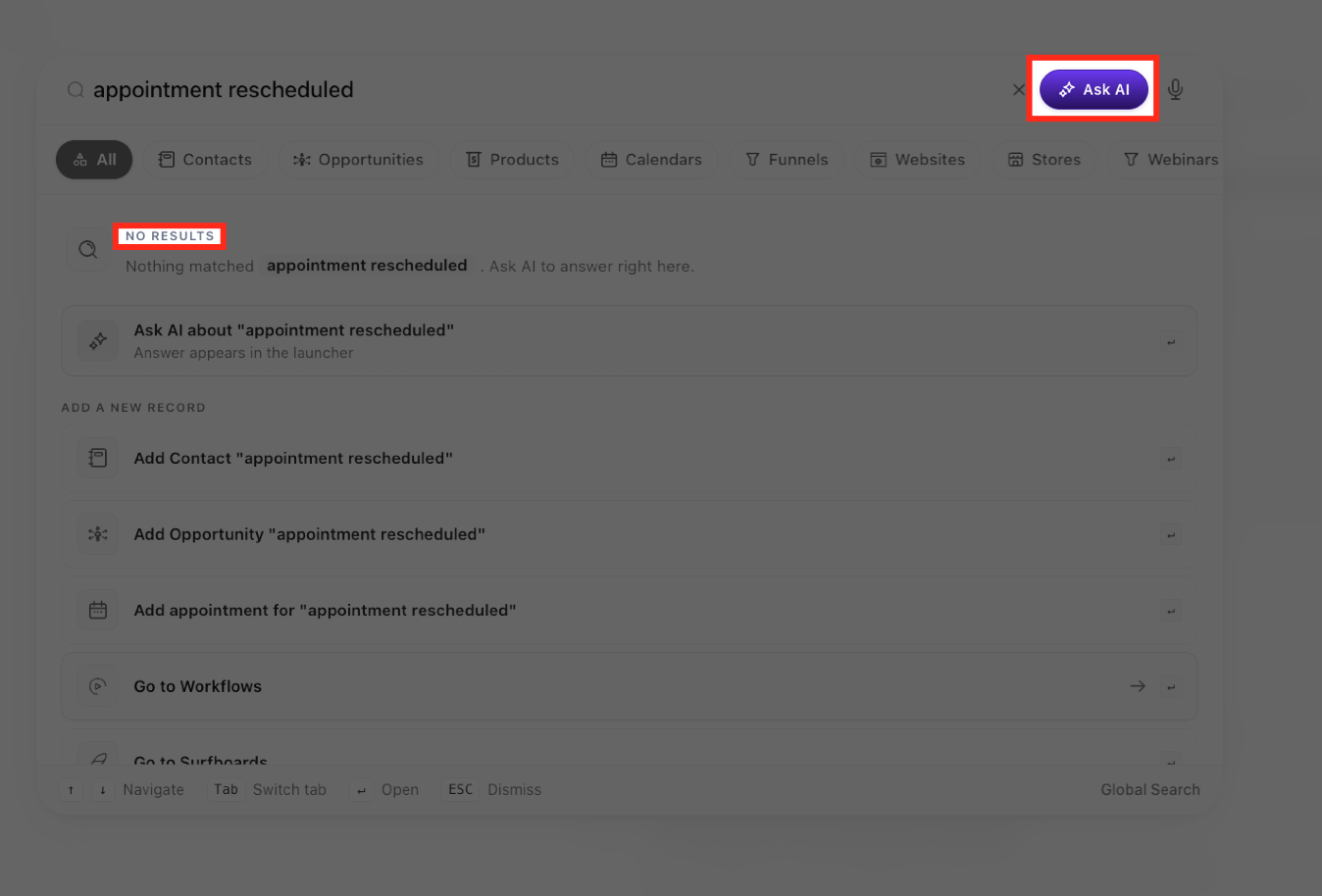
Global Search provides an additional way to access Ask AI when a search does not return any matching results. Users with Ask AI access can send their existing search query to Ask AI without retyping it or leaving the Global Search experience.
1. Open Global Search and enter your search query.
2. If Global Search returns no matching results, select the Ask AI option.
3. Review the first Ask AI response directly inside Global Search.
4. To continue the conversation, select Continue in Ask AI.
5. Ask AI opens with the existing query and conversation context so you can continue without starting over.
Ask AI Use Cases
Current Limitations
Ask AI is expanding rapidly. The following areas are currently read-only or not yet connected:
These areas are on the product roadmap and will be added in future updates.
Frequently Asked Questions
Q: Is Ask AI available on all plans?
Ask AI is available to all Agency Admins and Agency Users. Sub-account Admins and Users require the Pay Per Use or $50 AI Growth Plan or $97 Unlimited AI Employee Plan.
Q: Will Ask AI ask me before taking irreversible actions?
Yes. For any write, update, or delete action, Ask AI will present a confirmation screen and require your approval before executing the change.
Q: Can Ask AI take action across multiple contacts or records at once?
Yes. Ask AI supports bulk actions including tagging, bulk SMS, and bulk email — and will always confirm the scope of the action before proceeding.
Q: Does Ask AI remember my previous conversations?
Yes. Conversations are saved and accessible from the sidebar. Ask AI also maintains persistent memory of preferences and facts you share over time, so it can personalize responses in future sessions.
Q: Can I use Ask AI by speaking instead of typing?
Yes. Click the microphone icon in the Ask AI input bar to use voice input.
Q: What is the difference between Ask AI and Conversation AI or Voice AI agents?
Ask AI is your personal AI Copilot inside HighLevel — it helps you get work done. Conversation AI and Voice AI are customer-facing agents that communicate with your contacts via chat and phone. Ask AI can actually help you build and configure those agents.
Q: Can Ask AI generate images?
Yes. Ask AI can generate new images and edit existing ones using your brand colors and style. Just describe what you need and it will create it inline in the chat.
Q: How do I get the best results from Ask AI?
Be specific. Include names, dates, pipeline names, tags, or any relevant context in your prompt. The more detail you provide, the more accurate and useful the response will be.
Was this article helpful?
That’s Great!
Thank you for your feedback
Sorry! We couldn't be helpful
Thank you for your feedback
Feedback sent
We appreciate your effort and will try to fix the article