Create and Edit Email Templates With Email AI in Ask AI
Email AI is now available directly inside Ask AI, giving you a faster way to create and refine Design Editor email templates through conversation. You can describe the email you need, respond to follow-up questions, preview the result, and continue making changes without leaving Ask AI. When you need more detailed control, you can open the finished template in Email Builder for further editing.
Email AI in Ask AI combines HighLevel's conversational assistant with Email AI's template-building capabilities. Instead of navigating to Email Builder before creating a template, you can start with a natural-language request in Ask AI and let Email AI generate the Design Editor template for you.
You can review the result, request additional changes, respond to follow-up questions, preview the template, and move into Email Builder when you are ready for more detailed editing.
Availability: All users
Current support: Design Editor email templates
Coming later: HTML Editor template support
What is Email AI in Ask AI?
Email AI in Ask AI combines HighLevel's conversational assistant with Email AI's template-building capabilities. Instead of navigating to Email Builder before creating a template, you can start with a natural-language request in Ask AI and let Email AI generate the Design Editor template for you. You can review the result, request additional changes, and move into Email Builder when you are ready for more detailed editing.
Email AI in Ask AI can:
- Create new Design Editor email templates from natural-language prompts.
- Update existing supported email templates conversationally.
- Ask follow-up questions when additional information or choices are needed.
- Display a preview of the generated email directly in Ask AI.
- Open the template in Email Builder for additional editing.
- Keep supported template changes reflected between the Email AI experience and Email Builder.
Availability: All users
Current support: Design Editor email templates
Coming later: HTML Editor template support
Key Benefits of Email AI in Ask AI
Creating an email template often requires moving between tools to write content, configure design elements, preview the result, and make revisions. Email AI in Ask AI brings those steps into a conversational workflow so you can move from an idea to an editable template with fewer navigation steps.
How Email AI Works Inside Ask AI
Ask AI acts as the conversational starting point, while Email AI handles the email-template generation experience. This allows you to describe your goal in everyday language and continue interacting with the template without first opening the full email editor.
- Enter a request for an email template in Ask AI.
- Email AI begins generating the Design Editor template.
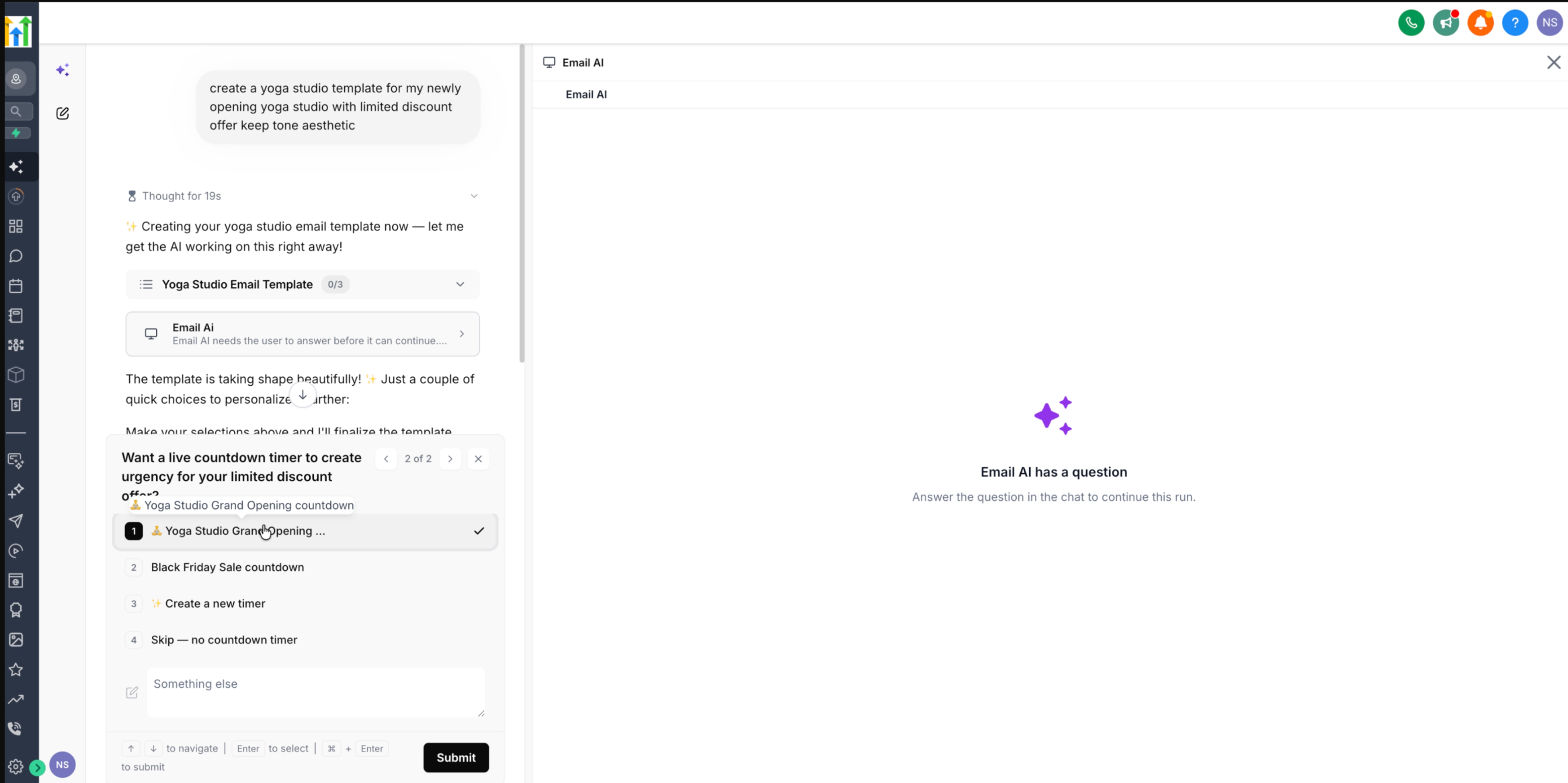
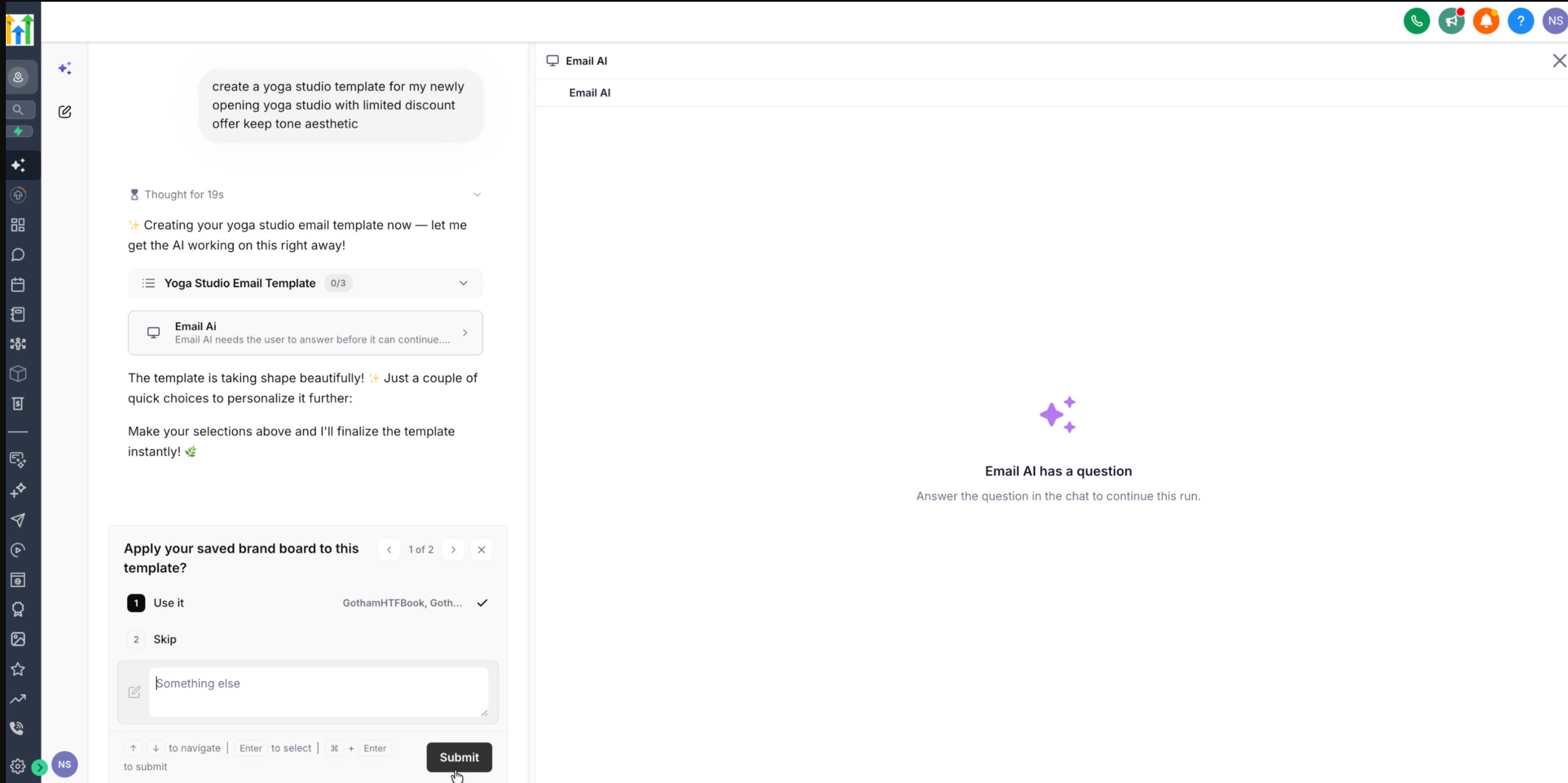
- If more information is needed, Email AI pauses and asks you to make a choice or provide additional details.
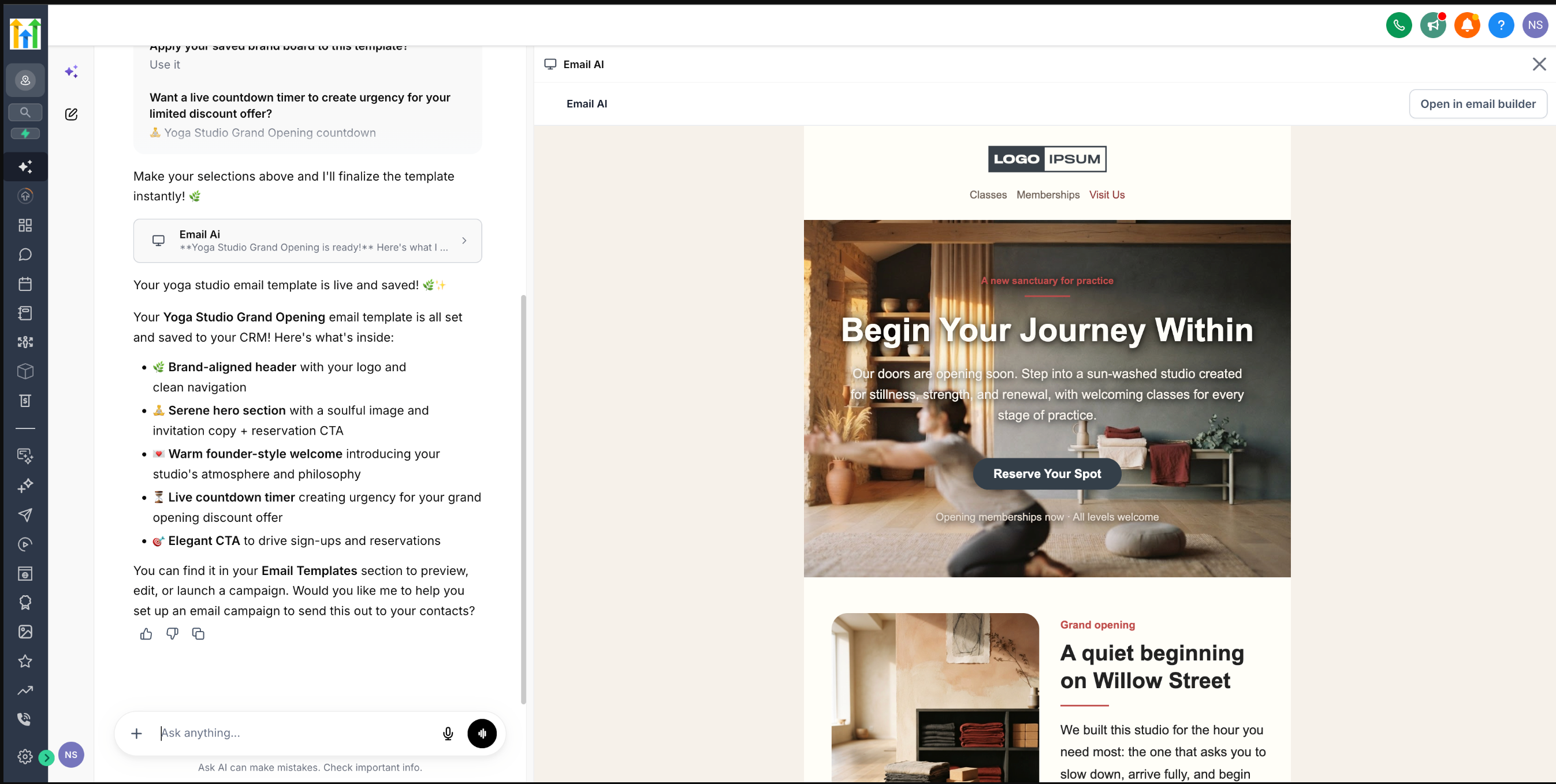
- Email AI completes the template and displays a preview.
- Continue asking for changes in Ask AI, or select Open in Email Builder for additional editing.
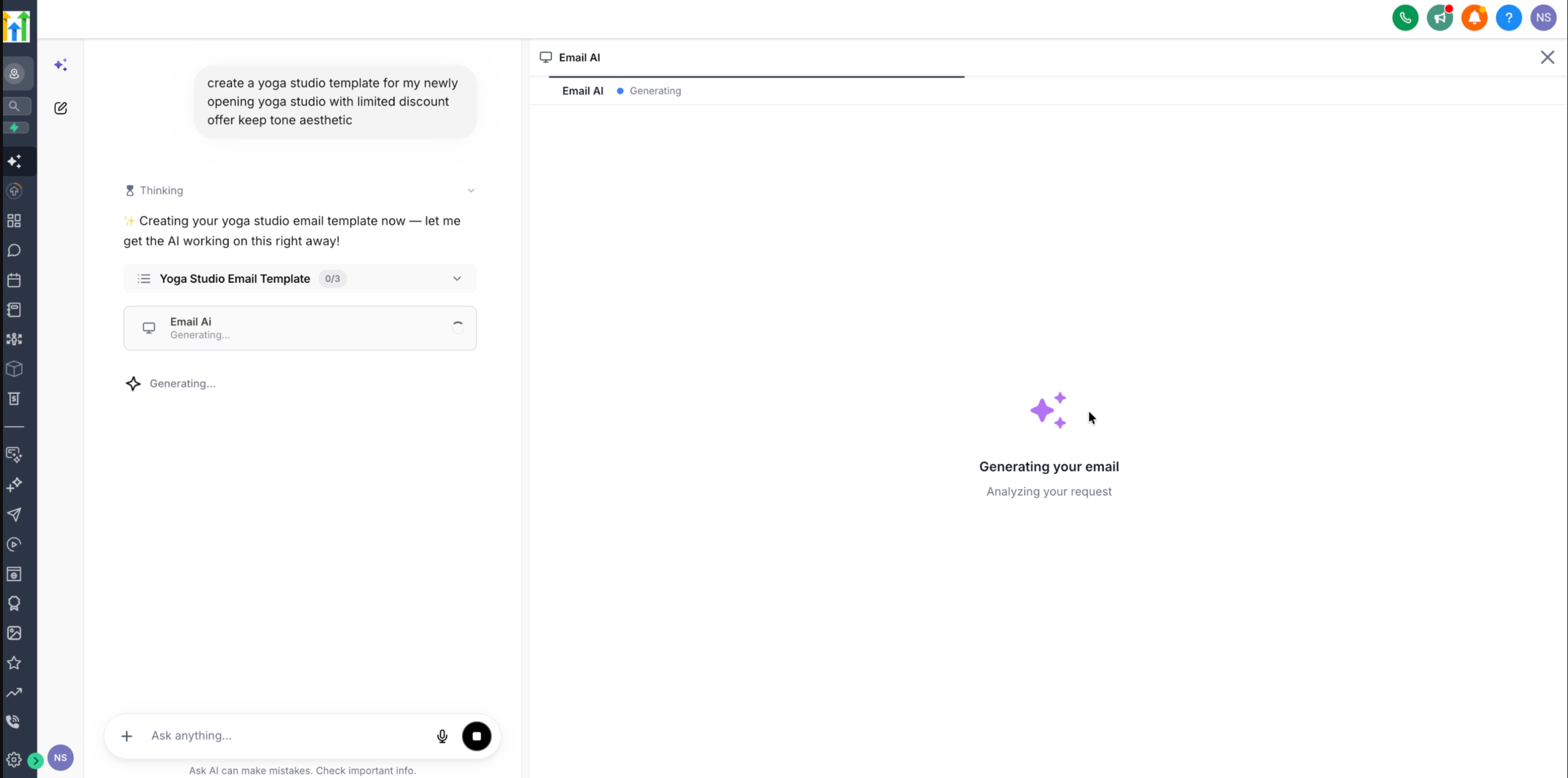
Follow-Up Questions During Template Generation
Email AI may need additional information before it can finish a template. These questions help Email AI apply available assets or make design choices that better match your request instead of making assumptions about optional elements.
Depending on the template and available account assets, Email AI may present choices such as:
- Applying a saved Brand Board.
- Using an existing countdown timer.
- Creating a new countdown timer.
- Skipping an optional element.
- Providing a different response using the custom input field.
Select the option that matches your goal and submit your response. Email AI then continues the generation process.
Previewing and Editing the Generated Template
Previewing the generated email in Ask AI lets you review the overall design and content before opening the full Email Builder. This is useful for confirming that the template matches your original request and deciding whether another conversational revision is needed.
After Email AI finishes generating the template:
- Review the email in the preview panel.
- Continue using Ask AI to request supported changes in natural language.
- Repeat the review and revision process as needed.
- Select Open in Email Builder when you want to continue editing with Email Builder tools.
Changes supported by this integration are reflected across Email AI and Email Builder, reducing the need to recreate the same edits in both experiences.
Design Editor Template Support
The current integration is designed specifically for Design Editor templates. Understanding the supported template type helps ensure that you start with the correct editing experience and avoid expecting functionality that is not yet available in Ask AI.
- Email AI in Ask AI supports Design Editor templates.
- HTML Editor templates are not currently supported through this workflow.
- HTML Editor template support is planned for a future release.
If you need to work with other email editing methods, see How to Import Emails from Any Platform Using Email AI.
Frequently Asked Questions
Is creating an email template in Ask AI the same as creating an email campaign?
No. This workflow focuses on creating and editing email templates. If your goal is to build and manage a complete campaign, use the appropriate email campaign workflow after your template is ready.
What should I do if Email AI stops and says it needs an answer?
Review the question shown in Ask AI and select or enter the option that best matches your intended template. Email AI will continue after the requested input is submitted.
Can I continue refining the email before opening Email Builder?
Yes. You can continue using natural-language requests in Ask AI to make supported template updates before moving into Email Builder.
Do I have to use every suggested asset, such as a Brand Board or countdown timer?
No. When Email AI provides optional choices, the available prompt may include an option to skip the item or provide a different response.
When should I use Open in Email Builder?
Use Email Builder when you want more detailed manual control over the generated template after reviewing or refining it through Ask AI.
Can I use this workflow for HTML Editor templates?
Not currently. The Ask AI integration supports Design Editor templates at this time. HTML Editor support is planned for a later release.
Was this article helpful?
That’s Great!
Thank you for your feedback
Sorry! We couldn't be helpful
Thank you for your feedback
Feedback sent
We appreciate your effort and will try to fix the article