Manage student discussions in HighLevel Membership courses by enabling, hiding, or locking comments. Control comment visibility for individual lessons or entire categories, and manage conversations across your courses. You can also delete and restore comments to keep discussions organized.
TABLE OF CONTENTS
- What Are Membership Comments in HighLevel?
- Key Benefits of Membership Comments
- Understanding Comment Settings
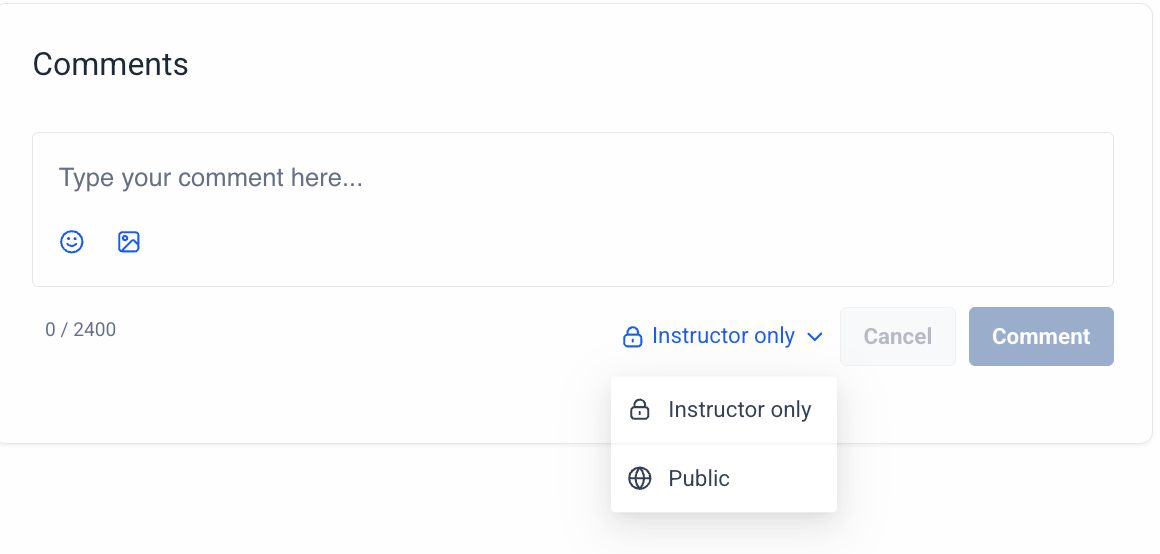
- Comment Visibility: User Only vs. Public
- How to Enable, Hide, or Lock Membership Comments
- How to Manage Membership Comments
- Frequently Asked Questions
- Related Articles
What Are Membership Comments in HighLevel?
Membership Comments allow students to ask questions, share feedback, and interact within course lessons. Course creators can control where comments appear, who can view them, and whether students can participate.
Key Benefits of Membership Comments
Flexible comment controls help you encourage engagement while keeping course discussions organized.
- Flexible Controls: Enable, hide, or lock comments for categories or individual lessons.
- Privacy Options: Control whether comments are visible to individual students or the entire course.
- Centralized Management: Review, filter, delete, and restore comments across multiple courses.
Understanding Comment Settings
HighLevel provides three settings to control student participation. Each determines whether existing comments remain visible and whether students can submit new ones.
| Setting | Existing Comments | New Comments |
|---|---|---|
| Enabled | Visible | Allowed |
| Hidden | Hidden | Not allowed |
| Locked | Visible | Not allowed |
Comment Visibility: User Only vs. Public
Comment visibility determines who can view an individual comment when the lesson's comment section is visible.
| Visibility | Who Can See the Comment |
|---|---|
| User Only | The student who posted it and the course creator |
| Public | Students in the course and the course creator |
Visibility can be changed for individual comments in Manage Comments.
How to Enable, Hide, or Lock Membership Comments
Comment settings can be applied to all lessons in a category or selected lessons. Choose the appropriate scope to control discussions without affecting unrelated course content.
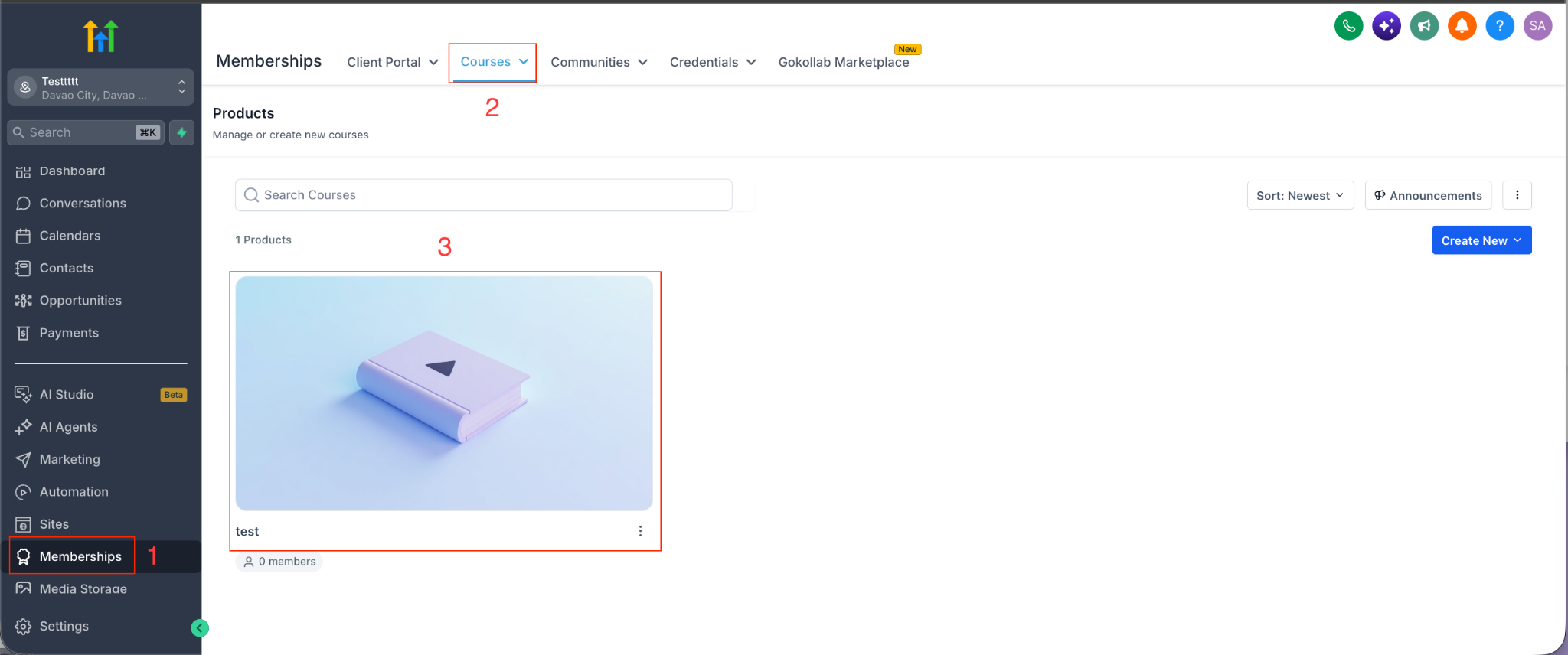
- Navigate to Memberships > Courses > Products.
- Open an existing course product or create a new one.
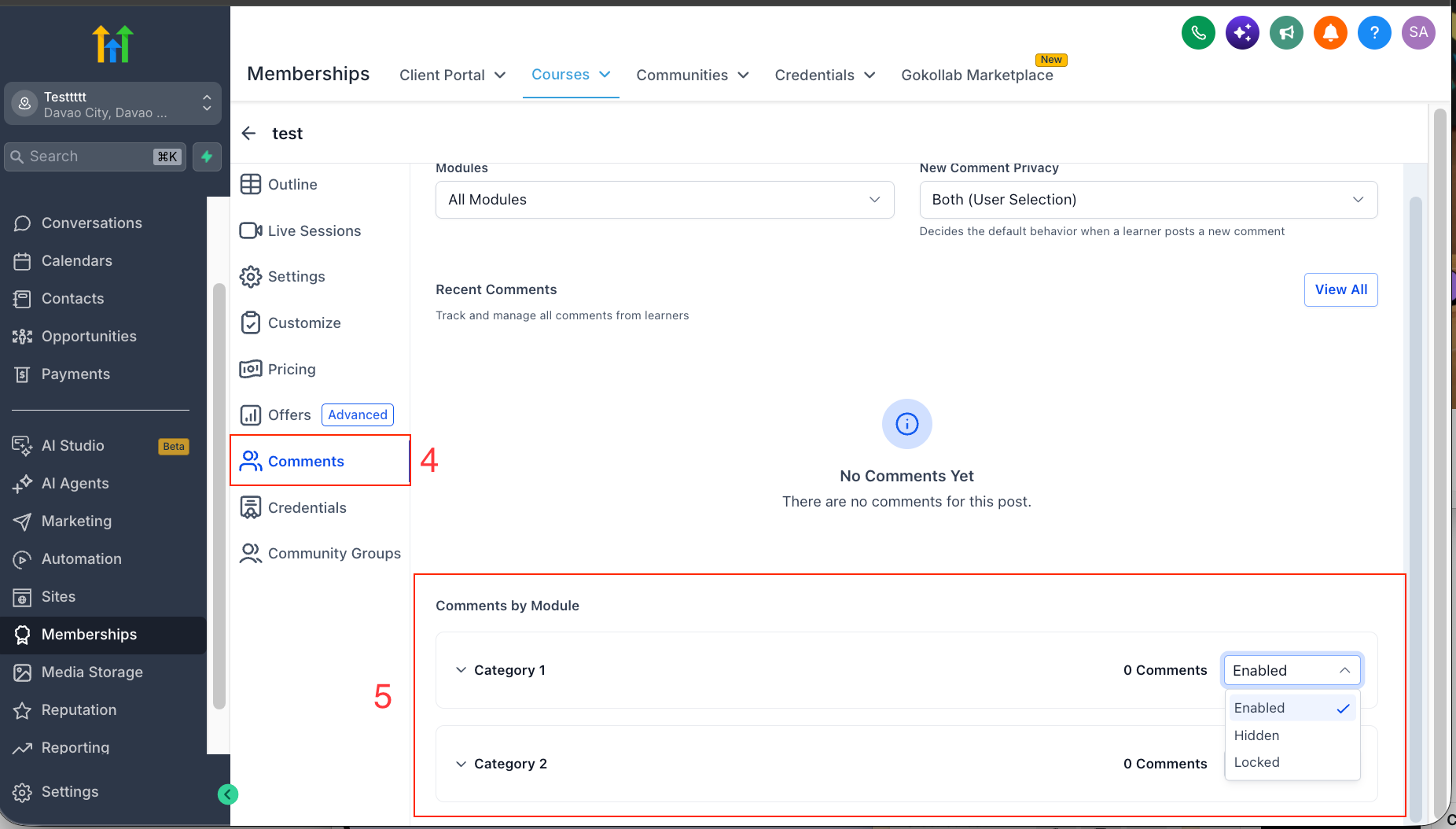
- Open the Comments section.
To configure all lessons in a category: Locate the category and select Enabled, Hidden, or Locked to apply the setting to all lessons within it.
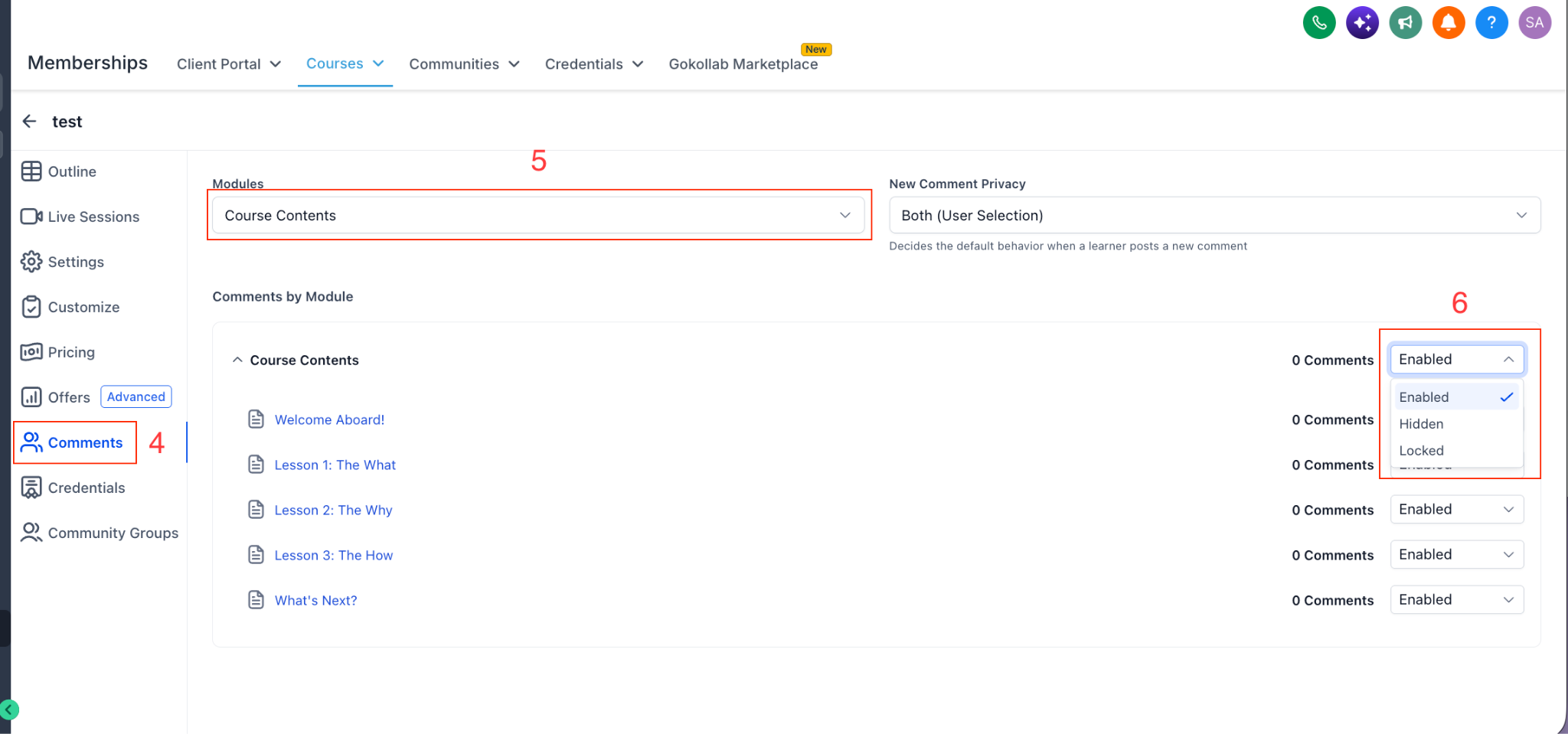
To configure selected lessons: Locate the individual lessons within the category and select Enabled, Hidden, or Locked for each lesson.
How to Manage Membership Comments
The Manage Comments interface lets you review discussions across courses, control comment visibility, and moderate student activity from one location.
Navigate to Memberships > Courses > Products, click the three-dot menu in the upper-right corner, and select Manage Comments.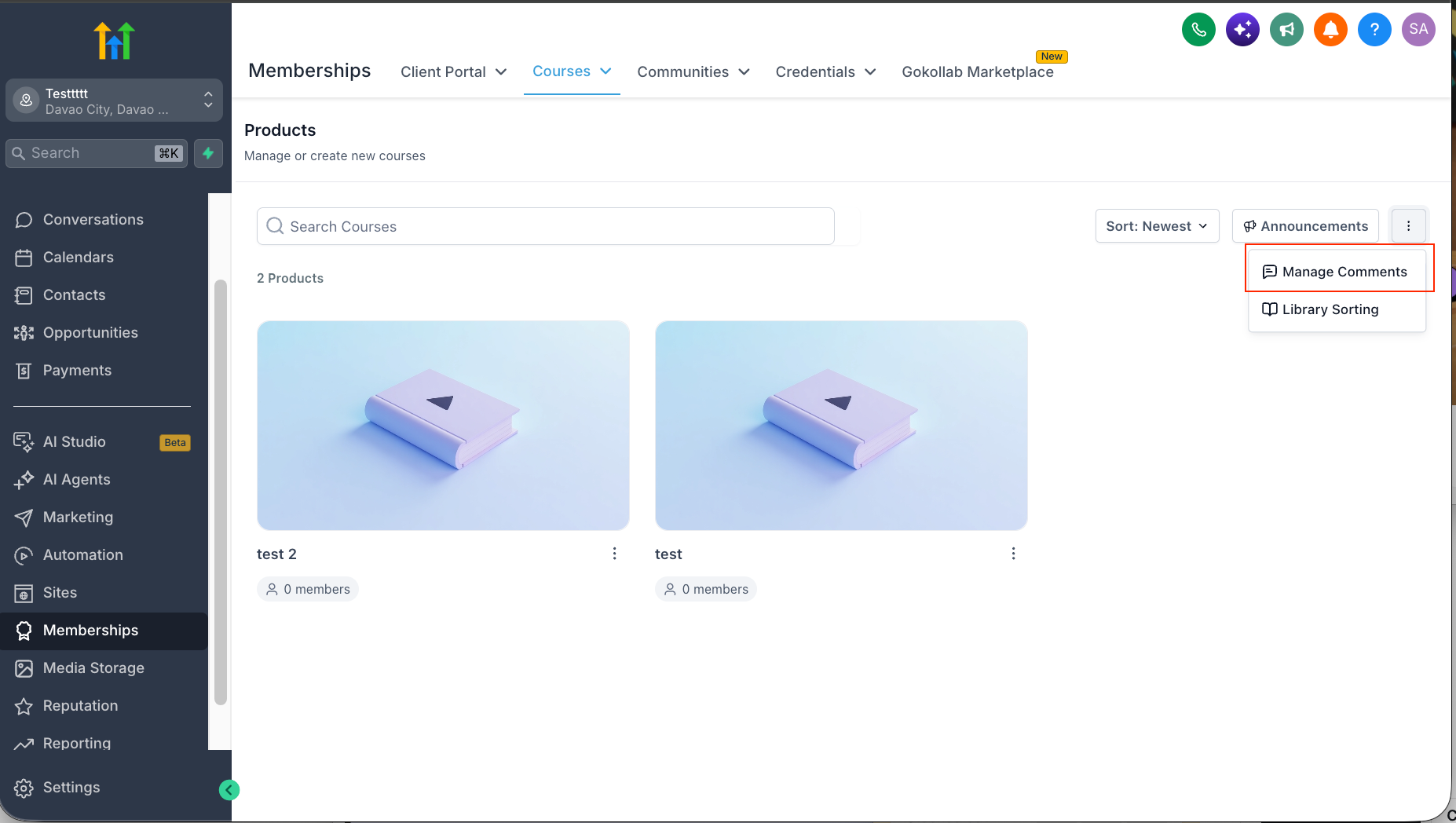
| Action | Steps |
|---|---|
| Filter comments | Use the available filters to view comments by course product or comment status. |
| Change visibility | Find a comment and select User Only or Public from its visibility dropdown. |
| Delete a comment | Select the comment and click Delete. |
| Restore a comment | Open the Deleted tab, locate the comment, and click Restore. |
Important: Comments deleted by sub-account administrators remain in the Deleted tab and can be restored. Comments deleted directly by learners do not appear in this tab and cannot be restored through this process.
Frequently Asked Questions
Q: Why can't students see comments on a lesson?
The lesson's comments may be set to Hidden. Check the comment settings for the lesson or its category. If only certain comments are missing, check whether their visibility is set to User Only.
Q: Can I stop students from adding comments without removing previous discussions?
Yes. Set comments to Locked. Students can still read existing discussions but cannot submit new comments.
Q: Can I change the visibility of a comment after it has been posted?
Yes. Open Manage Comments, locate the comment, and change its visibility to User Only or Public.
Q: Why can't I find a deleted comment in the Deleted tab?
Only comments deleted by sub-account administrators can be restored through the Deleted tab. Comments deleted directly by learners do not appear there.
Q: Can students and instructors receive notifications about course comments?
Yes. Instructors can receive notifications when learners post comments, and learners can receive notifications when someone replies to their comments. Notification preferences are managed separately from comment settings.
Related Articles
- How To Build Courses / Membership Sites
- Edit Membership Courses with the New Course Editor
- Courses: In-App Notifications for Comment, Unlocked & Drip Content
- Manage Commenting on Your Posts in Communities
Was this article helpful?
That’s Great!
Thank you for your feedback
Sorry! We couldn't be helpful
Thank you for your feedback
Feedback sent
We appreciate your effort and will try to fix the article