The new Memberships course editor gives you a larger, more focused workspace to build and manage courses. It opens a big editing window, keeps your full course structure visible, and reduces the need to switch between screens.
TABLE OF CONTENTS
- What is Edit Membership Courses with the New Course Editor
- Key benefits of Edit Membership Courses with the New Course Editor
- How to Edit Membership Courses with the New Course Editor
- Step 1) Open the course editor
- Step 2) Understand the layout
- Step 3) Reorder your course content (drag and drop)
- Step 4) Collapse and expand sections
- Step 5) Use status indicators and quick actions
- Frequently Asked Questions
- Relevant articles
What is Edit Membership Courses with the New Course Editor
Edit Membership Courses with the New Course Editor is the updated course editing experience in Memberships. It uses:
- A large editor window that takes up most of your screen.
- A left-side course map that shows your full course structure.
- Breadcrumbs at the top so you always know where you are in the course.
Key benefits of Edit Membership Courses with the New Course Editor
- Fewer Distractions: The editor blocks out other UI so you can focus on content.
- Faster Navigation: Jump to any lesson or quiz from the course map.
- Better Organization: Keep your course overview visible while editing individual items.
- Clear Location Awareness: Breadcrumbs show your current position in the course.
- Quick Structure Changes: Reorder content with drag and drop and collapse/expand sections.
How to Edit Membership Courses with the New Course Editor
Step 1) Open the course editor
- Go to Memberships and open Courses.
- Select the course you want to edit.
- Open the editor (the editor should launch in a large workspace).
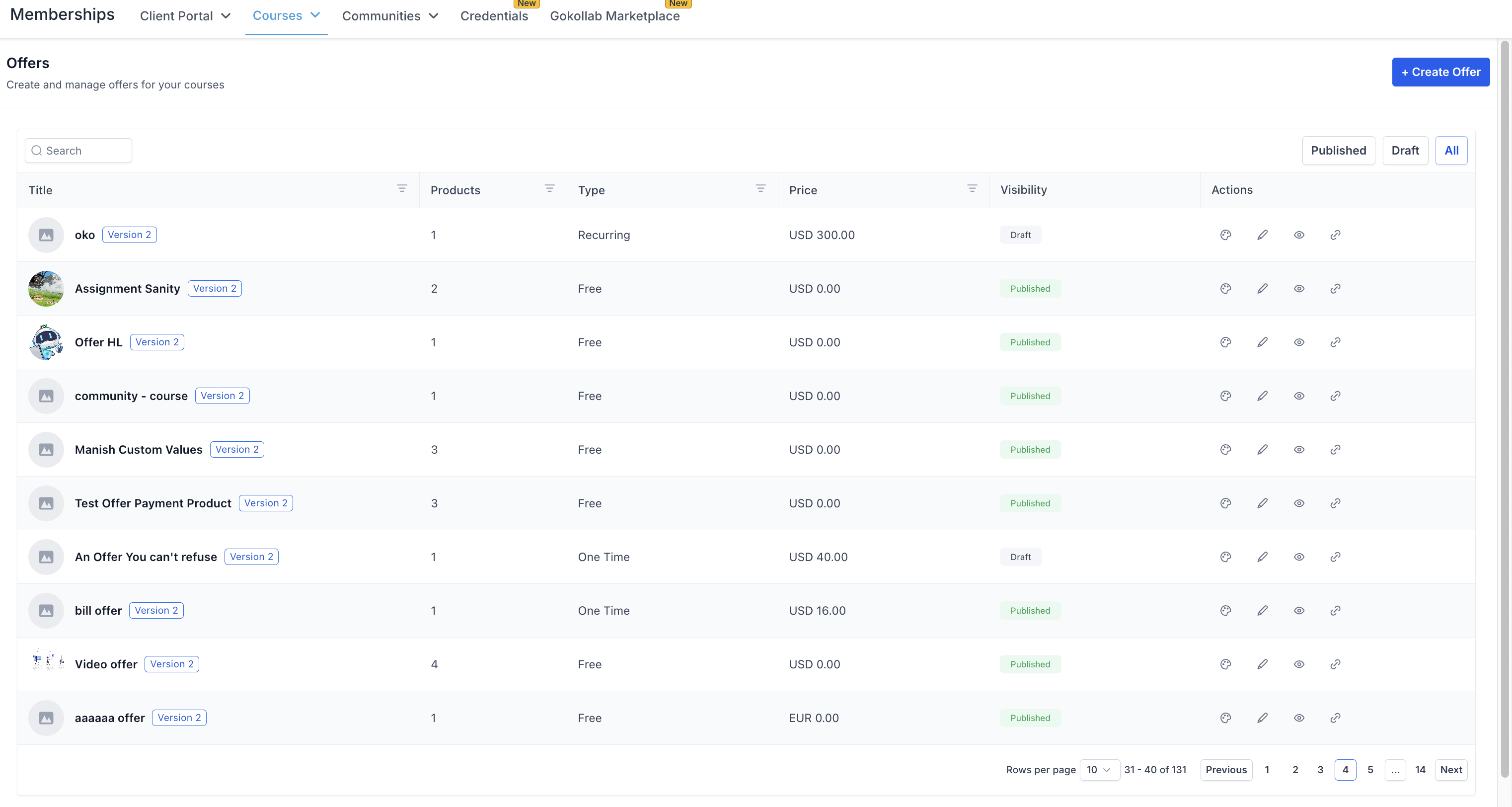
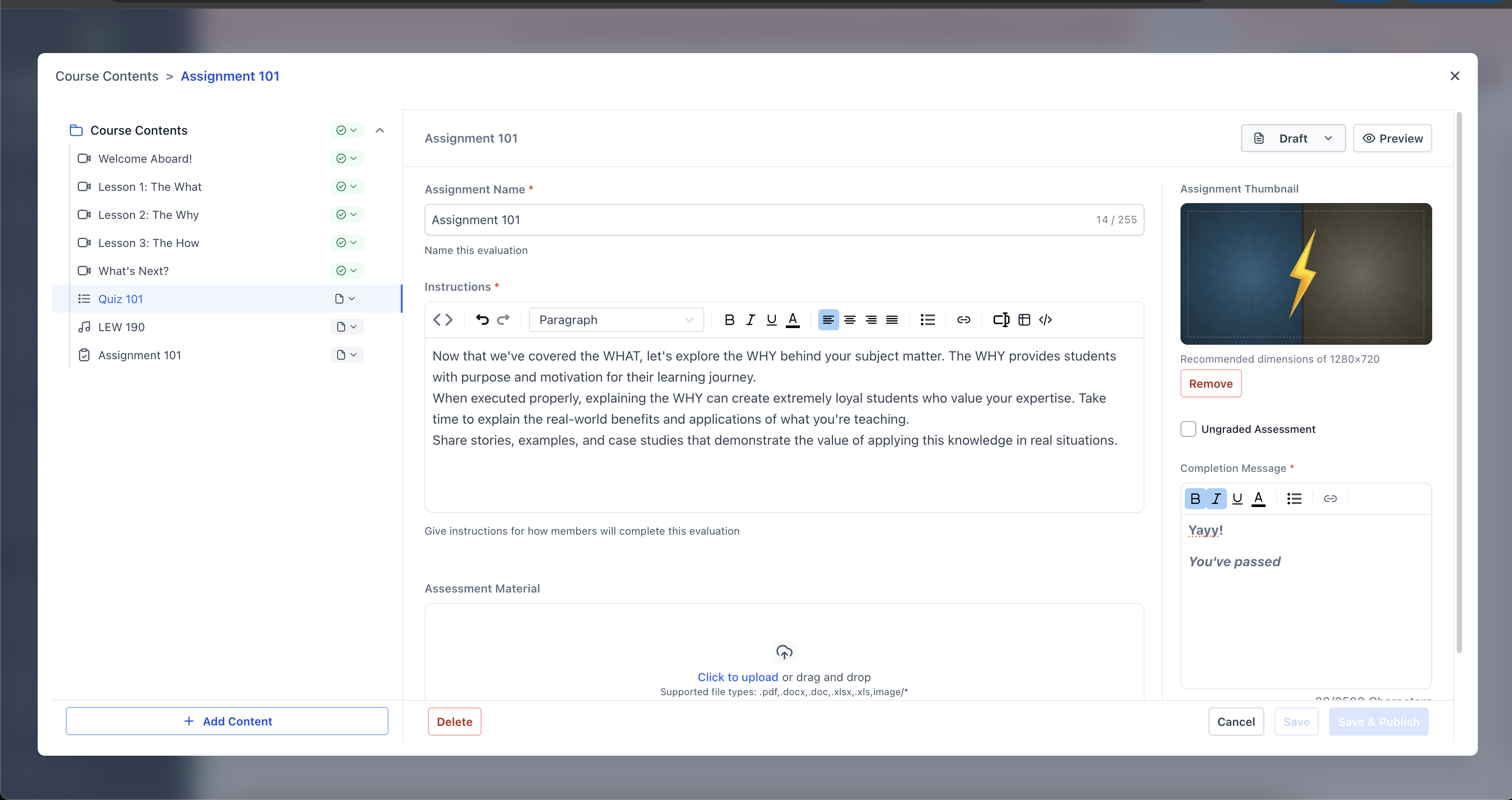
When the editor opens, you should see:
- Left panel (Course Map): Your course structure, similar to a table of contents.
- Main editor area: The selected item opens here for editing.
- In the course map, click and drag an item to a new position.
- Drop it where you want it in the structure.
Step 4) Collapse and expand sections
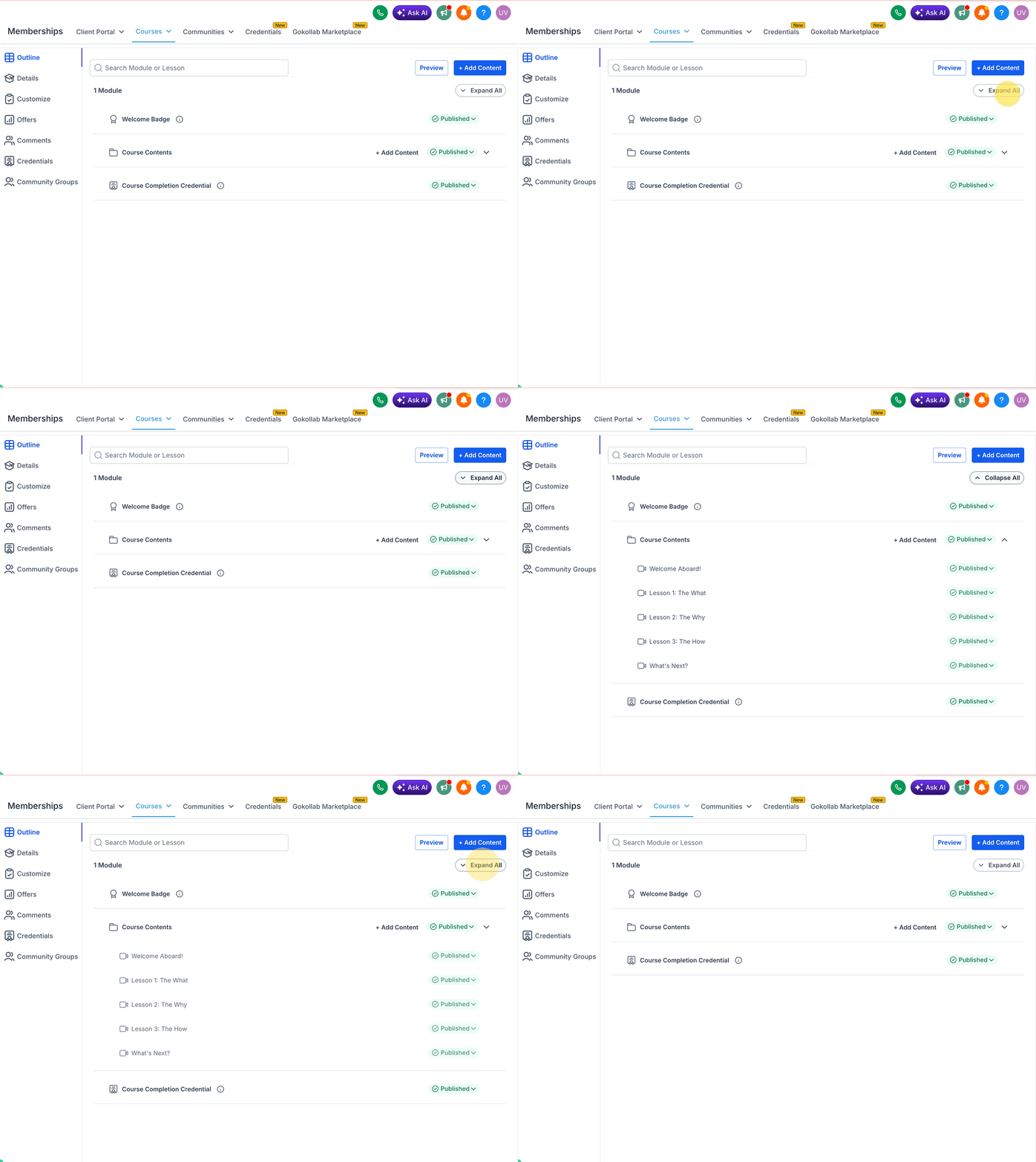
- Collapse modules or sub-sections to focus on one area.
- Expand them again when you need the full view.
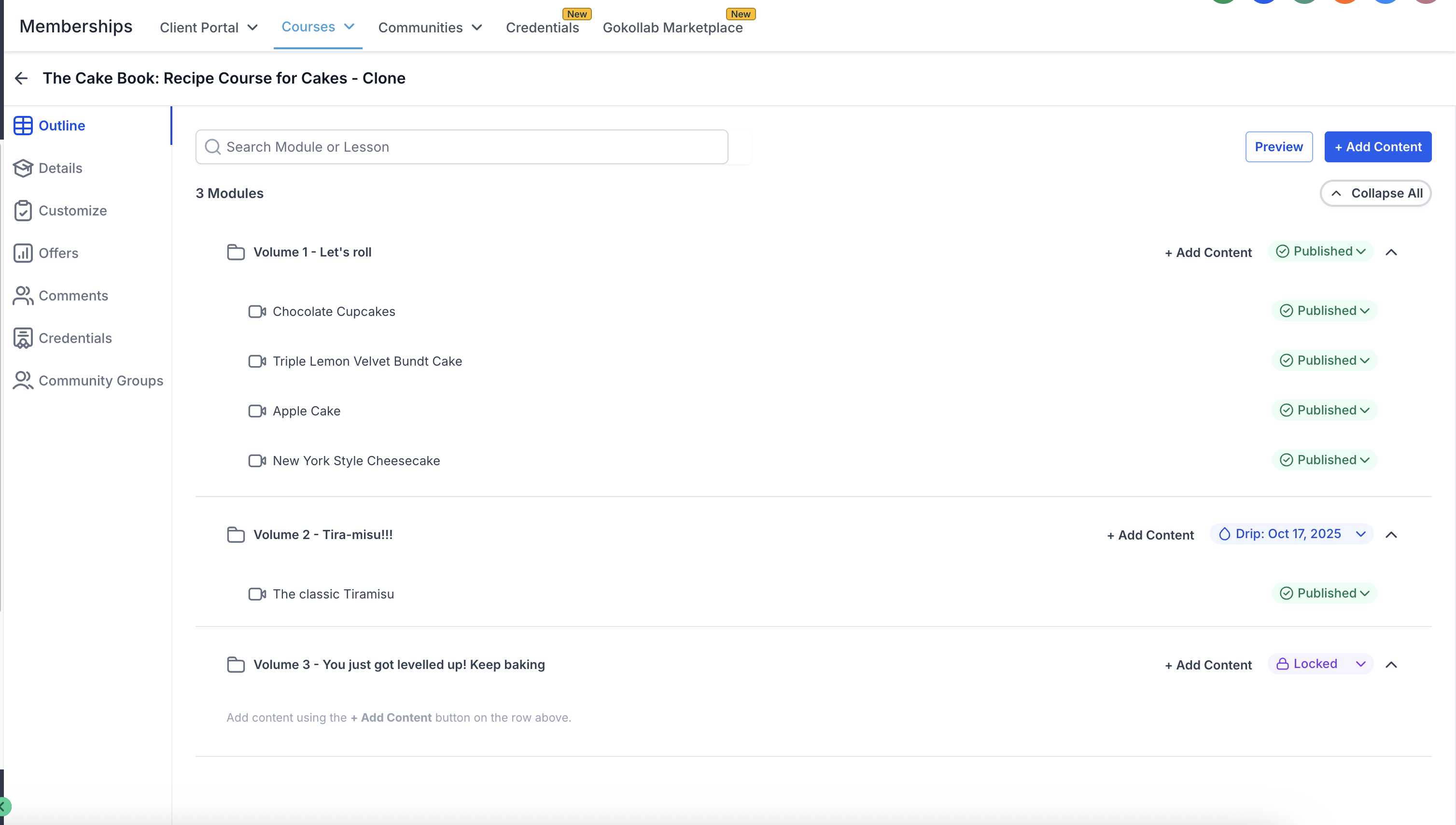
Step 5) Use status indicators and quick actions
The course map can show content status (for example, published/draft/locked) and provides quick actions (for example, edit, delete, and change visibility).
Frequently Asked Questions
Q. Does the editor replace the old multi-page editing flow?
The new experience is designed to reduce switching between different pages by keeping the course map and editor visible together.
Q. Can I jump between steps while creating a course?
The updated course creation flow supports a progress indicator with clickable steps and flexible navigation (go back, skip steps, or jump to completed steps).
Q. Can I reorder modules and lessons?
Yes. The course map supports drag-and-drop reordering.
Q. What does “locked” mean in the course map?
The course map may show “locked” content as a status.
Q. Will I see performance improvements?
The release notes state major page and editor interactions are significantly faster due to improved loading, caching, and state handling.
Relevant articles
Was this article helpful?
That’s Great!
Thank you for your feedback
Sorry! We couldn't be helpful
Thank you for your feedback
Feedback sent
We appreciate your effort and will try to fix the article