Connecting a Google Business Profile (GBP) location to Social Planner lets you manage supported Google posts alongside your other social accounts in HighLevel. After authorizing the Google account that manages your business profile, you can select the location you want to connect. Once connected, the location becomes available for supported Social Planner publishing. This guide walks you through the connection process and the available ways to access your social account settings.
Table of Contents
What is Google Business Profile Connection in Social Planner?
Key Benefits of Connecting Google Business Profile
Prerequisites and Limitations
How to Connect a Google Business Profile Location
Frequently Asked Questions
Related Articles
What is Google Business Profile Connection in Social Planner?
Connecting a Google Business Profile location makes that business location available as a social account in Social Planner. HighLevel uses Google authorization to retrieve the business locations associated with the selected Google account so you can choose the location you want to connect.
Key Benefits of Connecting Google Business Profile
Connecting your Google Business Profile to Social Planner gives you a centralized way to manage supported Google publishing alongside your other connected social accounts.
Centralized Social Publishing: Manage supported Google Business Profile posts from Social Planner alongside your other social networks.
Location Selection: Choose the specific business location associated with your authorized Google account.
Multiple Location Support: Connect and manage supported Google Business Profile locations available through your Google account.
Shared Authorization: HighLevel can reuse Google Business Profile authorization across supported areas such as Social Planner, Listings, and Reputation.
Prerequisites and Limitations
Before connecting a Google Business Profile location, make sure you are using the Google account associated with the location you want to manage.
You must be able to sign in to the Google account that has access to the Google Business Profile location.
Only locations available to the authorized Google account can be selected.
This article covers connecting a Google Business Profile directly to Social Planner. It does not cover the broader Google Business Profile integration for reviews, reputation management, or call tracking.
Some Google Business Profile locations may have publishing restrictions. If HighLevel reports that the Local Post API is unavailable, refer to the Social Planner troubleshooting guidance.
How to Connect a Google Business Profile Location
Connecting the location requires opening Social Planner settings, authorizing Google, and selecting the business location you want HighLevel to use.
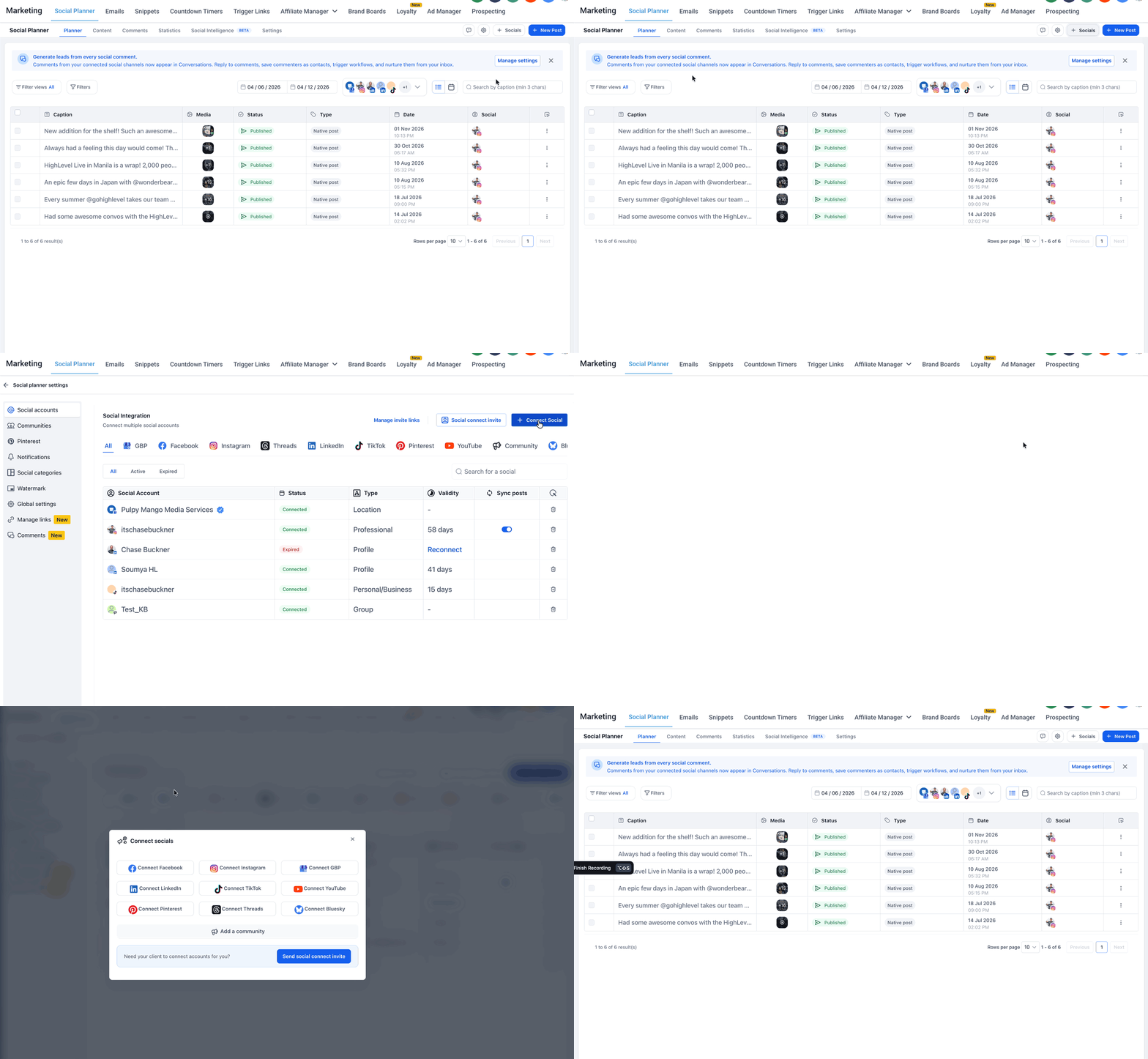
Step 1: Go to Social Planner > Setting
From your HighLevel sub-account, go to Marketing → Social Planner.
In the upper-right corner of Social Planner, click the gear icon to open Social Planner settings.
Note: You can access the social account connection options in three ways:

• Click + Socials to open the Connect socials window directly.
• Click the gear icon to open Social planner settings.
• Click the Settings tab to open Social planner settings, then go to Social accounts and click + Connect Social.
Step 2: Connect a Google Business Profile Location
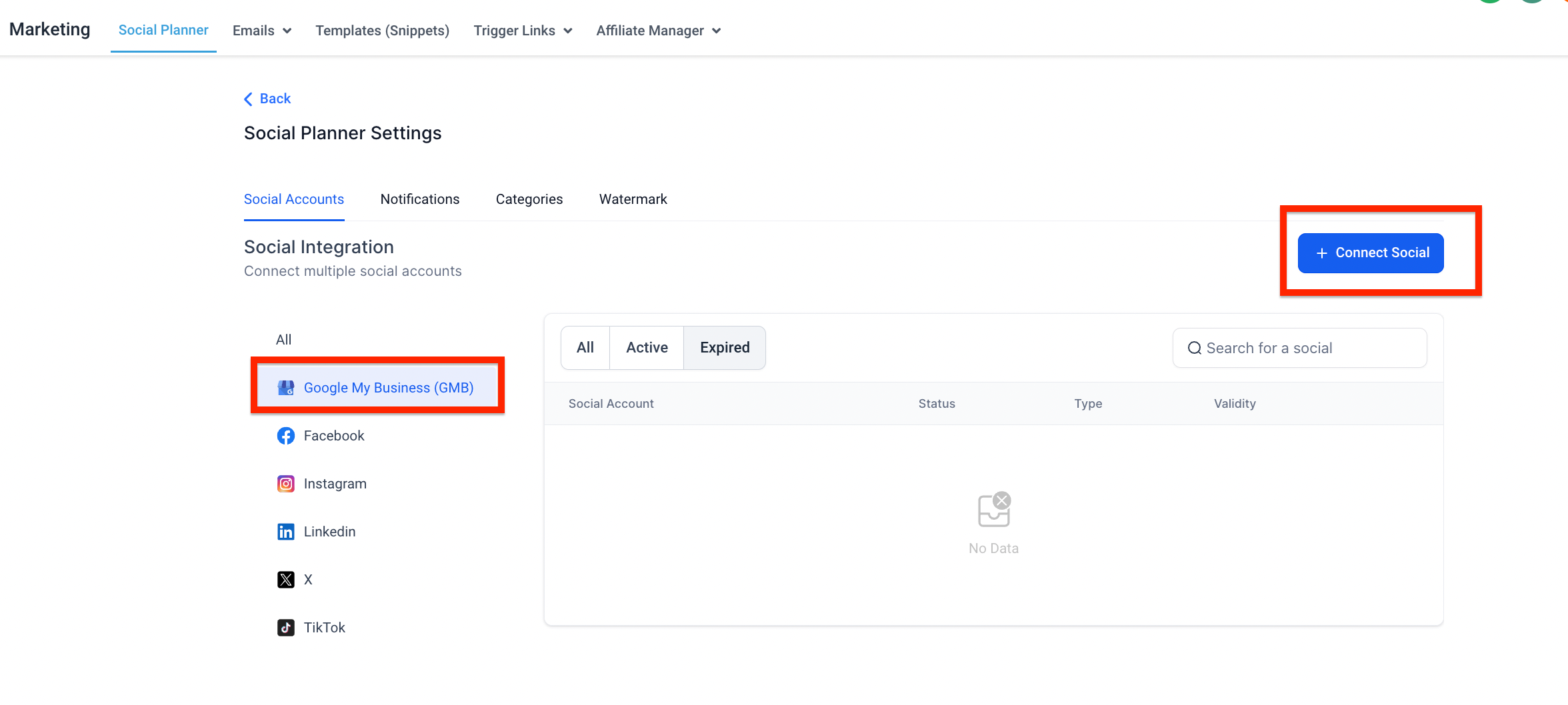
From the available social account options, select Connect GBP to start the Google Business Profile connection.
Step 3: Give Permission Using Your Google Account
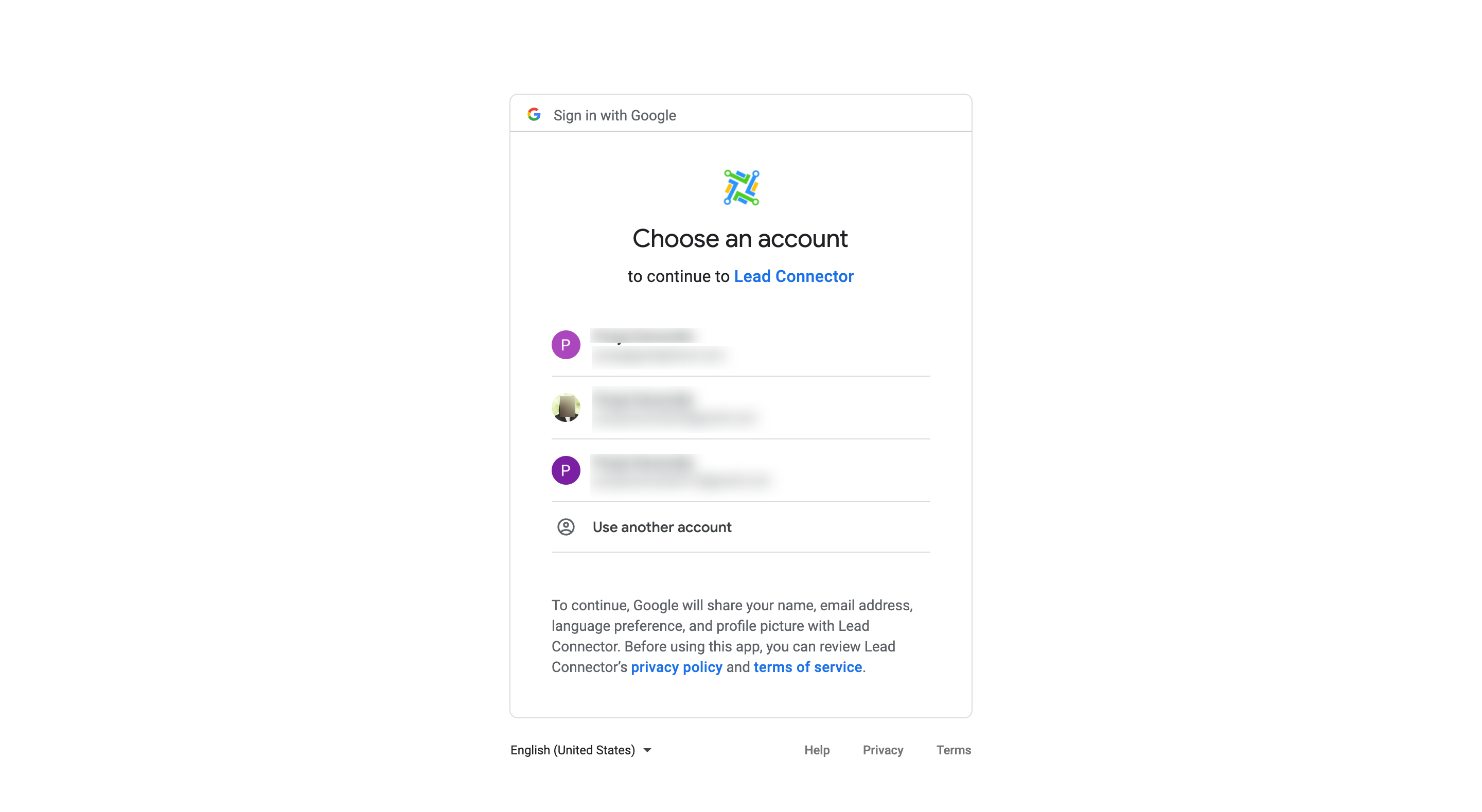
Choose the Google account associated with the Google Business Profile location you want to connect.
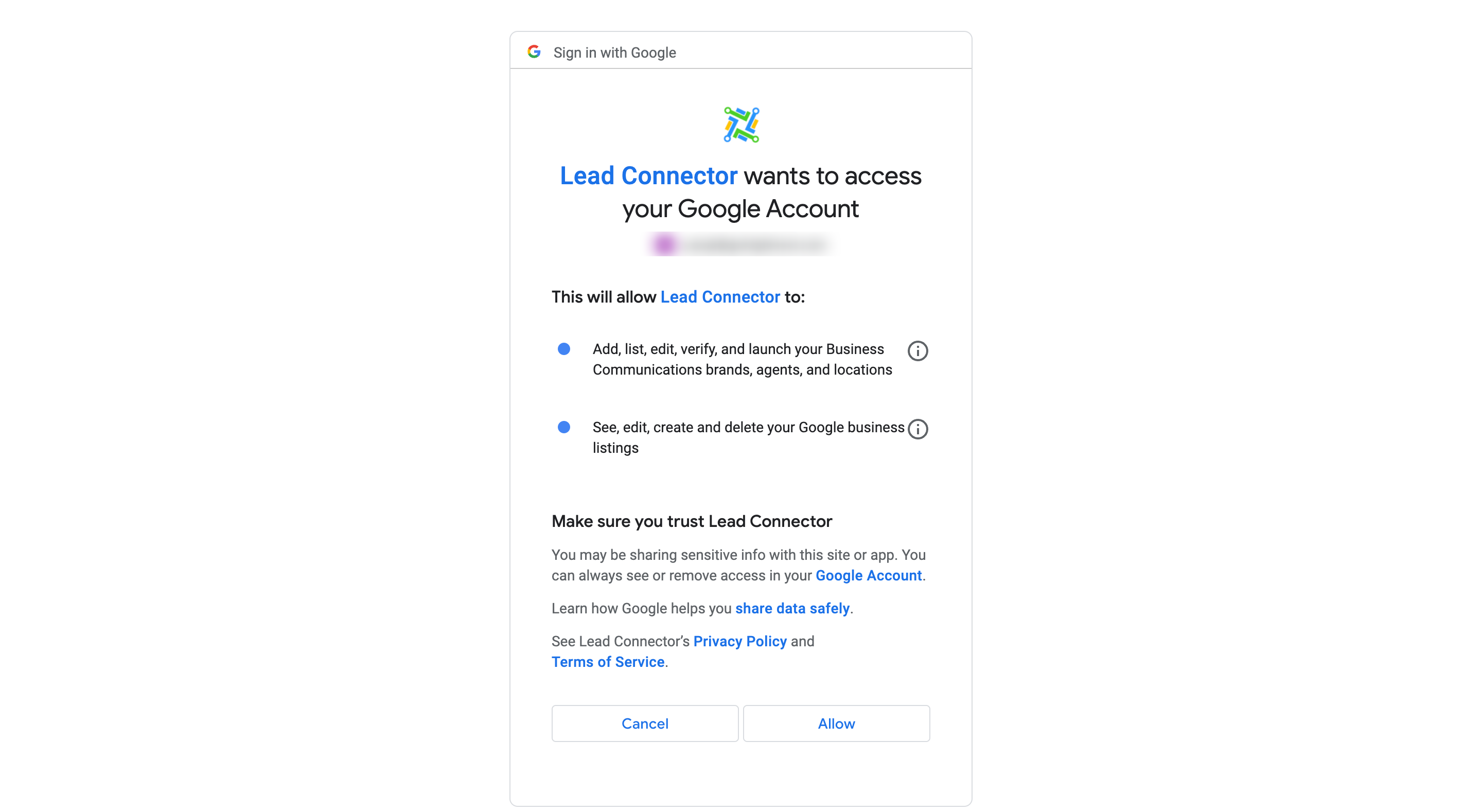
If you are connecting the account for the first time, complete the Google authorization prompts and grant the requested permissions.
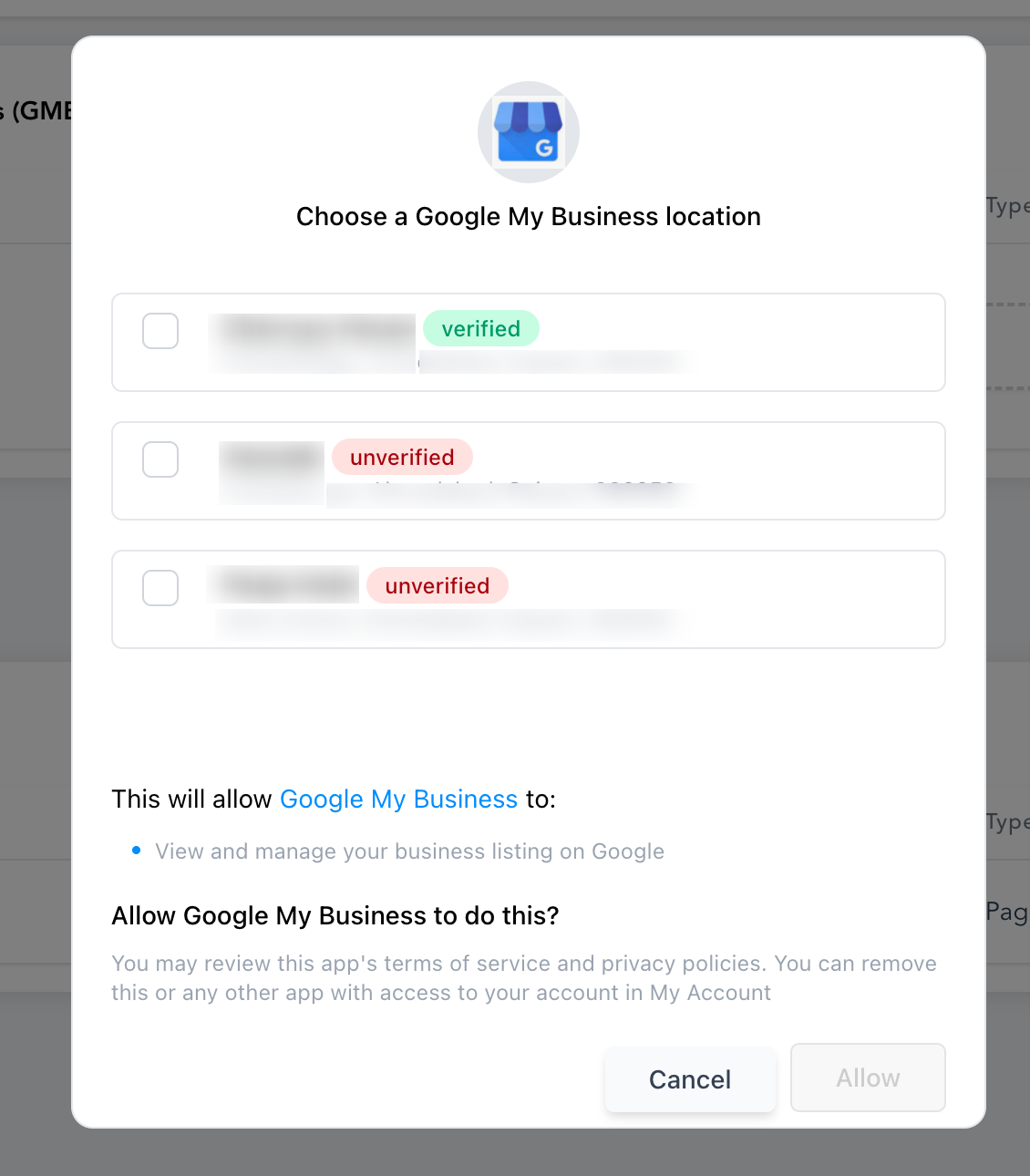
Step 4: Choose the Google Business Profile Location
HighLevel retrieves the Google Business Profile locations associated with the authorized Google account.
Select the location you want to connect, then click Add.
After completing the connection, confirm that the Google Business Profile location is available as a connected social
account in Social Planner.
Frequently Asked Questions
Q: Which Google account should I use to connect my Google Business Profile?
Use the Google account that has access to the Google Business Profile location you want to connect. HighLevel retrieves the available business locations from the account you authorize.
Q: Can I connect more than one Google Business Profile location?
Yes. HighLevel supports multiple Google Business Profile locations. Select the appropriate locations available through the Google account used during authorization.
Q: Can I connect a Google Business Profile from Social Planner settings?
Yes. Open Social Planner, click the gear icon or the Settings tab, go to Social accounts, and click + Connect Social.
You can also click + Socials from the Planner view to open the social connection options directly.
Q: Why is my Google Business Profile location not appearing?
Confirm that you selected the correct Google account and that the account has access to the business location you want to connect. If the location still does not appear, review the Google Business Profile connection and permissions before trying again.
Q: Do I need to connect Google Business Profile again if I already use it elsewhere in HighLevel?
Not always. HighLevel can reuse Google Business Profile authorization across supported areas such as Social Planner, Listings, and Reputation, which can reduce duplicate authorization steps.
Q: What should I do if Google Business Profile publishing fails after I connect the location?
Review the Social Planner publishing error and verify that the Google account remains authorized. If HighLevel reports a Google Business Profile or Local Post API error, use the Social Planner troubleshooting guide to identify the specific cause.
Related Articles
Was this article helpful?
That’s Great!
Thank you for your feedback
Sorry! We couldn't be helpful
Thank you for your feedback
Feedback sent
We appreciate your effort and will try to fix the article