TABLE OF CONTENTS
What is the GBP Post Scheduler?
Key Benefits of GBP Post Scheduler
- Save time with true “set-it-and-forget-it” publishing.
- Maintain brand consistency by posting to multiple GBPs at once.
- Overcome writer’s block—AI creates post copy and images on demand.
- Improve local SEO; frequent, high-quality posts signal relevance to Google.
- Track performance and make real-time edits from one dashboard.
Using AI Assist for Content & Images
How To View GBP Post Scheduler
Open GBP Optimization
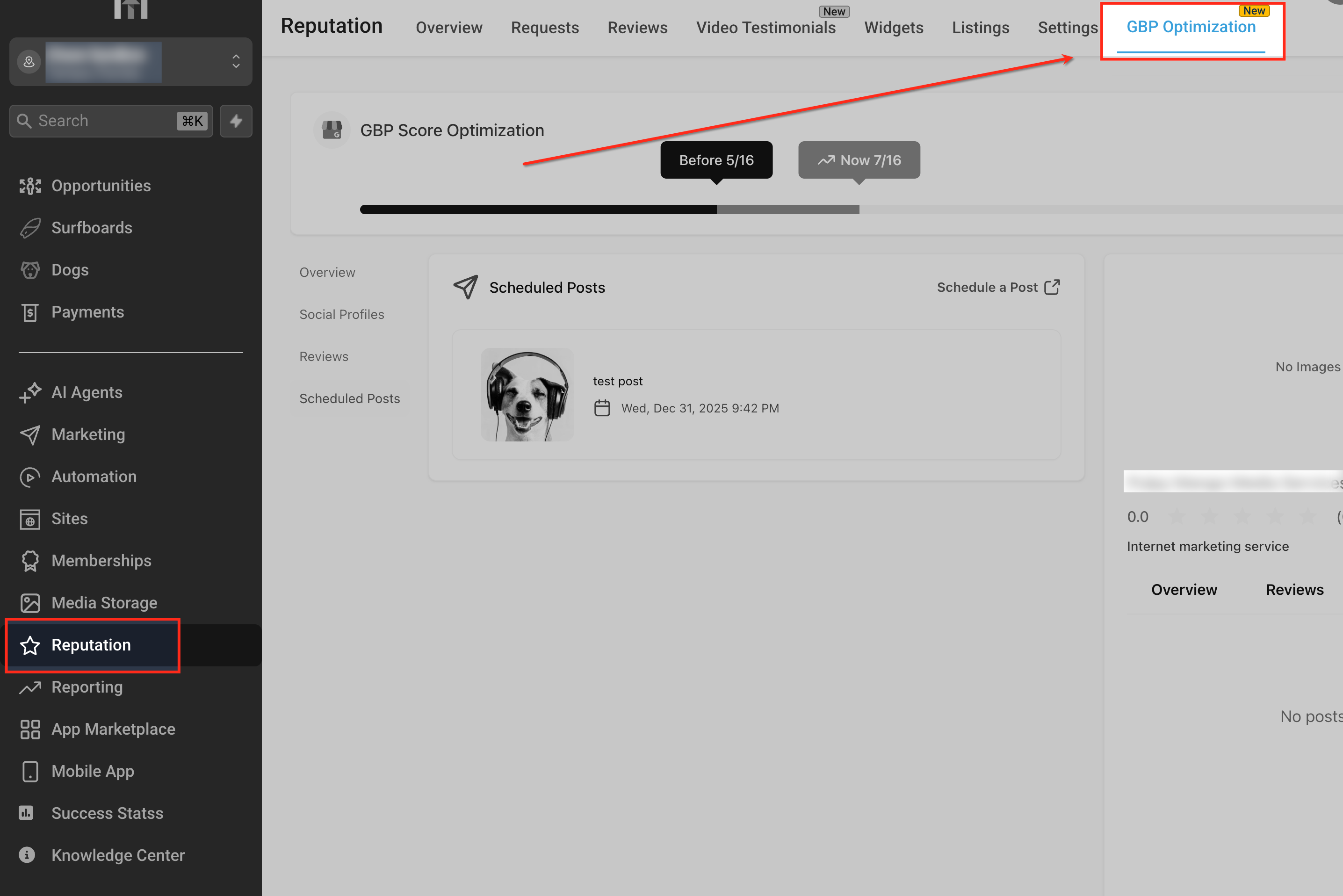
From the left-hand menu, click Reputation, then select GBP Optimization at the top to view all Google Business Profile–related tools, including Scheduled Posts.
View Scheduled Posts
This view displays all upcoming Google Business Profile posts that have been scheduled for the selected account. The Scheduled Posts tab on the left highlights where you can quickly review post content, images, and publish dates, or click Schedule a Post to create a new one.

Preview Published Posts
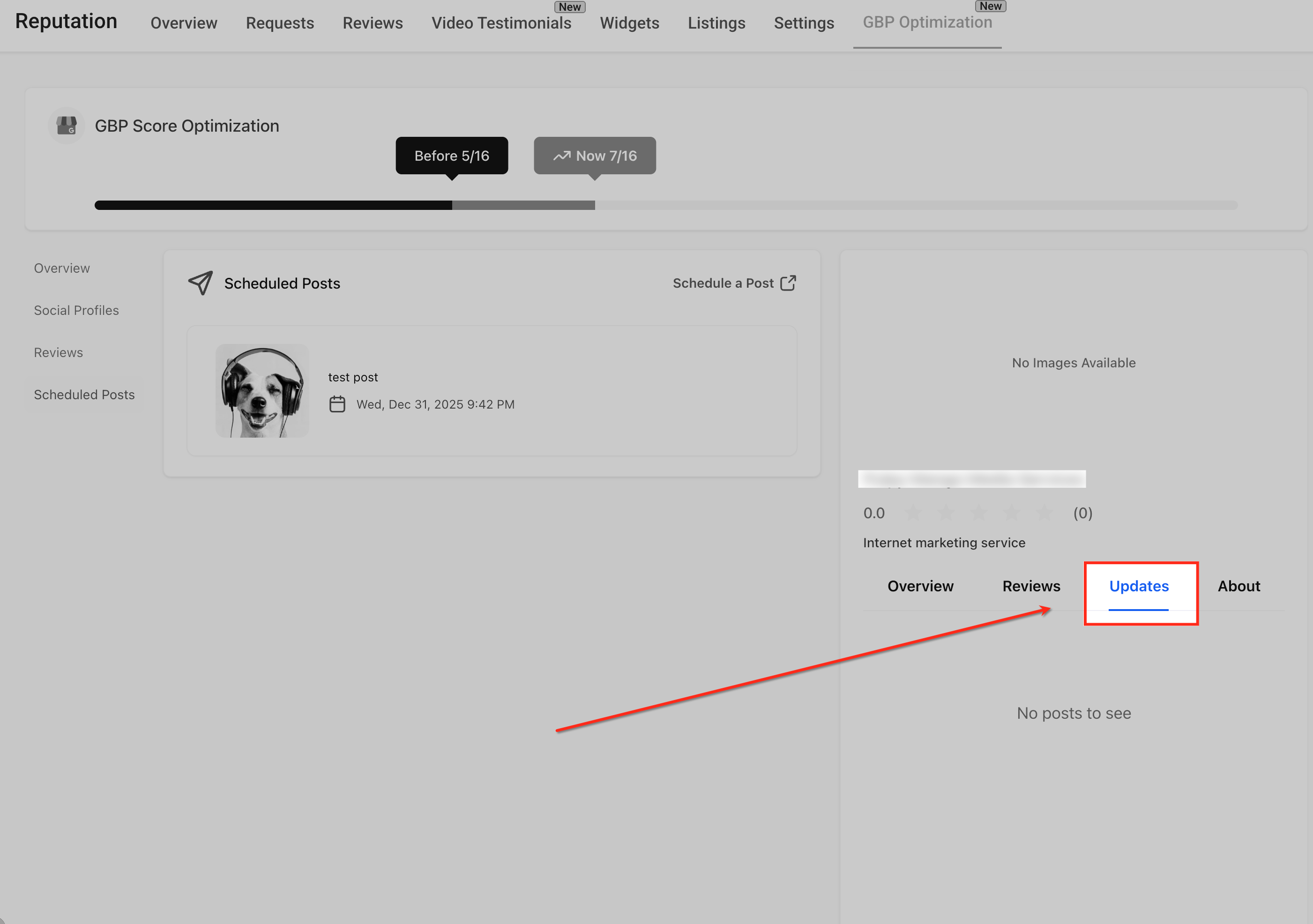
The Updates panel on the right shows how scheduled or published posts appear directly on the Google Business Profile. This preview helps confirm that posts are syncing correctly and allows you to verify what customers will see once the content is live.
Edit Scheduled Post
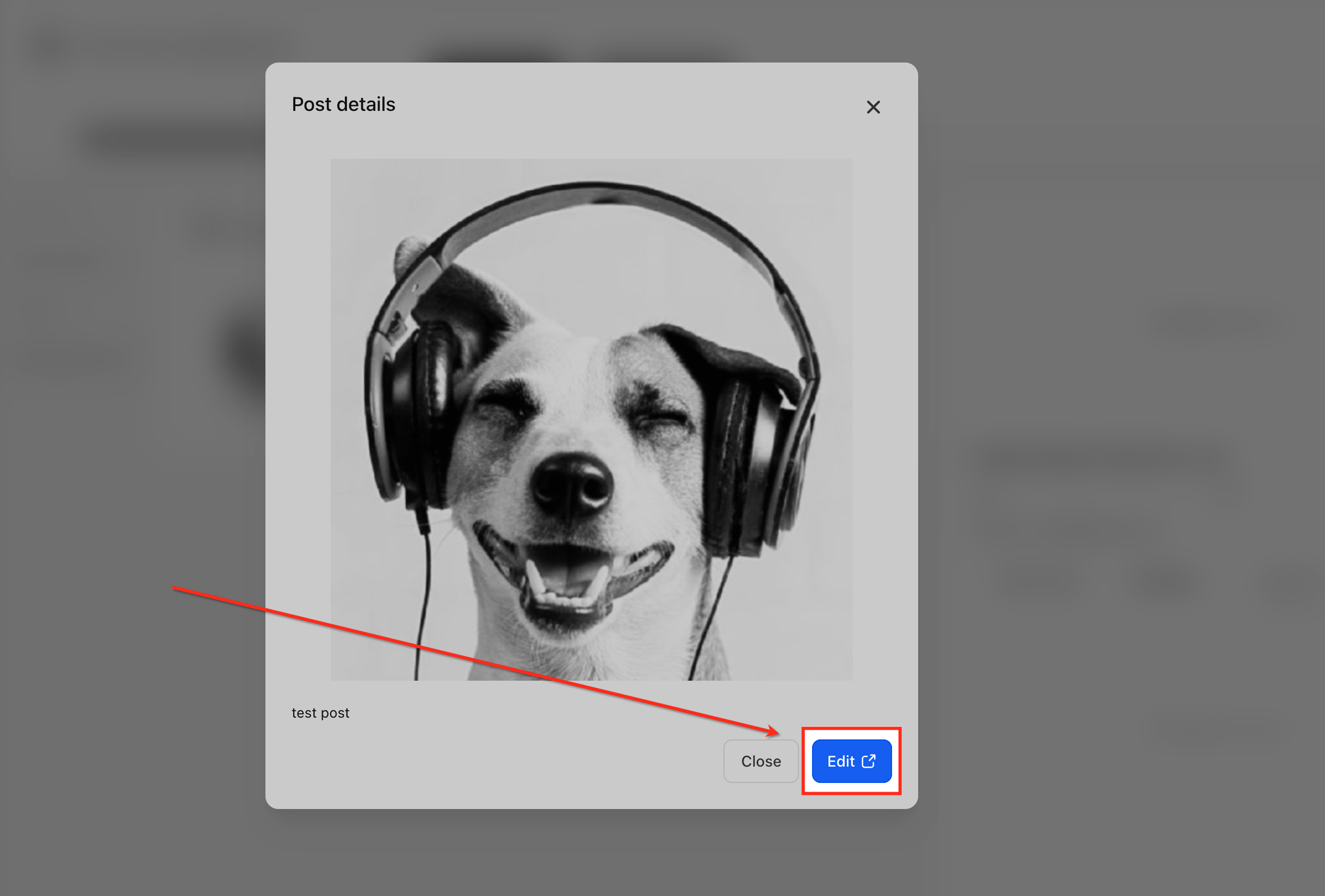
Selecting any scheduled post opens its details, allowing you to review the post content and image before publishing. Clicking Edit launches the post editor in the Social Planner, where you can update the text, replace images, adjust the schedule, or make other changes before saving.
Connecting Google Business Profiles in Social Planner
Open Social Planner
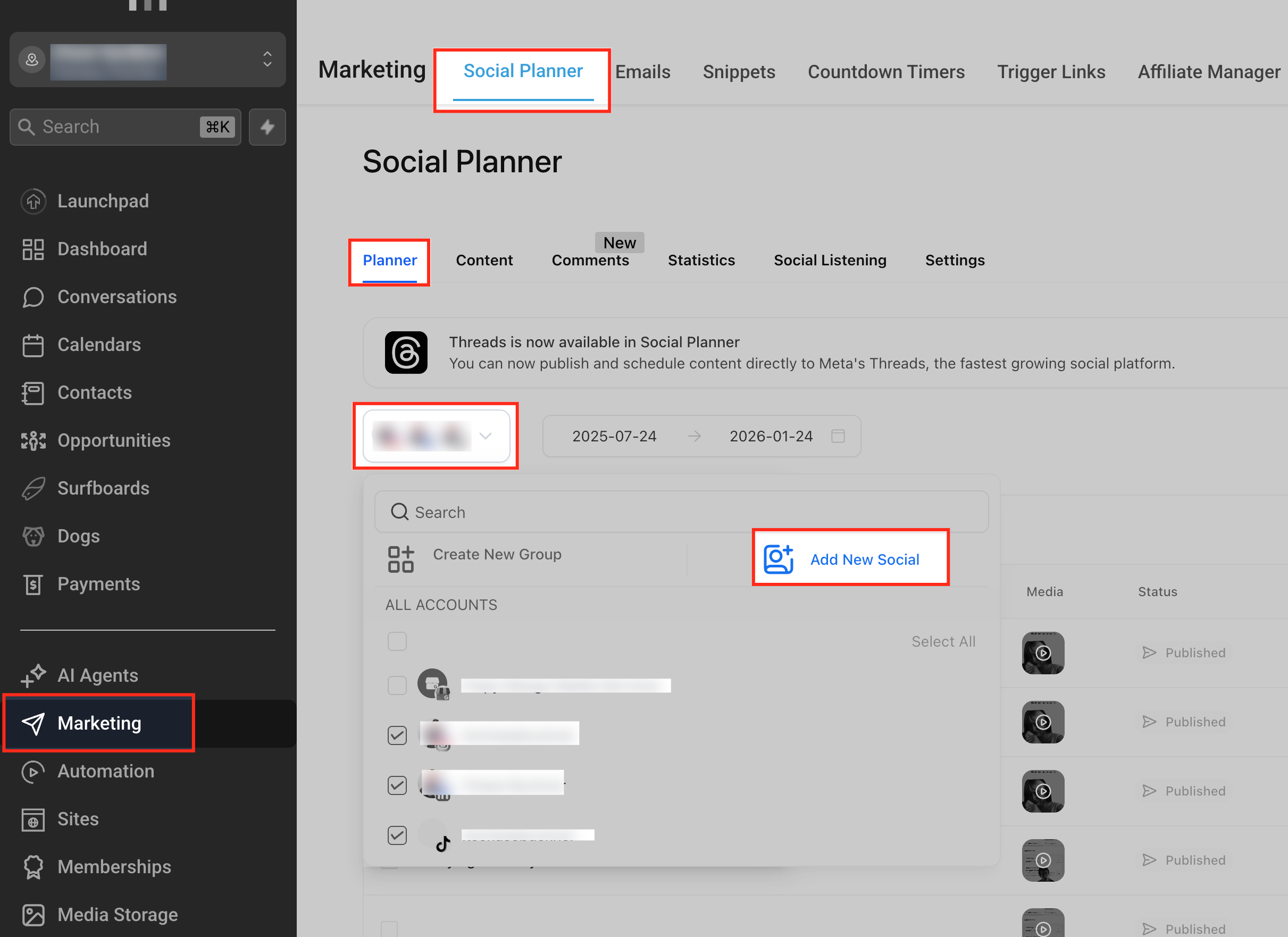
Navigate to Marketing in the left-hand menu, then select Social Planner and make sure the Planner tab is active at the top. From there, use the account dropdown to choose the correct sub-account and click Add New Social to begin connecting a Google Business Profile.
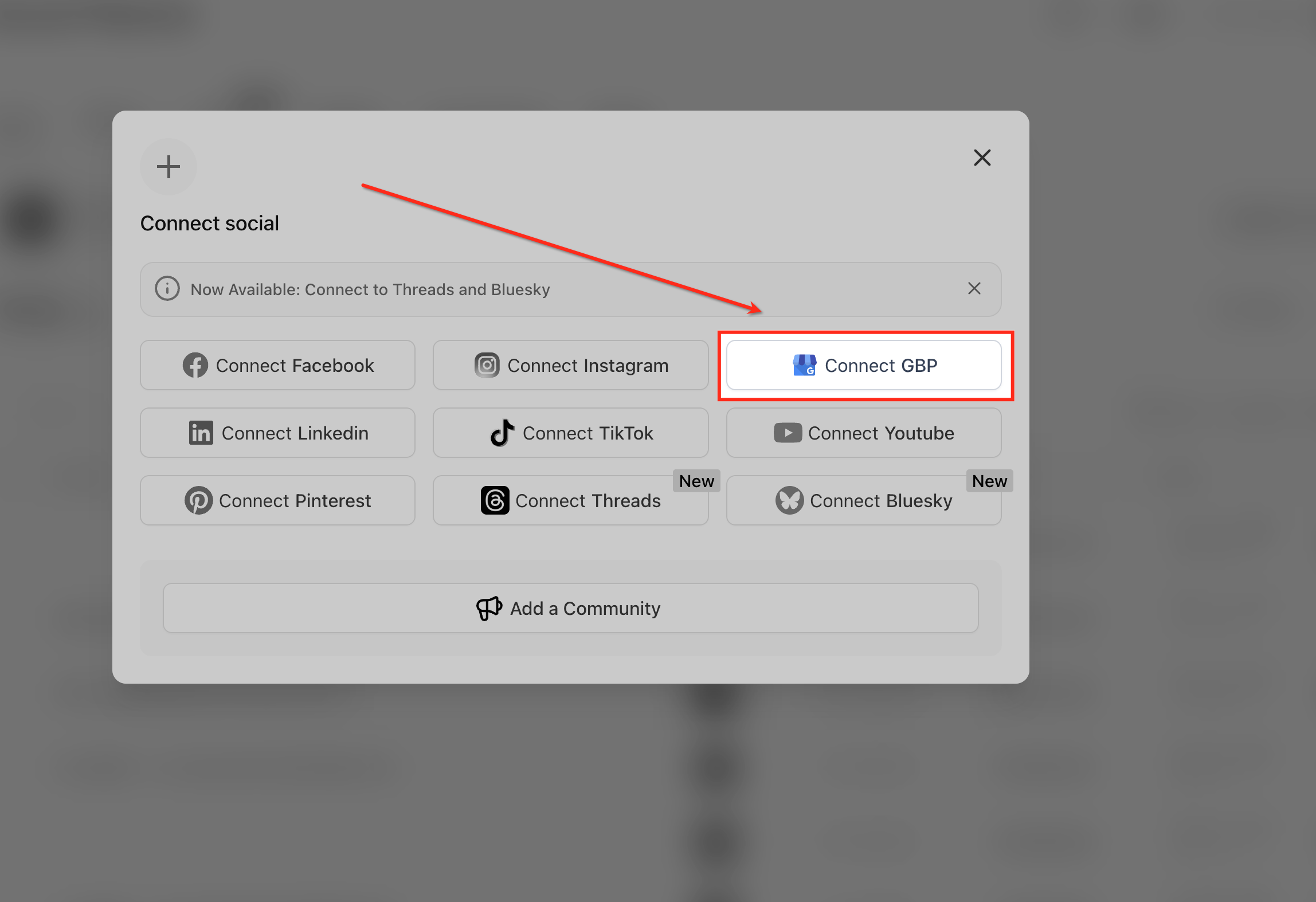
Connect GBP
Select Connect GBP from the list of available social platforms to begin linking a Google Business Profile. This option starts the Google authorization flow, allowing HighLevel to securely access and manage posts for the selected business location.
Select GBP Location
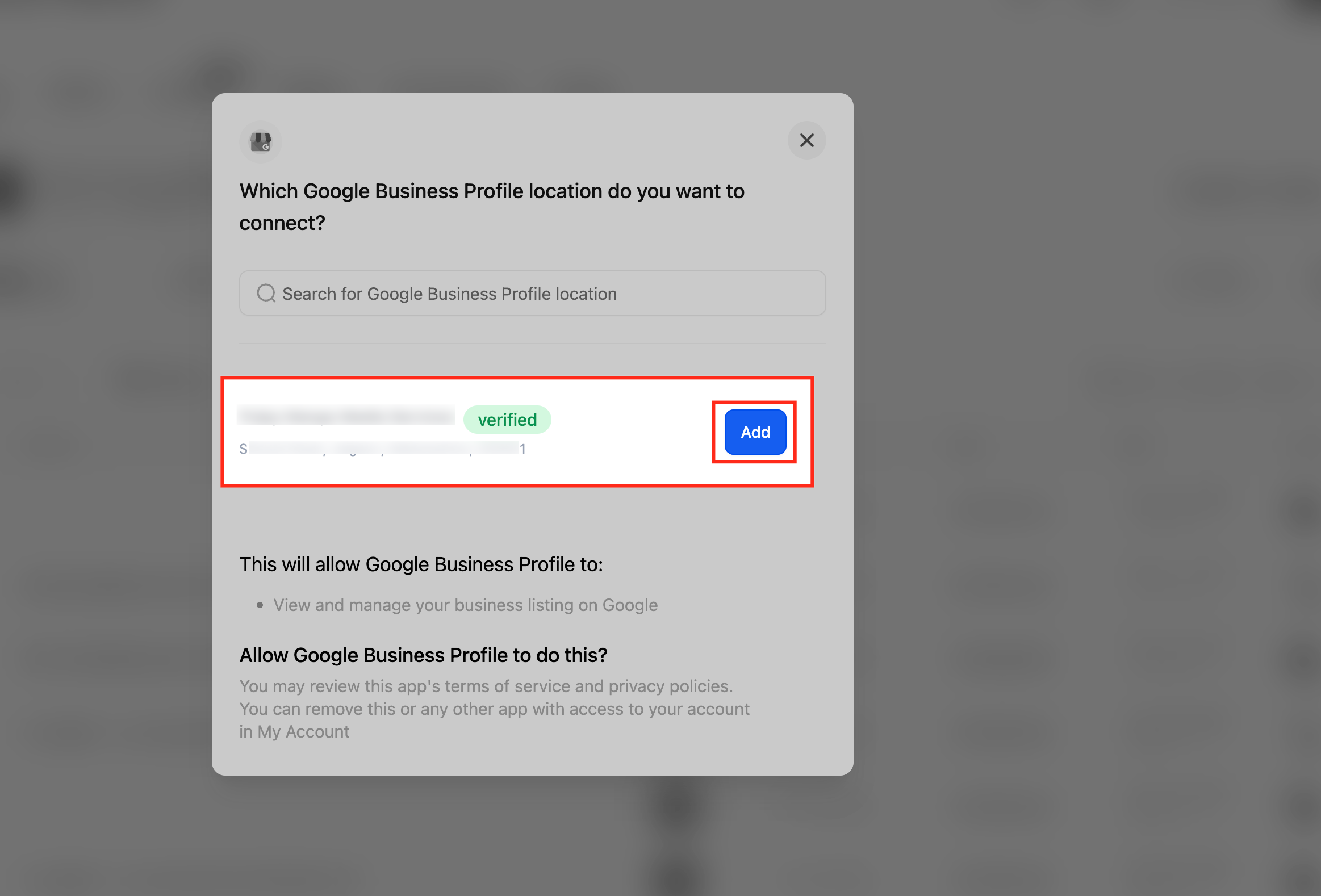
After clicking Connect GBP, you’re prompted to choose the Google account you want to use, and HighLevel automatically fetches all Google Business Profiles associated with that account. Select the correct location from the list and click Add to connect it, enabling HighLevel to manage and schedule posts for that business.
Creating New GBP Post
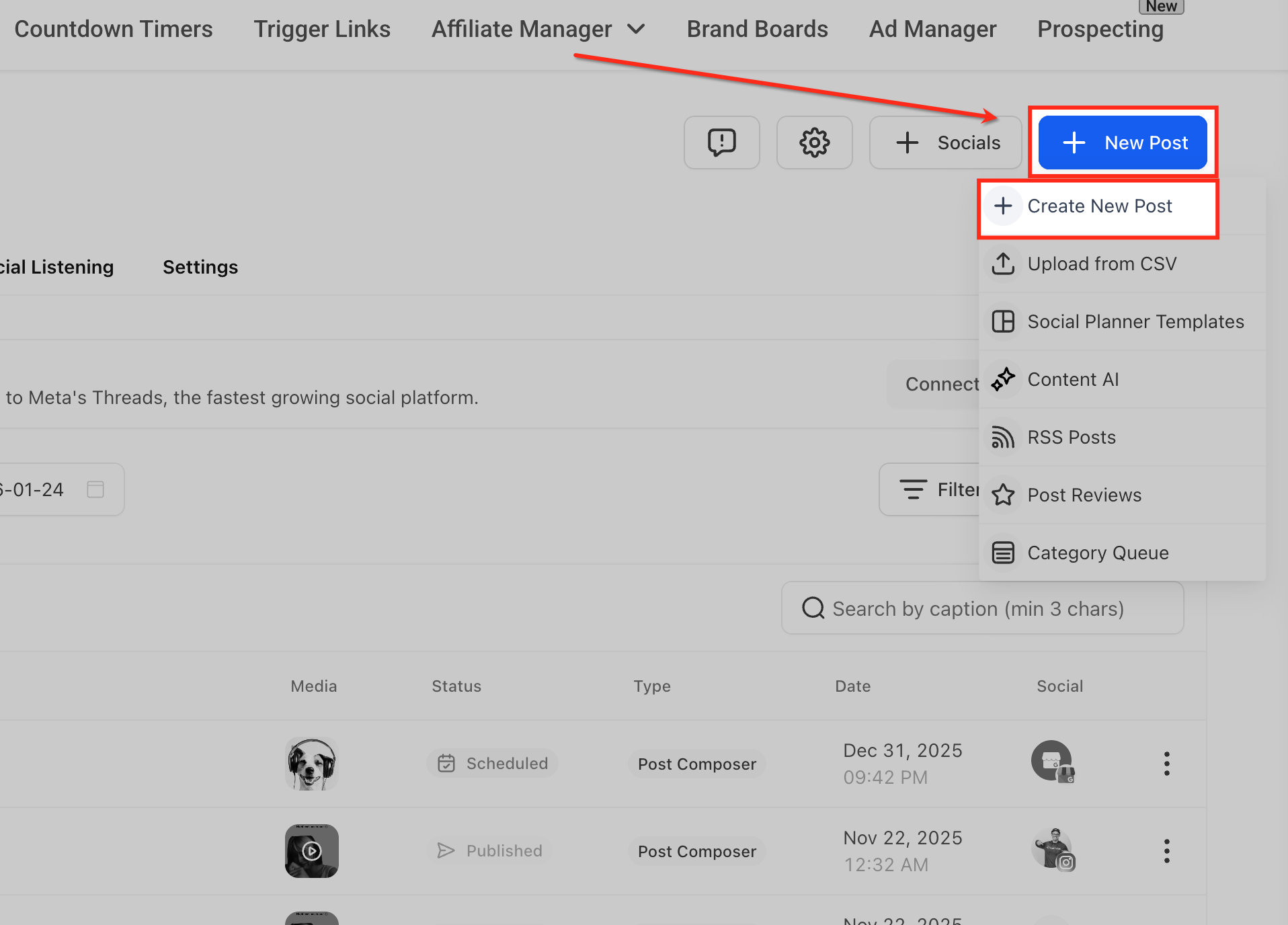
Create New Post
Click New Post in the top-right corner and select Create New Post to open the post composer in Social Planner. This is the starting point for creating a Google Business Profile post, where you’ll add content, select profiles, and configure scheduling options.
Select GBP Profile
Use the Post to dropdown to view all connected social profiles and select the Google Business Profile location where the post should be published. Once selected, that GBP appears checked in the list, confirming the post will be created and scheduled specifically for that business location.

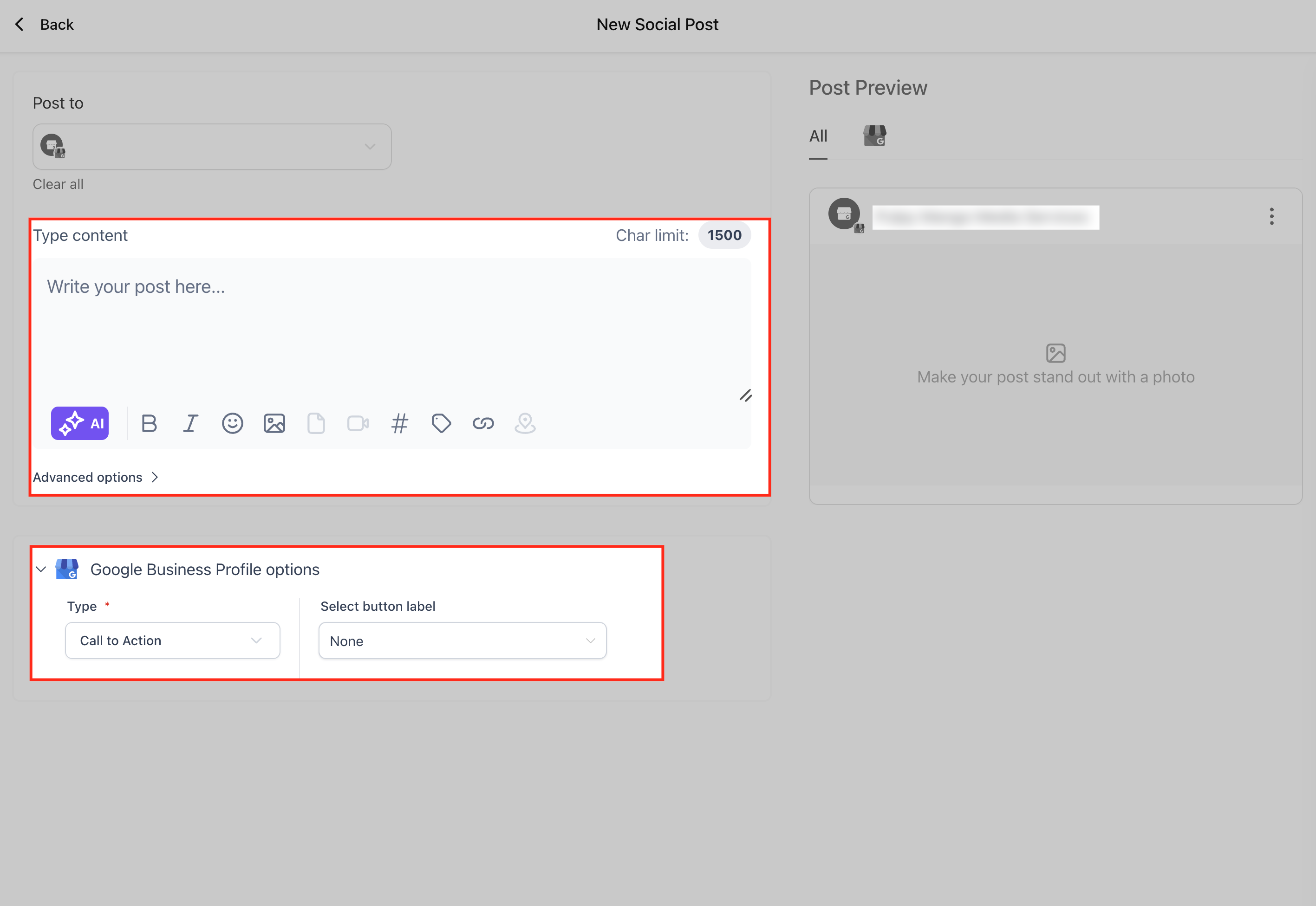
Compose GBP Post
Enter your message in the content editor, keeping the 1,500-character limit in mind, and use the formatting tools to enhance readability, such as bold text, emojis, hashtags, and links. You can also click AI to generate optimized copy, add an image to make the post more engaging, and use the Google Business Profile options below to choose the post type (Update, Offer, or Event) and optionally add a call-to-action button.
Schedule or Publish
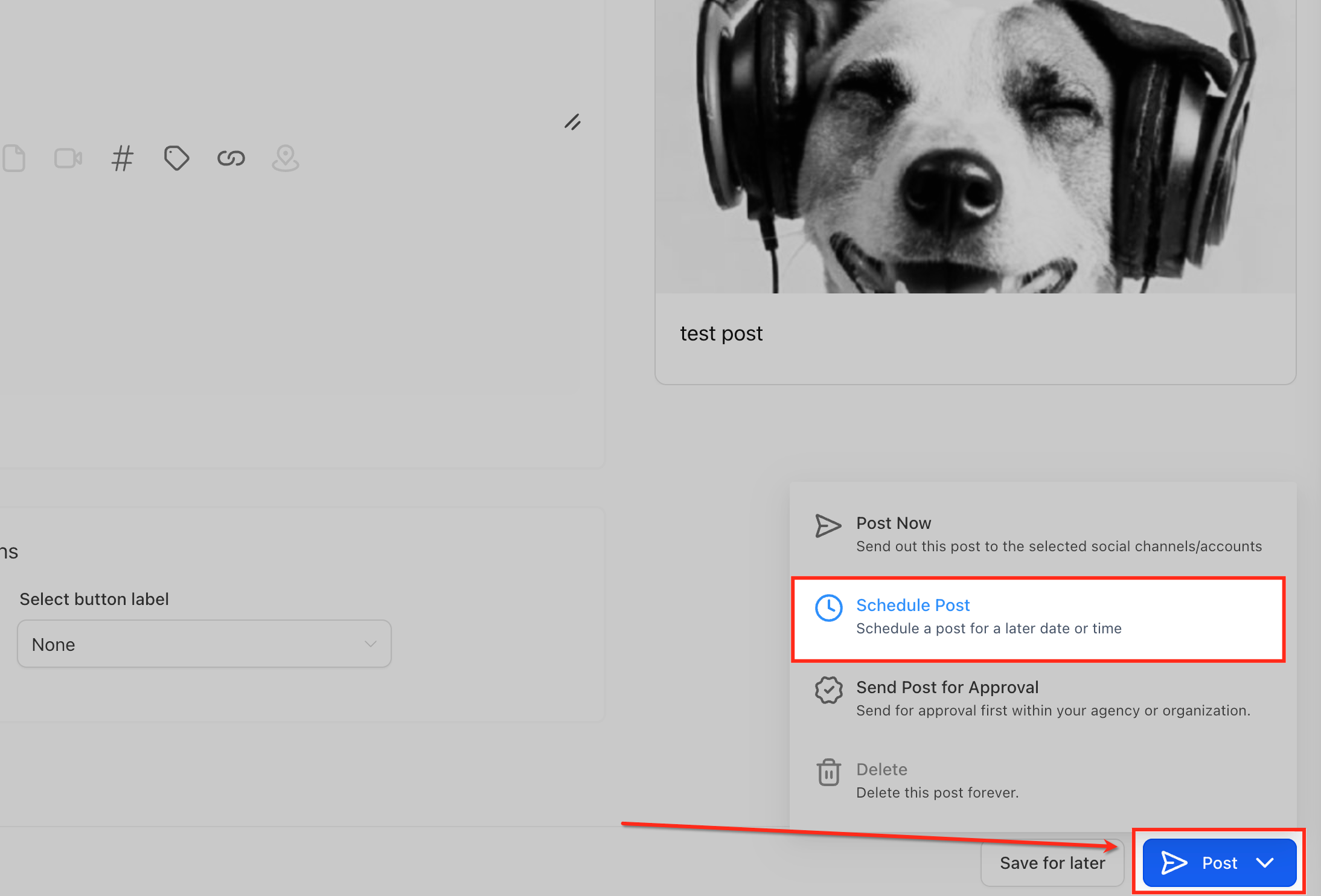
After clicking Post, choose how the GBP post should be handled based on your workflow and timing. Select Schedule Post to publish on a specific date and time, Post Now to publish immediately, or Send Post for Approval if the post needs review before going live, then confirm your selection to complete the process.
Once the post is scheduled, it is automatically added to the Scheduled Posts tab within Reputation → GBP Optimization. From there, you can review upcoming posts, make edits, reschedule, duplicate, or delete them before they go live, ensuring full visibility and control over all planned GBP content.
Frequently Asked Questions
Related Articles
Was this article helpful?
That’s Great!
Thank you for your feedback
Sorry! We couldn't be helpful
Thank you for your feedback
Feedback sent
We appreciate your effort and will try to fix the article