Social Planner's Review Post Automation lets you automatically share customer reviews from Google Business Profile or Facebook on your connected social media accounts.
You can choose which reviews to share, customize their appearance, and schedule when they should be published—without manually creating posts for every review.
This helps you showcase customer feedback and maintain an active social media presence.
Who is this for? Business owners, agencies, and marketers who want to automatically share customer reviews on social media.
TABLE OF CONTENTS
- Before You Begin
- How to Set Up Review Post Automation
- How Does Review Posting Frequency Work?
- How to Manage Review Post Automations
- Important Things to Know
- Frequently Asked Questions
- Related Articles
Before You Begin
Make sure you have:
Connected your Google Business Profile or Facebook Page to HighLevel.
Connected the social media accounts where you want to publish reviews.
Confirmed that customer reviews are available under Reputation > Reviews.
Note: Review sources are managed through Reputation integrations, while social publishing accounts are connected through Social Planner.
How to Set Up Review Post Automation
Navigate to Marketing > Social Planner.
Click New Post > Post Reviews.
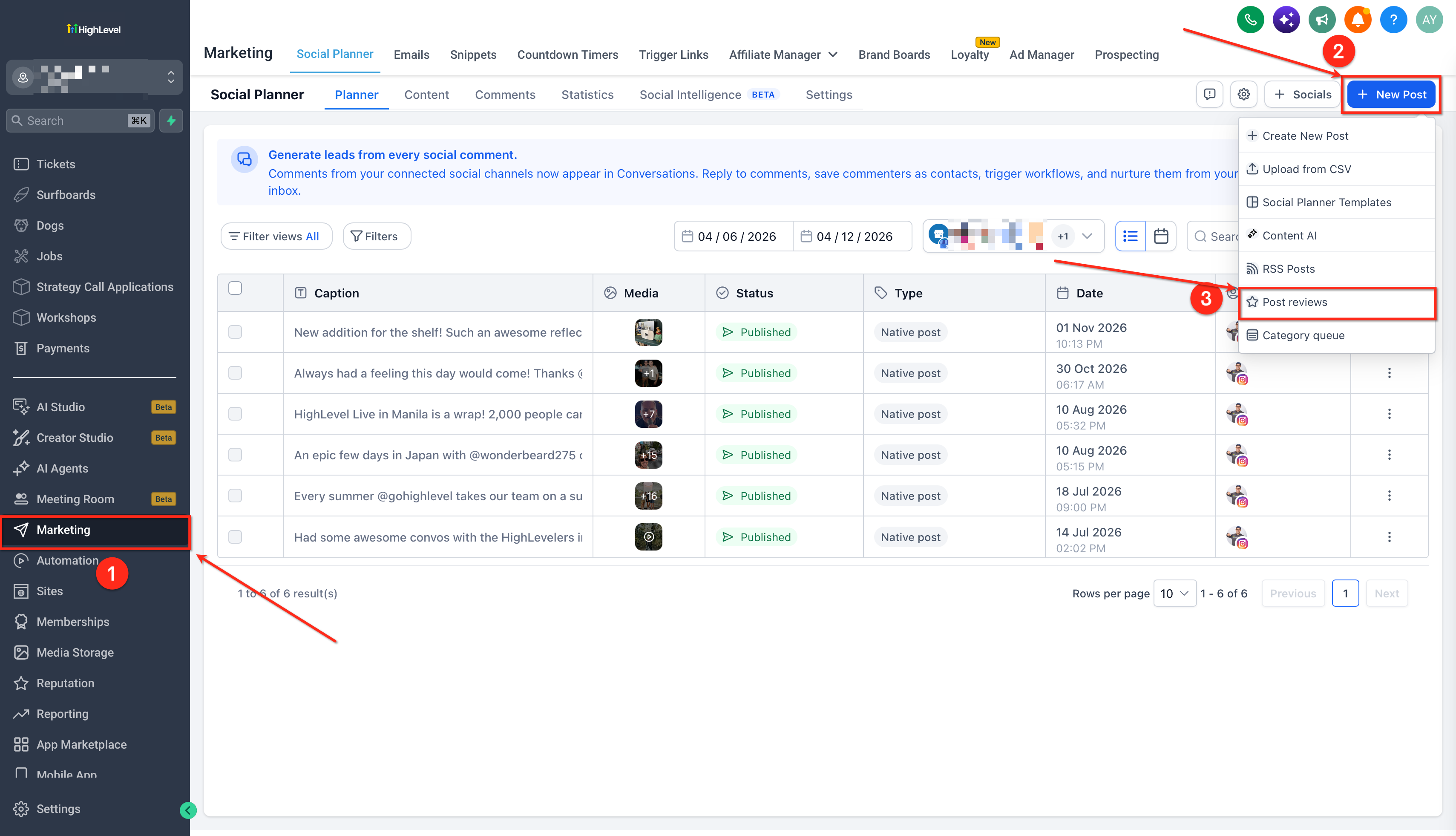 Select review sources: Choose Google Business Profile or Facebook and set the star rating range for reviews you want to share.
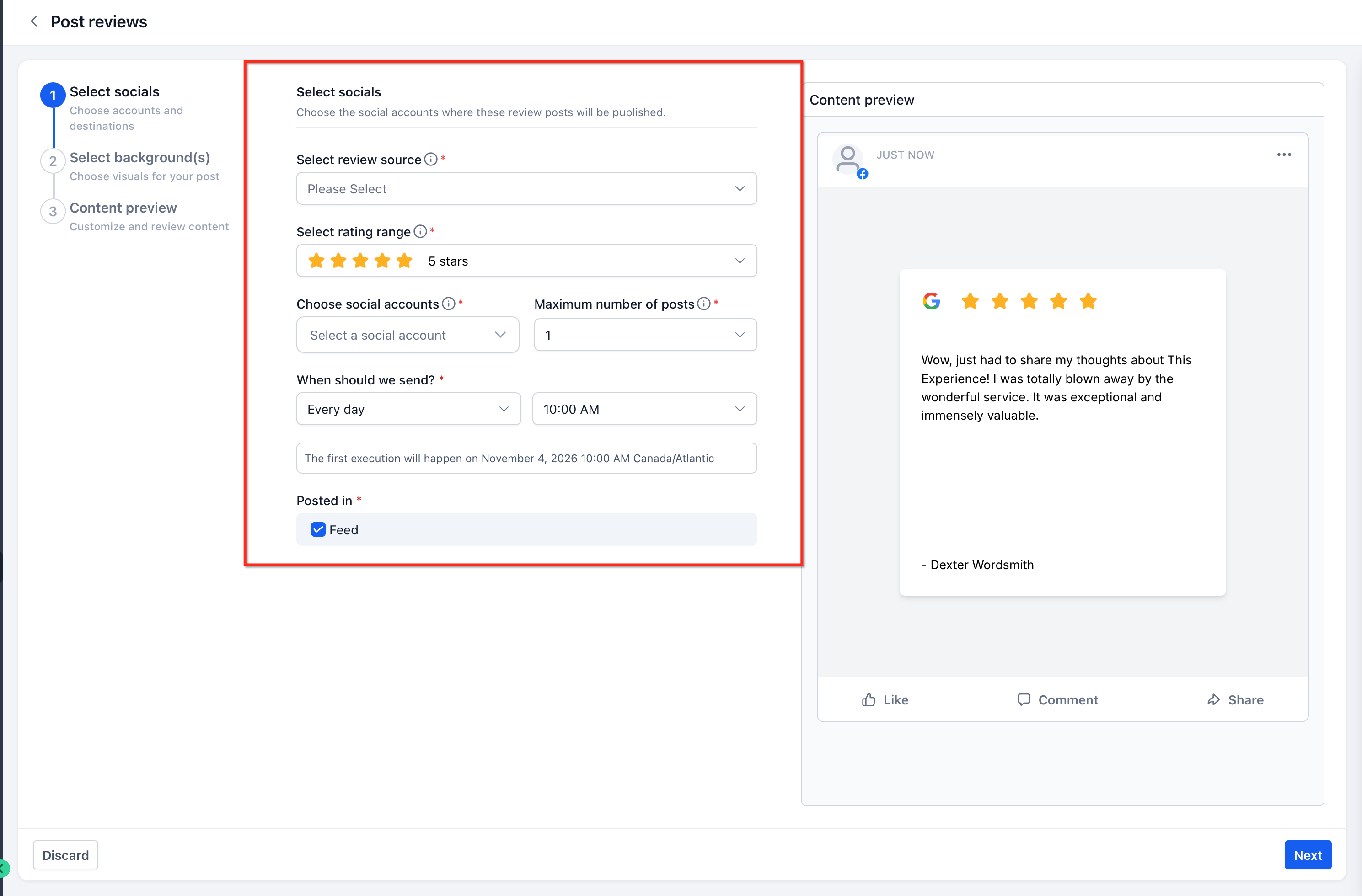
Choose social accounts: Select the connected social media accounts where the reviews should be published.
Set the posting schedule:
Choose how many reviews to publish per scheduled execution.
Under When should we send?, select Every day, Every week, or Every month.
Select your preferred publishing time.
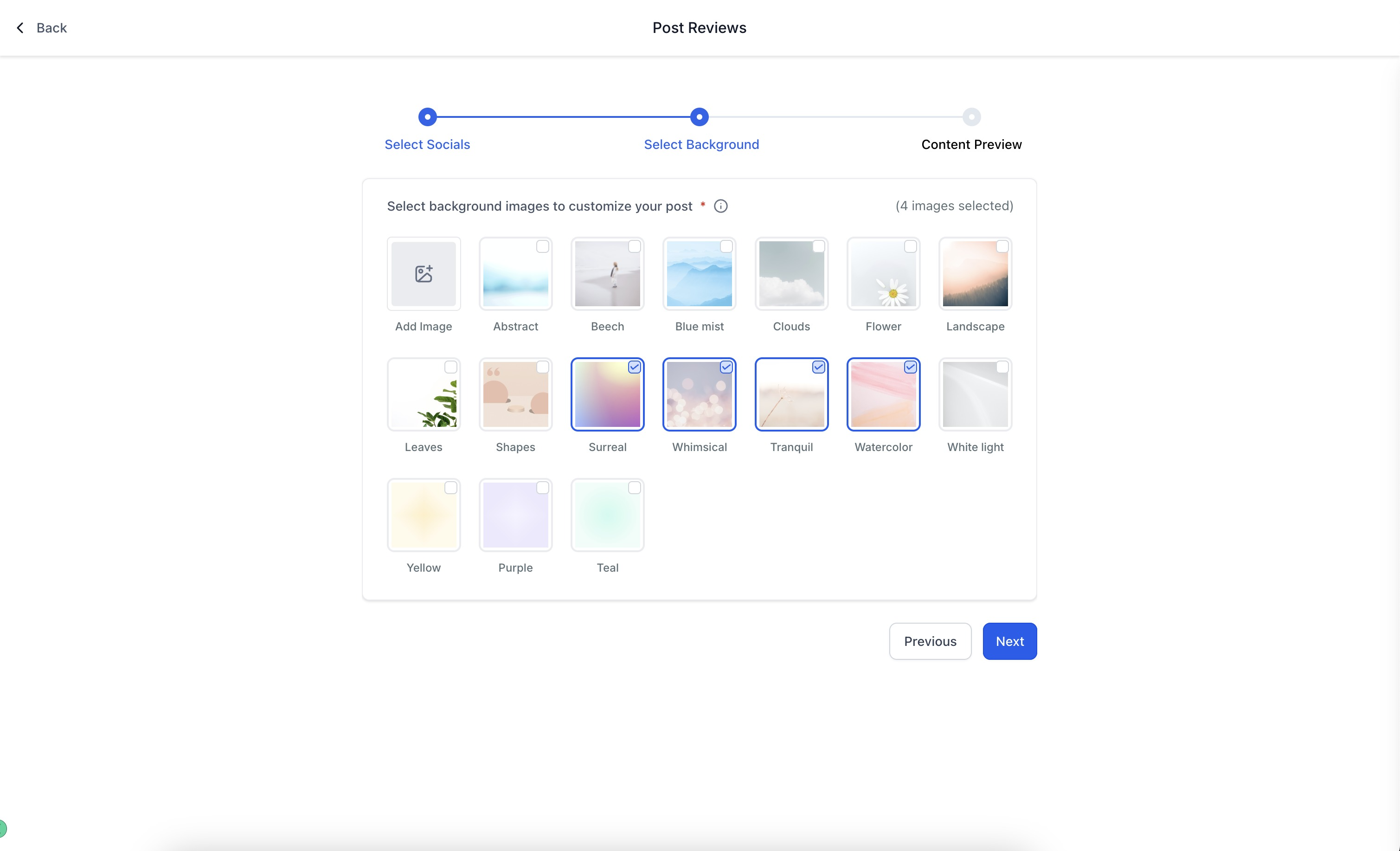
Customize your review posts:
Choose or upload background images (JPEG/PNG, 1:1 ratio, maximum 5 MB).
Add a custom caption or use the review content.
Display the customer's full name, first name, or initials.
Customize fonts, colors, and opacity.
- Complete the setup using the available confirmation option.
Your automation is now configured to publish eligible reviews according to your selected schedule.
How Does Review Posting Frequency Work?
Posting frequency determines when the automation runs, while the maximum post count determines how many eligible reviews can be published each time.
Example:
Suppose you configure:
Frequency: Every week
Time: Tuesday at 11:00 AM
Maximum posts: 3
Every Tuesday at 11:00 AM, the automation can publish up to three eligible reviews.
This means three reviews during one scheduled execution, not three separate posting days.
The same logic applies to daily and monthly schedules.
Note: If fewer eligible reviews are available, fewer posts may be published. If no eligible reviews are available, that scheduled execution is skipped.
How to Manage Review Post Automations
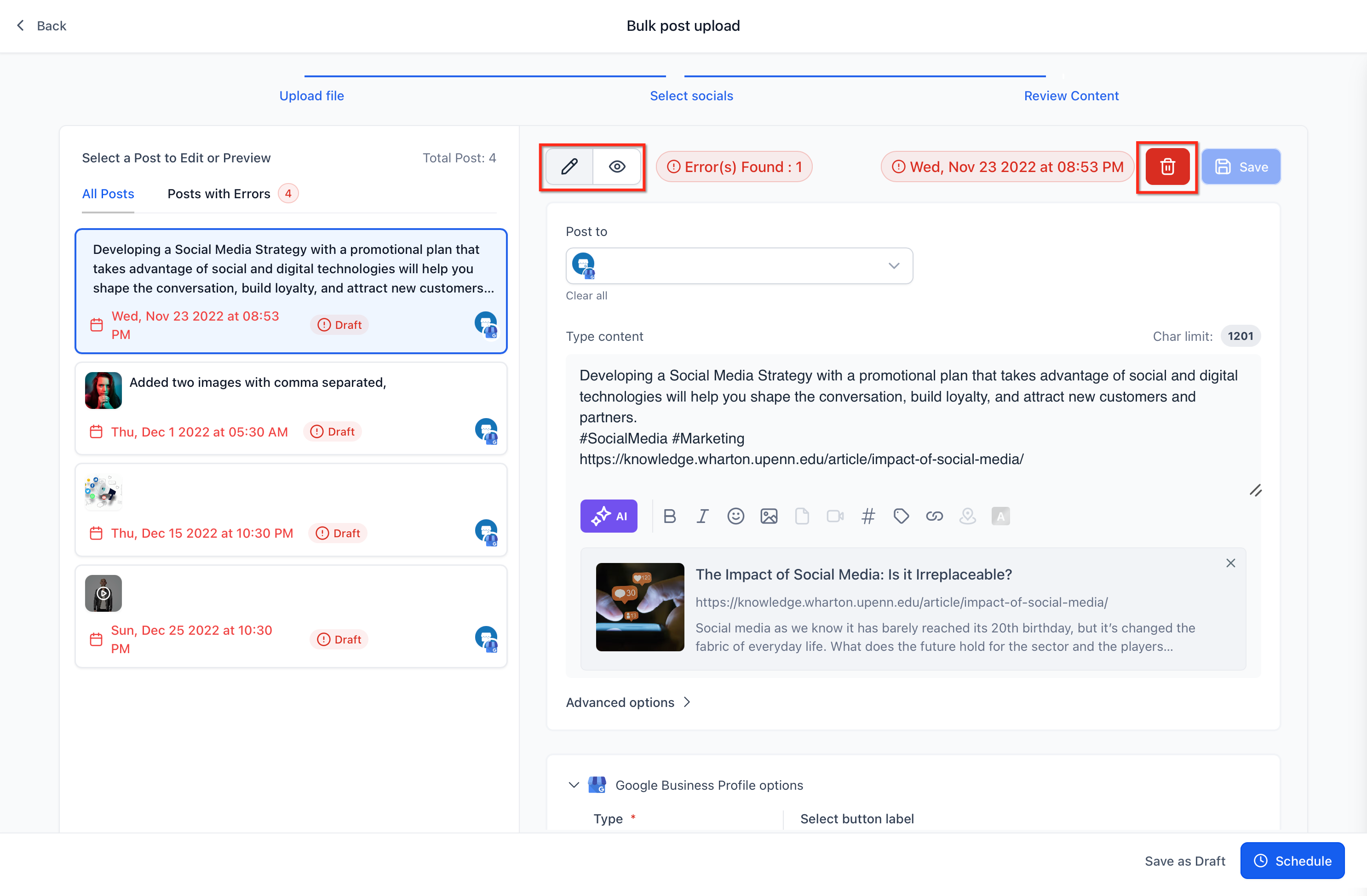
Navigate to Marketing > Social Planner > Content > Review.
Find the automation you want to manage.
Use the available actions:
Pause: Pause the automation.
Edit: Update its settings.
Delete: Remove the automation.
Important Things to Know
New Google reviews only: Google reviews published before the automation was created are not considered.
Written reviews required: Reviews containing only star ratings without written feedback are skipped.
Rating filters apply: Only reviews matching your selected star rating range are eligible.
No eligible reviews: If none are available when the automation runs, that execution is skipped. A repeating automation can check again at a later scheduled execution.
Timezone: Publishing follows your configured local timezone.
Connections matter: Review sources and social publishing accounts must remain connected for the automation to work.
Frequently Asked Questions
Why aren't my reviews being posted?
Check whether new eligible reviews are available under Reputation > Reviews, verify your rating filters, and ensure that the review source and publishing accounts remain connected.
Can I publish reviews received before creating the automation?
Google reviews published before the automation creation date are not eligible under the documented Review Post workflow.
Can I change the review post design?
Yes. You can customize backgrounds, captions, customer name formats, fonts, colors, and opacity.
Can I pause or edit my automation?
Yes. Navigate to Social Planner > Content > Review and use the available management options.
Related Articles
Was this article helpful?
That’s Great!
Thank you for your feedback
Sorry! We couldn't be helpful
Thank you for your feedback
Feedback sent
We appreciate your effort and will try to fix the article