Rental Booking is now available in the HighLevel Client Portal, allowing clients to explore and book rentals without separate booking links. Businesses can make rental booking pages available within the Appointments area alongside calendar meetings and services. This article explains how to enable Rental Booking and configure Client Portal access.
TABLE OF CONTENTS
- What is Rental Booking in the Client Portal?
- Rental Booking Settings
- How to Enable Rental Booking in the Client Portal
- Key Benefits of Rental Booking in the Client Portal
- Frequently Asked Questions
- Related Articles
What is Rental Booking in the Client Portal?
Rental Booking allows clients to discover and reserve equipment, vehicles, spaces, and other rental items directly from the new HighLevel Client Portal.
Businesses can enable the feature through Rentals Global Settings and manage client access using Client Portal App Permissions.
Rental Booking Settings
The Client Portal settings control whether rentals are accessible through the Client Portal and how the rental booking page appears to clients.
Navigate to Calendars → Rentals → Global Settings → Client Portal.
The following options are available:
Allow booking from client portal: Enable rental booking access for clients.
Client portal URL: View or copy the Client Portal link.
Booking page name: Set the title displayed on the rental booking page tile.
Short description: Add a brief description displayed beneath the booking page name.
How to Enable Rental Booking in the Client Portal
Rental Booking requires both the rental booking setting and the Appointments permission to be enabled. Configuring both ensures clients can discover rentals from their Client Portal.
Step 1: Enable Rental Booking
Navigate to Calendars → Rentals → Global Settings.
Select Client Portal.
Turn on Allow booking from client portal.
Update the Booking page name and Short description, if needed.
Click Save changes.
Step 2: Enable Appointments Access
Navigate to Memberships → Client Portal → Settings.
Open App Permissions.
Enable Appointments.
Click Save.
Step 3: Verify Rental Booking Access
Sign in to the new Client Portal.
Navigate to Appointments → Book Appointment.
Select the Rentals tab.
Verify that the rental booking page appears.
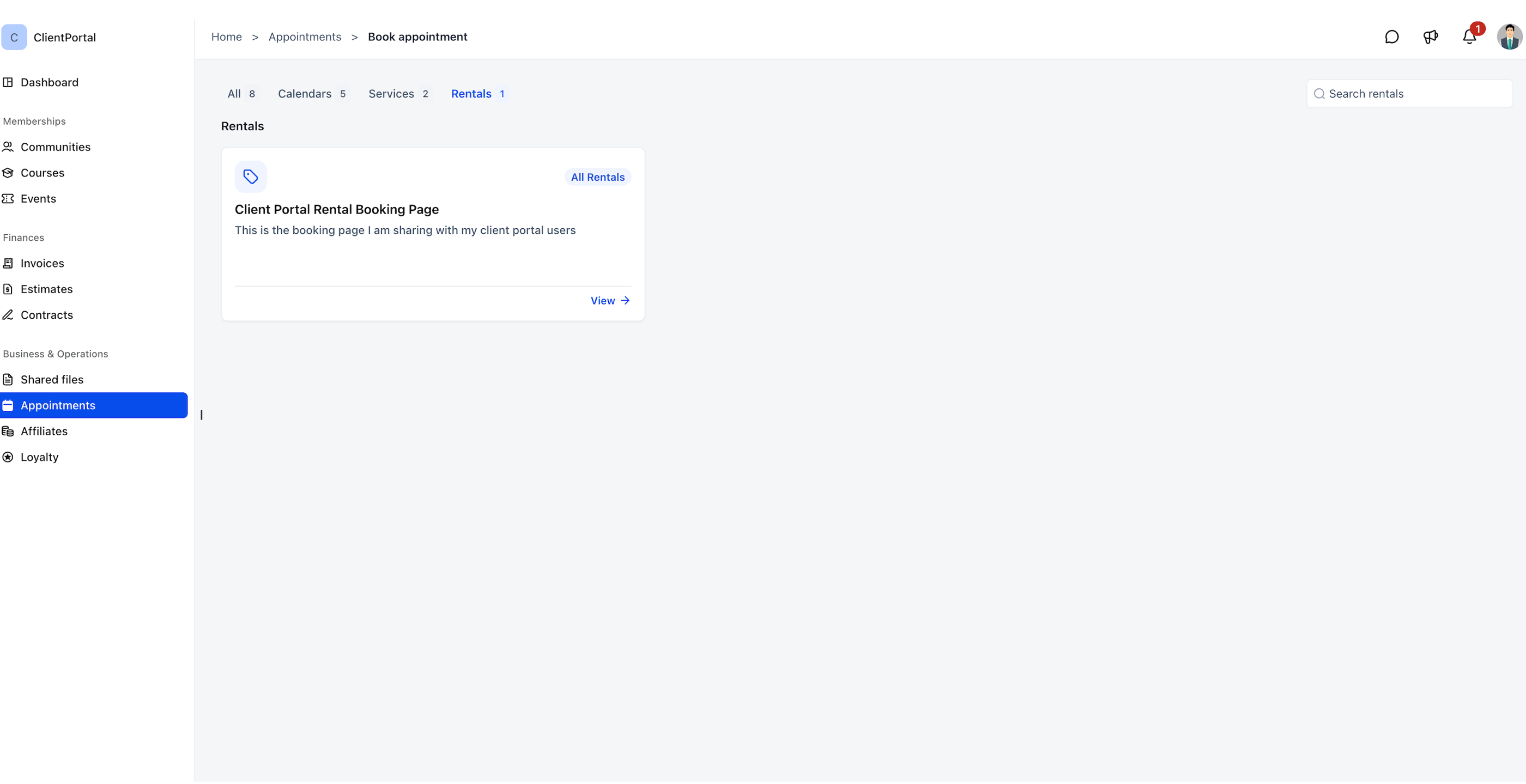
Note: Rental Booking is available for accounts with Rentals enabled and is currently supported in the new Client Portal UI.
Key Benefits of Rental Booking in the Client Portal
Enabling Rental Booking provides clients with a convenient booking experience while allowing businesses to control which booking options are available.
Centralized Booking: Clients can access calendar meetings, services, and rentals under Appointments.
Simplified Access: Clients can book rentals without needing separate booking links.|
Faster Checkout: Client information is automatically filled in during booking.
Flexible Access Control: Businesses can enable Rental Booking and manage Appointments visibility.
Easy Booking Management: Clients can view upcoming and past rental reservations.
Frequently Asked Questions
Q: Is Rental Booking available to all HighLevel accounts?
Rental Booking is available to accounts where the Rentals feature is enabled.
Q: Does enabling Rentals automatically enable Client Portal booking?
No. You must enable Allow booking from client portal in Rentals Global Settings.
Q: Why can't clients see Rental Booking?
Verify that Rentals is enabled, Client Portal rental booking is turned on, Appointments permission is enabled, and clients are using the new Client Portal UI.
Q: Can I customize the rental booking page name?
Yes. You can update the Booking page name and Short description under Rentals Global Settings → Client Portal.
Related Articles
Was this article helpful?
That’s Great!
Thank you for your feedback
Sorry! We couldn't be helpful
Thank you for your feedback
Feedback sent
We appreciate your effort and will try to fix the article