Clients can now book and manage rentals directly from the HighLevel Client Portal. They can browse available rental listings, choose booking dates and times, and complete reservations without leaving the portal. Rental bookings also appear alongside calendar meetings and services under Appointments. This article explains how clients can book, view, and manage their rental reservations.
TABLE OF CONTENTS
- What is Rental Booking in the Client Portal?
- Key Benefits of Rental Booking
- How to Book a Rental in the Client Portal
- How to View and Manage Rental Bookings
- Frequently Asked Questions
- Related Articles
What is Rental Booking in the Client Portal?
Rental Booking allows clients to reserve available rental items directly through the Appointments area of the Client Portal.
Clients can explore listings, select booking dates and times, and complete checkout using automatically filled-in contact information.
How to Book a Rental in the Client Portal
Clients can access rental booking pages through Appointments without needing individual booking links. Available rental options depend on the listings and booking settings configured by the business.
Step 1: Open the Rental Booking Page
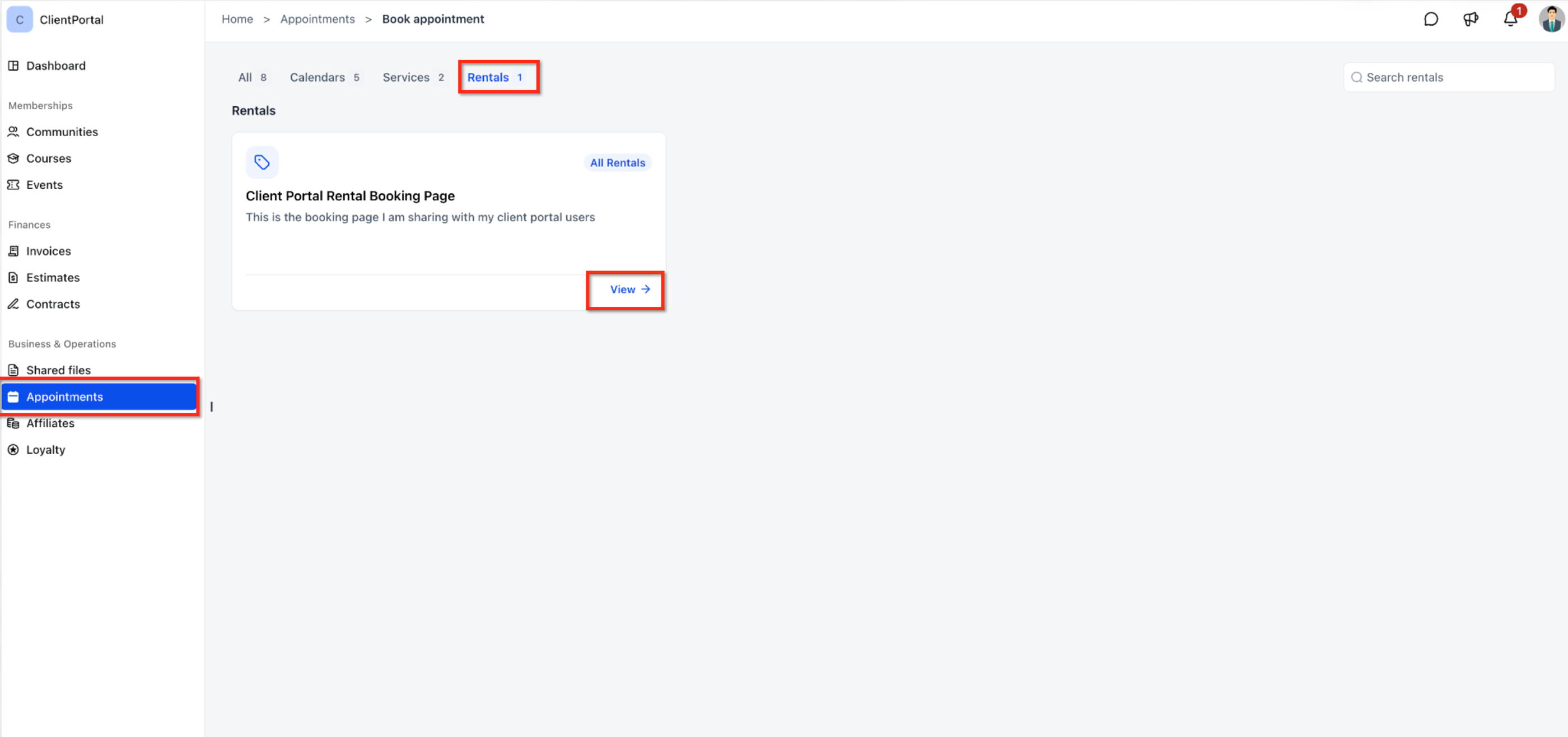
Sign in to the Client Portal.
Navigate to Appointments → Book Appointment.
Select the Rentals tab.
Find the desired rental booking page and click View.
Step 2: Select a Rental Listing
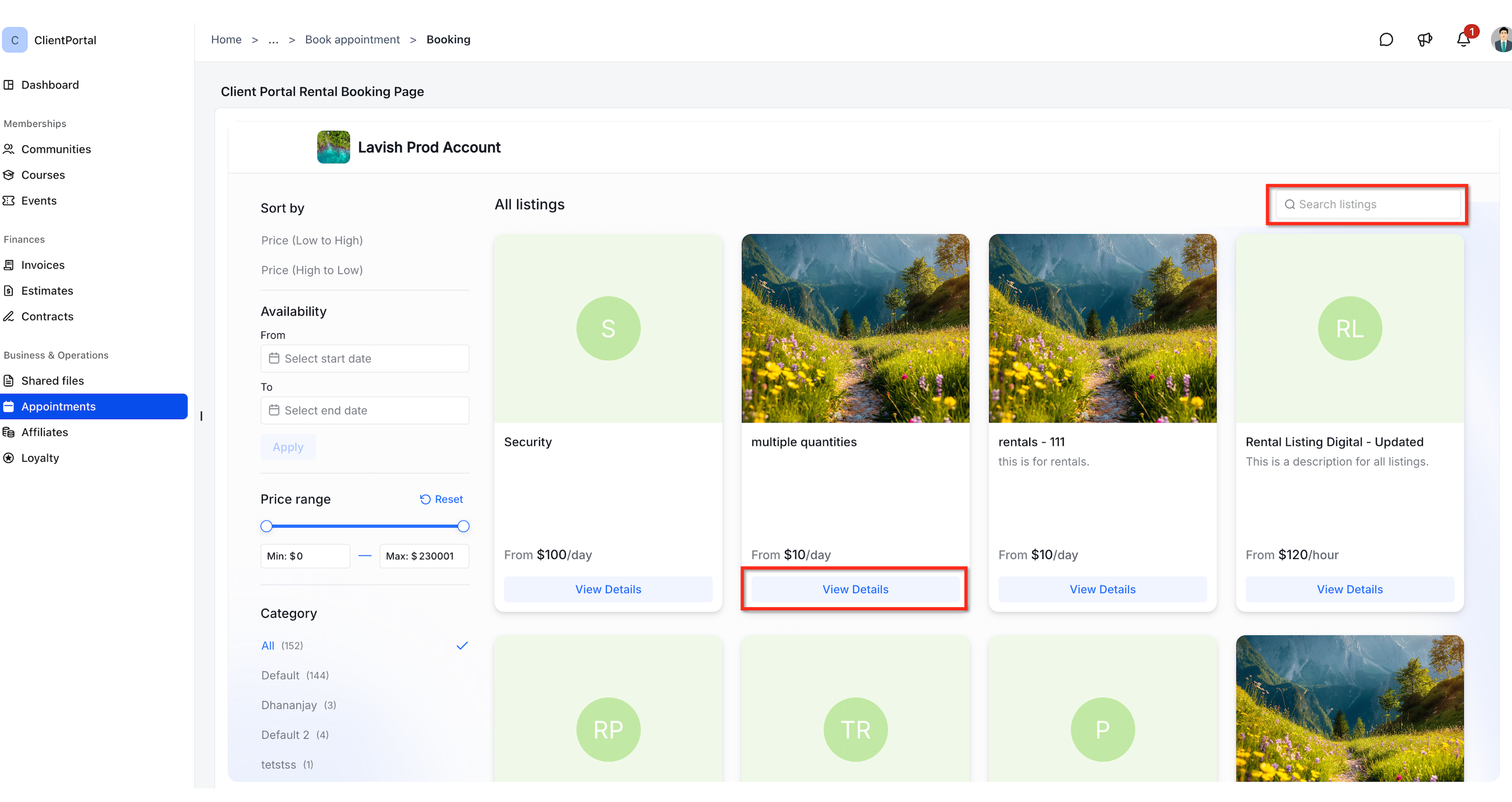
Browse the available rental listings.
Use Search listings or filter by availability, category, or price.
Click View Details on the preferred listing.
Step 3: Choose Booking Dates and Times
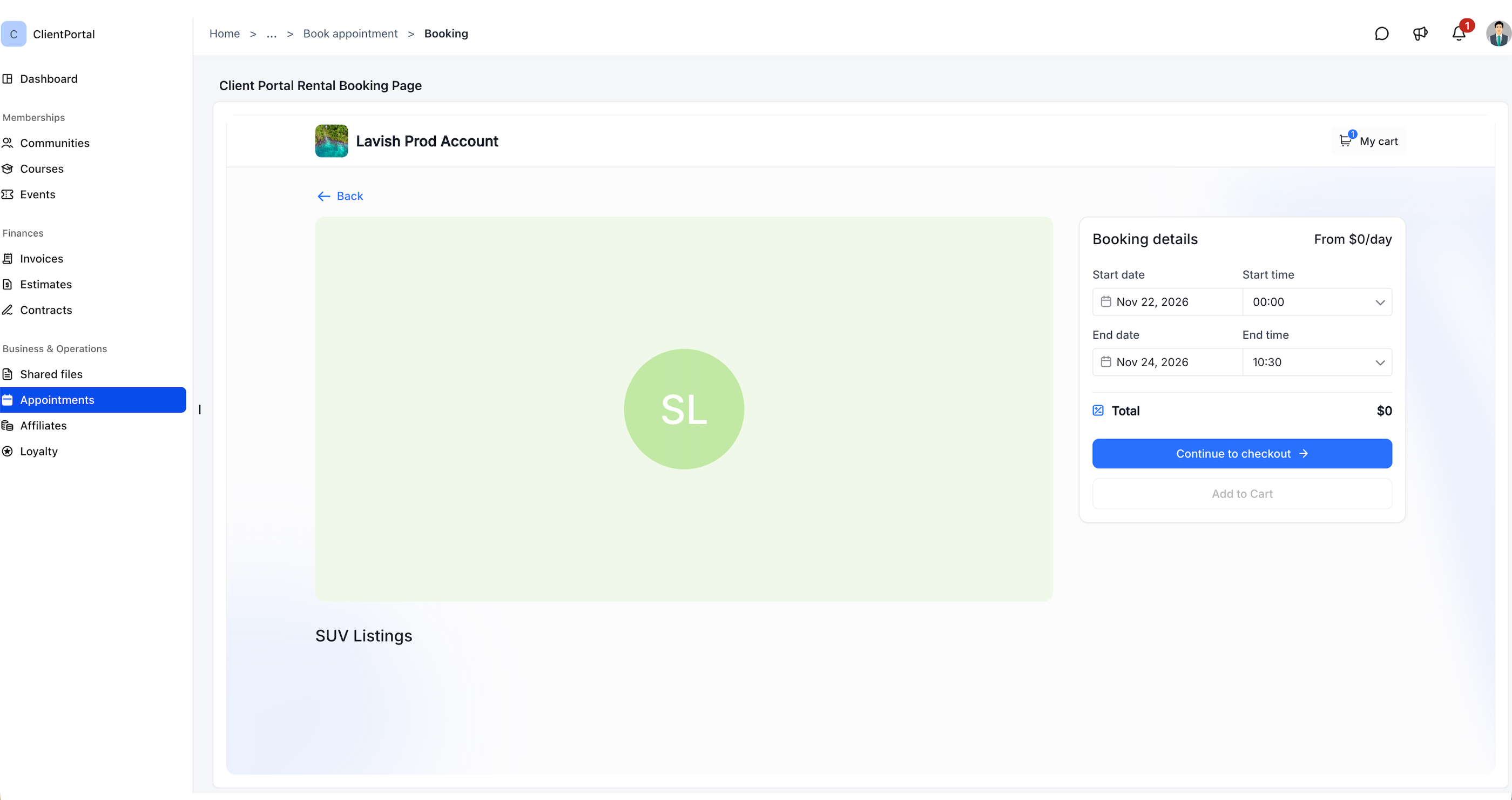
Select the Start date and Start time.
Select the End date and End time.
Review the booking total.
Click Continue to checkout.
If enabled by the business, clients can use Add to Cart to book multiple rental items.
Step 4: Review and Complete the Booking
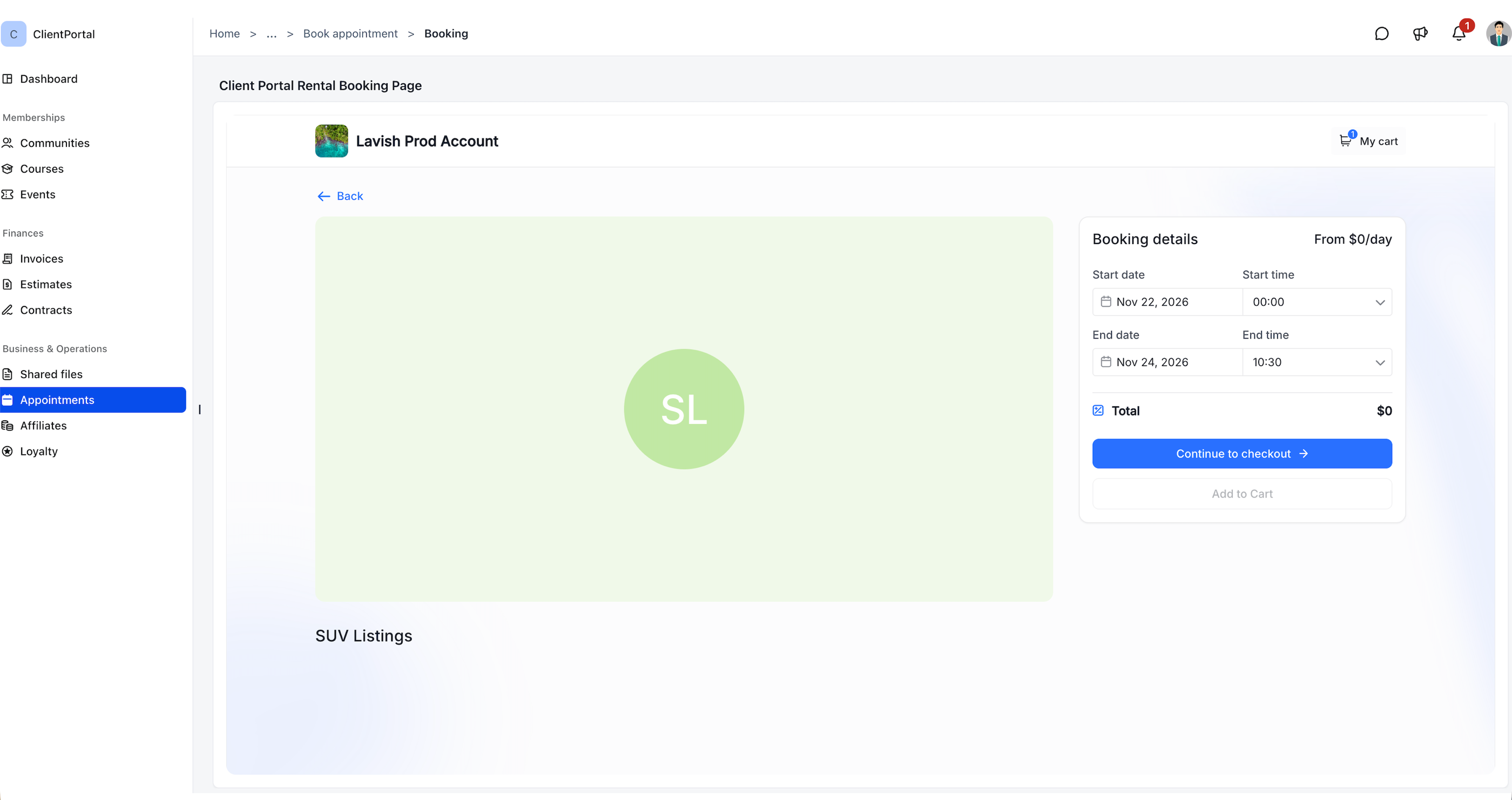
Review the selected rentals in the Booking summary.
Verify the booking dates and total.
Click Continue to checkout.
Review the pre-filled client information and complete any required fields or payment steps.
Submit the booking and review the confirmation or acknowledgment.
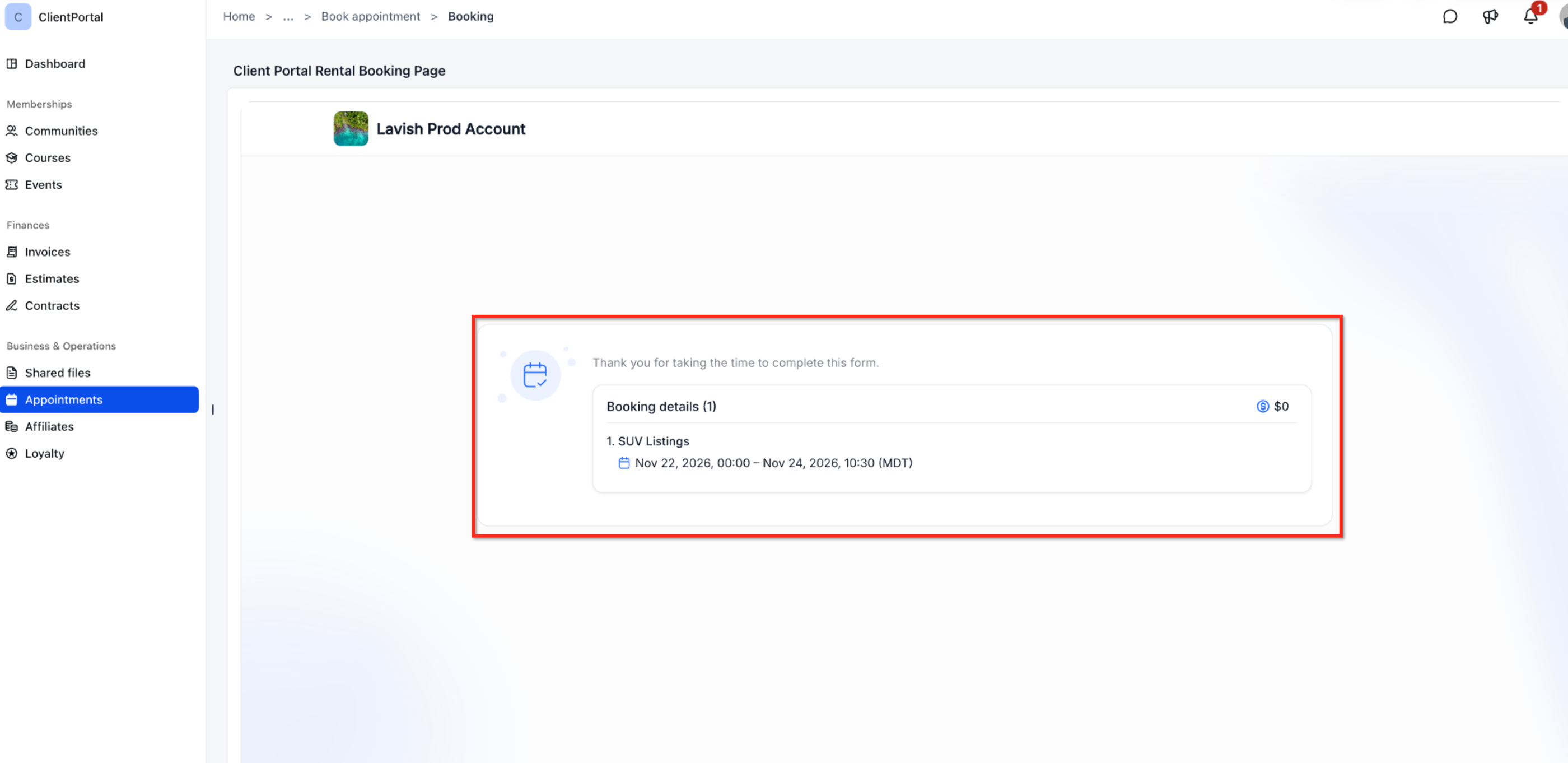
Note: Booking confirmation and payment requirements depend on the business's Rentals settings.
How to View and Manage Rental Bookings
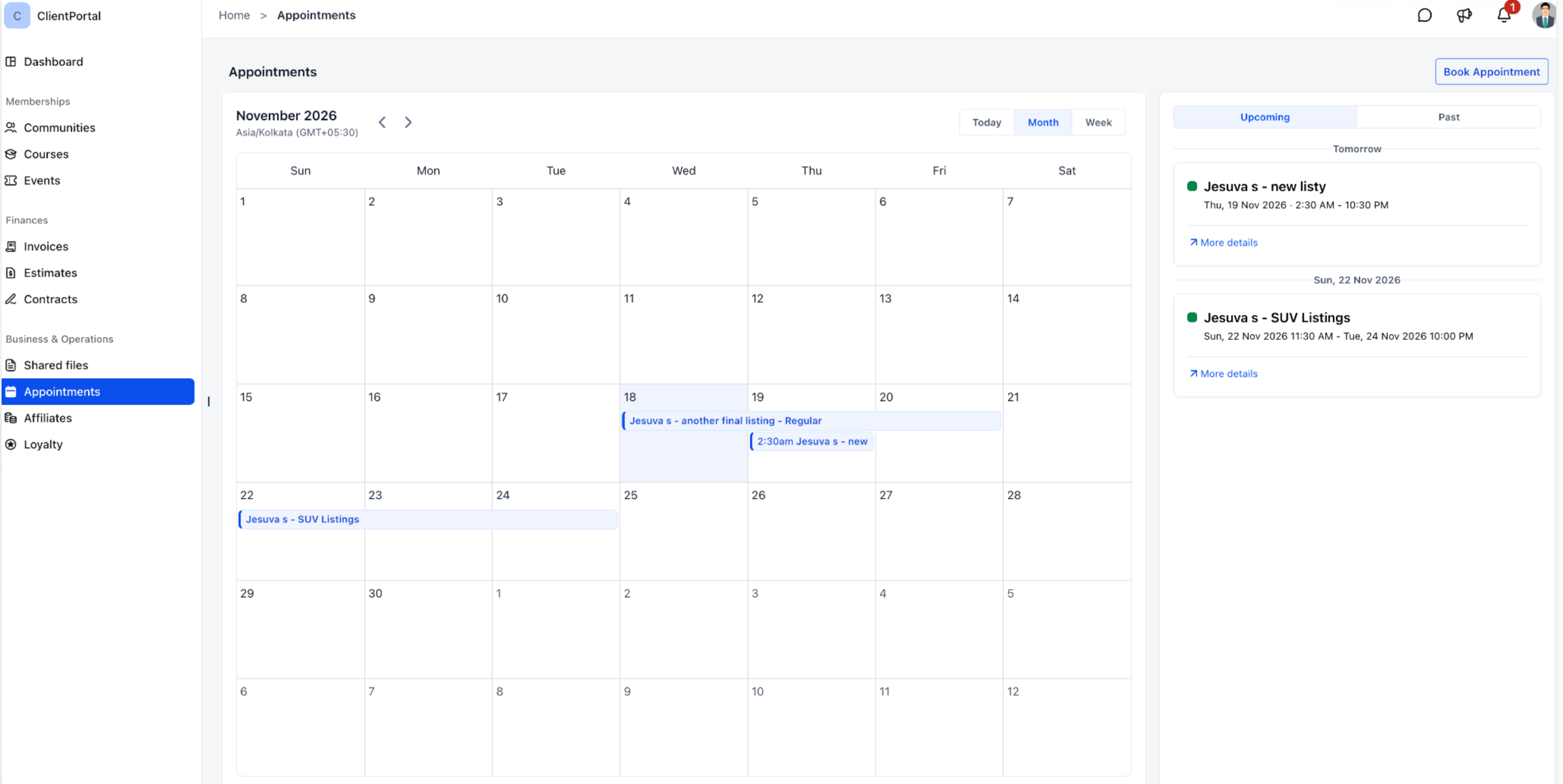
Rental reservations appear alongside calendar meetings and service appointments. Clients can use the Appointments calendar and booking list to track reservations and manage eligible bookings.
View Upcoming and Past Bookings
Open Appointments in the Client Portal.
Select Upcoming to see scheduled bookings.
Select Past to review previous bookings.
Click More details to view additional booking information.
Cancel a Rental Booking
Clients can cancel eligible rental bookings directly from the Client Portal, based on the applicable booking settings.
Navigate to Appointments → Upcoming.
Locate the rental booking.
Click More details.
If available, select the cancellation option and follow the prompts.
Note: Cancellation eligibility is controlled by the applicable booking rules. Canceling a booking does not automatically issue a refund.
Key Benefits of Rental Booking
The Client Portal makes rental reservations easier by bringing rental discovery, booking, and management into one location.
Easy Rental Discovery: Browse available listings and filter by category, price, and availability.
Quick Booking: Select rental dates and times and complete checkout.
Automatic Client Information: Reduce repetitive data entry with pre-filled contact details.
Centralized Management: View rental reservations under Upcoming and Past appointments.
Self-Service Cancellation: Cancel eligible rental bookings directly from the Client Portal.
Frequently Asked Questions
Q: Do I need a separate booking link to reserve a rental?
No. You can access available rental booking pages directly through Appointments in the Client Portal.
Q: Can I book multiple rental listings together?
Yes, if the business has enabled the multi-item cart option.
Q: Why can't I select a particular rental date or time?
Available dates and times depend on the rental's configured availability and booking restrictions.
Q: Where can I find my rental reservations?
Open Appointments and use the Upcoming or Past views to locate your bookings.
Q: Can I cancel a rental booking from the Client Portal?
Yes, if the booking is eligible for cancellation according to the applicable booking settings.
Related Articles
Was this article helpful?
That’s Great!
Thank you for your feedback
Sorry! We couldn't be helpful
Thank you for your feedback
Feedback sent
We appreciate your effort and will try to fix the article