Getting Started with Rentals
You're in the right place to set up Rentals within HighLevel. This guide covers how to configure listings, customize pricing and availability, enable deposits and payments, brand your booking page, and manage bookings.
Use this article as your starting point, then follow the linked guides to set up your rentals with confidence.
What are Rentals?
Rentals is a scheduling and booking system designed for businesses that manage rentals — whether it's properties, cars, equipment, or other bookable assets. With Rentals, you can efficiently manage availability, inventory, pricing, and multi-day bookings in one seamless platform.
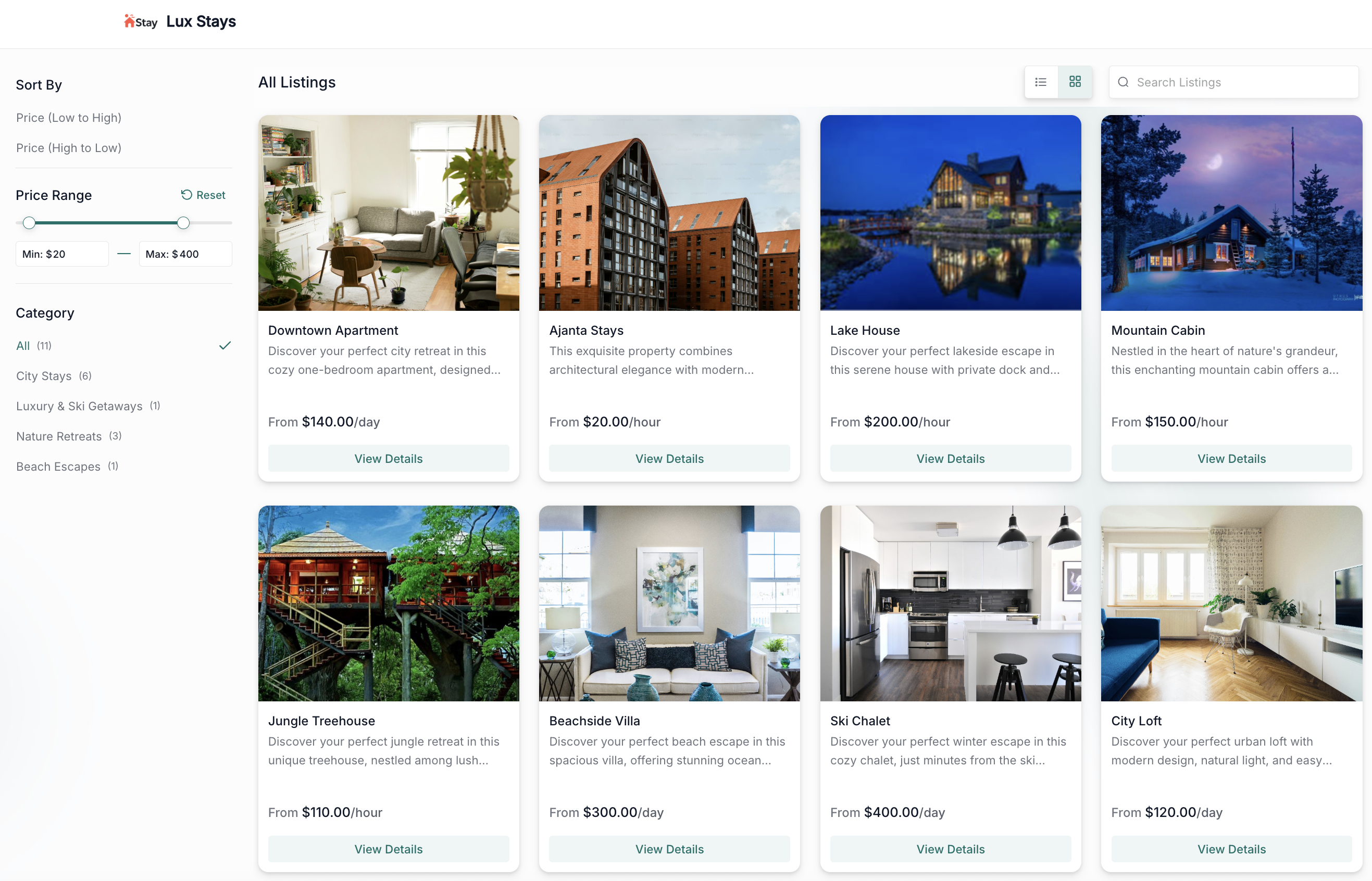
Feature of Rentals
Rentals is built to handle the unique complexities of rental-based scheduling. Here's what Rentals can do:
Setting Up Rentals
If you don't see the Rentals tab in your Calendar settings, enable it by following the instructions in How To Enable/Disable Rentals For Your Locations.
Rental invoices are not automatically sent to the customer whenever a booking is created. We are working on rectifying the information being displayed within the contacts/conversations page that conveys otherwise.
Once Rentals is enabled for your sub-account, continue:
Go to Calendars → Calendar Settings → Rentals.

- Click + New Listing to add your first rental item or property.

- Configure its image, name, description, price, and availability.

- Use Advanced Settings to define inventory, variants, pricing, and booking rules.

To get more information on how to create a listing, read our article on Creating and Editing Listings.
Navigate to Rentals → Global Settings to adjust business hours, communication settings, and payment methods.
For more information on how to customize global settings, read our article on Global Settings in Rentals.
Create a test booking from the Calendar View or Appointments List View to verify configuration, pricing, and notifications.
Looking for more information on how to create a booking? Read our article on Creating a Booking in Rentals
How to Provide Feedback
Your feedback is critical to improving Rentals before general release. Here's how to share it:
- Post your feedback/suggestions/ideas on our Canny board.
- Schedule a Feedback Call: Book a time that works for you using this scheduling link.
- Email us directly at: mayank.jain@gohighlevel.com or swadha.bhoj@gohighlevel.com
Frequently Asked Questions
Was this article helpful?
That’s Great!
Thank you for your feedback
Sorry! We couldn't be helpful
Thank you for your feedback
Feedback sent
We appreciate your effort and will try to fix the article