SMS Notifications for Rental Bookings
This guide shows you how to configure SMS notifications for rental bookings in HighLevel. You'll learn which rental events support SMS, how to choose recipients, customize message templates, send test messages, and apply best practices for automated rental communication.
All configuration happens in Rentals Global Settings and applies automatically to every rental booking, giving you consistent, real-time SMS updates without manual follow-up.
What Are SMS Notifications for Rental Bookings?
SMS Notifications for Rental Bookings allow you to send automated SMS messages when important rental booking events occur. These notifications help keep contacts and business users informed without requiring manual follow-up.
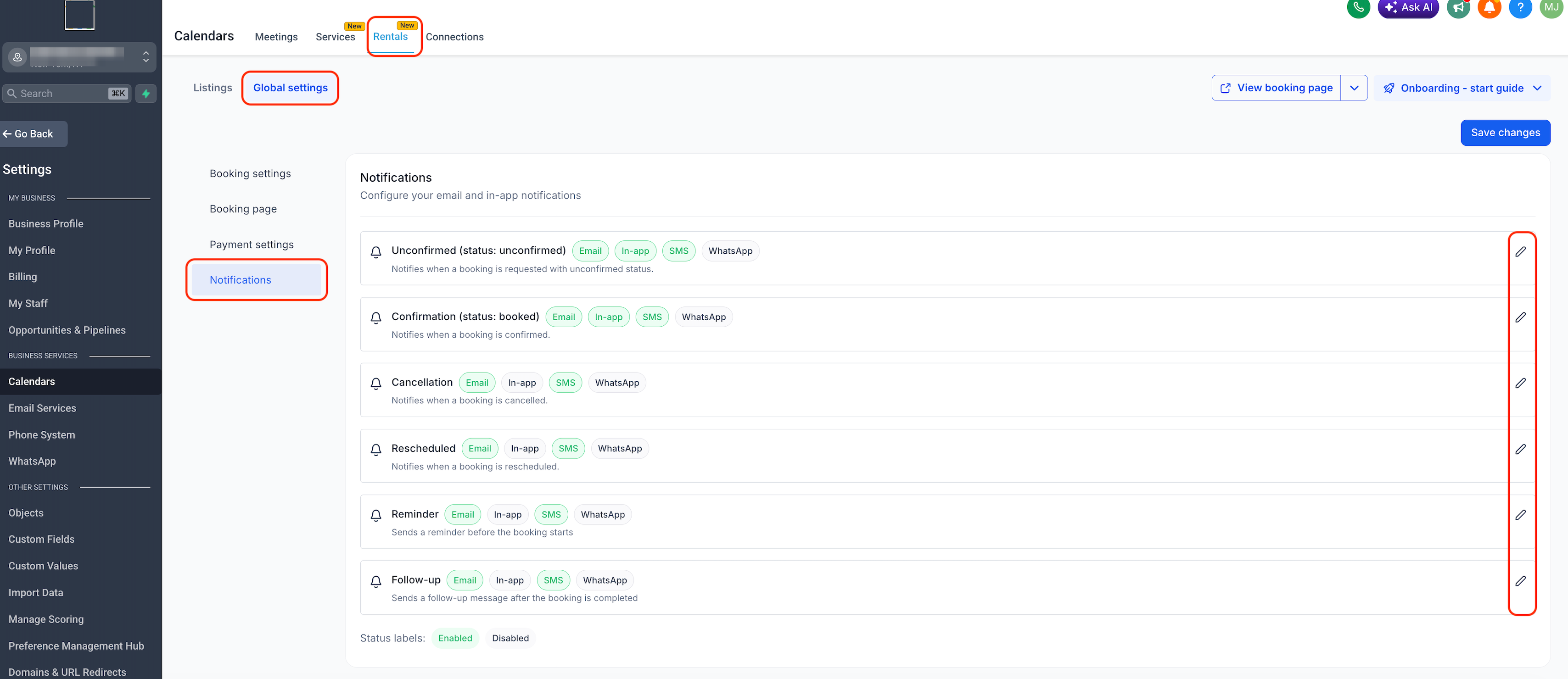
Rental SMS notifications are managed from Calendar Settings › Rentals › Global Settings › Notifications. Each notification type can be edited individually, allowing you to control the SMS message, recipient, template, and test delivery before enabling it for live rental bookings.
Because SMS is configured at the global Rentals level, your notification rules apply consistently to all rental bookings, giving you automated, real-time communication at scale.
Key Benefits
SMS gives businesses a faster way to reach contacts and internal teams when booking activity changes. This helps reduce missed updates and supports better communication throughout the rental booking lifecycle.
Supported Rental Booking SMS Events
Rental booking SMS events help you decide when automated messages should be sent. Each event represents a specific booking status or booking lifecycle moment, allowing you to customize communication for different situations.
SMS notifications can be configured for these rental booking events:
Sends when a booking is requested with an unconfirmed status. Useful for concierge approvals or manual checks before confirming.
Sends when a booking is confirmed or booked, or when its status changes from unconfirmed to confirmed.
Sends when a booking is canceled, notifying customers and internal teams immediately.
Sends when dates or times of an existing booking are modified, keeping everyone updated on the new schedule.
Sends before the booking starts, based on the schedule you configure (e.g., 24 hours before, 1 hour before).
Sends after the booking is completed. Great for review requests, feedback collection, or upsell opportunities.
Each notification event can be edited separately, so the message and recipients can match the purpose of that event.
Recipient Options for Rental SMS Notifications
Recipient settings control who receives each SMS notification. This allows businesses to keep customers informed while also notifying internal teams when booking activity changes.
Depending on the notification type, you can choose:
- Contact — Sends the SMS to the customer or contact associated with the rental booking.
- Business — Sends the SMS to the business recipient configured for rental booking communication (for example, a main rental operations number).
You can enable one or both recipient options based on how your team wants to manage booking updates. For example:
- Send customer-facing messages (e.g., "Your rental starts tomorrow at 9:00 AM") only to the Contact.
- Send internal alerts (e.g., "New rental booked for Unit #4 this weekend") only to the Business number.
- Send both if it's important that the customer and your team receive the same real-time update.
SMS Templates and Message Body
SMS templates make it easier to maintain consistent messaging across rental booking notifications. Each notification type includes a default message, and users can customize the content to match their business needs.
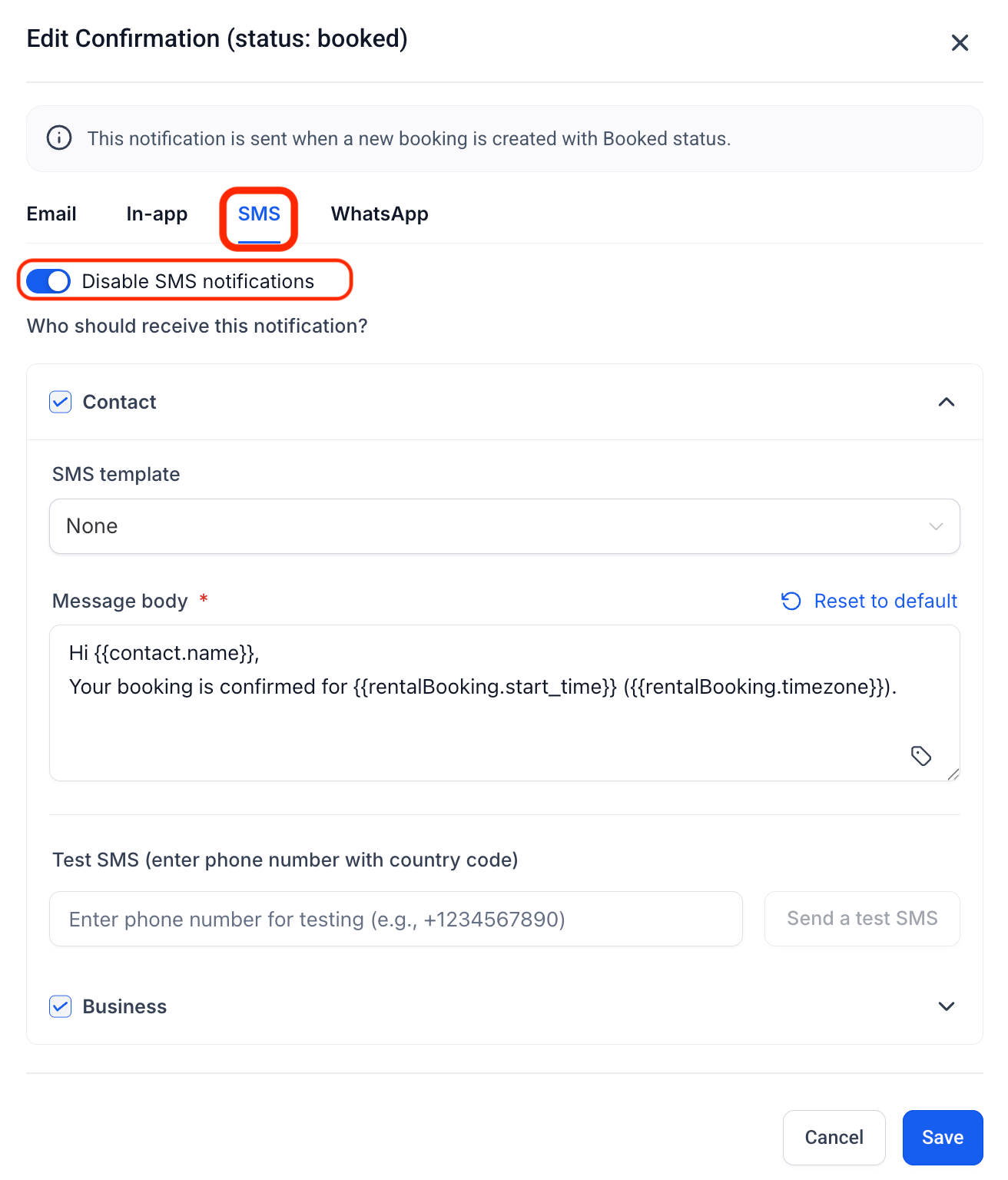
Inside the SMS tab, you can:
- Select an existing SMS template from the SMS template dropdown.
- Customize the Message body directly.
- Use supported custom values to personalize messages with booking-specific details like contact name, booking start time, timezone, and listing name.
- Reset the message back to the default content when needed using the "Reset to default" link.
You can configure different templates for Contact and Business recipients where available, tailoring tone, detail level, and calls to action for each audience.
Example default message content includes contact details and rental booking details, such as: "Hi {{contact.name}}, Your booking is confirmed for {{rentalBooking.start_time}} {{rentalBooking.timezone}}."
Sending a Test SMS
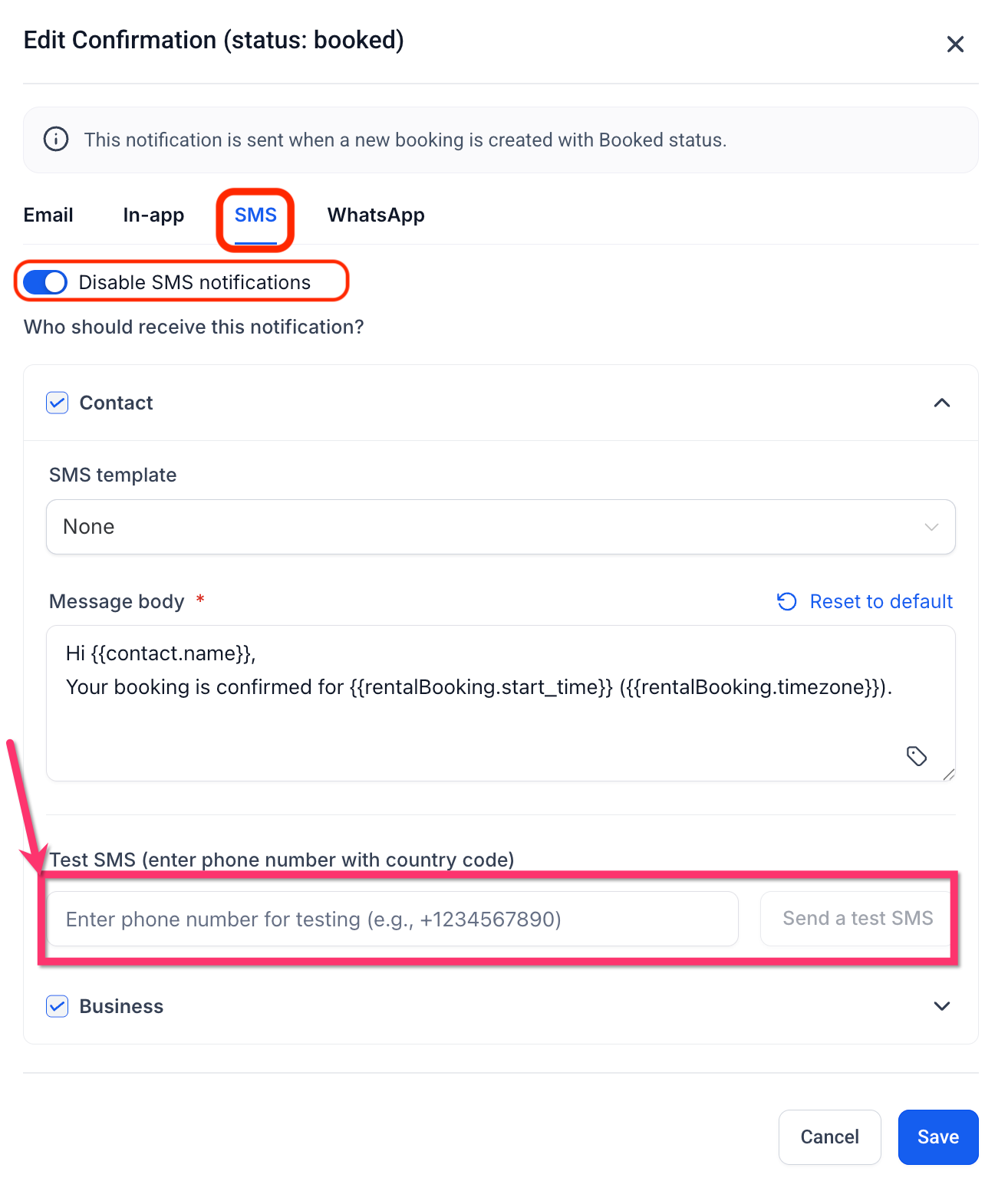
Testing helps confirm that the message looks correct before it is used for real rental bookings. This is especially helpful when using custom values, editing templates, or enabling a new notification type.
To send a test SMS:
- Open the Rental notification you want to test.
- Go to the SMS tab.
- Review or update the message body.
- Enter a test phone number in the Test SMS (enter phone number with country code) field.
- Include the country code, such as
+1234567890. - Click Send a test SMS.
- Review the message on the receiving phone to check merge fields, verify links, and confirm tone and length.
- Make any needed edits before saving.
If the test SMS button is unavailable, confirm that a valid phone number is entered and that SMS services are configured for the location.
SMS Setup Requirements
SMS notifications depend on the location's messaging setup. Before enabling Rental SMS notifications, make sure the location is configured to send SMS messages through HighLevel.
Before going live, confirm:
- The location has SMS sending configured in Settings › Phone & SMS.
- The sending number is available and properly set up.
- Recipient phone numbers are valid and include proper country codes.
- Message content follows your business communication and compliance requirements (e.g., only send to contacts who have opted in to receive SMS).
- Your provider is not blocking messages for compliance reasons (e.g., missing A2P registration in the US).
SMS usage may be subject to applicable messaging costs and compliance rules based on your account setup and phone configuration. Keep messages short and focused on essential details to minimize cost per segment.
How to Set Up SMS Notifications for Rental Bookings
Proper setup ensures booking updates are sent to the right recipients with the right message. Configure each notification event individually so confirmations, reminders, cancellations, and follow-ups match the communication needs of your business.
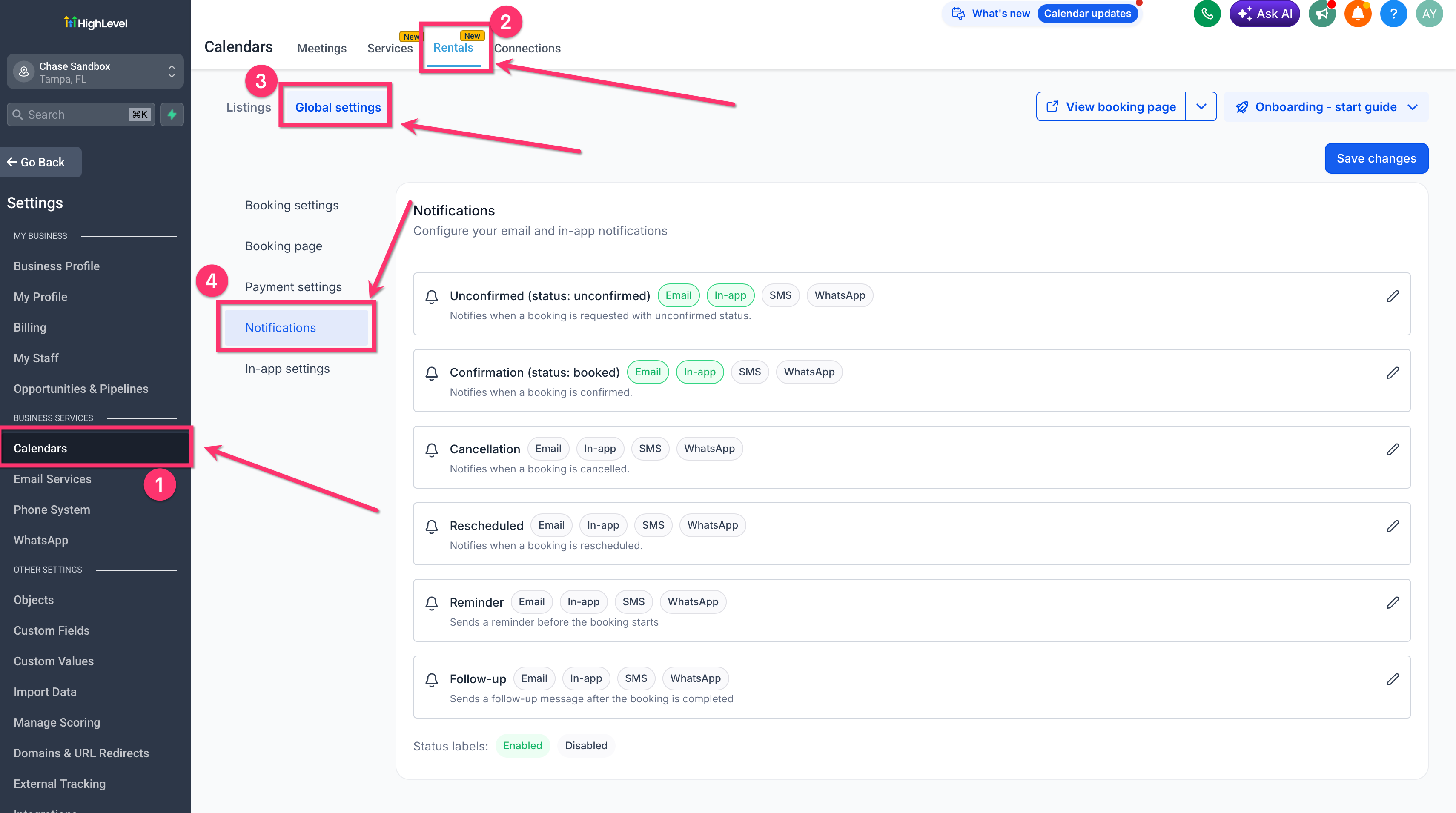
Go to Calendars in HighLevel.
Open Calendar Settings.
Select Rentals.
Click Global settings.
Open Notifications to see all rental notification types.
In the Notifications list, click the Edit (pencil) icon next to the event you want to configure (e.g., Reminder or Confirmation).
Inside the notification editor, select the SMS tab.
Toggle the Disable SMS notifications switch to Off (enabled) for that notification type.
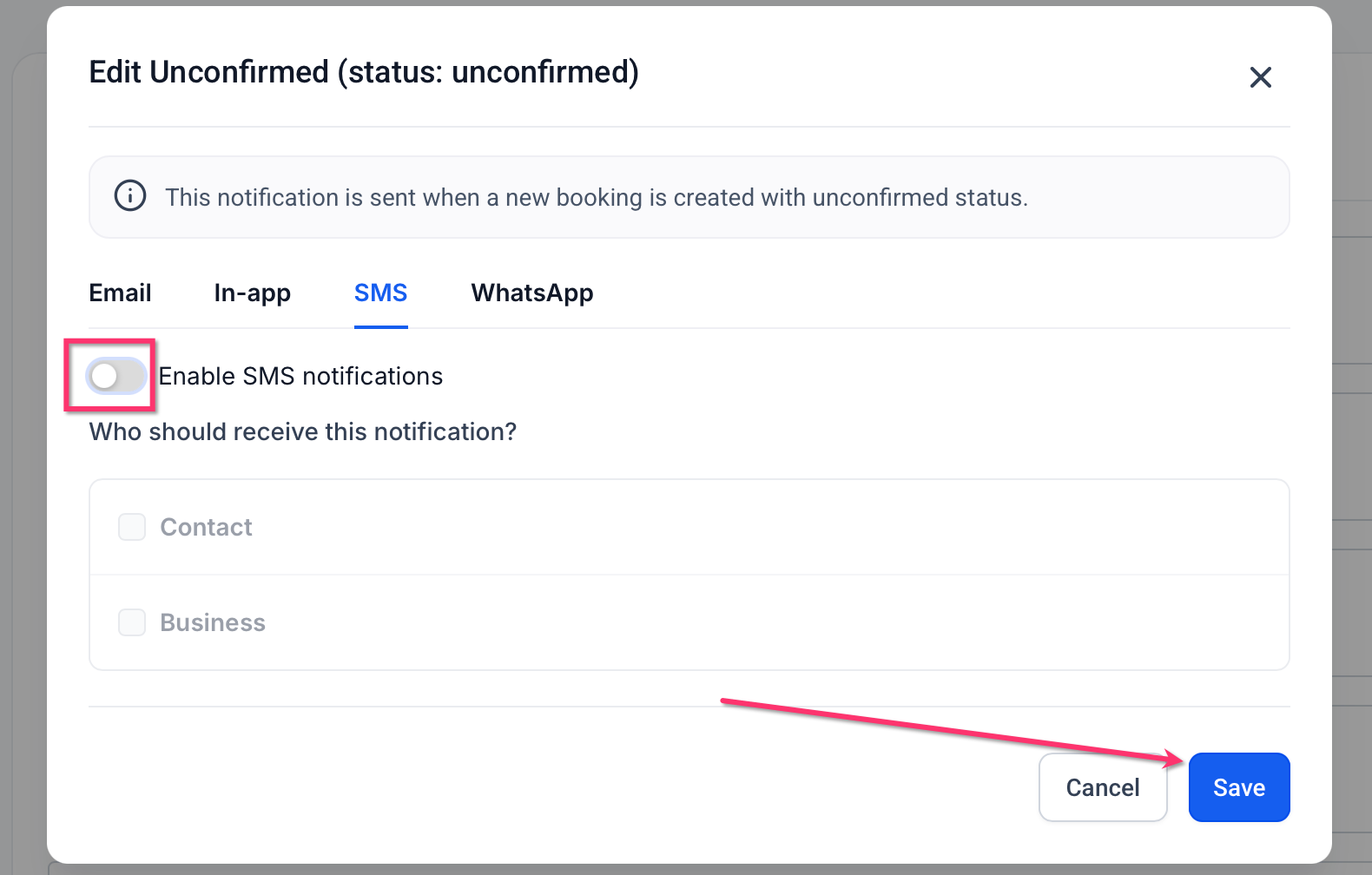
Under Who should receive this notification?, expand the recipient sections:
- Contact — Check this to send the SMS to the customer/renter.
- Business — Check this to send the SMS to your internal business number.
You can enable one or both recipient options depending on your communication needs.
Pick an existing SMS template from the SMS template dropdown, or use the default template provided (often labeled "None").
Edit the Message body as needed, inserting custom values via the merge-field ({ }) picker icon for personalization (e.g., {{contact.name}}, {{rentalBooking.start_time}}).
If different messaging is needed for Contact vs Business, configure each recipient's template separately where the option is available.
For Reminder SMS: set how long before the booking start time the message should send (e.g., 24 hours, 1 hour).
For Follow-Up SMS: set how long after the booking end time it should send (e.g., 2 hours after, next day).
Enter a test phone number with country code in the Test SMS field (e.g., +12345678900).
Click Send a test SMS.
Confirm the message looks correct:
- Check merge fields
- Verify links
- Confirm tone and length
Click Save to apply your changes to the current notification.
Click Save changes on the main Notifications page if required.
Repeat steps 2–7 for any additional event types (e.g., Cancellations, Reschedules) you want to support via SMS.
Once saved, SMS will automatically send whenever the configured rental booking event occurs, following the rules you set in Global Settings.
Troubleshooting SMS Notifications
Troubleshooting helps identify why an SMS notification may not send or why the recipient may not receive the expected message. Start by checking the notification settings, recipient configuration, and SMS setup for the location.
Common things to check:
- Confirm SMS is enabled for the specific notification event (toggle is Off/enabled, not On/disabled).
- Confirm the correct recipient option is selected (Contact and/or Business).
- Check that the message body is not blank.
- Verify the recipient has a valid phone number with proper country code.
- Include the country code when sending a test SMS (e.g., +1 for US/Canada).
- Confirm SMS services are configured for the location in Settings › Phone & SMS.
- Review contact communication preferences or restrictions where applicable.
- Send a test SMS before using the notification for live bookings to validate setup.
- Check that your provider is not blocking messages for compliance reasons (e.g., missing A2P registration).
Frequently Asked Questions
Was this article helpful?
That’s Great!
Thank you for your feedback
Sorry! We couldn't be helpful
Thank you for your feedback
Feedback sent
We appreciate your effort and will try to fix the article