ChatGPT performance sits in the same Statistics tab as every other channel.
TABLE OF CONTENTS
Open the OpenAI view
Go to Marketing → Ad Manager → Statistics.
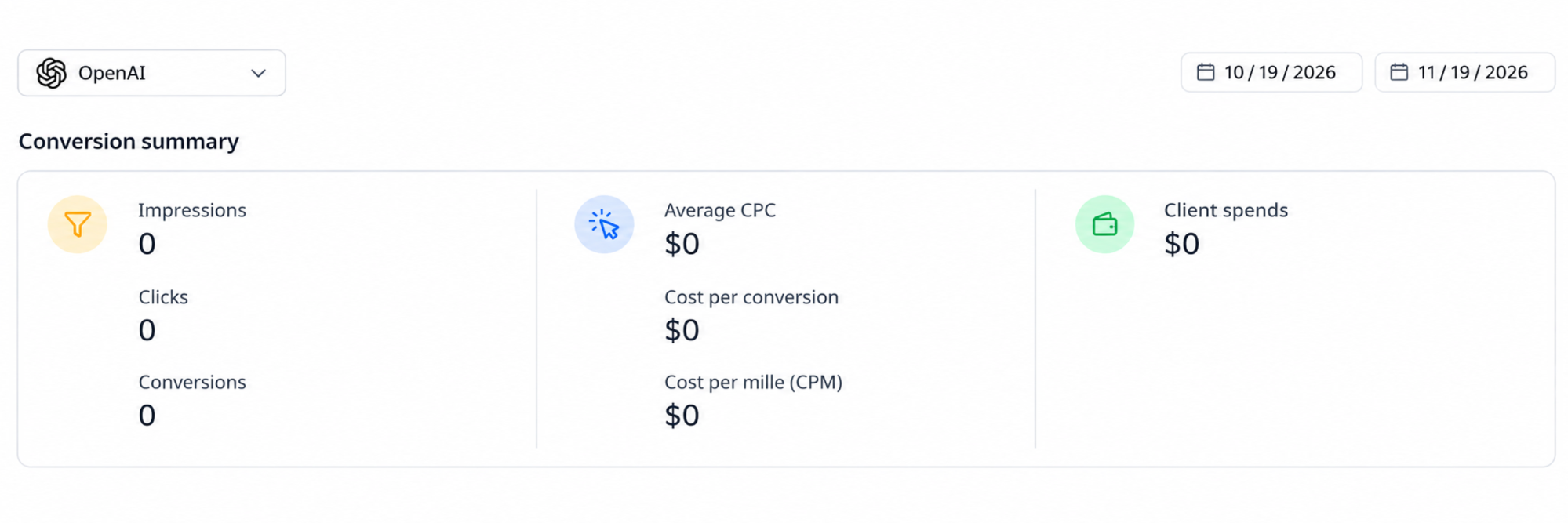
Use the platform selector at the top left and choose OpenAI.
Set the date range using the two date fields at the top right.
Conversion summary
Impressions
Clicks
Conversions
Average CPC
Cost per conversion
Cost per mille (CPM)
Client spends
Performance analytics
Three trend charts, for Impressions, Clicks and Conversions, plotted over the selected period. Charts show "No data" where there is nothing to plot.
Campaign details
The table at the bottom breaks performance down by campaign.
Search for a campaign to filter the table.
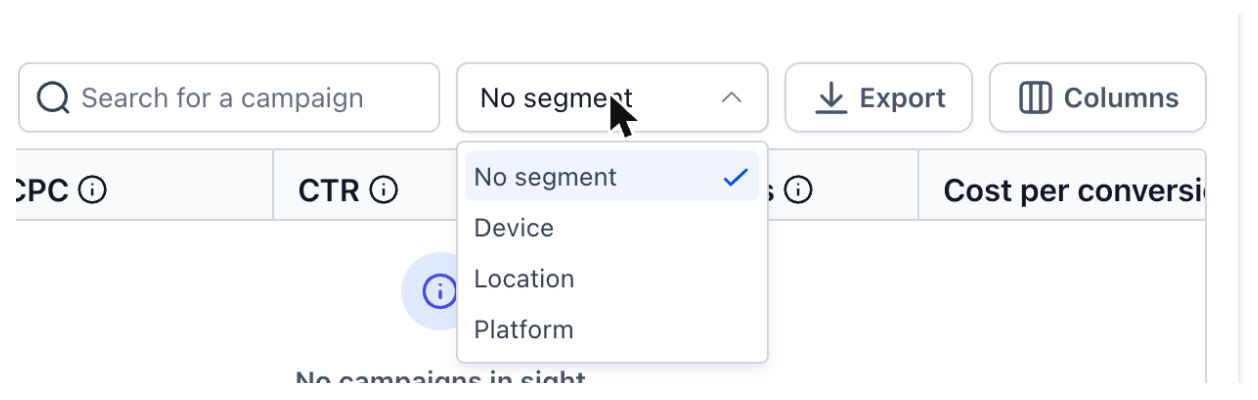
Segment the table by Device, Location or Platform, or leave it on No segment. Platform here means the ChatGPT surface, which is how you tell whether the app or the web is carrying your results.
Columns lets you show or hide Campaign ID, Status, Clicks, CPC, CTR, Conversions, Cost per conversion, CPM, Impressions and Spend.
Export downloads the table.
Good to know
Conversions only appear once a data source is installed and a conversion event is receiving data.
Conversions are attributed on a 30 day click-through and 1 day view-through window, so late conversions can change recent numbers.
Campaigns in Draft have no statistics. Only published campaigns report.
Related
Was this article helpful?
That’s Great!
Thank you for your feedback
Sorry! We couldn't be helpful
Thank you for your feedback
Feedback sent
We appreciate your effort and will try to fix the article