Conversion tracking for ChatGPT ads has two parts. A data source is the pixel that sends activity from your site to OpenAI. A conversion event is the specific action, such as a purchase or a form submission, that you want counted as a conversion. You need both before you can run a Conversions campaign.
TABLE OF CONTENTS
Before you begin
Connect your OpenAI ad account first.
You need to be able to add code to your website, or work with someone who can.
Only send customer data you are permitted to share. Sending data through the pixel is subject to OpenAI's advertising terms and your own privacy notice.
Part 1: Create a data source
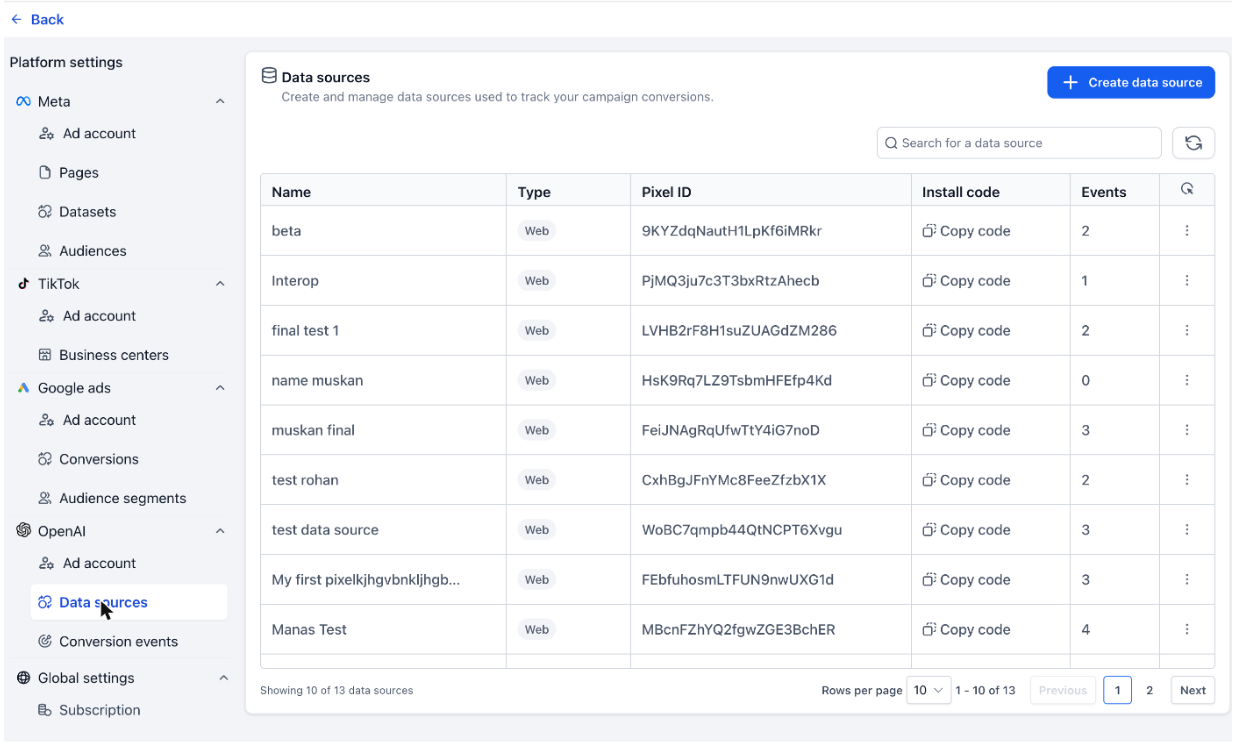
Go to Ad Manager → Settings → OpenAI → Data sources.
Click Create data source.
Enter a Data source name that tells you which site or property it belongs to. The name can be up to 1,000 characters.
Leave Data source type as Web.
Read the privacy notice, then click Create.
Back in the list, click Copy code on the new row and install that code on your website.
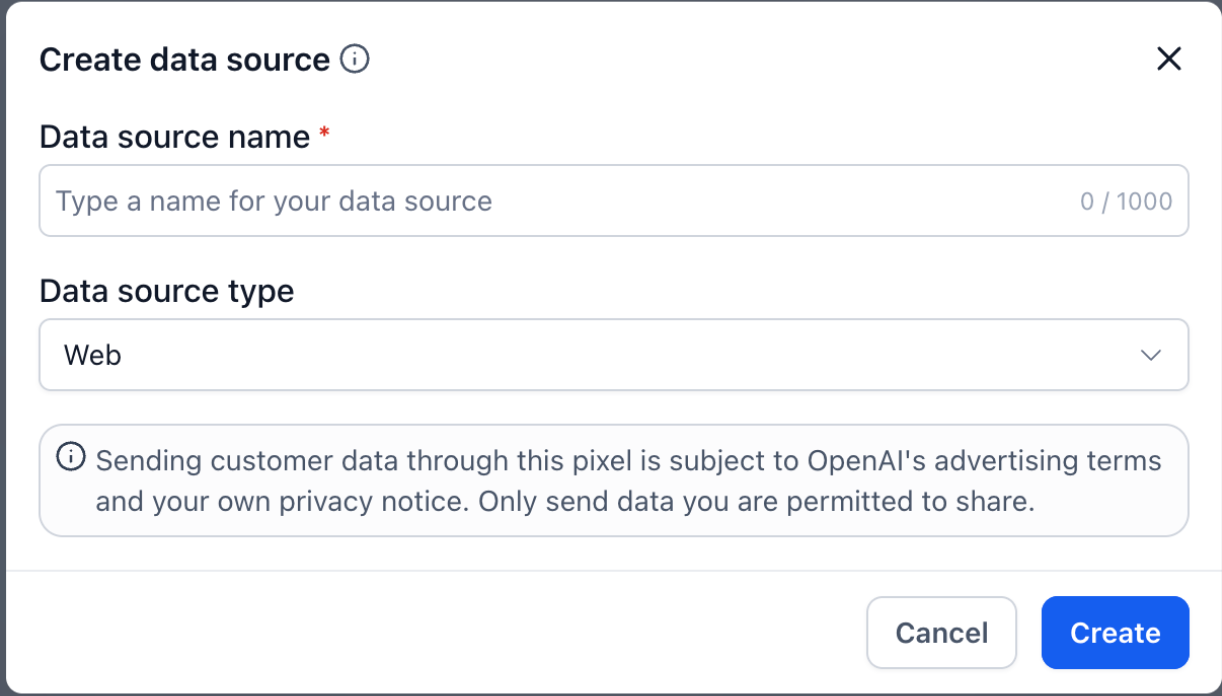
What the Data sources table shows
Name and Type.
Pixel ID: the identifier OpenAI uses for this data source.
Install code: the snippet to place on your site.
Events: how many events this data source has received. Use this to confirm the pixel is firing.
Part 2: Create a conversion event
Go to Ad Manager → Settings → OpenAI → Conversion events.
Click Create conversion event.
Enter an Event name, up to 30 characters.
Choose the Data source that will send this event.
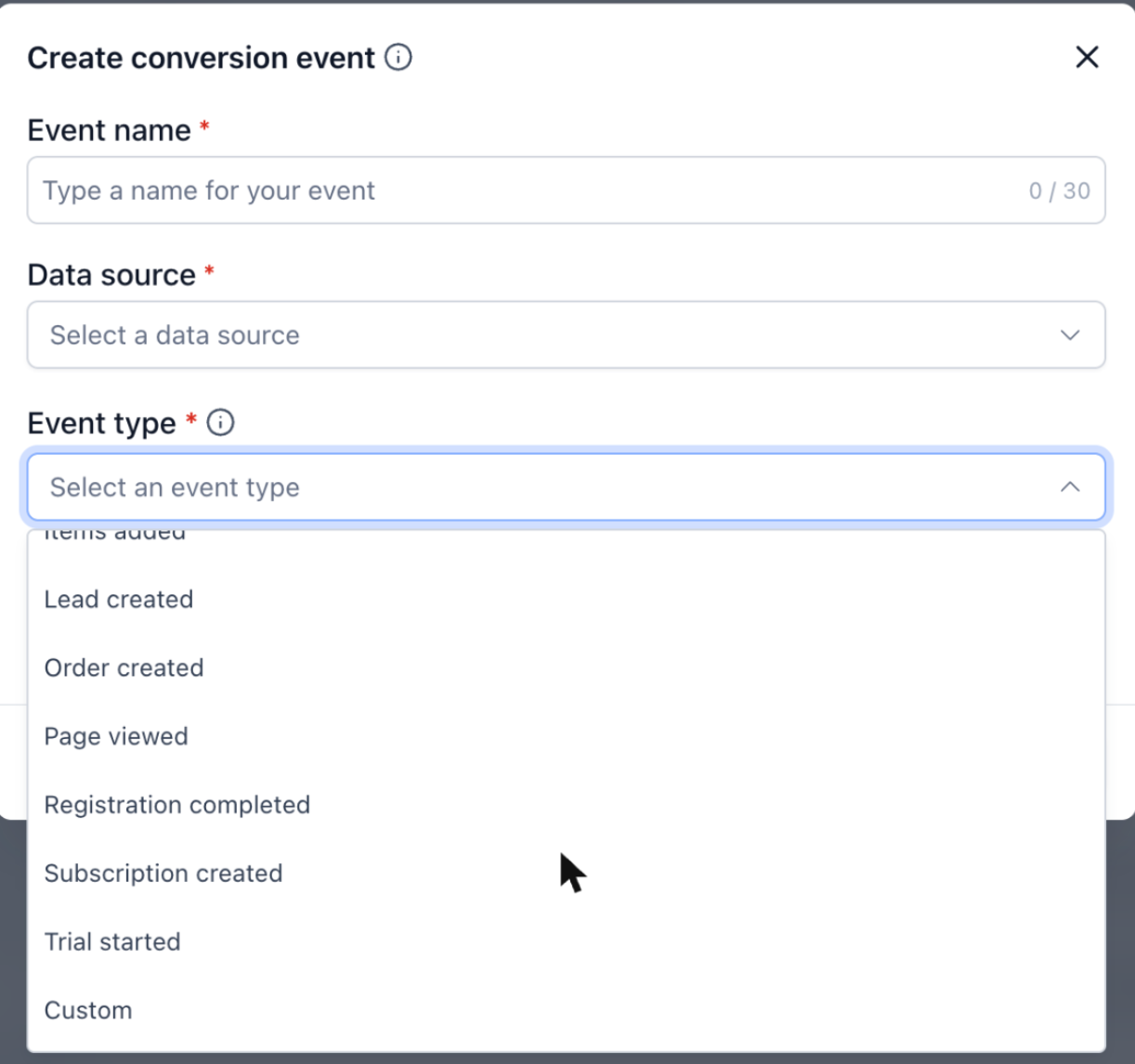
Choose an Event type. The standard types are App installed, App opened, Appointment scheduled, Checkout started, Contents viewed, Items added, Lead created, Order created, Page viewed, Registration completed, Subscription created and Trial started. Choose Custom if none of these match.
Check the attribution windows shown in the dialog, then click Create.
Attribution windows
Click-through: 30 days. A conversion counts if it happens within 30 days of someone clicking the ad.
View-through: 1 day. A conversion counts if it happens within 1 day of someone seeing the ad without clicking.
What the Conversion events table shows
Name, Type and the Data source it belongs to.
Status: whether the event is active.
Optimization: either Eligible for optimization or Measurement only. Events that are eligible for optimization can be used by the Conversions objective, so OpenAI will actively work to get more of them. Measurement-only events are reported but not optimised towards.
Good to know
You can attach a conversion event to any campaign, whatever its objective, using the optional Conversion event field. That measures the event alongside the campaign without changing what the campaign optimises for.
Give the pixel time after installing. The Events count on the data source is the quickest way to confirm data is arriving.
Related
Was this article helpful?
That’s Great!
Thank you for your feedback
Sorry! We couldn't be helpful
Thank you for your feedback
Feedback sent
We appreciate your effort and will try to fix the article