Before you can run ChatGPT ads, connect the OpenAI Ads account that your campaigns will run and bill from. You do this once per sub-account.
TABLE OF CONTENTS
Before you begin
You need an OpenAI Ads account. Billing, payment methods and ad review stay with OpenAI, not HighLevel.
You need access to Ad Manager in the sub-account you want to connect.
Steps
Go to Marketing → Ad Manager.
Open the Settings tab.
In the Platform settings list on the left, expand OpenAI and select Ad account.
Start the connection and follow the prompts to sign in to OpenAI and authorise HighLevel.
When it finishes, the account appears in the table on this page.
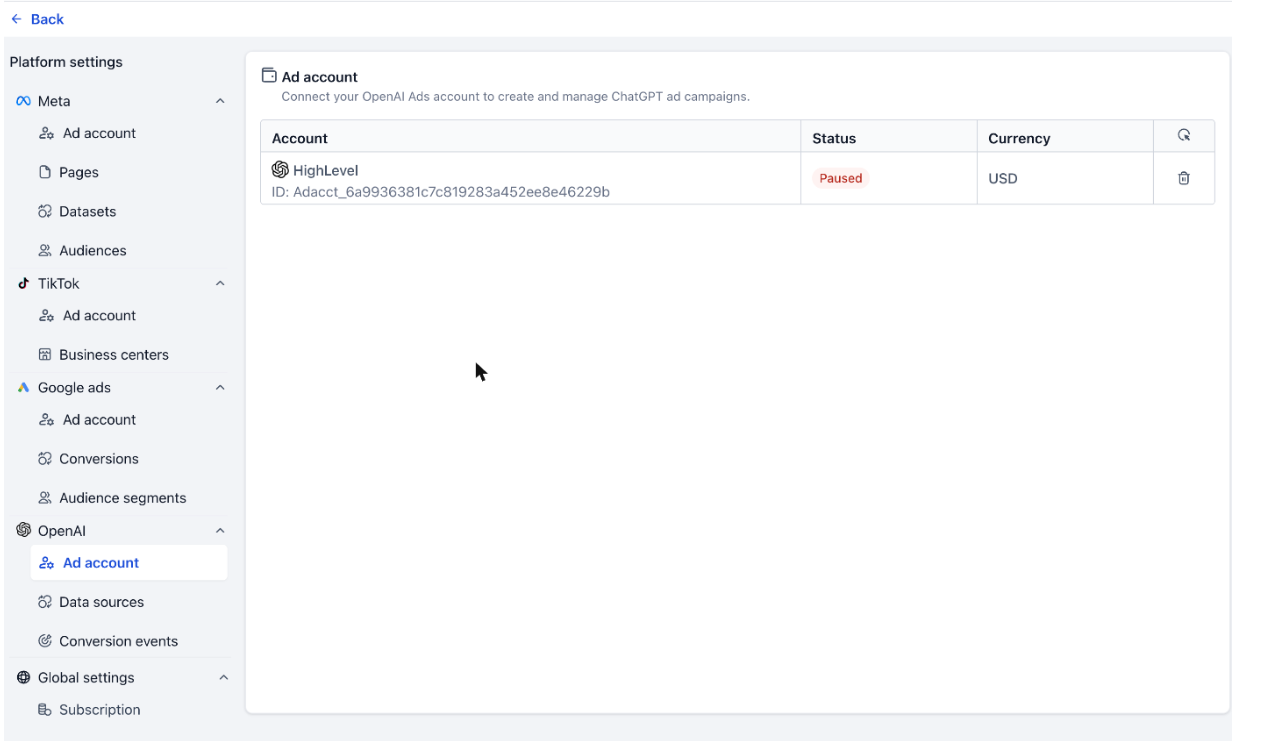
What the Ad account table shows
Account: the account name and its OpenAI ad account ID, in the form Adacct_ followed by a long string.
Status: the account status reported by OpenAI.
Currency: the currency the account bills in. Budgets and bids you enter in Ad Manager use this currency.
Refresh: re-pulls the latest account details from OpenAI.
Delete: disconnects the account from this sub-account.
Good to know
If the status shows Paused, campaigns will not deliver until the account is active again on OpenAI's side. Fix the status in your OpenAI Ads account, then use Refresh.
Currency is set by the OpenAI account. You cannot change it in Ad Manager.
Disconnecting the account stops Ad Manager from managing campaigns on it. Disconnect only if you are moving to a different OpenAI account.
Related
Was this article helpful?
That’s Great!
Thank you for your feedback
Sorry! We couldn't be helpful
Thank you for your feedback
Feedback sent
We appreciate your effort and will try to fix the article