App Permissions in Client Portal: Enabling/Disabling Child Apps and Authentication
App Permissions is the central control panel for your Client Portal experience. It determines which child apps (such as Courses, Communities, and Affiliates) appear to your contacts, and also controls authentication options like Google Sign-In.
This article walks you through enabling or disabling child apps and authentication permissions, helping you create a tailored portal experience that matches your business needs and compliance requirements.
What Are App Permissions in Client Portal?
App Permissions is the centralized control panel inside Client Portal Settings where you manage which features and authentication options your contacts can access. It serves two primary functions:
Every sub-account has its own App Permissions configuration, allowing you to tailor the Client Portal experience based on your client's specific needs, compliance requirements, and business model.
Changes made in App Permissions apply globally to all contacts within that sub-account's Client Portal, ensuring a consistent experience across your user base.
Child Apps vs. Authentication Permissions
Understanding the distinction between child apps and authentication permissions helps you configure the Client Portal more effectively.
Child apps are the individual applications and features your contacts can access once they're logged into the Client Portal. Examples include:
- Courses (educational content delivery)
- Communities (discussion forums and member interaction)
- Affiliates (referral program management)
- Other portal modules specific to your business
Authentication permissions control how contacts log in to access the portal. These are separate from child apps and include:
- Google Sign-In — Toggle the "Sign in with Google" button on login and sign-up pages
- Email + Password — Standard account creation and login (always available)
- Secure Code Login — Time-limited one-time passcode sent via email (always available)
- Magic Links — One-click access links you generate for contacts (always available)
Child app toggles control what contacts can do inside the portal after logging in. Authentication permissions control how contacts log in to access the portal in the first place.
How to Access App Permissions
Follow these steps to open the App Permissions configuration panel for your sub-account's Client Portal.
From Agency View, switch into the sub-account whose Client Portal you want to configure. App Permissions are set per sub-account, not globally.
In the left sidebar, locate and click Memberships (or the section where Client Portal is listed).
Click Client Portal, then open Settings.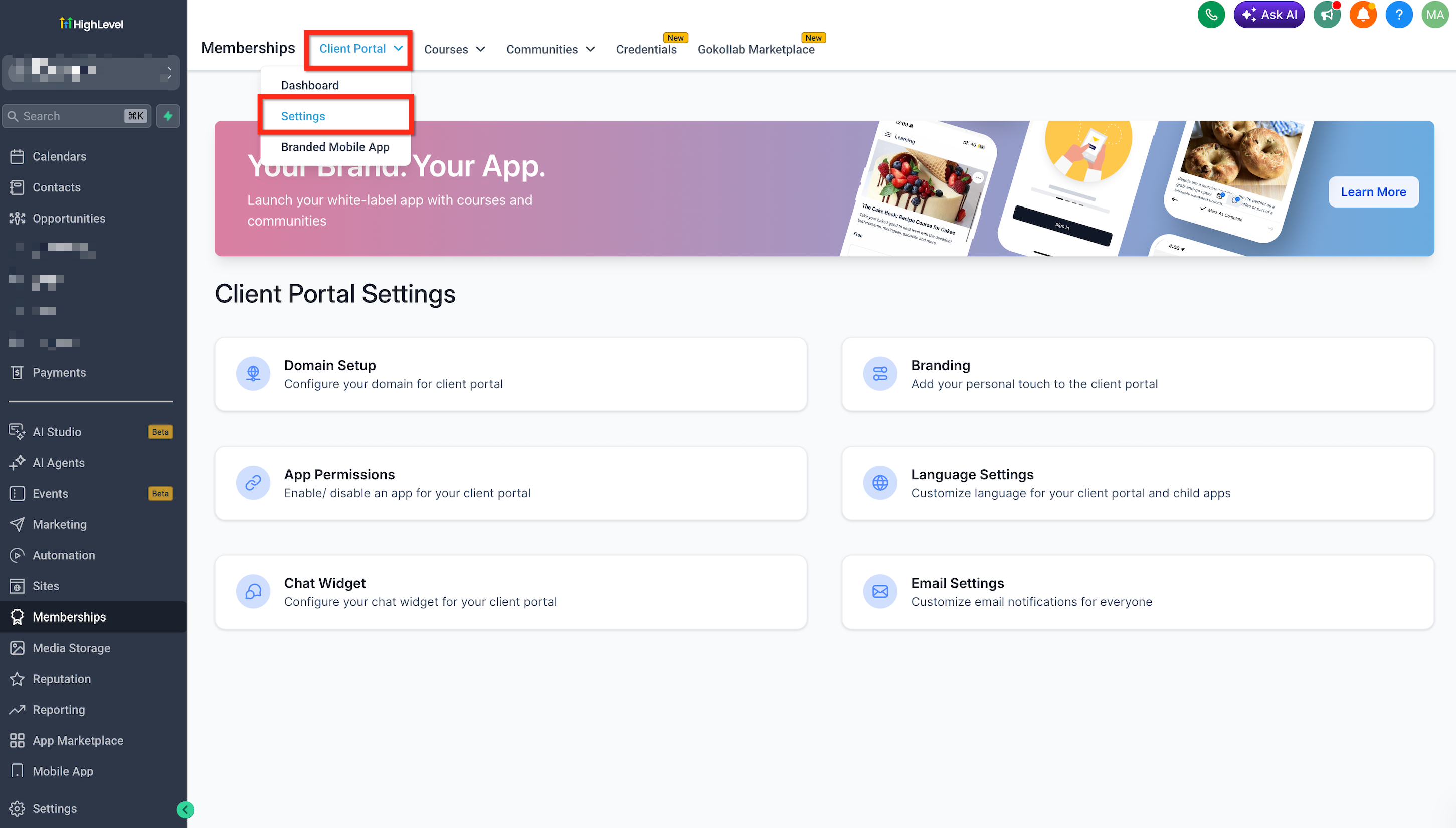
Inside Client Portal Settings, locate and click the App Permissions tab or menu item. You'll see a list of all available child apps and authentication options.
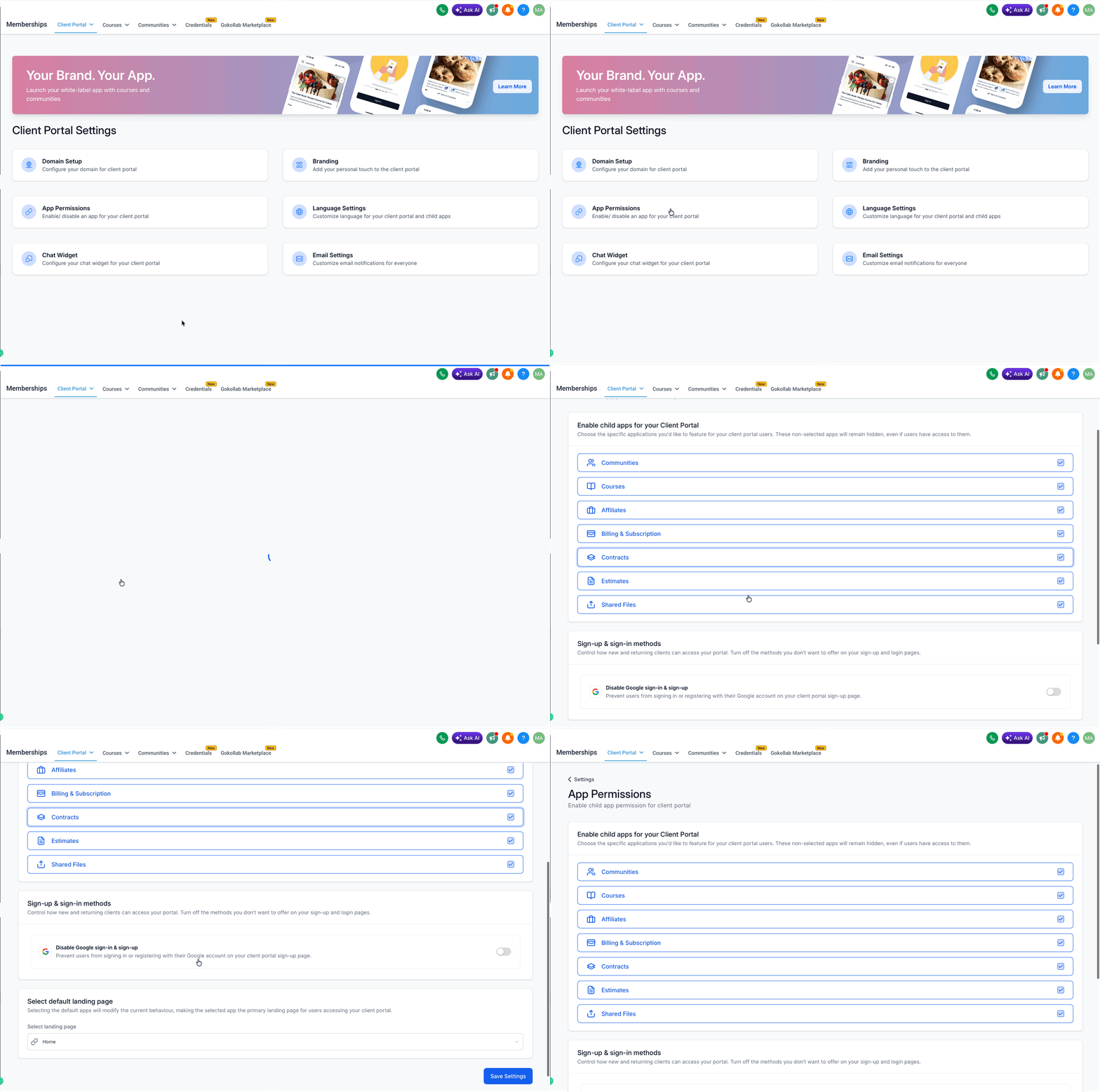
If you manage multiple sub-accounts, bookmark or document the navigation path for faster access when configuring Client Portals for different clients.
Enabling or Disabling Child Apps
Once you're in the App Permissions panel, you can control which child apps appear in your Client Portal by toggling them on or off.
In the App Permissions list, find the child app you want to enable or disable (e.g., Courses, Communities, Affiliates). Each app will have its own toggle switch.
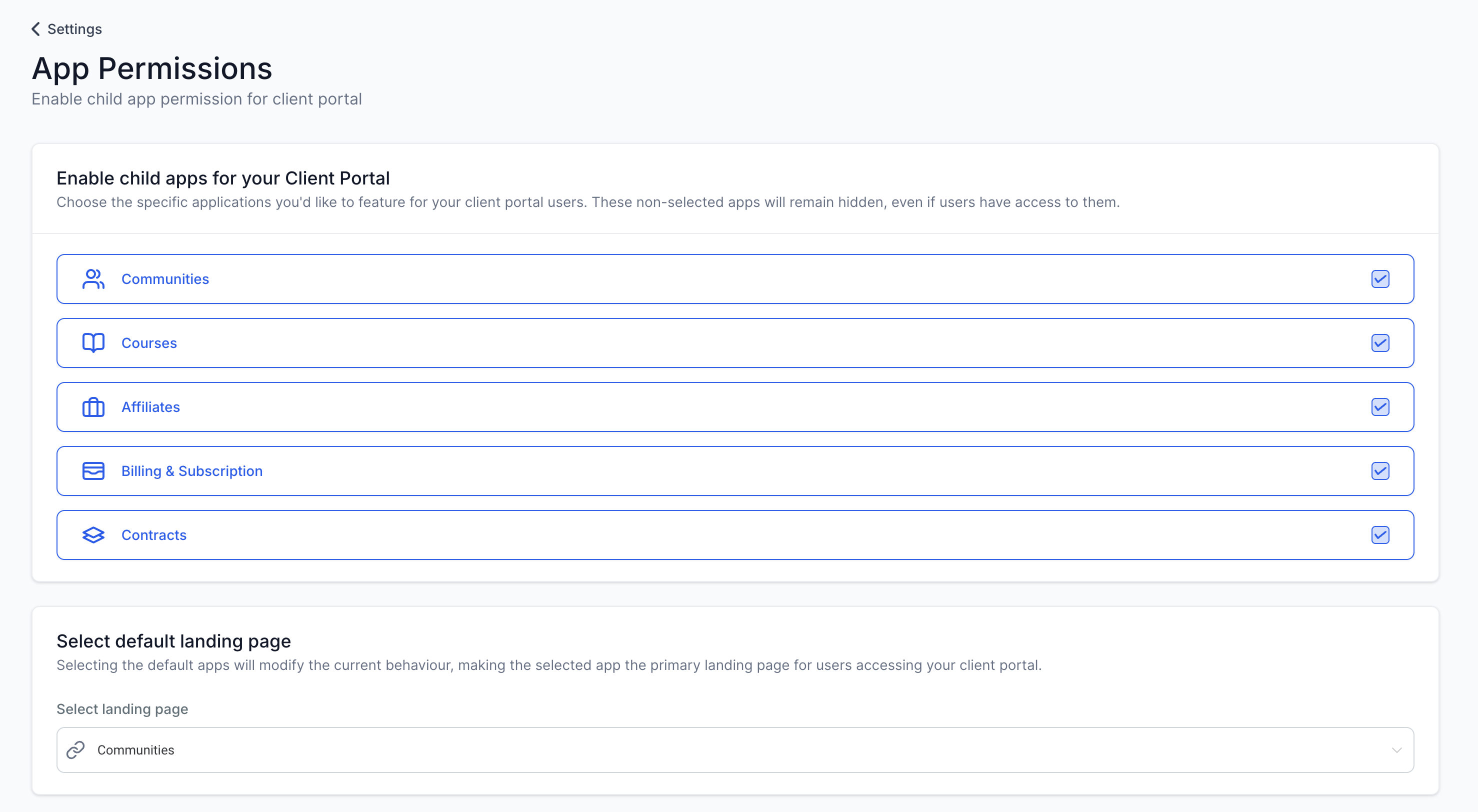
Toggle ON to make the child app visible and accessible to contacts in the Client Portal navigation.
Toggle OFF to hide the child app from the Client Portal. Contacts will not see it in the navigation or be able to access its content.
Click Save to apply the new child app configuration. The changes take effect immediately for all contacts accessing the Client Portal.
Disabling a child app only hides it from the portal navigation. It does not delete any content or data associated with that app. You can re-enable the app at any time to restore contact access.
Enabling or Disabling Google Sign-In
The Google Sign-In toggle controls whether the "Sign in with Google" button appears on your Client Portal Web login and sign-up pages. This authentication permission is managed alongside child apps in the same App Permissions panel.
In the App Permissions list, find the Google Sign-In option. It will appear alongside your child app toggles.
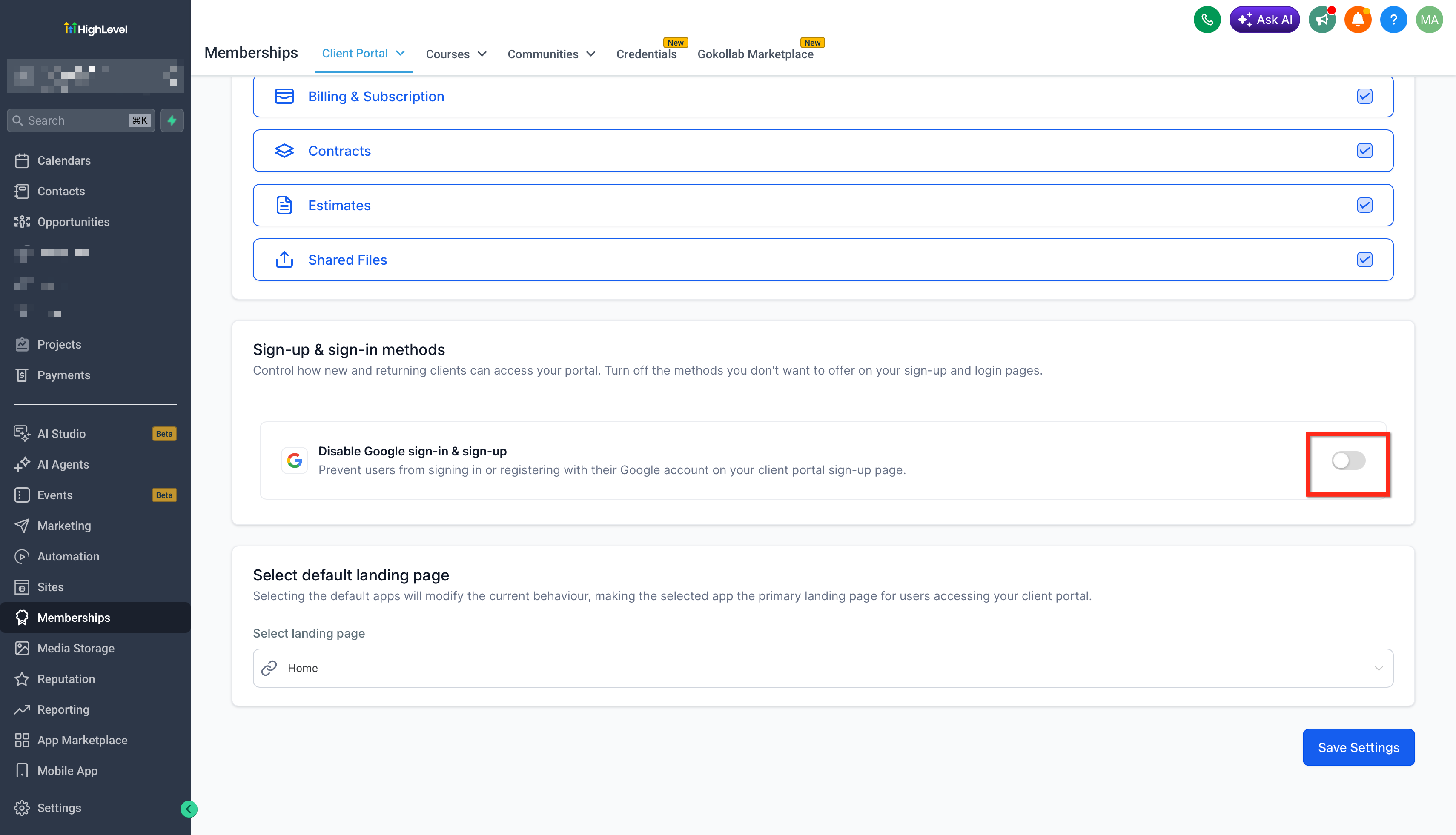
Toggle ON to show the "Sign in with Google" button on Client Portal Web login and sign-up pages. Contacts can authenticate using their Google account.
Toggle OFF to hide the Google button. Contacts will authenticate using email + password, secure code login, or magic links you send them.
Click Save to apply the authentication change.
Open your Client Portal URL in an incognito or private browser window to confirm whether the "Sign in with Google" button is visible or hidden based on your configuration.
Many businesses disable Google Sign-In to meet compliance requirements such as GDPR, internal security policies, or client data-handling agreements. Disabling Google Sign-In removes a third-party authentication touchpoint while keeping all other Client Portal login methods fully functional.
Disabling Google Sign-In only hides the Google button from login and sign-up pages. It does not delete any existing contact records or affect alternative login methods like magic links, secure code, or email + password authentication.
Best Practices for Managing App Permissions
Following these best practices helps you configure App Permissions effectively while avoiding common pitfalls.
Before sharing your Client Portal URL with contacts, verify all child apps and authentication options are configured correctly. Test the login flow in an incognito window to confirm the exact experience your contacts will see.
If you're considering disabling Google Sign-In for compliance reasons (such as GDPR), coordinate with your legal, security, or data protection officer before making the change. Document the decision in your internal compliance playbook.
If you disable a child app or change authentication options after contacts have already been using the portal, send a brief announcement explaining the change and any alternative access methods they should use.
Restrict who can modify App Permissions by managing team member roles and permissions carefully. Only trusted admins (such as account owners or operations leads) should have the ability to change portal configuration.
If you manage multiple clients, take advantage of per-sub-account configuration. Enable child apps and authentication options based on each client's specific needs, rather than using a one-size-fits-all approach.
Related Articles
Frequently Asked Questions
Was this article helpful?
That’s Great!
Thank you for your feedback
Sorry! We couldn't be helpful
Thank you for your feedback
Feedback sent
We appreciate your effort and will try to fix the article