Visual edits let you point at anything in your app's preview and ask for a change. It's the quickest way to tell AI exactly which heading, button or section you mean.
Make a Visual Edit
Step 1: Turn on Visual edits
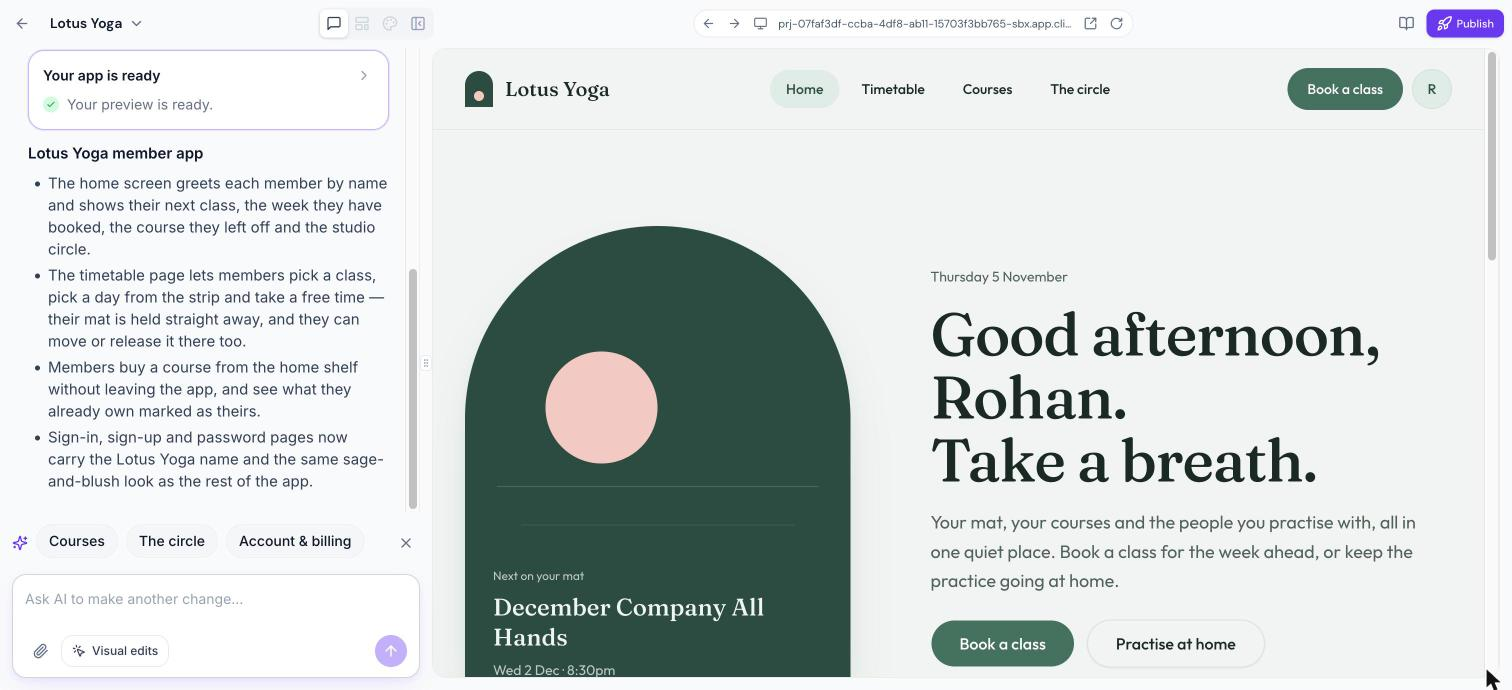
Open your app in Client App Builder and click Visual edits below the chat box.
Step 2: Select an element
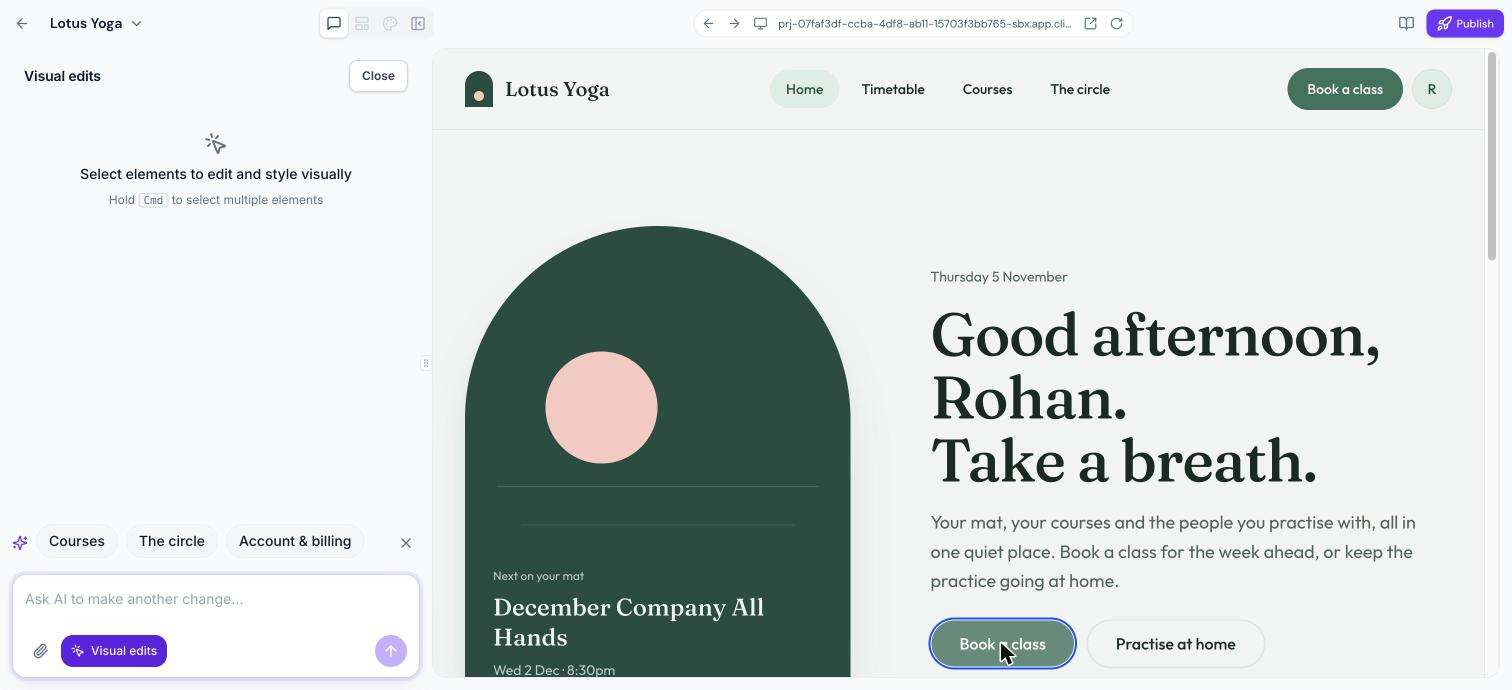
Hover over the preview. The element under your pointer is outlined. Click it to select it. To select several elements, hold Cmd while you click. You can select up to 20 elements at once.
Step 3: Describe the change
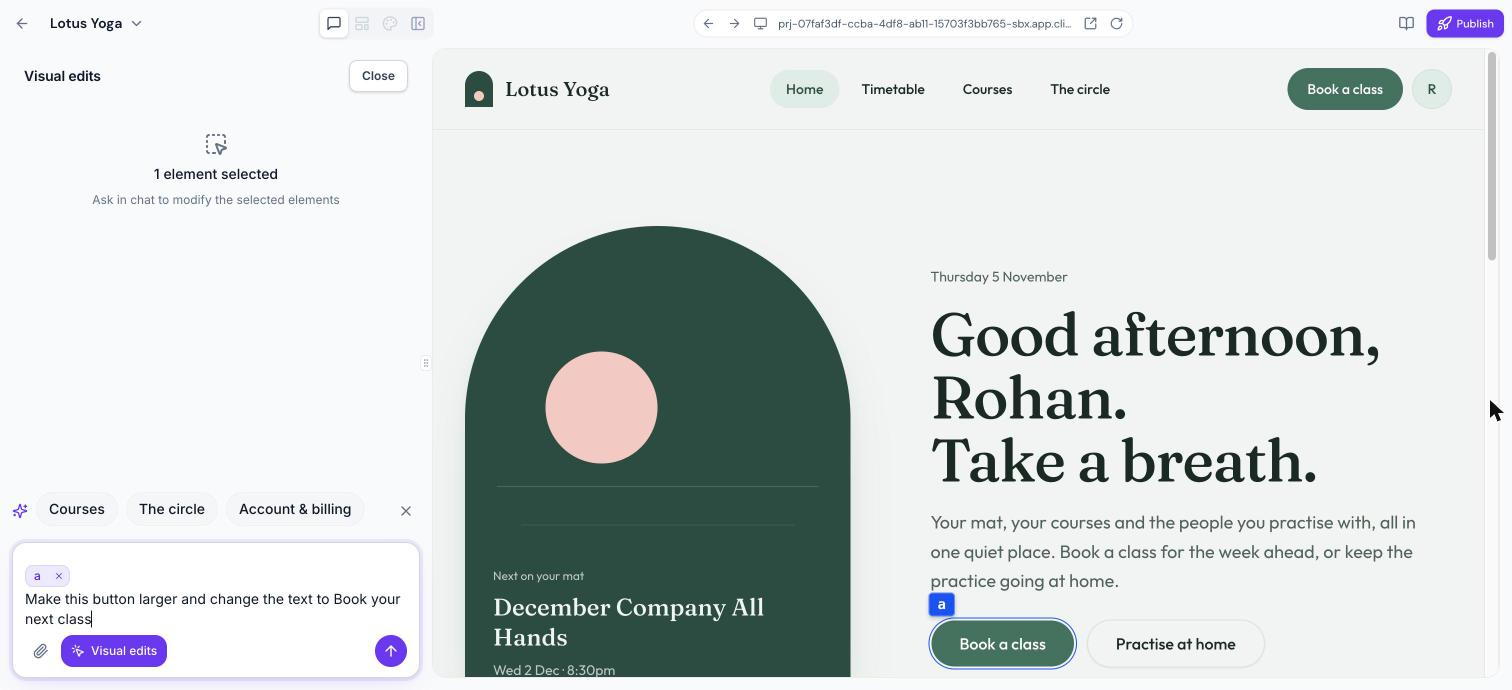
The selected element is attached to your message. Type what you want, for example "Make this button larger and change the text to Book your next class", then send it.
Step 4: Review the result
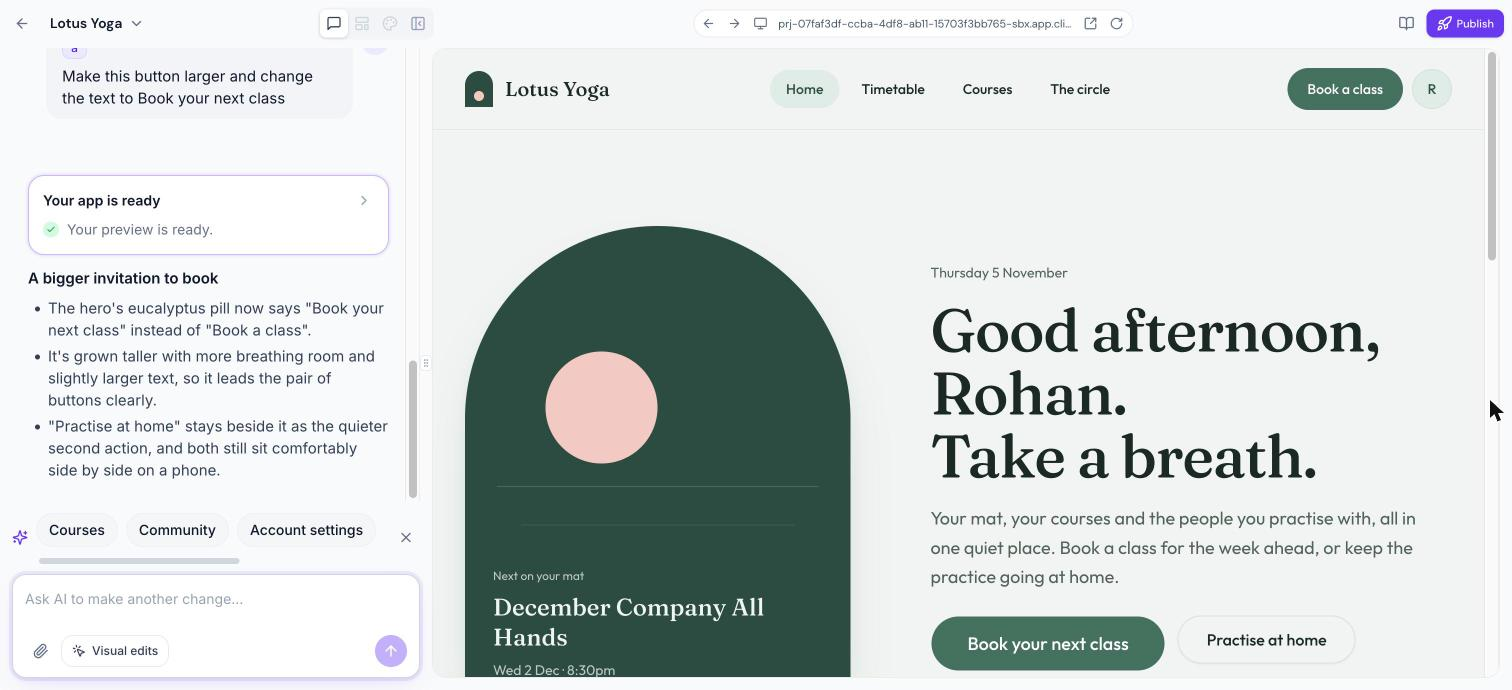
AI updates only what you pointed at and explains what changed. Check the preview and keep refining if needed. Click Close at the top of the Visual edits panel to return to the chat.
Tips
Select one element at a time for precise changes.
Be specific: mention size, colour, wording or position.
Use the regular chat for changes across the whole app, such as a new colour scheme.
Frequently Asked Questions
Which apps support visual edits?
Visual edits are available for web apps built with Describe it instead and for mobile apps. They aren't available for web apps built from the ClientPortal standard.
Can I undo a visual edit?
Yes. Ask in the chat to revert the change.
Was this article helpful?
That’s Great!
Thank you for your feedback
Sorry! We couldn't be helpful
Thank you for your feedback
Feedback sent
We appreciate your effort and will try to fix the article