HighLevel Restaurants allows you to apply coupon codes to online orders and dine-in payments. Guests can redeem coupons during Restaurant Website checkout, while staff can apply the same codes when taking payment at a table. This article explains how to create restaurant coupons, apply discounts, and manage free checkout.
TABLE OF CONTENTS
- What Are Coupons for HighLevel Restaurants?
- Key Benefits of Coupons for HighLevel Restaurants
- Coupon Types and Configuration Options
- Coupons for Online Checkout and Dine-In Payments
- 100% Coupons and Free Checkout
- How to Set Up and Apply Coupons for HighLevel Restaurants
- Frequently Asked Questions
- Related Articles
What Are Coupons for HighLevel Restaurants?
Coupons allow restaurants to offer percentage-based or fixed-amount discounts on eligible orders. Coupons are created and managed centrally in HighLevel, so the same promotional code can be used for online orders and dine-in payments.
Important: This feature is available in private beta for agencies participating in the HighLevel Restaurants beta.Key Benefits of Coupons for HighLevel Restaurants
Restaurant coupons simplify promotional discounts and help create a consistent checkout experience across online and dine-in orders.
- Centralized Management: Create and manage coupons in one location for both ordering channels.
- Flexible Promotions: Offer percentage-based or fixed-amount discounts.
- Automatic Discounts: Apply coupons without manually adjusting order prices.
- Free Orders: Allow guests to place fully discounted orders without payment.
- Customer Engagement: Share promotional codes through email or SMS campaigns to encourage repeat orders.
Coupon Types and Configuration Options
HighLevel supports different coupon types, allowing restaurants to create offers that match their promotional goals.
| Coupon Type | Description | Example |
|---|---|---|
| Percentage Coupon | Reduces the eligible order amount by a specified percentage. | A 10% coupon on a $50 subtotal provides a $5 discount. |
| Fixed Coupon | Subtracts a fixed amount from the eligible order. | A $10 coupon on a $50 subtotal reduces it to $40. |
You can also configure coupon start and end dates, redemption limits, and one-use-per-customer restrictions.
For additional configuration details, refer to Getting Started with Coupons.
Coupons for Online Checkout and Dine-In Payments
The same coupon code can be applied to Restaurant Website orders and dine-in bills. The discount is reflected in the order summary or payment panel before payment is completed.
| Feature | Online Checkout | Dine-In Payments |
|---|---|---|
| Where to apply | Restaurant Website → Checkout | Reservations → Front of house or Restaurant Orders → Take payment |
| Coupon entry | Guests select Have a coupon code? | Staff select Add coupon |
| Apply discount | Enter the code and click Apply | Enter the code and click Apply |
| Discount display | Updated Order summary | Updated bill and Amount due |
| Complete payment | Guest pays the discounted total | Staff charge a card or record payment manually |
100% Coupons and Free Checkout
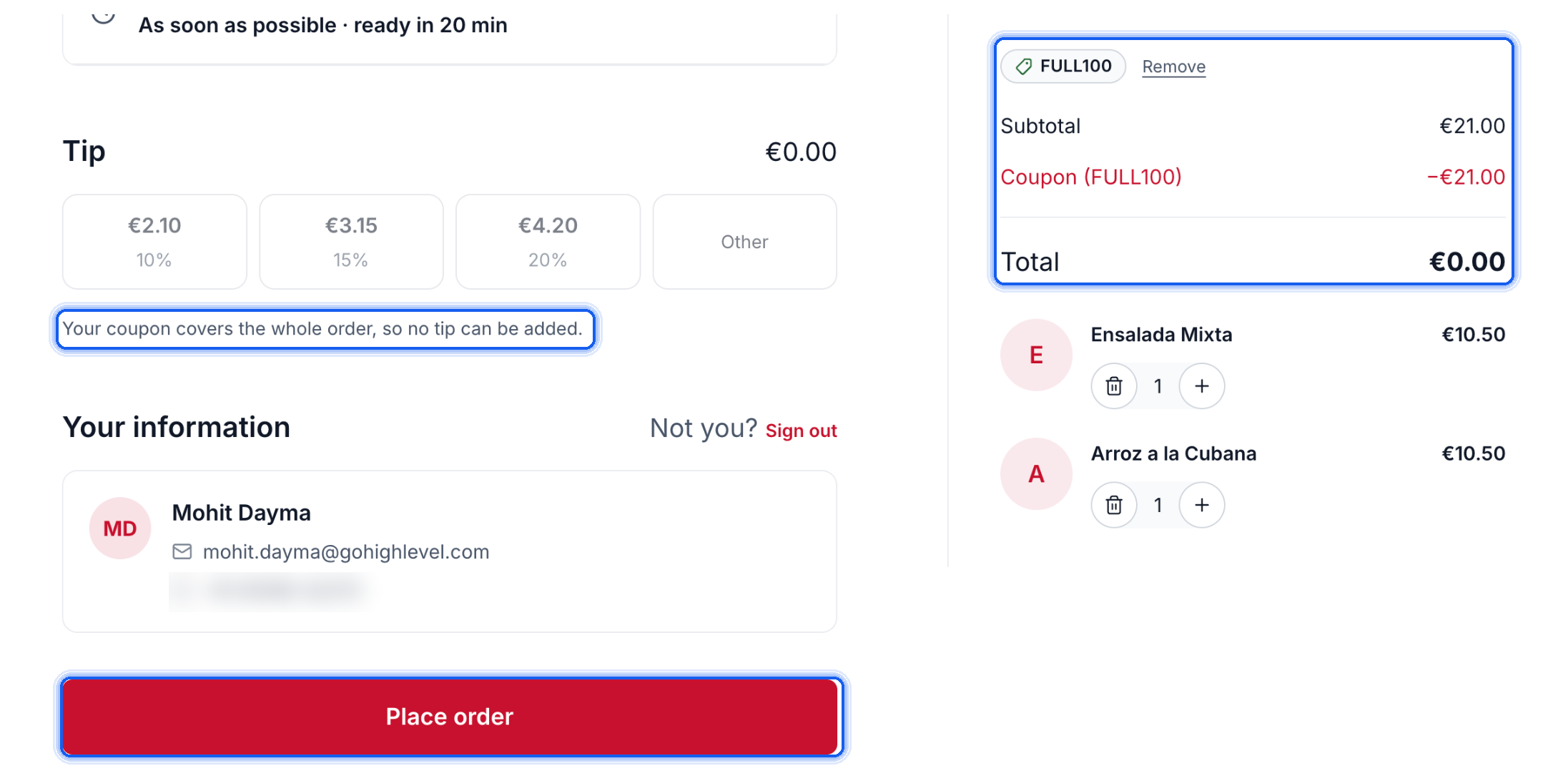
A 100% coupon allows guests to place a fully discounted online order without making a payment. When the order total reaches zero, the payment step is skipped and tipping is disabled.
Restaurants can optionally enable Require card for free checkout under Restaurant Settings → Checkout and payments. When enabled, guests must provide card details for free orders. No amount is charged, and the card is saved to the guest.
How to Set Up and Apply Coupons for HighLevel Restaurants
Creating a coupon and applying it through the correct checkout workflow ensures guests receive the intended discount. Follow these steps to configure coupons and redeem them for online or dine-in orders.
- Create a Coupon: Navigate to Commerce → Coupons → Create Coupon. Enter a coupon name and code, select Percentage coupon or Fixed coupon, configure the discount and optional restrictions, and save.
Note: The existing general coupon guide lists Payments → Coupons; confirm the navigation available in your account.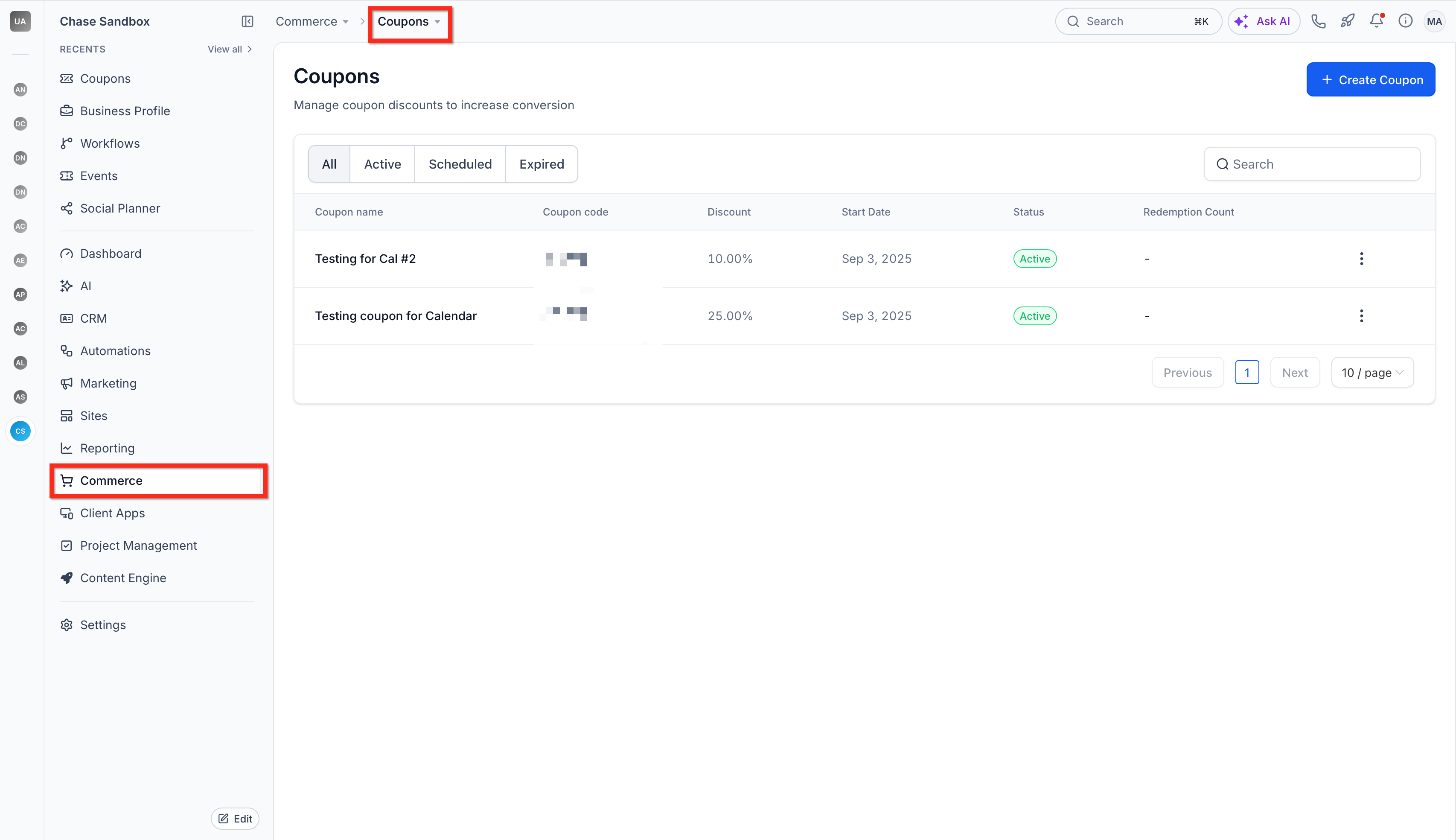
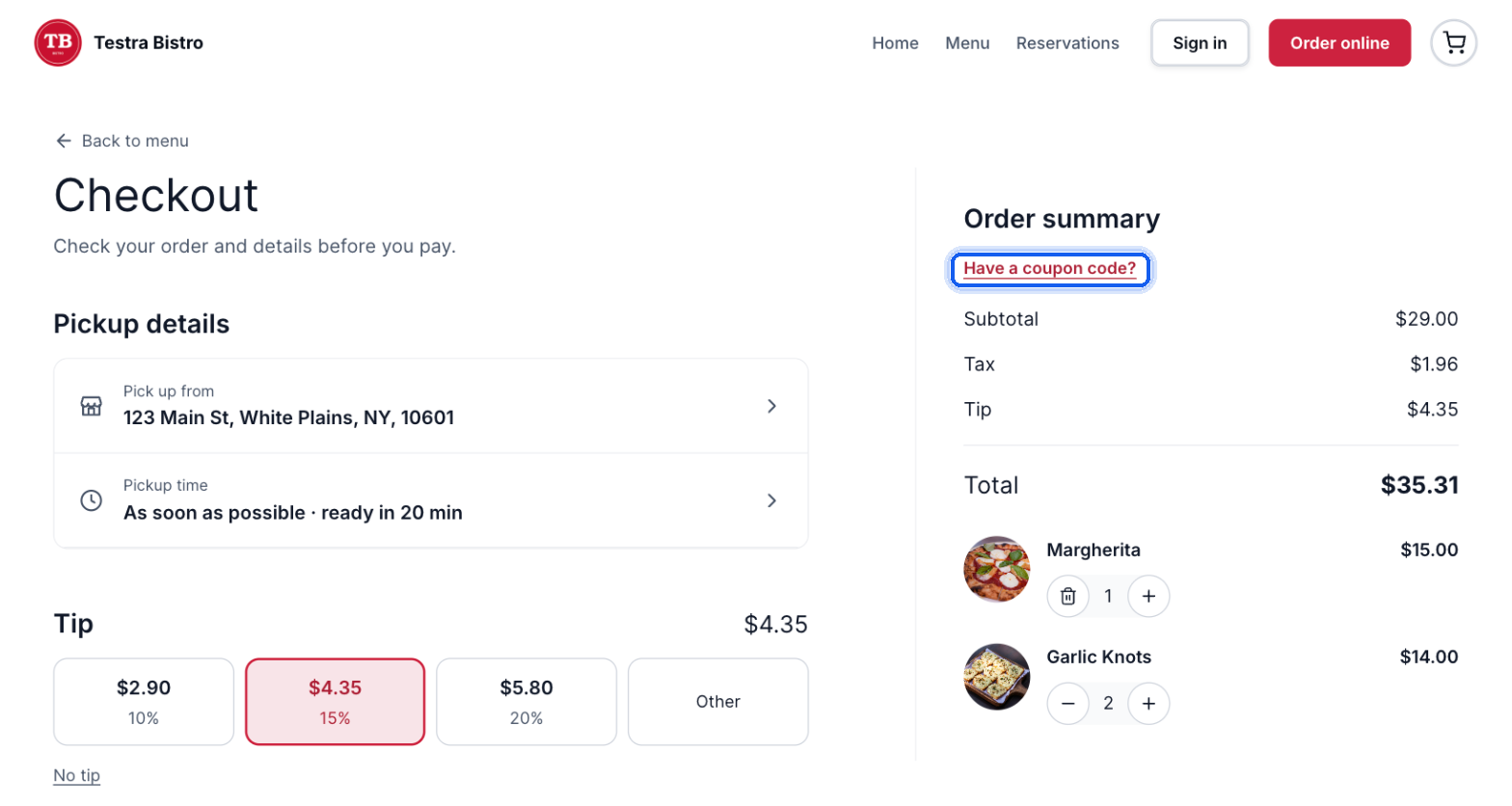
- Apply a Coupon at Online Checkout: On the Restaurant Website, add menu items to the cart and proceed to checkout. Under Order summary, click Have a coupon code?, enter the code, and click Apply.
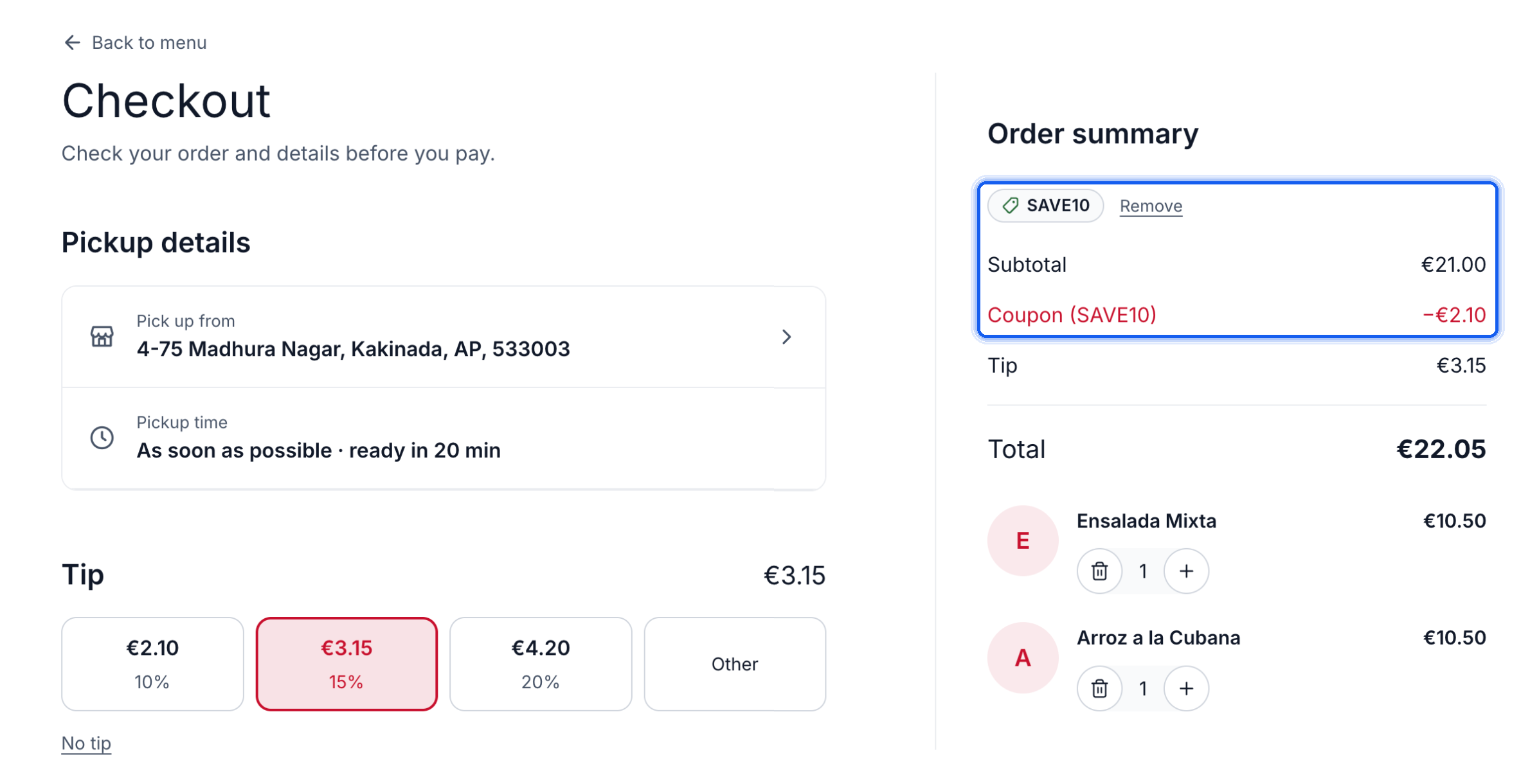
- Review the Online Discount: Verify that the coupon appears in the Order summary with its discount amount and updated total. Guests can select Remove to remove an applied coupon.
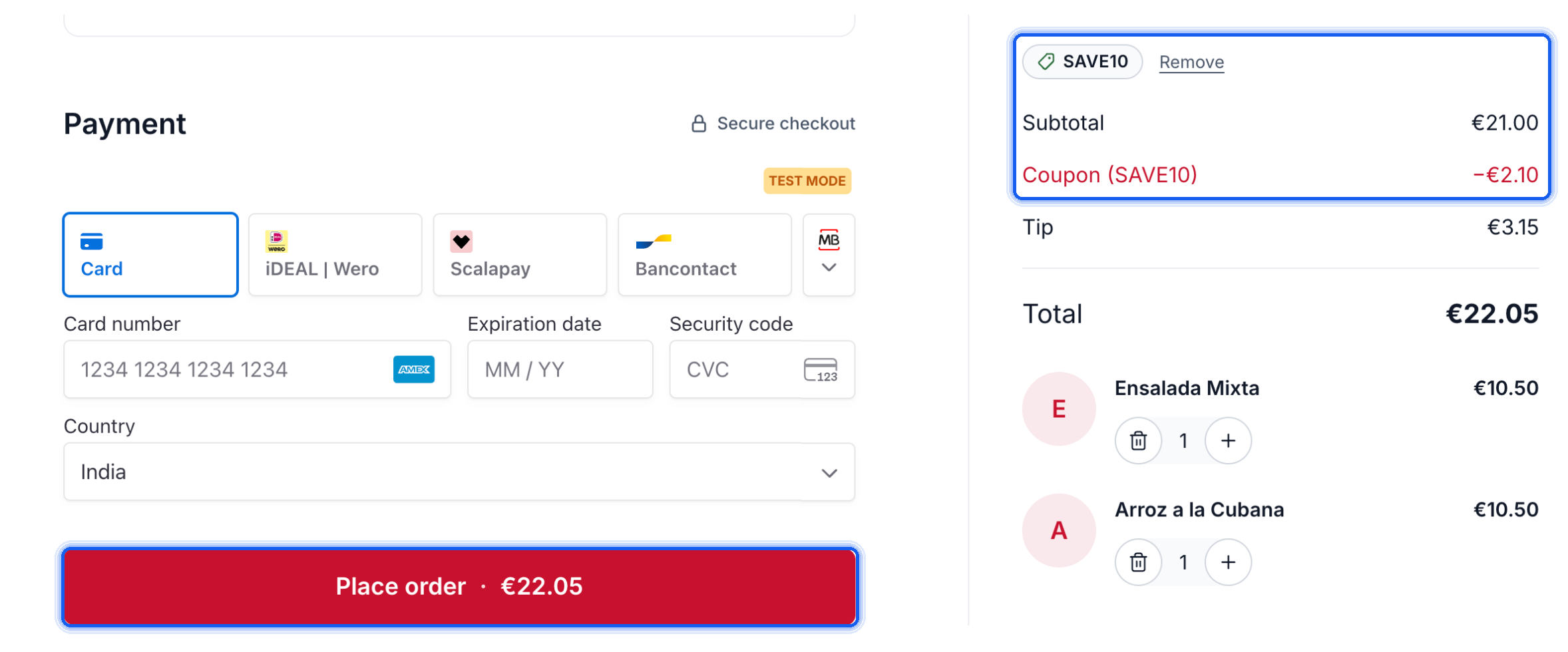
- Complete the Online Payment: Continue to the payment area and click Place order to pay the discounted total.
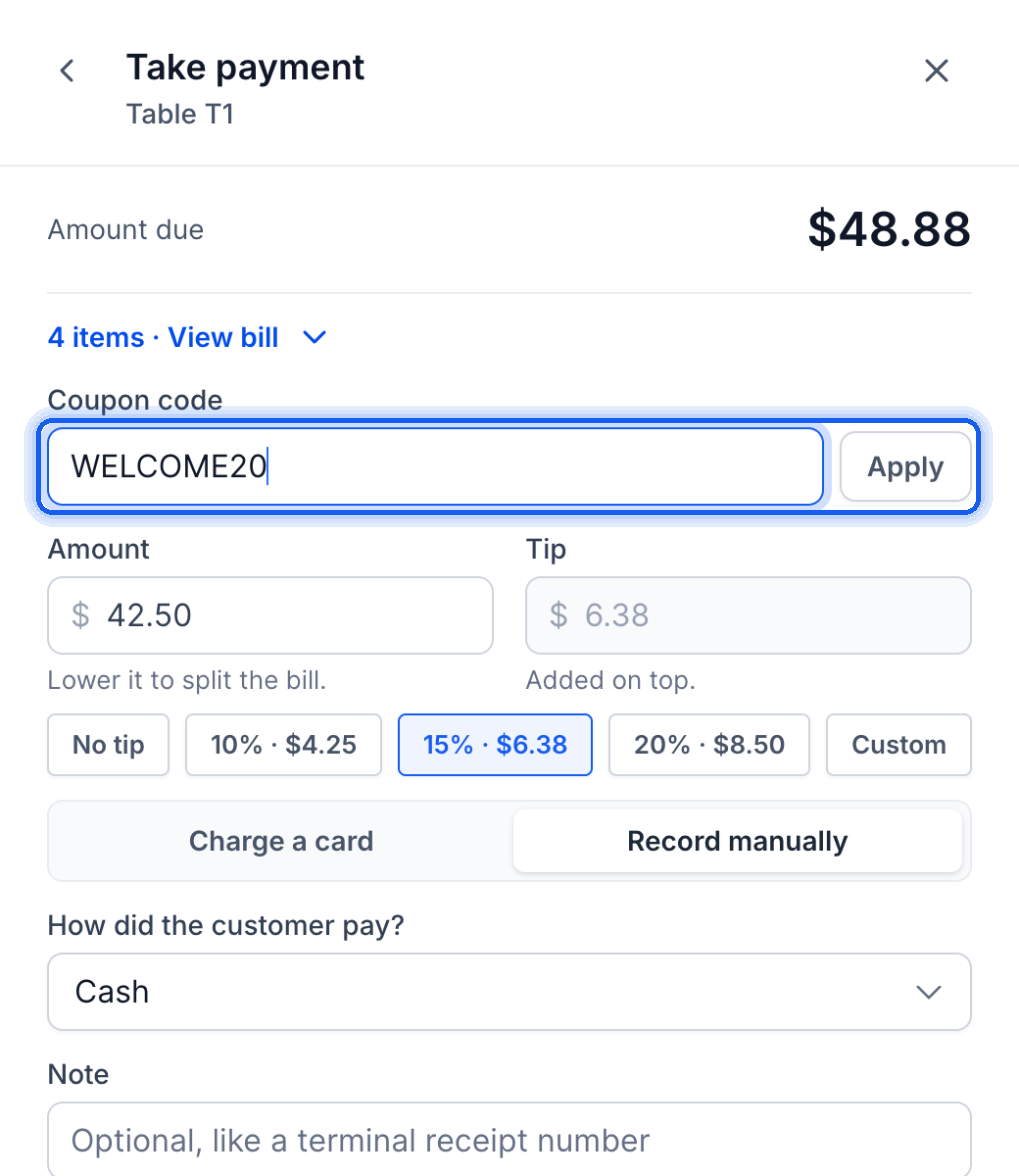
- Apply a Coupon to a Dine-In Bill: Navigate to Restaurants → Reservations → Front of house, select the table, and click Take payment. Alternatively, open the order from Restaurant Orders. Click Add coupon, enter the code, and select Apply.
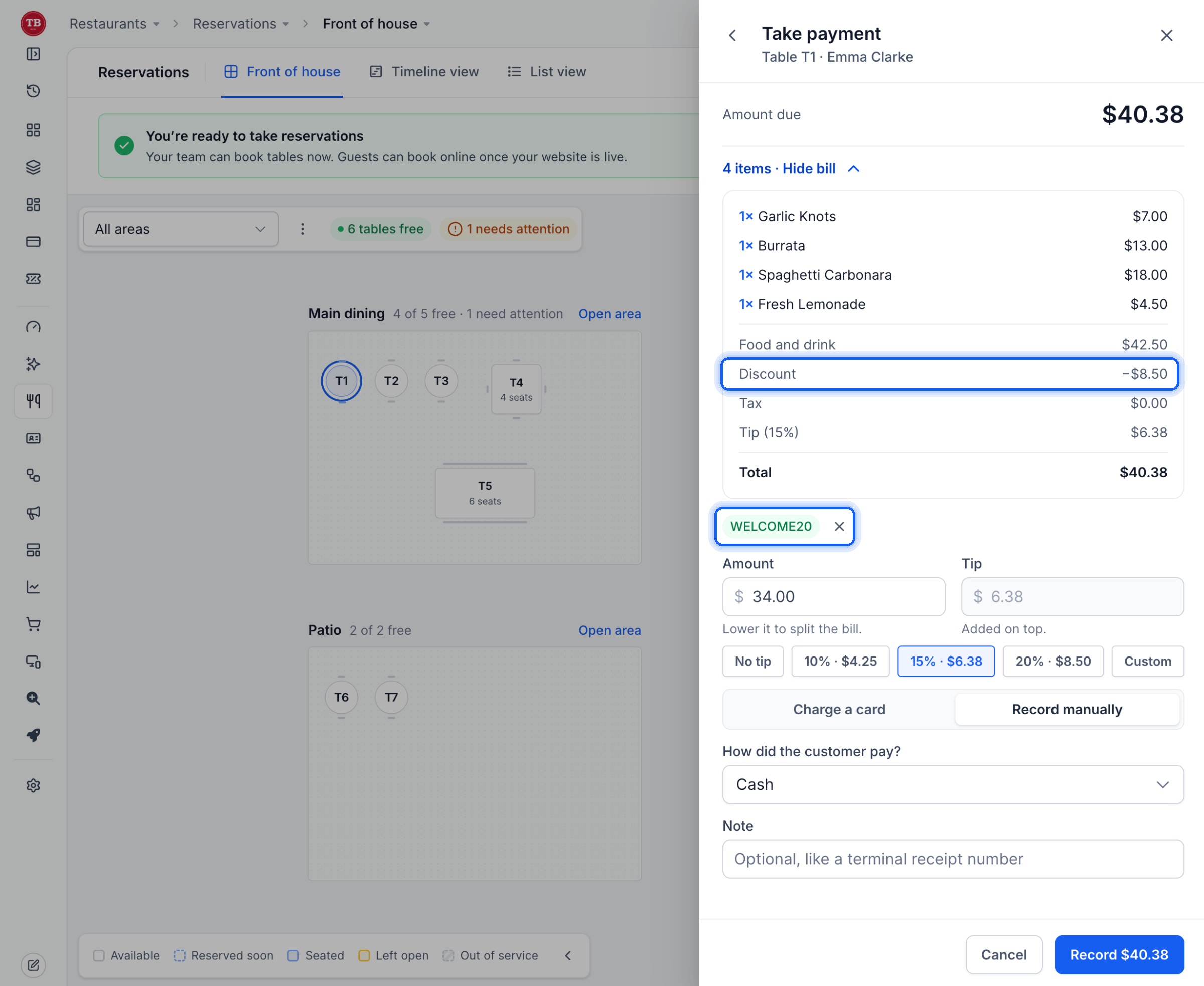
- Collect the Discounted Dine-In Payment: Review the applied coupon and updated Amount due, then select Charge a card or Record manually to complete payment.
- Apply a 100% Coupon: Create a percentage coupon with a value of 100%. When guests apply it at online checkout and the total becomes zero, they can click Place order without making a payment. Tips are disabled.
- Enable Card Collection for Free Orders (Optional): Navigate to Restaurants → Restaurant Settings → Checkout and payments and enable Require card for free checkout. Save the changes to require card details for fully discounted orders.
Frequently Asked Questions
Q: Why is my coupon code not being accepted?
Verify that the coupon code is entered correctly, is within its validity period, and has not reached its redemption limit. Review any additional eligibility restrictions configured for the coupon.
Q: Can I limit how often a coupon is redeemed?
Yes. You can configure a total redemption limit and a one-use-per-customer restriction when creating the coupon.
Q: Can I use the same coupon for multiple promotional campaigns?
Yes. You can share an eligible coupon code across promotional channels, including email and SMS campaigns, while managing its validity and usage limits centrally.
Q: Can multiple coupons be applied to the same restaurant order?
Coupon stacking behavior is not specified in the Restaurants release information and should be verified before offering combined discounts.
Q: What happens when a coupon expires?
A coupon cannot be redeemed outside its configured validity period. Review its start and end dates if customers report that a previously working code is no longer accepted.
Related Articles
- Getting Started with Coupons
- Restaurant Orders: How to Manage Orders and Payments
- Restaurant Reservations: Manage Bookings, Tables, and Guests
- Restaurant Settings: Change Your Restaurant's Details and Rules
- Restaurant Website: How to Customize and Publish Your Site
- Getting Started with HighLevel for Restaurants
Was this article helpful?
That’s Great!
Thank you for your feedback
Sorry! We couldn't be helpful
Thank you for your feedback
Feedback sent
We appreciate your effort and will try to fix the article