HighLevel Restaurants lets staff charge guests directly from the Take payment drawer using previously saved payment cards. Returning guests can pay with a card they've used before, while staff can select a different saved card or add a new one. The feature works in both Front of house and Restaurant Orders and supports tips, coupons, and bill splitting. This helps restaurants collect payments faster without switching between payment tools.
TABLE OF CONTENTS
- What Is Saved Card Payment in HighLevel Restaurants?
- Key Benefits of Saved Card Payments
- Saved Payment Methods and Default Card Selection
- Adding a New Card During Payment
- Tips, Coupons, and Split Bills
- Payment Methods and Provider Requirements
- How to Charge Saved Cards Using Take Payment
- Frequently Asked Questions
- Related Articles
What Is Saved Card Payment in HighLevel Restaurants?
Saved card payments allow restaurant staff to charge a guest's previously used payment method directly from the Take payment drawer in HighLevel Restaurants. When a guest has an available saved card, it appears under Pay with, with their default card automatically selected.
Staff can review the payment amount, confirm the selected card, and click Charge to process the payment through the restaurant's connected payment provider. If the guest wants to use a different card, staff can select New card to enter or tap another card.
This functionality is available when collecting dine-in payments through Reservations → Front of house and Restaurant Orders.
Important: This feature is available in private beta for agencies participating in the HighLevel Restaurants beta.Key Benefits of Saved Card Payments
- Faster Checkout: Charge a returning guest's previously used card without asking them to provide their card details again.
- Automatic Card Selection: The guest's default saved card is selected automatically, reducing the steps needed to complete payment.
- Flexible Payment Options: Use an existing saved card or select New card to enter or tap another payment method.
- Simplified Table Payments: Collect payments directly from Front of house or Restaurant Orders without navigating to a separate payment screen.
Saved Payment Methods and Default Card Selection
The Pay with area displays available payment methods associated with the selected guest. This allows staff to identify an existing card quickly and reduces the need for returning guests to present their cards during every visit.
When saved payment methods are available:
- Previously used cards appear under Pay with.
- Card details are displayed in a masked format, such as Visa •••• 4242.
- The card's expiration date may appear beneath its masked number.
- The guest's default card is automatically selected.
- Staff can select another available card before processing the payment.
The selected card is indicated by the active selection control.
HighLevel retrieves masked card information from the connected payment provider rather than storing complete card details directly.
For more information about managing payment methods, see How to Add and Manage Your Customer's Cards on File.
Adding a New Card During Payment
The New card option allows staff to collect payment when a guest does not have an available saved card or prefers to use another payment method. This provides flexibility without requiring staff to leave the Take payment drawer.
Under Pay with, select New card instead of an existing saved card.
Depending on the supported payment setup, staff can:
- Enter the guest's card details.
- Use the available card-tapping option.
- Review the payment amount before submitting the charge.
Note: When splitting a bill, adjust the Amount field to collect the desired portion. Review the total displayed on the Charge button before processing the payment. Any remaining balance must be collected separately.
Tips, Coupons, and Split Bills
The Take payment drawer allows restaurant staff to customize payments before charging a guest's card. Staff can add tips, apply eligible coupons, or adjust the payment amount when splitting a bill, ensuring the correct amount is collected.
| Payment Option | How It Works |
|---|---|
| Tips | Select No tip, a suggested percentage (such as 10%, 15%, or 20%), or Custom to enter a different tip amount. The selected tip is included in the final charge. |
| Coupons | Click Add coupon, enter an eligible coupon code, and click Apply. Review the updated bill before collecting payment. |
| Split Bills | Adjust the Amount field to collect a portion of the outstanding balance. Review the amount displayed on the Charge button before proceeding. |
Note: Card-tapping availability may vary depending on your payment setup. If card tapping is unavailable, use the supported card-entry option.
For more information about coupons, see How to Create and Apply Coupons for HighLevel Restaurants.
Payment Methods and Provider Requirements
Card charging and manual payment recording serve different purposes. Selecting the appropriate method ensures that payments are processed or recorded correctly.
| Payment Option | Description |
|---|---|
| Charge a card | Processes a payment through the connected payment provider using a saved or new card. |
| Record manually | Records a payment collected outside the HighLevel card-charging workflow, such as cash or a payment taken using another terminal. |
Charge a card requires a connected payment provider.
If no payment provider is connected, HighLevel displays:
No payment provider found
To configure payments, open Restaurant Settings → Checkout and payments and select Manage in Payments, or use the Payments step in the restaurant setup checklist.
Record manually remains available for recording payments already collected through another method.
For more information, see Restaurant Settings: Change Your Restaurant's Details and Rules.
How to Charge Saved Cards Using Take Payment
Charging a saved card allows restaurant staff to collect payments directly from Front of house or Restaurant Orders. A connected payment provider is required to process card payments, and the correct guest must be associated with the order for saved payment methods to appear.
- Navigate to Restaurants → Reservations → Front of house and open the guest's table, or go to Restaurant Orders and open the relevant dine-in order.
- Click Take payment and select Charge a card to open the payment options.
- Review the Amount due and click View bill to check the order details. If needed, select Add coupon, adjust the Amount for a split payment, or choose a tip percentage or custom amount.
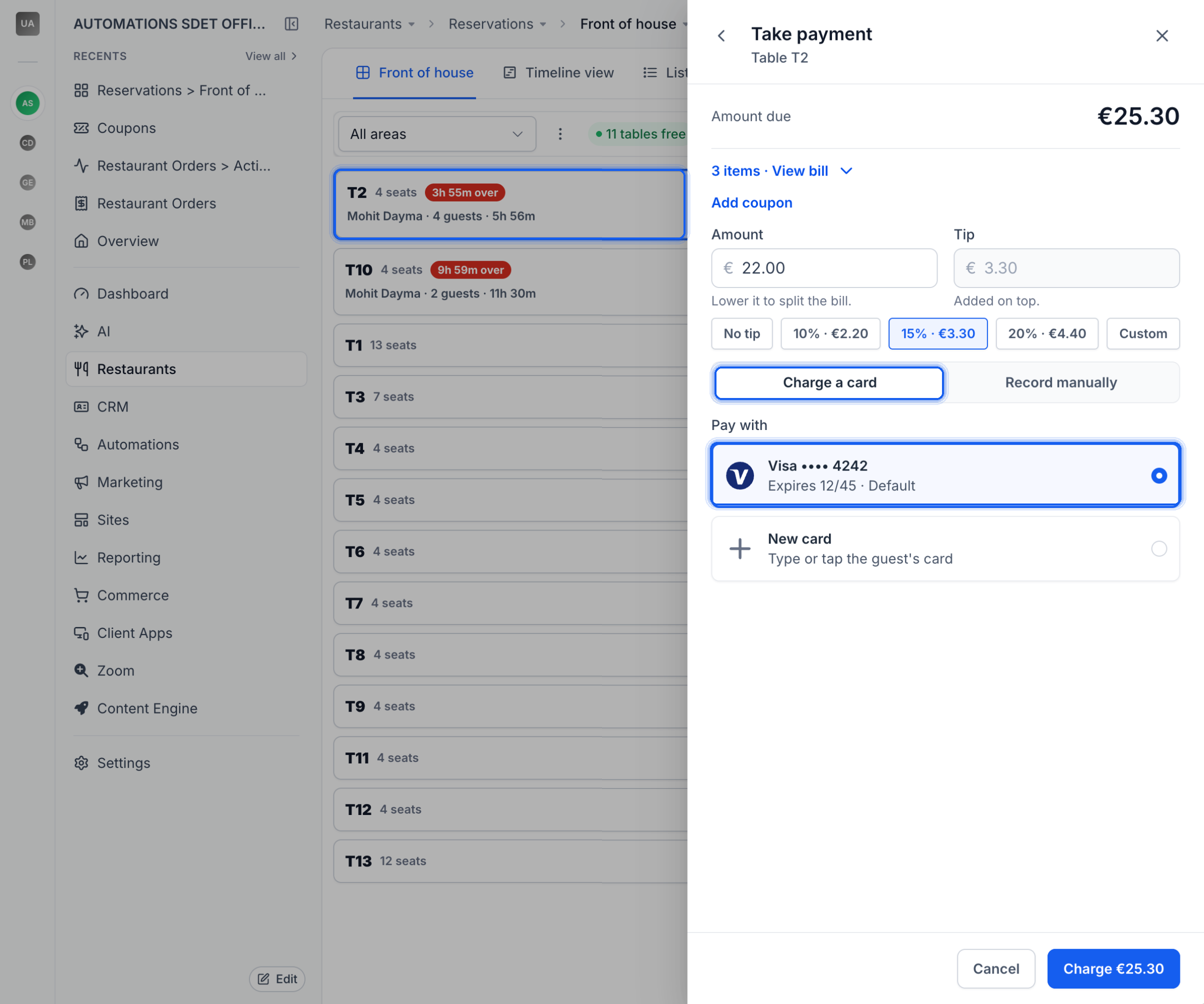
- Under Pay with, the guest's previously used cards appear with their default card automatically selected. Keep the default card, choose another saved card, or select New card to enter or tap a different card.
- Confirm the selected payment method and the total displayed on the Charge button, then click Charge to process the payment.
- Verify the payment status and remaining balance. If the bill is fully paid, the table can be completed. If a balance remains, collect the outstanding amount using an available payment method.
Note: If no payment provider is connected, HighLevel displays No payment provider found. You can connect a provider through Restaurant Settings → Checkout and payments. For cash or payments collected using another terminal, select Record manually.Frequently Asked Questions
Q: Why aren't saved cards appearing for a returning guest?
Confirm that the correct guest contact is selected and that an eligible saved payment method is available through the connected payment provider. If no saved card appears, select New card.
Q: Will a new card automatically become the guest's default card for future payments?
Entering a new card during payment does not confirm whether it has been saved or selected as the default. Check the guest's saved payment methods before using it for future transactions.
Q: What happens if no payment provider is connected?
HighLevel displays No payment provider found. Connect a supported provider through Restaurant Settings → Checkout and payments to enable card charging.
Q: What should I do if a card payment fails or its status is unclear?
Check the booking's payment information and the connected provider's transaction records before retrying to avoid duplicate charges.
Related Articles
- Restaurant Reservations: Manage Bookings, Tables, and Guests
- Restaurant Orders: How to Manage Orders and Payments
- How to Create and Apply Coupons for HighLevel Restaurants
- How to Add and Manage Your Customer's Cards on File
- Restaurant Settings: Change Your Restaurant's Details and Rules
- Restaurant Setup Guide: Get Ready to Take Orders and Reservations
Was this article helpful?
That’s Great!
Thank you for your feedback
Sorry! We couldn't be helpful
Thank you for your feedback
Feedback sent
We appreciate your effort and will try to fix the article