HighLevel Industries lets you start a sub-account from your client’s industry, so your client gets a workspace built for how that business actually runs. This article explains what an industry gives your client, how it differs from a snapshot, how to create an industry sub-account, how to set an industry on a sub-account you already have, and what to know before you choose.
TABLE OF CONTENTS
- What Is HighLevel Industries?
- Key Benefits of HighLevel Industries
- Industry or Snapshot?
- What Your Client Gets
- Create a New Industry Sub-Account
- Set an Industry on an Existing Sub-Account
- See Which Industry a Sub-Account Has
- Limitations
- Frequently Asked Questions
- Related Articles
What Is HighLevel Industries?
A sub-account can start blank or from a snapshot. With HighLevel Industries, you can also start it from your client’s industry. An industry gives your client two things:
- A workspace built for their industry: The sub-account is set up for how that business actually runs, with the industry in the navigation and a guided setup.
- Tools to run the business: Tools made for the industry, such as menus, orders and reservations for a restaurant, or requests, estimates and jobs for a field service business. They sit next to the HighLevel tools your client already uses, like CRM, Automations and Marketing.
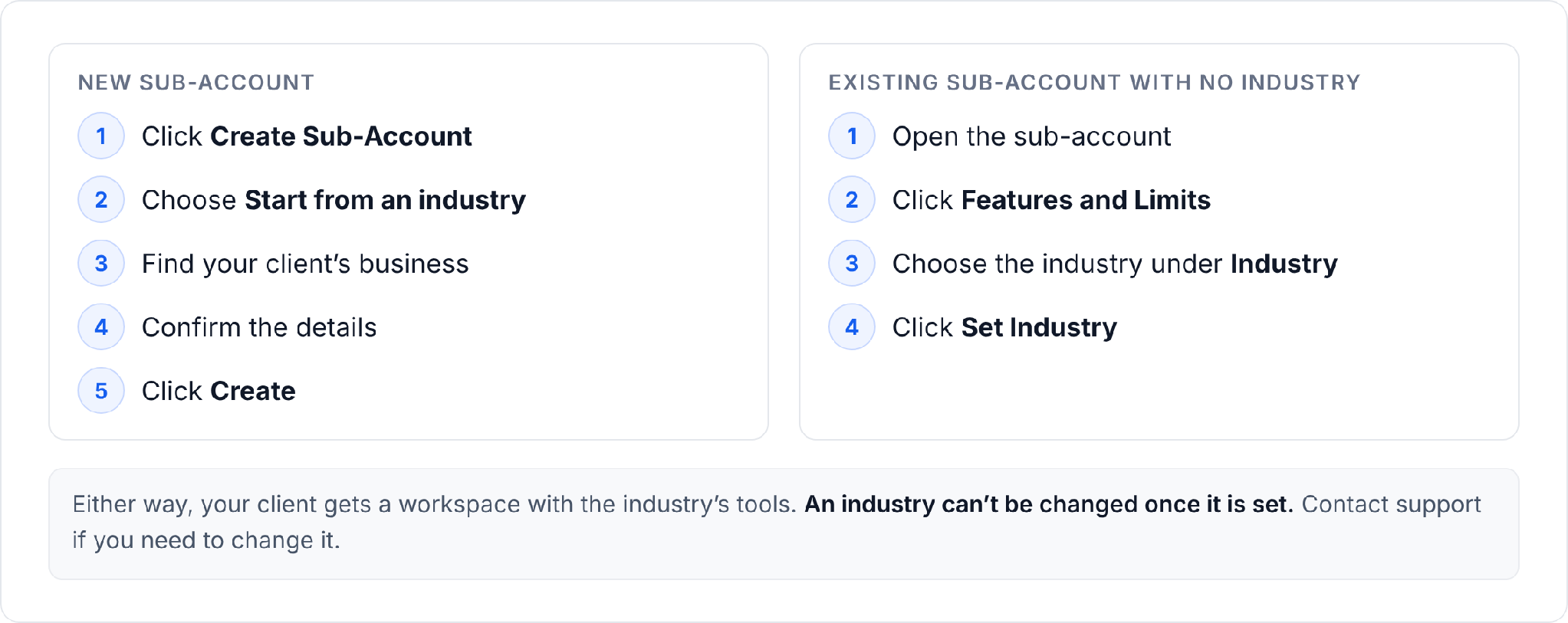
There are two ways to give a sub-account an industry: create a new sub-account from an industry, or set an industry on a sub-account that has none yet.
You can choose from 2 industries:
| Industry | Built around |
|---|---|
| Restaurant | Menus, online ordering, reservations and tables |
| Field services | Requests, estimates, jobs and scheduling, for on-site work like plumbing, HVAC, cleaning and landscaping |
Key Benefits of HighLevel Industries
Industry-specific tools help agencies spend less time preparing accounts and give clients a clearer starting point for managing their daily work. These benefits apply to account creation, onboarding, and ongoing business operations.
- Less typing: Find your client’s business by name, and HighLevel fills in the name, address, phone and other details from the listing.
- A guided start: Each industry has a short guided setup that walks your client through the first steps, like adding their menu or their staff.
- One place to run the business: Your client handles day-to-day work, like orders or jobs, in the same sub-account as their contacts, conversations and marketing.
- Easy to spot: An icon next to each sub-account’s name shows its industry.
Industry or Snapshot?
Industries provide tools and guided setup for a particular type of business, while snapshots provide a reusable configuration of standard HighLevel assets. Comparing the two helps you choose the right starting point for each client.
When you create a sub-account, you choose how it starts:
| Start from an industry | Start from a snapshot | |
|---|---|---|
| What your client gets | A workspace built for how their business actually runs, with tools made for their industry and a guided setup | The tools every sub-account has, with a ready-made setup inside them, such as workflows, forms and funnels |
| Where it comes from | HighLevel, for each industry it offers | A HighLevel template, a snapshot you saved, or one another agency or vendor shared with you |
| Choose it when | Your client’s industry is listed | Your client’s industry is not listed yet, or you want to reuse a ready-made setup |
What Your Client Gets
Each industry adds its own navigation and guided setup to a standard sub-account. Knowing what is included helps you understand which activities your client can manage from their workspace.
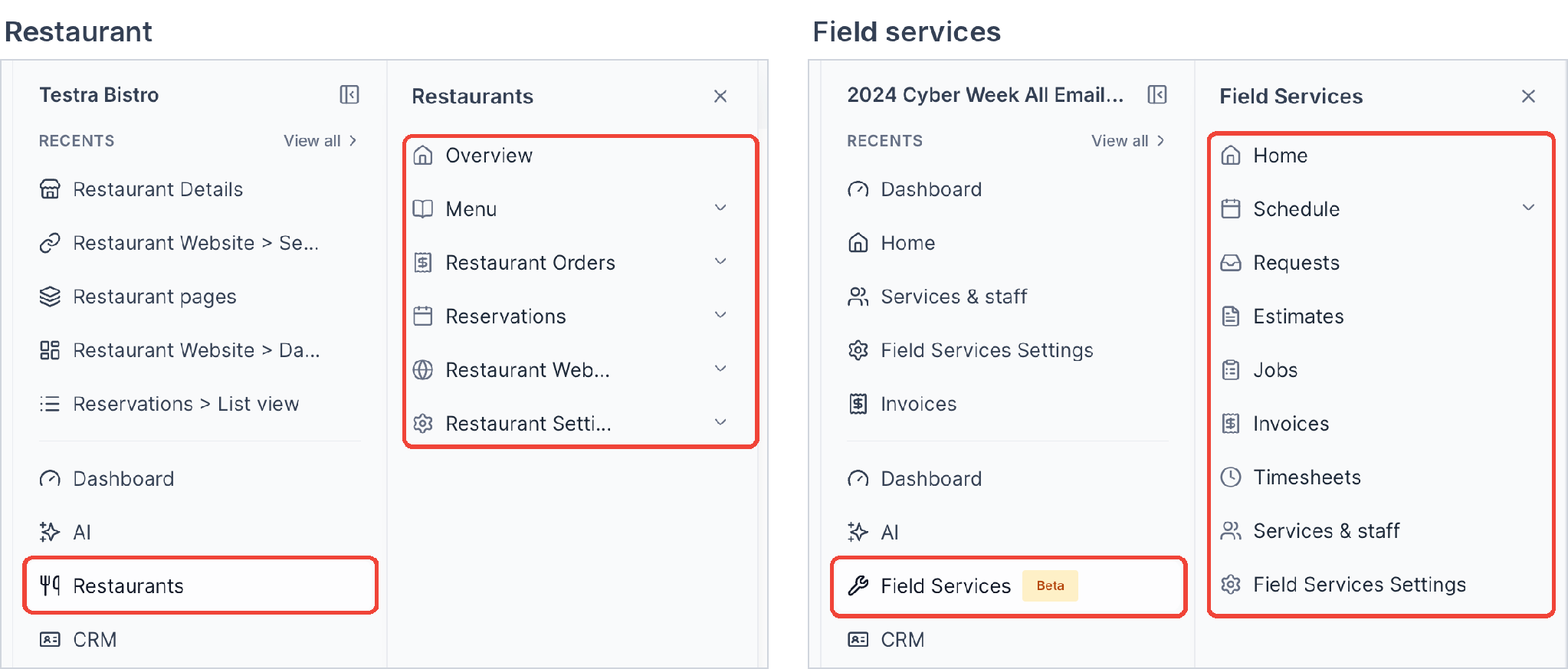
An industry sub-account has everything a sub-account has, plus the industry’s own tools in the navigation and a guided setup.
| Industry | In the navigation | Guided setup |
|---|---|---|
| Restaurant | Restaurants, with Overview, Menu, Restaurant Orders, Reservations, Restaurant Website and Restaurant Settings | Restaurant setup on Overview walks your client through their details, payments, menu, pickup and delivery, tables and reservations. |
| Field services | Field Services, with Home, Schedule, Requests, Estimates, Jobs, Invoices, Timesheets, Services & staff and Field Services Settings | Get ready to take bookings on Home walks your client through adding their staff, service area and services. |
To see how a restaurant uses these tools, start with Restaurant Setup: Get Ready to Take Orders and Reservations.
Create a New Industry Sub-Account
Creating the sub-account from an industry provides your client with the relevant workspace from the beginning. Review the selected industry and business details carefully before creating the account, because the industry cannot be changed through the documented self-service workflow.
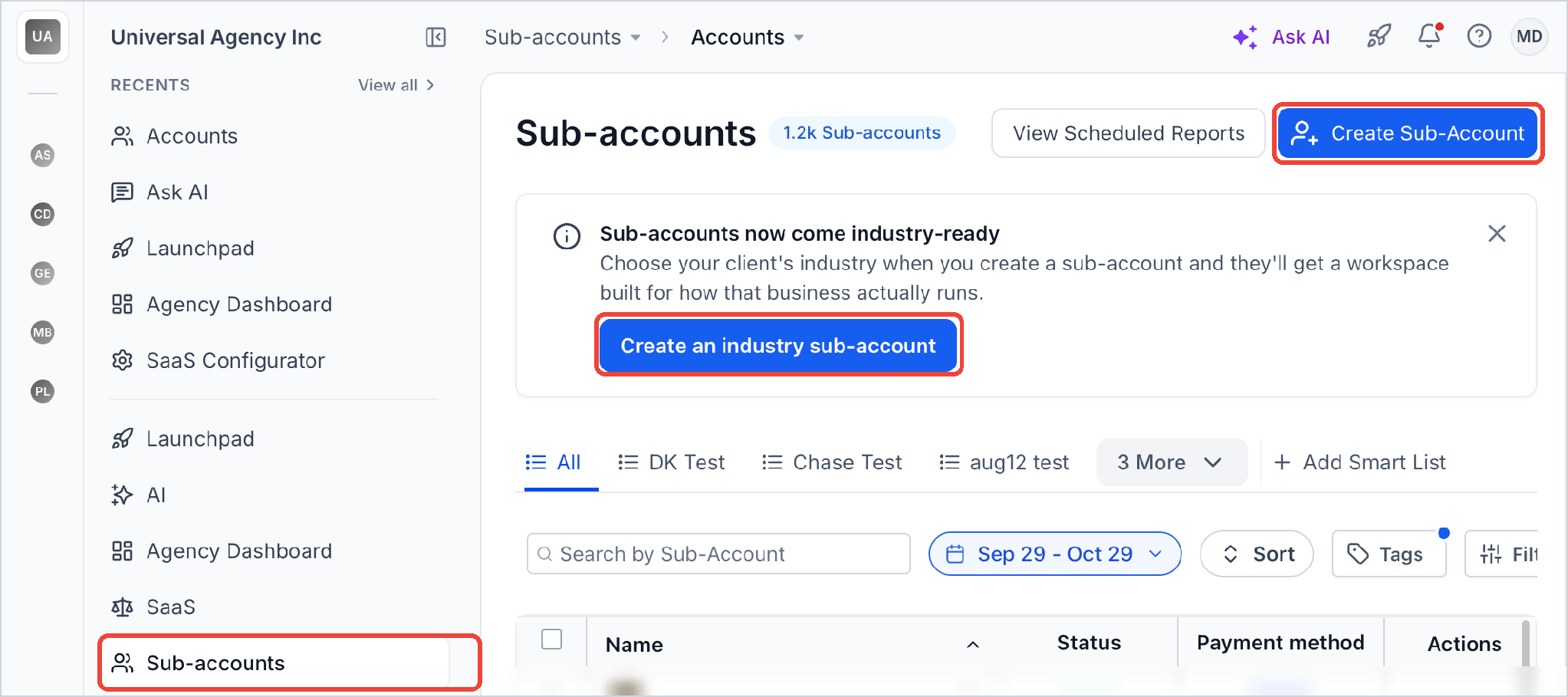
- In the agency view, click Sub-accounts in the left navigation.
- Click Create Sub-Account at the top right. You can also click Create an industry sub-account in the Sub-accounts now come industry-readybanner.
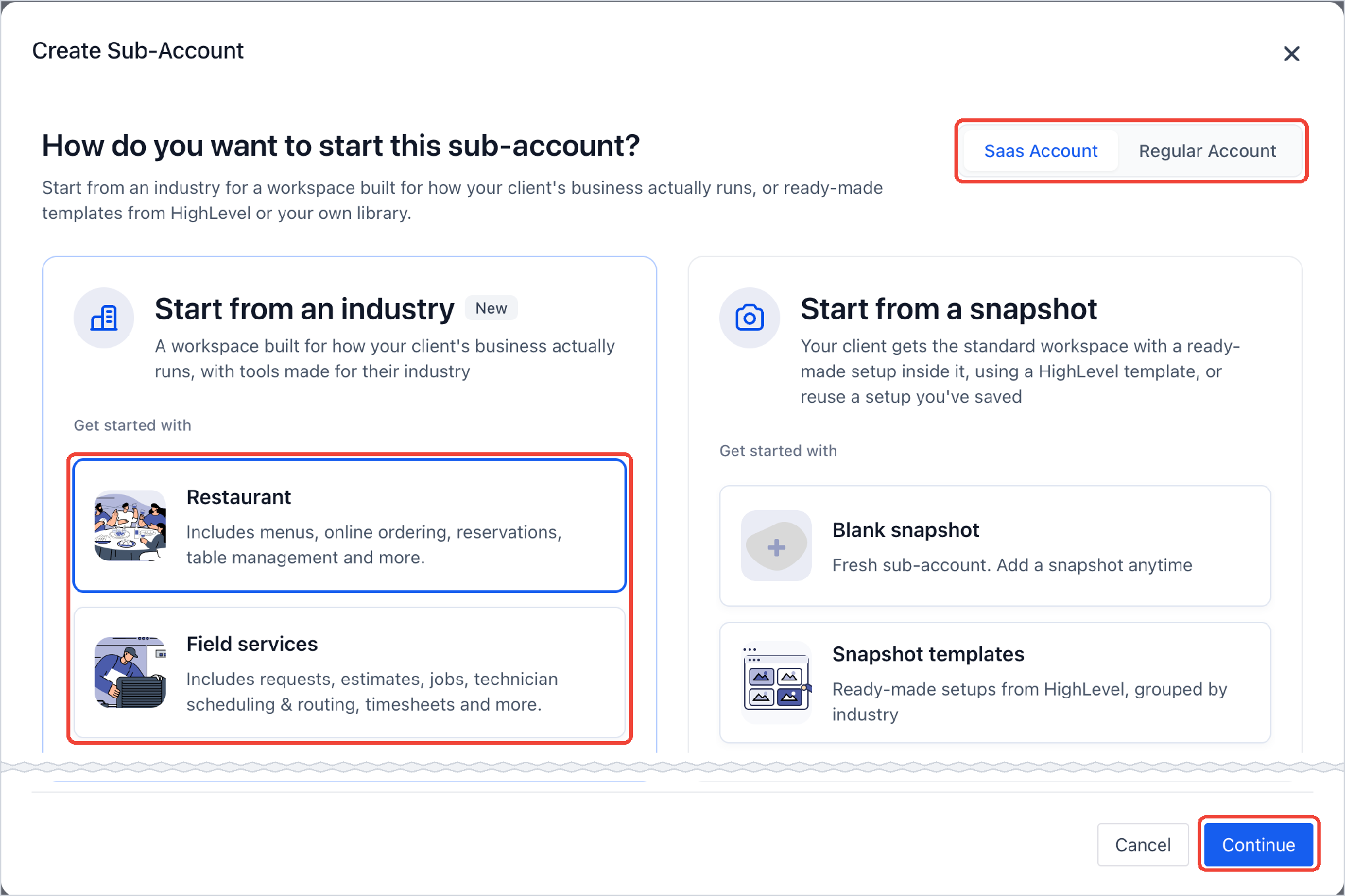
- In Create Sub-Account, choose Restaurant or Field services under Start from an industry, then click Continue. If you see Saas Account and Regular Account at the top right, choose the type of sub-account first, as you do for any sub-account. Industries are available for both.
- Under Find your client’s business, search for the business by name and select it from the results. HighLevel fills in the name, address, phone and other details from the listing. If you can’t find it, click Add manually.
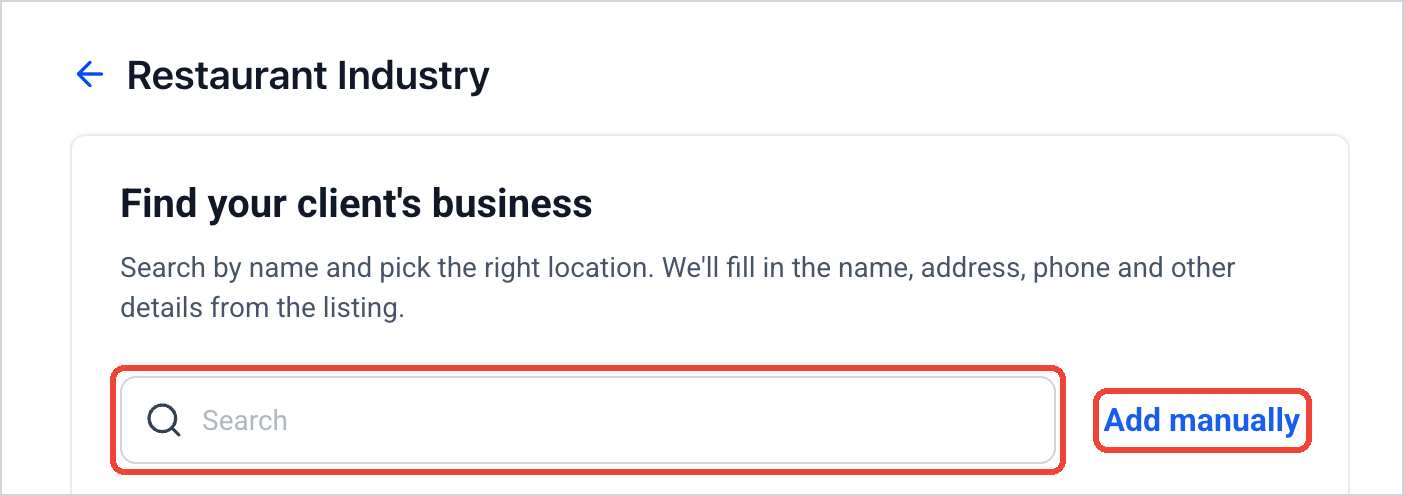
- Under Pick an address, click your client’s business.
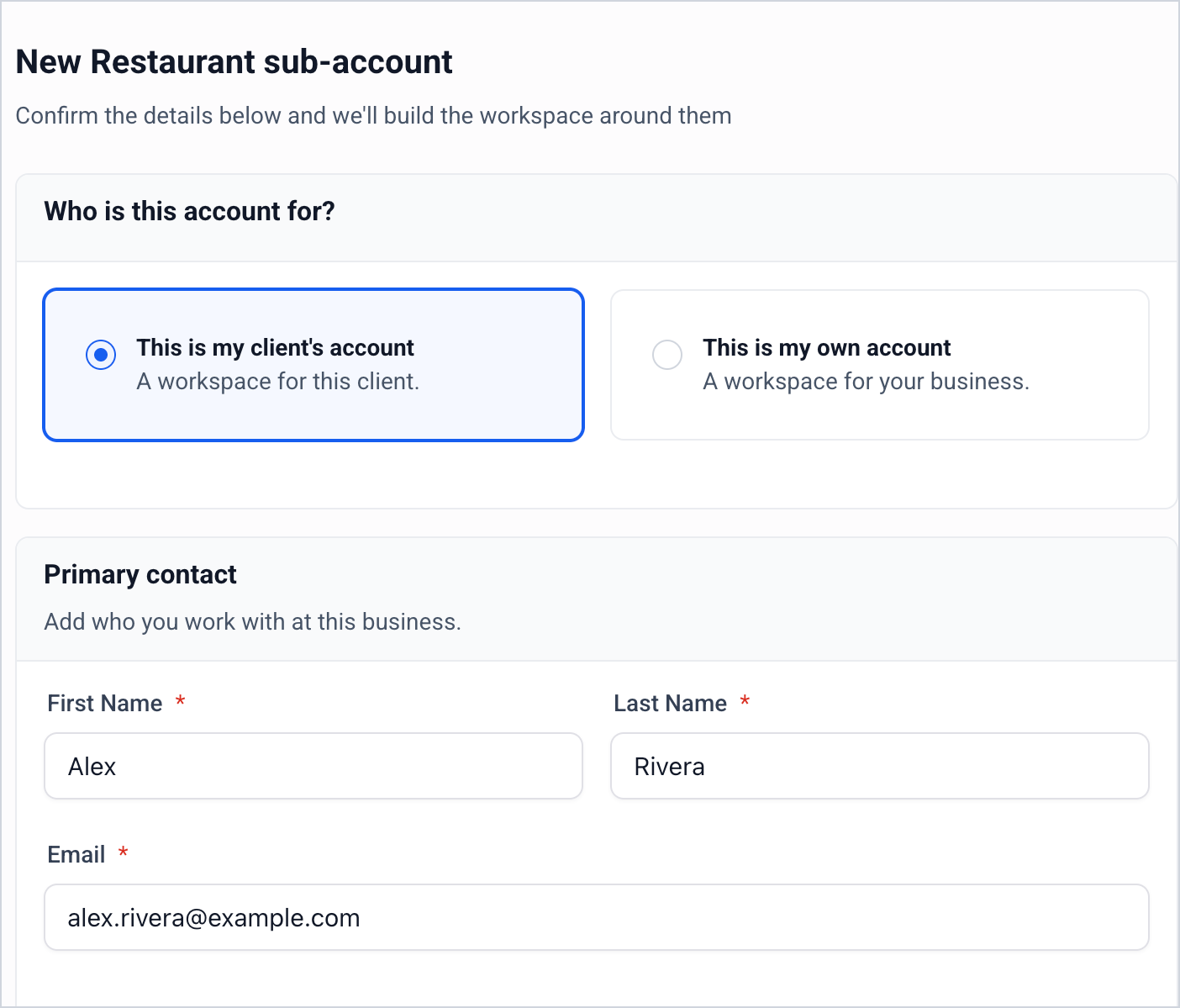
- Check the details on New Restaurant sub-account or New Field services sub-account:
- Who is this account for? Choose This is my client’s account, or This is my own account if the sub-account is for your own business.
- Primary contact: The person you work with at this business: First Name, Last Name and Email.
- Business: The Name, Phone, Address, City, State, Country, Zip, Website and Time Zone. If you selected the business from the listing, these are filled in for you. Fields marked with * are required.
- Who is this account for? Choose This is my client’s account, or This is my own account if the sub-account is for your own business.
- Under What does this client need?, select what you’ll help your client with. The options depend on the industry:
| Industry | Options under What does this client need? |
|---|---|
| Restaurant | Dine-in service, Pickup orders, Delivery, Reservations, Order management, Reputation and Other |
| Field services | Service requests, Estimates & invoices, Jobs & visits, Scheduling & dispatch, Online booking & service areas, Timesheets & time tracking and Other |
Select Other to describe anything else your client needs.
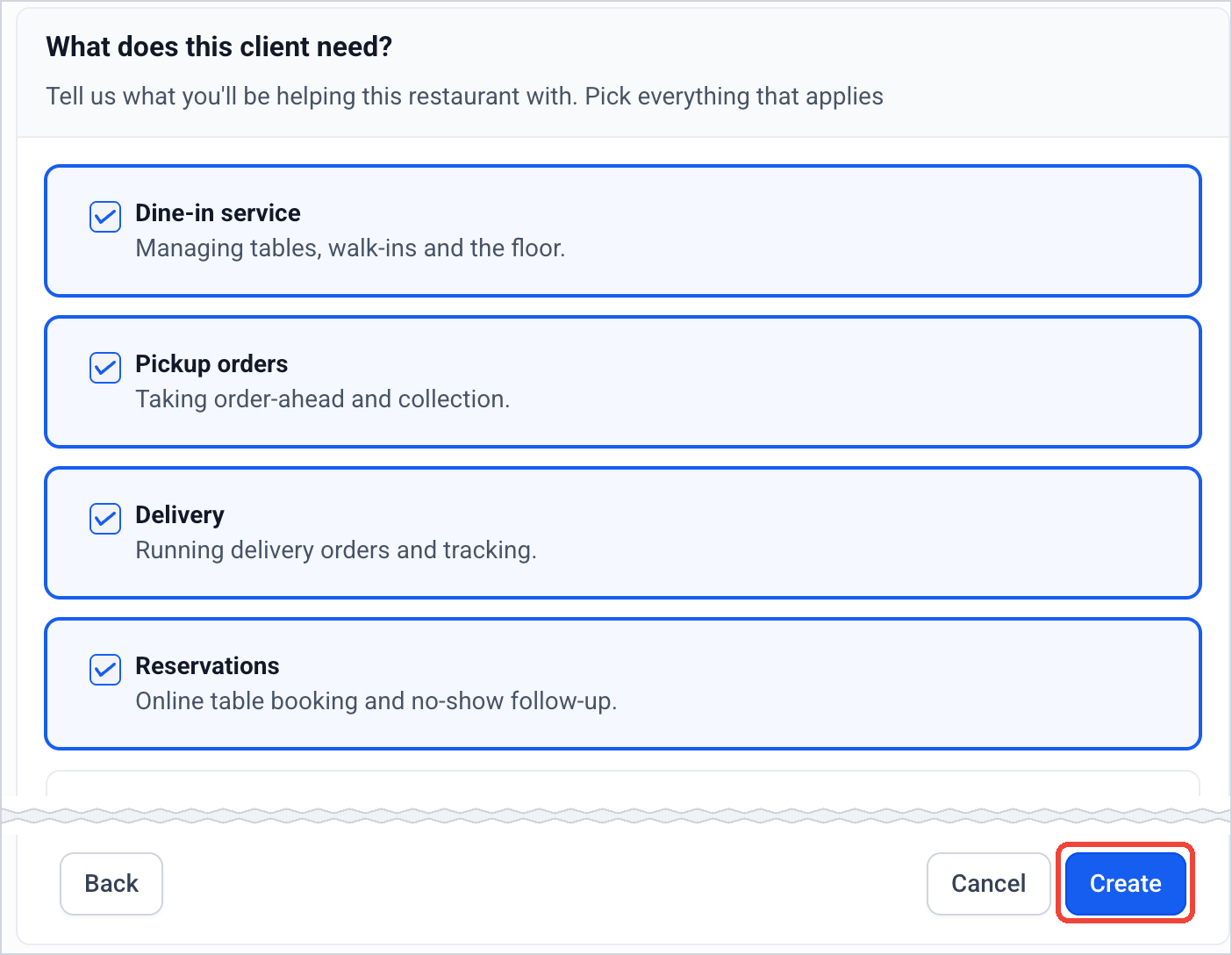
Note: This is just a question about your client. Your answers don’t change anything in the sub-account: your client gets the same workspace and tools, whatever you select- Click Create.
HighLevel creates the sub-account with the industry set. It shows in Sub-accounts with the industry’s icon next to its name.
Important: Check the industry before you click Create. An industry can’t be changed once it is set. Contact support if you need to change it.
Set an Industry on an Existing Sub-Account
Existing sub-accounts with no assigned industry can also receive an industry-specific workspace. Check the current industry setting first, since the documented workflow does not let you replace an industry after assignment.
A sub-account you created before can get an industry too, as long as it has no industry yet.
- In Sub-accounts, click the sub-account’s name. Its details open.
- Click the Features and Limits tab.
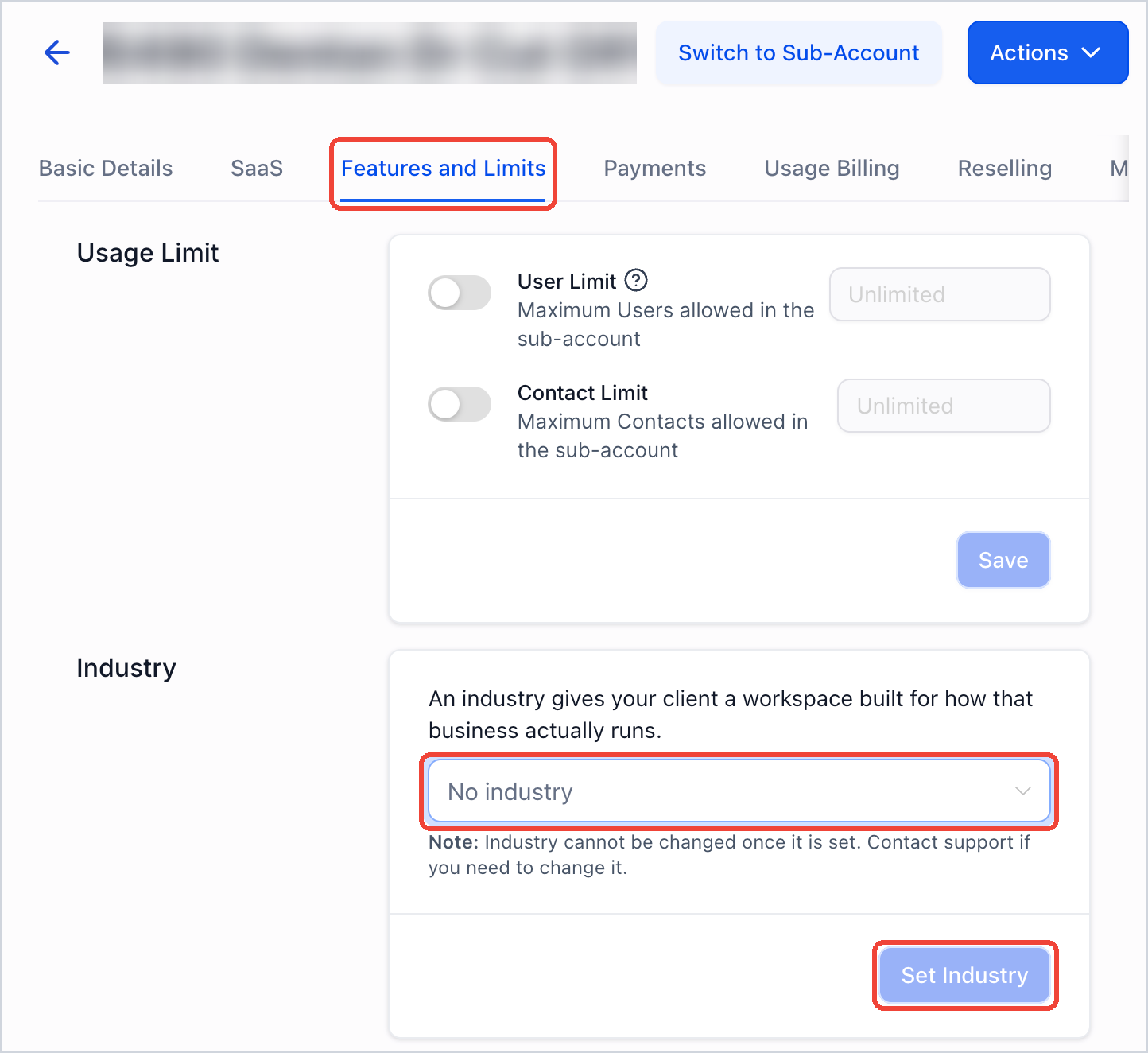
- Under Industry, click No industry and choose Field services or Restaurants.
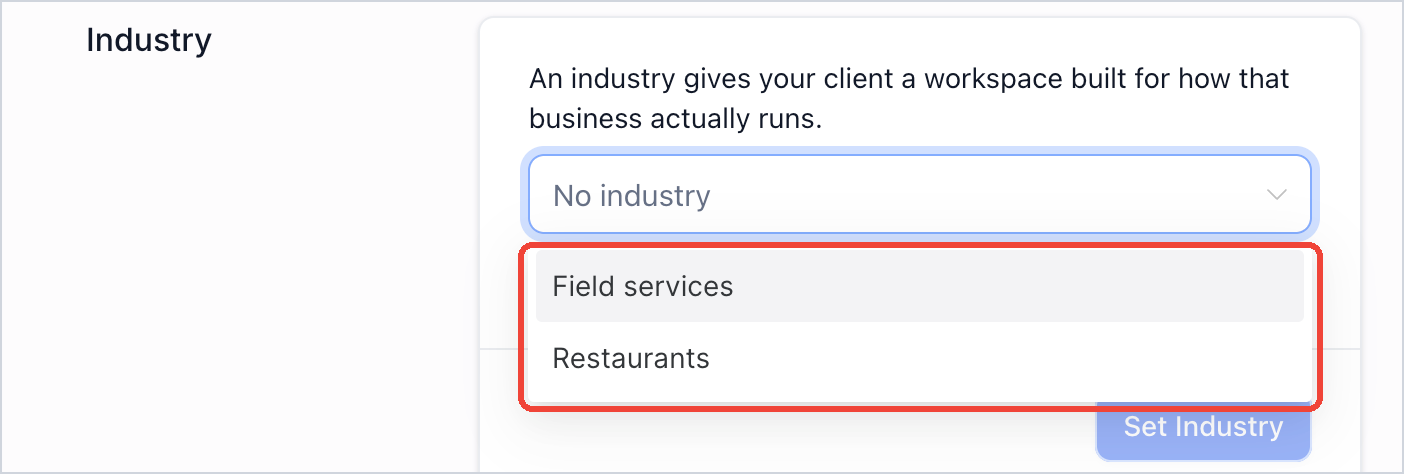
- Set Industry stays grayed out until you choose an industry. Once you set it, your client’s workspace gets the industry’s tools, and the Industry box shows the industry, for example Restaurants is set. Contact support if you need to change it.
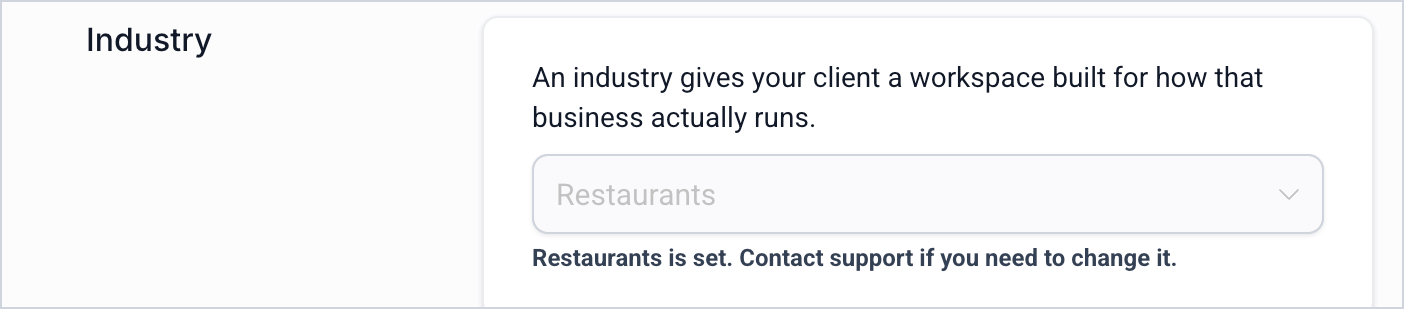
Important: Check that you chose the right industry before you click Set Industry. An industry can’t be changed once it is set. Contact support if you need to change it.See Which Industry a Sub-Account Has
Industry icons make it easier to recognize the type of workspace assigned to a sub-account. You can also confirm the assignment in Features and Limits without relying only on the icon.
In Sub-accounts, an icon next to the sub-account’s name shows its industry. Hover over an icon to see what it means.
| Icon | What it means |
|---|---|
| Fork and knife | Restaurant |
| Wrench and screwdriver | Field services |
| No industry icon | The sub-account has no industry yet |
| House | Agency Sub-Account. This icon is not an industry, and it can show next to an industry icon. |
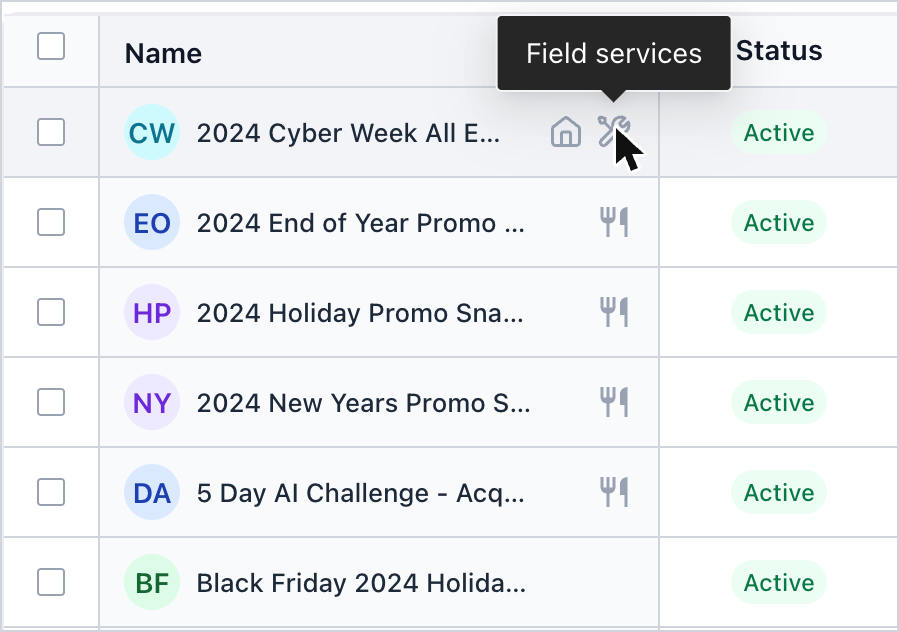
You can also open the sub-account’s Features and Limits tab. The Industry box shows its industry, or No industry.
Limitations
Industry assignments have restrictions that affect how accounts are created and managed. Understanding these restrictions before selecting an industry helps avoid difficult-to-correct configuration choices.
Limitation | Details |
|---|---|
Available Industries | You can choose Restaurant or Field services. For any other business, start from a snapshot. |
One Industry per Sub-Account | A sub-account can have only one industry. |
Industry Cannot Be Changed | Once an industry is set, you cannot switch to another industry or return to No industry. This applies whether the industry was selected during account creation or assigned through Features and Limits. Contact support if you need to change it. |
Existing Sub-Account Eligibility | You can assign an industry through Features and Limits only when the sub-account shows No industry. |
No Industry Filter | You cannot filter, sort, or group the Sub-accounts list by industry. Use the industry icon next to each sub-account's name to identify its industry. |
Field Services Beta | Field Services is in beta and displays a Beta label in the client's navigation. |
Frequently Asked Questions
Q: Can I change a sub-account’s industry later?
No. An industry can’t be changed once it is set. Contact support if you need to change it.
Q: Can I create an industry sub-account as a SaaS account?
Yes. Industries are available for both Saas Account and Regular Account.
Q: What if I can’t find my client’s business in the search?
Click Add manually and enter the details yourself.
Q: Does What does this client need? change the sub-account?
No. It’s just a question about your client. Your client gets the same workspace and tools, whatever you select.
Related Articles
Was this article helpful?
That’s Great!
Thank you for your feedback
Sorry! We couldn't be helpful
Thank you for your feedback
Feedback sent
We appreciate your effort and will try to fix the article