Coupon Targeting by Product, Price, and Variant
Modified on: Fri, 17 Apr, 2026 at 7:31 AM
Easily create more precise promotions in HighLevel by applying coupons to entire products, specific prices, or individual variants. This gives businesses more control over how discounts are used across Funnels, Forms, Ecommerce, Payment Links, and Calendars. It also helps reduce manual workarounds by letting you target the exact item or pricing option you want to discount. This article explains how coupon targeting works, how to set it up, and how it impacts checkout and workflows.
TABLE OF CONTENTS
- What is Coupon Targeting by Product, Price, and Variant?
- Key Benefits of Coupon Targeting by Product, Price, and Variant
- How Coupon Targeting Works
- Checkout Behavior for Price and Variant-Level Coupons
- Workflow Trigger Support for Product, Price, and Variant Filters
- Highrise UI Experience for Coupon Setup
- How To Setup Coupon Targeting by Product, Price, and Variant
- Frequently Asked Questions
- Related Articles
What is Coupon Targeting by Product, Price, and Variant?
Coupon targeting by product, price, and variant allows you to control exactly where a coupon can be used in HighLevel. Instead of limiting a coupon to an entire product only, you can now choose whether the coupon applies to all prices or variants under that product, or only to specific prices or variants.
This makes it easier to run targeted promotions for specific offers, pricing tiers, or product options without duplicating products or removing variants. It also helps ensure customers only receive discounts when the selected item matches the coupon configuration.
Key Benefits of Coupon Targeting by Product, Price, and Variant
Granular coupon targeting gives you more flexibility when creating promotions and building automation around discounted purchases.
- More precise promotions: Apply discounts to a specific price point or variant instead of the entire product.
- Less Manual Setup: Avoid workarounds like duplicating products just to offer a discount on one option.
- Improved Checkout Accuracy: Coupons only apply when the selected product, price, or variant matches the coupon configuration.
- Better Workflow Control: Use product-based filters with price or variant refinement for more targeted automation.
- Future Ready Setup: Selecting the full product automatically includes current and future prices or variants under that product.
How Coupon Targeting Works
Understanding the difference between product-level and price or variant-level targeting helps you choose the right setup for your promotion.
When creating or editing a coupon, you can configure it to apply to:
- An entire product
- All prices or variants under a product
- Only selected prices under a product
- Only selected variants under a product
When selecting products during coupon setup, HighLevel provides a nested selection view that allows you to expand a product and choose how broadly or narrowly the coupon should apply.
Checkout Behavior for Price and Variant-Level Coupons
Checkout behavior now follows the coupon configuration more precisely across supported payment surfaces. This helps prevent discounts from being applied too broadly and gives businesses confidence that coupon rules are enforced correctly.
All supported checkouts respect this updated logic, including:
- Funnels
- Forms
- Ecommerce / Store
- Payment Links
- Calendars
If a coupon is configured for a specific price or variant, the coupon will only apply when that exact price or variant is selected at checkout. If the customer chooses a different price or variant under the same product, the coupon will not apply.
This is especially useful for scenarios such as:
- Discounting only a premium pricing tier
- Offering a promotion on one product variant but not all variants
- Running limited offers tied to a specific option within a product
Workflow Trigger Support for Product, Price, and Variant Filters
Workflow trigger enhancements make it easier to build automation based on how a coupon was used. This allows you
to create more targeted follow-up actions based on the exact discounted item purchased.
For the following workflow triggers, you can now refine filters beyond the product level:
- Coupon Code Applied
- Coupon Code Redeemed
The filtering works in a dependent order:
- Select the Product first
- The system then enables the relevant Price or Variant options for that product
- Choose the specific price or variant you want to use as a filter
Because these are dependent filters, price and variant options are only available after a product has been selected.
This supports automation use cases such as:
- Starting a workflow only when a coupon is applied to a specific pricing tier
- Triggering follow-up actions when a coupon is redeemed on a specific variant
- Segmenting contacts based on discounted purchases tied to a particular offer option
How To Setup Coupon Targeting by Product, Price, and Variant
Setting up coupon targeting correctly helps ensure your discount is applied exactly where you intend. A careful setup also reduces confusion at checkout and makes workflow automation more reliable.
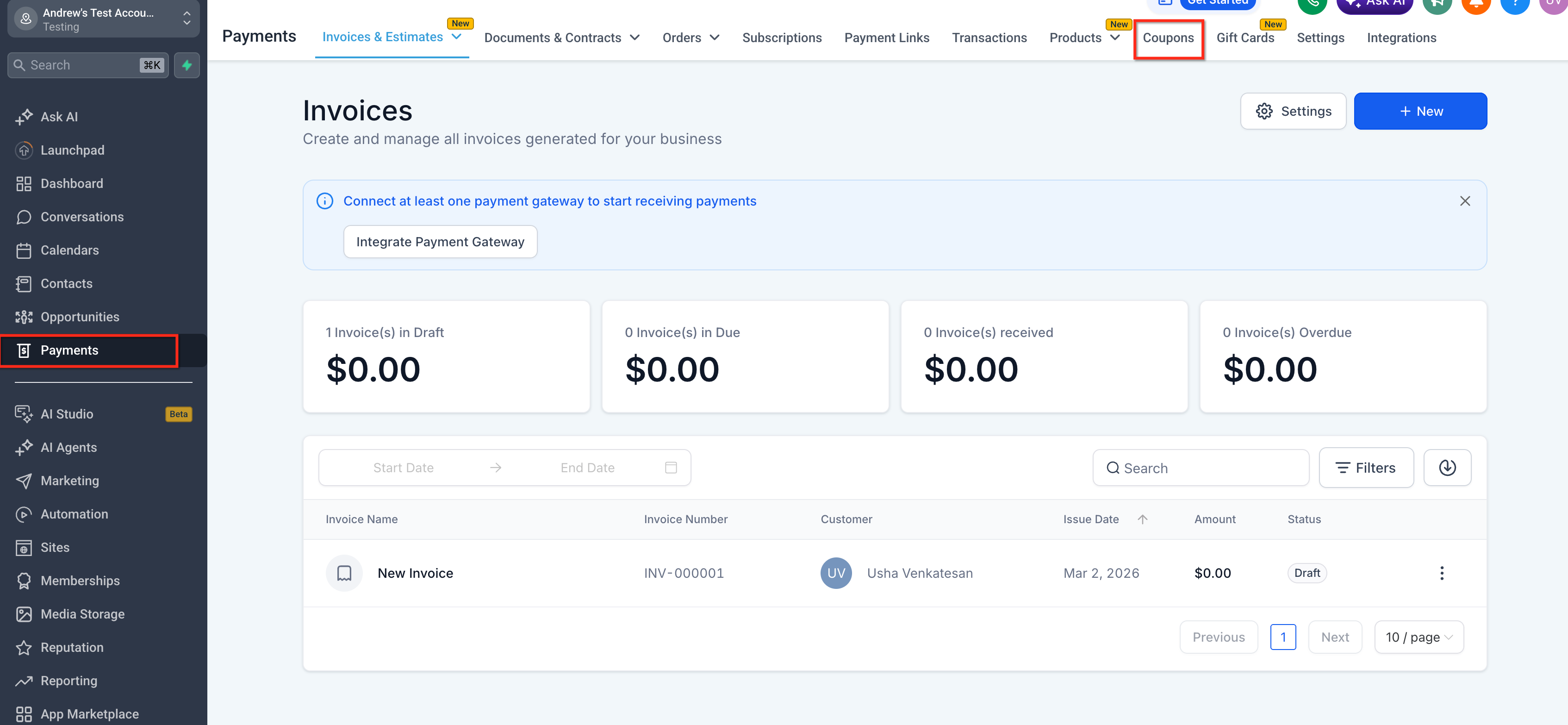
- Go to Payments. Click Coupons.
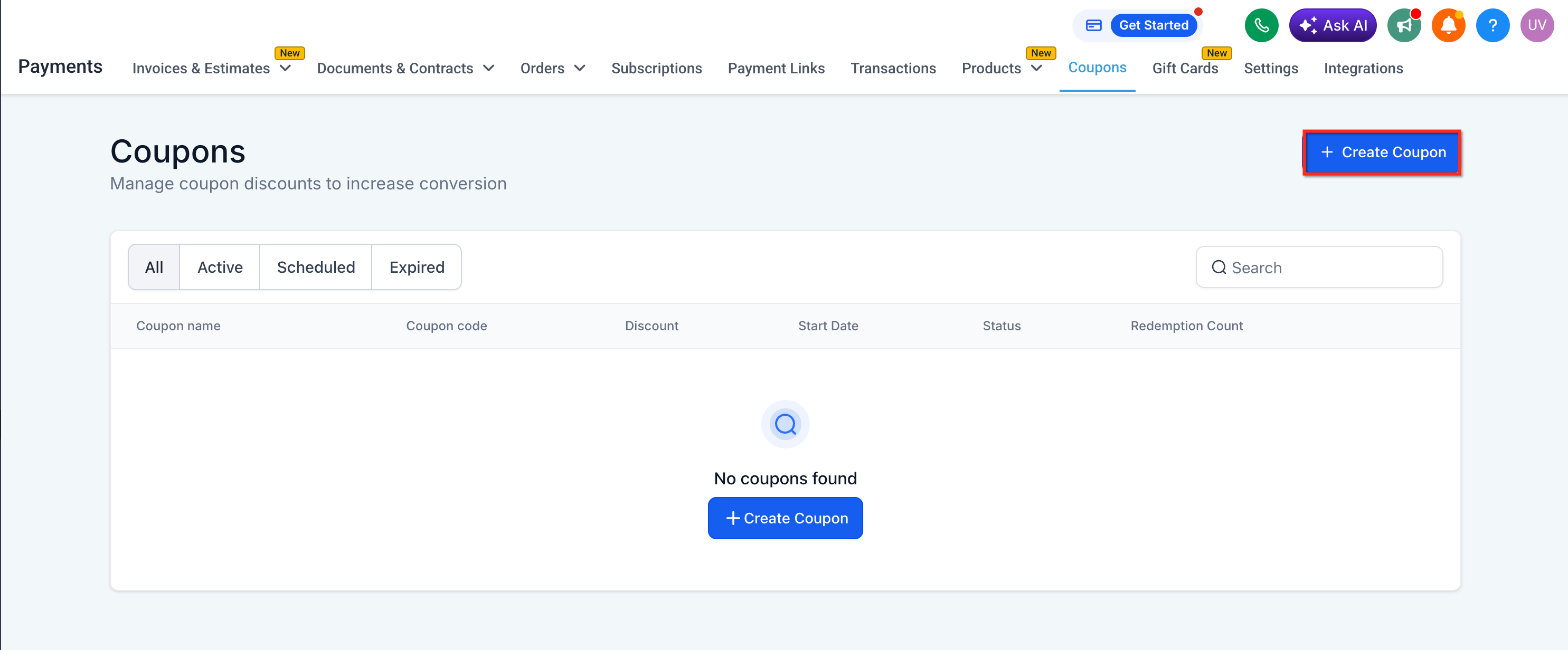
- Select Create Coupon to make a new coupon, or open an existing coupon and click Edit.
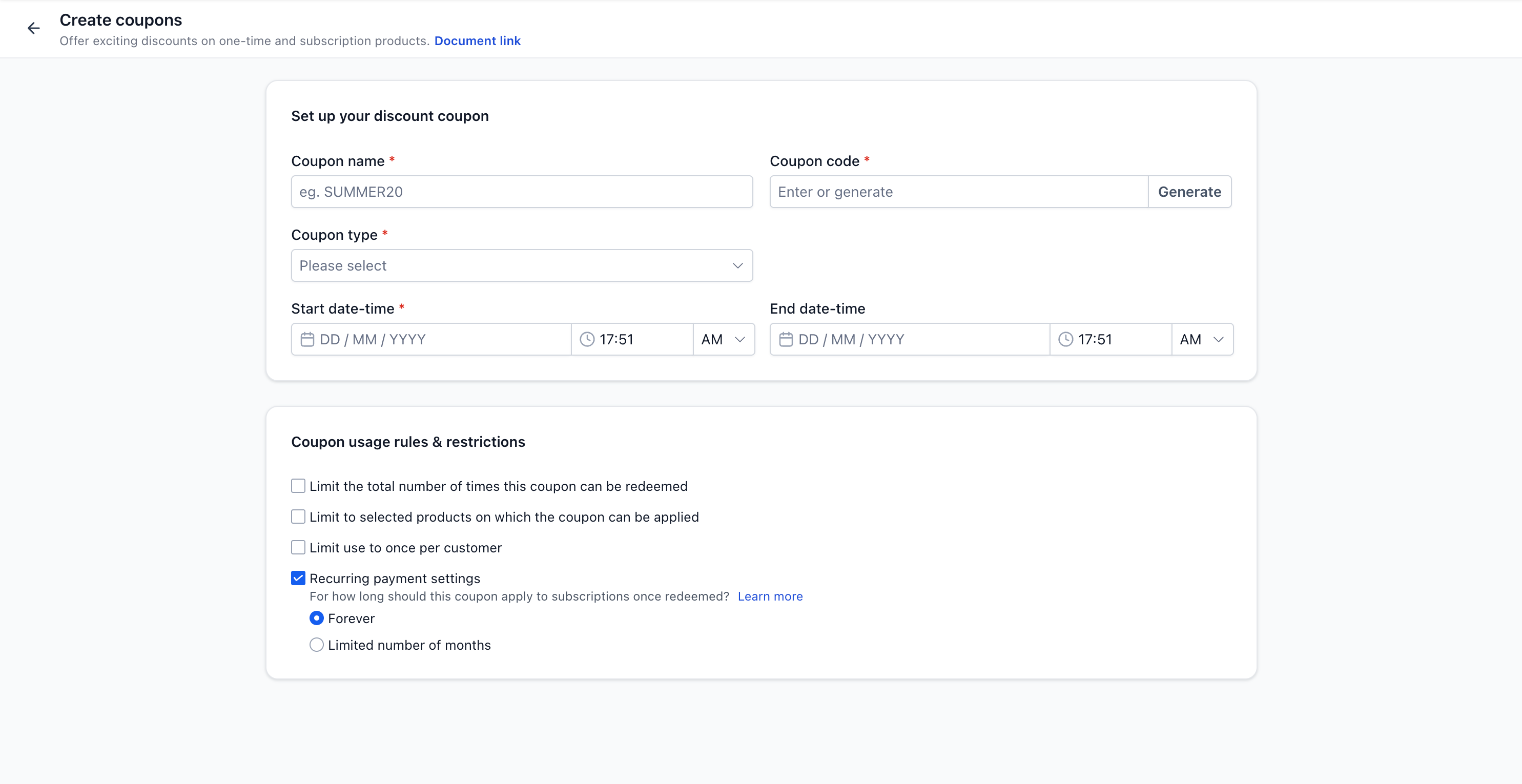
- Enter the coupon details, including the coupon code, discount type, and discount value.
- In the product selection area, choose the product you want the coupon to apply to.
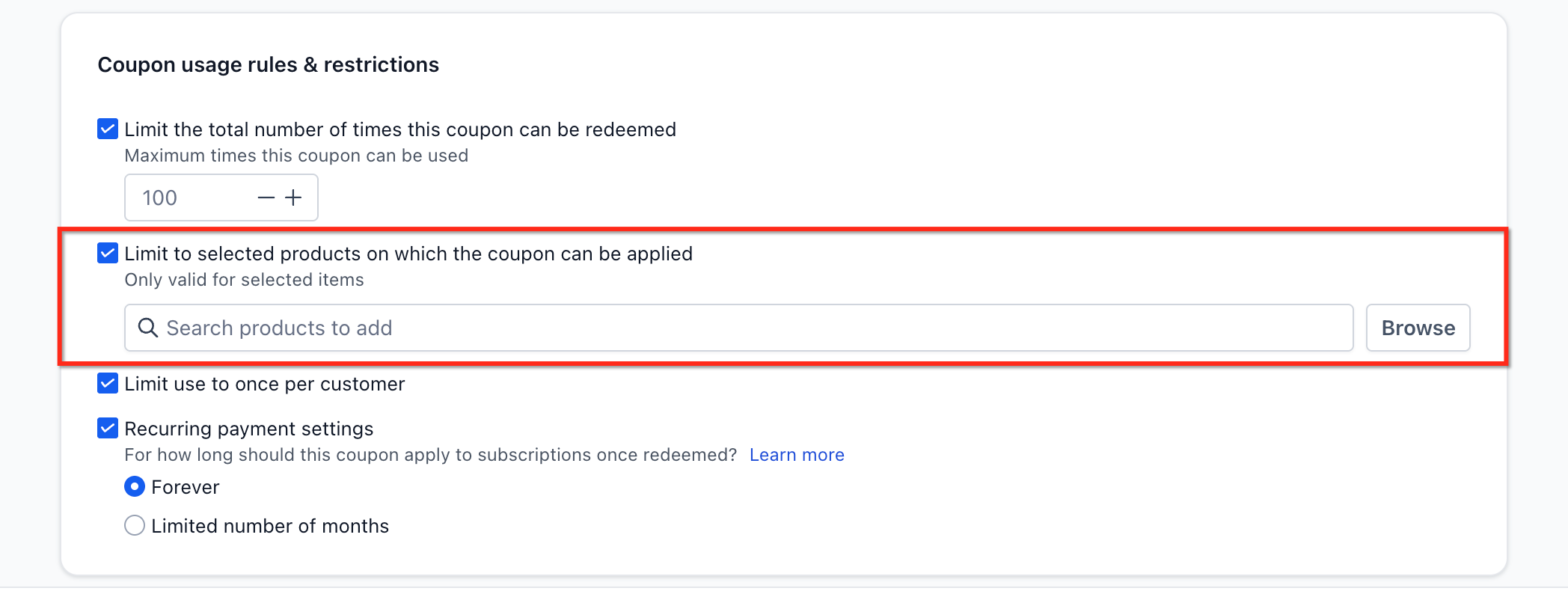
- Use the nested selection view to choose one of the following:
- the full product
- all prices or variants under the product
- specific prices
- specific variants
- the full product
- Save the coupon configuration.
- Test the coupon on the relevant checkout surface, such as a Funnel, Form, Ecommerce page, Payment Link, or Calendar booking page.
- If needed, go to Automation > Workflows and add a coupon-based trigger.
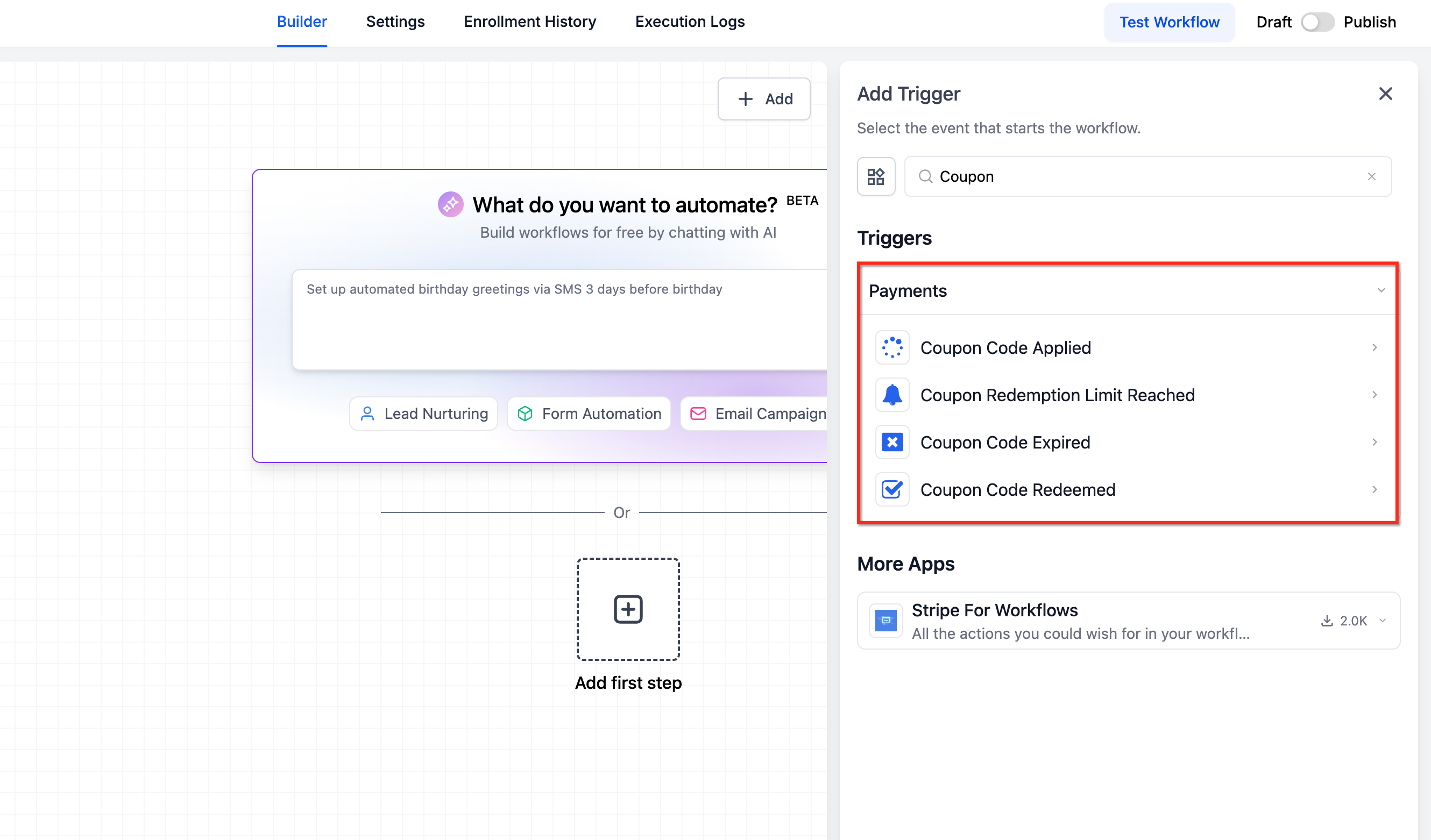
- Select the product first in the trigger filters, then choose the relevant price or variant filter.
Frequently Asked Questions
Q: Can I still apply a coupon to an entire product?
A: Yes. The existing product-level behavior is still supported, and you can continue applying coupons to the full product.
Q: What happens if I select the full product during coupon setup?
A: Selecting the full product includes all current prices or variants under that product, as well as future prices or variants added later.
Q: Can I apply one coupon to multiple prices or variants within the same product?
A: Yes. You can choose the specific prices or variants you want included when configuring the coupon.
Q: Why is my coupon not applying to another variant of the same product?
A: The coupon only applies to the prices or variants selected in the coupon configuration. If a different variant was chosen at checkout and it was not included, the coupon will not apply.
Q: Do existing subscriptions use the new coupon logic?
A: No. Existing subscriptions and past transactions continue using the older coupon logic for backward compatibility.
Q: What happens if I edit an existing coupon?
A: Updated coupons use the new configuration logic for future transactions.
Q: Why can’t I see the price or variant filter in my workflow trigger?
A: Price and variant filters are dependent filters. You must first select a product before those options become available.
Q: Which checkout surfaces support this updated coupon behavior?
A: Funnels, Forms, Ecommerce / Store, Payment Links, and Calendars all respect the updated coupon logic.
Related Articles
Was this article helpful?
That’s Great!
Thank you for your feedback
Sorry! We couldn't be helpful
Thank you for your feedback
Feedback sent
We appreciate your effort and will try to fix the article