SaaS Usage Limits lets Pro agencies control how much Voice AI and Conversation AI their SaaS clients use. Agencies can configure usage allowances, monitor consumption, and decide what happens when clients reach their limits. Sub-account admins can track usage and request additional capacity when a plan upgrade is unavailable.
Table of Contents
- What Is SaaS Usage Limits?
- Key Benefits of SaaS Usage Limits
- Prerequisites and Limitations
- How to Set Up SaaS Usage Limits
- Manage Client Limits and Requests
- View Usage and Request a Higher Limit
- Notifications
- Frequently Asked Questions
- Related Articles
What Is SaaS Usage Limits?
SaaS Usage Limits allows agencies to set monthly allowances for supported products and manage usage at the client level.
At launch, limits are available for Conversation AI (messages) and Voice AI (minutes) . Depending on the configuration and plan eligibility, reaching a limit can trigger an upgrade, additional usage billing, or a stop to further usage.
Key Benefits of SaaS Usage Limits
Agencies can manage client consumption without losing visibility into usage or additional-capacity requests.
- Control usage: Set included allowances and configure overage handling.
- Monitor clients: Identify accounts approaching or reaching their limits.
- Improve transparency: Give clients access to their current usage and reset dates.
- Manage requests: Review and respond to higher-limit requests directly in HighLevel.
Prerequisites and Limitations
Review availability, product support, and account permissions before configuring usage limits. These requirements determine which agencies can enable the feature and which clients can view or request more capacity.
- Availability: Pro agencies through HighLevel Labs (beta).
- Supported products: Conversation AI and Voice AI only.
- Permissions: Only sub-account admins can view their usage summary and submit higher-limit requests.
- Unsupported setup methods: Usage limits are not yet available in the Enable Rebilling flow or bulk actions.
- Notifications: Automatic usage-threshold alerts are not yet available.
How to Set Up SaaS Usage Limits
Configure included usage and overage rules through the SaaS Configurator. These settings determine what a SaaS plan includes and how additional usage is handled.
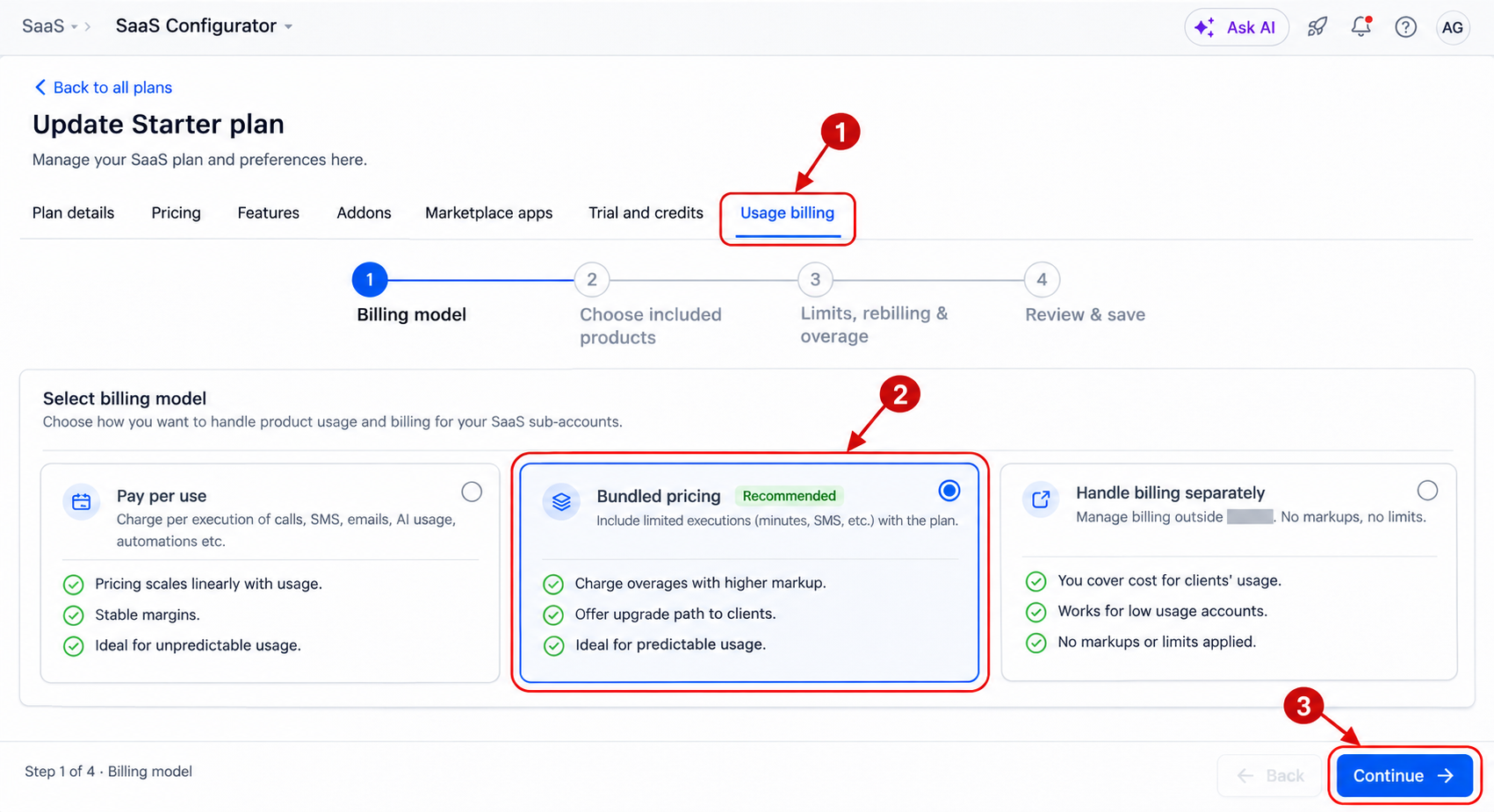
- From Agency View , open SaaS Configurator .
- Select the SaaS plan you want to create or edit.
- Open the Usage billing tab.
- Under Billing model , select Bundled pricing to include product allowances in the plan.
- Click Continue .
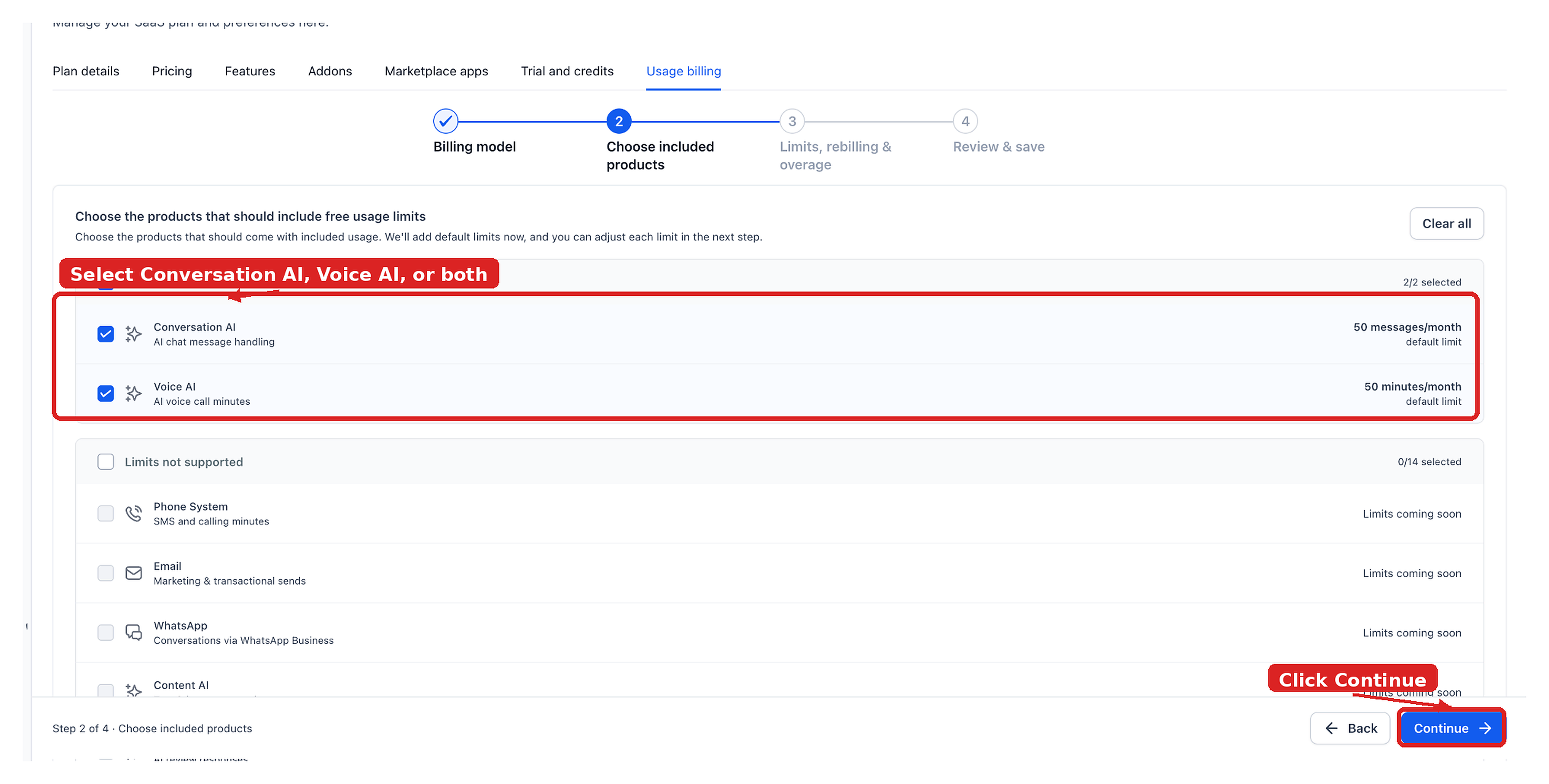
- Under Choose included products , select Conversation AI , Voice AI , or both.
- Click Continue .
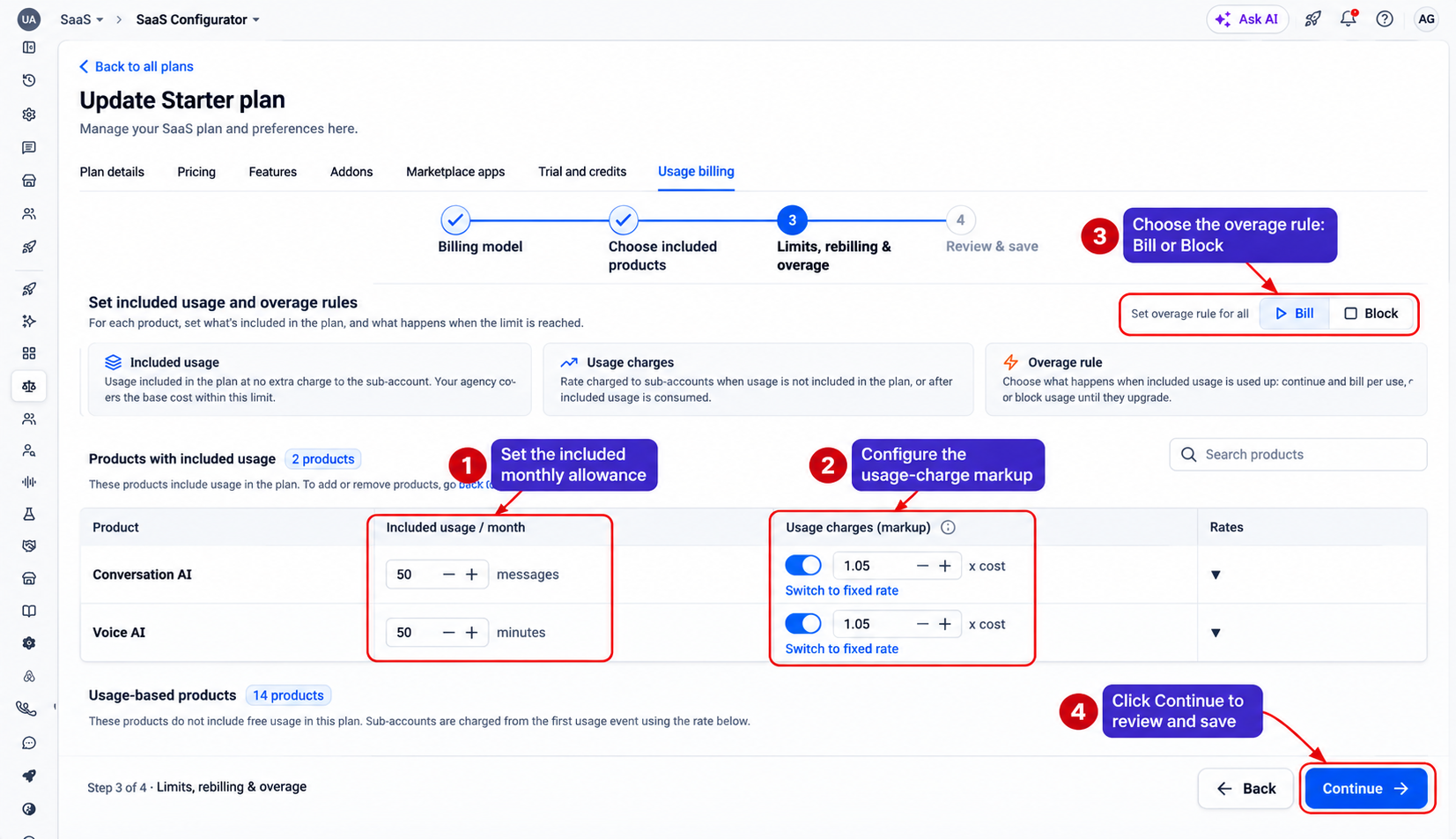
- Under Limits, rebilling & overage , set the included monthly allowance for each selected product.
- Configure the usage-charge markup and select the overage rule: Bill or Block .
- Click Continue , complete Review & save , and save the plan.
Note: Usage limits can also be configured during pre-card rebilling onboarding, after markup settings. These limits become active when the client adds a card and the subscription activates.
Manage Client Limits and Requests
Agencies can review client-specific usage settings and respond to requests for additional capacity. Reviewing the current configuration before making a change helps ensure that the new limit matches the client's needs.
- From Agency View , open Sub-Accounts .
- Select the client and open Manage Client .
- Click Usage Billing .
- Review the client's products, configured limits, and When a limit is reached setting.
- For a pending request, review the product and any note from the client.
- Enter the approved amount in New limit and click Approve . Alternatively, click Decline and provide a reason.
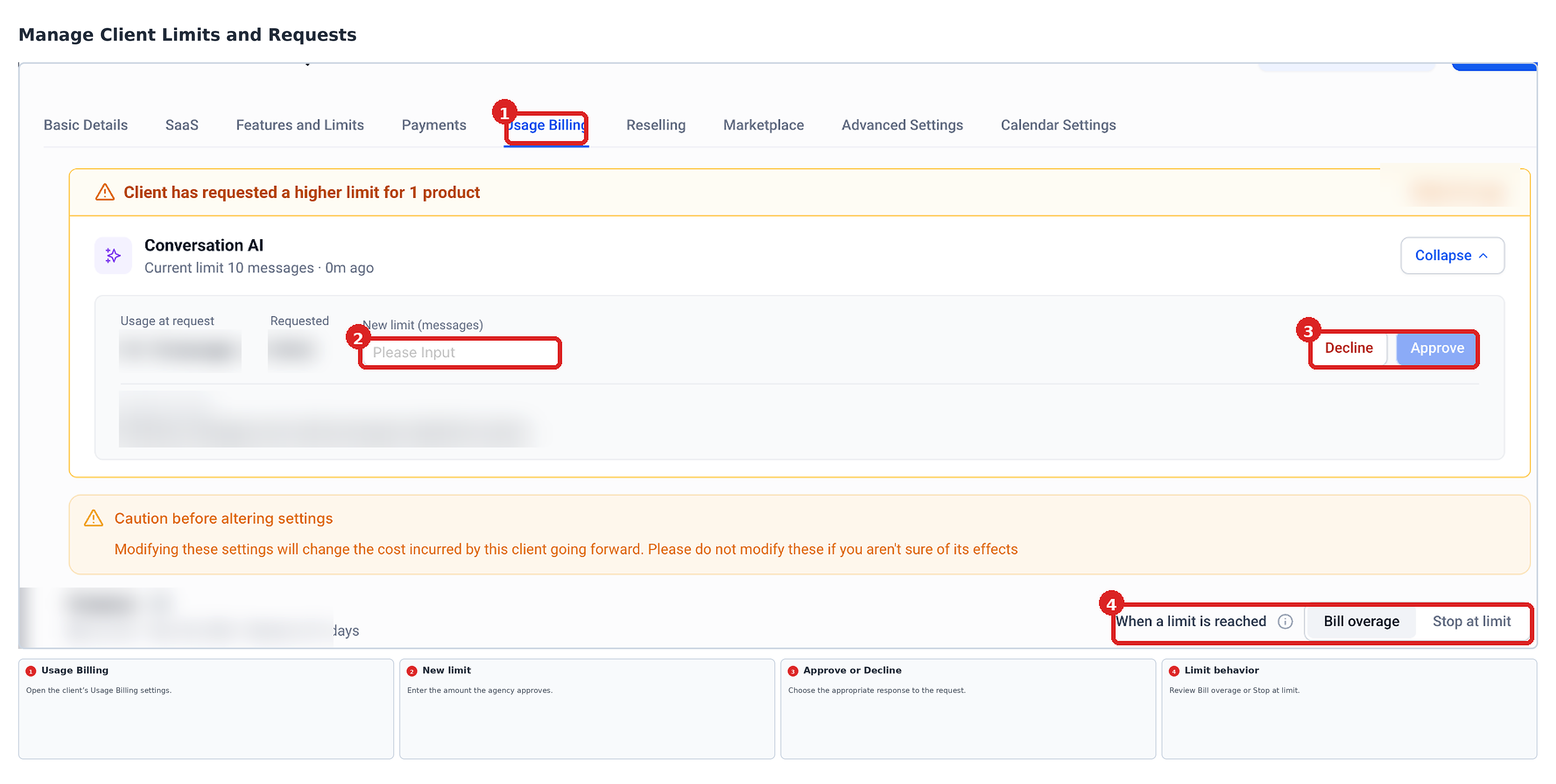
The agency chooses the final approved limit. An approved change takes effect immediately, and decided requests remain in the client's request history.
Agencies can also monitor accounts with configured limits and filter by product, usage threshold, or limit-reached handling.
View Usage and Request a Higher Limit
Sub-account admins can check their current usage and submit a request when they need additional capacity. Visibility into consumption and reset dates helps them decide whether to request a higher allowance.
View Usage
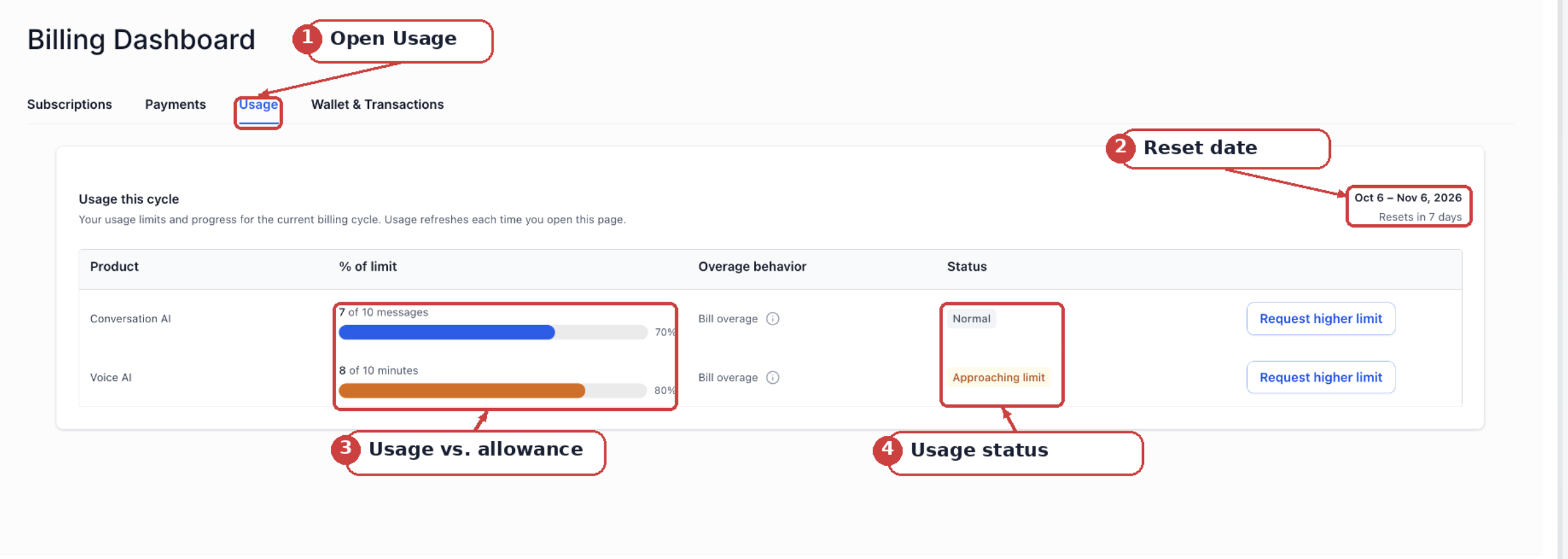
The Usage tab displays how much of each configured allowance has been consumed during the current billing cycle, along with the relevant status and reset date.
- From Sub-Account View , open Settings .
- Select Billing .
- Open the Usage tab.
- Review the Usage this cycle table.
The table shows current usage, percentage of the limit used, overage behavior, status, and billing-cycle reset date.
Usage status follows these thresholds:
- Normal: Under 80%.
- Approaching limit: 80–99%.
- Limit reached: 100% or more.
Request a Higher Limit
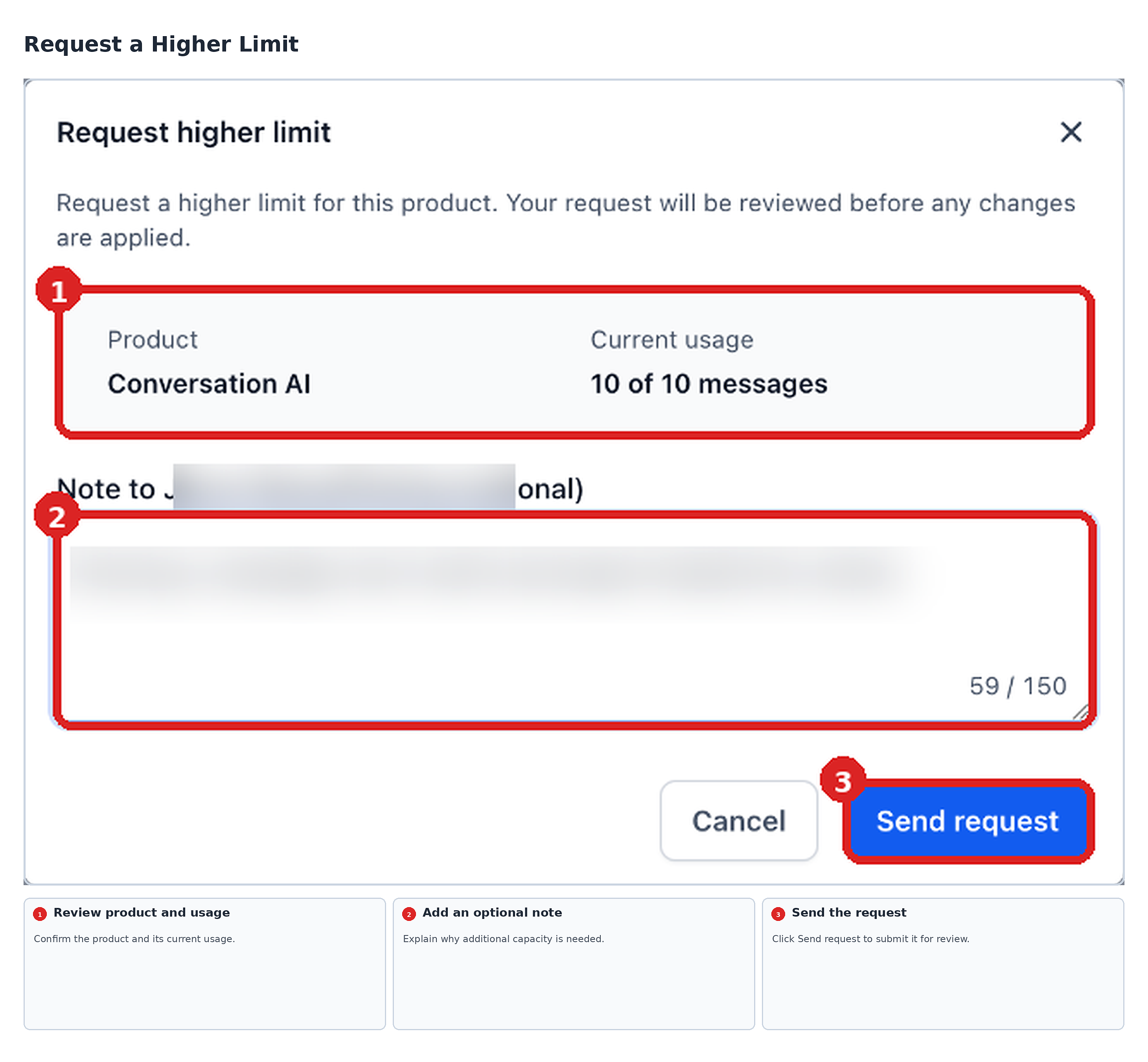
When an account cannot upgrade to a higher SaaS plan, a sub-account admin can request more capacity directly from the Usage tab. A request can be sent before the current allowance is exhausted.
- In the Usage tab, click Request higher limit beside the product.
- Review the product and current usage.
- Add an optional note explaining why additional capacity is needed.
- Click Send request .
Only one request per product can remain open at a time. The request can be submitted before the existing limit is reached.
When an eligible SaaS plan upgrade is available, the client sees the upgrade option instead of the higher-limit request option.
Notifications
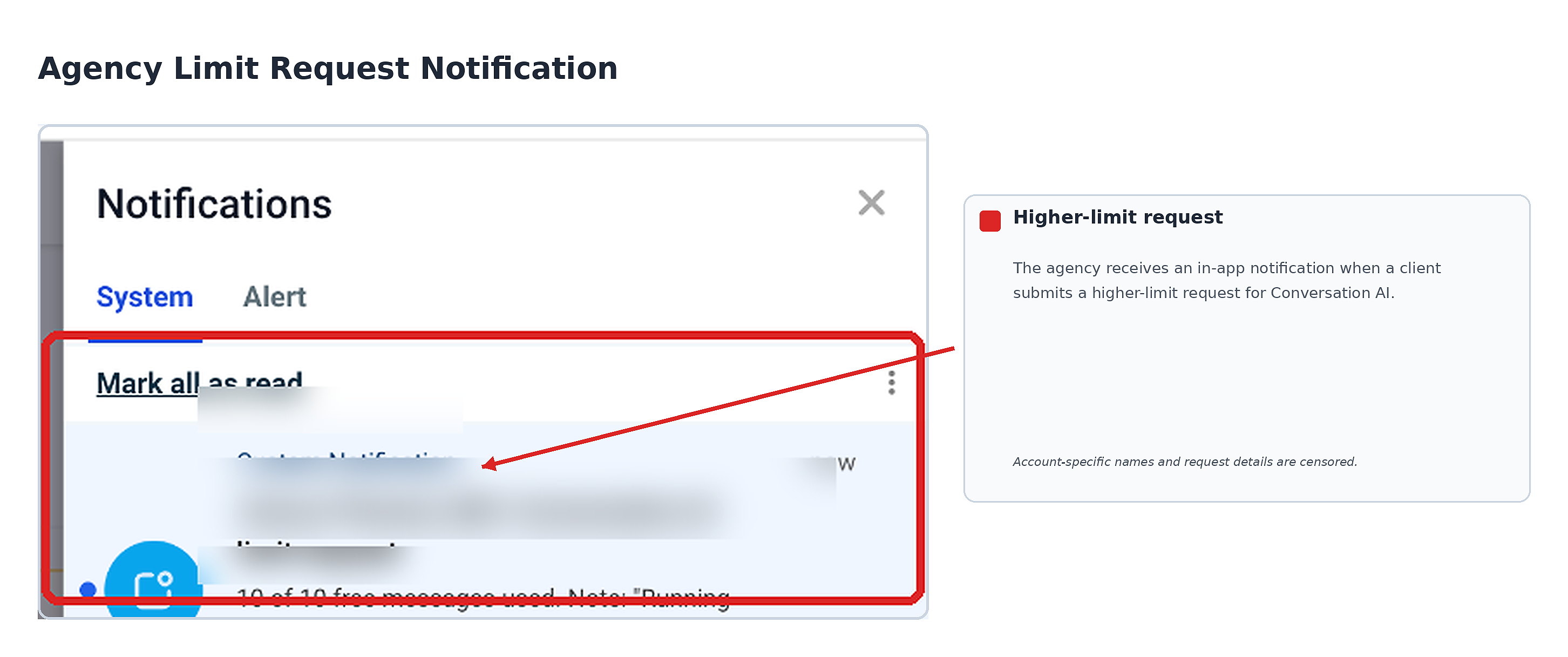
Limit changes and higher-limit requests generate in-app and email notifications . These updates keep agencies informed of client requests and help sub-account admins understand changes to their allowances.
- Agency: Notified when a client requests a higher limit.
- Sub-account admin: Notified when the agency increases, decreases, or removes a limit.
- Rejected request: The sub-account admin receives the agency's reason.
Approving a request sends the normal limit-change notification rather than a separate approval notification.
Frequently Asked Questions
Q: Does approving a higher-limit request change billing settings?
No. It changes the limit only. The existing overage handling and billing configuration remain unchanged.
Q: Will agencies receive alerts when a client reaches 80% usage?
Not yet. Automated percentage-based threshold notifications are planned but are not available in this release.
Q: Do products without configured limits appear in the client's usage summary?
No. Only products with configured limits appear.
Was this article helpful?
That’s Great!
Thank you for your feedback
Sorry! We couldn't be helpful
Thank you for your feedback
Feedback sent
We appreciate your effort and will try to fix the article